Juggling five different PDF files for one college assignment or client proposal gets messy fast. You attach the wrong version, misplace a page, or spend ten minutes digging through folders just to find the right file. Combining multiple PDFs into one document solves that mess by turning scattered pages into a single, organized file.
Merging simply means stacking several PDF files together, in whatever order you choose, so they read as one continuous document. This guide walks through exactly how to merge PDFs online for free using iLovePDFKit, a browser-based tool that needs no software installation or account sign-up. You’ll learn the four-step merge process, typical file and page limits, how to handle password-protected or mixed file types, and what keeps your documents safe along the way.
Let’s start with why combining PDFs matters so much for students, office teams, and freelancers alike.
Key Takeaways
- Merging multiple PDFs into one document takes just a few clicks, with no software install or account sign-up needed to get your finished file.
- File order matters, but you can drag and drop files into the right sequence before you click merge.
- Free tools handle everyday page and file limits with plenty of room for school and office projects.
- Encryption and no-file-storage policies protect sensitive documents like contracts and pay stubs during processing.
- iLovePDFKit merges PDFs without watermarks, paywalls, or daily task caps that other tools often impose.
Table of Contents
- Why Combine Multiple PDFs Into One Document?
- How to Merge PDFs Online in 4 Simple Steps
- What Are the File Size and Page Limits?
- Can You Merge Password-Protected or Mixed File Types?
- Is It Safe to Merge PDFs Online?
- Wrapping Up
- Frequently Asked Questions
Why Combine Multiple PDFs Into One Document?
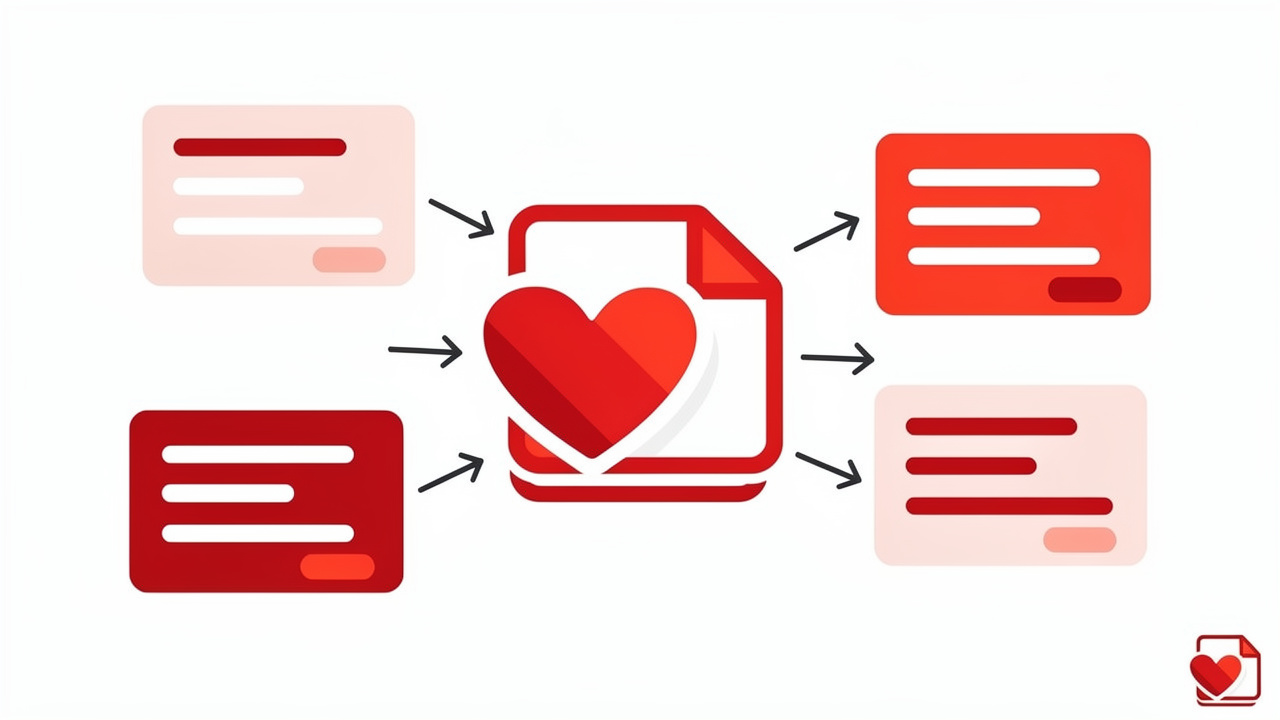
This same need drives enterprise software too, where developers use dedicated tools like the merge PDF documents feature in .NET libraries to combine files from disk and streams programmatically within business applications. Instead of five email attachments, your recipient gets one tidy file with every page in a logical order. One widely cited workplace study found employees spend close to 1.8 hours of each workday simply searching for documents and information, a cost that neatly merged files help cut down.
The real value shows up daily:
- Students combine research papers, cover sheets, and reference pages into one polished submission.
- Office staff merge weekly reports, receipts, and expense records into a single packet for managers.
- Freelancers bundle contracts, invoices, and project files into one client-ready document, skipping pricey document management software altogether.
How to Merge PDFs Online in 4 Simple Steps
merging multiple PDFs online follows four simple actions no matter which browser or device you use. iLovePDFKit’s Merge PDF tool strips the process down to upload, arrange, merge, and download, with no installation required at any point. The entire workflow runs inside your browser tab, whether you’re on a laptop at home, a shared computer in a school lab, or a phone between meetings. Because everything happens in real time, your combined file is usually ready within seconds of clicking merge.
Step 1: Upload Your Files
Start by opening the Merge PDF tool and clicking the “Select Files” button, or simply drag your documents into the upload window. Most browsers let you batch-select several files at once by holding Ctrl on Windows or Command on Mac while clicking each one. The tool works equally well on Chrome, Firefox, Safari, and Edge, so you can start this step on a desktop, tablet, or mobile browser without installing anything.
Step 2: Arrange Files in Order
Once your files appear in the upload list, drag and drop them into whatever order you want the final document to follow. The top file becomes the first pages of your combined PDF, with the rest following in sequence below it. Before merging, think through a logical structure, whether chronological, by topic, or by importance, so you don’t have to redo the process later.
Step 3: Merge and Preview
With your files arranged correctly, click the “Merge” button and let the tool combine everything into one PDF. Processing happens almost instantly, even with several files queued up at once. Many tools, including iLovePDFKit, offer a quick preview so you can confirm every page landed in the right spot before you finalize the download.
Step 4: Download Your Combined PDF
Once you’re satisfied with the preview, download your merged PDF directly to your device with one click. The tool adds no watermark to the finished file, and you never need to create an account or sign up to get your download. From here, you can attach the file to an email, upload it to a portal, or save it straight to cloud storage.
What Are the File Size and Page Limits?
Online PDF mergers typically cap file size and page counts to keep processing fast for every user on the platform. Many tools allow up to around 100 merge large PDF files, with a cumulative limit near 1,500 pages for the finished document. That covers nearly every academic or business scenario, from a ten-chapter thesis to a stack of client invoices.
- Individual file cap: most free tools limit each file to roughly 500 pages, which comfortably covers full contracts, theses, or scanned archives without trouble.
- Total document cap: a single merge typically tops out near 1,500 combined pages, enough for about 100 reasonably sized documents in one run.
- Workarounds for bigger jobs: projects that exceed these numbers can simply split into two merged files instead of one, with no loss of content.
The platform’s combine PDF files online doesn’t box you in with strict daily task caps, which matters for bigger jobs like legal exhibits or multi-chapter academic work that other free tools might throttle.
Can You Merge Password-Protected or Mixed File Types?
Yes, you can password-protected PDFs and mix different file types into one combined document, as long as you supply the correct password for each locked file first. Files you can’t unlock simply won’t be included in the final merged document, since the tool has no way to read content it can’t access. This keeps the process secure, since nobody can merge a file they don’t legitimately have rights to open.
Combining different file types is just as manageable. The tool’s Merge PDF feature supports pulling Word documents, Excel spreadsheets, PowerPoint slides, and merging JPG files into PDF alongside your existing PDFs. If you’d rather convert first, standalone tools like PDF to Word, Excel to PDF, or PPT to PDF handle that conversion before you merge everything into a single polished document.
Is It Safe to Merge PDFs Online?
Merging PDFs online is safe when the tool uses strong encryption and avoids storing your files after processing finishes. adobe acrobat alternative with 256-bit SSL/TLS encryption during upload and download, the same standard many banks and healthcare portals rely on for data in transit. The platform processes files automatically in real time, so no staff member ever opens or reviews your documents during the merge. That automation removes much of the human risk tied to manual file handling.
Your files also don’t linger on any server. Both original and merged files get deleted shortly after processing, typically within about two hours, leaving nothing behind to worry about. This no-storage approach makes it reasonable to merge contracts, pay stubs, or academic records without the privacy concerns tied to permanent cloud storage.
“Security is a process, not a product.” — Bruce Schneier, security technologist and author
Wrapping Up
Combining multiple PDFs into one document no longer requires special software, a paid subscription, or any technical skill. The four-step process, upload, arrange, merge, download, works the same whether you’re on a laptop, a school computer, or a phone browser, and takes less time than finding your files in the first place.
iLovePDFKit keeps that process unlimited, secure, and pixel-perfect, with no watermarks, no forced sign-ups, and no daily task caps standing between you and your finished file. The next time you’re staring down a stack of reports, assignments, or a client packet that needs to become one clean document, merge PDF files free a try and see how fast it wraps up.
Frequently Asked Questions
Merging PDFs online raises a handful of common questions, especially around file limits, quality, and account requirements. Below are quick, direct answers covering what students, office professionals, and freelancers most often want to know before combining multiple PDFs into one document.
How Many PDFs Can I Combine Into One File?
Most merge PDF online free allow around 100 files per merge and roughly 1,500 total pages, covering nearly every academic or office need. Tools without strict daily task caps give extra room for bigger projects like legal exhibits or long academic documents.
Will Merging PDFs Reduce the Quality of My Documents?
Merging doesn’t reduce quality when done through a proper tool. A well-built merger preserves original resolution, fonts, and layout without compressing text or images, so your combined PDF looks identical to the source files, with pixel-perfect accuracy carried through every merge.
Can I Remove or Reorder Pages After Merging?
Yes. Most tools let you delete, rearrange PDF pages after merging, so you don’t have to redo the whole process. This comes in handy when you spot a misplaced page or want to drop a cover sheet before sharing the final file.
Do I Need to Create an Account to Merge PDFs?
merge PDF without signup. You can upload, merge, and download your combined PDF in one visit, with no email, password, or profile needed. The entire process, from upload to final file, takes less than a minute for most documents.
How Long Are My Files Stored After Merging?
Under a strict no-file-storage policy, uploaded and merged files get deleted shortly after processing, typically within about two hours. Nothing sits on a server long-term, which keeps sensitive paperwork like contracts or pay stubs reasonably protected during the brief window needed to complete your merge.
Can I Merge Scanned PDF Pages With Regular Text Documents?
Yes, merge scanned PDF files can sit in the same merged PDF without issue. If the scanned pages need to become searchable, running OCR, short for optical character recognition, before or after merging turns those images into selectable, searchable text.
