You’ve got a folder full of JPG photos, scanned pages, or screenshots and no clean way to send them as one document. Maybe it’s ten photographed homework pages, a stack of receipts, or product shots for a client report sitting in random order. Emailing them one by one is slow, easy to mess up, and looks scattered next to a single organized file.
That’s exactly the problem you solve when you convert multiple JPG files to PDF. This process takes any number of separate images and merges them into one document, page by page, that opens the same way on every device and screen. This guide walks through the exact steps to combine your JPGs using free browser tools like iLovePDFKit’s JPG to PDF converter, plus how to handle large batches, protect image quality, and keep your files private.
Let’s start with the step-by-step process itself.
Key Takeaways
Converting multiple JPGs into one PDF simplifies sharing and gives your documents a more professional, organized look for school, work, or clients.
Free browser tools let you complete the conversion without installing any software or creating an account first.
You can reorder, rotate, and adjust your images before you finalize the PDF, so the layout comes out exactly how you want.
Large batches of photos are easy to handle by converting in smaller groups first, then merging the resulting files together.
Reputable conversion tools delete your uploaded files automatically after processing, which keeps sensitive scans private.
Table of Contents
- How Do I Convert Multiple JPG Files to PDF Online?
- What Do I Do If I Have More Than 20 JPGs to Convert?
- Will Converting JPGs to PDF Affect Image Quality or Formatting?
- Is It Safe to Convert JPGs to PDF Online?
- What Can I Do With My PDF After Converting?
- The Takeaway
- Frequently Asked Questions
How Do I Convert Multiple JPG Files to PDF Online?
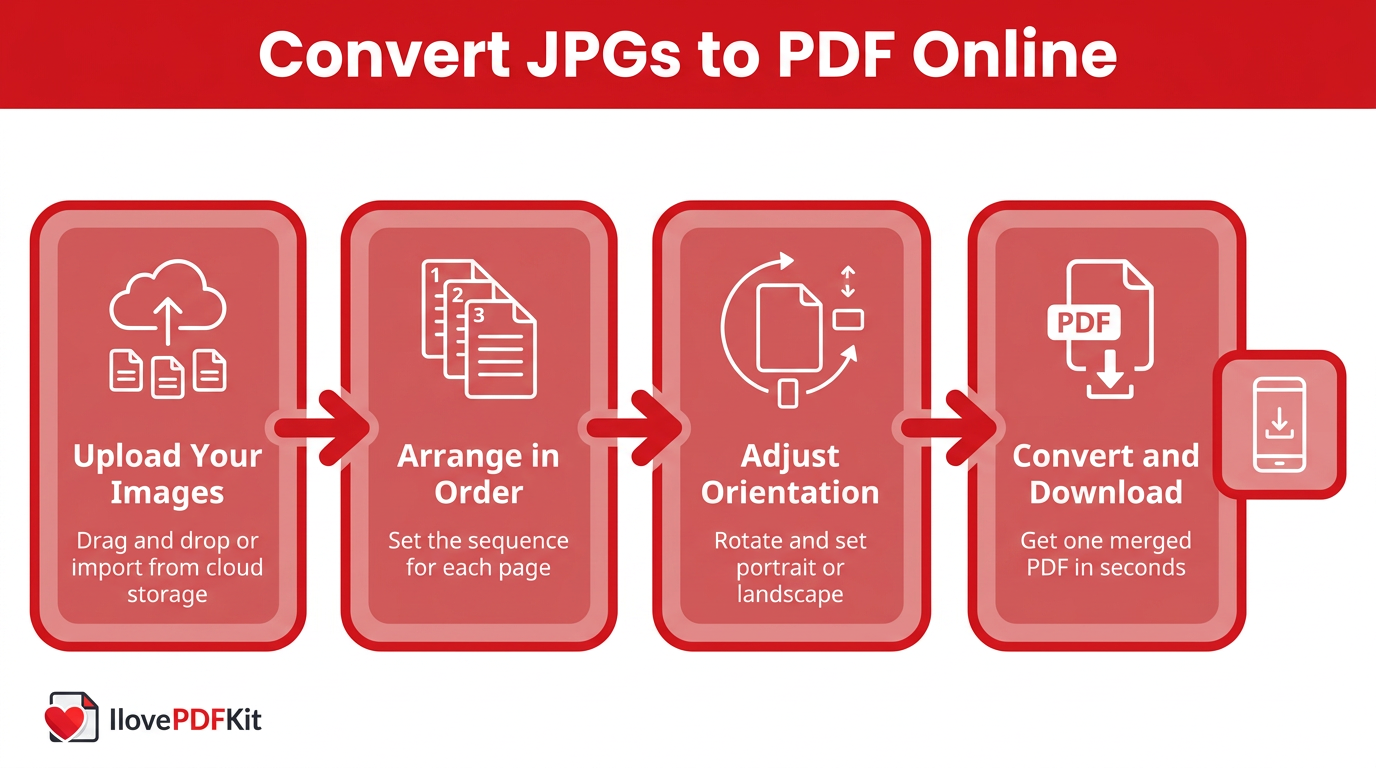
You convert multiple JPG files to PDF online by uploading your images to a browser-based tool, arranging them in order, and downloading the merged document within seconds. This process works the same way across most free converters and needs nothing more than a web browser and an internet connection. No software installation, no design skills, and no account registration are required to turn a folder of scattered photos into one polished document. The steps below break down exactly what happens at each stage, from the first upload to the final download.
Step 1: Upload Your JPG Images
Getting your images into the converter takes only a moment once you find the tool. Drag and drop your JPG files directly into the upload window, or click to browse your device and select them by hand. If your photos live somewhere else, most tools also let you pull files straight from Google Drive, Dropbox, or OneDrive. There’s no need to move everything into one folder first.
Step 2: Arrange Your Images in Order
Image order matters because each JPG becomes a single page in your finished PDF, following the sequence you set. The first image you upload becomes page one, the second becomes page two, and so on through the batch. Before converting, look for a thumbnail view of your photos and drag any out-of-place images into the right spot. This small check saves you from redoing the file later.
Step 3: Adjust Orientation and Settings (Optional)
Not every photo comes out perfectly straight, so most converters let you rotate individual images before finalizing your file. You can flip a sideways JPG with a single click instead of retaking the picture. Beyond rotation, look for options to set the page as portrait or landscape and adjust the margins around each image. These small touches give your finished PDF a cleaner, more consistent look.
Step 4: Convert and Download
Once your images are uploaded, ordered, and adjusted, click convert and let the tool handle the rest. Processing usually takes just a few seconds, even for a full batch of photos, and the result is one combined PDF ready to save. iLovePDFKit delivers this file with no watermark stamped across your pages and no account sign-up required to finish. You simply grab your finished document and get back to work.
Converting on Your Phone
The process barely changes when you switch from a computer to a phone or tablet. Open the converter in your mobile browser and choose images directly from your phone’s photo gallery instead of pulling files from a desktop folder. This works well if you photograph homework pages, receipts, or forms on the go and want a shareable PDF right away. There’s no app to download, just your browser and your camera roll.
What Do I Do If I Have More Than 20 JPGs to Convert?
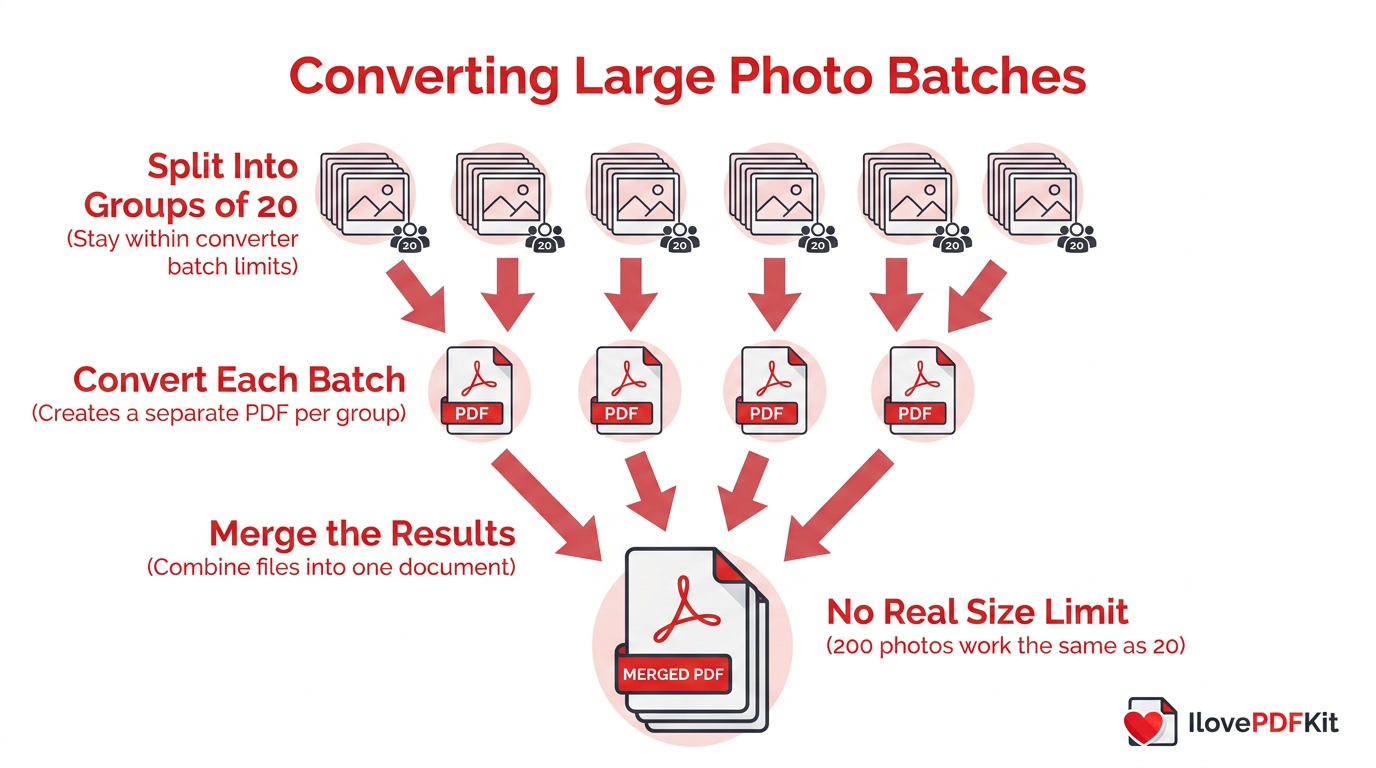
Many free converters cap how many images you can process in one sitting, often around 20 files per batch, to keep their servers running smoothly for everyone. This limit can feel frustrating when you’re trying to convert multiple JPG files to PDF for a research portfolio, a long scanned contract, or hundreds of product photos at once. The good news is that a batch cap doesn’t mean a hard ceiling on your total project size. It just means splitting the work into a couple of extra steps, which still finishes in only a few minutes.
Convert in Batches, Then Merge
Start by uploading and converting your JPGs in groups of 20 or fewer, creating a separate PDF for each batch you process. Once you have two or more resulting files, open a PDF merge tool and combine them into one complete document in the order you need. This two-step method removes any real limit on how many images you can eventually consolidate. A project with 200 photos works exactly the same as one with 20, just with an extra merge step at the end.
Will Converting JPGs to PDF Affect Image Quality or Formatting?
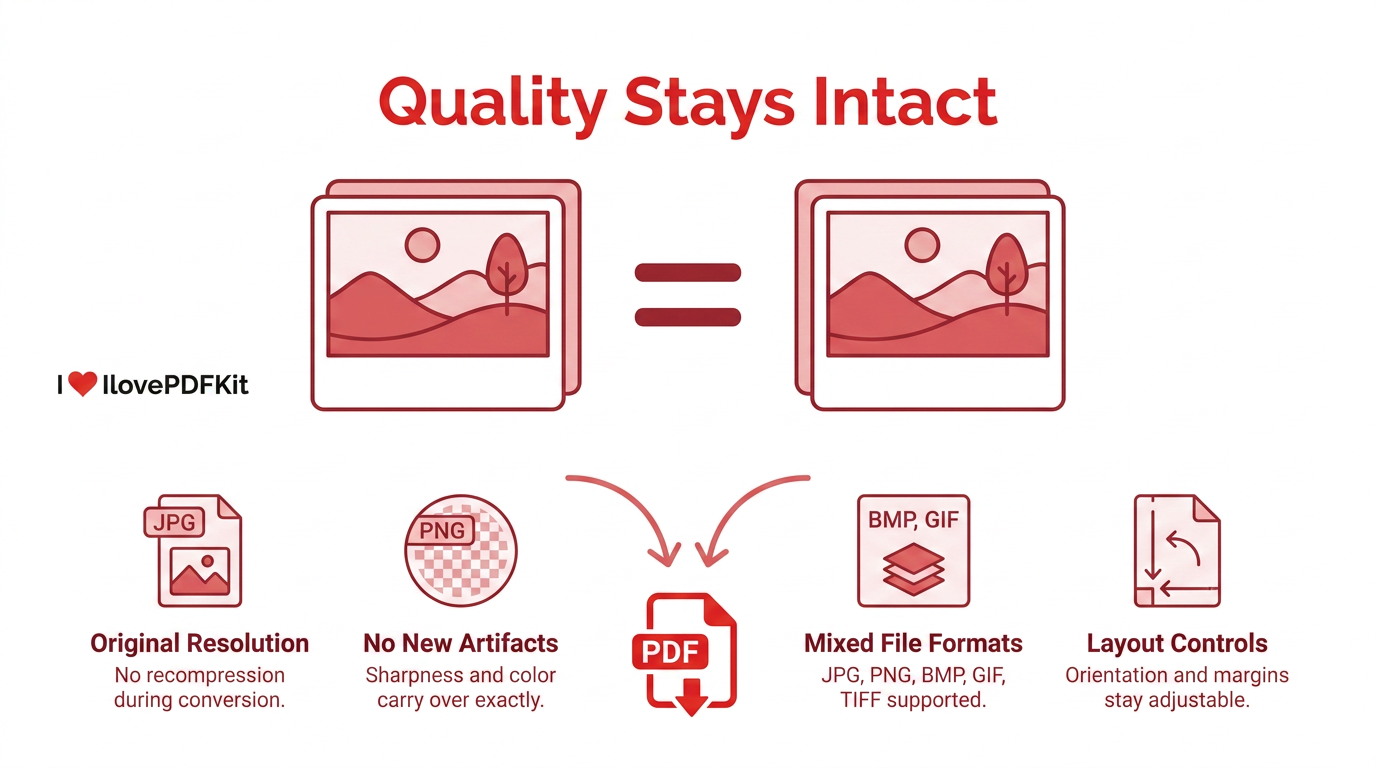
Converting multiple JPG files to PDF should not affect image quality or formatting when you use a reliable tool, because a good converter simply places each photo onto its own page without recompressing it. Resolution, color, and sharpness carry over exactly as they appeared in your original file. You won’t see new artifacts, blurring, or banding introduced during the process, since the conversion only repackages the image rather than altering its pixel data.
Formatting flexibility extends beyond JPG files too, since most converters also accept PNG, BMP, GIF, and TIFF images in the same batch. That means you can mix photos from different apps, scanners, or devices into a single document without converting each file type separately first. Orientation and margin settings, covered in the steps above, give you further control over the final layout. Together, these features produce a document that looks as sharp as the source material.
Is It Safe to Convert JPGs to PDF Online?
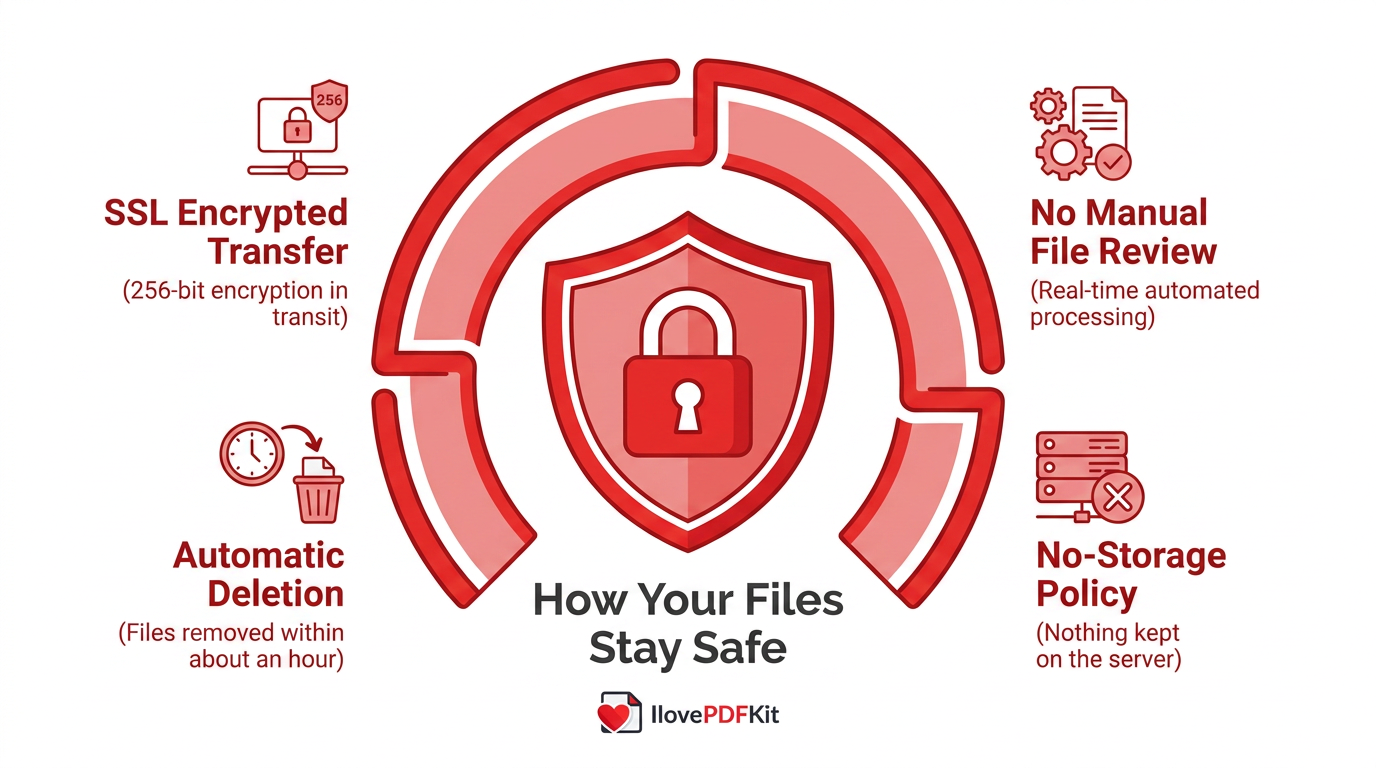
Converting multiple JPG files to PDF online is safe when you use a reputable tool that encrypts your files in transit and limits how long it keeps your data. Established converters transmit uploads over secure, encrypted connections, so the images traveling between your device and the server can’t be easily intercepted. Once the conversion finishes, trustworthy platforms delete both your original files and the resulting PDF from their servers, usually within about an hour, a habit information security experts like Bruce Schneier have long encouraged as good practice.
“The safest data is the data you never store” — a principle behind modern data privacy design.
The tool follows this same principle with SSL-encrypted connections built on 256-bit encryption aligned with recommendations from the National Institute of Standards and Technology, real-time processing with no manual staff review of your files, and a strict no-storage policy that removes both original and converted files shortly after use. For everyday scans, receipts, or class assignments, this level of protection is more than enough, though sensitive material like financial records still deserves extra caution on shared devices.
What Can I Do With My PDF After Converting?
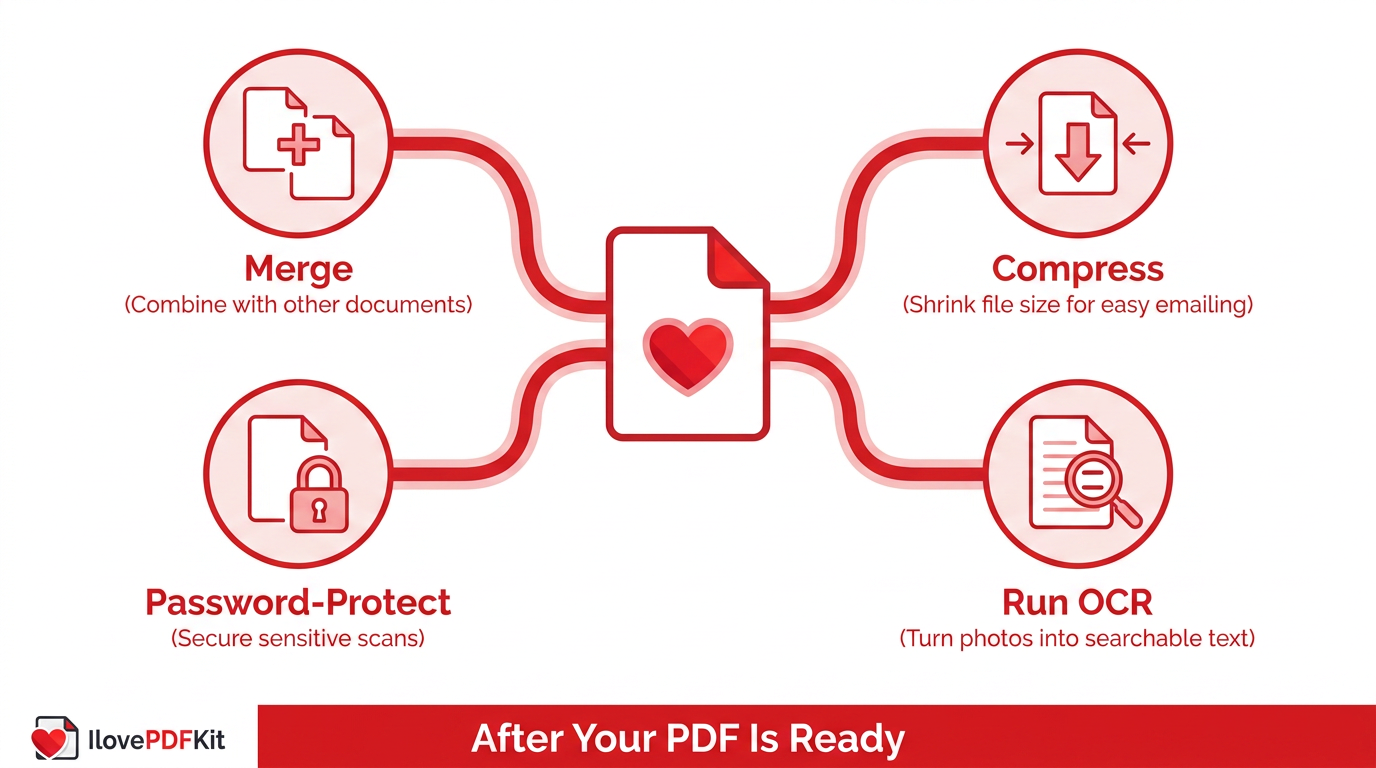
Your options don’t end once you’ve combined your images into one file, since most conversion platforms include tools to keep refining that same PDF. You can merge it with other existing documents, compress it down for easier emailing, or reorganize and rotate pages if something looks off. These follow-up tools turn a single conversion into part of a longer document workflow instead of a one-time task.
Merge your new PDF with other existing documents, such as a cover page or supplementary report, to build one complete file.
Compress the file size so it’s easier to email or upload without hitting attachment limits.
Password-protect sensitive scans like IDs, contracts, or financial records from unwanted access.
Run OCR (short for optical character recognition) on scanned text-heavy images, a feature the platform includes, to turn static photos into searchable, editable text.
Each of these steps happens in the same browser, without switching between different programs or paying for separate software. That makes it easy to go from a folder of loose photos to a finished, secure document in one sitting.
The Takeaway
Converting multiple JPG files to PDF turns a batch of scattered photos into one organized, professional document you can share instantly with a teacher, client, or coworker. The steps stay the same whether you’re uploading ten scanned homework pages or two hundred product photos: upload, arrange, adjust, and download. Handling image quality, large batches, and file safety no longer requires any technical background or paid software.
iLovePDFKit brings this entire process into one free browser tool, with no installation, no registration, and a no-storage policy that keeps your files private. The next time you’re staring at a folder of loose images, give the JPG to PDF converter a try and see how quickly it turns into one clean document.
Frequently Asked Questions
Can I Convert JPGs to PDF Without Creating an Account?
Yes, most online converters let you combine JPGs into a PDF with no account or sign-up needed. You upload your images, arrange them, and download the finished file right away. This keeps one-off conversions fast, since there’s no setup before you start.
Can I Mix JPGs With Other Image Types Like PNG in the Same PDF?
Yes, many converters accept PNG, BMP, GIF, and TIFF files alongside JPGs in the same PDF. This is useful when your source images come from different apps, scanners, or devices that save in varying formats. You don’t need to convert each file type separately before combining them.
What Happens if I Need to Add More Images After Creating the PDF?
You don’t have to start over from scratch. Convert the new JPGs into a separate PDF, then use a merge tool to combine it with your original document. This adds the new pages to your existing file without redoing the whole conversion.
Does Converting JPGs to PDF Add a Watermark to My Document?
No, quality free tools don’t stamp watermarks across your converted pages. Some competing services limit their free plans by adding branding or restricting features, but a well-built converter delivers a clean, ready-to-share file every time.
Can I Password-Protect My PDF After Combining the Images?
Yes, once your images are combined into one PDF, you can run it through a separate password-protection tool. This step is especially useful for sensitive scans like IDs, signed contracts, or financial records you don’t want others to open freely.
How Long Are My Uploaded Files Stored Before Deletion?
Reputable services delete uploaded files and converted documents shortly after processing, often within about an hour. This usually relies on real-time processing with no manual file review and a no-storage policy, so your images and PDF aren’t left sitting on a server once your download finishes.
