Introduction
Anyone who works with reports or assignments has lived through this. You upload a clean, well‑spaced PDF to a converter, open the Word file, and everything looks wrong. Headings jump to new pages, tables fall apart, and your once polished document now needs an hour of fixing. So here is the Convert PDF to Word Without Losing Formatting: The Free 2026 Guide
This happens because a PDF and a Word file play by different rules. A PDF freezes every line, image, and table in a fixed position, like ink on paper. Word, on the other hand, is flexible, so text can move when settings change.
In this guide, I will show how to convert PDF to Word without losing formatting using only free tools. I will focus on iLovePDFKit, a browser‑based converter that keeps layouts, fonts, and images close to the original with no installation and no sign‑up. By the end, you will know which method to pick, how to avoid messy conversions, and how to get a clean Word file in just a few clicks.
I write and edit documents every day, so I have tested the same tools people rely on. Here I share what actually works for real‑world files, without asking for a credit card. I have seen the failures too.
Key Takeaways
If time is short, these quick points give the main ideas from this guide.
PDFs freeze every element in place. Word lets text move and reflow. That gap, plus scanned PDFs that act like images, causes most formatting issues.
iLovePDFKit converts PDF to Word for free in any browser. No account or download is required. It aims to keep layouts, fonts, tables, and pictures almost identical.
Word and Google Docs help with plain text files. They often change complex designs. Simple checks before and after conversion can still cut down repair time.
Why Formatting Gets Lost When You Convert PDF To Word
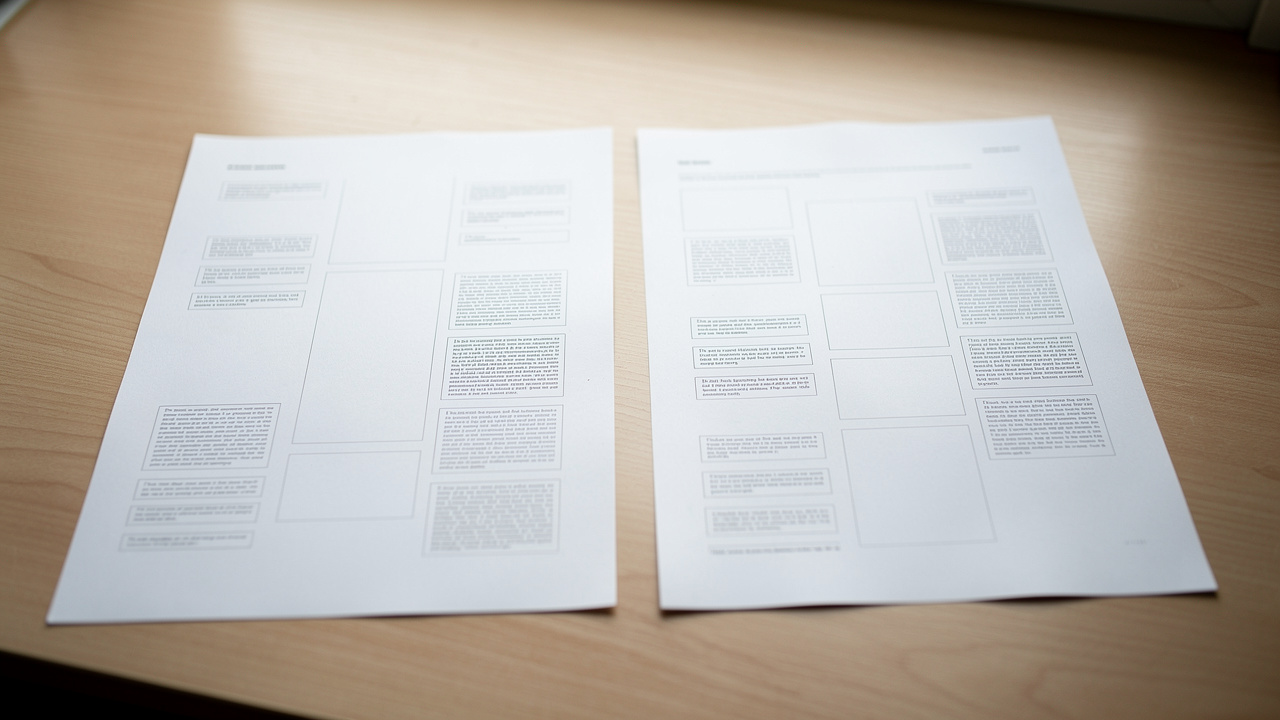
To fix formatting problems, it helps to understand what the converter is trying to do. A PDF works like a photo of a page, where every word and image sits at set coordinates. A Word document is more like a text file, ready to stretch, shrink, or wrap around new content.
“Think of a PDF as a snapshot of your page and a Word file as a living document that keeps rearranging itself.”
When a tool converts your file, it has to guess where paragraphs begin and end, how tables were built, and which fonts should appear. That guesswork is where things start to slip. Even a small change in font size or spacing can push elements onto the next line or page.
Most people see the same problems:
Fonts often change during conversion. That happens when a font is missing. Spacing shifts, and titles may wrap badly.
Paragraphs can break into separate pieces. The tool may think each wrapped line is new. You end up with tiny text boxes.
Tables and columns lose alignment. Merged cells confuse the converter. Numbers and labels can slide into the wrong place.
Images may move or shrink. They sometimes drift away from the text they explain. In bad cases, pictures even disappear.
Headers and footers can vanish. The converter does not always see them as special areas. Page numbers and dates then go missing.
Scanned PDFs make things even harder, because the file is only a picture and needs OCR (Optical Character Recognition) to read text. Digital PDFs with selectable text usually keep their layout better.
Not sure which type you have? Try selecting some text:
If you can highlight individual words, it is a digital PDF.
If the whole page selects like a photo, it is a scan and needs OCR.
That is why picking the right converter for your file type matters.
The Best Free Methods To Convert PDF To Word Without Losing Formatting
When I test converters, I care about one thing first, which is how close the Word file looks to the original PDF. Cost, speed, and extra features come after that. The good news is that you do not need paid software to get strong results, as long as you pick the right method for your document — tools like Free PDF to Word from Nitro are among the options worth knowing about.
I usually reach for two free paths, depending on how complex the file looks:
For heavy layouts with tables, images, or multi‑column text, I go straight to iLovePDFKit.
For plain reading copies or quick edits, built‑in tools like Microsoft Word or Google Docs can be enough.
Let me walk through these options so you can match each file to the method that will protect its formatting best. In every case, the goal is to convert PDF to Word without losing formatting while keeping the process fast and free.
Method 1 — Use iLovePDFKit For Pixel-Perfect Free Conversion (Recommended)
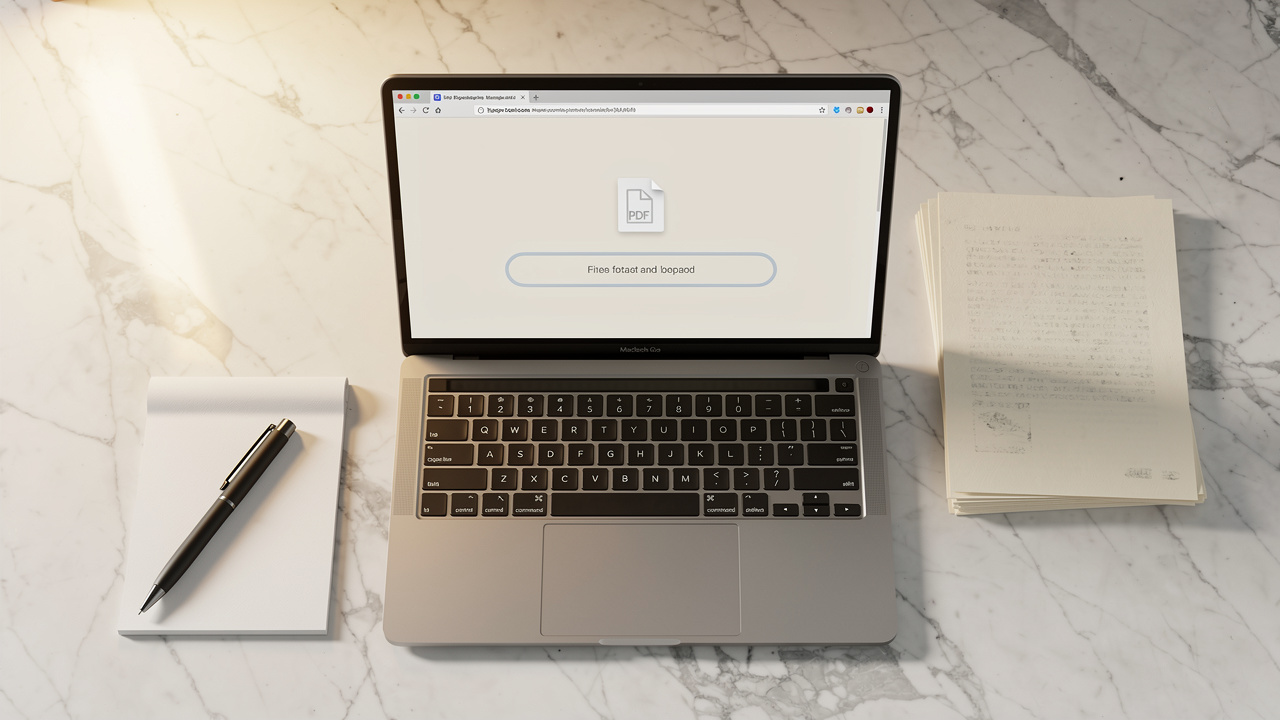
For serious work, iLovePDFKit is the tool I trust most. It runs inside any modern browser and charges nothing, and it also skips the usual sign‑up wall. The stand‑out part is how closely the Word file matches the PDF, with fonts, spacing, and images lining up almost exactly where they began.
“The closer your converted file is to the original, the more time you save. Good formatting is a quiet kind of productivity.”
Files are processed online for conversion rather than stored as permanent archives. That matters when sharing contracts, grades, or client work. Because the converter reads the original structure instead of snapping a picture, it handles digital PDFs from Word, PowerPoint, or other editors very well, which is ideal for students, freelancers, and office staff who live in those programs.
Here is how to use iLovePDFKit step by step:
Open your browser and go to iLovePDFKit. The page loads quickly. You do not need to create an account or type an email address.
Click the button for PDF to Word and add your file. You can choose it from a folder or drag it onto the page. If the file is large, give it a moment to upload.
Start the conversion with a single click. During this time the service reads fonts, spacing, tables, and images instead of flattening them. For most everyday documents, this step finishes in a few seconds.
Download the Word file to your computer. Open it in Word or another editor and glance through the pages. In most cases the layout looks ready to share or print right away.
If a file is light on design and images, I sometimes use built‑in tools instead.
Method 2 — Use Microsoft Word Or Google Docs (Free Built-In Options)

Microsoft Word from 2016 onward can open a PDF and turn it into a DOCX file. You start Word, choose Open from the File menu, pick your PDF, accept the notice about making it editable, and then save the new document. This method is free if you already pay for Office and gives decent results for simple, text‑heavy pages. It often struggles, though, when the PDF has many images, complex tables, or more than one column.
Google Docs also converts PDFs inside the browser. You upload the PDF to Google Drive, right‑click it, choose Open with → Google Docs, then download it again as a Word file. Because everything runs online, this is helpful when working on a shared computer or switching between devices. The built‑in OCR can read clear scans, but formatting can shift quite a bit, especially with photos, charts, or more detailed page layouts.
Both of these options are handy when all you need is quick editing, comments, or group work. For a thesis, report, or contract where the layout matters, I still prefer iLovePDFKit, because it keeps the structure of the original PDF much closer to what you expect. That way I spend less time fixing broken tables or wandering images.
Expert Tips To Preserve Formatting Before And After Conversion
No matter which method you choose, a few simple habits can save a lot of repair time. I think about the process in three stages: before conversion, during conversion, and after conversion. If you give each stage a small bit of attention, your Word files will look far closer to the original PDFs.
Quick tip: Simpler PDFs convert more cleanly.
These habits help the most:
Start with the best PDF you can. If you scan a paper file, choose a higher DPI so letters stay sharp. A clean source makes life easier for any converter and improves OCR accuracy.
Match your tool to the document type. For scanned PDFs, use a converter that supports OCR so text can be selected and edited. For digital PDFs where formatting matters, I reach for iLovePDFKit so the layout stays as close as possible.
Keep fonts simple and common. Choices such as Arial, Times New Roman, or Calibri usually survive the trip without changes. Unusual fonts can trigger substitutes, which stretch lines and push paragraphs around.
Remove decorations when you can. Big logos, background patterns, and random shapes make it harder for a converter to see where real content begins and ends. A cleaner layout almost always gives a cleaner Word file.
Always compare the new Word file with the original PDF. Scroll side by side and check headings, tables, pictures, and page breaks. Fix small issues right away, before you start editing or adding new content.
Work from a copy instead of your only file. Store the original PDF in cloud storage or on a second drive. If anything goes wrong with a conversion or edit, you can go back to that untouched version.
“The cleaner your source file, the better your conversion.” That simple rule saves editors and students a surprising amount of time.
Conclusion

Formatting does not fall apart by chance. It breaks because a fixed PDF page and a flexible Word page speak different languages. Once you know that, it becomes easier to pick the right approach and avoid surprise shifts after conversion. Good tools and small habits take care of most issues.
In this guide I walked through the free ways I rely on to convert PDF to Word without losing formatting. For work that needs clean, stable layout, my first choice is iLovePDFKit, since it runs in the browser, asks for no registration, and keeps the page structure close to the original. The next time you prepare an assignment, a contract, or a presentation, open iLovePDFKit and see how smooth the conversion can feel.
FAQs
Is It Safe To Use iLovePDFKit To Convert PDF To Word Online?
I treat safety as a key check for any online tool, and iLovePDFKit scores well here. Files move through an encrypted connection, are processed for conversion, and then cleared instead of being used as long‑term storage. You also skip account creation, so no profile or payment data sits on the site.
Will My Fonts, Tables, And Images Stay Intact After Conversion?
Converters such as iLovePDFKit are built to keep the original layout as close as possible. In many files, fonts, table lines, and images show up in Word exactly where they were. You may see shifts when the PDF uses rare fonts, so it is wise to skim important pages.
What Is OCR, And Do I Need It To Convert A Scanned PDF To Word?
OCR means Optical Character Recognition, which lets software read letters from an image. A scanned PDF is only a picture of a page, so without OCR the converter cannot treat anything as text. If you want to copy, search, or edit words from a scan, you need a tool that offers OCR.
Why Does My Converted Word File Still Look Different From The Original PDF?
Even with a strong PDF to Word converter, a Word document will not be a perfect copy of a fixed PDF page. Word has to reflow paragraphs and rebuild tables inside its own rules. Complex designs may need manual cleanup, but using iLovePDFKit usually keeps those fixes small.
