Combining scattered photos, scans, or screenshots into one file usually means someone needs to submit an assignment, send a client proposal, or file a report before a deadline. Juggling ten separate JPGs is messy, and most email systems or portals only accept a single document. That’s exactly why converting multiple images to PDF has become such a common task for students, office workers, and freelancers alike.
This guide breaks down the whole process in plain terms. You’ll get a direct answer using a free online tool called iLovePDFKit, a step-by-step walkthrough, a list of features worth checking before you pick a converter, and a look at how these tools handle your files securely. By the end, turning a folder of images into one clean PDF will feel like a five-minute task instead of a headache.
We’ll also cover what to do once your PDF exists, since creating the file is often just the first step in a longer document workflow.
Key Takeaways
- Converting multiple images to PDF combines separate files into one document that opens the same way on any device.
- Free, browser-based tools like iLovePDFKit skip software installs, account sign-ups, and watermarks on your finished file.
- Batch processing lets you convert dozens of images in one pass instead of handling them one by one.
- Getting file order, page orientation, and compression right makes the difference between a messy PDF and a polished one.
- Encryption and automatic file deletion are what make it safe to upload personal or sensitive images to an online converter.
Table of Contents
- What Does It Mean to Convert Multiple Images to PDF?
- How to Convert Multiple Images to PDF Online for Free
- What Should I Look for in an Image-to-PDF Converter?
- Is It Safe to Convert Images to PDF Online?
- Beyond Conversion: Managing Your PDF After Creation
- Frequently Asked Questions
- The Takeaway
What Does It Mean to Convert Multiple Images to PDF?
Converting multiple images to PDF means taking separate picture files, such as JPGs, PNGs, or scanned pages, and merging them into one document where each image becomes its own page, a process documented in technical guides on how to create PDF files from images. Instead of sending five loose photos or screenshots, you end up with a single file that opens in the correct order every time. This matters because most schools, employers, and clients expect one attachment, not a scattered folder of pictures.
The appeal of the PDF format itself is consistency. A PDF looks identical whether it’s opened on a Windows laptop, a Mac, an iPhone, or an Android tablet, which isn’t guaranteed with raw image files that can shift in size or orientation depending on the viewer. That reliability is why image-to-PDF conversion has become a default step in academic, business, and personal document work.
How to Convert Multiple Images to PDF Online for Free
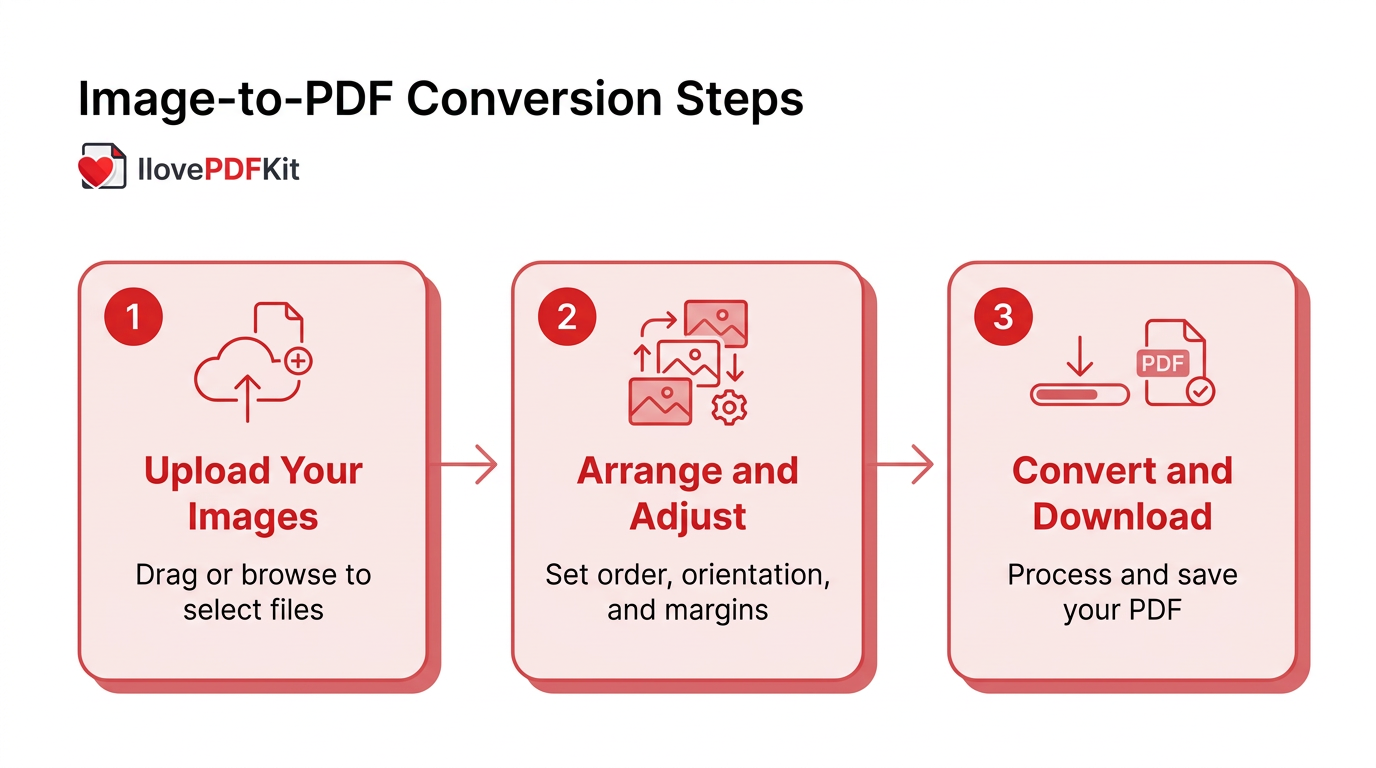
Converting multiple images to PDF online for free is straightforward with a tool like iLovePDFKit, which lets you upload a batch of images, arrange them, and download a finished document in seconds. There’s no account to create and no watermark stamped across your pages, which matters if you’re submitting the file for a grade or sending it to a client. The process works the same way whether you’re on a desktop browser or a phone, so you can convert images from a laptop at your desk or straight from your phone’s camera roll while out of the office. Because everything runs in the browser, there’s nothing to download and nothing that needs admin permission on a locked-down school or work computer.
Step 1: Upload Your Images
Open the JPG to PDF (or image to PDF) tool in any browser on your device. Drag your files into the upload window or click to browse and select them, since the tool reads JPG and PNG formats formats automatically. You can add as many images as you need in one batch, and there’s no daily limit stopping you from converting a large set at once.
Step 2: Arrange and Adjust Your Images
Once your images are uploaded, drag each thumbnail into the order you want it to appear in the final document. You can also set the page orientation to portrait or landscape, depending on how your photos were taken, and adjust the margin size around each image. Choosing one image per page usually gives the cleanest, most consistent result for reports or assignments.
Step 3: Convert and Download the PDF
Click convert, and the platform’s real-time engine processes even large, image-heavy batches in just a few seconds. Once it’s done, download the finished PDF right away, with no watermark added anywhere on the pages. Take a moment to open the file and confirm every image appears in the right order before you send it off.
Tips for a Cleaner Result
A few small habits make a real difference in how professional your finished PDF looks:
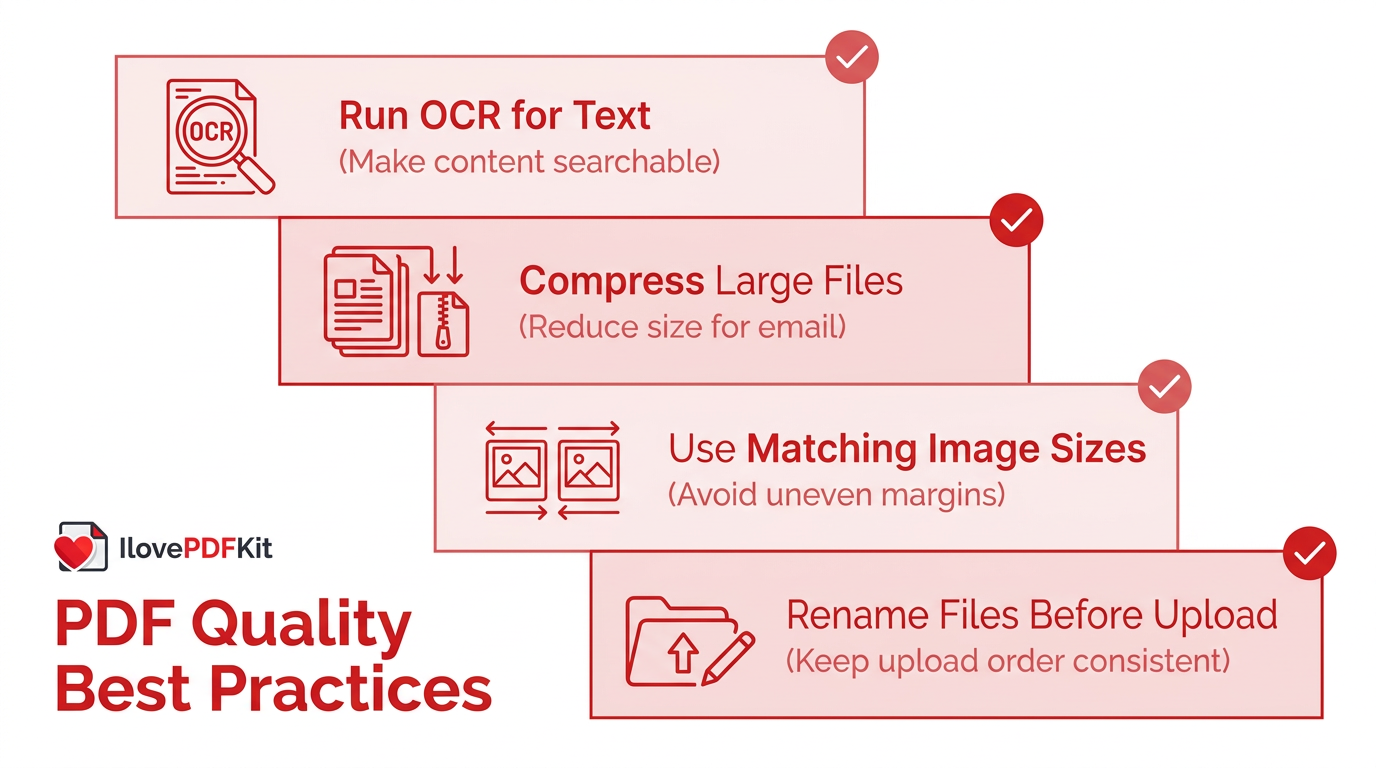
- Rename your image files before uploading using something like “01-cover” and “02-notes” keeps the upload order matching your intended page sequence, saving you from reordering everything manually later.
- Use images with roughly the same size and resolution mismatched dimensions can create uneven margins or oddly scaled pages once placed side by side in one document.
- Compress large files before sending if your finished PDF turns out too large to email, running it through a compression tool, such as iLovePDFKit’s Compress PDF tool, shrinks the file size while keeping it readable.
- Run OCR when text matters if any of your images contain text you’ll need to search or copy later, running OCR (optical character recognition, which turns image-based text into selectable text) after conversion makes that content usable instead of locked inside a picture.
What Should I Look for in an Image-to-PDF Converter?
Other online tools follow a similar batch-upload approach, such as an image to PDF converter that lets you combine up to 20 JPG, PNG, WebP, or AVIF files into one shareable document. Batch processing matters most if you regularly convert a dozen images at once, since uploading and converting files one at a time wastes real time over a week of work. Support for multiple formats, including JPG, PNG, and sometimes BMP or TIFF, also saves you from converting files into a “correct” format before you can even start the real task.
Limits are worth checking too, since not every free tool treats “free” the same way:
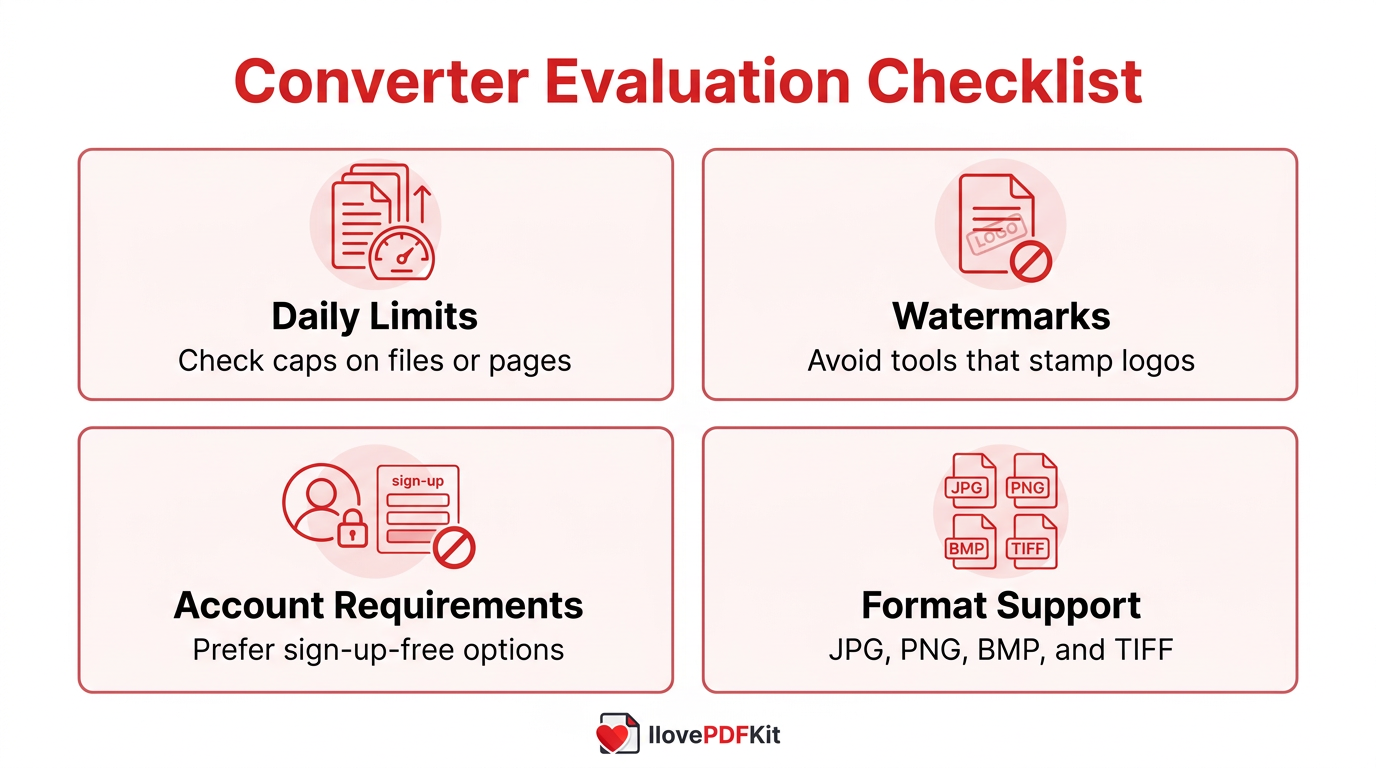
| Consideration | What to Check |
|---|---|
| Daily limits | Some services cap what you can do daily, such as Adobe’s free online tools limiting merges to 100 files or 1,500 pages |
| Watermarks | Look for tools that don’t stamp a logo across your finished pages |
| Account requirements | Sign-up-free tools save time and reduce stored personal data |
| Format support | JPG and PNG are standard; BMP and TIFF support is a bonus |
A tool like iLovePDFKit avoids strict daily caps for typical batch sizes. A converter that skips those artificial walls, along with skipping watermarks and sign-up forms, tends to fit real workloads better than one built around upselling a paid tier.
Is It Safe to Convert Images to PDF Online?
Converting images to PDF online is safe as long as the tool uses encrypted connections and doesn’t hang onto your files after processing. Reputable converters run uploads and downloads over SSL with 256-bit encryption, the same baseline standard used across most secure banking and shopping sites, which protects your files while they travel between your device and the server. That encryption is what stops anyone else from intercepting your images mid-transfer.
The bigger question, honestly, is what happens after conversion. iLovePDFKit processes files in real time and removes them from its servers shortly afterward, so nothing sits in long-term storage waiting to be exposed in a breach. Combined with no registration requirement, meaning no personal account details are tied to your uploads, this approach reduces the amount of your information floating around on someone else’s server to almost nothing.
Beyond Conversion: Managing Your PDF After Creation
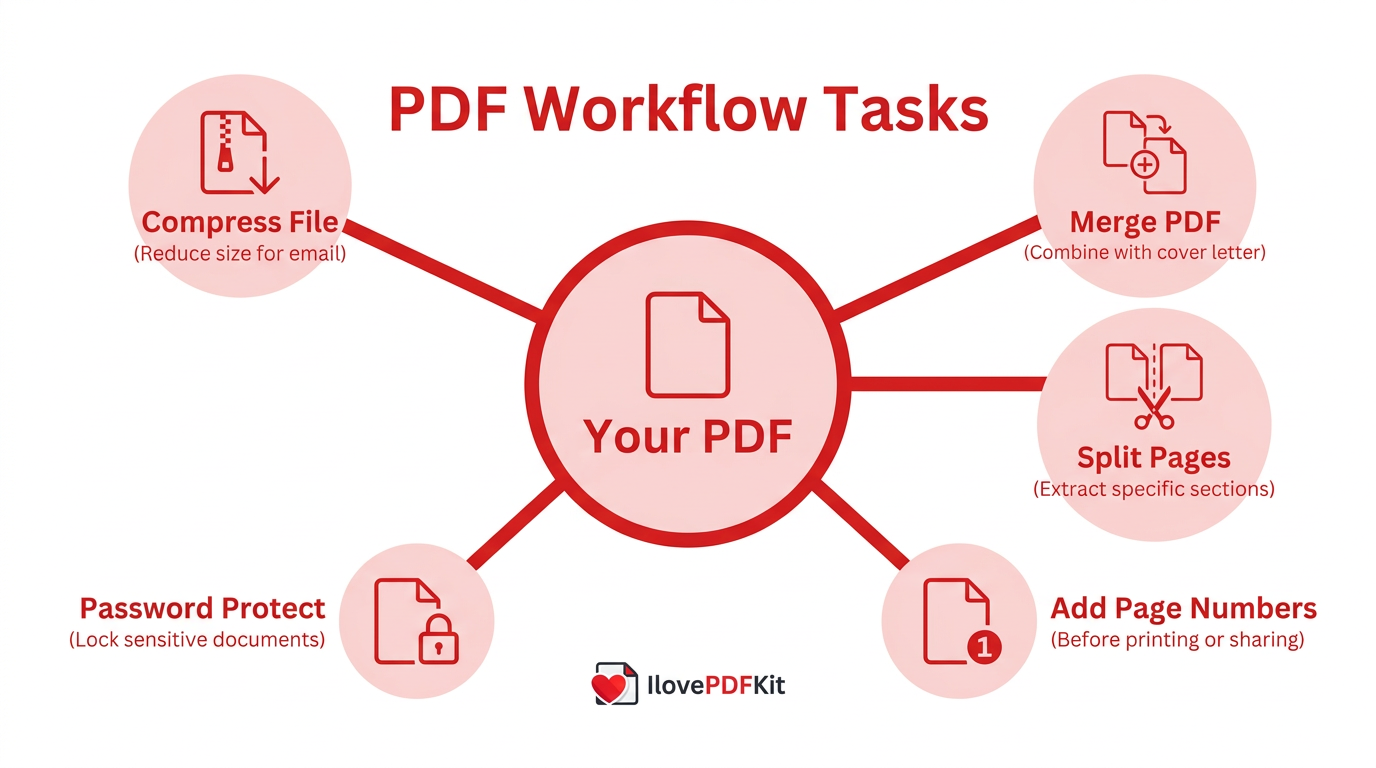
Creating your PDF is rarely the last step, since most documents still need a bit more work before they’re ready to send. You might need to:
- Merge the new PDF the new PDF with a cover letter
- Split out just a few pages for a specific recipient
- Add page numbers before printing
- Lock it with a password before emailing something confidential
A platform that keeps all these tools in one place saves you from bouncing between five different websites just to finish one document, similar to how developer libraries like a merge images to PDF library handle the same task programmatically within a single workflow. iLovePDFKit includes merge, split, compress, and password protection tools alongside its conversion features, so the image-to-PDF file you just created can go straight into its next step without leaving the same browser tab.
Frequently Asked Questions
Can I Convert PNG and JPG Images Together in One PDF?
Yes, most converters, including iLovePDFKit, let you mix mix PNG and JPG files in the same upload batch without any extra steps. The tool automatically detects each image’s format as it uploads, so you don’t need to convert everything to one format first. This makes it easy to combine screenshots (usually PNG) with photos (usually JPG) into a single document.
Is There a Limit to How Many Images I Can Convert at Once?
The platform doesn’t impose strict daily task caps like some competing tools do, so you can generally convert as many images as your project needs. Very large batches, say 50 or more high-resolution photos, may simply take a little longer to process. For most everyday tasks, though, you won’t run into a wall stopping you mid-conversion.
Will Converting Images to PDF Reduce Their Quality?
No, converting images to PDF preserves the original resolution of your files unless you actively apply compression afterward. The conversion step itself just repackages the images into PDF pages without altering pixel quality. If file size matters more than maximum sharpness, such as for email attachments, compress the PDF as a separate, optional step.
Can I Edit the Images After They’re Combined Into a PDF?
Basic adjustments, like reordering pages or rotating an image, happen before you finalize the conversion, not after. Once the images are combined into a PDF, deeper editing, such as adding text boxes, annotations, or drawings, typically requires a separate PDF editing tool. It’s worth doing any cropping or straightening on the original images first.
Do I Need to Create an Account to Use an Online Image-to-PDF Converter?
No, this tool requires no registration, email address, or password to convert your images. You simply upload your files, adjust settings, and download the result directly. This saves time compared to tools that force a sign-up, and it also means fewer personal details are stored anywhere online.
How Do I Convert Scanned Photos of Documents Into a Searchable PDF?
Run your images through an image-to-PDF converter first, then apply OCR (optical character recognition) to make the text inside searchable and selectable. OCR scans the pixels in your document and converts recognizable characters into real, copyable text. This two-step approach turns a stack of scanned photos into a document you can actually search through later.
Quick tip: Always open and review your finished PDF before sending it. A minute spent checking page order and image quality can save you from resending an embarrassing correction later.
The Takeaway
Turning a folder of scattered photos and scans into one organized PDF solves a problem nearly everyone runs into eventually, whether it’s a research assignment, a client packet, or a stack of receipts. A free, browser-based tool removes the usual friction of software installs, forced accounts, and watermarked output, letting you go from loose images to a finished, shareable document in a few clicks.
iLovePDFKit handles that conversion along with the merging, compressing, and protecting that usually comes after, so the whole workflow stays in one place. The next time you’re staring at ten separate image files with nowhere good to send them, converting multiple images to PDF is worth trying before you reach for anything more complicated.
