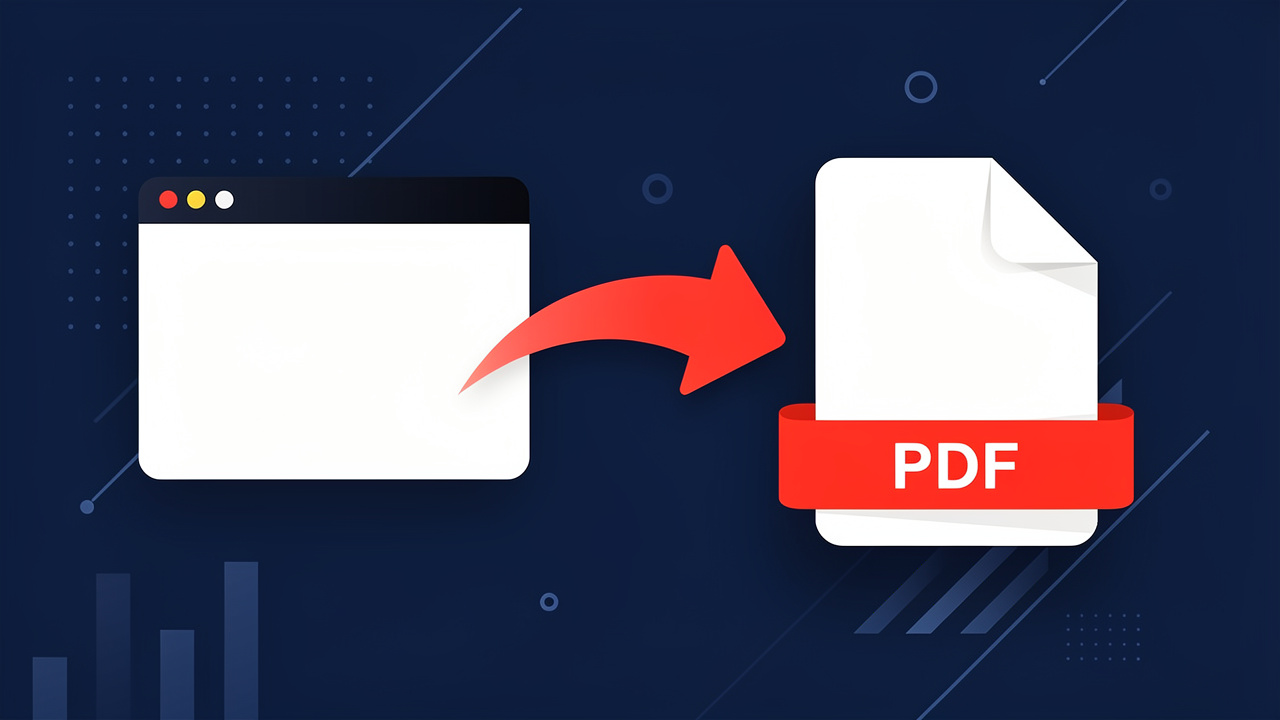
Introduction
Picture this: a great article, research paper, or tutorial appears right when a project is due, and there is that quiet fear the page will change or disappear. In those moments, converting a web page to PDF is a simple way to freeze what matters before it slips away.
When you turn a page into a PDF, you take live, scrollable content and store it as a fixed document that keeps the same text, images, and layout — a concept explored in depth by research such as Paper2Web: Let’s Make Your paper alive, which examines how web and document formats interrelate. The file opens on almost any device and keeps its look on a phone, laptop, or office desktop. Once saved, it is ready for offline reading, printing, or sharing with classmates, clients, or a professor.
Free online tools now make web page to PDF conversion something anyone can do in seconds, with no extra software or tech skills. iLovePDFKit follows that idea with a browser-based PDF converter that is fast, clean, and secure, and it does not ask for sign‑ups or credit cards. With it, converting a web page to PDF feels about as simple as copying and pasting a link.
This guide explains why saving web content as PDF helps students, office teams, and freelancers, how to do it step by step, how to pick a safe online tool, and what to try when things go wrong. By the end, turning any useful page into a neat PDF record will feel natural.
Key Takeaways
Here is what you will learn about converting web pages to PDF in the next few minutes:
Saving a web page as PDF gives you a permanent snapshot that does not change when the site updates or disappears. Research, instructions, or receipts stay available even on a long flight or in a classroom with weak Wi‑Fi.
The basic process is quick and repeatable: copy the page link, paste it into an online PDF converter, click a button, and download the file. After that, the PDF is ready to store, print, or attach to an email.
Good web‑to‑PDF tools are free, run in the browser, and avoid asking for accounts. They use secure connections and remove files shortly after processing so your information is not left on a server.
iLovePDFKit offers fast, accurate, registration‑free web and document conversion. Processing happens online in real time, and files are removed soon after the task finishes, keeping web page to PDF conversion simple and safe for everyday work.
Why Convert a Web Page to PDF?

Different people have different reasons for converting a web page to PDF, but the same advantages show up across study, office work, and small business tasks. You turn something fragile and changeable into a file you can trust, which helps with access, sharing, and record‑keeping.
One major benefit is offline access and archiving. A page that loads fine at home may not load at the library, on the train, or in a courtroom. By saving it as a PDF, you keep a time‑stamped copy that travels with you on a laptop, tablet, or phone — and tools like Save any website as a PDF make that process accessible to anyone. This supports research trips, fieldwork, or any setting where internet access is weak or blocked.
Many librarians like to say that “links fade, but PDFs stay put,” which is why archiving important pages as PDF is so common in research work.
Another reason is cleaner sharing and collaboration. A PDF opens on almost any device and preserves fonts, images, and layout. When you send a PDF instead of a link, classmates, managers, or clients see exactly what you saw, even if the site changes later. They can highlight, comment, and add notes on top, which works far better for feedback than a long email thread.
PDFs also help with documentation and printing. Converting a web page to PDF lets you control page size, margins, and headers so content drops neatly into reports or appendices. This matters when you print a study, attach evidence to a proposal, or submit formatted material for grading.
Finally, there is a big gain in organization and data management. Instead of juggling dozens of tabs, you can convert key pages to searchable PDFs and store them in folders by course, client, or project. That makes it easier to search across several documents and show what you saw on a site at a certain point in time, which can be important in law, compliance, or journalism.
To sum up common use cases, here is a quick view by audience:
| Audience | Key Benefit |
|---|---|
| Students and academics | Save research material for offline reading and keep clear sources for citations |
| Office professionals | Archive reference pages and share content that keeps its format with colleagues or clients |
| Freelancers and small business owners | Store proposals and reference pages and keep a stable record of project details |
How to Convert a Web Page to PDF Online — Step by Step
The good news is that converting a web page to PDF online is easier than it sounds, even if you do not feel very technical. With the right tool, the whole task often takes less than a minute. Here is a simple path using a browser and a converter such as iLovePDFKit.
Navigate To The Web Page
Open your usual browser and go to the exact page you want to save. Wait a few seconds so that text, images, and extra sections finish loading. This helps the converter capture a complete copy instead of a half‑loaded snapshot.Copy The Page Address
Click once in the address bar so the full link is highlighted. Use Ctrl + C on Windows or Cmd + C on macOS to copy it, or right‑click and choose Copy. That URL is what the web‑to‑PDF tool will use during conversion.Open iLovePDFKit In A New Tab
In another tab, visit the iLovePDFKit website. There is no need to create an account, remember a password, or add personal details. You simply land on the tool and can start working straight away.Paste The URL Into The Converter
Find the input field that asks for a web address. Click inside the box and paste your copied link with Ctrl + V or Cmd + V, or by using Paste from the menu. Double‑check that the link matches the page you want to convert.Adjust Optional Settings If Needed
Many converters, including iLovePDFKit, let you pick page size, portrait or landscape layout, and margin width. You can often choose whether to include headers, footers, or the source link. Small tweaks here help when you need a tidy printout or a PDF that matches a report format.Start The Conversion
Click the convert button to begin web page to PDF conversion. The service loads the page on its own servers and turns it into a PDF with a rendering engine similar to a modern browser. This happens online, so it does not slow down your device very much.Download And Store Your PDF
After a short wait, the tool shows a download button or link. Click it to save the PDF to your computer, phone, or a cloud folder such as a shared team drive. From there you can rename it, move it into a project folder, or attach it to an email or learning platform.
Pro tip: For pages with charts, delayed loading sections, or long image galleries, look for an advanced setting that adds a short wait time before capture. A few extra seconds can give a cleaner result when converting a web page to PDF.
Keep in mind that pages behind a login, such as paid news sites or private dashboards, usually cannot be captured by any online converter. The tool visits the link as a new, anonymous user, so it can only reach content that is public. For public pages, iLovePDFKit gives a fast, no‑cost way to turn those links into PDFs while keeping layouts and formatting neatly in place.
How to Choose the Right Online Web-to-PDF Tool

There are many sites that promise easy web page to PDF conversion, but they are not all the same. Some change the layout, some add watermarks, and some hold on to your files longer than you might like. A quick check of a few points helps avoid problems later.
Rendering Accuracy
A good converter should give you a PDF that looks very close to the original page. Fonts, images, columns, and spacing should line up in a familiar way. Tools that use modern browser engines usually give better results.Security And Privacy
When converting a web page to PDF, the content often includes grades, invoices, or other sensitive data. Look for tools that use HTTPS in the browser and remove files from their servers shortly after processing instead of keeping long‑term copies.No Account Required
For many people, the best online tools are the ones that do not ask for names, emails, or payment details. Being able to visit a site and start converting right away saves time and keeps personal information to a minimum.Ease Of Use
A clean layout helps everyone from high school students to senior managers. Clear labels, one main input field, and a single convert button keep the process simple, even a few minutes before a meeting or deadline.Speed And Reliability
Because the heavy work happens on remote servers, a strong tool can return a finished PDF within seconds for most pages. Even on slower connections, the process should feel smooth and predictable.Cross‑Device Access
Work often shifts between laptop, phone, and tablet, so it helps when the converter runs fully in the browser. That way you can start converting web pages to PDF on your phone during a commute and repeat the same steps back at your desk.
iLovePDFKit lines up well with these checks. It is free to use, adds no watermarks, and does not hide strict limits behind surprise pop‑ups. All processing happens over secure connections, and files are cleared from the servers after the task finishes, which keeps sensitive material safer.
“With iLovePDFKit, there is nothing to install, no account to create, and no cost to watch. You simply paste a link, click once, and receive a clean PDF ready for study, sharing, or records.”
— iLovePDFKit team
For students, office staff, and freelancers, that mix of speed, privacy, and accuracy makes iLovePDFKit a solid everyday choice whenever converting a web page to PDF is part of the workflow.
Troubleshooting Common Web-to-PDF Conversion Problems

Even with a good tool, converting web pages to PDF can run into problems because some sites are heavy or built with older code. Most issues repeat, and there are simple things to try before giving up.
Conversion Is Slow Or Stops Partway
Some pages load many large images, ads, or scripts, and the converter has to wait for all of them. This can make the process feel stuck even when the tool is working. Try waiting a bit longer, closing extra tabs, or using a more stable connection. If the converter offers a delay setting, adding a few seconds can help it capture a fully loaded page.The PDF Layout Looks Different From The Web Page
If headings shift or images move, the page might use older HTML or tricky styles. First, open the page in a current browser and see how it behaves when you resize the window. Then adjust settings in the converter, such as page size, margins, or orientation. A small change often fixes layout issues.The PDF Only Shows A Sign‑In Screen
If the final file shows nothing but a login box, the original page is behind a password. The converter does not know your details, so it can only reach that first gate. To confirm, open the link in a private or incognito window; if you also see a login there, online tools will not be able to reach the actual content.Content Is Cut Off At The Edges Or Bottom
Some sites use fixed‑width designs that do not shrink or wrap nicely on standard paper sizes. When converting a web page to PDF, this can clip text, tables, or images. Try a larger page size in the converter and reduce the margins so the content has more room.
When you keep these patterns in mind, most problems feel less mysterious. A few quick tests and small setting changes will solve many issues without extra software or advanced skills.
Conclusion
Converting a web page to PDF is a small habit that can prevent a lot of stress later. It turns changeable online content into files that stay with you, ready for study sessions, meetings, or client work, no matter what happens to the original site.
The right tool makes that process smooth instead of frustrating. iLovePDFKit gives you fast, accurate, secure conversion in the browser, with no cost, no registration, and no extra software on your device. Files travel over safe connections and are removed from the servers soon after use, which is ideal when grades, contracts, or bills are involved.
If you are ready to make web content as manageable as the rest of your documents, open iLovePDFKit in a tab and try converting a web page to PDF for yourself. Paste a link, click once, and see how much easier study and work feel when the pages you rely on live in tidy PDFs.
FAQs
Is It Really Free to Convert a Web Page to PDF with iLovePDFKit?
Yes, converting a web page to PDF with iLovePDFKit is completely free. There are no hidden fees, no trial periods, and no card details needed. The tool also does not place watermarks on your PDFs. You simply visit the site, paste your link, and download the result.
Do I Need to Install Any Software to Convert a Web Page to PDF?
No extra software is needed for web page to PDF conversion with iLovePDFKit. The tool runs fully in the browser, so there are no plugins or extensions to manage. You can use it on Windows, macOS, Linux, or mobile devices. As long as you have a modern browser and internet access, you are ready to go.
Is My Data Safe When Using an Online Web-to-PDF Converter?
With a reputable service like iLovePDFKit, data safety is a clear focus. All traffic between your browser and the site uses secure connections, which helps keep links and files private during transfer. The platform removes processed files from its servers after a short time instead of storing them long term. Because you do not create an account, there is also very little personal information to keep or share.
Why Does My Converted PDF Look Different from the Original Web Page?
Layout changes during web page to PDF conversion usually come from the way the original site is coded. Older or very complex pages can behave oddly when they are squeezed into standard paper sizes. First, see how the page looks in a modern browser and try resizing the window. Then try different page sizes, orientations, or margin settings in the converter until the content fits more comfortably. Most current sites will match very closely when used with a high‑quality tool such as iLovePDFKit.
