A PDF report lands in your inbox with a chart you need for tomorrow’s slide deck, but right-clicking the image does nothing useful. That happens because PDFs lock visuals inside their file structure instead of storing them as separate pictures you can simply grab. Extracting images from PDF files solves this problem, letting you pull out photos, charts, and diagrams as standalone files you can reuse anywhere.
This guide walks through every practical way to do it, starting with a quick copy-paste trick for a single picture and moving into free browser-based tools like iLovePDFKit that pull every embedded image out of a document in one pass. You’ll also learn which image format fits your next project, and how to tell whether an online extraction tool is safe enough for sensitive files like research papers or client contracts.
Let’s start with what “extracting an image” actually means before jumping into the fastest methods available today.
Key Takeaways
Copy and paste works fine for a single image, but bulk extraction tools save far more time once you’re dealing with a dozen or more pictures in one document.
The format you pick after extraction matters, since PNG suits diagrams and screenshots while JPG suits web sharing and email attachments.
Free online tools like iLovePDFKit extract every image from a PDF at once, with no software install and no account needed.
Security should factor into your choice of tool, so check for encryption and automatic file deletion before uploading anything sensitive.
Table of Contents
- What Does It Mean to Extract Images From a PDF?
- How Do I Extract Images From a PDF for Free?
- Which Image Format Should I Choose After Extraction?
- Is It Safe to Extract Images From a PDF Online?
- What Can I Do With Extracted Images?
- The Takeaway
- Frequently Asked Questions
What Does It Mean to Extract Images From a PDF?
Extracting images from a PDF means pulling the photos, charts, or illustrations embedded inside the document and saving each one as its own separate file. Unlike a web page, a PDF stores images as part of its internal structure, so a plain right-click-and-save often fails or grabs the wrong thing. The content sits layered among text, fonts, and layout instructions rather than existing as an independent picture file on your hard drive.
An extraction tool reads that internal structure the same way PDFs embed binary stream objects, finds every embedded image, and converts each one into a standalone JPG, PNG, or similar file you can open, edit, or share like any normal photo. This is why dedicated extraction methods exist instead of relying on your browser or PDF viewer’s basic save function.
How Do I Extract Images From a PDF for Free?
You can extract images from a PDF for free using a handful of proven methods, and the right one depends mostly on how many images you need and whether you also care about surrounding page layout. The fastest route for most people is an PDF to JPG that scans the whole document and exports every picture in one step, while manual copy-paste still works fine for a single graphic.
Use a Free Online Tool Like iLovePDFKit’s PDF to JPG
iLovePDFKit’s PDF to JPG tool extracts every image from a PDF directly in your browser, with no software to install and no account to create. It runs on Windows, Mac, Linux, Android, and iOS, so a student on a school Chromebook and a freelancer on a phone get the same result.
The tool pulls high-resolution copies copies of every embedded image, including batch processing when you’re working through multiple PDFs at once. There are no watermarks, no hidden fees, and no daily task caps for typical use, and files process over encrypted connections before being deleted from the server shortly after you download your results.
Copy and Paste a Single Image
For just one or two pictures, copy and paste beats any dedicated tool for sheer speed.
Click the image in your PDF reader.
Right-click and choose “Copy.”
Paste it into Word, Paint, or any image editor you already have open.
Right-click the pasted picture again and save it as a save as PNG.
This method works well for occasional use but turns tedious fast once you’re extracting dozens of images.
Extract a Whole Page When Layout Matters
Sometimes the picture you want fills an entire page, or it needs its caption and surrounding text to make sense on its own. In that case, pulling out individual images loses important context, and extracting the whole page as a new PDF works better.
Most online PDF editors let you extract specific pages you need, extract them, and download a smaller document containing just those pages. Choose this route when layout and context matter, and stick with image-only extraction when you only need the picture itself for a slide or a web post.
Which Image Format Should I Choose After Extraction?
The right image format after extraction depends on how you plan to use the picture, since JPG, PNG, TIFF, and GIF each trade off file size against quality differently. Pick a format meant for sharing online if you need small files for email or a website, and pick a lossless format if you need every detail intact for print or technical reference.
Comparing PNG, JPG, TIFF, and GIF
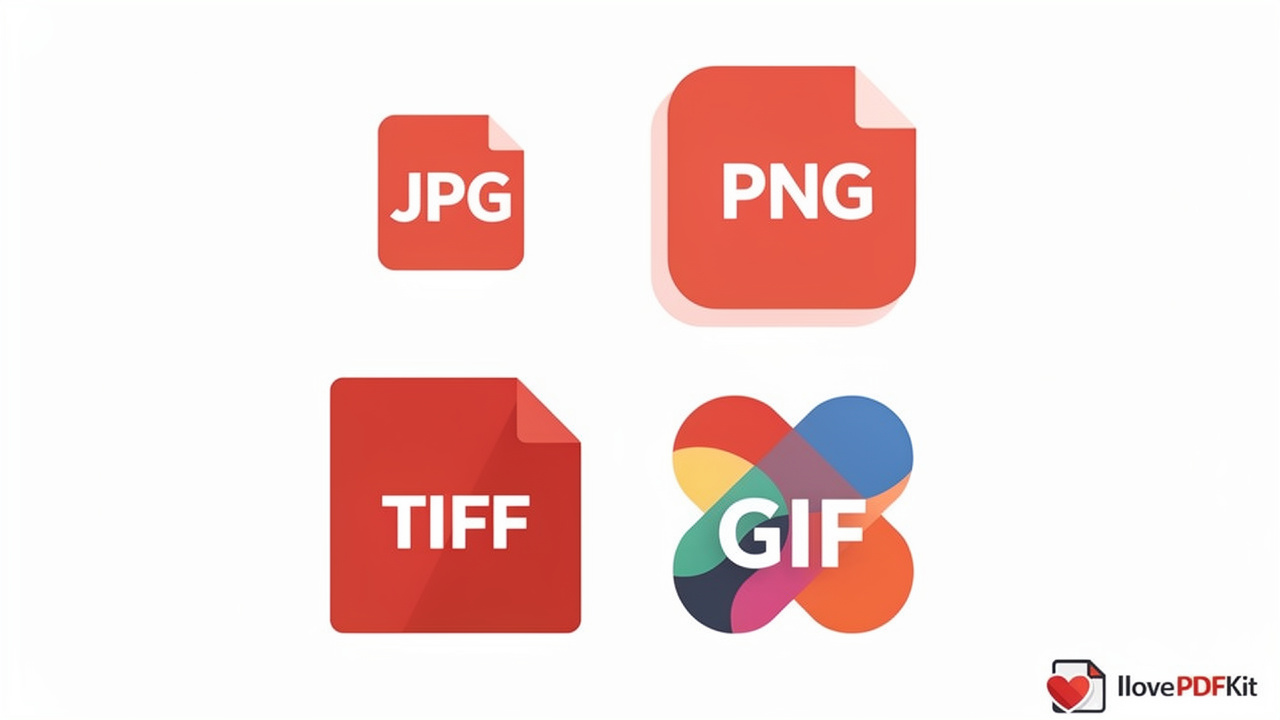
Each format serves a different purpose once an image leaves a PDF, so matching the format to the task saves you from reopening and reconverting files later. JPG and JPEG compress files down for fast sharing, while PNG keeps every pixel intact at the cost of a larger file. TIFF goes further still for archival and print work, and GIF rarely shows up in PDFs at all outside simple graphics.
| Format | File Size | Quality | Best Use |
|---|---|---|---|
| JPG/JPEG | Small | Good, slight loss | Web, email, sharing |
| PNG | Medium-large | Lossless | Diagrams, screenshots, text-heavy images |
| TIFF | Large | Lossless | Professional printing, archives |
| GIF | Small | Limited colors | Simple graphics, rare animations |
Is It Safe to Extract Images From a PDF Online?
Extracting images from a PDF online is safe as long as the service encrypts your upload and deletes your file soon after processing finishes. Before uploading anything redact sensitive info, check that the connection uses HTTPS, confirm the platform states a clear deletion policy, and avoid tools that ask for unnecessary account details just to download a few pictures.
“Security is a process, not a product.” — Bruce Schneier, security technologist and author
That idea applies directly here. A trustworthy extraction tool treats every upload as temporary, processes it quickly, and never leaves your document sitting on a server longer than needed.
How iLovePDFKit Protects Your Files
iLovePDFKit encrypts every file transfer with SSL and 256-bit encryption aligned with NIST recommendations, so documents stay protected while moving between your browser and the server. Processing happens in real time, and files are automatically deleted shortly after you download your extracted images, with no long-term storage and no human review of your content.
That setup suits students uploading thesis research, freelancers handling client contracts, and office staff extracting charts from internal reports, since none of those files linger anywhere after the job finishes.
What Can I Do With Extracted Images?
Once images are extracted from a PDF, you can drop them straight into presentations, reports, web pages, or design projects without recreating anything by hand. The practical value shows up most clearly once you look at how different users actually apply it day to day.
Practical Uses for Students, Freelancers, and Office Teams
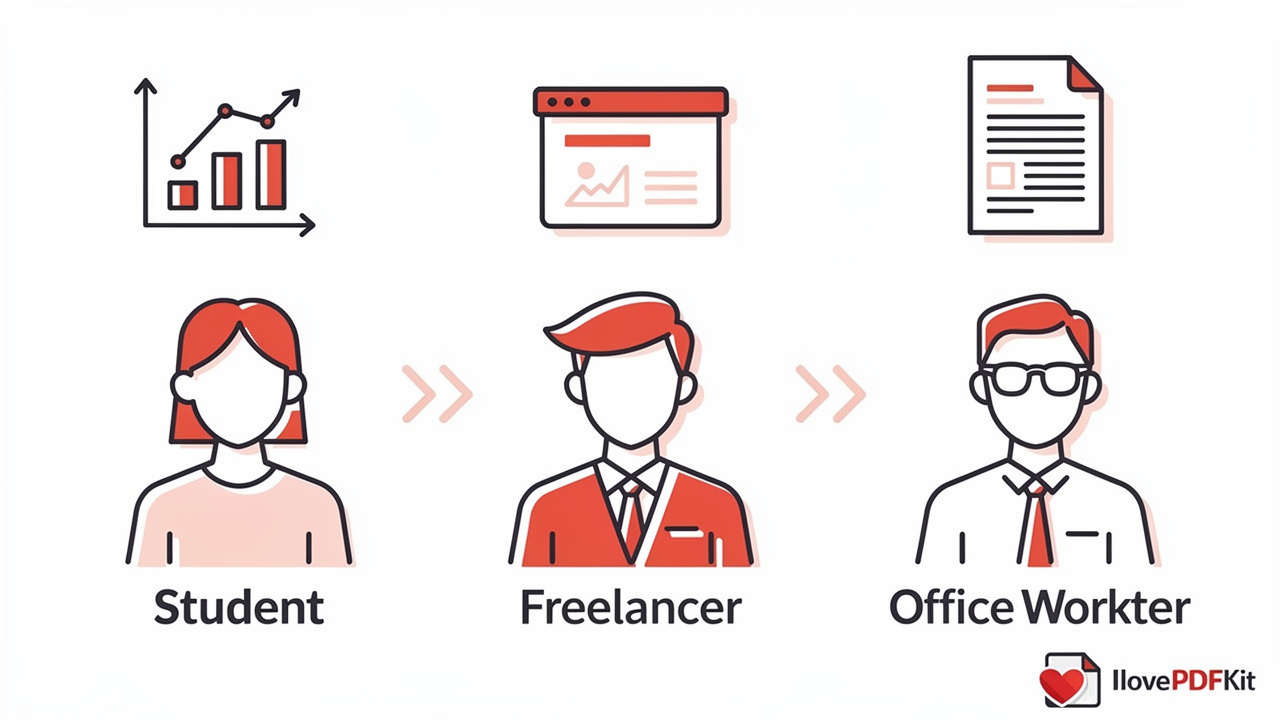
Students pull diagrams and charts out of research papers to reuse in assignments or thesis slides, much like researchers use a computer vision-based approach to automatically extract data from bar chart images for meta-analysis, saving hours compared to redrawing a figure from scratch.
Freelancers lift graphics from a client’s PDF brief and drop them straight into a pitch deck or proposal.
Office staff recover a chart from last quarter’s report for a fresh presentation.
These same platforms typically handle related jobs too, like merging extracted pages back together, compressing oversized files before emailing them, or converting a PDF into an editable Word or PowerPoint file. Keeping all of that in one browser tab cuts down on the back-and-forth of juggling separate apps for every document task.
The Takeaway
Choosing how to extract images from a PDF really comes down to two questions: how many pictures you need, and how sensitive the document is. A single graphic is a quick copy-paste job, while a whole document full of charts calls for a bulk tool that handles everything in one upload.
For most students, freelancers, and office teams, a free browser-based option like iLovePDFKit covers both needs at once, supporting workflows similar to schema-constrained AI for auditable evidence extraction used in research settings, while pulling every image out at full resolution and keeping your file encrypted and off long-term storage. Next time a PDF lands in your inbox with a graphic you need to reuse, give the PDF to JPG tool a try before you reach for anything more complicated.
Frequently Asked Questions
Can I Extract Images From a Password-protected PDF?
Not directly. You need to remove the password first using an unlock tool, since extraction software can’t read a locked file’s internal structure. Once the PDF opens freely, run it through your chosen extraction method as usual to pull out the embedded images.
Why Are My Extracted Images Blurry or Low Quality?
Extraction can’t improve on what was already in the file. If the original image was compressed or low-resolution when it was placed into the PDF, the extracted copy will carry that same quality. A clean extraction process only preserves quality, it never restores detail that wasn’t there to begin with.
Can I Extract Images From a Scanned PDF?
Usually not in the traditional sense, since a scanned page is often just one large image covering the whole sheet rather than separate embedded pictures. OCR, or optical character recognition, technology can convert that scanned document to PDF into searchable, editable content first, after which specific visuals become easier to isolate.
Is There a Limit to How Many Images I Can Extract at Once?
Some tools cap how many files or tasks you can run each day before pushing you toward a paid plan. The platform avoids strict daily task caps for typical use, so you can process a full document, or several in a row, without hitting an artificial wall partway through.
What File Formats Can I Convert Extracted Images To?
Most extraction tools support JPG and PNG as output formats, covering the vast majority of everyday needs. Choose JPG for smaller files suited to web use and email, and PNG converter when you need sharper detail for editing, printing, or diagrams with text in them.
