Flattening a PDF Online: The Complete Guide to Locking Your Documents for Good
You just finished filling out a form, adding comments, or signing a contract in PDF, and now you need to make sure nobody can change it again. Flattening a PDF online is the quickest way to lock that file down without installing extra software or paying for a subscription. Students, office staff, and freelancers all run into this exact problem when a document needs to look final and stay final.
Flattening a PDF means merging every editable piece, like form fields, annotations, and comments, into one fixed layer that nobody can alter. Once that happens, the file displays the same way on any device or printer, and its content stays exactly as you left it. This guide walks through what flattening actually does, why it matters for security and printing, and how to flatten a PDF online for free using a tool like iLovePDFKit in just a few clicks.
Keep reading to see the exact steps, learn whether flattening can be undone, and find out how to keep sensitive files safe during the process.
Key Takeaways
Flattening merges form fields, annotations, and comments into one fixed, non-editable layer that displays the same everywhere.
It protects against tampering, fixes printing glitches, and keeps files looking identical across devices and PDF viewers.
You can flatten a PDF online for free in four simple steps, with no installs or accounts needed.
The process is permanent, so always save a copy of your original file before you begin.
iLovePDFKit offers free, no-signup tools for flattening, merging, compressing, and password-protecting PDFs in one place.
Table of Contents
- What Does It Mean To Flatten A PDF?
- Why Should You Flatten A PDF?
- How Do You Flatten A PDF Online For Free?
- Can You Undo A Flattened PDF?
- Is It Safe To Flatten Sensitive Documents Online?
- Wrapping Up
- Frequently Asked Questions
What Does It Mean To Flatten A PDF?
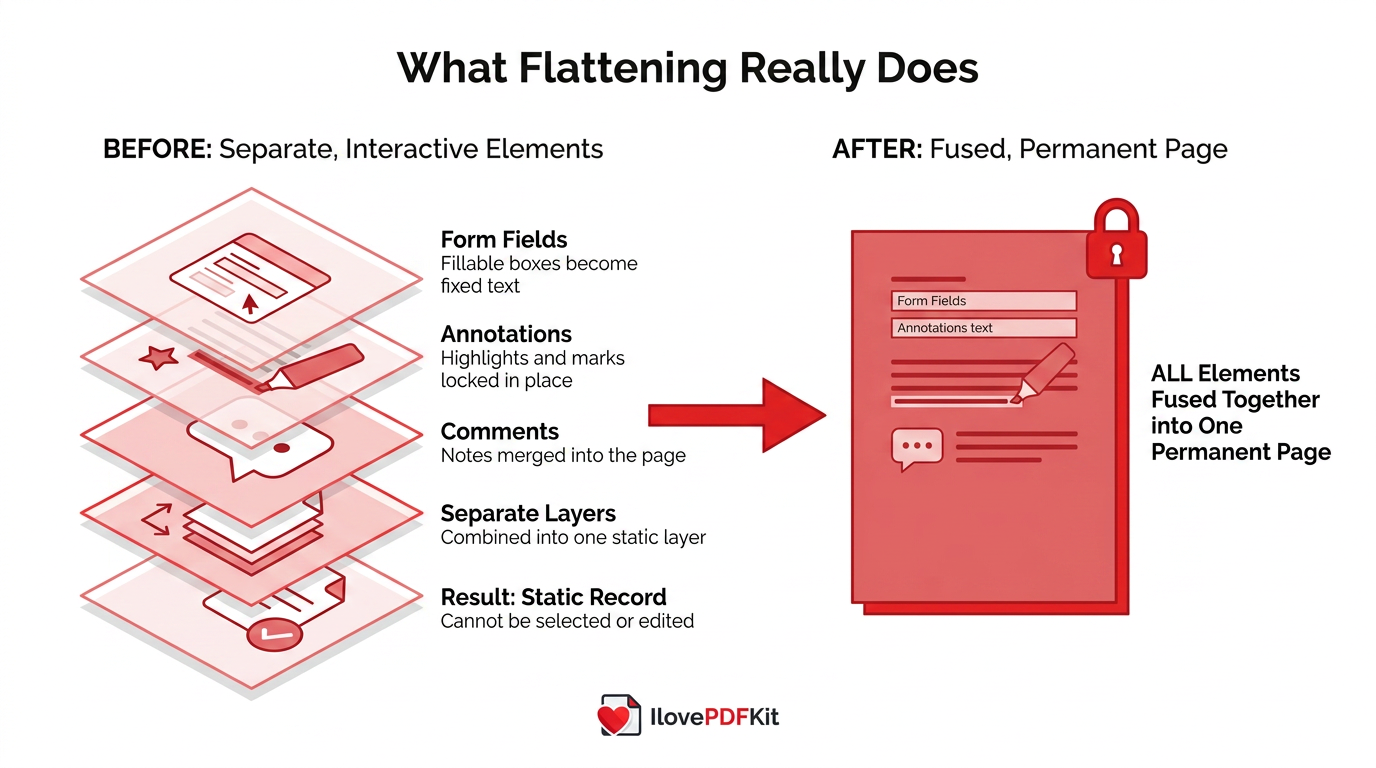
Flattening a PDF means combining every interactive element, such as form fields, annotations, comments, and separate layers, into one fixed and unified layer, a process closely related to techniques used in layout-aware document flattening research for merging visual layers into a single static representation. Once flattened, none of these pieces can be selected, edited, or removed anymore, and the file behaves like a single flat page instead of a stack of movable parts. This differs from simply saving a PDF, since a saved file can still contain live form fields and editable annotations underneath its surface. Think of it like laminating a paper form: the text and checkmarks stay visible, but nobody can pry the layers apart again.
Visually, the flattened document looks exactly like it did before, since flattening changes the internal structure rather than the appearance. This matters most for:
Completed forms
Signed contracts
Annotated research papers
Any file being prepared for official submission or printing
Students, office staff, and freelancers all run into this need when a document has to stay exactly as submitted. Once you flatten a PDF, it becomes a static record rather than a working file.
Why Should You Flatten A PDF?
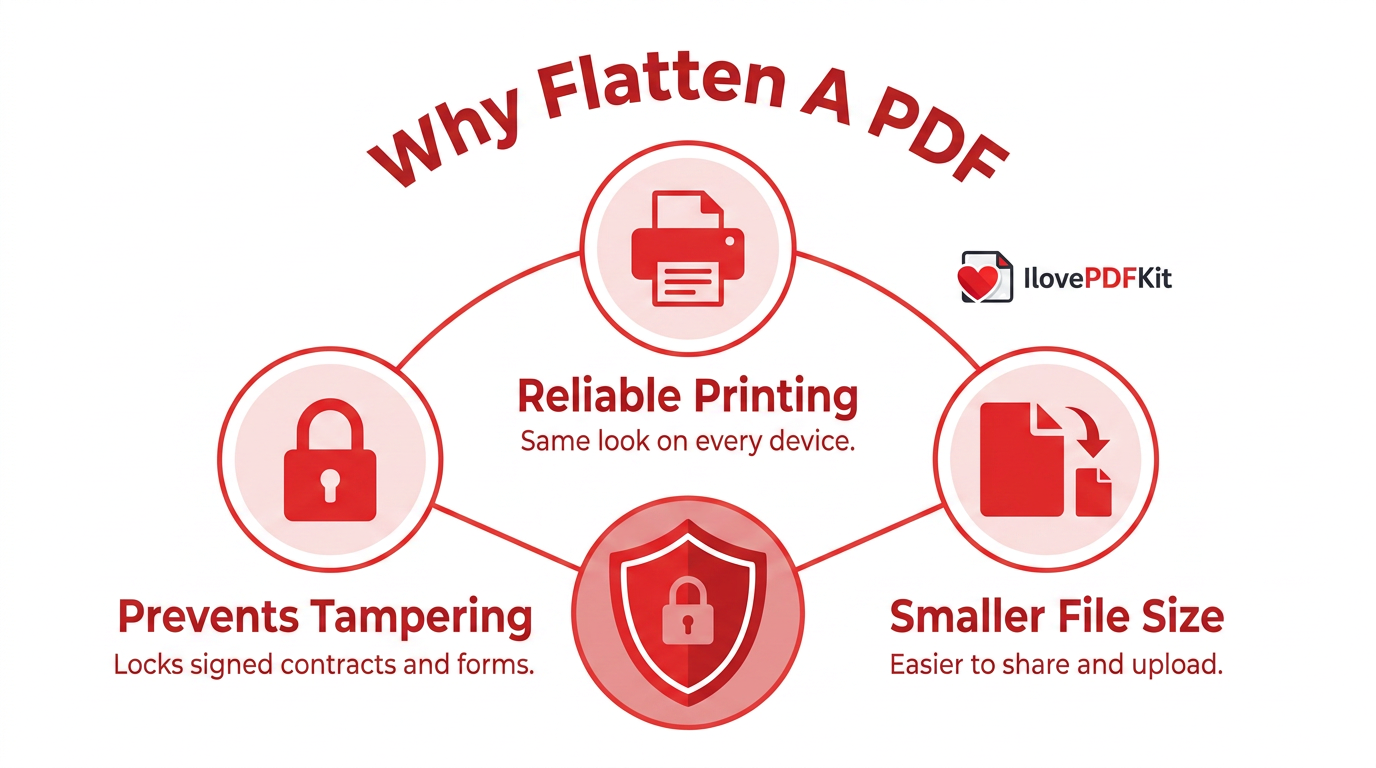
Flattening a PDF solves several practical problems at once, which is why students, office workers, and freelancers often search for a fast way to do it online. It protects a finished document from unauthorized edits and keeps printed pages looking exactly like the on-screen version. It also removes display glitches that appear when different PDF viewers handle interactive elements differently, and it often shrinks the file size along the way. Whether you are locking a signed contract or preparing a report for print, flattening turns a working document into a finished one.
Preventing Unauthorized Edits And Tampering
Flattening prevents unauthorized edits by locking signed contracts, completed forms, and approved reports so nobody can quietly change them later. Once the layers merge, form data and text can no longer be selected or altered, even by someone using PDF editing software. This matters most for HR paperwork, permission slips, and tax documents, where a single unnoticed edit could cause real problems. A flattened file gives everyone confidence that what they see is the final, untouched version.
Reliable Printing And Cross-Device Display
Flattening a PDF keeps printed pages looking exactly like the on-screen version, since every field and annotation gets locked into its exact position. Without flattening, form fields or comment boxes can shift, disappear, or render incorrectly depending on the printer driver in use. The same problem shows up across devices, where one PDF viewer might display a field while another leaves it blank. Flattening removes that guesswork, so the file looks identical on a laptop, phone, or office printer.
Smaller File Size For Easier Sharing
Flattening a PDF often produces a smaller, easier-to-share file, because merging layers removes the extra data needed to keep form fields and annotations separate. This matters for anyone emailing attachments, uploading to a learning portal, or submitting through a client dashboard with strict size limits. If the file still feels too large afterward, pairing flattening with a dedicated PDF compression tool can shrink it further without losing visual quality. Smaller files also upload and open faster on slower connections.
How Do You Flatten A PDF Online For Free?
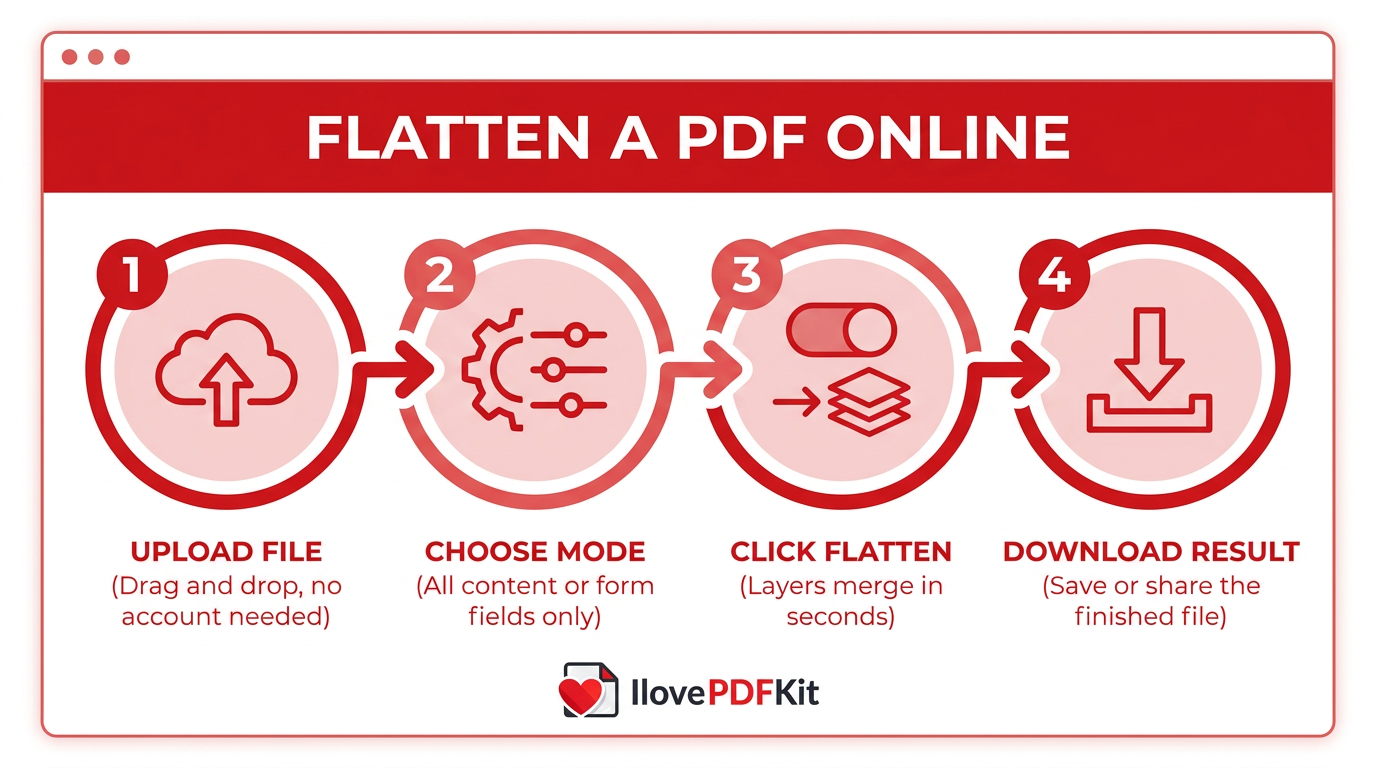
Flattening a PDF online for free follows a short, browser-based workflow that takes only seconds from start to finish. You upload the file, pick a flattening mode if one is offered, run the process, and download the finished document, all without installing software or creating an account. Tools built for this task, including iLovePDFKit, handle the merging of layers automatically once you click the flatten button. The entire task works the same way on a laptop, a school computer, or a phone browser.
Uploading And Processing Your File Step By Step
Start by dragging your PDF into the tool’s upload window, or click to select it from your device, Google Drive, Dropbox, or OneDrive. Most online flattening tools accept files this way without asking for an account or email address first. Once the file loads, you will typically see a single flatten button or a short menu of flattening options.
Click the flatten button to merge every form field, annotation, and layer into one fixed page, a process documented in detail in guides on how to flatten PDFs that explain how interactive fields become permanent page content. Processing usually finishes within a few seconds, even for longer documents with several form fields. When it’s done, download the flattened file to your device, or share it directly if the tool supports that option. Always check the result before sending it onward, since the process cannot be undone.
Choosing Between Flatten All Content And Flatten Form Fields Only
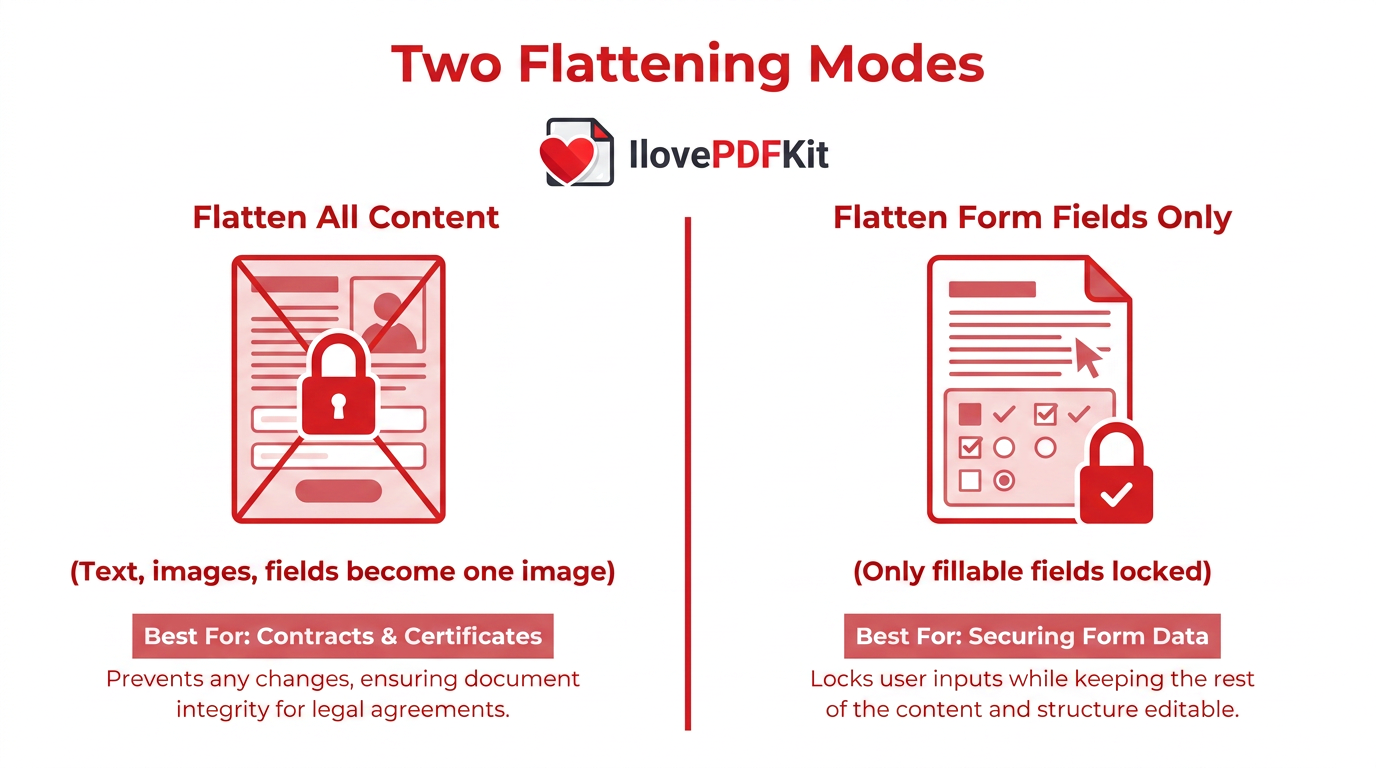
Flatten all content turns every element on the page, including text, images, form fields, and comments, into one locked, image-like layer. Nothing on the page can be selected or edited afterward, which makes this the most thorough option when you want a document that behaves like a static picture of itself. It works well for signed contracts, certificates, or any file meant purely for viewing and printing.
Flatten only form fields takes a lighter touch, locking just the fillable fields into a read-only state while leaving other text and links untouched. This option suits situations where you only need to secure submitted form data without converting the whole page into an image. Choosing the right mode depends on whether you need the entire file locked down or just the answers someone typed in.
| Mode | What It Locks | Best For |
|---|---|---|
| Flatten All Content | Text, images, form fields, and comments become one static layer | Signed contracts, certificates, final print copies |
| Flatten Only Form Fields | Just the fillable fields, leaving text and links active | Securing submitted form data without freezing the whole page |
Can You Undo A Flattened PDF?
No, flattening a PDF is generally permanent, and there is no simple undo button that restores the original interactive layers once they merge. Form fields, annotations, and comments become part of the static page content, so a flattened file cannot go back to being fillable or editable through normal means, since the merged elements — including dropdowns, highlights, and sticky notes — are treated the same way interactive PDF elements are described in technical flattening documentation. This holds true across nearly every online flattening tool, not just one particular platform.
Because of this, always save a copy of your original file before flattening, and finish every edit, comment, or form entry first. Treat flattening as the final step in your workflow, not a stage you might need to reverse. If you lose the original, rebuilding form fields from scratch in a PDF editor is possible, though it is not a true restoration.
Tip: Save a backup copy of your original, unflattened file before you start. There’s no going back once the layers merge.
Is It Safe To Flatten Sensitive Documents Online?
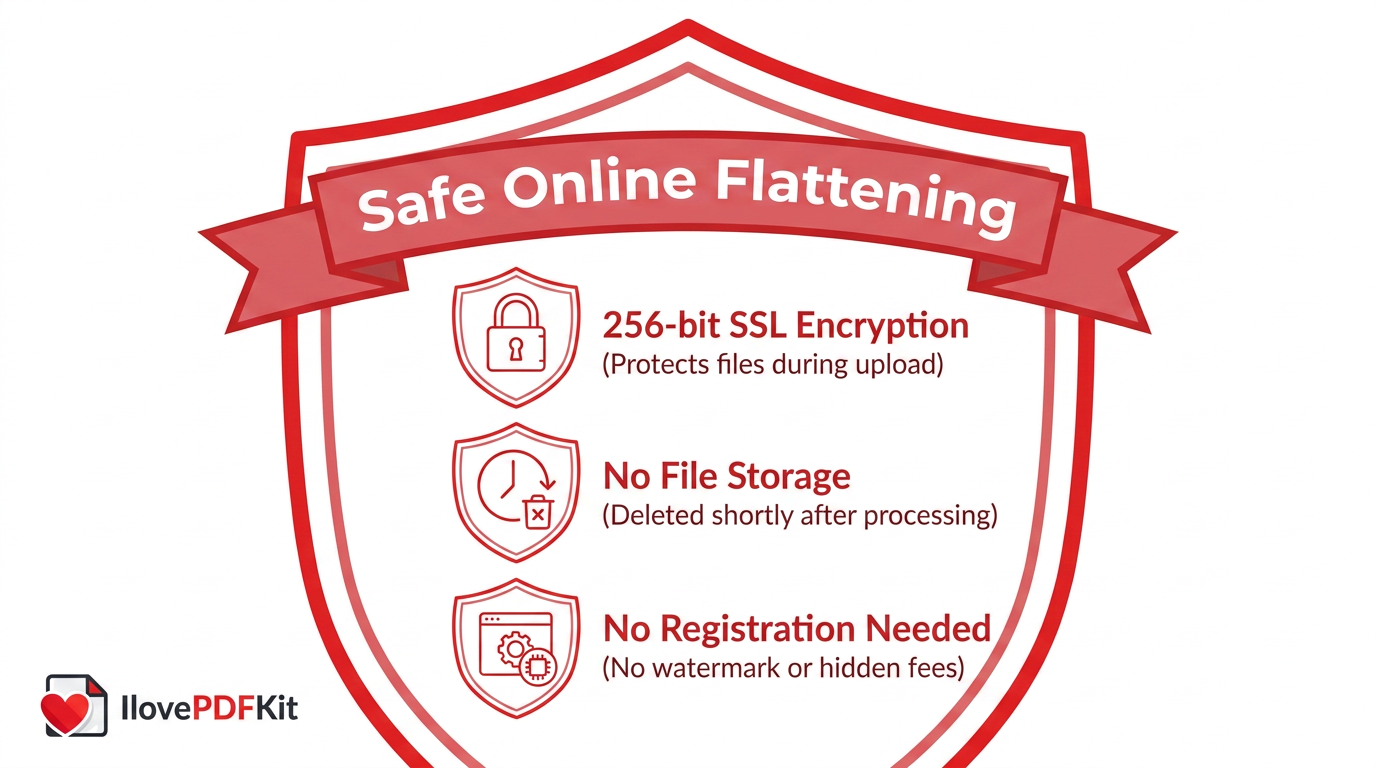
Yes, flattening sensitive documents online is safe as long as the tool you use protects files during transfer and doesn’t store them longer than necessary. Reputable services encrypt uploads using standards like TLS, and many automatically delete files from their servers within an hour of processing. Some tools go a step further by processing everything locally in the browser, meaning the file never leaves your device at all.
iLovePDFKit follows this security-first approach, using 256-bit SSL encryption for every upload along with a no-file-storage policy that removes documents from its servers shortly after processing. There is no registration, no watermark, and no hidden fee attached to basic flattening or conversion tasks. For contracts, tax forms, or client files, it’s still smart to check any tool’s privacy policy before uploading confidential material.
Wrapping Up
Flattening a PDF online turns a working, editable file into a clean, tamper-resistant, print-ready document in seconds, whether you’re locking a signed contract, a completed form, or an annotated report. The process is simple, free, and works through any modern browser without installing software or creating an account.
Just remember that flattening is permanent, so keep a backup of your original file before you run it. When you’re ready to flatten, merge, compress, or password-protect a document, iLovePDFKit offers free, no-signup tools that handle all of it in one place, so your files stay organized and secure from upload to download.
Frequently Asked Questions
Question: Is flattening the same as compressing a PDF?
These are different processes. Flattening merges form fields, annotations, and layers into one fixed, non-editable page, while compression reduces file size by optimizing images and data. You can use both together for a smaller file that’s also locked against edits.
Question: What happens to links and clickable buttons after flattening?
Links and interactive form functions can stop working after flattening, since they depend on the document keeping its interactive layers. If you still need those functions, save an unflattened copy separately before you run the flattening tool.
Question: Will flattening change how my document looks?
No, flattening doesn’t change the visual layout or appearance of your document. The page looks identical to how it did before; only the internal structure changes from interactive and editable to fixed and static.
Question: Do I need to install software to flatten a PDF?
No, free browser-based tools let you flatten a PDF without any downloads or installs. These tools work on Windows, Mac, Linux, Android, and iOS through any modern web browser.
Question: Can I flatten multiple PDFs at once?
Some online tools support batch processing, letting you flatten several PDF files in a single session instead of repeating the steps one file at a time. This is especially useful for administrative staff or teachers handling many forms.
Question: Should I flatten a PDF before or after adding my signature?
Complete all edits, annotations, and signatures first, then flatten the document as your final step. Flattening after signing locks the signature and content permanently in place, so nothing can be altered afterward.
