
You open a spreadsheet for a report that’s due in an hour, and every cell refuses to budge. A gray padlock icon stares back, or maybe a dialog box demands a password you’ve never seen. If you’re asking how to unlock an Excel spreadsheet fast, you’re dealing with one of several different lock types, and each one needs its own fix.
Some sheets are locked because a previous author restricted editing on purpose. Others are locked simply because the file is already open somewhere else, or because a team’s co-authoring setup is misconfigured. Knowing which situation you’re in changes everything about how you solve it.
This guide walks through every scenario, from sheets you can unlock in three clicks to spreadsheets you need to unlock without any password access at all. You’ll also see where a free browser tool like iLovePDFKit fits in for anyone who wants a faster, no-install path. Let’s get your spreadsheet editable again.
Key Takeaways
Before you dig into the details, here’s the short version of what actually fixes a locked Excel file. Identify the lock type first, because sheet protection, workbook protection, file encryption, and “file in use” errors each need a different approach entirely.
- Known password: you can clear sheet or workbook protection in seconds through Excel’s Review tab.
- Forgotten password: calls for either the manual ZIP and XML edit method or a browser-based unprotect tool such as iLovePDFKit.
- File-in-use errors: usually clear up once you close the file everywhere, wait for the server to release it, or request access from the owner.
- Co-authoring failures: typically trace back to mismatched Excel versions, the wrong file format, or a file stored outside OneDrive or SharePoint.
Table of Contents
- What Types of Excel Locks Are You Dealing With?
- How Do I Unlock an Excel Sheet When I Know the Password?
- How Do I Unlock an Excel Spreadsheet Without the Password?
- Why Does Excel Say the File Is Locked for Editing by Another User?
- How Do I Fix Co-Authoring and OneDrive Sync Lock Errors?
- The Takeaway
- Frequently Asked Questions
What Types of Excel Locks Are You Dealing With?

An Excel lock can mean sheet protection, workbook structure protection, file encryption, or a simple “file in use” conflict, and each produces a distinct warning message. Sheet protection blocks editing on a single worksheet and shows the error “The cell or chart you’re trying to change is on a protected sheet.” Workbook structure protection stops you from adding, deleting, renaming, or reordering sheet tabs, even though the cells themselves might be editable. Full encryption is the strictest kind, demanding a password before the file even opens, which means the content itself is scrambled rather than just restricted.
The fourth scenario looks similar but has nothing to do with protection settings at all. When Excel says a file is “locked for editing by another user,” it means someone (possibly you, on another device) already has that file open. Spotting which message you’re staring at tells you exactly which fix to use next, so it’s worth reading the warning carefully before you try anything else.
How Do I Unlock an Excel Sheet When I Know the Password?
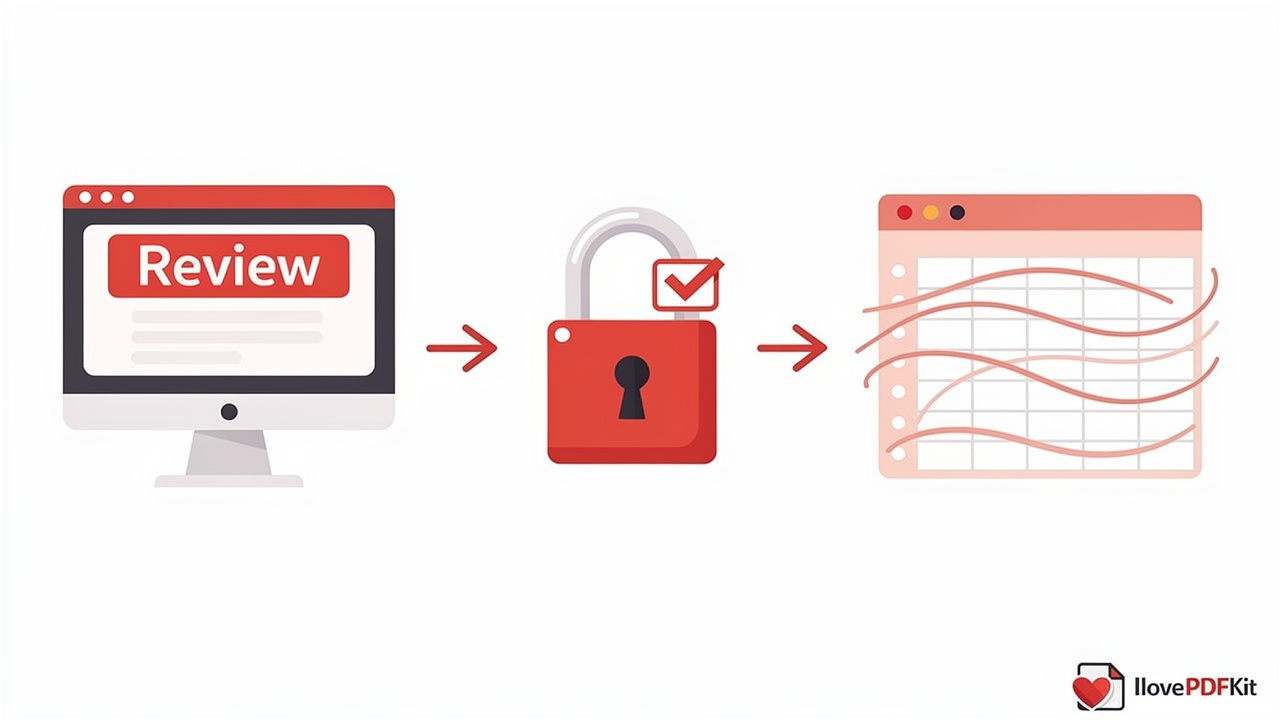
If you remember the password, unlocking an Excel sheet takes less than a minute using Excel’s built-in Review tab, a process Microsoft documents in its own guide to lock cells to protect them, with no extra software needed. Open the workbook, click the Review tab, then select Unprotect Sheet. Excel asks for the password, so type it in and click OK, and the sheet becomes fully editable right away. Repeat this for every protected sheet in the workbook, since each one can carry its own password.
If sheets are also locked at the workbook level, meaning you can’t add or rename tabs, go back to the Review tab and click Protect Workbook to toggle it off. Enter the same password if prompted. Mac users follow nearly identical steps, finding the same Protect Workbook option under Review and clicking it to clear the restriction.
How Do I Unlock an Excel Spreadsheet Without the Password?
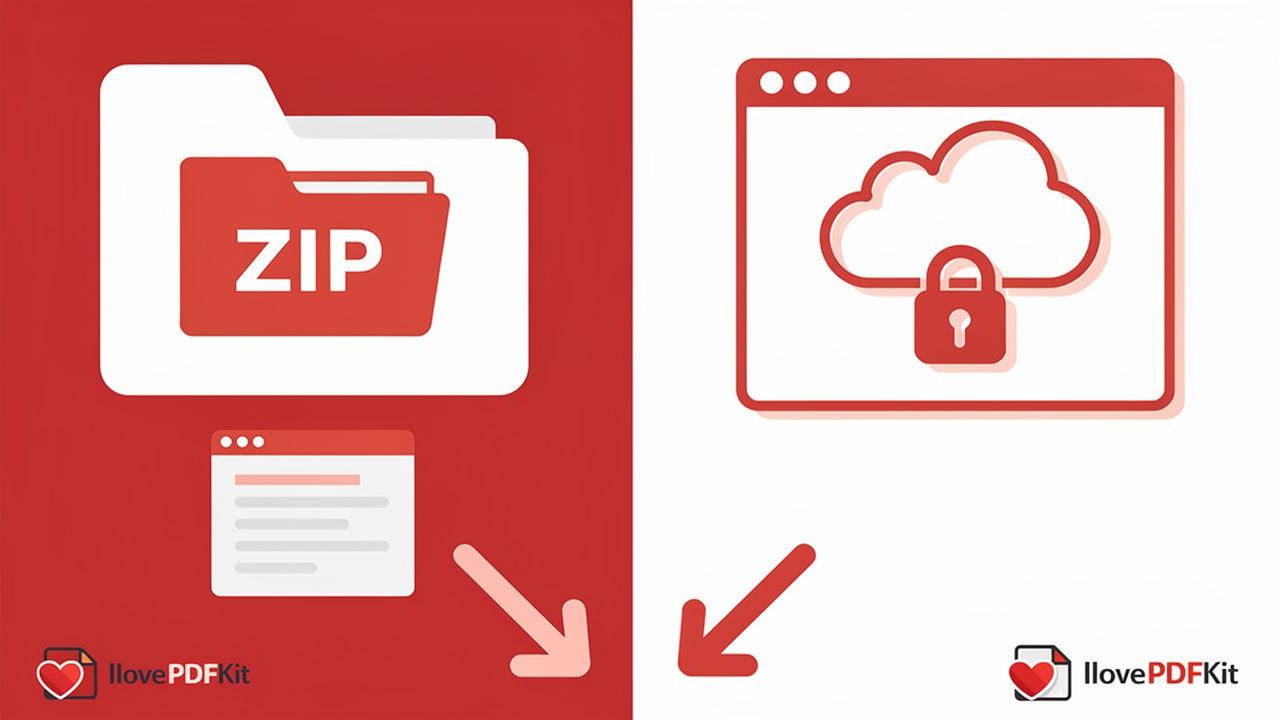
When the password is lost, you can still unlock an Excel spreadsheet because sheet protection is a removable setting, not true encryption that scrambles your data. This distinction matters because it means your formulas, values, and formatting stay completely intact no matter which removal method you choose. Excel files with the .xlsx or .xlsm extension are actually compressed folders full of XML files, and the protection setting lives inside one small tag in that code. That gives you two realistic paths forward:
- A free, hands-on method using File Explorer and a text editor.
- A quicker browser-based tool that skips the technical steps entirely.
Students facing a protected template, office staff who inherited a locked budget sheet, and freelancers working with a client’s file all run into this same problem, so pick whichever method matches your comfort level with file structures.
Manual Method: Edit the File’s XML Structure
The manual method lets you strip sheet protection for free by editing the spreadsheet’s internal XML code directly.
- Make a backup copy of the file.
- Enable file name extensions in File Explorer, rename the file from .xlsx to .zip, and confirm the change.
- Open the resulting ZIP folder, navigate to xl, then worksheets, and copy the relevant sheet’s XML file to your desktop.
- Open that file in Notepad, press Ctrl+F, and search for “sheetProtection.”
- Delete that entire tag, save the file, and drag it back into the ZIP folder to replace the original.
- Rename the folder back to .xlsx and open it in Excel to confirm the sheet edits freely.
If workbook structure is also locked, repeat the same steps on workbook.xml and search for “workbookProtection” instead.
A Faster Way: Unlock Excel Files Online With iLovePDFKit
For anyone who’d rather skip XML editing altogether, iLovePDFKit offers a browser-based way to clean up and convert Excel files without installing anything or creating an account. Because the platform processes files securely and removes them from its servers after conversion, you avoid the privacy worries that come with uploading sensitive spreadsheets to an unfamiliar site. One practical use case is converting a converting… Excel file into PDF into PDF and back again, which gives you a clean, protection-free copy that’s ready to share for a grade submission, a client report, or a signed contract.
This workflow works well for students and office staff who just need a usable version of the file fast, without wrestling with file extensions or Notepad. Once your spreadsheet is unlocked, the tool also offers password protection options if you want to secure the file again intentionally, this time with a password you’ll actually remember. It’s a practical middle step between a vulnerable, unprotected file and one locked so tightly nobody, including you, can get back in.
Why Does Excel Say the File Is Locked for Editing by Another User?
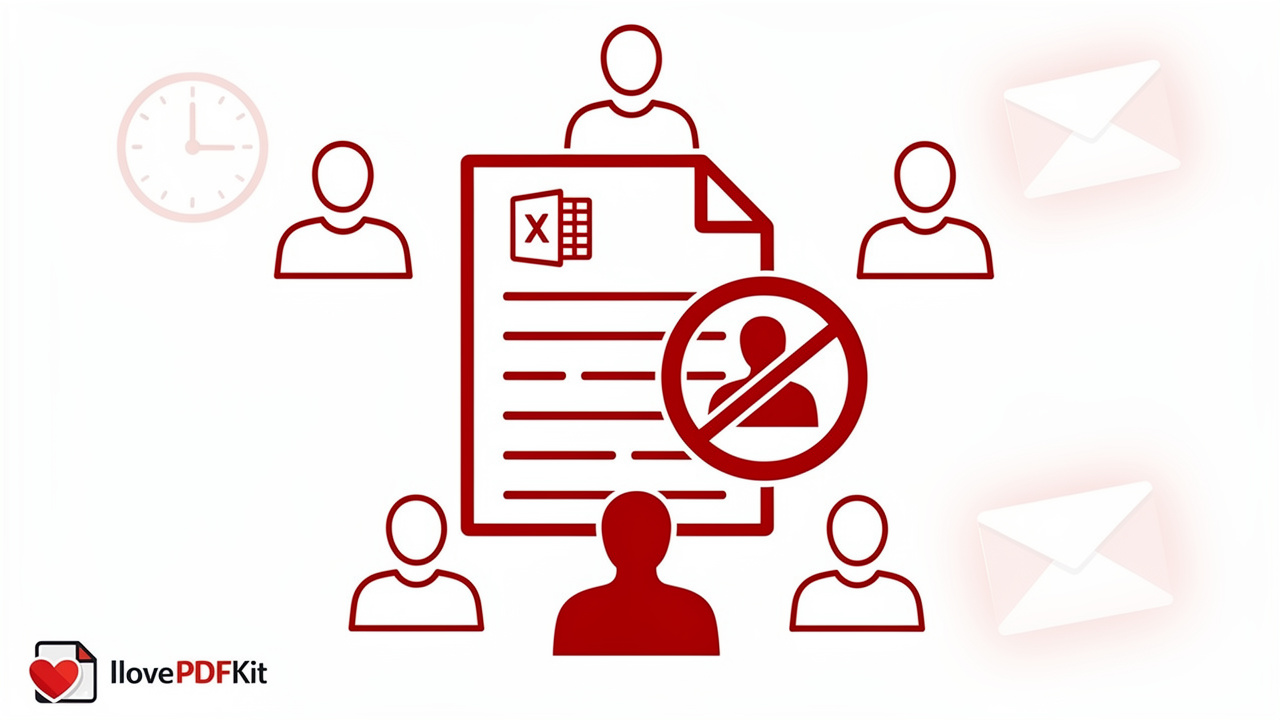
This message means the file is currently open somewhere else, not that it contains any internal protection settings at all. It commonly happens when you have the same file open on your laptop and your desktop, or when Excel crashed previously and never properly released the file on the server. Start by closing the file completely on every device you own, including tablets and phones, then wait a few minutes before reopening it, since the server sometimes takes time to catch up.
If the lock still won’t clear, someone else genuinely has the file open. You can:
- Wait for them to finish.
- Ask them directly to close it.
- Use Excel’s Request More Access feature by clicking “Viewing” in the upper corner and selecting it.
The file owner gets an email and can grant or decline your request, which beats guessing when the file will finally free up.
How Do I Fix Co-Authoring and OneDrive Sync Lock Errors?

Persistent lock errors during team collaboration usually trace back to version mismatches, file storage location, or an outdated OneDrive sync rather than sheet protection, a conflict that even shows up in Microsoft’s own support forums discussing the co-authoring feature on Excel files with VBA. Co-authoring only works when everyone uses a compatible version, such as Excel for Microsoft 365, Excel for the web, or the mobile apps; older versions like Excel 2019 or 2021 LTSC break it for the entire group. The file also needs to live on OneDrive, OneDrive for Business, or SharePoint in Microsoft 365, since local folders, Dropbox, and server paths all trigger false locking. On top of that, the file format matters too, so confirm it’s saved as .xlsx, .xlsm, or .xlsb rather than an older format.
A few hidden settings cause trouble even when versions and storage check out. The legacy Shared Workbook feature, data connections set to refresh automatically on open, and unnecessary add-ins can all block modern co-authoring, so disabling them through the Review tab or File > Options usually clears things up.
Tip: If you’re using OneDrive, check that the sync app is updated and not paused, since a stalled sync can make a perfectly available file look locked to everyone trying to open it.
The Takeaway
Getting back into a locked Excel file always starts with figuring out exactly which kind of lock you’re facing, since the fix changes completely depending on the answer. A known password means a thirty-second trip through the Review tab, while a forgotten one calls for either the manual XML method or a quicker tool like iLovePDFKit. File-in-use errors usually resolve once you close every open copy, wait for the server, or request access from the owner, and co-authoring problems typically trace back to file format, storage location, or sync settings.
Once your spreadsheet is editable again, it’s worth thinking about how you’ll share or store it going forward. If you need a clean, protection-free copy to send to a client, professor, or teammate, converting the file through iLovePDFKit gives you a fast way to do that without installing anything or losing formatting along the way.
Frequently Asked Questions
These quick answers cover the questions readers ask most often after getting a spreadsheet unlocked.
Can I Unlock an Excel File Without Any Software?
Yes. You can use the manual ZIP and XML method with tools already on your computer, or use a browser-based tool like iLovePDFKit that needs no installation or account. Both approaches remove the protection flag without touching your data, formulas, or formatting.
Is It Legal to Unlock a Password-Protected Excel Sheet?
Unlocking a file you own or have permission to edit is completely legal and common practice. Problems only arise if you try to unlock a file that belongs to someone else without their consent, which can violate workplace policies or, in some cases, the law.
Will Unlocking a Sheet Delete Any Data or Formulas?
No. Removing sheet protection only deletes a small restriction flag in the file’s structure, not the actual content. Your cell values, formulas, charts, and formatting all stay exactly as they were before.
What’s the Difference Between Sheet Protection and File Encryption?
Sheet protection blocks editing, but the file still opens normally without any password. Encryption is stricter, locking the file itself so it can’t even open without the original password, since the data itself is scrambled.
Why Does My Excel File Open as Read-Only Even After I Removed Protection?
Check the file’s properties for a “Read-only” checkbox and uncheck it if present. Also confirm you have write permissions on the folder, and try saving a copy to a new location if the problem continues.
Can I Re-Protect My Excel Sheet After Unlocking It?
Yes. Go to the Review tab, click Protect Sheet, and set a new password you’re confident you’ll remember.
Storing it in a password manager is a smart habit so you never end up locked out again.
