Scrolling through a 60-page PDF just to find one clause or chart wastes time nobody has to spare. A long document without a clear structure quickly turns into a maze, and every extra minute spent hunting for a section pulls you away from actual work or study. This guide solves that problem directly. Learning how to add bookmarks in PDF files turns any bulky document into pages you can jump to with a single click, no more endless scrolling required.
A PDF bookmark is a clickable link, shown in a side panel, that sends a reader straight to a chosen page, image, or section. This article covers what bookmarks are, why they matter to students, office teams, and freelancers, and exactly how to add them by hand, automatically, or with a free browser tool such as iLovePDFKit, which works without installing anything on your computer. You’ll also see how to organize and manage bookmarks once they exist in a document. Keep reading for the exact steps below.
Key Takeaways
- Bookmarks work like a clickable table of contents, letting readers jump to any page or section with one click instead of scrolling.
- Automatic bookmark generation, through Word heading styles or merging files, beats manual creation once a document has more than a few sections.
- Nesting bookmarks under a parent entry builds a hierarchy that mirrors chapters and subsections in longer documents.
- Free browser tools such as iLovePDFKit let you add or edit bookmarks without installing software or creating an account.
Table of Contents
- What Are PDF Bookmarks and Why Do They Matter?
- How Do I Manually Add a Bookmark in a PDF?
- How Can I Automatically Generate Bookmarks in a PDF?
- How Do I Edit, Organize, and Manage PDF Bookmarks?
- How Can I Add Bookmarks Without Installing Software?
- Wrapping Up
- Frequently Asked Questions
What Are PDF Bookmarks and Why Do They Matter?
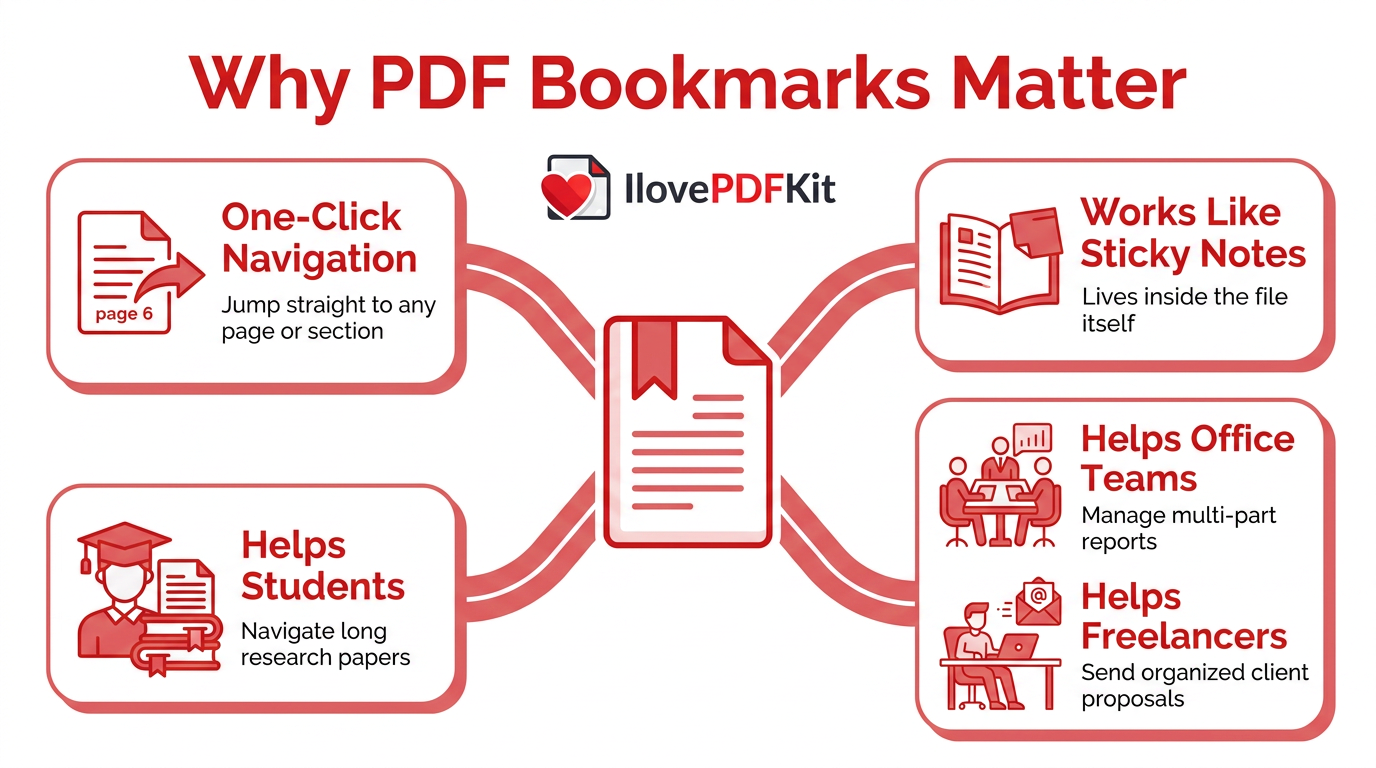
PDF bookmarks are clickable navigation links that let a reader jump straight to a specific page, section, or image inside a document with one click. They work much like the sticky notes you’d press into a paperback, except this marker lives inside the file itself and shows up in a side panel that nearly every PDF viewer supports, including Adobe Acrobat Reader, Google Chrome, and Microsoft Edge.
Bookmarks matter because they save readers from scrolling through page after page or guessing where a section starts. For students working through long research papers, office staff managing multi-part reports, and freelancers sending client proposals, a bookmarked PDF looks more organized and gets used more often. Good bookmarks act like a built-in table of contents, giving even a 100-page document a clear, professional shape.
How Do I Manually Add a Bookmark in a PDF?
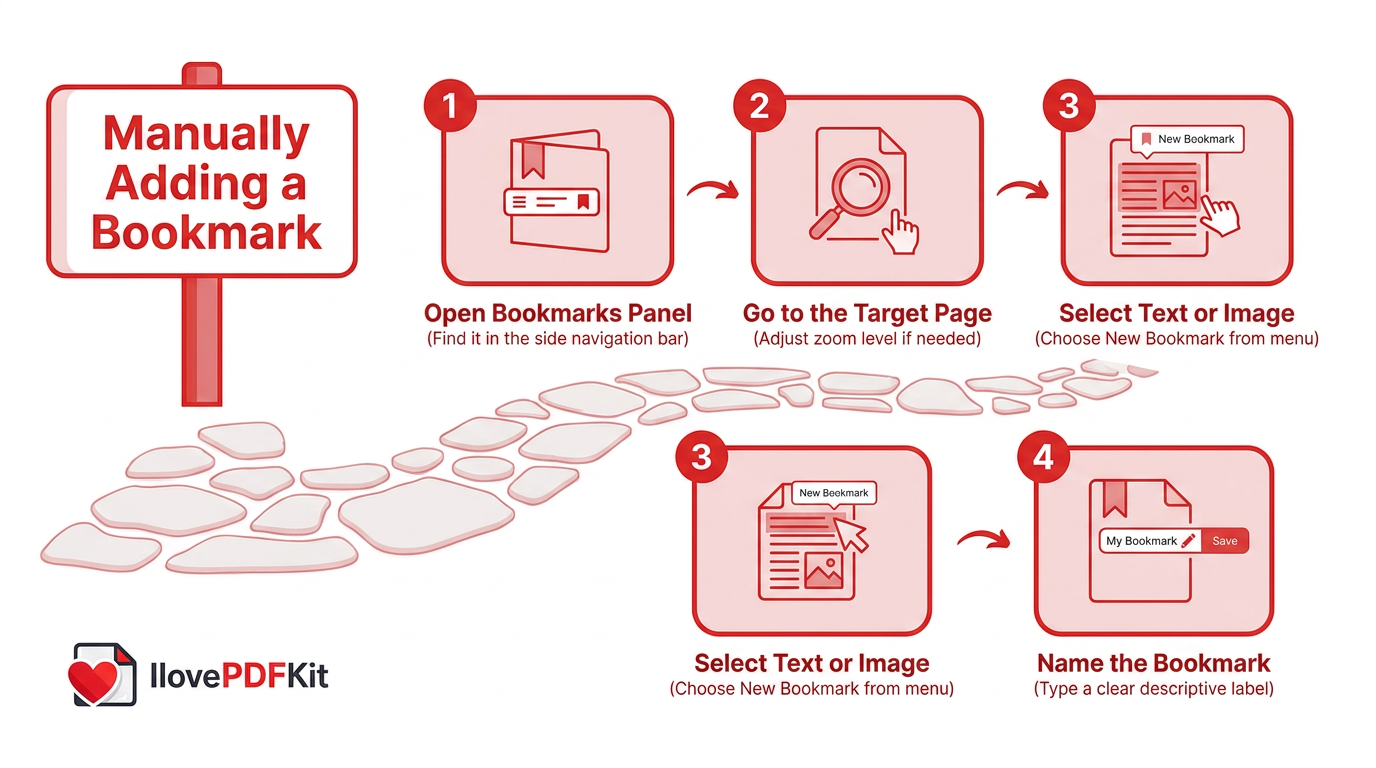
You add a bookmark by hand by opening the Bookmarks panel, moving to the page you want to link, and naming the new entry so readers know where it leads. This method works in Adobe Acrobat, Acrobat Reader, and most other PDF editors, and it gives you full control over exactly where each bookmark points.
- Open the Bookmarks panel from the side navigation bar of your PDF viewer, a step covered in detail in most guides on how to add bookmarks in leading PDF applications.
- Go to the page or image you want the bookmark to point to, and adjust the zoom level if needed.
- Select the text or image, then choose “New Bookmark” from the Options menu.
- Type a clear name for the bookmark directly in the panel so it describes the content it links to.
Keep in mind that you can only add bookmarks if the PDF’s security settings allow editing. Some files are locked with restricted permissions, so you may need the owner’s password before you can create or change any bookmarks.
How Can I Automatically Generate Bookmarks in a PDF?
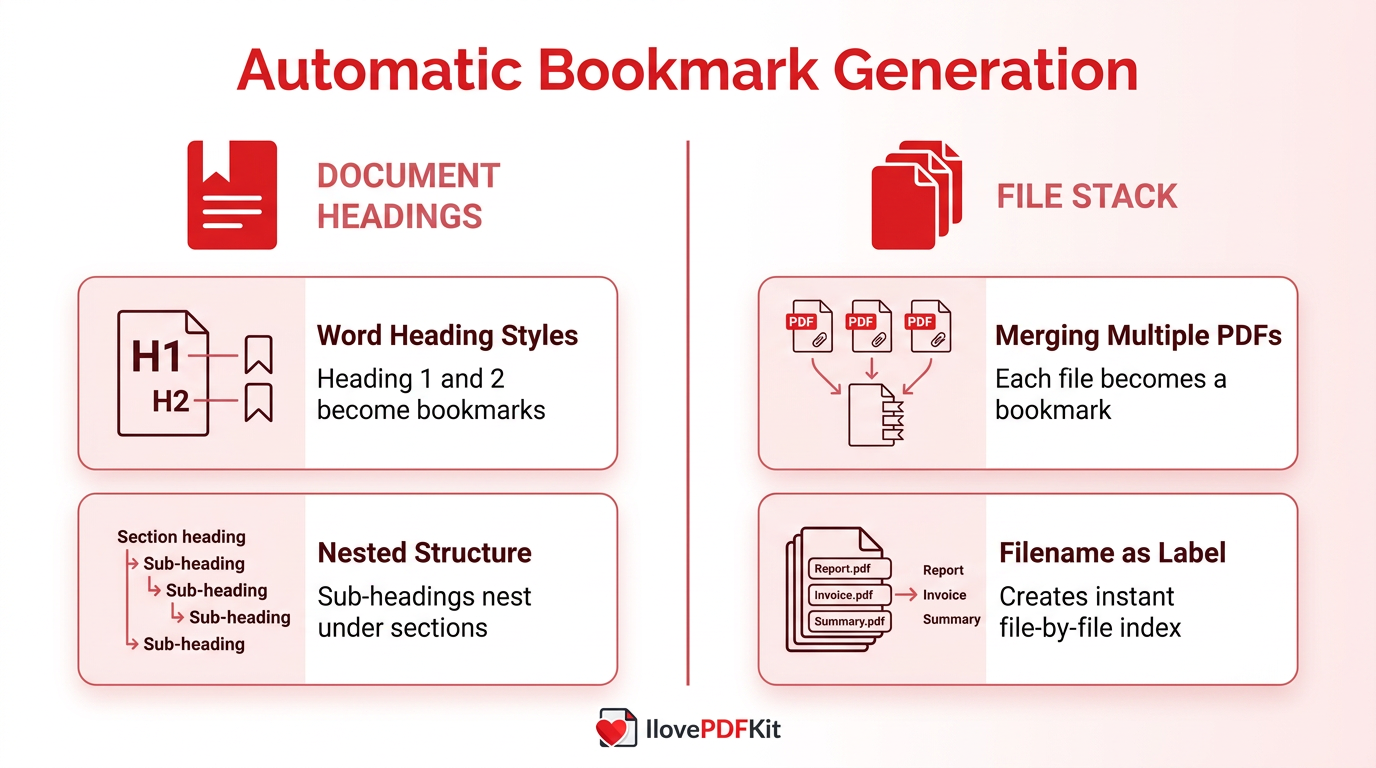
Automatic bookmark generation is the faster, more reliable way to add bookmarks in PDF files that have many sections, since typing each one by hand invites typos and eats up time. Instead of clicking through a 50-page report page by page, your PDF tool reads the document’s built-in structure and builds a full set of bookmarks in seconds. Two situations trigger this automatically: using heading styles from a word processor, or combining several files into one PDF. Both methods are covered in detail below.
Turning Word Heading Styles into Bookmarks
When a Word document uses built-in heading styles such as Heading 1 and Heading 2, a PDF conversion tool can turn that structure directly into a nested set of bookmarks. Each heading level becomes its own bookmark, and sub-headings nest neatly beneath the section they belong to, mirroring the outline you already built in Microsoft Word. This only works if the styles panel, not manual bold or font size changes, was used to format the headings in the first place.
One catch matters here. If you create the PDF using Word’s plain “Save As PDF” feature or by printing to a generic PDF driver, these bookmark settings are often skipped entirely, so a dedicated PDF conversion add-in is usually needed to keep them. Using styles consistently also keeps formatting uniform across the whole document, which pays off well beyond bookmark creation alone.
Creating Bookmarks When Merging Multiple PDFs
When you merge several separate PDFs into one combined file, most tools can automatically add a bookmark for the first page of each document, using that file’s name as the label. This instantly gives readers a clickable, file-by-file index across the whole combined document, without any manual bookmark work needed on your part.
This shortcut is especially useful for freelancers and office staff combining invoices, proposals, or multi-part reports into a single deliverable. iLovePDFKit’s Merge PDF tool lets you combine files into one document right in your browser, free and without a watermark, so you can build a navigable combined PDF and then clean up or nest the resulting bookmarks afterward.
How Do I Edit, Organize, and Manage PDF Bookmarks?
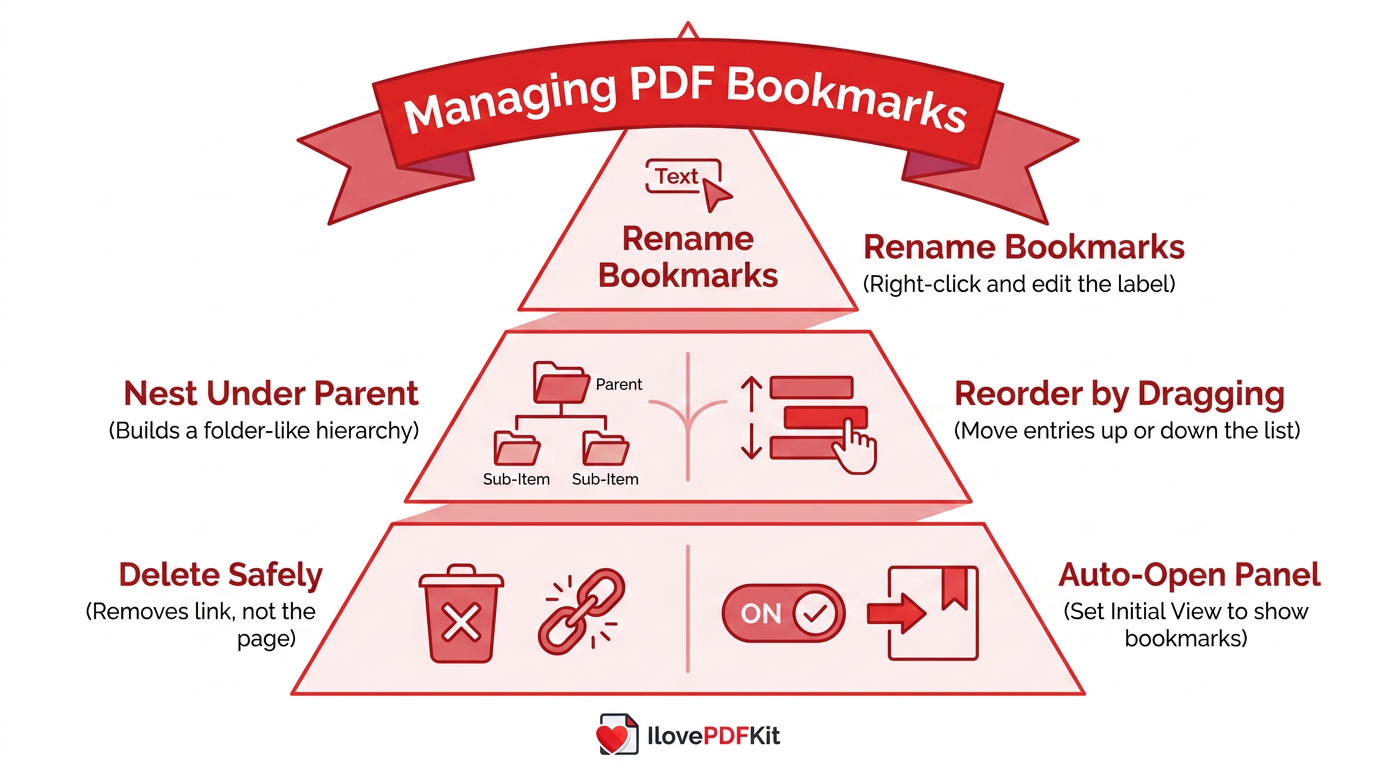
Once bookmarks exist in a PDF, whether created by hand or generated automatically, you’ll often need to clean them up so the document stays clear and useful. Renaming a bookmark just takes a right-click on its label, or you can pick “Rename Bookmark” from the Options menu and type a clearer name in its place, a workflow detailed in the PDF-XChange Editor bookmarks pane documentation for editors with similar panel controls. Reordering works the same way; drag a bookmark up or down the list to change where it sits among the others. Deleting a bookmark removes only the navigation link, never the actual page or text, though removing a parent bookmark also removes any bookmarks nested beneath it.
Nesting Bookmarks for a Clear Hierarchy
To nest a bookmark, select it in the panel and drag it directly beneath the entry you want as its parent, until a small line shows exactly where it will land. The bookmark now sits inside that hierarchy, which readers can expand or collapse like a folder tree. Nesting only changes how bookmarks are organized; the actual page and its content stay exactly where they were in the document.
Making the Bookmarks Panel Open Automatically
Readers can’t use bookmarks they never notice, so it helps to set the panel to open by default. Go to the File menu, select Properties, open the Initial View tab, and change the Navigation setting to “Bookmarks Panel and Page.” This preference travels with the file wherever it’s shared, so anyone who opens it sees your bookmark structure the moment the document loads.
How Can I Add Bookmarks Without Installing Software?
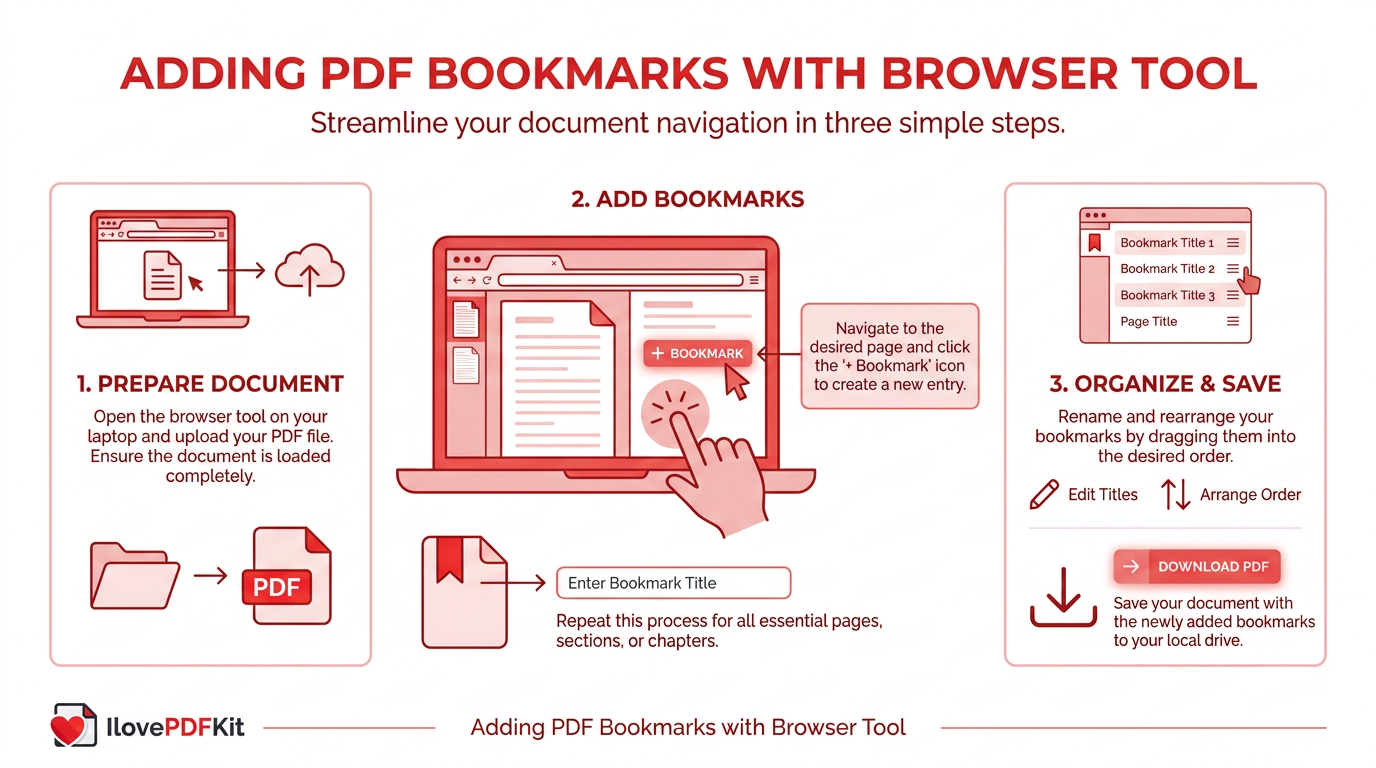
You can add bookmarks to a PDF entirely inside a browser tab, without installing Adobe Acrobat or any other desktop program. Free online tools let you upload a file, mark the page you want bookmarked, name it, and download the finished PDF within a minute or two, which suits students, freelancers, and office staff who don’t have a paid license sitting on their computer.
- The platform charges nothing and requires no registration, so you can add bookmarks in PDF files as often as you need without hitting a paywall.
- SSL-encrypted transfers keep contracts, transcripts, and client files private while they process in real time.
- Uploaded files are deleted from the server shortly after conversion, so nothing lingers in storage afterward.
- Everything runs inside the browser, so it works on locked-down school or office computers that block new software installs.
Tip: Before you add bookmarks to a long document, merge or reorder its pages first. Fixing structure after bookmarks are in place often means redoing the navigation links from scratch.
Wrapping Up
Adding bookmarks to a PDF, whether by hand, through automatic generation from heading styles and merged files, or with a free browser tool, turns any long document into something people can actually move through with ease. Students get research papers that read like a proper table of contents, office teams get reports readers can jump around in, and freelancers get proposals that look put together from the first click.
If you’re preparing a document that still needs merging, converting, or cleaning up before you add bookmarks, iLovePDFKit’s free tools handle that groundwork right in your browser, with no watermark and no software to install. Try building your next combined PDF there, then follow the steps above to give it a clear, clickable structure.
Frequently Asked Questions
Why can’t I add bookmarks to my PDF?
Security settings or password protection often block bookmark editing on a PDF. If the file belongs to you or your organization, try opening it with the owner password first, since that usually restores full editing rights, including the ability to create and rename bookmarks.
Do PDF bookmarks work the same way on mobile devices?
Most mobile PDF readers support bookmarks the same way desktop viewers do, though the panel might sit behind a menu icon instead of a fixed side bar. Tap the menu or outline icon within the app to reveal the same clickable list of bookmarks.
What’s the difference between a bookmark and a page thumbnail?
A thumbnail is a small visual preview of a page, useful for scanning a document by sight. A bookmark is a text label tied to the document’s structure, built for jumping straight to a named section rather than browsing pictures of pages.
Can I add bookmarks to a scanned PDF?
Scanned PDFs are just images of pages, so they lack the heading structure that automatic bookmarks rely on. You’ll need to add bookmarks by hand, or run OCR (optical character recognition) first to make the text and structure usable for automation.
How many bookmarks can I add to one PDF?
There’s generally no strict limit on how many bookmarks a PDF can hold. That said, a very long flat list gets hard to browse quickly, so nesting related bookmarks under parent entries keeps large documents easier to move through.
Will adding bookmarks increase my PDF’s file size?
Bookmarks add only a small amount of size since they’re lightweight text links rather than images. Page thumbnails and embedded graphics affect file size far more than a full set of bookmarks ever will.
