Introduction
A thesis is due at midnight. The PDF looks perfect—until someone asks for page numbers. The clock is ticking, the file already lives as a PDF, and the search for how to add page numbers to PDF starts right away. That moment is stressful for students, office staff, and freelancers alike.
Page numbers do more than count pages. They help readers jump to the right section, support clear citations in research, and make long reports feel organized instead of messy. Many people think they must buy expensive software or learn a complicated editor just to add a simple number at the bottom of each page. Installing heavy programs on a shared computer or work laptop can also be a problem.
The good news is that none of that is needed. Browser tools now make it simple to learn how to add page numbers to PDF in just a few clicks. iLovePDFKit is one of those tools, built to be free, fast, secure, and ready without registration. By the end of this guide, you will know exactly how to add page numbers to a PDF online in seconds, customize how they look, use batch processing, and keep your files safe the whole time.
Key Takeaways
No Extra Software Needed: Adding page numbers no longer requires paid desktop software or a long setup. With iLovePDFKit, you can learn how to add page numbers to pdf online in just a few quick steps. Everything happens in your browser, so you can work from almost any device.
Flexible Formatting: iLovePDFKit gives you control over how your numbers appear on the page. You choose the position, style, and page range so your file matches academic rules, office templates, or client guidelines. The same simple tool also works for handling several PDFs in a single batch.
Privacy And Security Built In: Files sent through iLovePDFKit are protected during upload and download with SSL encryption. The service removes your documents from its servers soon after processing and never asks you to create an account, which helps keep both your data and your privacy under control.
Why Adding Page Numbers to a PDF Matters

A PDF with no page numbers looks fine at first glance, yet it quickly becomes hard to use once it grows past a few pages. Numbered pages show that a document is planned, checked, and ready for serious use, which matters for assignments, reports, and client proposals. When teachers, managers, or clients read your work, page numbers in a PDF act as a small but clear sign of care and order.
They also make navigation simple:
If a professor writes comments that refer to page 27, the reader can go straight to the right spot.
If a manager asks about a chart on page 6, nobody has to guess where that chart lives.
In research papers, contracts, and manuals, citations almost always refer to a specific page, so a PDF without embedded numbers slows everyone down.
When people work together on the same file, page numbers help the group keep track of feedback and edits. They are also the base for any table of contents, whether printed or clickable. Many schools, courts, and offices list page numbering rules in their style guides — such as the Title Page and Pagination guidelines in Chicago Style — and can reject a file that ignores them. Most PDF viewers show a counter in the toolbar, but that is not part of the document itself, so you still need to add real numbers inside the pages.
Without embedded page numbers, a long PDF report is just a stack of unnamed pages to your reader.
How to Add Page Numbers to a PDF Using iLovePDFKit
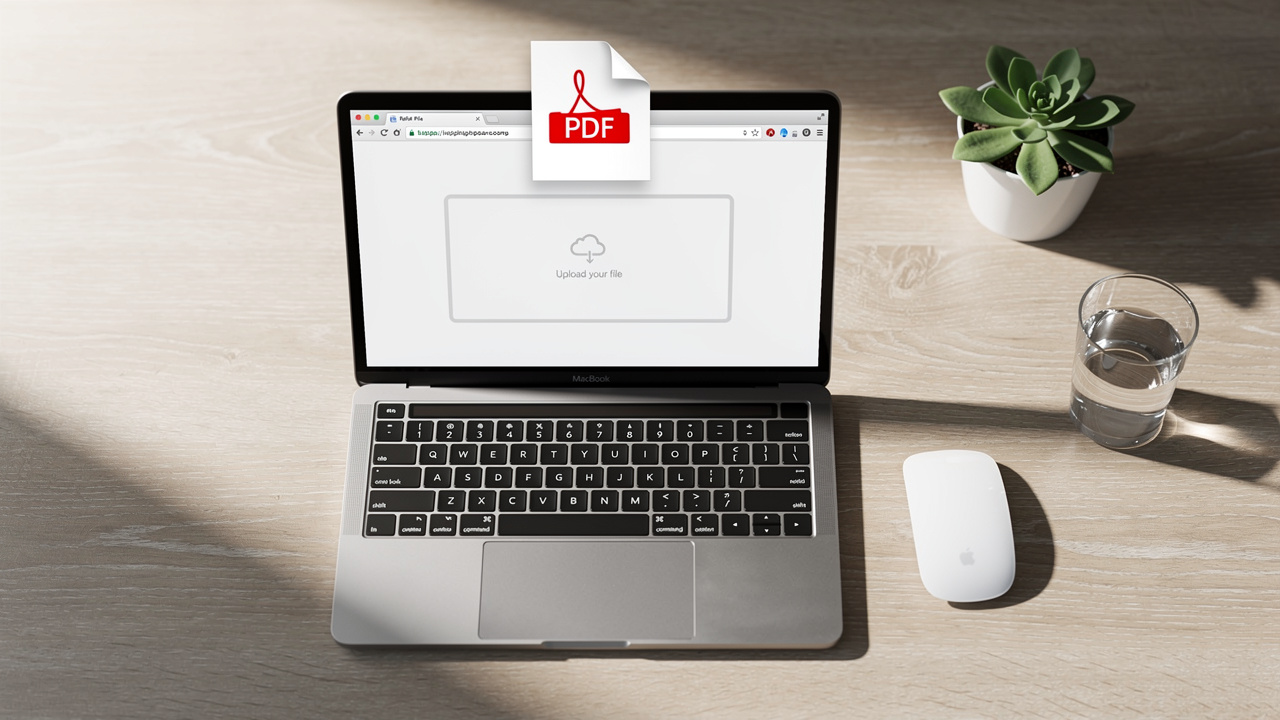
If you are tired of hunting through menus in heavy desktop programs and only want a clear method for how to add page numbers to pdf, iLovePDFKit keeps things simple. The Add Page Numbers tool runs in any modern browser and does not ask you to sign up, pay, or install anything. You upload a file, set a few options, and download a clean PDF with precise, consistent page numbers.
Go To The Tool
Open your browser and head to the iLovePDFKit website, then choose the Add Page Numbers tool. The page loads quickly and works on Windows, macOS, Linux, or a school Chromebook with no extra setup. Because everything runs online, you can learn how to add page numbers to pdf on any computer that has internet access.Upload Your PDF
Click the upload button or drag and drop your file into the marked area. iLovePDFKit starts secure transfer right away using SSL encryption, so the content of your document is kept private. You can upload reports, homework, contracts, or multi‑chapter drafts, and the tool will keep the layout pixel accurate in the output PDF.Customize Your Settings
After upload, you see options to control where and how the numbers will appear. Choose a position such as top left, top center, top right, bottom left, bottom center, or bottom right. Pick a numbering style that fits your needs, for example a plain number, a Page label, or a format that shows both the current page and the total number of pages. You can also set a page range so you skip a cover page or early sections that should stay blank.Apply Page Numbers
When your settings look right, click the button that applies the changes. iLovePDFKit processes your file within a few seconds, even if it has many pages. The tool adds the numbers directly into the PDF, keeping fonts and spacing stable, so the pages look neat and professional.Download Your File
Once processing finishes, a download option appears for the new PDF with page numbers. Save it to your computer, upload it to a learning platform, or send it to a client right away. There are no watermarks on the file, no trial limits, and no surprise paywalls that appear after you finish your work.
The biggest benefit of using iLovePDFKit is that all of these steps stay fast and simple. You do not create an account, and the service does not keep a long‑term copy of your documents. Real‑time processing, strong encryption, and clean output make it easy for anyone to learn how to add page numbers to pdf without any technical skill.
Pro Tip: Need to number several PDFs for one big project? iLovePDFKit offers batch processing, which can handle multiple files in one run so you do not repeat the same steps again and again.
When to Use Batch Processing

Batch processing is a lifesaver when the task is not just one PDF but a full set of files. For example:
A law office that needs numbers on hundreds of pages across many exhibits.
An academic who organizes several chapters and appendices as separate PDFs.
An office assistant with weekly reports from different teams that all must follow the same page number format.
In these cases, uploading and configuring each file one by one would waste a lot of time. With iLovePDFKit batch processing, you set the style and position once, then add every related PDF to the same run. The tool applies matching page numbers to all of them in a single pass, which keeps their style consistent. Just like single‑file tasks, all documents in the batch use SSL protection and are removed from the server shortly after processing, so large‑scale work stays both efficient and private.
“If a task needs doing more than once, consider automating it.” — Common Productivity Advice
Customization Options For Position Format And Page Range
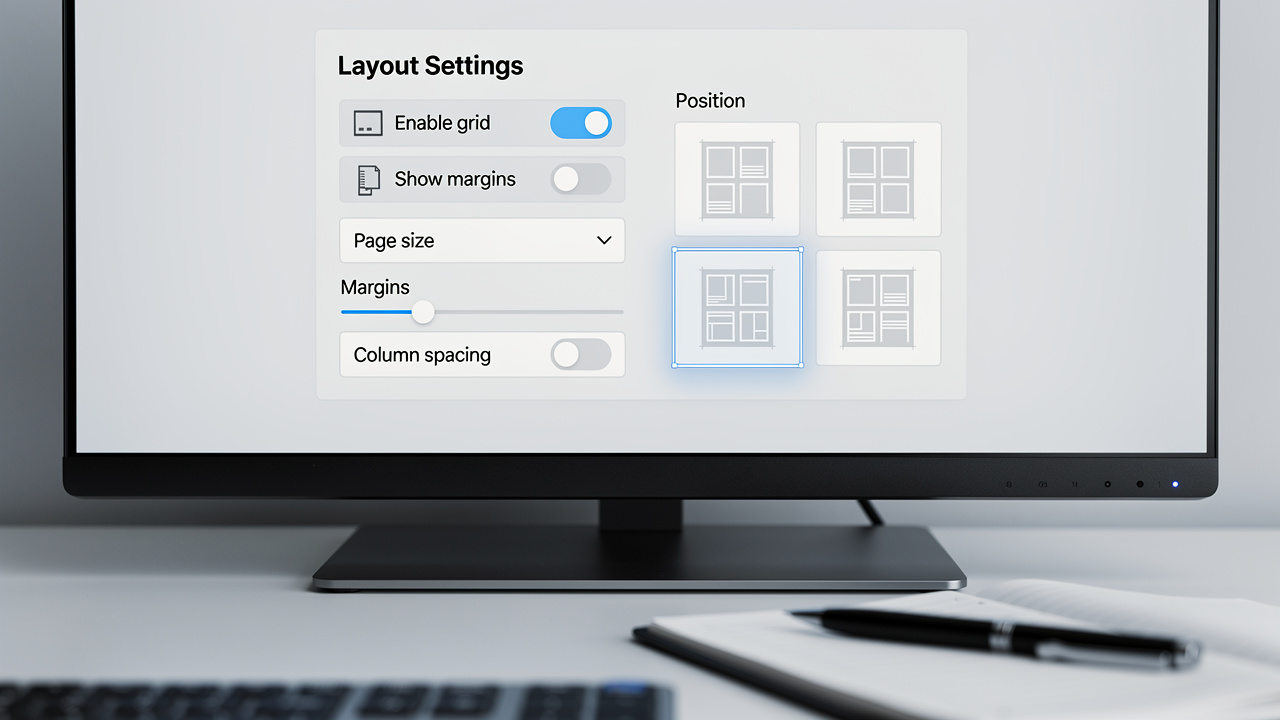
Not every document needs page numbers in the same place or with the same look. A lab report, a company handbook, and a court filing often follow very different rules. iLovePDFKit gives you flexible controls, so once you know how to add page numbers to pdf, you can also match the exact format your school, office, or client expects.
To start, choose where the numbers sit on each page. The simple table below sums up the standard positions.
| Location | Options |
|---|---|
| Top header | Top left, top center, top right |
| Bottom footer | Bottom left, bottom center, bottom right |
Bottom center is common in books, manuals, and many reports because the number feels balanced and hard to miss. Top right often appears in academic papers where other items share the footer area. If you already follow a style guide such as APA or a company brand rule, or if you need to renumber a PDF document that was formatted differently, pick the position that matches that guide.
Next, choose a numbering style. A plain digit such as 1, 2, 3 works well for simple class notes or internal drafts. Adding text, for example Page 1 or Page 1 of 20, gives more context and looks more formal, which suits proposals and reference documents. Formats that show both the current page and the total page count help readers track progress through long files and can reassure them that nothing is missing.
Page range control is just as important as position and style. Many documents have a cover page, a table of contents, or a title sheet that should not show a number even though it still counts in the overall flow. In iLovePDFKit you can choose to start numbering from any page so the first numbered page can display as 1 even if it is physically the second or third page of the file. You can also limit numbering to a section in the middle of the PDF, which is helpful for appendices or bundles that share one wrapper document.
For clear, readable page numbers across your PDFs:
Keep the placement consistent from the first page you number to the last.
Avoid placing numbers too close to the edge, where some printers might cut them off.
Make sure the style you choose does not clash with headers or footers that already exist.
“Consistency in page numbering is one of the first things editors look for in long documents.” — Common Academic Formatting Advice
For academic submissions, always check the formatting guide from your school or department, since many teachers specify exact rules for where page numbers go, which font size to use, and which page should start the count.
Conclusion

Adding page numbers used to mean buying software, reading long manuals, and wrestling with complex menus. Now, once you understand how to add page numbers to pdf with iLovePDFKit, the whole task becomes a short stop in your workflow instead of a roadblock. You open your browser, upload the file, select a position and style, click once, and download a clean, ready‑to‑share PDF.
With iLovePDFKit, you get:
Online access with no registration.
SSL‑protected uploads and short‑term file storage.
Batch processing that handles sets of PDFs for larger projects.
Output files with no added watermark.
When you need more than numbering, the same site offers extra tools to merge, split, compress, and convert PDFs with the same simple approach. Whether you are finishing a thesis, polishing a business report, or organizing case files, iLovePDFKit helps you number your pages in seconds so you can focus on the content itself.
FAQs
Do I Need To Create An Account To Use iLovePDFKit?
No account is needed for the Add Page Numbers tool or any other basic feature on iLovePDFKit. You visit the website, upload your PDF, and start working right away. This approach keeps the process fast and avoids storing personal profile data.
Is iLovePDFKit Free To Use For Adding Page Numbers?
Yes, adding page numbers with iLovePDFKit is completely free. There are no trial limits, hidden charges, or locked options that ask for payment later. Even batch processing stays included at no cost, which is helpful when you handle many files.
Is It Safe To Upload My PDF To An Online Tool?
iLovePDFKit protects your files during transfer with SSL encryption so the content cannot be read while it moves between your device and the server. After the page numbers are added and you download the new PDF, both the original and the edited versions are removed from the server. Since there is no account system, the site also does not keep a long‑term history of your documents.
What Happens To My Page Numbers If I Edit The PDF Later?
Once you add page numbers to a PDF, those numbers work like fixed text on the page. If you later insert, delete, or reorder pages, the numbers will not adjust on their own, which can make the sequence look wrong. It is best to finalize the page order before you number the file, but if changes are needed, you can simply upload the updated PDF to iLovePDFKit and run through the same quick steps again.
Can I Skip The Cover Page When Adding Page Numbers?
Yes, iLovePDFKit lets you choose where numbering begins so the cover can stay clean. You select a page range and set the first numbered page to show as 1 even if it is not the first physical page. This makes it easy to follow common rules for essays, theses, and formal reports.
