Turning a finished Google Doc into a PDF often becomes urgent right before a deadline. A professor asks for a PDF submission, a client expects a locked report, or a hiring manager wants a resume that won’t shift out of shape on their screen. Figuring out how to convert Google Docs to PDF quickly, without installing anything extra, is exactly the kind of small problem that eats up time you don’t have.
The trouble is that a Google Doc can look different depending on the device, browser, or font settings a reader has, so a shared link sometimes arrives looking messy. A PDF, short for Portable Document Format, locks your layout, fonts, and images in place no matter where the file gets opened.
This guide covers every practical way to make that switch, starting with Google’s own Download and Email options, then moving through mobile and Mac steps, merging multiple files, and when a free browser tool like iLovePDFKit is worth adding to the mix. Read on for the exact clicks.
Key Takeaways
- The fastest route is File > Download > PDF Document, which works right inside your browser with no extra software needed.
- You can skip the download step entirely by using File > Email > Email This File to send a PDF straight to someone’s inbox.
- The Google Docs mobile app lets you save or share a PDF in a few taps through the Share & export menu.
- Native Google tools only handle one document or tab at a time, so combining several files calls for iLovePDFKit or a similar tool.
- Once a document becomes a PDF, its formatting locks in place, so fonts, spacing, and images stay exactly as designed.
Table of Contents
- How Do I Convert A Google Doc To PDF? (Step-By-Step)
- How Do I Convert A Google Doc To PDF On Mobile Or Mac?
- Can I Merge Multiple Google Docs Or Tabs Into One PDF?
- Why Use iLovePDFKit For Google Docs To PDF Conversions?
- What Are The Benefits Of Converting A Google Doc To PDF?
- The Takeaway
- Frequently Asked Questions
How Do I Convert A Google Doc To PDF? (Step-By-Step)
Converting a Google Doc to PDF takes under a minute using Google’s own File menu, with no downloads or sign-ups needed beyond your existing Google account. Open the document, click File in the top menu, then hover over Download and choose PDF Document (.pdf) to build the file right inside your browser. Google Docs renders the PDF instantly and drops it into your device’s default Downloads folder, ready to attach, print, or upload wherever it’s needed. If you’d rather skip saving a copy locally and send the file straight to someone else, Google Docs also lets you email a PDF version directly from that same File menu. Both routes produce an identical, formatting-locked PDF, and this step-by-step PDF conversion walkthrough confirms the same download and email paths work consistently across browsers, so the right choice mostly comes down to whether you need a saved copy or a quick send.
Downloading Your Google Doc As A PDF
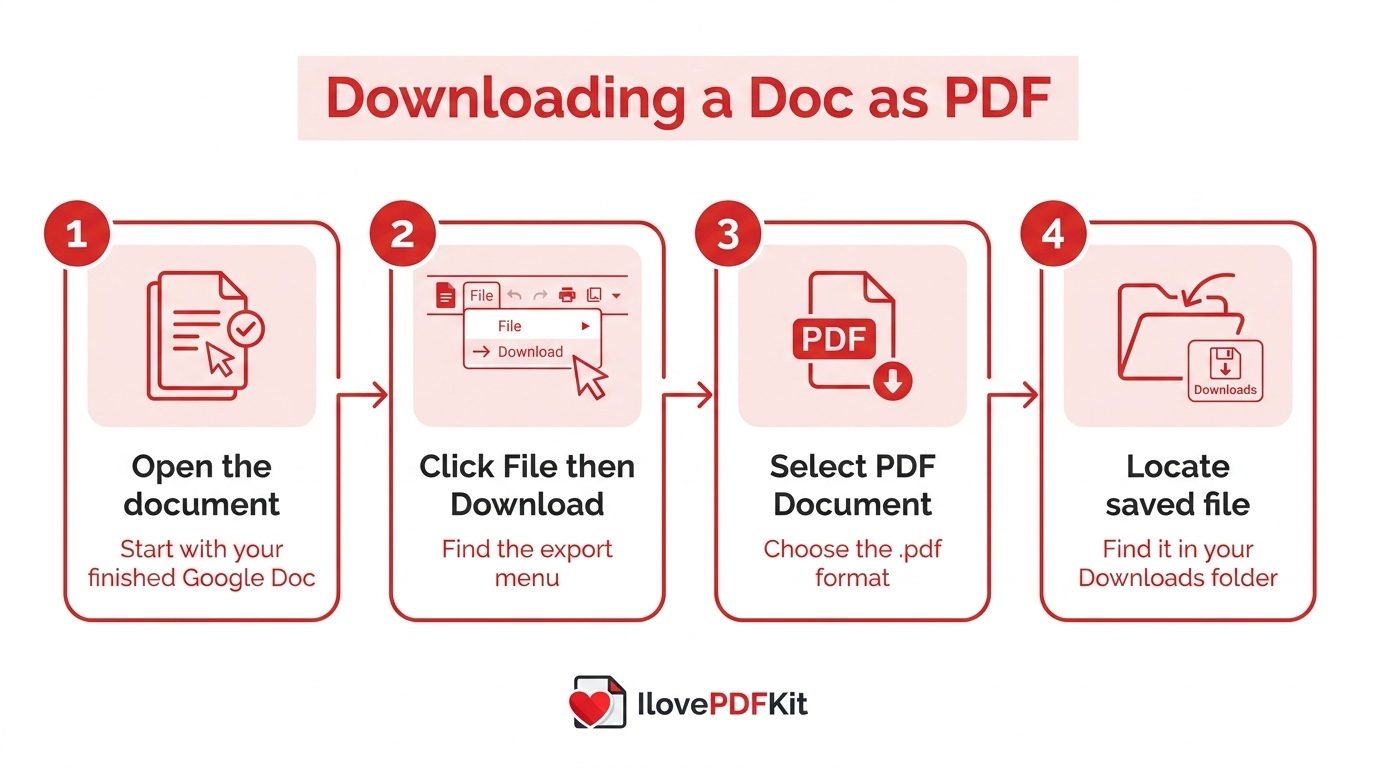
Before converting anything, take a minute to review the document itself, since any spelling fixes or layout tweaks after this point mean repeating the whole process. Once the content looks finished, the built-in download path handles the rest in a few clicks.
- Open the Google Doc you want to convert, or finish drafting a new one.
- Click File in the top menu, then hover over Download.
- Select PDF Document (.pdf) from the list of export formats.
- Find the new file in your Downloads folder and move it to wherever you keep finished work.
Most browsers save the file automatically without asking, though some prompt you to pick a folder first. Either way, the exported PDF keeps your fonts, spacing, and images exactly as they appeared in the original document.
Emailing Your Google Doc As A PDF
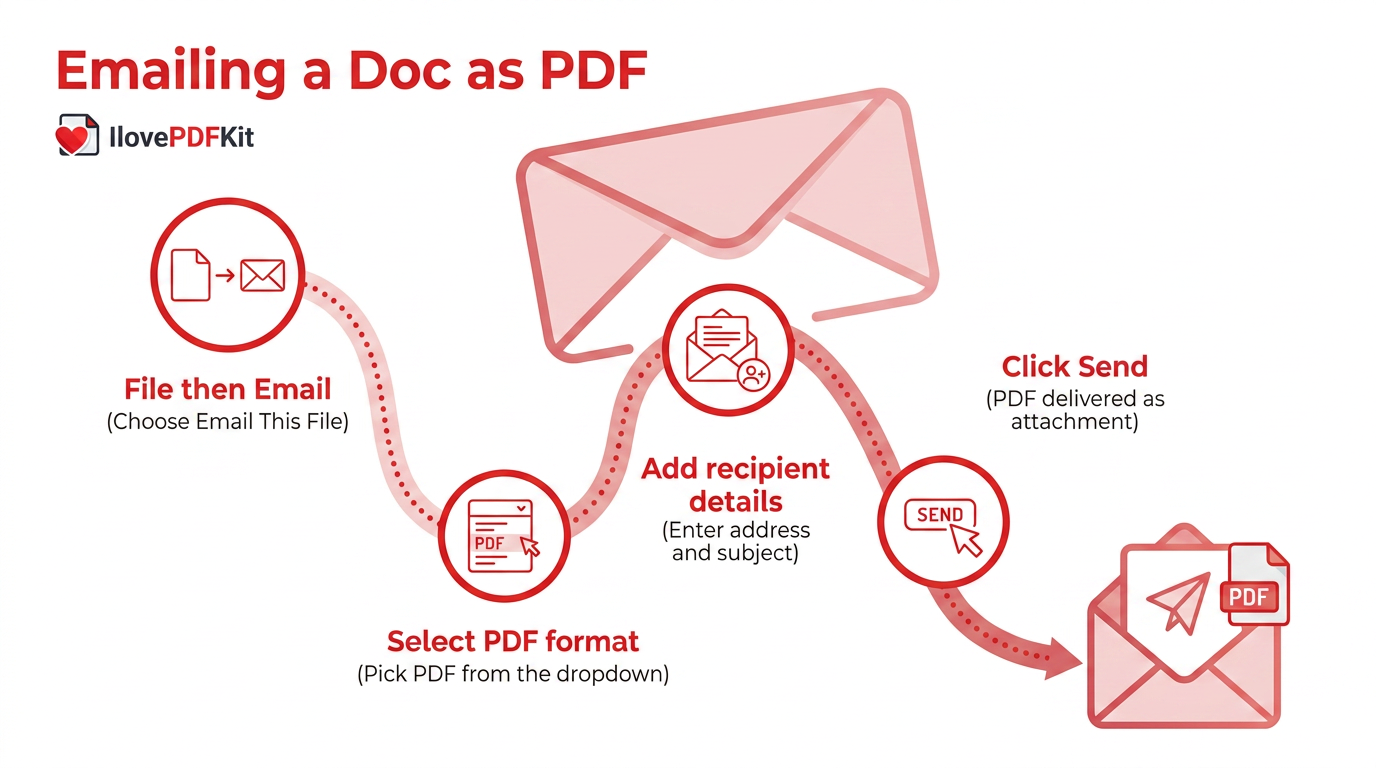
Sending a finished document straight to someone’s inbox skips the download step entirely, since Google Docs can attach a PDF version while composing the email itself. This works well when a deadline is close and you need the file in someone else’s hands within seconds.
- Open your Google Doc and click File, then Email, then Email This File.
- In the dialog box, find the format dropdown near the bottom and choose PDF.
- Type the recipient’s address, add your own email if you want a copy, then write a subject line.
- Click Send to deliver the finished PDF as an attachment.
This method suits students submitting assignments straight to an instructor, or freelancers sending a finished deliverable to a client without leaving the Docs tab open in another window.
How Do I Convert A Google Doc To PDF On Mobile Or Mac?
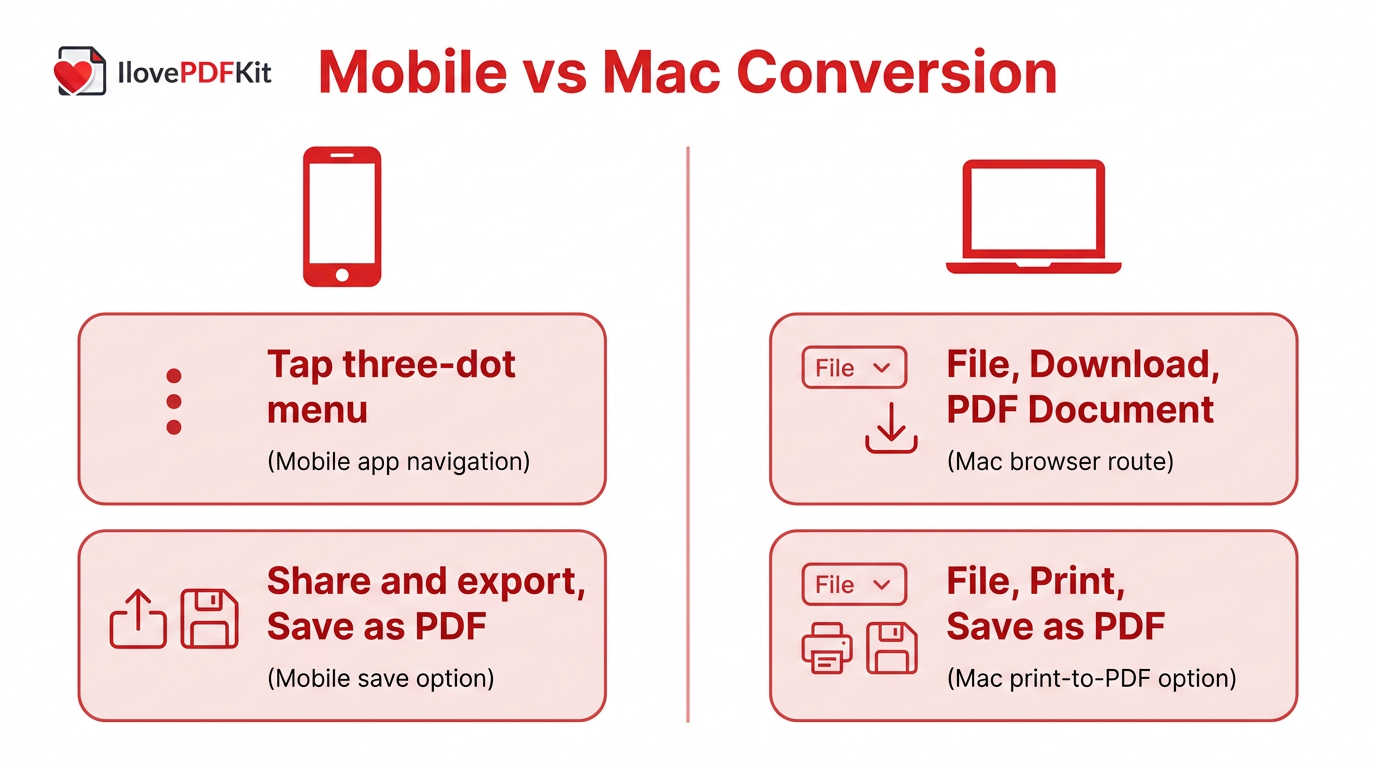
Converting a Google Doc to PDF on a phone, tablet, or Mac follows the same basic logic as the desktop process, just through slightly different menus and icons. The Google Docs mobile app replaces the File menu with a three-dot options icon in the corner of the screen, while Mac users work through the exact same browser-based Google Docs interface as anyone using Windows or a Chromebook. Neither situation calls for extra software, since Google Docs runs as a web application inside your browser rather than a program installed on your hard drive. Whether you’re finishing a report between classes on your phone or wrapping up a proposal on a laptop, the steps stay short and familiar. The next two sections break down the small differences in navigation so you’re not hunting through unfamiliar menus.
Converting On The Google Docs Mobile App
On the Google Docs app for iOS or Android, open the document, tap the three-dot menu in the top right corner, then select Share & export. Choose Save as and pick PDF Document to save the file to your phone’s storage, or share it directly through email or messaging apps without saving a copy first.
Converting On A Mac
Mac users convert a Google Doc to PDF exactly the same way as anyone else, since Docs opens in Safari or Chrome rather than as a native Mac program. Click File > Download > PDF Document for the standard route, or use File > Print, then follow the same print-to-PDF steps outlined in Google’s own printing guide, choosing Save as PDF from the PDF menu in the bottom corner of the print window for more control over margins.
Can I Merge Multiple Google Docs Or Tabs Into One PDF?
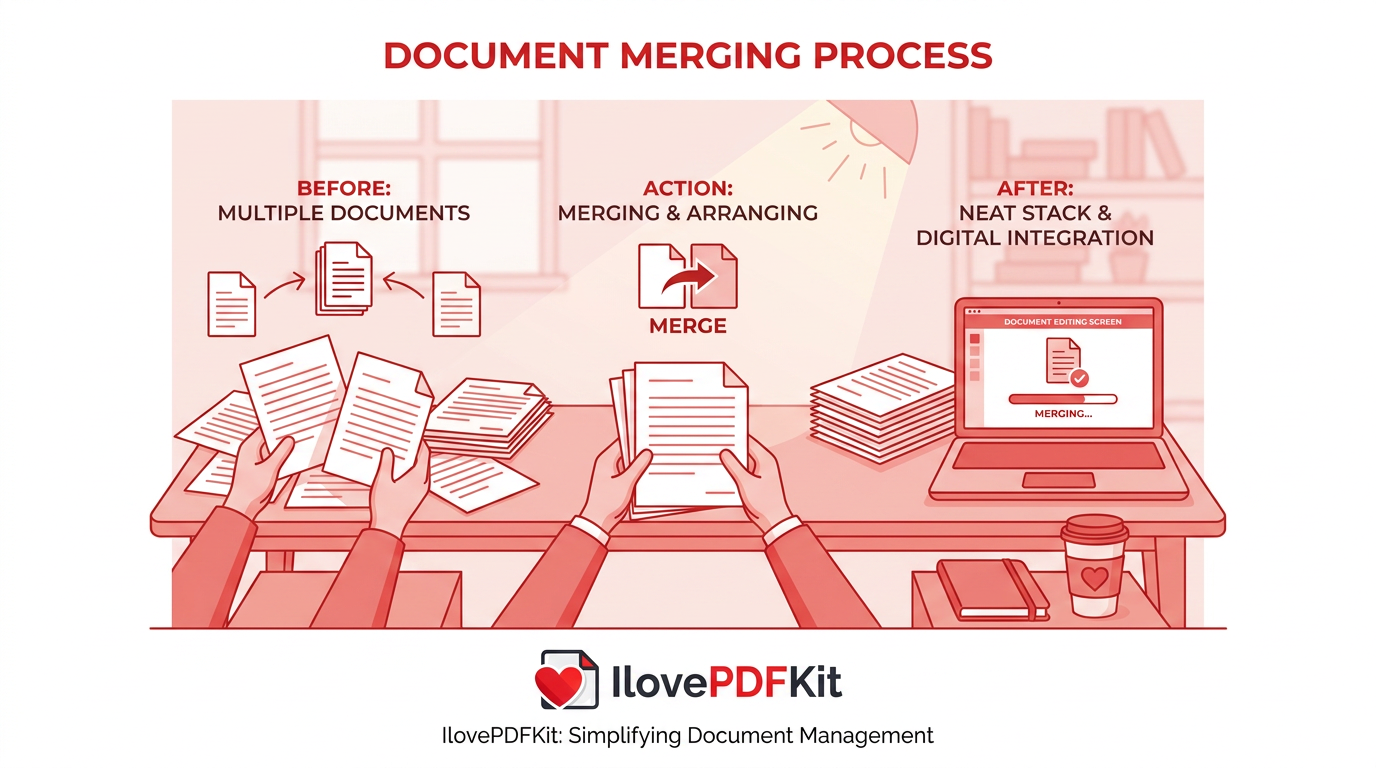
Google Docs cannot merge multiple documents or tabs into one PDF using its native File menu, and developer discussions on exporting Google Docs as PDF confirm the built-in Download and Email options only export one document, or one active tab, at a time. Anyone working with a multi-tab research doc, a class packet, or several separate reports needs an outside tool to combine everything into a single file.
Google Workspace Marketplace add-ons and browser-based PDF tools fill that gap, letting you merge separate Google Docs, combine every tab from one document, and add a password to the finished file in one step. Teachers combining lesson materials and researchers merging documents with a dozen or more tabs report real time savings over exporting and stitching files together by hand, though checking an add-on’s permissions before installing it is worth the extra minute.
Why Use iLovePDFKit For Google Docs To PDF Conversions?
Google’s native export covers the basics well, but merging files, shrinking a large PDF, or adding a password calls for a dedicated tool once the document leaves Google Docs. iLovePDFKit handles these follow-up tasks entirely inside a browser tab, with no account, download, or watermark standing between you and the finished file.
Every upload runs through SSL-encrypted transfer and gets deleted from the server soon after the job finishes, so a resume, contract, or research draft never sits in storage longer than necessary. The platform also skips the file and page caps that some competing tools apply on their free tier, which matters if you’re merging a full semester of lecture notes or a stack of client invoices into one file.
What Are The Benefits Of Converting A Google Doc To PDF?
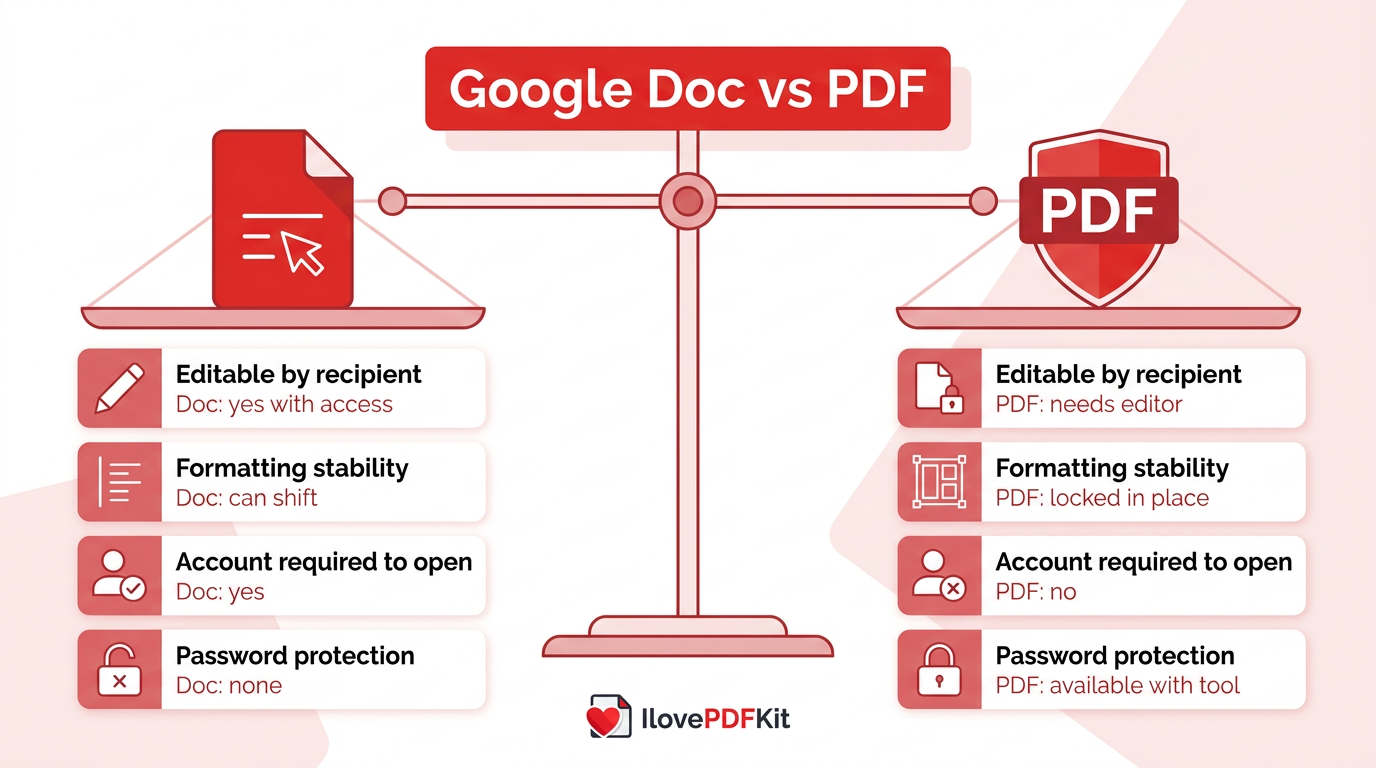
Converting a Google Doc to PDF matters because PDF is the format businesses, schools, and government offices already trust for anything final, from contracts to resumes to academic submissions. Once a document becomes a PDF, its layout stays locked exactly as designed, so fonts, spacing, tables, and images look the same whether it’s opened on a laptop, phone, or a shared office printer.
PDFs also open on any device without needing a Google account or an internet connection, which matters when sharing with a client, employer, or reviewer outside your organization. For sensitive material like financial statements or signed agreements, a dedicated PDF tool can add a password after conversion, something an editable Google Doc link doesn’t offer on its own.
| Aspect | Google Doc | |
|---|---|---|
| Editable by recipient | Yes, if shared with edit access | Not without a separate PDF editor |
| Formatting stays fixed | Can shift by device or font | Locked in place |
| Needs a Google account to open | Yes, for full editing features | No |
| Password protection | Not built in | Available with a PDF tool |
Quick tip: Before sending any converted file, open it once on a different device than the one you created it on. It only takes a moment and catches font substitutions or layout shifts before a client or professor does.
The Takeaway
Turning a Google Doc into a PDF really does come down to a couple of clicks. File > Download > PDF Document gives you a saved copy in seconds, while File > Email > Email This File sends a finished PDF straight to someone’s inbox without an extra download step in between. Mobile and Mac users follow nearly identical menus, just through a share icon instead of a top navigation bar.
When you need more than Google’s own tools offer, like merging several documents, shrinking a file for email, or locking a PDF with a password, iLovePDFKit covers those next steps for free and without installing anything. Keep it bookmarked alongside your Google Docs workflow, and turning any finished document into a polished, shareable PDF stays a quick habit rather than a recurring headache.
Frequently Asked Questions
How Do I Compress A PDF After Converting It From Google Docs?
Google Docs has no built-in compression tool, so exported files keep their original size. iLovePDFKit’s Compress PDF tool shrinks the file while keeping it readable, which is useful for email attachments or upload portals with a size limit.
How Do I Password-Protect A PDF After Converting It From Google Docs?
Google Docs’ export options don’t include encryption, so a downloaded PDF has no password by default. A dedicated PDF tool can add one after conversion, giving contracts or financial files extra protection before you share them.
Can I Edit A PDF After Converting It From A Google Doc?
Not directly, since a PDF isn’t editable like a Google Doc by default. Reopen the original Doc, make changes there, and export a fresh PDF, or use a separate PDF editor if only the PDF version remains.
What’s The Difference Between Saving As PDF And Printing To PDF?
Download uses Google’s own PDF engine, while Print routes the file through your browser’s print engine instead. Both produce valid PDFs, but printing sometimes offers more control over margins and page scaling if the layout looks off.
How Do I Add A PDF Into Google Docs?
Google Docs can’t embed an interactive PDF directly inside a document. Instead, insert PDF pages as images, or upload the file to Google Drive and add a link to it inside your Doc so readers can open it separately.
Can I Convert A PDF Back Into A Google Doc?
Yes, upload the PDF to Google Drive, right-click it, and choose Open With Google Docs to create an editable copy. This works best on text-based PDFs rather than scanned images, so review the result for misread characters before relying on it.
