Scattered JPG photos of receipts, notes, or contracts rarely stay organized on their own. You end up with ten separate image files scattered across folders, and sharing them one by one feels clumsy for school, work, or client projects. The good news is simple: learning how to convert JPG to PDF online free takes less than a minute once you know the right steps.
This guide walks through exactly what JPG to PDF conversion means and why it beats sending loose images. You’ll get a clear, step-by-step process for converting JPG to PDF online for free, tips for keeping sensitive files private, and advice on getting sharp, professional-looking results every time. Along the way, we’ll point out where tools like iLovePDFKit fit into the picture, since it offers free, no-signup conversion built for exactly this kind of task.
By the end, you’ll know how to merge, arrange, and download a polished PDF from your photos, whether you’re a student submitting homework, an office worker filing receipts, or a freelancer sending a client proof sheet.
Key Takeaways
- Converting JPG to PDF online is free, fast, and needs no software download or installation.
- The process follows five simple steps: upload your images, arrange them, customize the layout, convert, then download.
- Encrypted, no-storage processing keeps sensitive files private during and after conversion.
- iLovePDFKit offers no signup, no watermark, and no daily task limits for everyday conversions.
- Quality settings and image preparation both affect how sharp and professional your final PDF looks.
Table of Contents
- What Does It Mean to Convert JPG to PDF?
- How Can I Convert JPG to PDF Online for Free?
- Is It Safe to Convert JPG to PDF Online?
- How Do I Get the Best Quality PDF From My Images?
- Who Uses JPG to PDF Converters and Why?
- What Other PDF Tools Can Help My Workflow?
- The Takeaway
- Frequently Asked Questions
What Does It Mean to Convert JPG to PDF?
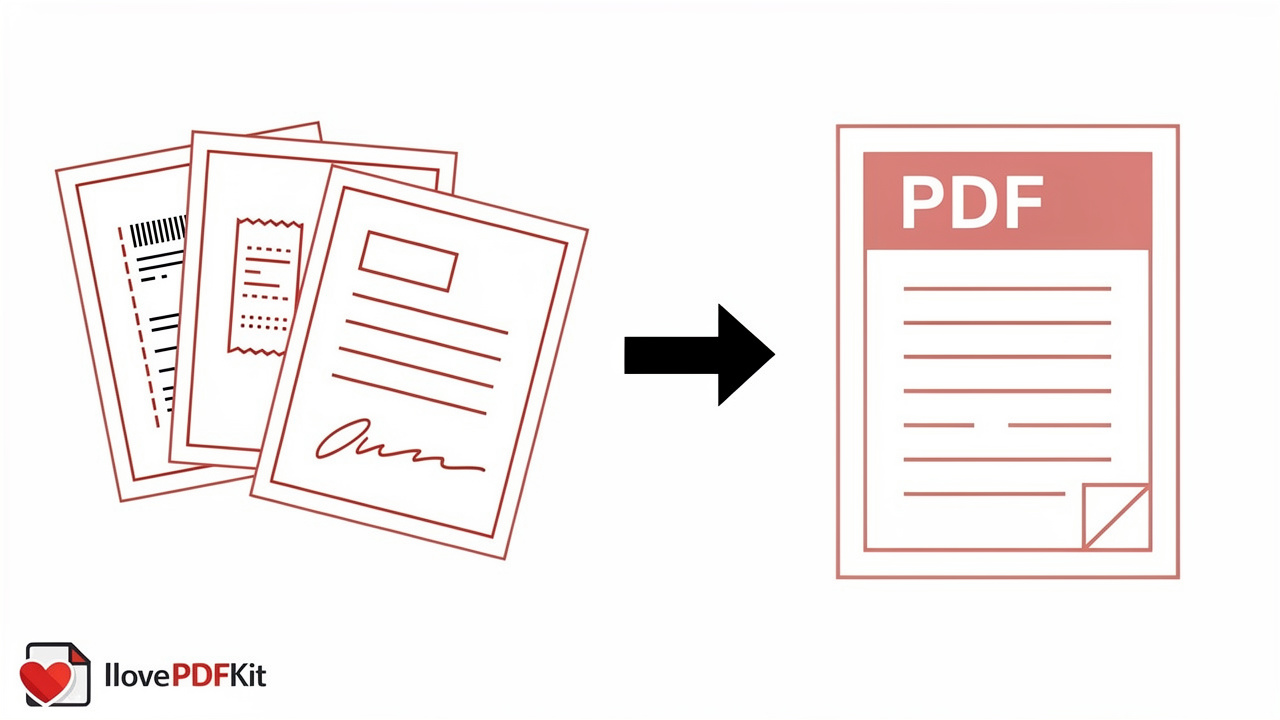
Converting JPG to PDF means taking one or more image files and merging them into a single, ordered document that opens the same way on any device. Instead of juggling separate photos, you get one file that behaves like a small booklet, with each image appearing as its own page in the order you choose. This matters most when you have several related images, like scanned pages, product photos, or handwritten notes, that need to travel together as one unit rather than as loose attachments.
A PDF also keeps its layout fixed no matter who opens it or what device they use. A JPG might display differently across apps or screens, but a PDF preserves the exact page size, orientation, and image placement every time. That consistency is why teachers, clients, and reviewers often ask for a single PDF rather than a folder of separate image files.
How Can I Convert JPG to PDF Online for Free?
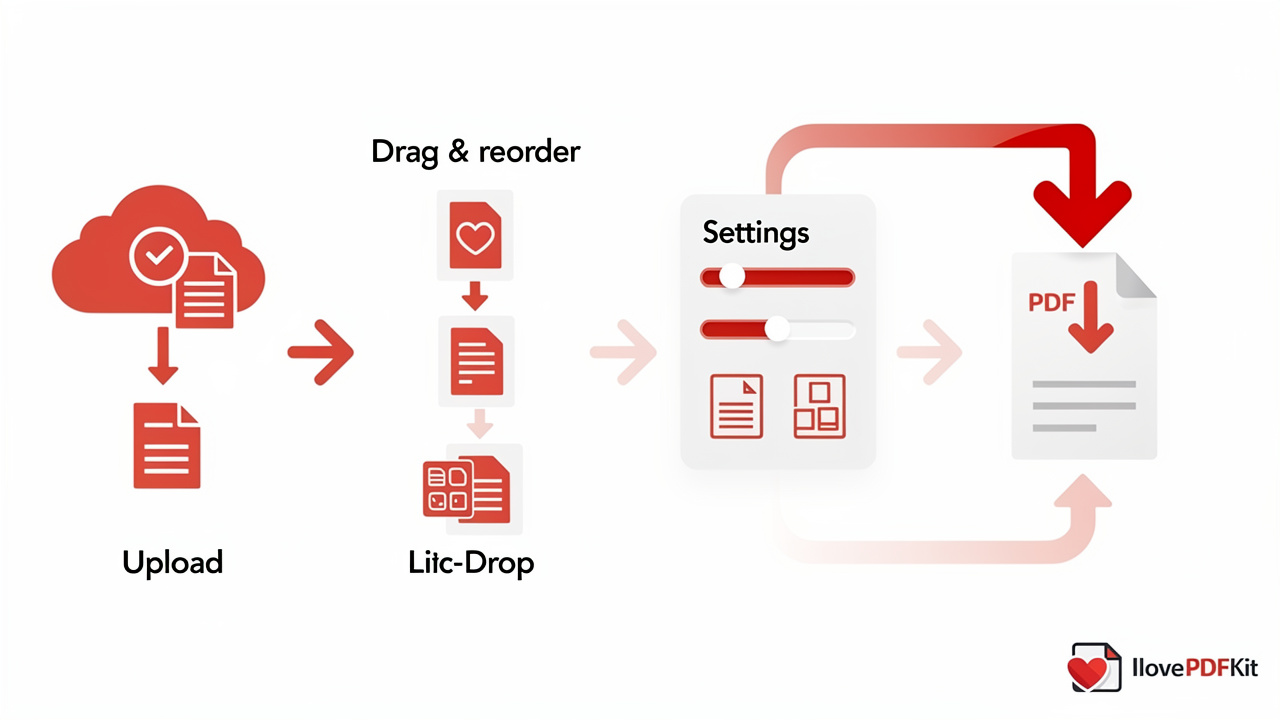
You can convert JPG to PDF online for free by uploading your images to a browser-based converter, arranging them in order, adjusting a few layout settings, then downloading the finished document. The entire process usually takes under a minute, and you don’t need to install anything or create an account to get started. Tools like iLovePDFKit’s JPG to PDF converter handle this with a simple upload box, drag-and-drop reordering, and instant conversion, which makes the whole workflow approachable even if you’ve never converted a file before. The four steps below break down exactly what happens at each stage, so you know what to expect before you even open the tool.
Step 1: Upload Your Images
Start by dragging your image files into the converter’s upload area, or click the upload button to browse your device manually. Most free converters accept JPG, JPEG, and PNG formats formats, so you can mix file types in a single batch without converting anything beforehand. File size limits typically allow up to 50 MB per image, which covers even high-resolution scans and photos without issue.
Step 2: Arrange Your Pages in Order
Once your images upload, you’ll see thumbnail previews that you can drag into any sequence you want. This step decides how pages appear in your final PDF, so take a moment to check the order matches your intent. A quick preview before converting saves you from having to redo the whole process later.
Step 3: Customize Page Settings
Before converting, pick a page size such as A4 or Letter, and choose Portrait or Landscape orientation based on your image shapes. You can also adjust margins for a cleaner look and choose how images fit the page to avoid awkward cropping. These small settings make a real difference in how polished the final document looks, especially for anything you plan to print or submit.
Step 4: Convert and Download
Click convert, and your PDF generates almost instantly since the heavy lifting happens right in your browser. Once it’s ready, download the file straight to your device and you’re done, no waiting, no extra steps required. The platform keeps this last stretch simple by skipping account creation, watermarks, and the daily task limits some other converters impose on free users.
This same workflow runs smoothly whether you’re on a desktop at the office, a tablet between classes, or a phone during a commute. Because it works through any modern browser, you’re not locked into one device or operating system to get your images turned into a usable PDF.
Is It Safe to Convert JPG to PDF Online?
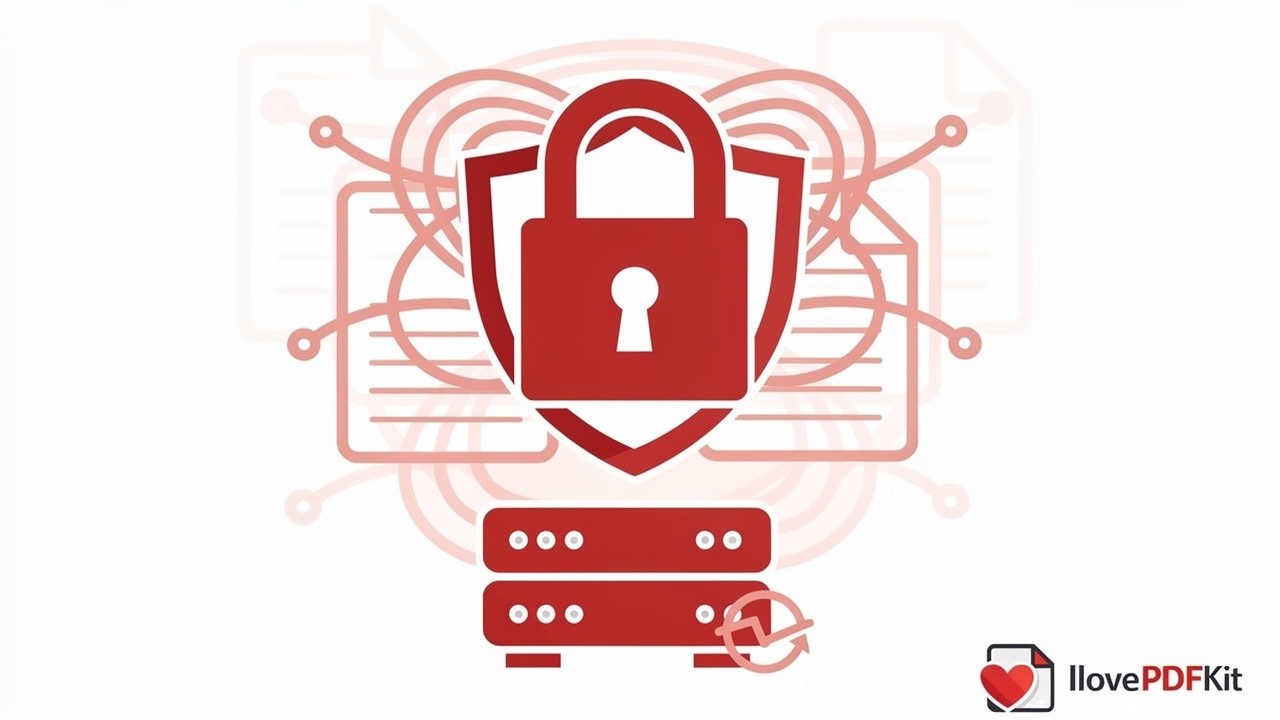
Converting JPG to PDF online is safe when the tool you use encrypts your connection and doesn’t keep copies of your files after processing. Reputable converters transmit your images over an encrypted HTTPS connection, which protects the data while it travels, and then delete both the uploaded images and the resulting PDF from their servers shortly after the job finishes. This matters more than most people realize, since scanned IDs, signed agreements, or insurance documents shouldn’t sit around on a stranger’s server indefinitely.
Tip: If you’re converting something sensitive, like a lease, a pay stub, or a medical form photo, look for a clear statement about file deletion timelines and avoid tools that require account signup just to download a converted file.
A short retention window, often measured in hours rather than days, combined with no login requirement, means there’s far less chance of your documents being exposed, misused, or left sitting in storage long after you’ve already moved on.
How Do I Get the Best Quality PDF From My Images?
The best quality PDF starts with a sharp, well-lit source image, since no converter can add detail that wasn’t captured in the original photo or scan. Blurry, dark, or low-resolution JPGs will produce a PDF with the same flaws, no matter how good the conversion tool is. Before uploading, check that:
- Text is readable at normal zoom levels
- Documents are squared up rather than tilted
- Lighting is even across the page
Most converters also include a quality slider that balances sharpness against file size. Pushing the setting higher preserves more detail, which works well for anything you plan to print professionally, while a moderate setting keeps file sizes smaller and easier to email or upload for everyday digital sharing. Picking the right balance for your specific use case, rather than always maxing out quality, often produces a more practical result.
Who Uses JPG to PDF Converters and Why?
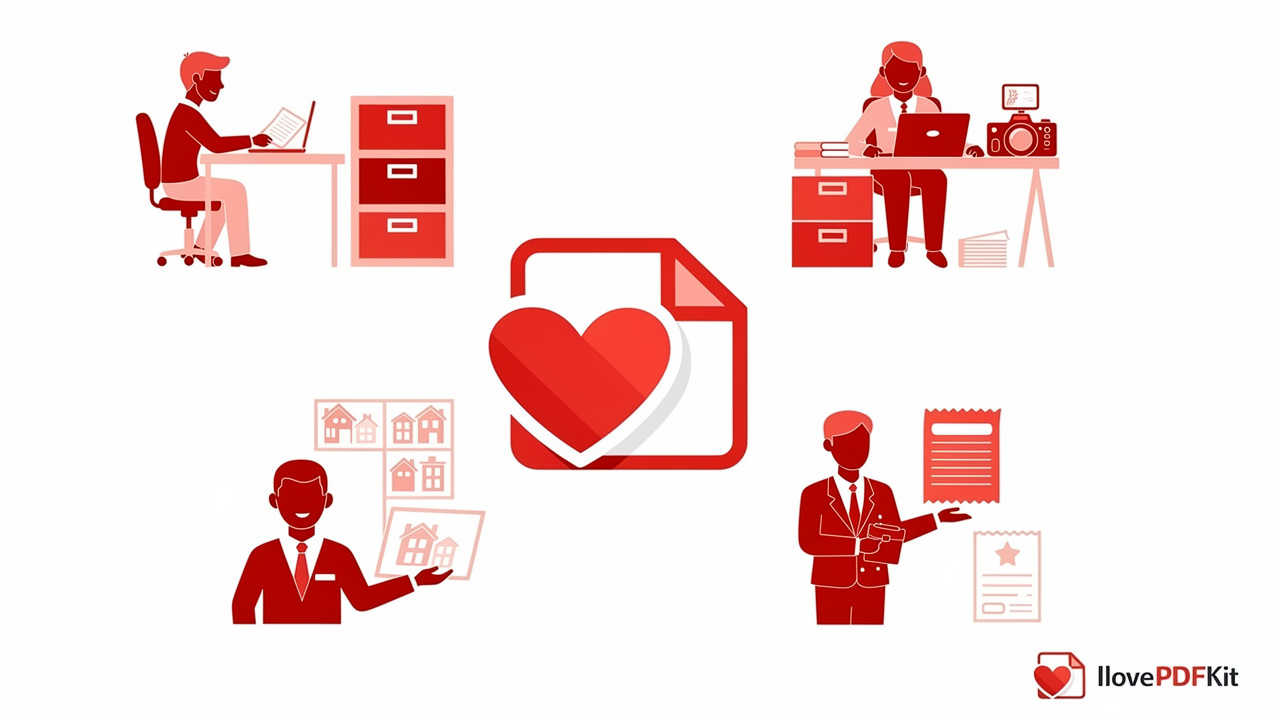
Students and academics use JPG to PDF converters constantly, often photographing handwritten notes, worksheets, or research materials and merging them into one organized file before submission. Teachers do something similar when compiling class handouts, while researchers combine photographed data or field notes into a single formal document instead of emailing a dozen separate images.
Office professionals, freelancers, and small business owners rely on the same tool for very different daily tasks. A few common examples show just how broad the use cases really are.
- Administrative staff convert scanned receipts, invoices, and employee forms into tidy PDF archives for recordkeeping and compliance.
- Freelance photographers build client proof sheets and portfolios by merging edited photos, shareable document.
- Real estate agents combine property photos, floor plans, and inspection notes into one PDF for buyers and sellers.
- Small business owners turn product photos and handwritten order notes into organized files for invoicing or supplier records.
What Other PDF Tools Can Help My Workflow?
A JPG to PDF converter rarely works in isolation, since most document tasks involve more than one step. Once your images become a PDF, you’ll often need to shrink it for email, combine it with other files, or split out just a few pages for a different purpose.
iLovePDFKit’s Compress PDF tool reduces file size for large image-heavy PDFs so they’re easier to email or upload, while its Merge PDF tool combines that new file with other PDFs you already have on hand. If you only need part of a document later, Split PDF pulls out specific pages without disturbing the rest of the file. Together, these tools round out a complete workflow that starts with your photos and ends with exactly the document you need.
The Takeaway
Turning scattered JPG images into one clean, shareable PDF doesn’t require special software, technical skill, or a credit card. The process is simple: upload your images, arrange them in order, adjust a few layout settings, convert, and download, all within a browser and usually in under a minute. Along the way, picking a converter that encrypts your files and deletes them promptly keeps your sensitive documents out of harm’s way.
If you’ve been putting off organizing your photos, receipts, or scanned notes into a proper document, there’s no real reason to wait. iLovePDFKit’s no-signup conversion tool offers that same free, no-signup, watermark-free experience described throughout this guide, ready whenever you have images that need to become one polished file.
Frequently Asked Questions
Can I Convert Multiple JPG Images Into One PDF File?
Yes, you can upload several JPG images at once and merge them into, ordered PDF document. Most converters let you drag thumbnails into any sequence before converting, so the final file reflects exactly the order you intend.
Do I Need To Install Software To Convert JPG To PDF?
No, browser-based converters need no installation or downloads of any kind. They work directly inside Chrome, Firefox, Safari, or Edge, so you can convert files on nearly any computer or mobile device.
Will Converting My Images To PDF Reduce Their Quality?
Quality mainly depends on your source image and the quality setting you choose during conversion. Use a higher setting for documents you plan to print, and a lower one for files you’re sending by email or sharing online.
Is There A Limit To How Many Times I Can Convert Files For Free?
With this tool, there’s no daily task cap, unlike some competing tools that restrict free users to one job per day. This makes it easier to handle large batches, like a full class pack of worksheets or a stack of business reports.
Can I Convert PNG Images To PDF As Well As JPG?
Yes, most free converters, including iLovePDFKit, accept accept PNG files alongside JPG and JPEG formats. You can even mix formats within the same upload if your images come from different sources.
What Happens To My Uploaded Files After Conversion?
Reputable converters delete uploaded images and the resulting PDF from their servers shortly after processing finishes, often within a couple of hours. This no-storage approach means your files aren’t kept sitting around once your download completes.
Can I Use A JPG To PDF Converter On My Phone?
Yes, these tools work through any modern mobile browser on both Android and iPhone devices. You can upload photos straight from your phone’s camera roll and download the finished PDF without needing a separate app.
