Converting a PDF into a clear JPG image often feels harder than it should be. Many tools leave text blurry or stamp a watermark across your page. When you search how to convert PDF to JPG, it can seem like you must pay or install heavy software to get decent results.
The good news is simple: you can convert PDF to JPG without losing visible quality by using the right browser tool, picking the right image format, and starting from a sharp source file. iLovePDFKit gives you all of that in one free page—no sign-up, no software, and no watermarks. This guide walks through when JPG makes sense, how iLovePDFKit works step by step, how to keep images sharp, and how to stay safe online.
Ready to turn your PDFs into clean images and move on with your work faster? Keep reading for clear steps and practical tips.
Key Takeaways
Before we go deeper, here is a quick preview of what you learn on this page. These points help you scan the main ideas in a few seconds.
JPG fits everyday sharing better than PDF because it opens fast, embeds easily, and works on almost every device. That makes it ideal for email, slides, and social posts. For most homework, office, or client files, JPG quality looks more than good enough.
iLovePDFKit converts PDFs in four simple steps using any browser. You open the PDF to JPG tool, upload your file, wait a moment, then download clean images. No account, no software, and no payments ever get in the way.
Output quality depends on the source file and the converter. A sharp, high-resolution PDF becomes a sharp JPG when processed well. If the original is low quality, no converter can fully repair it.
You pick from JPG, PNG, and TIFF depending on how you plan to use the file. Everyday sharing leans to JPG, diagrams and tiny text lean to PNG, and print shops often ask for TIFF. iLovePDFKit supports all three formats in one place.
Safe online converters protect your privacy. They use encrypted connections, delete files after processing, avoid watermarks, and do not force you to create an account. iLovePDFKit follows all of these practices, so it suits students, office staff, and freelancers who care about privacy.
Table of Contents
- Why Convert a PDF to JPG?
- JPG, PNG, Or TIFF: Which Format Should You Choose?
- How to Convert PDF to JPG Using iLovePDFKit Step-by-Step
- Tips for Getting the Best Quality Output
- Is It Safe to Convert PDFs Using an Online Tool?
- Start Converting Your PDFs to JPG For Free
- Frequently Asked Questions
Why Convert a PDF to JPG?
Converting a PDF to JPG turns a fixed document page into a simple picture that works almost anywhere. A JPG file opens directly in browsers, phones, and apps without any PDF reader. That makes sharing and reusing content much easier across tools like Microsoft Word, PowerPoint, Google Slides, and social platforms.
PDFs often refuse to embed cleanly in emails, learning portals, or content systems. A JPG, on the other hand, drops in like any photo and shows exactly what you see on the page. According to Deloitte’s 2024 Connected Consumer survey, mobile device usage continues to shape how people access and share content, and phones handle image files far more smoothly than PDFs. According to Deloitte’s 2025 Connected Consumer: Innovation report, consumers increasingly expect fast, frictionless content experiences, so switching from PDF to JPG fits how people actually read and share material.
Some everyday examples:
Students may need a single chart from a long paper inside a slide deck. Instead of sending classmates a 40‑page PDF, they paste one neat JPG into Google Slides or Canvas.
Office staff can turn a signed contract page into a JPG and paste it into a status report, or add a summary page into a Microsoft Teams message.
Freelancers and small business owners often show mockups, menus, or spec sheets on websites and social media. A JPG preview loads quickly on Shopify, WordPress, or Instagram, even on weak connections.
In short, learning how to convert PDF to JPG gives you a flexible way to reuse existing documents without retyping or redesigning them.
According to Pew Research Center, smartphone adoption continues to climb, which means formats that open instantly on mobile—like JPG—are far more convenient for day‑to‑day reading and sharing.
JPG, PNG, Or TIFF: Which Format Should You Choose?
Choosing between JPG, PNG, and TIFF affects both quality and file size. Picking the right one before you start conversion avoids repeated uploads and saves time. Each format suits a different type of work.
JPG uses lossy compression that shrinks file size by discarding some visual data. For most document pages, slides, and homework, that loss is tiny and hard to notice. JPG is perfect when you care more about quick sharing and small attachments than microscopic sharpness. It works well for email, learning management systems, websites, and social media posts.
PNG uses lossless compression and keeps every pixel of information. That approach gives crisper edges and text, especially on charts, graphs, and line drawings. If your PDF holds fine detail like math formulas, engineering diagrams, or footnotes, PNG usually stays sharper after zooming. The tradeoff is larger files, which can matter when storage or upload limits are tight.
TIFF focuses on high fidelity for print and long‑term archiving. Print shops, publishers, and some medical systems still request TIFF because it handles high resolutions and color profiles very well. The files can be huge, but they work nicely for posters, journal figures, and professional layouts.
Here is a quick comparison you can refer to while you think about how to convert PDF to JPG or another format using iLovePDFKit.
| Format | Best Use Cases | Pros | Cons |
|---|---|---|---|
| JPG | Email, slides, web, social | Small files, opens everywhere, ideal for quick sharing | Slight quality loss at high zoom |
| PNG | Diagrams, charts, small text | Very sharp edges, great for screenshots and figures | Larger files than JPG |
| TIFF | Print and archiving | Very high quality, favored in print workflows | Very large files, not web friendly |
iLovePDFKit lets you choose among all three formats right on the tool page, so you do not need separate websites for each job.
Tip: If you are unsure which format to use, export a single test page as JPG and PNG. Compare them at 150–200% zoom. Pick the one that keeps small text readable without making file sizes unmanageable.
How to Convert PDF to JPG Using iLovePDFKit Step-by-Step
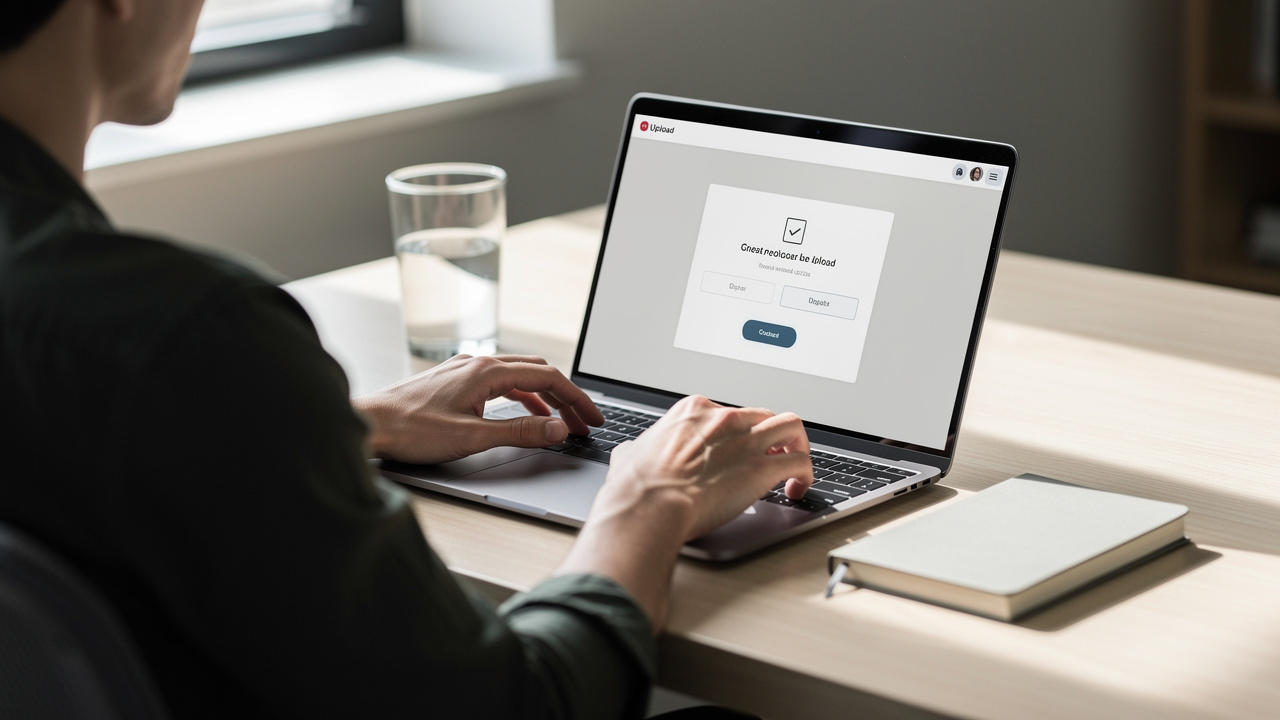
Learning how to convert PDF to JPG with iLovePDFKit takes only one short visit, and resources like this PDF to Image Converter guide show just how straightforward the process can be across different tools. The process looks the same on Windows, macOS, Linux, Chromebook, and mobile browsers. You only need an internet connection and a modern browser like Google Chrome, Mozilla Firefox, Safari, or Microsoft Edge.
The iLovePDFKit PDF to JPG converter follows a four‑step flow that starts working as soon as you open the page. According to Nielsen Norman Group, users often read only about a quarter of the text on a typical web page, so the interface stays clean and simple. You see one main upload area, a format choice, and a clear button to start.
Step 1 – Open the PDF to JPG Tool
Go to the iLovePDFKit website in your browser and choose the PDF to JPG function. You do not need to log in or accept any trial. The main screen loads directly, ready for your file.
Step 2 – Upload Your PDF
Click the main button to pick a file from your computer, or drag and drop a PDF into the window. You can also pull files straight from cloud services like Google Drive or Dropbox, which helps students and remote workers who keep everything online. Once the file appears in the tool, conversion starts preparing in the background.
Step 3 – Let iLovePDFKit Convert the Pages
As soon as the upload finishes, iLovePDFKit processes the document on secure servers. Every page becomes a separate high‑quality JPG image that keeps the original layout, fonts, and colors. The engine focuses on pixel‑accurate rendering so that if the PDF text looks sharp, the JPG text does too. Multi‑page PDFs convert in a batch without any manual page selection.
Step 4 – Download Your Images
When conversion completes, you see links to download the output:
For a single‑page PDF, you can grab one JPG directly.
For a longer file, iLovePDFKit groups all pages into a neat ZIP archive so you can download everything at once.
The JPGs arrive watermark‑free and ready to paste into Word, PowerPoint, Google Slides, or your website — a process covered in detail in guides like PDF to JPG: 4 easy conversion methods for different workflows. This whole process often finishes in less than a minute, even on normal home connections. Because iLovePDFKit never asks for payment or signup, it suits quick one‑off jobs and regular daily use alike.
According to Nielsen Norman Group, clear and simple interfaces help people complete tasks faster. A minimal PDF to JPG screen—like iLovePDFKit’s—reduces clicks and confusion.
Converting On Mobile iPhone And Android
Converting PDF to JPG on a phone works almost the same way as on a laptop. iLovePDFKit runs inside mobile browsers, so there is no need to install an extra app or seek IT approval. The tool adjusts to small screens so buttons stay easy to tap.
On iPhone, open Safari, visit iLovePDFKit, and choose the PDF to JPG tool. Tap the upload area, then pick a PDF from Files, iCloud Drive, or your photo roll. On Android, follow the same pattern in Google Chrome, choosing files from local storage, Google Drive, or other connected apps.
After upload, tap the convert button and wait a few seconds. Then save the JPG or ZIP to your device or preferred cloud service. As highlighted in Deloitte’s 2024 Connected Consumer: Trust survey, smartphones are nearly universal among younger adults, which means mobile conversion like this fits study groups, field work, and on‑the‑go approvals. Students can turn scanned notes into images for flashcards, and professionals can convert a signed contract page right from a train or coffee shop.
Tips for Getting the Best Quality Output
Getting a sharp JPG from a PDF is mostly about starting well and choosing the right settings. A converter like iLovePDFKit preserves what you give it, so clean input produces clean output. A fuzzy scan stays fuzzy no matter what tool you use.
Use these practical tips to keep your converted images looking clear:
Start From the Best PDF You Have
If you can rescan a document, use a higher DPI setting (for example, 300 DPI or higher) on scanners such as Epson or Brother devices.
For digital files from Microsoft Word or Google Docs, export to PDF at standard or high quality instead of a low‑size preset.
When that file goes through iLovePDFKit, the fonts and lines stay closer to print quality.
Match the Format to the Content
For photos and mixed content pages that will mostly appear on screens, JPG at standard quality looks fine.
For math problems, schematics, or dense footnotes, pick PNG inside iLovePDFKit so the tiny details stay readable at high zoom.
For print jobs, choose TIFF and double‑check with the print shop about required resolution.
Review the Output Before Sharing
Open the JPG, zoom in on the smallest text, and scan across any charts or fine lines.
If anything looks soft, re‑export the original PDF at higher resolution, then convert again.
Keep Files Organized and Easy to Find
Use clear names like
chemistry_lab_figure_3.jpgorclient_contract_page_1.png.Store related images in folders by project or date so you can pull them quickly.
Research from McKinsey Global Institute estimates that workers spend about 1.8 hours each day just searching for information. Tidy, well‑named JPGs help cut that wasted time.
Simple habits—high‑quality PDFs, the right format choice, and good file names—do more for clarity than any “magic” setting in a converter.
Is It Safe to Convert PDFs Using an Online Tool?
Safety matters any time you upload contracts, grades, invoices, or research drafts to a website. A good PDF to JPG online converter treats your files as private and keeps them for only a short period. You should look for a few clear signs before trusting any platform.
Check for HTTPS in the Address Bar
Look for the lock icon next to the URL. That means your PDF travels over an encrypted connection, which stops casual snooping on shared Wi‑Fi. Services such as iLovePDFKit, Adobe, and Google all follow this standard for uploads and downloads.Read the Privacy or Security Page
Reliable tools explain that files are deleted from servers shortly after processing rather than stored long term. iLovePDFKit states that uploaded PDFs and converted JPGs are removed soon after you finish, so they do not sit on a server waiting for trouble.Avoid Surprise Watermarks and Forced Accounts
If a converter stamps your document with branding or forces you to register, it may push you toward paid plans later while storing more of your personal data. iLovePDFKit never adds watermarks and works without any sign‑in, which keeps your email and payment details out of their system. This lowers risk if a service ever experiences a breach.
Data leaks can be expensive, and with AI Search Statistics 2026 showing a dramatic rise in users relying on AI-powered tools for document handling, choosing platforms with strong privacy safeguards has never been more important. Findings from the IBM Security Cost of a Data Breach Report put the global average cost in the millions of dollars. While most students and freelancers work at a smaller scale, using safer tools like iLovePDFKit still protects grades, client plans, and personal ID files from wandering where they should not go.
Security experts consistently recommend encrypted connections and short file‑retention periods as basic safeguards when using online tools for sensitive documents.
Start Converting Your PDFs to JPG For Free
Switching from PDF pages to clean JPG images no longer needs paid software or confusing settings. With iLovePDFKit, you open one browser tab, upload a file, and receive sharp, watermark‑free images that match your original layout. You get clear output, simple controls, and zero cost.
The same page lets you choose PNG or TIFF when quality needs are higher, and nearby tools cover related tasks such as Compress PDF, Merge PDF, and JPG to PDF. That means your full document flow sits inside one website. When someone asks how to convert PDF to JPG without losing quality, you can point them straight to iLovePDFKit and keep working on what matters most.
Frequently Asked Questions
Question 1: Does converting a PDF to JPG reduce quality?
Converting a PDF to JPG can reduce quality slightly, because JPG uses lossy compression. When you start from a sharp, high‑resolution PDF and use a strong converter like iLovePDFKit, the visible difference is small or nonexistent at normal zoom. For diagrams or tiny text, consider PNG for even cleaner results.
Question 2: Can I convert a multi-page PDF into separate JPG files?
Yes, you can convert a multi‑page PDF into separate JPG images. iLovePDFKit automatically turns each page into one JPG and groups them inside a single ZIP file. You then download that ZIP and extract all pages at once, keeping the sequence of pages organized and easy to manage.
Question 3: Do I need to create an account to use iLovePDFKit?
No, you never need an account to use iLovePDFKit. You visit the site, open the PDF to JPG tool, upload your file, and download the result. There is no registration, no email form, and no credit card step anywhere in the process.
Question 4: What is the difference between converting PDF pages to JPG and extracting images from a PDF?
Converting PDF pages to JPG turns the entire page—text, graphics, and margins—into one image. Extracting images pulls only the photos or graphics that already live inside the PDF and saves them as separate files. Use page conversion when you need the whole page as a picture, and extraction when you only want the individual photos.
Question 5: Can I convert a PDF to JPG on my phone without installing an app?
Yes, you can convert a PDF to JPG on your phone without any app. Open iLovePDFKit in Chrome on Android or Safari on iPhone, choose the PDF to JPG tool, and follow the same upload and download steps as on desktop. The whole process stays inside your mobile browser.
