Table of Contents
- Introduction
- Why Convert PDF To JPG – And When Does It Matter?
- How To Convert PDF To JPG Using iLovePDFKit (Step-By-Step)
- JPG, PNG, Or TIFF – Which Output Format Should You Choose?
- Convert PDF To JPG On Any Device – Windows, Mac, And Mobile
- Conclusion
- Frequently Asked Questions
Introduction
iLovePDFKit gives you one of the fastest free ways to convert a PDF to JPG online — directly in your browser, with no software to install. According to Statista, over 2.5 trillion PDF files are opened globally each year, yet countless platforms still refuse PDF uploads and demand image files instead.
This guide covers the full PDF-to-JPG process in four clear steps, explains how to pick the right image format, and shows how to stay safe while you work. You get a clean, high‑quality image you can use anywhere without installing software.
Keep reading to see where PDF to JPG conversion helps most, then try the tool yourself in just a few clicks.
Key Takeaways
Here is what you will learn before you start converting files.
A simple meaning of PDF to JPG conversion and why it matters for sharing, printing, and editing. You will see how a PDF page becomes a flat image that keeps the same look everywhere. This makes it easy to drop into slides, documents, or chats.
A four‑step walkthrough using iLovePDFKit that you can follow even on a shared computer at school or work. Each step uses plain language, so you never wonder what to click next. You go from upload to download in seconds without any signup.
A quick explanation of the difference between full‑page conversion and image extraction. You will know when to turn whole pages into pictures and when to pull just a chart or photo. This saves you from manual cropping and low‑quality screenshots.
Clear guidance on when to choose JPG, PNG, or TIFF as your output format. You will see which type keeps text sharp, which one keeps email attachments light, and which one print shops prefer. This helps you avoid sending the wrong file to a teacher, client, or colleague.
A short overview of how iLovePDFKit keeps your documents private and secure while you convert. You will see how encrypted connections and fast deletion protect invoices, contracts, and research papers, so you can use the tool with confidence on personal and work files.
Why Convert PDF To JPG – And When Does It Matter?
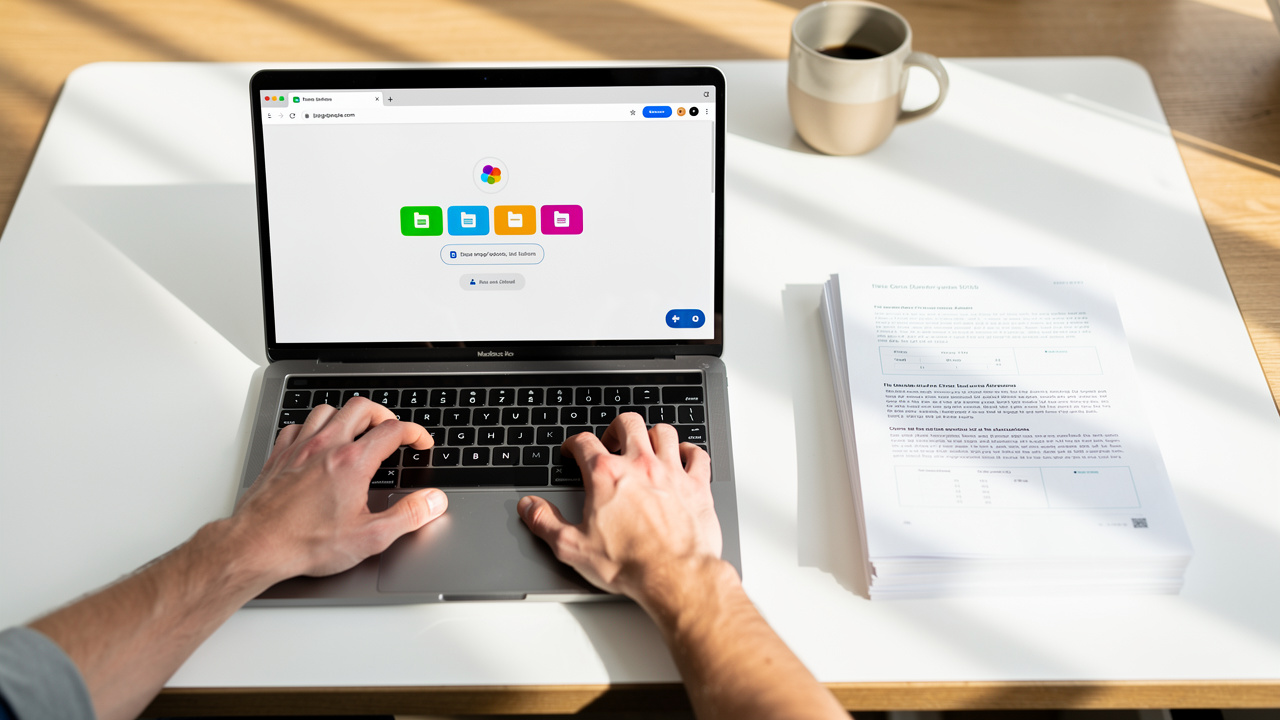
Converting a PDF to JPG matters whenever you need a document to behave like a picture that opens instantly everywhere. Images slide smoothly into Microsoft Word, PowerPoint, Google Slides, social feeds, and many email apps, while PDFs often hit limits. So learning to convert PDF to JPG makes daily school and office tasks easier. According to Adobe, people open billions of PDFs every year in Acrobat and Reader, yet many sites still block direct PDF uploads — one survey found that more than 60 percent of web forms accept only image file types.
Many web forms only accept JPG or PNG for profile photos, receipts, or ID snapshots. Social networks such as Instagram and LinkedIn display image files in the feed but hide PDFs behind extra taps. When your content lives inside a document, quick conversion to an image clears that roadblock.
“A picture is worth a thousand words.” — Common proverb
Here are a few everyday situations where converting PDF to image files helps a lot:
Students and researchers often need to reuse figures from long PDF articles. Turning one page into a JPG lets you paste a clean chart into Google Docs or Microsoft Word without messing up spacing. You keep the citation visible, and your slide deck looks neat on every projector. Once you know this process, grabbing pages from long readings becomes almost automatic.
Office professionals share flyers, schedules, and internal memos through tools like Outlook, Gmail, and Microsoft Teams. Converting those PDFs into JPG images makes them appear right inside the email body or chat window. People can scan the message at a glance without opening a separate viewer. Mastering this conversion means every message can show the flyer right away instead of hiding it in an attachment.
Freelancers and small business owners send invoices, mockups, and quick proofs to clients who may only check mail on a phone. A light JPG loads faster than a multi‑page PDF and is easier to preview in apps such as WhatsApp or Slack. That means fewer support messages asking how to open the file.
How To Convert PDF To JPG Using iLovePDFKit (Step-By-Step)
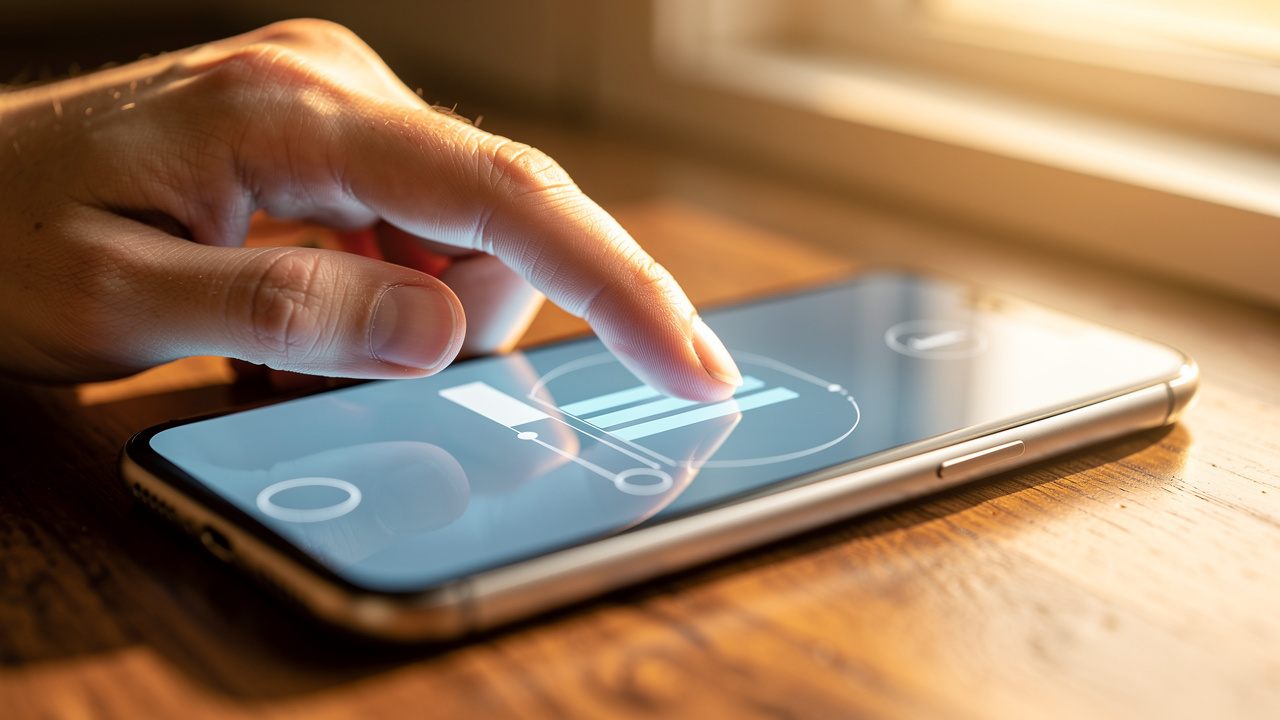
You can convert PDF to JPG with iLovePDFKit in just four simple steps, all inside your regular web browser. The entire process — from upload to finished image download — typically takes under 30 seconds, even for multi-page documents. Everything happens on iLovePDFKit servers, so even older computers stay fast while the work is done online.
Open the iLovePDFKit PDF to JPG tool. Type the site address into Chrome, Safari, Firefox, or Edge, then pick the PDF to JPG option from the home screen. The page loads cleanly on Windows, macOS, Linux, and Chromebooks. You see a clear upload area in the center.
Upload your PDF from your computer or cloud storage. You can click the button to browse files, or simply drag and drop the document into the box. If your work lives in Google Drive or Dropbox, use the cloud icons and pick the right file there. Large research papers and multi‑page reports usually upload in just a moment on most connections.
Let iLovePDFKit run the conversion for you. As soon as the upload finishes, the PDF to JPG converter engine starts turning each page into a high‑quality image. There is nothing for you to tweak, so beginners feel comfortable right away. Server‑side processing keeps fonts, colors, and layout sharp while finishing the job quickly.
Download your new JPG files to finish. For single‑page documents, you get one ready‑to‑use image that you can drop into Word, PowerPoint, or a learning portal. For longer PDFs, iLovePDFKit groups all the pages into a ZIP file so you save everything with one click. The output comes watermark‑free, so you can share it directly with teachers, clients, or coworkers.
After you run through these four steps once, the process becomes second nature whenever a site asks for an image. The interface on iLovePDFKit stays the same across devices, so your muscle memory carries over. Many users keep a browser tab pinned with the tool so conversions are always one click away.
What Happens To Your File After Conversion?
After conversion, iLovePDFKit keeps your PDFs and JPGs on its servers only for a short, temporary window. Files travel over encrypted HTTPS connections, so outside parties cannot read your content while it moves between your device and the site.
Once you download your images, automatic cleanup removes both the original document and the converted files from storage after a brief period. Guest users do not need an account and still receive the same protections as registered users. This makes the tool a good choice for pay stubs, invoices, school records, and other private paperwork.
“Data is a precious thing and will last longer than the systems themselves.” — Tim Berners‑Lee
Data protection matters because file leaks are expensive. According to IBM, the average global data breach now costs companies more than $4.45 million — a figure that rose 15 percent over three years. Choosing a secure PDF to image converter like iLovePDFKit lowers the chance that sensitive files sit around longer than needed.
JPG, PNG, Or TIFF – Which Output Format Should You Choose?
JPG is the right default for most tasks, PNG is better when you need pixel-perfect sharpness, and TIFF is reserved for professional print work. Each format suits different situations, so choosing well keeps your work easy to share and read. According to W3Techs, JPEG and PNG appear in well over 70 percent of images on websites, which shows how common they are for daily use — while TIFF accounts for fewer than 1 percent of web images due to its large file size.
Once you understand the PDF-to-image conversion process, you can also explore tools that let you convert PDF to JPG, PNG to compare output quality before committing to a format. Think of JPG as the lean, ready‑to‑send option, PNG as the sharp choice for diagrams, and TIFF as the heavy‑duty format for printing. iLovePDFKit lets you pick the one that matches your task at download time. If you are not sure, start with JPG, then move to PNG or TIFF only when you truly need extra quality.
| Format | Best For | Trade Off |
|---|---|---|
| JPG | Email attachments, online forms, social media posts, class slides | Small file size, but some detail is compressed and may soften if edited many times |
| PNG | Screenshots, charts, line art, pages with small text or icons | Larger files than JPG, yet text and edges stay crisp and reuse does not lower quality |
| TIFF | Print shop files, archival copies, high‑end photography proofs | Very large files that are slow to send, and many web tools and phones will not open them |
For students turning workbook pages into study images or adding pages to Google Slides, JPG almost always makes the most sense. Office staff who share manuals inside SharePoint or Slack also stay safe with JPG because it loads fast for everyone. Academic authors preparing figures for journals, or designers sending posters to a print house, should move up to PNG or TIFF when reviewers demand maximum clarity. If you need to convert PDF pages with tight text and charts, choose PNG instead and keep every pixel.
Convert PDF To JPG On Any Device – Windows, Mac, And Mobile
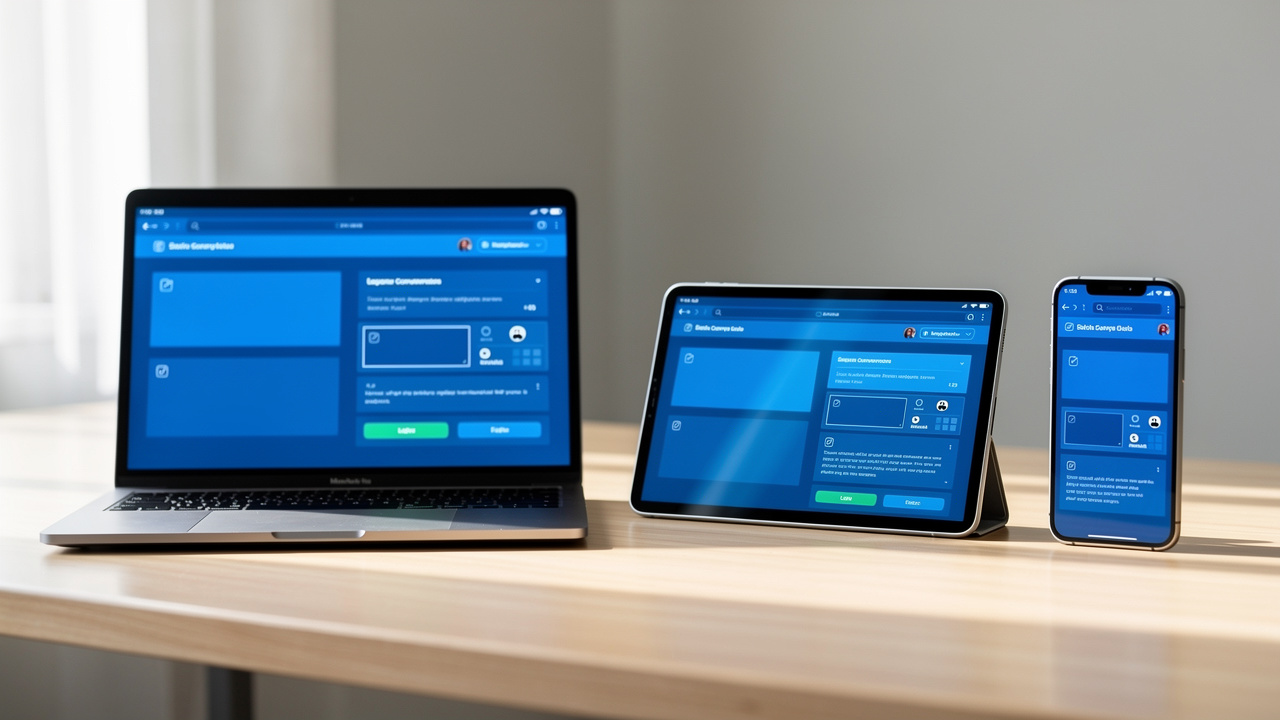
Converting PDF to JPG with iLovePDFKit works the same on Windows, Mac, Linux, Chromebooks, iPhones, and Android phones. You only need a modern browser and internet, so even locked office machines and school lab computers can use it without help from IT. According to Pew Research Center, about 85 percent of US adults own a smartphone, which means mobile‑friendly tools are no longer optional. No matter which computer lab or phone you use, the steps for this conversion stay identical across every platform.
iLovePDFKit runs smoothly in Google Chrome, Microsoft Edge, Mozilla Firefox, and Apple Safari. Because the heavy lifting happens on remote servers in the cloud, your device just handles the upload and download. That keeps laptops cooler and saves battery on phones and tablets.
Here is how a simple cross‑platform workflow usually looks in practice:
On a desktop or laptop computer, you open the site, drag in a PDF from the Downloads folder, and wait a moment while it converts. When the ZIP finishes, you save it and unzip the JPG pages. Those images drop right into Microsoft Word, PowerPoint, Google Docs, or your email program. You can even copy them straight into Microsoft Teams or Slack chats.
On a phone or tablet, you visit the same page in Safari or Chrome and tap the upload button. You pick the PDF from the iOS Files app, Google Drive, or your Android file manager. After iLovePDFKit finishes, you save the JPGs directly into your photo gallery. From there, sharing into Messages, WhatsApp, or classroom apps like Canvas is one tap.
If you rely on cloud storage, you can stay fully online. Start the conversion on one device using a file from Google Drive or Dropbox, then download the images on another device with the same account. This helps when moving material between a home laptop and a school computer lab. You never need a USB stick or email attachment to bridge the gap.
Conclusion
You can start converting PDF to JPG in seconds with iLovePDFKit and skip heavy desktop programs. The tool is completely free, works on every major browser, and delivers watermark-free images — making it one of the most practical options available today. If you ever need to save specific pages as image files, this guide on how to save a PDF as JPEG offers additional methods worth bookmarking. For most homework, office updates, and client previews, pick JPG for easy sharing, then move to PNG for very crisp diagrams or TIFF when a print shop asks for it. Ready to try it now? Just open the free PDF to JPG converter in your browser and turn your next document into a share‑ready image right away.
Frequently Asked Questions
These quick answers cover the most common questions about PDF to JPG conversion with iLovePDFKit. Each one stands on its own, so you can scroll straight to whatever matches your problem. Use them as a handy reminder the next time you need to change a PDF into an image fast. If you ever forget the steps, this section gives you a fast refresher.
Question 1: Can I Convert Only One Specific Page Of A Multi-Page PDF To JPG?
Yes, every page you upload becomes its own JPG, and you choose what to keep. After conversion, the results screen in iLovePDFKit shows all pages, and you can download only the images you need. That saves storage space and avoids zipping extra files.
Question 2: Will My PDF’s Formatting And Fonts Look The Same In The JPG?
Yes, a full‑page conversion works like a screenshot with much higher quality. iLovePDFKit preserves text placement, fonts, colors, and margins exactly as they appear in the original PDF. That means no strange line breaks or missing icons when you share the image.
Question 3: Is iLovePDFKit Really Free – Are There Hidden Fees Or Watermarks?
The iLovePDFKit PDF to JPG converter is completely free for students, teachers, freelancers, and small teams. There are no credits, trials, or premium tiers hiding behind the tool. Your images download clean with no watermarks, and you never have to create an account to use the service.
Question 4: How Do I Convert A PDF To JPG On My iPhone Or Android Phone?
You convert a PDF to JPG on mobile the same way you do on a computer. Open iLovePDFKit in Safari or Chrome, tap the upload button, and pick your PDF from the Files app or file manager. Then tap convert and save the JPGs into your photo gallery.
Question 5: What Is The Difference Between Converting A Full PDF Page Vs. Extracting An Image From A PDF?
Full‑page conversion turns everything on the page into one JPG, which is perfect for sharing a flyer, invoice, or reading page as a picture. Image extraction pulls out only the photos or graphics inside the PDF. For example, a freelancer can grab product photos from a catalog without any surrounding text.
