Needing to convert a PDF to PNG quickly and then hitting paywalls or ugly watermarks feels frustrating. One of the fastest free ways to turn PDF pages into PNG images is a browser tool such as iLovePDFKit, Adobe Acrobat Online, PDF2PNG, or Canva. If you are wondering how to convert PDF to PNG without installing software, these services let you upload, convert, and download within seconds.
This guide explains when PDF to PNG conversion makes sense, walks through the exact iLovePDFKit steps, and shares simple quality tips. Very soon you will go from upload to finished PNG files in just a few clicks. Let us start with why this conversion matters in everyday work and study.
Key Takeaways
Here are the main ideas. They give you a quick overview before you dive into the details.
PDF to PNG turns document pages into images. Each page becomes one PNG file, so sharing works better anywhere images fit, from social posts to chat apps.
iLovePDFKit converts PDF to PNG in your browser for free. No account is needed and no watermark appears on your images.
Good habits keep quality high. Start from a clear PDF, convert only the pages you really need, and always zoom in to check your PNG files.
Browser-based tools work almost everywhere. As long as you have a modern browser, you can convert PDFs on Windows, macOS, Linux, Android, or iOS with no installs.
Table of Contents
- Why Convert PDF to PNG? Common Use Cases Explained
- How to Convert PDF to PNG Online Using iLovePDFKit
- What to Look for in a Free PDF to PNG Converter
- Tips for Getting the Best Results: PDF to PNG High Resolution
- Wrapping Up
- Frequently Asked Questions
Why Convert PDF to PNG? Common Use Cases Explained
Converting PDF files into PNG images lets your pages appear on more apps, sites, and screens without extra effort. That is why this conversion matters for social posts, slide decks, web publishing, and everyday viewing. Many platforms such as Instagram, LinkedIn, and Twitter accept only image formats for uploads, not PDFs. Content managers on WordPress and Google Sites also like PNG files for charts, diagrams, and snippets from reports.
PNG uses lossless compression, so text and lines stay crisp after conversion. It also supports transparent backgrounds, which helps when you pull a logo or graphic from a PDF and place it on colored slides or web banners. For content with fine lines, interface mockups, or technical diagrams, PNG is often the safest pick.
Here is how common groups use a PDF to PNG converter in real life:
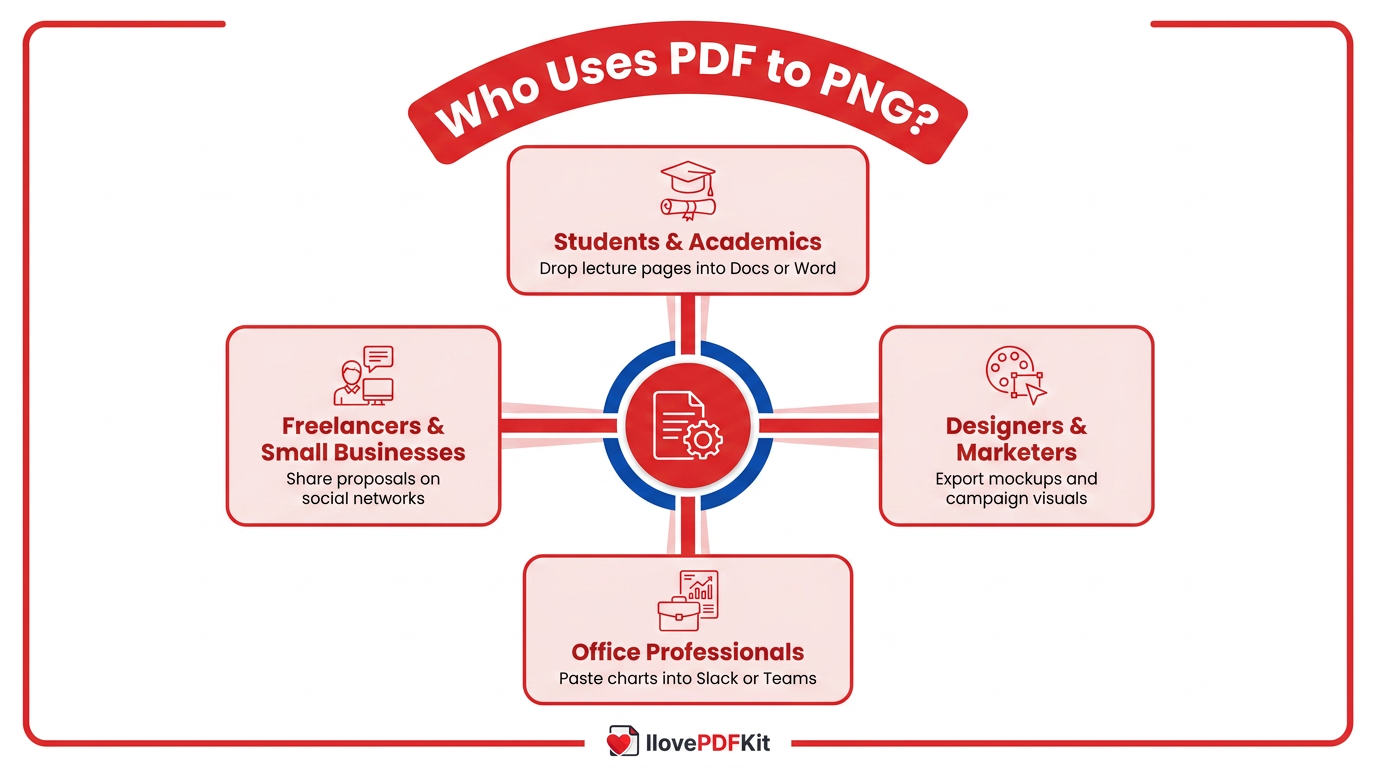
Students and academics often convert lecture PDFs, figures, or scanned journal pages into PNG files. This lets one page from a paper drop straight into Google Docs, Microsoft Word, or PowerPoint. Study notes become easier to skim on phones when each important page is a separate image instead of a heavy multi-page file.
Office professionals use PDF to PNG conversion when they need a chart or table from a long report. Turning one page into an image makes it simple to paste into email, Slack, or Microsoft Teams. No one has to open a separate attachment just to see a small graphic. In practice the converter acts like a quick PDF image extractor for the part of the report that matters most.
Freelancers and small business owners turn proposals, pricing sheets, and promo flyers into PNG images. Social networks, marketplace listings, and client messaging apps handle these images smoothly. Clear PNG exports also keep logos and brand colors sharp on websites and online portfolios.
Designers and marketers often export sections of PDFs—such as mockups or campaign visuals—as PNG files. This makes it easier to test variations, share drafts with clients, or reuse the same artwork across presentations, landing pages, and email campaigns.
For each of these groups, PNG keeps the original layout while fitting the limits of modern apps and sites. You keep the look of the PDF but gain the flexibility of an image file that almost any platform accepts.
How to Convert PDF to PNG Online Using iLovePDFKit
Converting PDF pages to PNG online with iLovePDFKit keeps the process fast, free, and consistent on every device. This section walks through the exact steps so you can go from upload to finished images in under a minute. Because iLovePDFKit runs fully in the browser as a PDF to image converter, there is no software to install on Windows, macOS, or phones.
Unlike many converters that ask for sign-up or payments, iLovePDFKit stays free for every task described here. There are no trial limits, no credits to buy, and no watermarks placed on finished PNG files. All file transfers use 256‑bit SSL encryption, a standard that security experts at companies such as Adobe and Microsoft recommend for protecting documents in transit.
Tip: Rename your PDF with a clear, descriptive file name before converting. That name often carries over to your PNG files or ZIP archive, which makes them easier to find later.
Step-by-Step: Convert PDF to PNG in Four Simple Steps
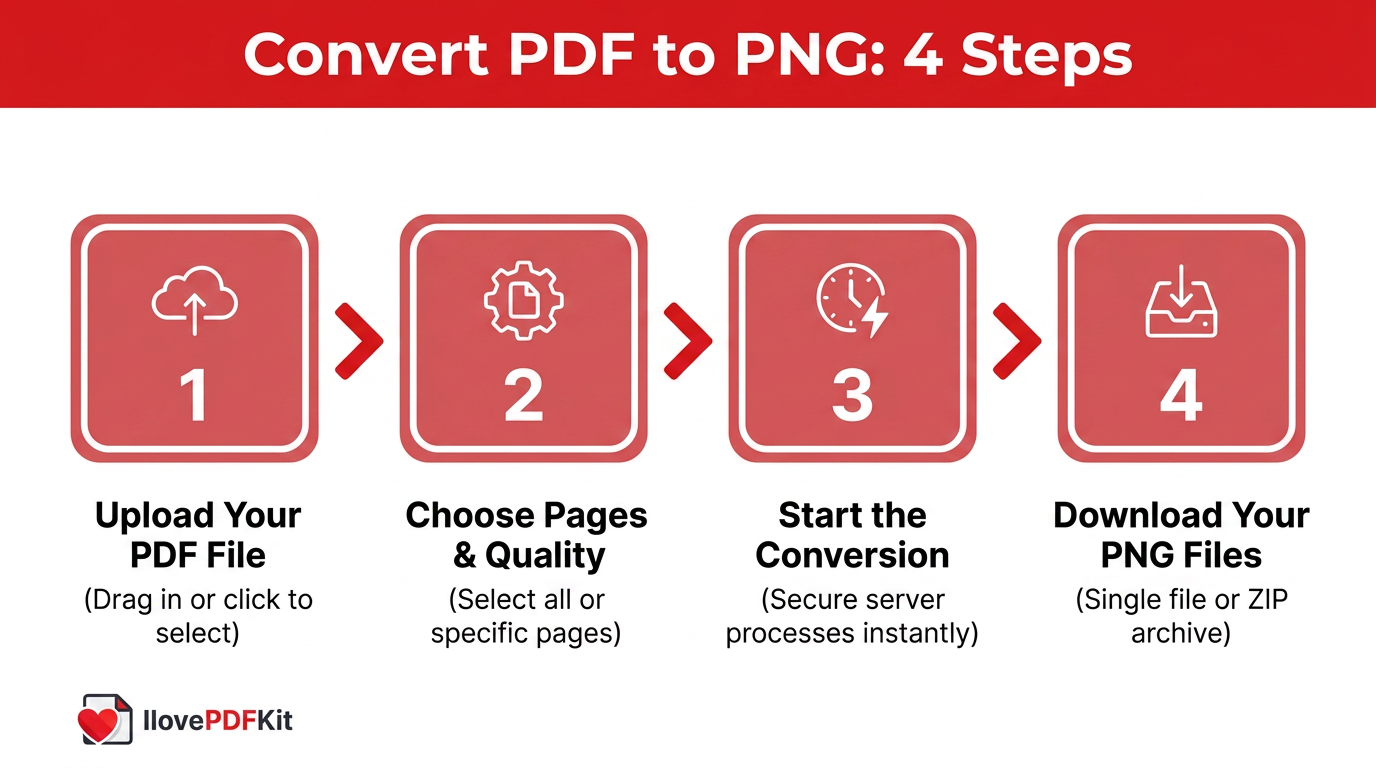
The four steps below show how to convert PDF to PNG free with iLovePDFKit. The same flow works on Chrome, Edge, Safari, and Firefox, whether you sit at a laptop or hold a phone. You only need a web browser and your PDF file.
Upload Your PDF File
Openilovepdfkit.comand choose the PDF to image tool on the homepage. Click the Select PDF file button or drag your document into the upload area. Large files and long reports are supported, so you can move everything in one go. No sign-up, credit card, or personal data is requested.Choose Your Pages and Quality
After the upload finishes, pick whether to convert all pages or only specific ones. iLovePDFKit shows page thumbnails, which makes it simple to select only the slides or figures you need. The default output keeps high-quality rendering, and you do not have to tune any advanced options unless you want to. If you plan to crop or annotate the images later, convert just the pages that matter to keep things organized.Start the Conversion
Press the Convert button. iLovePDFKit sends your file to its secure servers and turns each page into a PNG image in a few seconds. Multi-page PDFs are handled automatically, with one image created per page. Because all heavy work happens remotely, even older school laptops and budget phones stay responsive while the conversion runs.Download Your PNG Files
When processing finishes, a Download button appears. Single-page PDFs download as one PNG file. For multi-page PDFs, you receive a ZIP archive that holds one PNG for each page, neatly named in order. For privacy, iLovePDFKit removes both the uploaded PDF and the PNG images from its servers shortly after your download finishes.
Because everything runs in a browser, the same method works on Windows, macOS, Linux, Android, and iOS without extra apps or admin rights.
What to Look for in a Free PDF to PNG Converter
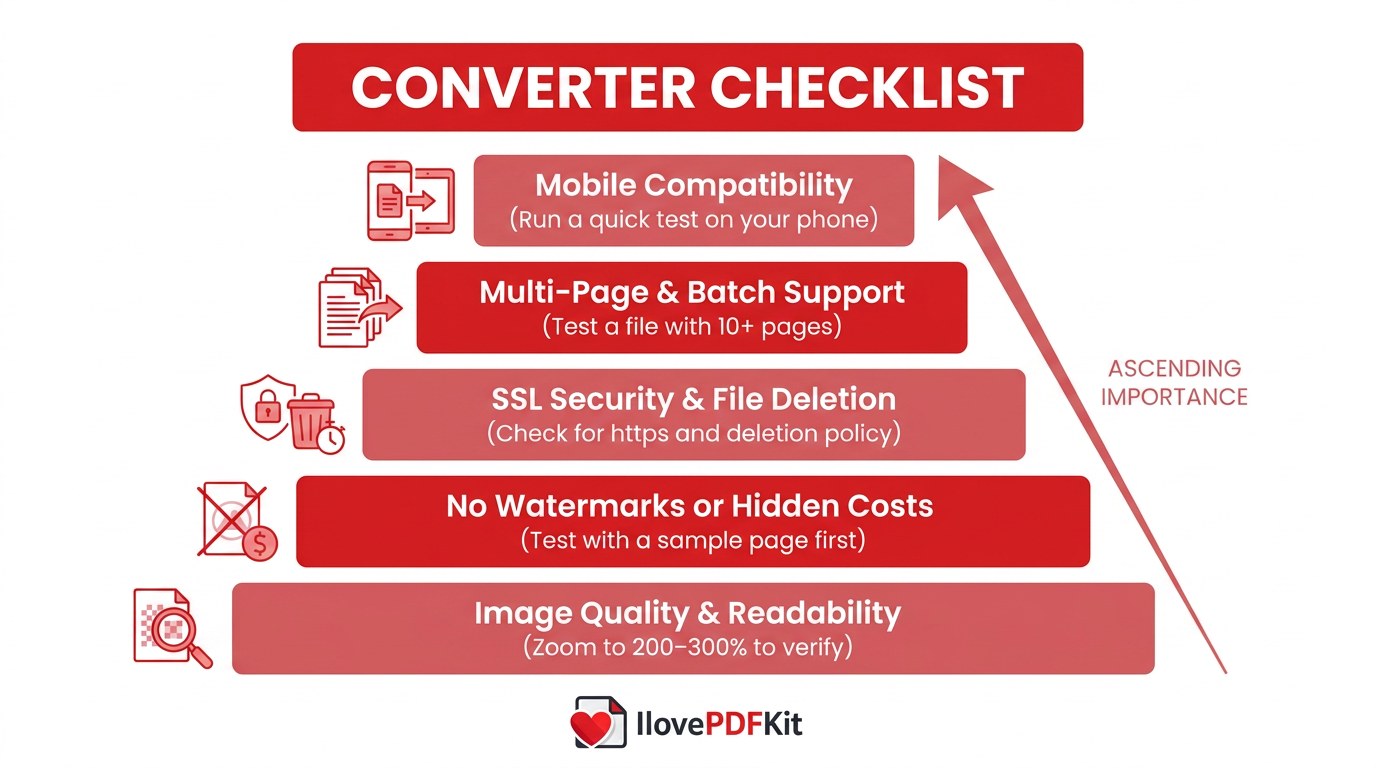
When you pick a free online PDF to PNG converter, you want clean images, clear terms, and strong security built in. These points help you compare options like iLovePDFKit, Adobe Acrobat Online, PDF2PNG, and Canva without trial and error. With much document work now happening on phones and browsers, the right choice can save real time. Clear criteria save you from testing ten different sites that promise free results but hide paywalls later.
Key factors to check include:
Image quality and readability
Pick a tool that keeps text sharp and colors accurate. A good converter should preserve tiny labels on charts without blur. Zoom in on a sample PNG and switch tools if letters look jagged or if lines look fuzzy.Watermarks and hidden costs
Many free converters place a logo on every PNG or hide features behind accounts. iLovePDFKit keeps images clean and watermark‑free. You finish quick tasks without handing over an email address or creating another password.Security and privacy
Security matters when files contain grades, contracts, or invoices. iLovePDFKit uses 256‑bit SSL encryption and deletes files soon after processing. Research from Adobe notes that strong encryption and short storage windows reduce risk for online documents.Support for large and multi-page PDFs
If you handle long reports, choose a converter that supports multi‑page PDFs and batch uploads. Tools such as PDF2PNG let you upload many files and download a single ZIP. iLovePDFKit also handles big slide decks and research reports in one run, so you do not have to split files by hand first.Mobile compatibility
For many people, document work now happens on a phone. According to Deloitte’s 2024 Connected Consumer: Trust survey, the vast majority of US adults carry a smartphone, meaning a browser-based converter like iLovePDFKit that runs on iOS and Android keeps you productive away from your desk. A browser‑based converter like iLovePDFKit that runs on iOS and Android keeps you productive away from your desk.
You can think about these factors in a simple way:
| Factor | Why It Matters | Quick Check |
|---|---|---|
| Image Quality | Keeps charts and text readable | Zoom to 200–300% and see if fine text is still clear |
| Watermarks | Avoids logos covering important information | Download a test page and look for branding on the image |
| Security & Deletion | Protects grades, contracts, and private data | Check for SSL (https://) and a written file deletion policy |
| Multi-Page Support | Saves time on long reports and slide decks | Test a file with 10+ pages and confirm one PNG per page |
| Mobile Support | Lets you work from phones or tablets easily | Open the site on your phone and run a quick conversion |
Data from Deloitte’s 2025 Connected Consumer: Innovation report reinforces that consumers increasingly expect seamless digital experiences, which is why many users now complete routine PDF work entirely in the browser. Picking one reliable converter that matches these points keeps your setup simple for school, the office, and client work.
Tips for Getting the Best Results: PDF to PNG High Resolution
To get high-resolution PNG files from your PDFs, you need a good source document and smart conversion habits together. These tips focus on clear images, fewer hassles, and secure workflows, whether you work on a laptop or a phone. You can follow them with any reliable online PDF to PNG converter.
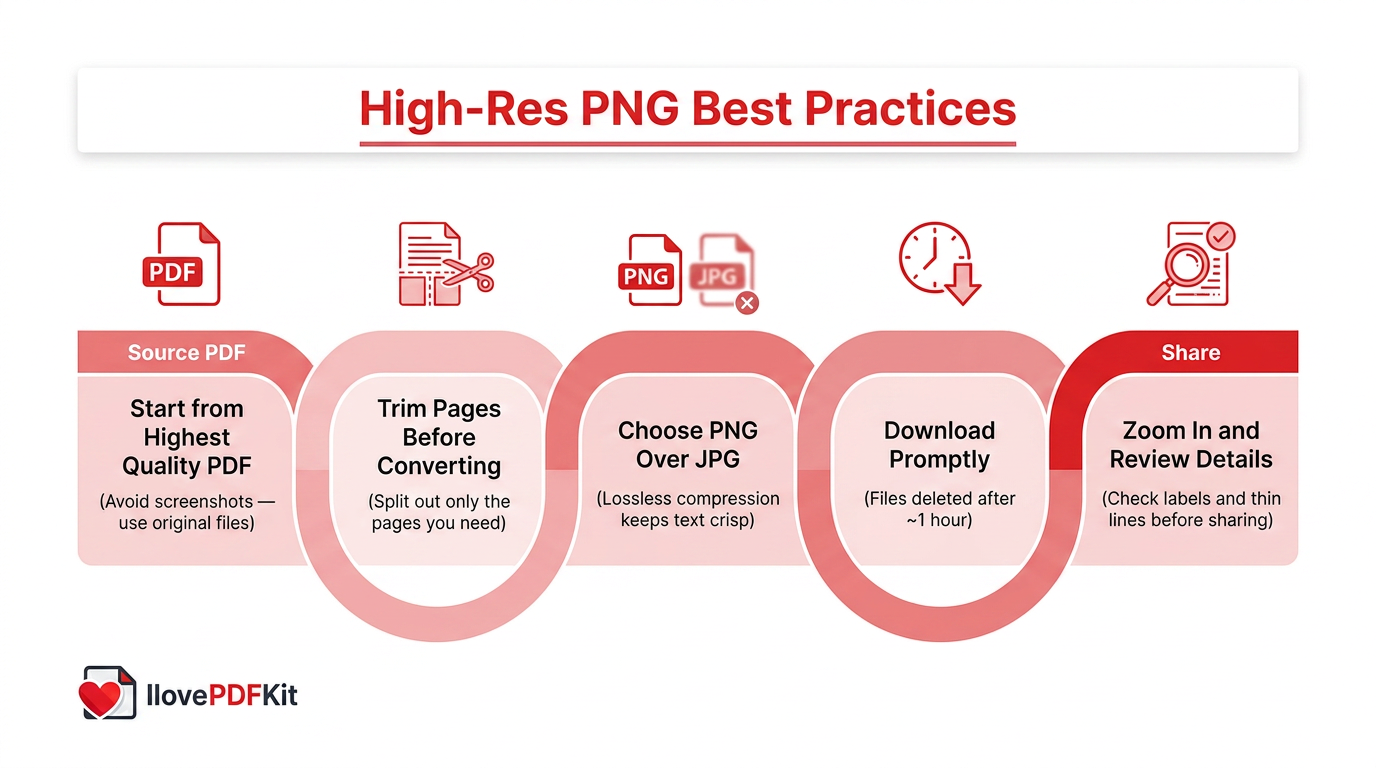
Start from the highest quality PDF you can get
High‑resolution PDF to PNG results start with the best PDF available, and following a step-by-step guide on how to convert PDF pages as JPG or PNG can help you understand which source quality settings matter most. If the original file already has blurry charts or scanned text, no converter can fully fix that. Whenever possible, download the real PDF instead of taking screenshots—vector text and graphics convert much more cleanly than low‑resolution images.“Above all else show the data.” — Edward Tufte
Keeping your charts readable after conversion is one simple way to follow that advice.
Trim pages before you convert
If you only need a few pages, cut the document down first. iLovePDFKit includes a PDF Split tool that lets you pull out chosen pages and save a smaller file. Converting that shorter PDF is quicker, keeps your folders tidy, and reduces the amount of sensitive information that ever leaves your device.Choose PNG when clarity matters
Go with PNG for pages that contain text, diagrams, or interface mockups. PNG uses lossless compression, so fine details survive the conversion. Formats like JPG throw away data to shrink size, which can produce halos around text and jagged lines. So when you export PDF as PNG for sharing, PNG is usually the safer choice for clarity and professional‑looking results.Download promptly and keep a clean archive
Download your PNG images as soon as processing finishes. Services such as iLovePDFKit, Adobe Acrobat Online, and PDF2PNG remove files from their servers after a short period, often about an hour, to protect privacy. Grabbing your files right away saves you from repeating the whole process and keeps your work on your own storage rather than on remote servers.Zoom in and review key details before sharing
Before you send anything to classmates, clients, or managers, open each PNG and zoom in to check important areas. This quick review helps you catch cut‑off labels, low‑contrast text, or small legends that vanish on mobile screens. Research from McKinsey & Company shows knowledge workers lose about 1.8 hours per day searching for information. Clean, readable images reduce that waste because key details stay easy to spot.
A simple extra habit is to keep the original PDF along with your PNG files. If someone later needs to copy text, they can return to the PDF while others keep using the images.
Wrapping Up
Turning PDF pages into PNG images no longer needs paid software, trial accounts, or confusing settings. With iLovePDFKit, you open a browser, upload your file, click Convert, and download clean images in seconds. The same tool also handles PNG to PDF, Office format conversions, and core PDF tasks like Merge, Split, and Compress.
Try iLovePDFKit on your next assignment, report, or client project and keep every document step in one secure place. You stay free from installations, watermarks, and surprise limits while your files are protected during each short session. For many everyday tasks, a browser and a good converter are all you need.
Frequently Asked Questions
These answers clear up common doubts about PDF to PNG conversion. Skim to the question that matches your situation.
Question 1: How can I convert PDF to PNG for free without losing quality?
Use a browser‑based converter such as iLovePDFKit that outputs real PNG files instead of JPG. Start from the clearest source PDF available, upload it, and download the image without lowering resolution. Afterward, open the PNG and zoom in to make sure small text and thin lines still look crisp. This quick check helps you keep quality high at no extra cost.
Question 2: Can I convert a multi-page PDF to PNG—one image per page?
Yes. Converters such as iLovePDFKit create one PNG for every page. Upload the file, choose all pages or a range, run the conversion, then download a ZIP archive with separate images. Each file name usually includes the page number, which makes it easy to match each PNG to the original document.
Question 3: Is there a PDF to PNG converter that requires no download or sign-up?
Yes. iLovePDFKit runs fully in your browser, so there is nothing to install. Open the site, upload a PDF, convert it, and download PNG images with no registration. This works well on shared or locked‑down computers where you cannot add new software.
Question 4: How do I convert PDF to PNG on a Mac?
The simplest way is to use iLovePDFKit in Safari, Chrome, or Firefox on your Mac. Upload the PDF, convert it, and download the PNG files in one go. You can also use the built‑in Preview app by choosing File → Export and selecting PNG as the format, but an online tool is often faster for multi‑page documents.
Question 5: Are my files safe when using an online PDF to PNG converter?
Look for SSL encryption and a clear deletion policy. iLovePDFKit protects uploads with 256‑bit SSL and removes both the PDF and PNG images after the session. Reviewing the privacy page is wise for any site that handles private documents, and you should avoid converting highly sensitive files over public Wi‑Fi if you can.
