Table of Contents
- Introduction
- Why Should You Convert PNG to PDF?
- How to Convert PNG to PDF Using iLovePDFKit (Fastest Method)
- How to Convert PNG to PDF Without Any Tools (Windows and Mac Built-In Methods)
- How to Merge Multiple PNG Files Into One PDF
- Tips for Getting the Best Results When Converting PNG to PDF
- The Bottom Line: Converting PNG to PDF Has Never Been This Easy
- Frequently Asked Questions
Introduction
You have a PNG image that needs to become a clean PDF before a deadline. Searching how to convert png to pdf often drops you into a maze of ads and fake “free” tools. Watermarks, forced sign‑ups, and fuzzy output waste time and look unprofessional.
Converting a PNG to PDF means wrapping your image inside a portable document that opens the same way on almost any screen. The simplest way is to use iLovePDFKit in your browser, with no software or account needed. You will also see quick built‑in methods for Windows and Mac so you can choose what fits your setup.
This guide explains how to convert PNG to PDF with iLovePDFKit, how to do the same task offline on your computer, how to merge many PNG files into one PDF, and how to keep quality high. Keep reading to turn scattered images into polished PDFs without extra stress.
“Perfection is achieved, not when there is nothing more to add, but when there is nothing left to take away.”
— Antoine de Saint‑Exupéry
Key Takeaways
The main ideas in this guide help you move from random PNG images to clean, shareable PDFs without headaches. Each point ties back to common study and work tasks, so you can put it into practice right away. Use this list as a quick reference before you start converting files.
PNG images often need conversion because PDFs share better, keep layout steady, and look more professional. That matters when you submit assignments, client work, or internal reports. A single PDF replaces a folder full of screenshots and random image files.
iLovePDFKit offers the fastest browser‑based method for turning PNG into PDF with no installs. You open the site, upload your image, and download a clean file in seconds. No watermark or registration slows you down during a busy day.
Windows users can rely on Microsoft Print to PDF, which acts like a virtual printer on the system. You open your PNG, select that printer, and save as a PDF on your device. This path works well when internet access is limited or blocked.
On Mac, Preview converts PNG to PDF with a couple of simple menu picks. You open the image, choose the export to PDF option, and save your document. Preview also groups several images into one multi‑page file when you open them together.
iLovePDFKit merges several PNG files into one ordered PDF automatically when you upload more than one image. That helps students and freelancers share sets of screenshots or design pages as one tidy file. Simple quality checks, like starting from high‑resolution images, keep the final PDF sharp.
Why Should You Convert PNG to PDF?
Converting PNG images to PDF gives you smoother sharing, consistent layout, and better control over each document. PDFs open on almost any device without special image software, while PNG files sometimes rotate or scale oddly. That difference becomes obvious the moment a teacher or manager opens your attachment on a phone.
According to the What we know about internet use and smartphone ownership from Pew Research Center, around 85 percent of adults in the United States own a smartphone. Because so many people read attachments on phones, a format that scales cleanly like PDF helps a lot. PNG images can appear huge or tiny on different screens, but PDFs keep text and diagrams readable.
For many students and office workers, dozens of screenshots, scanned receipts, and diagrams sit in random folders. Converting them into a small set of organized PDFs makes those records far easier to search and file.
Scattered files: Research from McKinsey & Company notes that knowledge workers spend about 1.8 hours every day just looking for information.
Organized PDFs: Grouping images into clearly named PDFs cuts down that wasted search time and makes future filing much simpler.
PDFs also introduce simple security options for sensitive content. You can add passwords or restrict printing in tools like iLovePDFKit or Adobe Acrobat. PNG files do not support these protections by themselves, so they travel as unprotected images.
If you often type how to convert png to pdf into a search box, these are the real reasons behind that need.
How to Convert PNG to PDF Using iLovePDFKit (Fastest Method)
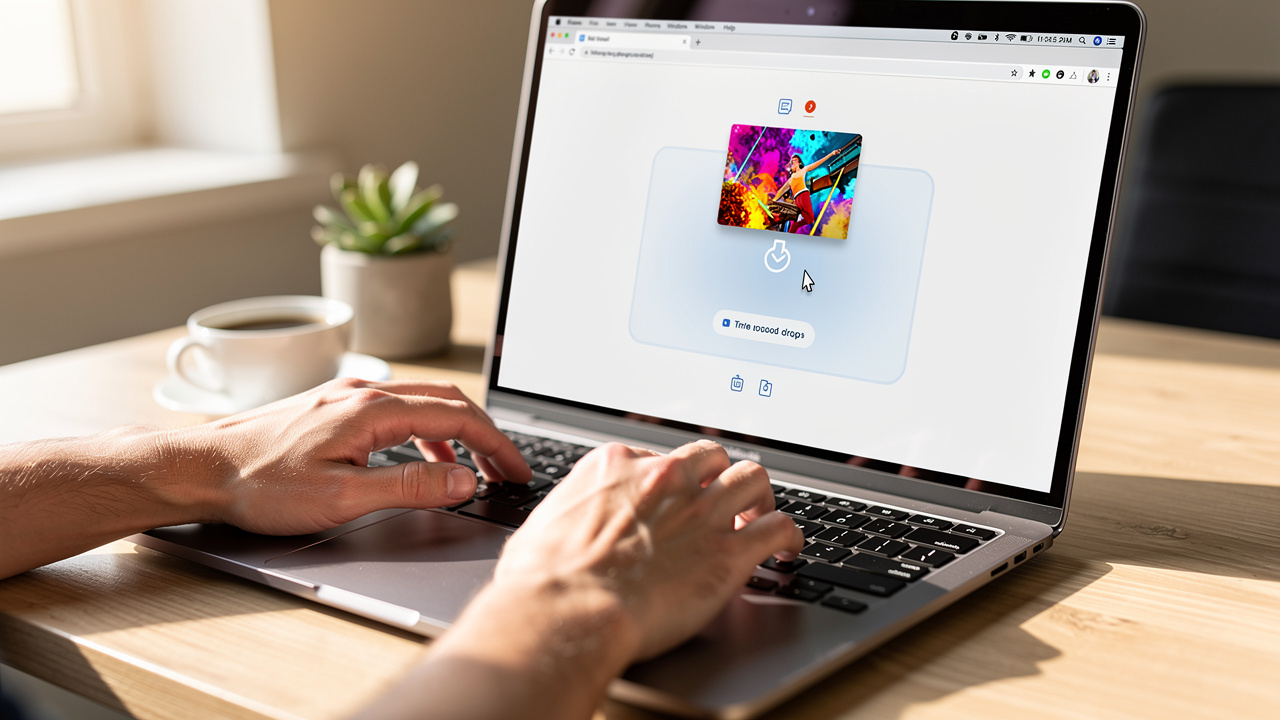
The fastest way to convert PNG to PDF on almost any device is to use the iLovePDFKit web tool. This method runs entirely in your browser, so you avoid downloads, logins, and confusing settings. You open the page, upload your file, and receive a clean PDF a few seconds later.
iLovePDFKit focuses on quick, free conversion with no watermark on the output — an approach echoed in guides like How To Convert Png images to PDF without installing software, which highlight browser-based tools as the most accessible option. The site handles PNG, JPG, Word, Excel, and PowerPoint, which keeps your document work in one place. Files move over SSL‑encrypted connections, and uploads are removed from the servers after processing, following the service’s privacy policy. That approach lines up with the idea that the safest data usually sits on your own device, not on some random server.
Because around 85 percent of adults in the United States carry a smartphone — as detailed in 2024 Connected Consumer: Trust research from Deloitte — document tasks often happen on small screens. iLovePDFKit runs smoothly in mobile browsers on iOS and Android, so you can convert lecture screenshots or invoices right from your phone. All heavy processing runs on remote servers, which means even older laptops and school computers handle conversions without slowing down. When you search how to convert png to pdf on mobile, this route feels especially handy.
Using iLovePDFKit also helps when you juggle many formats in one day. You might convert PNG to PDF for a report, then turn a PDF into Word for editing, all from the same site. That single hub keeps your process simple instead of jumping between multiple tools.
A quick comparison of the main methods covered in this guide:
| Method | Works On | Internet Needed | Best For |
|---|---|---|---|
| iLovePDFKit PNG to PDF | Any device with browser | Yes | Fast, no‑install conversions |
| Microsoft Print to PDF | Windows 10 and newer | No | Offline work on Windows PCs |
| Preview → Export as PDF | macOS | No | Offline work on Mac computers |
Step-by-Step: Converting PNG to PDF With iLovePDFKit
The actual workflow with iLovePDFKit stays short and predictable, and A Professional Guide to PNG to PDF conversion confirms that simple, step-by-step browser workflows consistently deliver the cleanest output. Every step uses plain buttons and labels, so even first‑time visitors feel comfortable. Follow this sequence the next time a teacher, client, or coworker asks for a PDF instead of an image.
Step 1: Open the tool in your browser.
Open any modern browser, such as Google Chrome, Microsoft Edge, Safari, or Firefox. Typeilovepdfkit.com/png-to-pdfinto the address bar and press Enter. The PNG to PDF page loads with a large upload area in the center.Step 2: Upload your PNG file or files.
Click the upload button in the middle of the screen, or drag your PNG file onto that area. You can select one image or many at the same time from your computer, phone, or cloud storage. The site starts a secure upload over SSL as soon as your files arrive. Large images still move quickly because iLovePDFKit handles transfers efficiently.Step 3: Let the conversion run.
After upload, iLovePDFKit prepares a preview while the conversion engine turns your PNG images into PDF pages. The tool keeps each pixel intact, so small labels and text on diagrams stay readable. Most jobs finish in only a few seconds, even when you send several images. You do not need to change any technical settings unless you want a different page size.Step 4: Download your finished PDF.
When processing ends, a clear download button appears on the screen. Click it to save your new PDF to your device, or tap it on mobile to store the file in your downloads folder. You can also send the PDF to a cloud drive or email it right away using your normal tools. Because iLovePDFKit never stamps watermarks, the file looks ready for teachers, managers, or clients.Step 5: Use batch conversion when needed.
If you upload more than one PNG, iLovePDFKit automatically arranges them into a single multi‑page PDF in the order you selected them. This helps students combine photo notes from a whiteboard, or designers gather several mockups into one presentation. You avoid the extra work of merging later in another program. If you prefer separate PDFs, simply upload each PNG in its own quick run.
With these steps, you can handle almost any how to convert png to pdf task from one clean browser page.
How to Convert PNG to PDF Without Any Tools (Windows and Mac Built-In Methods)
You can convert PNG to PDF without extra tools by using features already built into Windows and macOS. These methods work completely offline, which helps in secure offices or classrooms with strict internet rules — a need explored in depth in Your Ultimate Guide to converting PNG to PDF on any device. They also suit anyone who just prefers native apps over websites.
On Windows: Using Microsoft Print to PDF
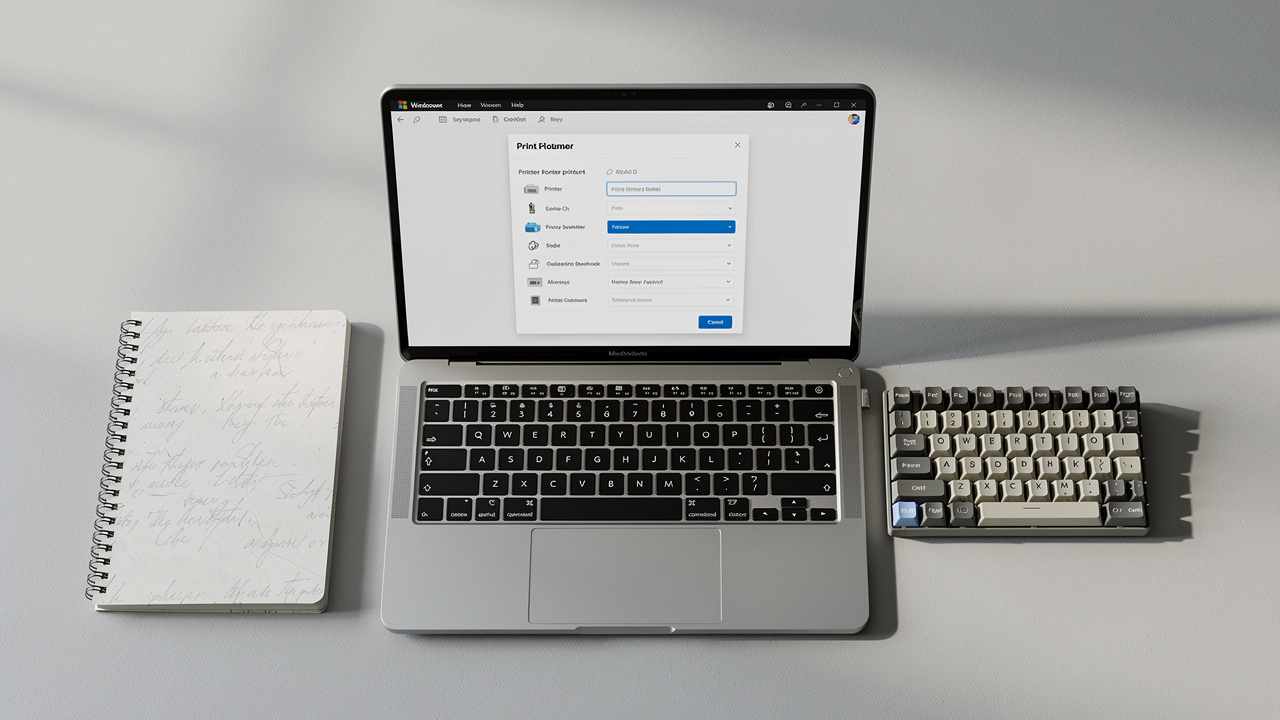
On Windows 10 and newer versions, Microsoft includes a virtual printer named Microsoft Print to PDF. To use it:
Open your PNG in Photos, Paint, or even Microsoft Edge.
Press Ctrl + P to open the print window.
In the printer list, choose Microsoft Print to PDF.
Adjust page orientation and margins inside the print settings:
Choose Portrait for tall images.
Choose Landscape for wide screenshots or charts.
Click Print. Instead of sending paper to a real printer, Windows asks for a file name and location.
Pick a folder, give the file a clear name, and click Save.
This method keeps the original image quality because Windows saves the file exactly as you see it on screen. For small batches, many office workers rely on this feature every workday.
On Mac: Using Preview
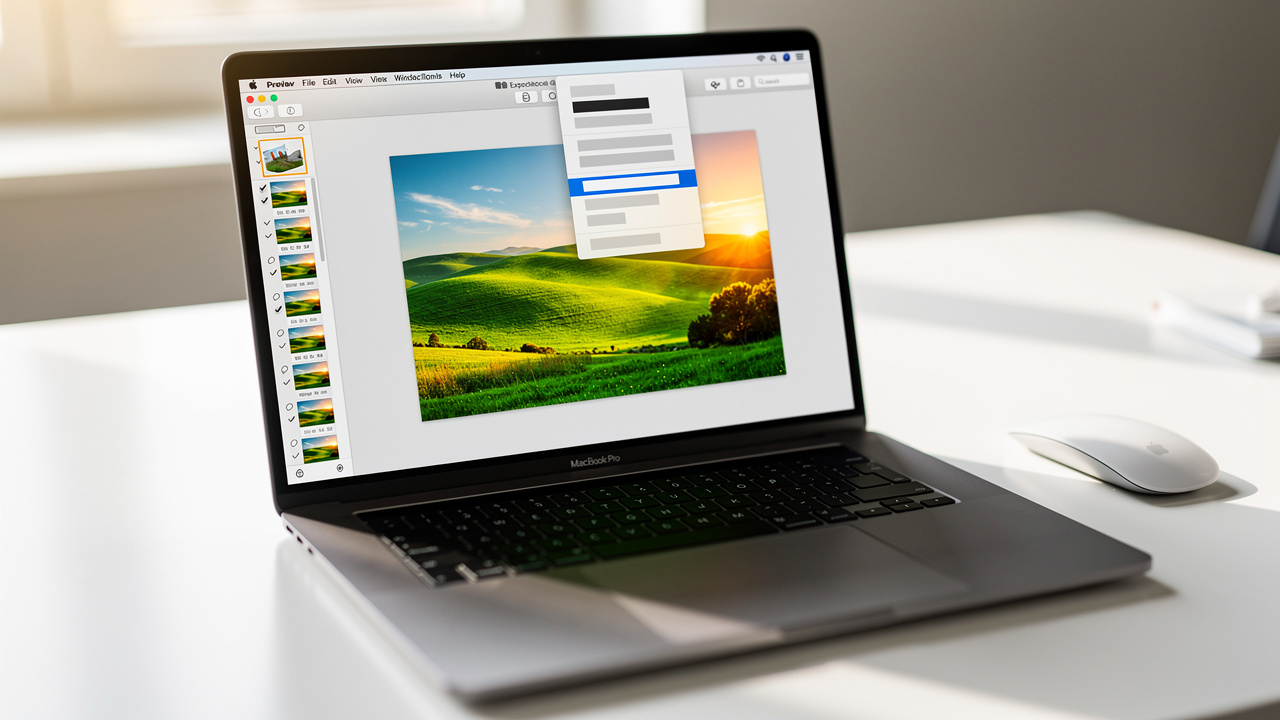
On Mac computers, the Preview app offers an equally simple path from PNG to PDF:
Open your image in Preview (double‑clicking a PNG usually does this by default).
Go to the File menu and choose Export as PDF.
Give the file a clear name, pick a folder, and click Save.
You can also press Command + P in Preview and use the PDF button in the corner of the print window:
Press Command + P to open the print dialog.
Click the PDF dropdown in the bottom‑left corner.
Select Save as PDF.
Choose a location, name the file, and save.
According to Apple, Preview acts as the default viewer for images and PDFs on every Mac, so you already have what you need. If you prefer a fully offline answer to how to convert png to pdf, these built‑in tools cover that need.
How to Merge Multiple PNG Files Into One PDF

Merging several PNG images into a single PDF keeps long series of screenshots or scans in one neat package. Instead of sending ten separate files, you share one ordered document that is easier to read and store. Students, freelancers, and office staff use this approach for reports, design proof sheets, and multi‑page forms.
With iLovePDFKit, merging happens inside the same PNG to PDF tool described earlier. You upload all your images at once, then the platform turns them into consecutive pages inside one PDF. Thumbnails appear on screen, so you can drag them into the right sequence before final conversion. That saves you from renaming files or adding numbers just to control order.
Beyond iLovePDFKit, both Windows and Mac offer simple ways to combine images into a single PDF:
On Windows with Microsoft Word
Start a new blank document and insert each PNG on its own page. Use the Insert menu, then choose Pictures to place your files in order. Resize any image that looks too large, so every page prints clearly. When you finish, choose Save As and pick PDF as the format to convert the document.On macOS with Preview
Select all of your PNG files in Finder, right‑click, and open them together in Preview. Turn on the sidebar with thumbnails, then drag the pages until they appear in the right order. From there, use File → Export as PDF to save a single, combined document.For mixed content projects with iLovePDFKit
You can even mix image‑based PDFs created earlier with text‑based PDFs. iLovePDFKit offers a separate Merge PDF tool that joins those files in seconds. This helps when a proposal includes a Word‑exported PDF plus several converted screenshots. Everything ends up inside one file that is easy to email or upload.
This kind of merging step lines up with the earlier point from McKinsey & Company about time lost searching for scattered items. Fewer files mean faster work.
Tips for Getting the Best Results When Converting PNG to PDF
Good PNG to PDF conversion starts with the quality of your image and ends with a quick review of the output — trends confirmed by 2025 Connected Consumer: Innovation research showing that consumers increasingly expect polished, professional digital documents. A few small habits help your documents look sharp and professional every time. These tips apply whether you use iLovePDFKit, Windows, or Mac methods.
“Your mind is for having ideas, not holding them.”
— David Allen, author of Getting Things Done
Think of your PDFs as a way to keep information out of your head and in a clear, trusted format. To get the best results:
Begin with a high‑resolution PNG.
For reading on screens, aim for at least 150 dots per inch (DPI), and for printed handouts, 300 DPI keeps text crisp. Guides from Adobe explain how higher DPI values lead to clearer printed results.Use clear, consistent file names.
Rename your images before conversion with titles like Invoice‑March‑2026.png or Lab‑Report‑Graph‑02.png. Those names often carry over to your PDFs, which makes folders easier to scan later and speeds up search in file browsers or cloud drives.Review the PDF after conversion.
Always open the PDF and zoom in on important areas like small labels, equations, or signatures. Rotate any sideways pages and check that margins look balanced on standard paper sizes. Catching these issues early prevents awkward resubmissions or confused clients.Control file size when needed.
For very large images or long batches, consider using iLovePDFKit Compress or Split tools after conversion. Compress reduces file size for email, while Split lets you break a huge document into smaller chunks.Stick to common page sizes.
When a tool lets you pick page size, choosing A4 or Letter makes printing and sharing simpler for everyone who reads your file.
Whenever you plan how to convert png to pdf for an important assignment or proposal, keeping these tips in mind pays off.
The Bottom Line: Converting PNG to PDF Has Never Been This Easy
Converting PNG images to PDF no longer needs to feel like a chore filled with watermarks and sign‑up traps. With iLovePDFKit, you turn images into clean PDFs on any device in just a few clicks. Windows users lean on Microsoft Print to PDF, and Mac owners have Preview ready in the Dock. Whichever path you choose, you now have a clear plan for moving from loose images to polished documents, starting with iLovePDFKit when you need the fastest answer to how to convert png to pdf.
Frequently Asked Questions
Question: Will Converting a PNG to PDF Reduce Image Quality?
No, converting a PNG to PDF should not reduce image quality when you use a high‑quality tool such as iLovePDFKit. The PNG format already uses lossless compression, and a proper converter keeps every pixel. Problems appear only when a platform secretly turns the image into a low‑quality JPEG. Always check a preview at full zoom before sending the file.
Question: Is It Safe to Upload PNG Files to an Online Converter?
Yes, it can be safe when you choose a trusted site that protects your data. iLovePDFKit transfers files over SSL‑encrypted connections and deletes uploads shortly after processing, according to its stated policy. Files are handled automatically; they are not meant to be browsed by staff. For very sensitive images such as ID cards, stick with well‑known services and read their privacy pages before uploading.
Question: Can I Convert Multiple PNG Files to PDF at Once?
Yes, you can convert multiple PNG files to a single PDF in one pass. iLovePDFKit supports batch uploads, so several images arrive together and become a multi‑page PDF automatically. This saves time for students compiling notes, freelancers packaging design rounds, or staff building visual reports. You avoid separate conversions and extra merging steps.
Question: Can I Convert PNG to PDF on My Phone?
Yes, you can convert PNG to PDF directly on your phone using iLovePDFKit in a mobile browser. The site works on both iPhone and Android, and all heavy processing happens on remote servers. That means even older phones handle conversions smoothly. Just open the site, upload from your photo gallery, and download the finished PDF.
Question: Do I Need to Create an Account to Convert PNG to PDF?
No, you do not need to create an account to convert PNG to PDF with iLovePDFKit. The service lets you go straight from upload to download without emails, passwords, or trials. This design keeps one‑off tasks fast and private. If you later want advanced tools, you can explore more features without changing the basic free flow.
