You send a last minute Excel report and the recipient sees clipped totals and shifted charts instead of your neat table. Fonts change, page breaks move, and the whole thing feels sloppy. That is not the impression anyone wants to give a client, professor, or manager.
The most reliable way on both Windows and Mac is to create a PDF straight from Microsoft Excel. The simplest answer to how to export Excel to PDF is to use Excel commands like File, Save As or Export to PDF, then check Print Preview so every column fits. If Excel is not available, a browser tool such as iLovePDFKit converts Excel to PDF with accurate layout in a few clicks.
This guide walks through built in Excel methods, page setup tips that prevent cut off pages, free online options, and quick fixes when something still looks wrong.
Ready to send cleaner spreadsheets without stress? Keep reading for step by step methods you can reuse for every report or assignment.
Key Takeaways
Before reading all the details, it helps to see the main ideas up front.
Excel offers three direct ways to export to PDF without extra software: Save As, Export, and Print to PDF all work on Windows and macOS. Pick the one that fits your routine best.
Page Setup is what separates a tidy PDF from a broken one. When you set print area, orientation, and scaling first, you avoid tiny text and cut off columns. One minute here saves a lot of time later.
You can export multiple sheets into a single PDF file. That keeps related tabs together for reports, invoices, or lab sheets. The reader only opens one document instead of hunting through many attachments.
Online tools such as iLovePDFKit help when you do not have desktop Excel. They run in any modern browser, keep your layout intact, and feel ideal for quick Excel to PDF conversion on shared or school computers.
A short checklist before every export catches most problems. Looking at Print Preview for a few seconds helps you spot scroll bars, missing headers, or strange page breaks before you hit send.
Table of Contents
- Key Takeaways
- Why Convert Excel to PDF?
- How to Export Excel to PDF Using Built-In Methods
- How to Set Up Your Page Before Exporting
- How to Export Excel to PDF Online Without Software
- How to Fix Common Excel to PDF Problems
- Start Exporting Smarter, Not Harder
- Frequently Asked Questions
- Question 1: How Do I Save an Excel File as a PDF Without Losing Formatting?
- Question 2: How Do I Get All Columns to Fit on One Page When Exporting to PDF?
- Question 3: Can I Export All Sheets in an Excel Workbook to One PDF?
- Question 4: Is It Safe to Convert Excel Files to PDF Online?
- Question 5: Can I Convert Excel to PDF for Free Without Installing Software?
Why Convert Excel to PDF?

Converting Excel to PDF is one of the safest ways to share spreadsheets without layout surprises. On Windows and macOS, a PDF means the other person sees the same rows, columns, and totals that appear on your screen.
When you email an XLSX file, the result depends on the other person’s Microsoft Excel version, settings, and even printer driver. A wide table might wrap in different places or use substitute fonts on their Mac or Windows laptop. That is how invoices lose alignment and grade sheets look unprofessional.
PDF avoids those problems because it locks the layout. Portable Document Format is an ISO standard for reliable document exchange, which is why government agencies and universities prefer it for final documents (ISO). Whether someone opens your file in Adobe Acrobat, Apple Preview, or a browser like Chrome, the pages stay identical.
Sharing a PDF also protects your formulas and raw data. People can read totals but cannot easily overwrite a key cell by accident. According to Microsoft documentation, modern XLSX workbooks use a structured XML format, which converts predictably into fixed layout files such as PDF (Microsoft). For students, freelancers, and office staff, that extra stability is worth the small setup step.
A common recommendation from office IT teams is simple: “If appearance matters, send a PDF instead of an editable spreadsheet.”
How to Export Excel to PDF Using Built-In Methods
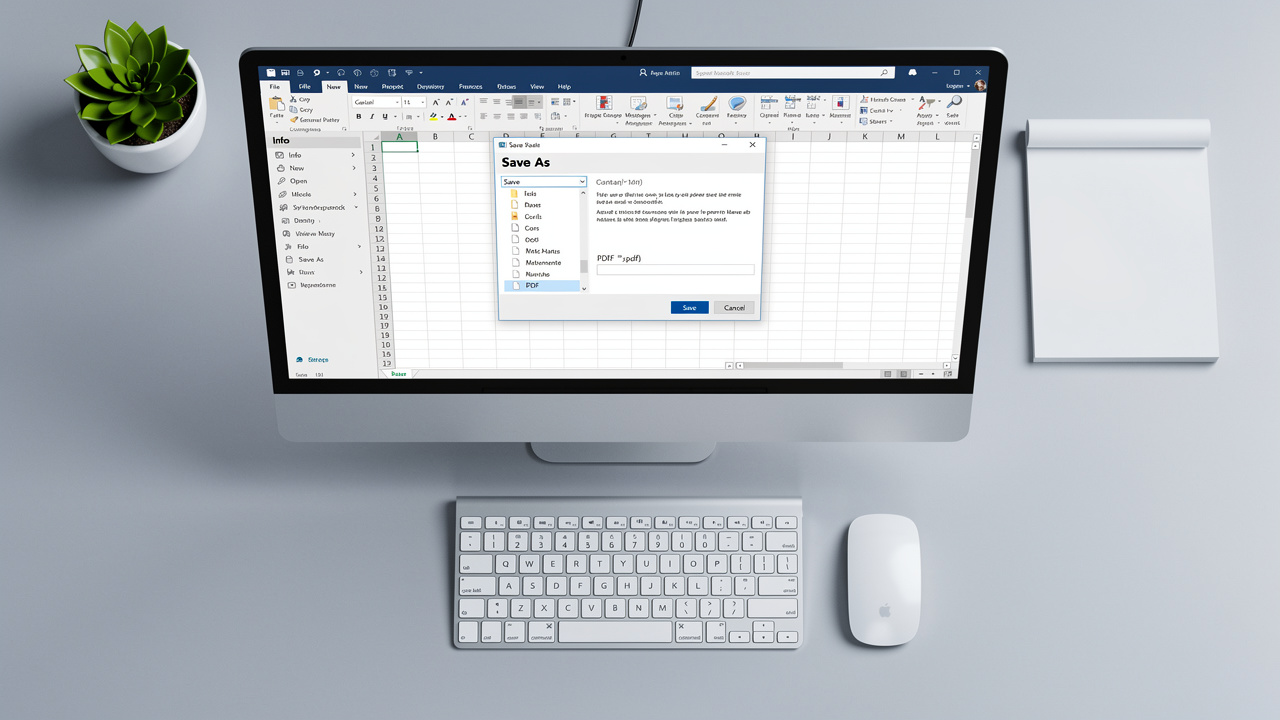
The best day to learn how to export Excel to PDF is before a deadline. Excel on Windows and macOS already includes everything you need, so you do not have to install anything. All three built in methods use the same engine, so the quality is the same.
Microsoft Excel in Microsoft 365, Excel 2021, and Excel for Mac all support direct PDF output, and you can follow a practical guide on How to Convert Excel to PDF for a step-by-step walkthrough of each method. XLSX files first appeared with Office 2007 and have followed the same basic export model ever since (Microsoft). That means you can follow these steps on most recent versions.
Here are the three main methods.
Press Ctrl + P in Excel on Windows or Command + P on Mac. Choose Microsoft Print to PDF on Windows or the PDF menu in the Mac print box. Decide whether you want the active sheet, selected cells, or the entire workbook. Click Print, pick a filename, and save.
Use File → Save As if you want the classic path. Choose a folder, open the file type list, then pick PDF on both Windows and macOS. Adjust the Options button if you need a page range or only selected sheets. This is the simplest way when someone asks how to save Excel to PDF for a quick email.
Use File → Export for slightly more control. On Windows, choose Create PDF or XPS and open the Options button to pick the right sheets. On a Mac, you can choose File → Export, then select PDF as the format and decide whether to include document properties. This helps when you need to save Excel as PDF with specific pages.
No matter which path you pick, the steps answer how to save as PDF from Excel without extra converters — see this guide on How to Convert an entire Excel workbook to PDF for additional detail on workbook-level options. Once the PDF appears, open it in Adobe Acrobat, Apple Preview, or your browser to verify everything looks correct before sharing.
How to Export Multiple Sheets to One PDF File
Learning how to export multiple sheets to one PDF file keeps large workbooks under control, and a dedicated guide on How to Save Multiple Excel sheets as one PDF walks through four easy ways to accomplish this. Instead of sending a pack of separate attachments, you combine everything in one organized PDF.
In Microsoft Excel:
Hold down Ctrl on Windows or Command on Mac and click each sheet tab you want to include. The tabs highlight, which tells Excel they count as a group.
Use Ctrl + P, File → Export, or File → Save As, then choose to print Active sheets.
Excel treats those selected tabs as one job and creates a single PDF.
This trick covers both export multiple sheets Excel to PDF and Excel print to PDF entire workbook cases. For best results, set Page Setup on every tab first so orientation, margins, and scaling match in the final document.
How to Set Up Your Page Before Exporting
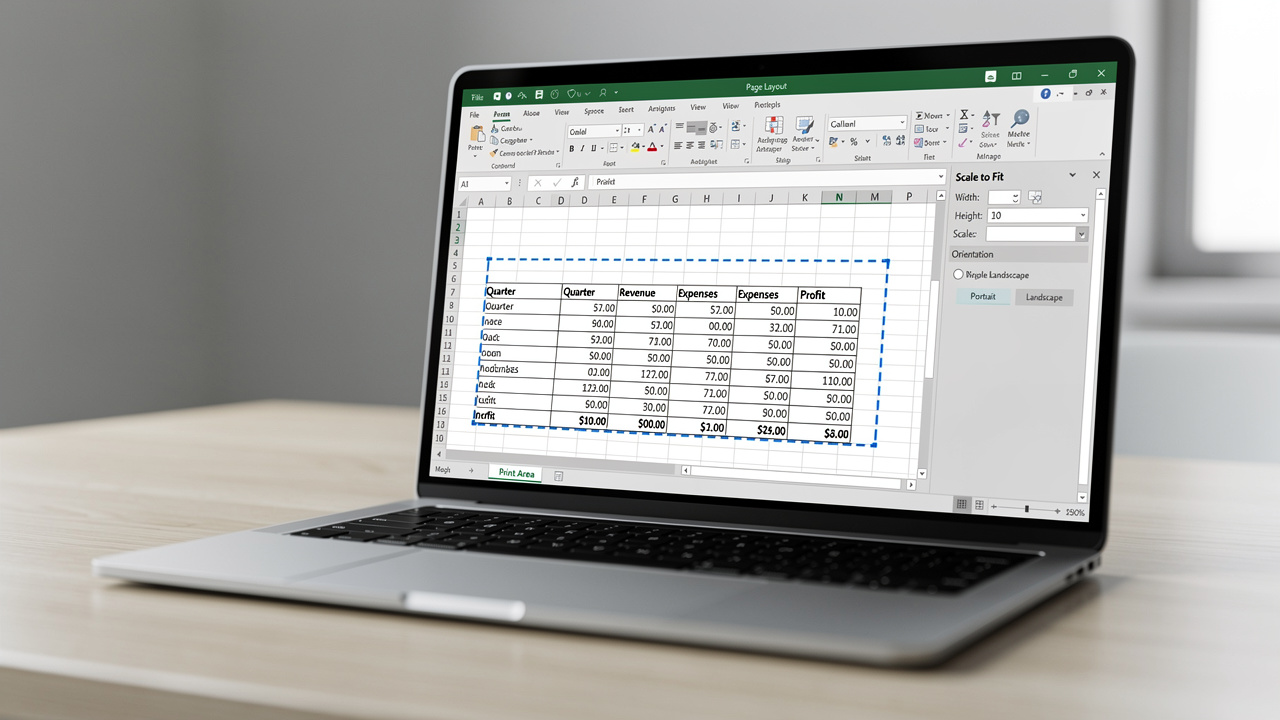
Page setup in Excel decides how your spreadsheet turns into a PDF. The way you choose print area, scaling, margins, and orientation dictates whether your exported file looks neat or chopped off.
Think of it as four quick steps:
Set the Print Area
Highlight the exact range you want, then go to the Page Layout tab and choose Print Area → Set Print Area. That step stops stray notes, helper columns, or blank rows from leaking into the PDF. It is the first fix for how to make an Excel file into PDF without random gray space.Control How Much Fits on Each Page
In the Scale to Fit section on the Page Layout tab, set Width to 1 page to get Excel to PDF all columns on one page. If the sheet is long, you can keep Height at Automatic so pages break naturally. This is how many people handle Excel to PDF fit to page when they need a readable report instead of tiny text.Choose the Right Orientation
Orientation also matters. Portrait works for narrow lists, but wide schedules often need a more horizontal page layout so columns do not get cut off. Research on tables from the Nielsen Norman Group shows that people scan wide data more easily when headings stay clear and spacing remains consistent (Nielsen Norman Group). Choosing the right orientation plus sensible scaling keeps your Excel to PDF without cutting off at the right edge.Add Print Titles and Adjust Page Breaks
Use Print Titles so header rows repeat on every page, then open Page Break Preview to drag break lines to more logical spots. A few minutes with these tools often do more than any fancy converter.
As many spreadsheet trainers like to say, “Check your layout before you click Print, not after.”
Quick Pre-Export Checklist
A fast checklist before every export prevents most layout surprises. Scan through these points any time you convert Excel to PDF without losing formatting.
Print Area is defined for the main table only. You have removed helper columns, scratch work, and blank rows. The PDF will show only what readers need.
Orientation matches the shape of your data. Tall lists use Portrait to keep text large. Wide tables use a horizontal layout so totals and labels stay on one line.
Scale to Fit keeps content inside the margins. Width set to one page avoids a surprise extra sheet for a single column. You confirm the scale number is not so small that text becomes unreadable.
Print Titles repeat key headers on every page. Column labels stay visible, even on page two or three. Readers never guess what a number refers to.
Manual Page Breaks sit at natural boundaries. You place them between months, sections, or categories. No important row ends up alone on its own page.
Page Numbers appear in the footer. Multi page reports show Page 1 of 3 and so on. That helps during meetings when people refer to specific pages.
Print Preview has been checked on your screen. You scroll through every page in that view. If something looks wrong here, it will also look wrong in the PDF.
Rule of thumb: “If the preview looks right, the PDF will look right.” Make that your last step before saving or sending.
How to Export Excel to PDF Online Without Software

Exporting Excel to PDF online without software is perfect when you lack desktop Excel. On school computers, Chromebooks, or Linux machines, a browser may be all you have.
Online Excel to PDF conversion is straightforward. You open a site, upload the workbook, wait a moment, then download the finished PDF. iLovePDFKit focuses strongly on this task for students, freelancers, and office staff, and Adobe Acrobat offers another option. According to Adobe, PDF remains one of the most widely used formats for reliable document exchange across devices (Adobe).
iLovePDFKit stands out for people who need Excel to PDF free. You visit the site, choose the Excel to PDF tool, and drop in an XLSX or older XLS file. The service reads Excel’s XML based structure to keep fonts, merged cells, charts, and images aligned. There is no registration wall, no watermark, and no surprise limits on file size or daily tasks.
Here is a quick comparison of common methods.
| Method | Needs Desktop Excel | Layout Control | Best Use Case |
|---|---|---|---|
| iLovePDFKit Excel to PDF | No | Follows existing Excel layout | Any modern browser with no install |
| Excel Save As PDF | Yes | Full Page Setup control | Office or home computer |
| Excel for Web Download as PDF | No desktop app, but Microsoft 365 account | Basic settings only | School or work account in browser |
If you need to batch convert Excel to PDF for a class or client, iLovePDFKit makes the process simple. You can upload one workbook after another with no usage caps, which is helpful before big deadlines. All files move over encrypted connections and are removed from servers after conversion, so sensitive grades and invoices are not left behind.
How to Fix Common Excel to PDF Problems

Fixing common Excel to PDF problems almost always starts inside Excel rather than in the converter. When columns vanish, fonts look odd, or extra blank pages appear, page settings are usually the cause.
If columns or totals are cut off:
First check margins and orientation. Narrow margins give your table more room, and a horizontal orientation fits wider data.
Then use Scale to Fit and set Width to one page, which is how many people get Excel to PDF all columns on one page.
When that is still not enough, shrink font size slightly or remove nonessential columns.
When you want Excel to PDF without losing formatting, rely on trusted tools — the summata: inst/doc/table_export.Rmd documentation demonstrates how table export workflows benefit from structured, consistent formatting standards before generating fixed-layout output. Excel’s own Save As and Export commands preserve fonts, borders, and merged cells better than random converters. Online, services such as iLovePDFKit and Adobe Acrobat Online read the workbook structure directly, which keeps charts and tables in place.
Security is another concern. If you are sending salary data, grades, or client invoices, avoid shady sites and stick to known names. iLovePDFKit runs conversions over secure HTTPS and deletes files shortly after processing, following the privacy first approach described in its documentation. For the strictest environments, you can stay fully offline by using Microsoft Excel Save As PDF on your own computer.
Start Exporting Smarter, Not Harder
Exporting smarter means picking the right path for your device and doing light prep inside Excel. On Windows and macOS with Microsoft Excel installed, Save As or Export to PDF gives fast, accurate results. When you only have a browser, iLovePDFKit offers the same Excel to PDF conversion from any computer at no cost.
Conclusion
Clean PDFs start with a clean worksheet. Set the print area, pick Portrait or a horizontal layout, scale content sensibly, then confirm everything in Print Preview. After that, how to export Excel to PDF becomes a short, repeatable process instead of a last minute rush. For your next report or assignment, try sending a polished PDF from Excel or through iLovePDFKit so every reader sees exactly what you meant to share.
Frequently Asked Questions
This section answers the most common queries about Excel to PDF conversion in one place.
Question 1: How Do I Save an Excel File as a PDF Without Losing Formatting?
You save an Excel file as a PDF without losing formatting by using Excel’s own PDF commands. Choose File → Save As, pick PDF, and check Print Preview first so columns fit. Online, iLovePDFKit reads the Excel layout directly, which helps keep fonts, merged cells, and charts intact.
Question 2: How Do I Get All Columns to Fit on One Page When Exporting to PDF?
You get all columns on one page by using Scale to Fit in the Page Layout tab. Set Width to 1 page and keep Height automatic or at 1 page if the sheet is short. Switch to a horizontal orientation for very wide tables and confirm readability in Print Preview.
Question 3: Can I Export All Sheets in an Excel Workbook to One PDF?
Yes, you can export all sheets in one go to a single PDF. Hold Ctrl or Command, click each sheet tab you need, then start Print, Save As PDF, or Export. With Print Active Sheets chosen, Excel compiles the selected tabs into one continuous PDF in tab order.
Question 4: Is It Safe to Convert Excel Files to PDF Online?
It is safe when you use reputable services that protect privacy. Quality tools process files over encrypted connections and remove them after conversion. iLovePDFKit follows a strict no file storage policy, so documents are not kept on its servers once the download finishes.
Question 5: Can I Convert Excel to PDF for Free Without Installing Software?
Yes, you can convert Excel to PDF for free in any modern browser. iLovePDFKit runs fully online, needs no software download, and requires no account. You upload an Excel file, convert it, and download a clean PDF without watermarks or hidden limits.
