You hit export on a PDF, send it off, and never think twice about what’s hiding inside the file itself. That’s the real risk with PDF metadata. It can quietly reveal your name, your employer, or how many times a document was edited before it reached someone’s inbox. Students submitting research papers, office staff sharing contracts, and freelancers sending client proposals all face this risk without realizing it.
If you’ve ever searched for how to remove metadata from PDF files before sharing them, the answer starts with understanding what metadata actually is and why it sometimes lingers even after you think a file is clean. This guide covers the standard desktop method for stripping metadata, a faster no-install option using free online tools like iLovePDFKit, and advanced technical methods for anyone who needs guaranteed, permanent removal. We’ll also cover a simple alternative for situations where you’d rather keep metadata intact but still control who can view it. Keep reading to find the method that matches your comfort level with technology.
Key Takeaways
- Metadata quietly stores your name, company, edit dates, and software details inside every PDF you create, often without you noticing.
- Standard desktop tools only hide metadata from view in most cases, they don’t always erase it from the file’s internal structure.
- Free online tools like iLovePDFKit remove metadata in seconds, with no installation, no account, and no watermark on your file.
- Advanced options such as Exiftool combined with QPDF, MAT2, or DangerZone guarantee permanent, unrecoverable removal for high-sensitivity cases.
- Password protection is a solid alternative when you want to keep metadata intact but restrict who can open the file.
Table of Contents
- What Is PDF Metadata and Why Does It Matter?
- Why Should You Remove Metadata Before Sharing a PDF?
- How Do You Remove Metadata from a PDF? (Standard Method)
- How Can You Remove Metadata Using a Free Online Tool?
- Are Standard Tools Enough for Permanent Metadata Removal?
- What If You Want to Keep Metadata but Still Protect Your PDF?
- The Takeaway
- Frequently Asked Questions
What Is PDF Metadata and Why Does It Matter?
PDF metadata is the hidden layer of information embedded inside a file that never shows up on the page but travels with the document anyway, a concern explored in recent research on metadata integrity in digital disclosures covering financial and ESG reporting structures. It works like a digital fingerprint, quietly recording details such as the author’s name, the software used to create the file, and the exact dates it was made or last changed. Word processors and PDF editors add this data automatically every time you save or export a document, often without any prompt.
Metadata does serve a real purpose, since it helps file search tools locate documents by author or keyword and plays a role in optical character recognition, the technology that turns scanned images into text you can search and edit. Research on workplace productivity from McKinsey found that employees spend close to two hours a day just searching for information, which is one reason organized, well-tagged files matter. The trouble starts when that same hidden data exposes something you never meant to share, like your real identity behind an anonymous submission or an internal company name buried in a client-facing report.
What Information Does PDF Metadata Usually Contain?
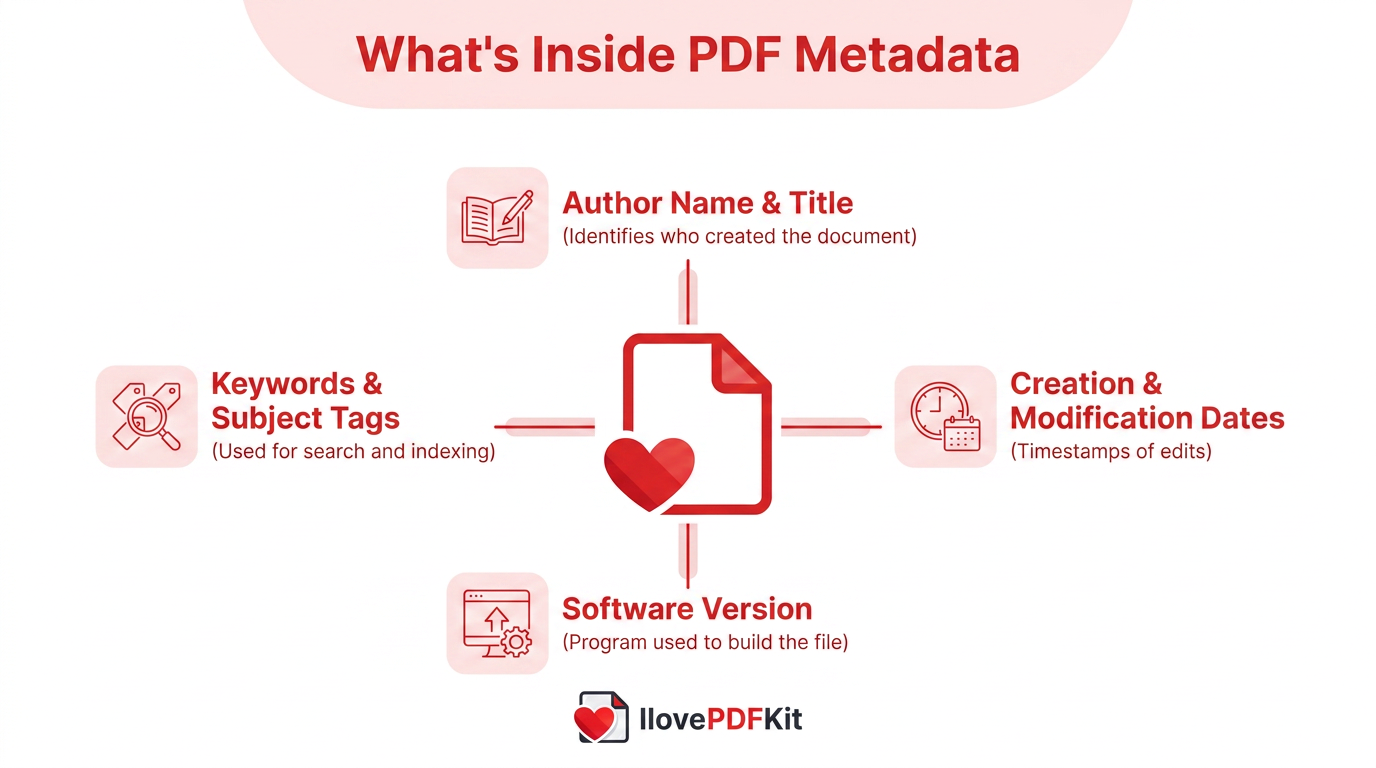
Most PDFs carry a predictable set of hidden fields, even if you never open a properties menu to check them. These typically include:
- The author name and document title
- Creation and modification dates
- The software version used to build the file
- Keywords or subject tags
Office programs like Microsoft Word and Adobe Acrobat often fill these fields in automatically, so you may never know they exist until you go looking.
Why Should You Remove Metadata Before Sharing a PDF?
Removing metadata before sharing a PDF protects you from revealing details you never intended to make public. Students submitting theses or assignments risk exposing personal identifying information, prior draft history, or the exact software used to write a paper, which can raise unwanted questions during academic review.
Office professionals and freelancers face a similar exposure. A contract or report might still carry an employee’s real name, an internal department label, or tracked comments from earlier review rounds, even after the visible content looks polished. Freelancers sending invoices or proposals risk revealing which templates or tools they rely on internally, so scrubbing metadata keeps client-facing documents professional and confidential.
How Do You Remove Metadata from a PDF? (Standard Method)
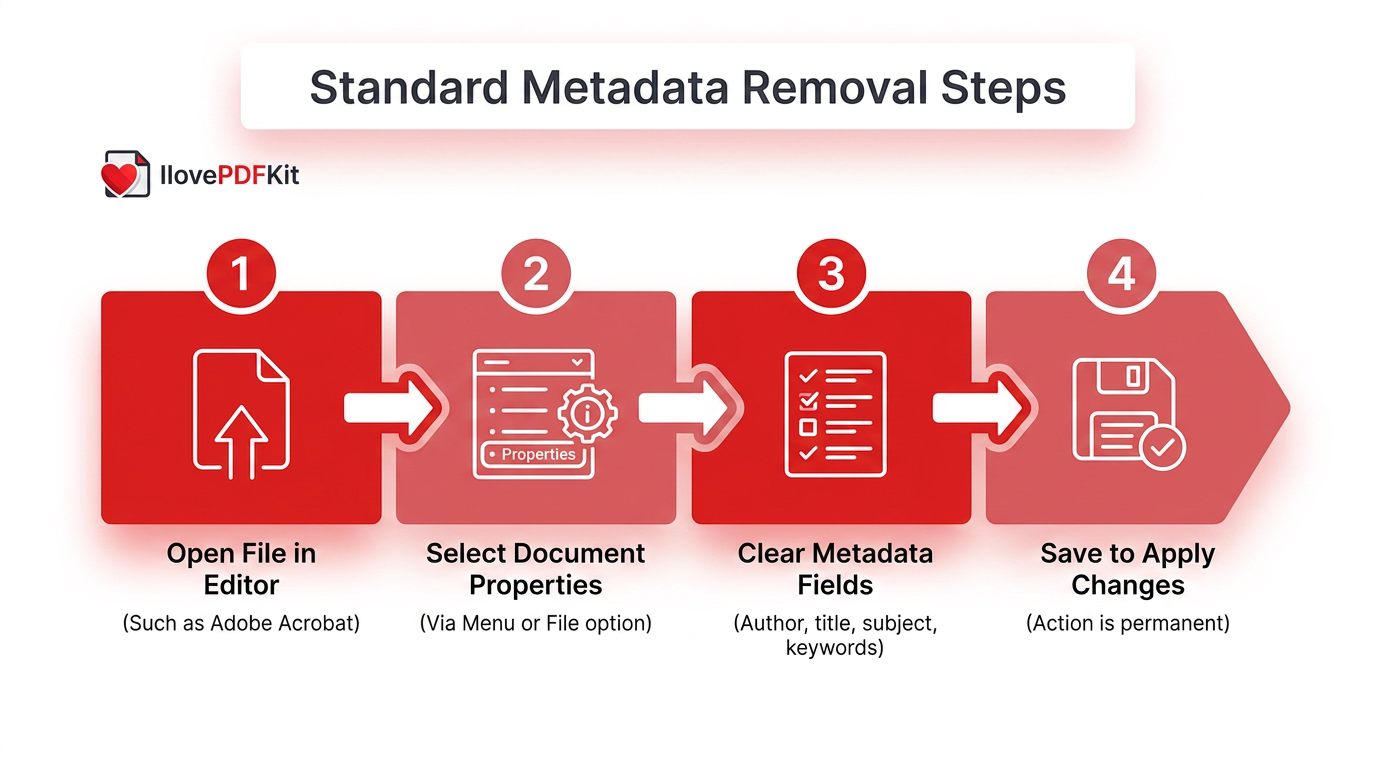
Removing metadata from a PDF through standard desktop software takes just a few clicks inside the document properties menu. Open the file in your editor, such as Adobe Acrobat, then click the Menu or File option and select Document Properties, following the same basic steps outlined in official guidance on how to remove metadata from a PDF. From there you’ll see fields for author, title, subject, and keywords, plus an Additional Metadata option that often reveals deeper fields like timestamps and software details. Clear or edit whichever fields you want changed, then press OK and save the file to apply your changes.
Keep two things in mind before you start:
- You need edit permissions for the file, so a PDF locked by its original creator may block you from touching its metadata at all.
- Once you save the document after deleting metadata, that action is permanent and can’t be undone through the same tool.
How Can You Remove Metadata Using a Free Online Tool?
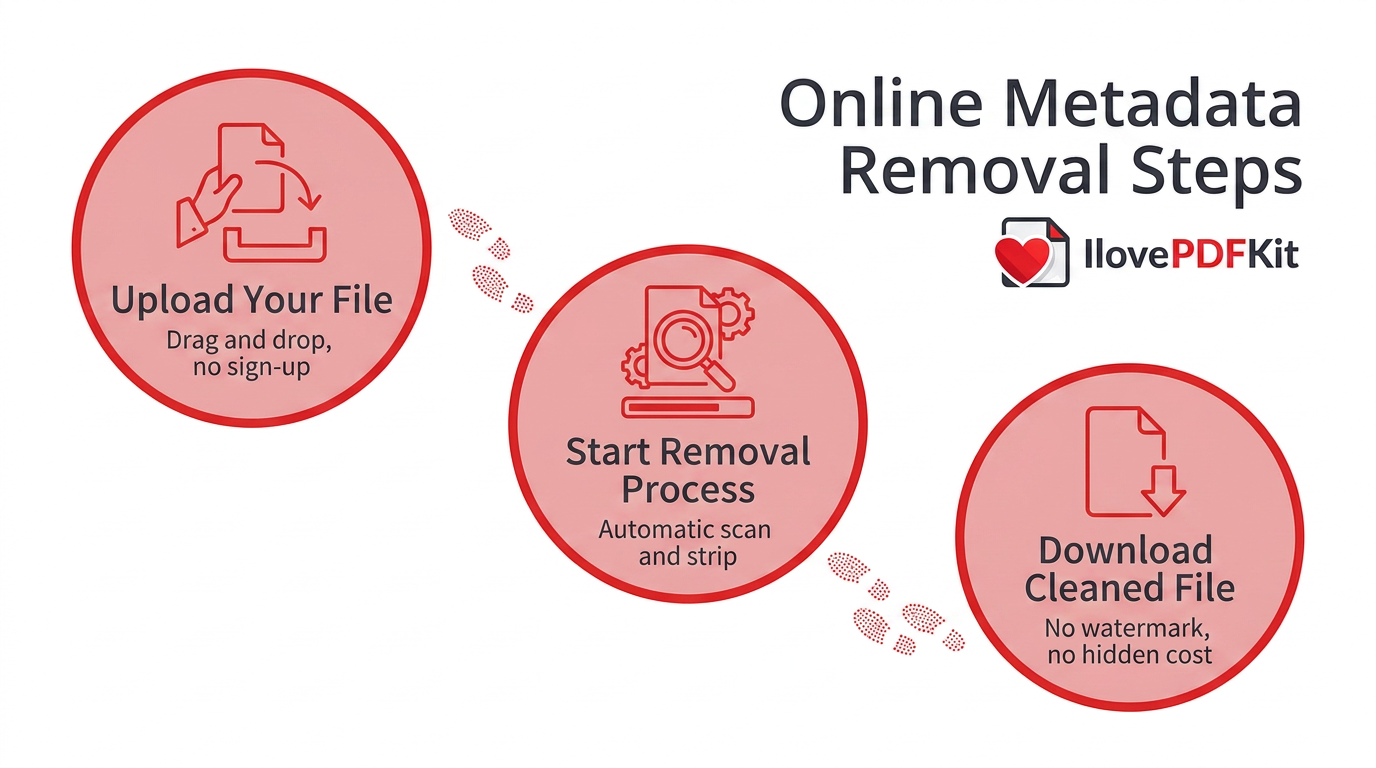
Removing metadata from a PDF doesn’t require installing anything if you use a free online tool built for the job. iLovePDFKit lets you strip hidden metadata directly in your browser, without downloading software or creating an account first. The process takes three simple steps and works the same way whether you’re on a laptop at home or a shared computer at school. Because everything runs on the provider’s servers, the tool works equally well on Windows, Mac, Chromebooks, and mobile devices, which matters for students and office staff who don’t always control their own machines.
- Upload your file by dragging it into the upload box or selecting it from your device. No file size gimmicks or forced sign-up screens stand between you and the tool.
- Start the removal process by clicking the button to scan and strip metadata automatically, a process that usually finishes within seconds even for longer documents.
- Download your cleaned file once processing completes, ready to send without any of the hidden fields still attached.
- No watermarks or hidden costs show up in the output. The file looks exactly like your original, just without the extra data trailing behind it.
- SSL-encrypted transfers and automatic deletion protect your upload. Files move over a 256-bit encrypted connection, a standard aligned with NIST guidance, and get removed from the server shortly after processing finishes.
Why Choose iLovePDFKit for Metadata Removal?
It stands out because it doesn’t cap how many files you can clean in a day or hide advanced features behind a paywall. It runs on any device with a browser, including locked-down school computers and shared office machines, so there’s nothing to install and nothing for IT to approve. Files get removed from its servers shortly after processing, backed by 256-bit encryption throughout the transfer.
Are Standard Tools Enough for Permanent Metadata Removal?
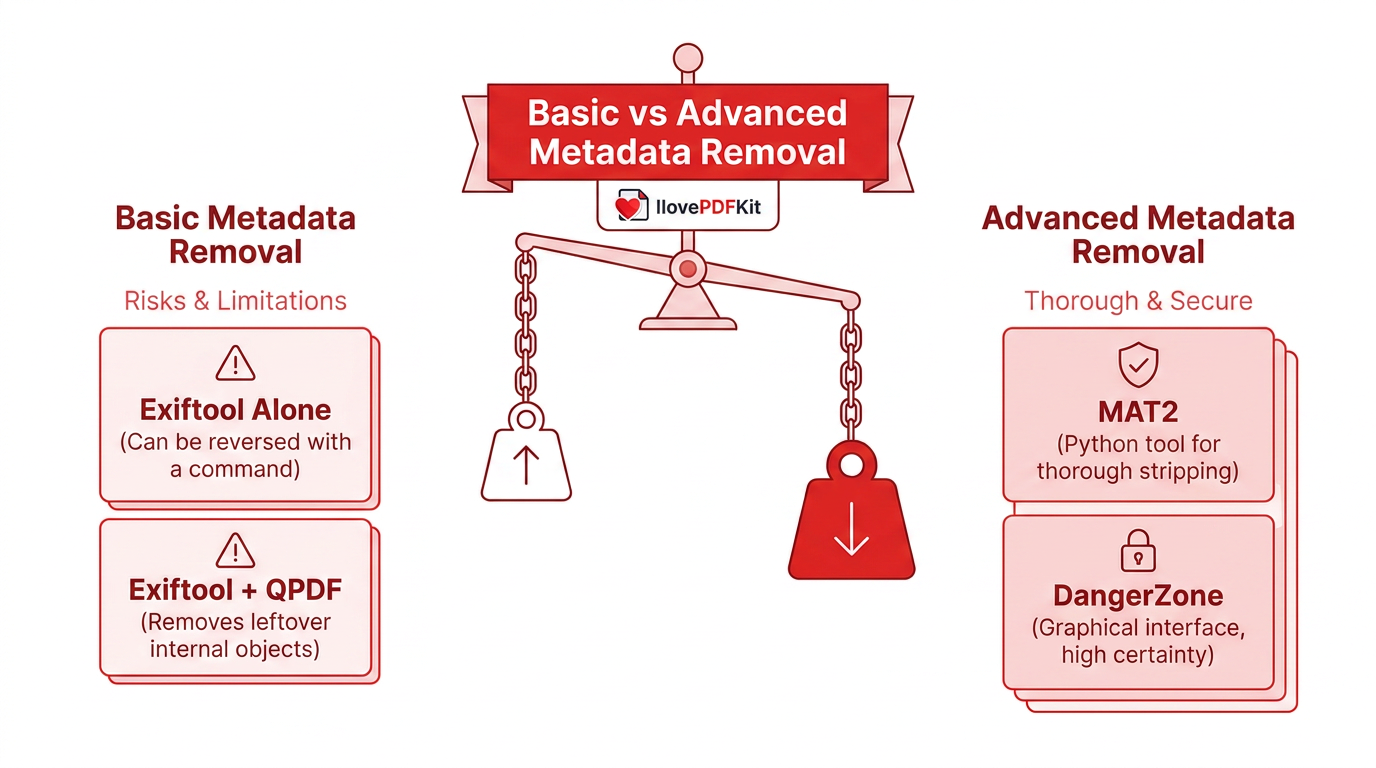
Standard metadata removal tools aren’t always as thorough as they appear, because many only delete the reference pointing to metadata rather than the underlying data itself. This distinction matters most for journalists, researchers, and security professionals handling highly sensitive files, where one overlooked field could expose a source or a client. Exiftool, a widely used command-line utility for reading and editing file metadata, is a common example of this gap, and libraries like pypdf’s metadata handling documentation show just how many distinct fields a single PDF can carry. Running exiftool -all= some.pdf looks like it wipes every field clean, but the same information can actually be restored afterward using exiftool -pdf-update:all= some.pdf. That means a basic Exiftool wipe alone doesn’t guarantee the metadata is truly gone, only that it’s temporarily hidden from view.
“Security is a process, not a product.” — Bruce Schneier, security technologist and author
Everyday users sharing a resume or a school assignment rarely need to go this far, but it’s worth knowing the option exists.
Exiftool Combined with QPDF
Pairing Exiftool with QPDF closes the gap left by a basic metadata wipe. First, strip the visible metadata fields by running exiftool -all= some.pdf. Then clean out any leftover internal objects with qpdf --linearize some.pdf - > some.cleaned.pdf, which restructures the file and removes traces the first command missed, a distinction explained further in the pikepdf documentation on XMP and DocumentInfo metadata handling.
MAT2 and DangerZone
MAT2, short for Metadata Anonymisation Toolkit, is a Python-based command-line tool built specifically to strip metadata from PDFs and other file types thoroughly. DangerZone offers a graphical interface for Windows, Mac, and Linux users who prefer clicking buttons over typing commands, though it uses more system resources than simpler tools.
What If You Want to Keep Metadata but Still Protect Your PDF?
Sometimes deleting metadata isn’t the right move, especially if you need it later for archival or organizational purposes. Password protection offers a middle ground, since it locks the entire document, including its metadata, so only people with the correct password can open the file at all.
Printing to PDF is another option worth trying. This method creates a flattened copy of your document, which typically strips the original metadata layer naturally, since it generates a new file based on the printed appearance rather than the original file structure.
The Takeaway
Most people only need a quick, reliable way to remove metadata from a PDF before hitting send, and a free online tool like iLovePDFKit covers that need in under a minute, with no software to install and no account to create. Save the advanced command-line methods, like Exiftool paired with QPDF, MAT2, or DangerZone, for situations that genuinely call for absolute certainty, such as journalists protecting a source or security teams sanitizing leaked files.
For everyday assignments, contracts, invoices, and reports, the standard desktop steps or a browser-based tool will clear out author names, timestamps, and software details without any fuss. Try the tool next time you need to clean a PDF before sharing it, since it’s free, requires no sign-up, and keeps your files secure with automatic deletion after processing.
Frequently Asked Questions
Here are quick answers to the questions readers ask most often about removing PDF metadata.
Does Deleting Metadata Affect the PDF’s Content or Formatting?
No, removing metadata only clears hidden background fields like author name and timestamps. Your document’s visible text, images, layout, and formatting stay exactly the same, so the file opens, prints, and reads just as it did before.
Will Removing Metadata Also Delete Comments or Tracked Changes?
In many cases, yes, depending on the tool used. Some metadata removal methods also strip embedded comments and version history left over from earlier editing sessions, so keep a backup copy of the original file if that edit history matters to you.
Do I Need to Own the PDF to Remove Its Metadata?
Generally, yes, you need edit permissions for the file. If a PDF has security restrictions or a password set by its original creator, you may be blocked from changing or deleting its metadata until those restrictions are lifted.
Can Metadata Removal Be Reversed After Saving?
With standard tools, no, once you save the file after removing metadata, the change is permanent. The exception is a basic Exiftool wipe, which can sometimes be reversed with a separate recovery command unless it’s paired with QPDF or a dedicated tool.
Is It Safe to Upload Sensitive PDFs to an Online Metadata Remover?
Reputable tools like iLovePDFKit use SSL encryption during upload and download, then automatically delete files from their servers shortly after processing. This limits how long your document sits on any third-party server before it’s gone for good.
Can I Remove Metadata from Multiple PDFs at Once?
Yes, many online and desktop tools support batch processing, letting you upload several PDFs together and clean them all in one session. This saves real time for office staff or businesses handling large volumes of documents regularly.
