A PDF that opens sideways or completely upside down turns a quick document check into an awkward neck-craning exercise. This happens more often than you’d think. Scanned pages fed into a machine backward, files merged from different sources, or spreadsheets exported straight to PDF all tend to land in the wrong direction. Learning how to rotate PDF pages properly saves you from resending files, retyping reports, or asking a client to just turn their head sideways.
Rotating a PDF simply means changing the page’s viewing angle, turning it 90, 180, or 270 degrees, without touching the text, images, or layout underneath, a process outlined in most guides on how to rotate a PDF from major software providers. This guide covers why pages end up crooked in the first place, a simple step-by-step fix using a free browser tool called iLovePDFKit, and how to handle trickier cases like fixing just one page or a whole stack of scanned files at once. By the end, you’ll know exactly how to rotate PDF pages correctly and get a document ready to send in under a minute.
Key Takeaways
- Rotating a PDF changes only its orientation, 90, 180, or 270 degrees, while the text, images, and quality stay exactly the same.
- You can rotate a single page, a range of pages, or an entire document in just a few clicks.
- Free tools like iLovePDFKit need no installation, no account sign-up, and add no watermark to your file.
- Uploaded files are processed securely and deleted automatically, which matters for sensitive academic or business documents.
- Rotation is just one step. Most platforms also let you reorder, merge, compress, or convert pages afterward.
Table of Contents
- Why Do PDF Pages End Up in the Wrong Orientation
- How to Rotate PDF Pages Online for Free With iLovePDFKit
- Can I Rotate Just One Page Instead of the Whole Document
- Does Rotating a PDF Affect Text Quality or Formatting
- What Else Can You Do After Rotating Your PDF
- Is It Safe to Upload My PDF to an Online Rotation Tool
- Wrapping Up
- Frequently Asked Questions
Why Do PDF Pages End Up in the Wrong Orientation
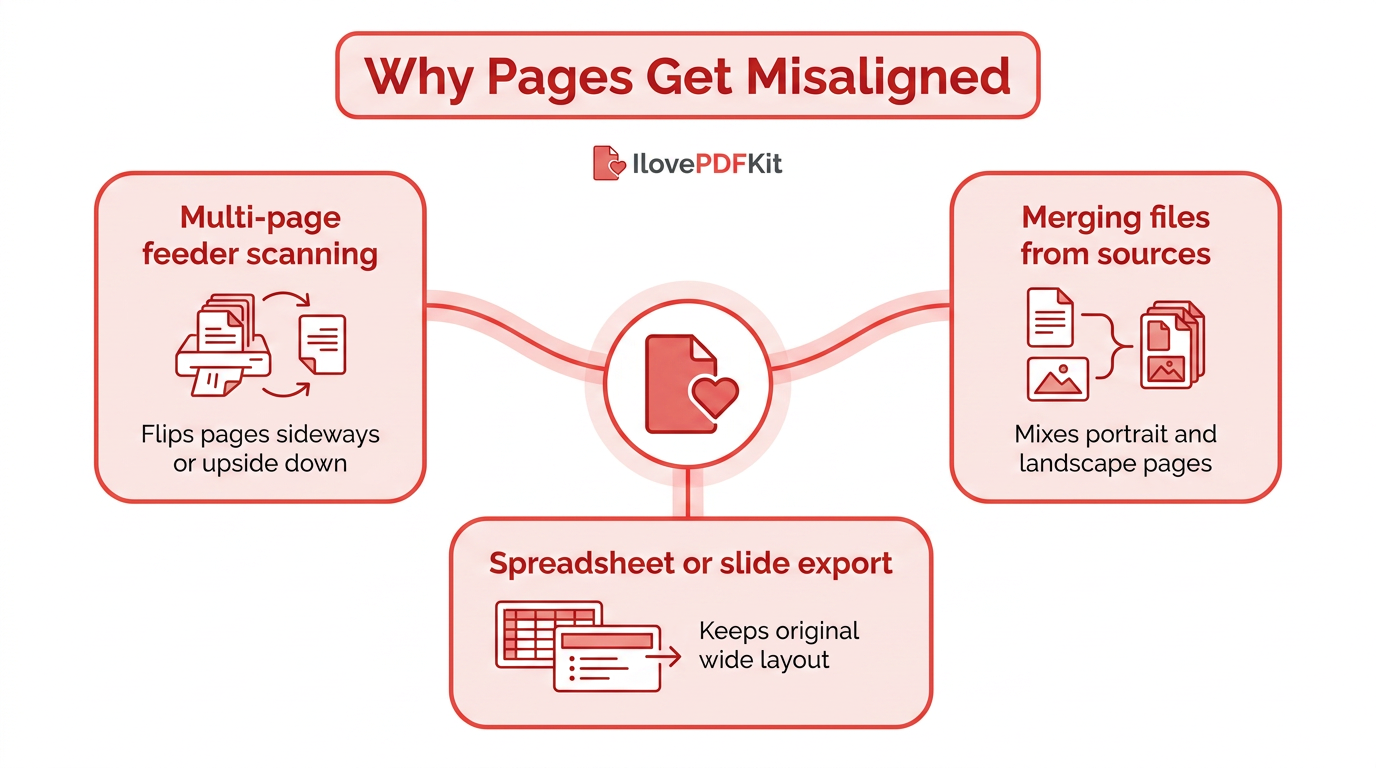
Misaligned PDF pages usually trace back to a handful of everyday habits rather than a mysterious glitch. Scanning paper through a multi-page feeder often flips a page sideways or upside down without anyone noticing until it’s opened later. Merging files from different colleagues or systems mixes portrait and landscape pages into the same document, and spreadsheets or slide decks exported straight to PDF often keep their original wide layout instead of adjusting to fit a standard page.
None of this is hard to fix, but leaving it uncorrected causes real problems. A professor grading a crooked assignment, a client reviewing a sideways invoice, or a coworker printing a landscape chart on a portrait page all lose time over something a single click could solve. Getting the orientation right before you hit send keeps documents professional and easy to read on any screen.
How to Rotate PDF Pages Online for Free With iLovePDFKit
Rotating a PDF for free means uploading your file to a browser-based tool, selecting the pages that need fixing, and clicking a rotate icon before downloading the corrected copy. iLovePDFKit’s rotate tool follows exactly this pattern, running inside Chrome, Safari, Firefox, or Edge without asking you to install anything or create an account first. The tool reads your file, shows a thumbnail preview of every page, and lets you turn any page (or all of them) clockwise or counterclockwise until the orientation looks right, and it works whether you’re fixing one lone scanned page or a hundred-page report. A few things set the experience apart from cluttered rivals that hide the real fix behind sign-up walls or slap a logo across your finished document.
- No sign-up required. You can open the rotate tool, upload a file, and download the result without creating a login or handing over an email address, which matters when you just need a quick fix between classes or meetings.
- No watermark added. Unlike many free tools that stamp a logo across the output, the corrected PDF looks exactly like the original file, just turned the right way, which matters for anything you plan to submit or send to a client.
- Automatic file deletion. Uploaded files are removed from the server shortly after processing, so a scanned contract or research paper doesn’t sit around indefinitely.
- Works on any device. Because everything runs in the browser, you can fix a crooked page from a shared library computer, a work laptop, or a phone, with support for importing files straight from Google Drive or Dropbox.
Upload, Rotate, and Download Your File in Six Simple Steps
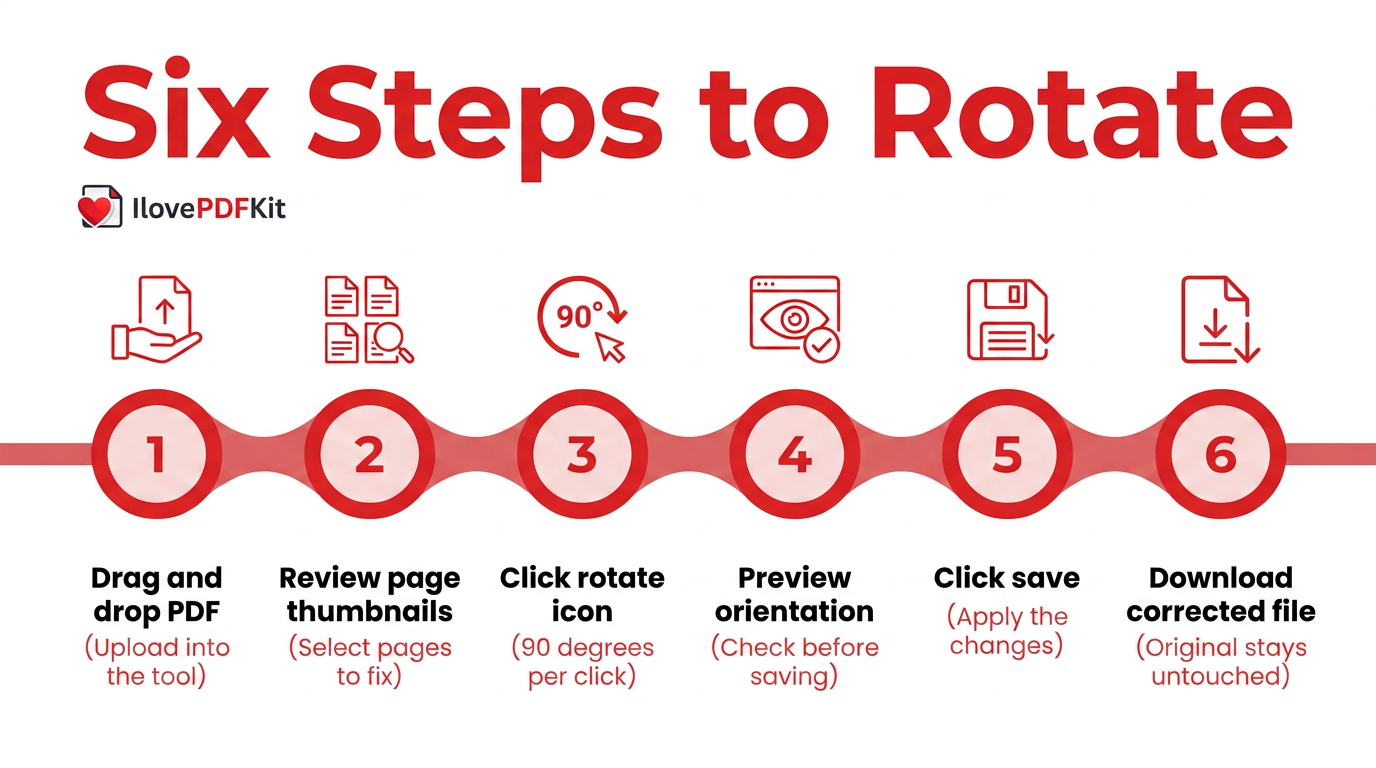
Once you’re ready to fix a file, the actual workflow only takes a few clicks from start to finish. Here’s what that looks like inside the rotate tool, from the moment you drop in a file to the moment you get a corrected copy back.
- Drag and drop your PDF, or click to select it, into the upload area.
- Review the page thumbnails and click on the ones that need fixing.
- Click the rotate icon to turn a page clockwise or counterclockwise, 90 degrees per click.
- Preview the corrected orientation before saving anything.
- Click “Save” to apply the changes and generate your new file.
- Download the corrected PDF; your original file stays untouched on your device.
Can I Rotate Just One Page Instead of the Whole Document
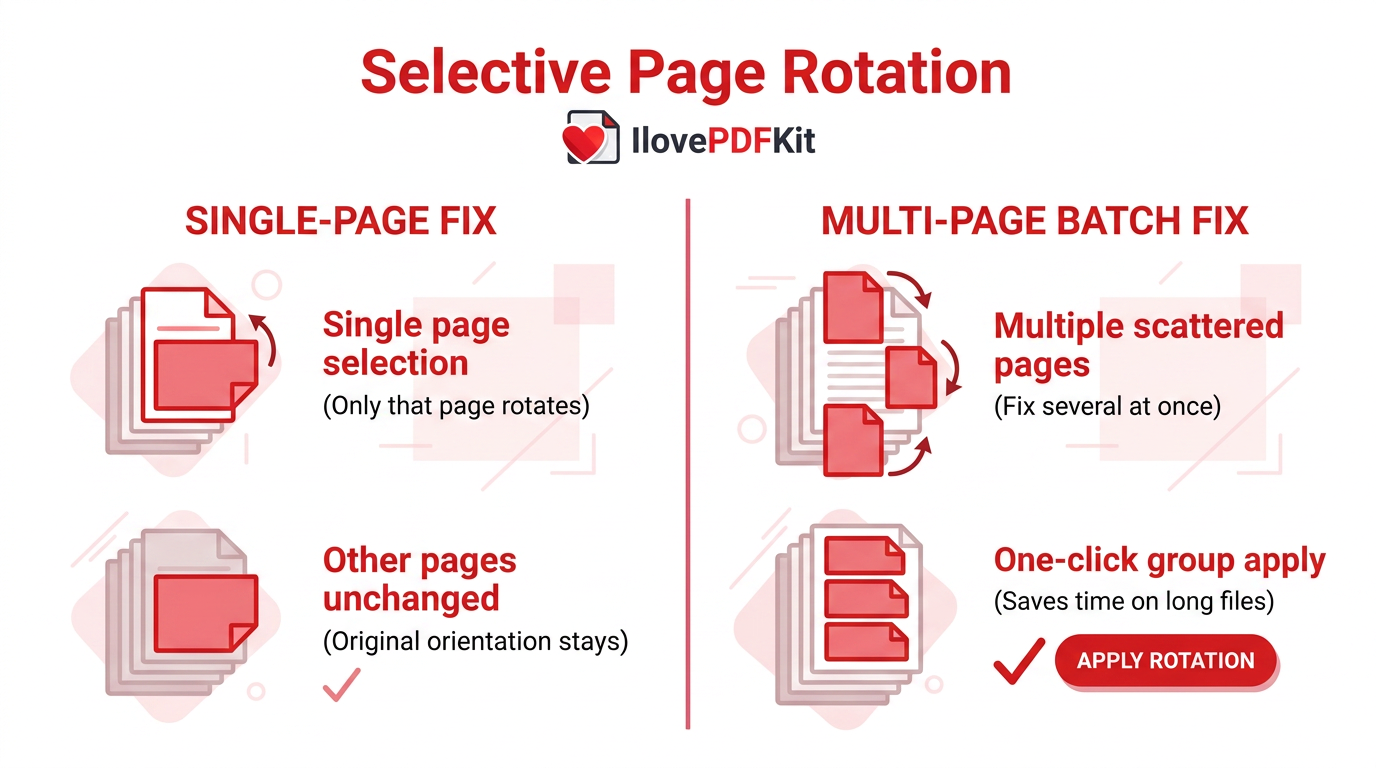
Yes, you can rotate a single page without touching the rest of the document. Clicking on one page’s thumbnail selects only that page, so applying the rotate icon fixes just the sideways scan or upside-down chart while every other page keeps its original orientation. This comes in handy when a multi-page report is fine except for one page that got scanned backward, a selective fix that PDF services APIs also support programmatically for developers automating document workflows.
For documents with several problem pages scattered throughout, most rotate tools also support selecting a range or several non-consecutive pages at once, for example pages 3, 9, and 14 in a thirty-page file. You pick each thumbnail you need, choose a rotation direction, and apply it to the whole group in a single click instead of repeating the process page by page. This saves real time on long scanned archives or compiled reports with mixed orientations.
Does Rotating a PDF Affect Text Quality or Formatting
No, rotating a PDF does not affect text quality or formatting in any way. The process only changes the page’s viewing angle, not the underlying content, so fonts, tables, and images stay exactly as they were before you touched the file, consistent with technical documentation on cropping and transforming PDFs that explains how page transformations only adjust the display view rather than the underlying content stream. Text that was selectable and searchable before rotation remains selectable and searchable afterward, since nothing about the actual character data changes.
Images and embedded graphics also keep their original resolution and placement relative to the rest of the page. This matters most for scanned documents, research papers with charts, or client contracts where any visible drop in quality would be a problem. Rotation simply turns the page around; it never re-renders, compresses, or redraws anything inside it.
Quick tip: If you’re working with a scanned document that needs both rotating and text extraction, rotate first, then run OCR. A correctly oriented page produces far more accurate searchable text than one scanned sideways.
What Else Can You Do After Rotating Your PDF
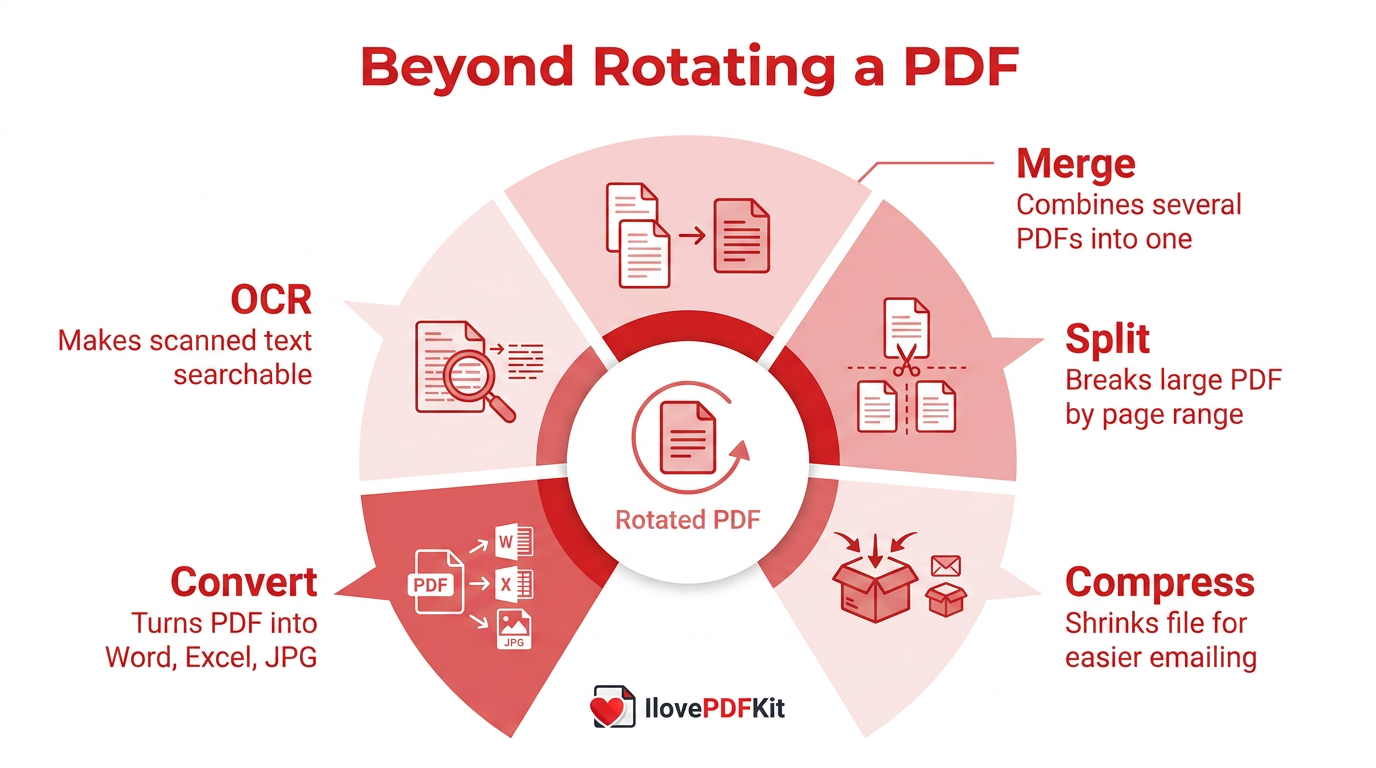
Rotating pages is often just one step toward a finished, submission-ready document. Most online PDF platforms bundle the rotate feature alongside tools for merging separate files, splitting a splitting a long document, and compressing a file that’s grown too large to email. For scanned pages specifically, optical character recognition, or OCR, which reads the text trapped inside an image and turns it into real, selectable characters, can turn a rotated scan into a fully searchable document.
| Task | What It Does |
|---|---|
| Merge | Combines several PDFs into one file |
| Split | Breaks a large PDF into smaller files by page range |
| Compress | Shrinks file size for easier emailing |
| Convert | Turns a PDF into Word, Excel, or JPG, and back again |
| OCR | Makes scanned text selectable and searchable |
Is It Safe to Upload My PDF to an Online Rotation Tool
Yes, uploading a PDF to a reputable rotation tool is safe as long as the service encrypts the transfer and doesn’t hold onto your files afterward. iLovePDFKit processes every file over an SSL/TLS-encrypted connection and follows a no-file-storage policy, meaning both the original and the corrected copy are removed from its servers shortly after the job finishes.
There’s also no account creation involved, so there’s no email address, password, or payment information sitting in a database somewhere. For students uploading research papers, professionals handling client contracts, or anyone rotating a scanned tax form, that mix of encryption, automatic deletion, and no required sign-up covers the main privacy concerns people have about online tools.
Wrapping Up
Fixing a sideways or upside-down PDF page doesn’t require new software, a support call, or much time at all. Once you know how to rotate PDF pages using a browser-based tool, the whole process, upload, select, rotate, save, download, takes less than a minute, whether you’re correcting one page or an entire scanned archive.
Single pages, scattered ranges, and full documents all get fixed the same easy way, and the corrected file is ready to submit, print, or send the moment you download it. The next time a scan lands sideways or a report turns into a mess of mixed orientations, give iLovePDFKit’s rotate tool a try and see how quickly the problem disappears.
Frequently Asked Questions
Here are quick, direct answers to the questions people ask most often about rotating PDF files online, covering page limits, batch processing, scanned files, and phone compatibility.
How Many Pages Can I Rotate for Free at Once
Free online rotate tools typically handle large batches without hidden fees, often supporting up to 1,500 pages spread across as many as 100 files in a single session. That’s more than enough for typical class assignments, reports, or scanned archives most students and professionals handle in a day.
Can I Rotate Multiple PDF Files in a Single Session
Yes, most platforms support batch processing, letting you upload several PDFs at once and rotate pages across all of them together. Instead of repeating the upload, select, rotate, download cycle for each file individually, you handle the whole batch in one pass, saving real time on bulk tasks.
What’s the Difference Between Rotating and Flipping a PDF Page
Rotating turns a page around its center point, usually in 90-degree steps, while keeping every letter and image right-side-up relative to the new angle. Flipping creates a mirror image instead, reversing the page horizontally or vertically. Most free tools focus on rotation since it’s the far more common need.
Will Rotating a Scanned PDF Work the Same Way as a Regular PDF
Yes, scanned pages are essentially images wrapped inside a PDF, so rotation simply repositions the whole image the same way it would any other page. No extra software or special setting is required, and there’s no risk of losing text since scanned pages typically don’t contain live, editable text to begin with.
Do I Need to Create an Account to Rotate a PDF
No, most reputable rotate tools let you upload, rotate, and download a corrected file immediately without signing up for anything. Creating a free account is usually optional and mainly useful if you want to save files online for later, rather than a requirement for basic rotation.
Can I Rotate a PDF on My Phone
Yes, browser-based rotate tools work on smartphones just as well as on a desktop computer, since everything runs through your mobile browser rather than an installed app. That means you can photograph a document, convert it, and straighten out a sideways scan without ever transferring the file to a computer.
