Someone emails you a file ending in .ods, and Excel just stares back at you with a confused error message. That’s the moment most people first meet the ODS file, and it usually happens at the worst time, right before a deadline. An ODS file is simply a spreadsheet saved in the OpenDocument format, a free and open alternative to Excel’s native file types. This guide walks through what an ODS file actually is, how to open and edit one on any device, what happens when you convert it to Excel, and how a free browser tool like iLovePDFKit can turn your finished spreadsheet into a shareable PDF in seconds.
By the end, you’ll know exactly which app to use, what features survive a conversion, and how to move between formats without losing your data or your patience. Let’s start with the basics.
Key Takeaways
- An ODS file is a free, open-standard spreadsheet format built on XML and ZIP compression, developed by OASIS as a non-proprietary alternative to Excel.
- You can open ODS files in LibreOffice Calc, Apache OpenOffice, Google Sheets, and even Microsoft Excel with no extra cost.
- Converting between ODS and Excel works well for basic data, but advanced features like pivot tables and password protection may not survive the switch.
- Germany, the UK, and NATO now mandate or recommend ODS for official documents, which signals long-term software support.
- Free online tools let you convert a finished spreadsheet to PDF without installing anything or creating an account.
Table of Contents
- What Is an ODS File?
- How Do I Open, Create, and Edit an ODS File?
- Will My ODS File Work Perfectly in Excel?
- How Do I Convert an ODS File?
- Why Are Governments and Businesses Adopting ODS?
- The Takeaway
- Frequently Asked Questions
What Is an ODS File?
An ODS file, short for OpenDocument Spreadsheet, is a free, open-source spreadsheet format built as a non-proprietary alternative to Microsoft Excel. Developed by the Organization for the Advancement of Structured Information Standards (OASIS), it stores data using the same row-and-column grid you’d expect from any spreadsheet, letting you enter numbers, text, and formulas into individual cells. Beyond basic data entry, ODS files support charts, graphs, and other visual elements that help you spot patterns in your numbers instead of just staring at rows of digits. Under the hood, the format runs on XML markup compressed with ZIP, which keeps file sizes manageable while making the format easy for different software to read. Because it’s a published, international standard rather than a company’s private format, an ODS file you save today should still open correctly decades from now, regardless of which spreadsheet app you’re using.
How Is ODS Different From XLSX and CSV?
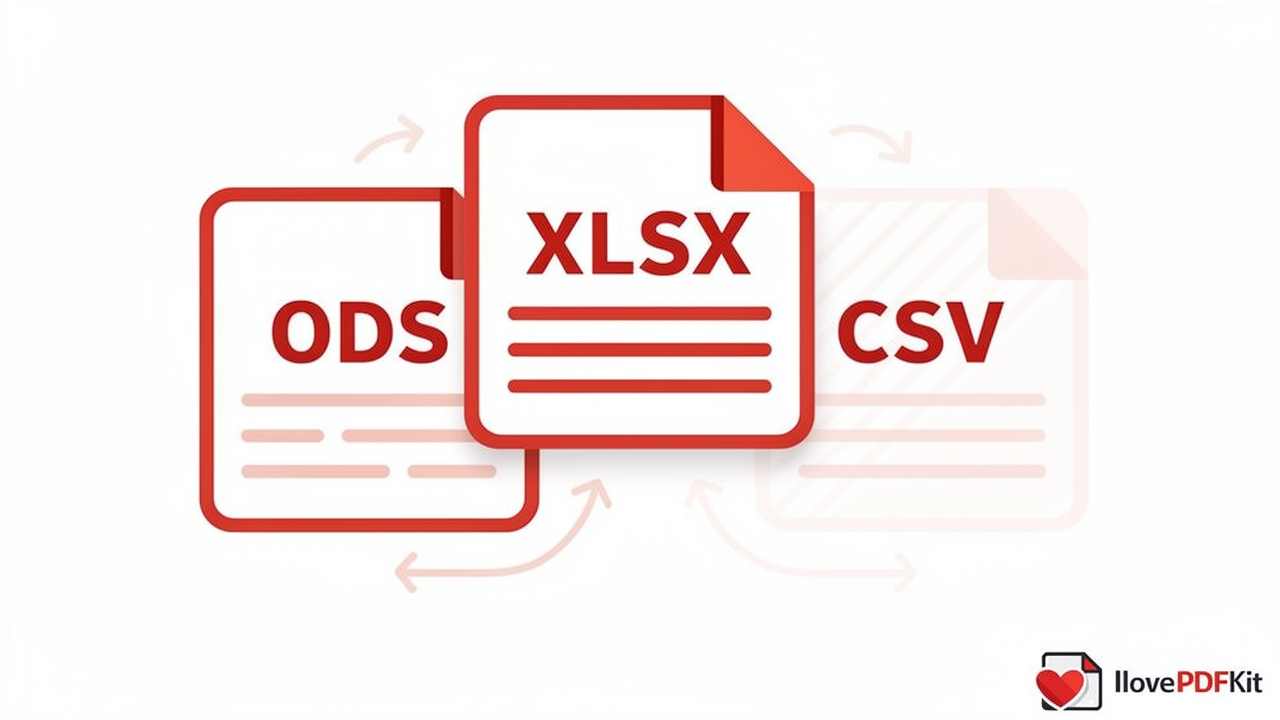
ODS, XLSX, and CSV all store tabular data, but each one trades off cost, features, and simplicity differently. XLSX is Microsoft’s native format and generally requires paid software, though it supports some advanced Excel-only tools that ODS can’t fully replicate. CSV strips everything down to plain text separated by commas, with no formulas, formatting, or charts at all.
ODS sits in the middle, offering formulas, multiple sheets, and chart creation for free through open-source apps, and dedicated tools like the readODS R package let developers read and write ODS files programmatically for data workflows. The table below breaks down the practical differences at a glance.
| Feature | ODS | XLSX | CSV |
|---|---|---|---|
| Cost to create | Free | Requires paid license | Free |
| Supports formulas | Yes | Yes | No |
| Supports charts | Yes | Yes | No |
| Best for | Standards-based sharing | Advanced Excel workflows | Raw data transfer |
How Do I Open, Create, and Edit an ODS File?
Opening, creating, and editing an ODS file all start with picking a compatible spreadsheet application, most of which are free and require no special setup. LibreOffice Calc and Apache OpenOffice Calc are the most common choices, and both open ODS files natively without any conversion step. Microsoft Excel can also open and edit ODS files directly, since recent versions of Office read and write the format, though older versions may need an update first. Once the file is open, working inside it feels just like any other spreadsheet: you type into cells, format fonts and colors, build formulas, and insert charts using the same toolbar logic you already know from Excel. Google Sheets rounds out the list, letting you upload an ODS file, edit it in the browser, and download it again in the same format when you’re done.
Opening ODS Files on Windows, Mac, and Mobile
Opening an ODS file looks slightly different depending on your device, but the process only takes a few clicks:
- Windows: Right-click the file, choose “Open with,” and pick Microsoft Office, LibreOffice, or Apache OpenOffice from the list of installed programs.
- Mac: Go through File > Open in a compatible app, then click “Allow” if a permissions dialog pops up.
- Mobile: This is the one exception worth knowing about. iOS has no built-in ODS support, so iPhone and iPad users need to download a third-party app from the App Store before they can view or edit one.
Creating and Editing an ODS File From Scratch
Building a new ODS file is easiest when you start directly in an app that supports the format natively. Open LibreOffice Calc or Apache OpenOffice Calc, select “New Sheet,” and start typing in your data, then adjust fonts, add cell colors, and write formulas just as you would in any spreadsheet program. If you’re already working in Excel or Google Sheets, exporting is just as simple.
In Excel, go to File > Save As, pick OpenDocument Spreadsheet (.ods) from the format list, and save. In Google Sheets, choose File > Download > OpenDocument (.ods) instead. One tip worth remembering: finish all your edits before you export, since converting a half-finished file to ODS and back can occasionally introduce small formatting quirks.
Will My ODS File Work Perfectly in Excel?
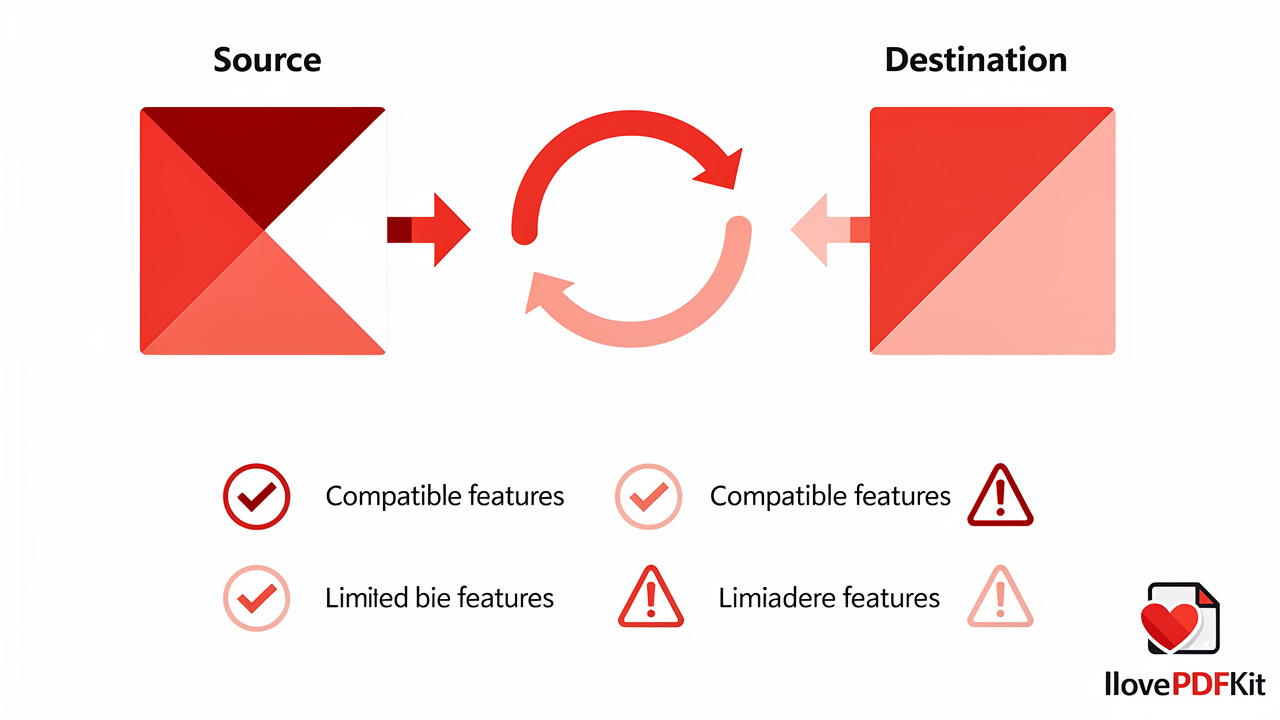
Most of what you build in an ODS file will look and behave the same way once opened in Excel, but a handful of advanced features don’t survive the round trip. Basic formulas, cell formatting, hyperlinks, and print layouts all transfer cleanly between the two formats, so everyday spreadsheets rarely cause trouble. The risk grows with complexity: pivot tables, password-protected sheets, and certain specialized chart types can lose functionality or disappear entirely during conversion. There’s also one date-related quirk worth flagging before you convert anything with historical records.
Microsoft’s own documentation notes that dates before January 1, 1900 will not save correctly in ODS format, which matters if you’re tracking older financial records or archival data.
What Features Are Fully Supported?
Cell formatting, row and column sizing, hyperlinks, standard formulas, and print ranges all carry over without issues between ODS and Excel. If your spreadsheet sticks to these basics, which covers most everyday budgets, class assignments, and client lists, you can convert back and forth with confidence.
What Features Are Lost or Limited?
- Password-protected sheets and Information Rights Management either downgrade or disappear entirely during conversion.
- Threaded comments often don’t survive the switch between formats.
- Pivot table layouts and specialized chart types such as waterfall, histogram, and sunburst charts also lose functionality.
- Dates before 1900 are a known failure point, so double-check any historical data before saving.
How Do I Convert an ODS File?
Converting an ODS file to Excel, or an Excel file to ODS, takes only a few clicks inside the software you already have open, with no extra downloads required. The process runs through the familiar Save As menu in either direction, and Google Sheets offers a direct export option too, which makes moving between formats one of the easier parts of working with spreadsheets. Once your data lives in the format you need, the next common step is Excel to PDF online into a PDF, since PDFs lock in formatting so the file looks identical on every device, whether the recipient opens it on a laptop, tablet, or phone. That’s where a browser-based tool like iLovePDFKit fits naturally into the workflow, especially for students and tools for freelancers who don’t want to install another desktop program just to finish one document.
Converting ODS to Excel and Excel to ODS Manually
Going from Excel to ODS, open the file, choose convert Excel to PDF free, and select OpenDocument Spreadsheet (.ods) from the format menu. To reverse the process, open the ODS file in Excel, choose File > Save As again, and pick Excel Workbook (.xlsx). Google Sheets users can skip both apps entirely by going to File > Download > OpenDocument (.ods).
Convert Your Spreadsheet to PDF Instantly With iLovePDFKit
Once your spreadsheet is finished, whether it started as an ODS file or an Excel workbook, converting it to PDF keeps the layout, fonts, and tables intact no matter who opens it next. iLovePDFKit’s Excel to PDF tool tool handles this in a browser: you upload the file, the conversion finishes in seconds, and you download the result, all without creating an account or installing software. The engine rebuilds tables, fonts, and spacing with pixel-perfect accuracy instead of flattening the page into a blurry image, which matters a lot for invoices, research tables, or grade sheets.
Files transfer over SSL with 256-bit encryption and get deleted from the servers shortly after processing, so nothing sits around waiting for someone to stumble across it. There’s also no daily task cap, which is worth noting since some competing tools quietly limit how many free conversions you get per day.
Why Are Governments and Businesses Adopting ODS?

Governments and businesses are adopting ODS because it removes dependence on any single software vendor while meeting international standards for long-term data access.
- Germany: The Deutschland-Stack project has made ODS and PDF/UA the only permitted formats across all levels of government, with full rollout planned by 2027.
- UK: The civil service has adopted ODS as its standard for official documents.
- NATO: Requires ODS as a mandatory standard across all 26 member nations for shared documentation.
This kind of institutional backing matters even if you’ll never work in government, because it means the software supporting ODS keeps improving and the format isn’t going anywhere. When a standard has this much organizational weight behind it, students and freelancers submitting ODS files can trust that the recipient’s software will almost certainly open it correctly.
The Takeaway
An ODS file gives you a free, standards-based way to build spreadsheets without paying for commercial software, and that alone makes it worth understanding whether you’re a tools for students, a freelancer, or someone managing office paperwork on a budget. Just remember to check feature compatibility, especially around pivot tables, password protection, and pre-1900 dates, before converting anything complex between ODS and Excel.
Once your spreadsheet is finished and formatted the way you want it, turning it into a PDF is the simplest way to share it without worrying about how it renders on someone else’s screen. iLovePDFKit handles that last step for free, right in your browser, with no account, no watermark PDF tools, and no waiting around.
Frequently Asked Questions
Can I open an ODS file without installing any software?
Yes, you can open an ODS file entirely in a browser using Google Sheets, which imports and displays the format without any local software. Several online spreadsheet viewers offer the same no-install convenience, which is handy on shared or locked-down computers where you can’t add new programs.
Is an ODS file the same as an Excel file?
No, ODS and Excel’s XLSX are different formats, though they’re functionally similar spreadsheet types built on rows, columns, and formulas. Basic files convert between the two easily, so for everyday spreadsheets the difference rarely causes real trouble.
Do I need Microsoft Office to create an ODS file?
No, you don’t need Microsoft Office at all to create an ODS file. Free applications like LibreOffice Calc and Apache OpenOffice Calc build ODS files natively, giving you full spreadsheet functionality including formulas, formatting, and charts at no cost.
What happens if I open an ODS file with important dates from before 1900?
Dates before January 1, 1900 do not save correctly once a file is converted to ODS format, which can quietly corrupt historical records. If your spreadsheet includes older dates, double-check them after conversion and keep a backup copy of the original file just in case.
Can I convert my ODS spreadsheet directly to PDF?
Yes, though it typically takes one extra step: open the ODS file in Excel or Calc, save or export it as an XLSX or PDF-ready file, then run it through the platform’s platform’s Excel to PDF. The whole process finishes in seconds without needing an account.
Are ODS files safe to share for sensitive data like invoices or grades?
ODS itself is a well-documented open format with no inherent security flaws, but the file isn’t encrypted by default when you email it around. For an protect PDF with password, convert sensitive spreadsheets to PDF using a secure browser tool that encrypts transfers and deletes files shortly after processing, rather than storing them long-term.
