You scan a stack of paperwork, and half the pages come out backward. A merged report lands in the wrong order. A scanned assignment has three blank sheets stuck in the middle. These are common headaches for anyone who works with digital documents, and they usually show up right before a deadline.
That’s where learning how to organize PDF pages online comes in handy. Organizing a PDF means rearranging, deleting, rotating, or adding pages so the document reads in the right order, all without touching the actual text or images inside it. This guide walks through what organizing really means, a simple step-by-step process you can follow in your browser, the features worth checking for in any tool you pick, and how to keep sensitive files safe while you work. By the end, you’ll know exactly how to turn a messy PDF into a clean, submission-ready file in a couple of minutes.
Key Takeaways
- Organizing a PDF means reordering, deleting, rotating, or adding pages while leaving the actual content and formatting untouched.
- Online tools skip software installs, account creation, and licensing fees, so anyone with a browser can use them right away.
- A basic drag-and-drop workflow, from upload to download, usually takes under a minute for standard documents.
- Security matters when uploading sensitive files, so look for encrypted connections and processing that doesn’t leave your document sitting on a server.
- iLovePDFKit offers free, no-signup page organizing along with related tools like merging, splitting, and compressing PDFs in one place.
Table of Contents
- What Does It Mean to Organize a PDF Online?
- How Do I Organize PDF Pages Online Step by Step?
- What Features Should I Look For in an Online PDF Organizer?
- Is It Safe to Organize My PDF Online?
- Why Use iLovePDFKit to Organize and Manage Your PDFs?
- The Takeaway
- Frequently Asked Questions
What Does It Mean to Organize a PDF Online?
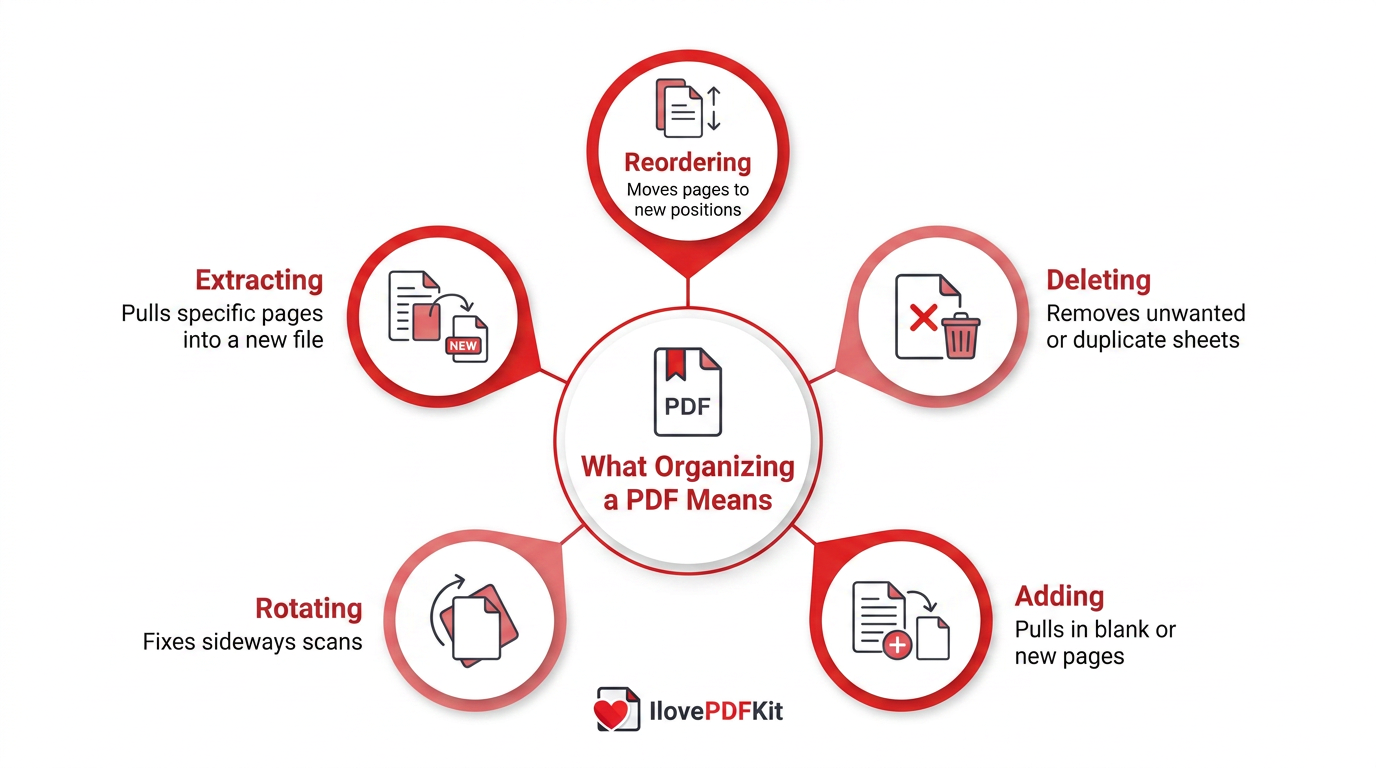
Organizing a PDF online means changing the order and structure of its pages through a browser-based tool, without editing the text, images, or layout inside each page. It’s a structural task, not an editing one, which is why it’s so quick compared to retyping or rebuilding a document from scratch.
This category of PDF management usually bundles several related actions into one interface, a scope reflected in tool sets built for merging, splitting, reordering, and rotating documents. Reordering moves pages to new positions, deleting removes unwanted or duplicate sheets, adding pulls in blank pages or content from another file, rotating fixes sideways scans, and extracting pulls specific pages out into their own document. Students, office staff, and freelancers all rely on some combination of these actions almost every week, whether they’re assembling a thesis, a client contract, or a scanned invoice.
How Do I Organize PDF Pages Online Step by Step?
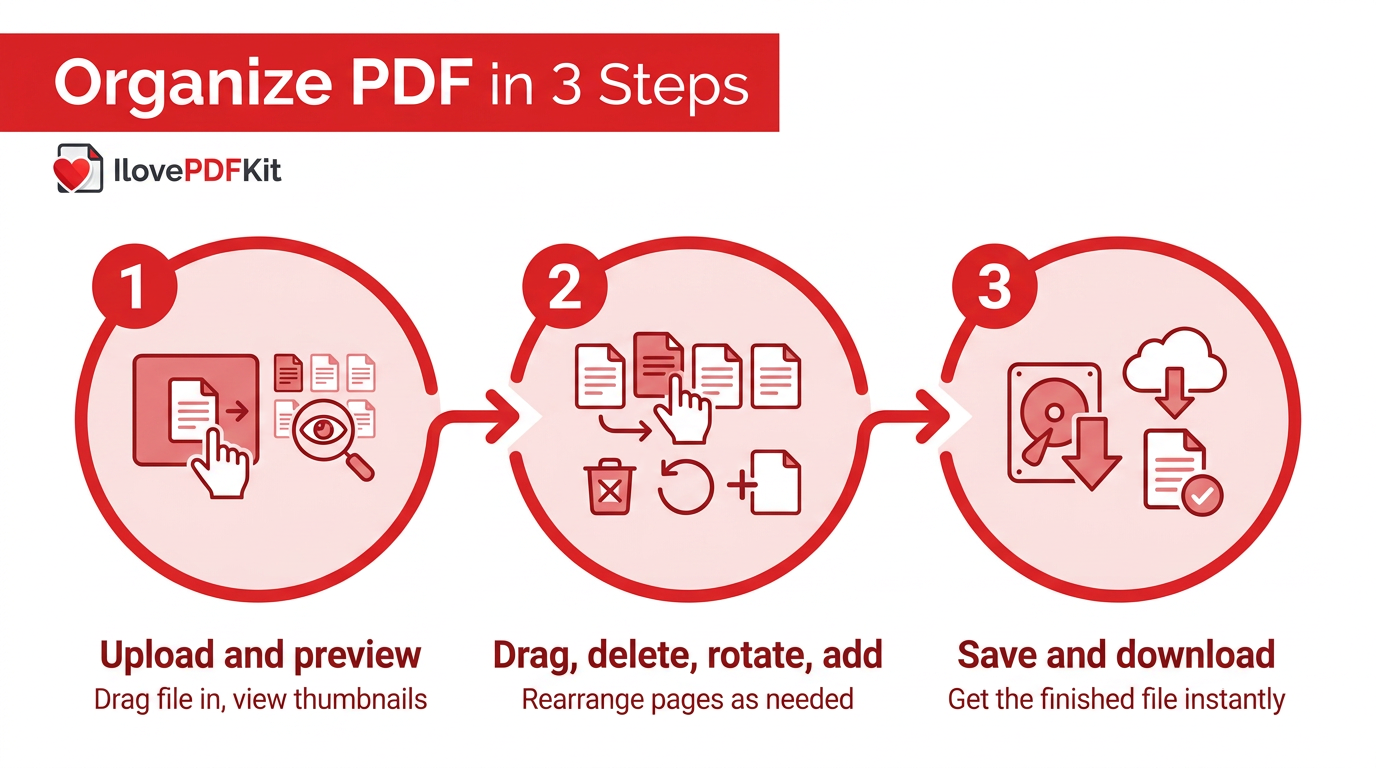
Organizing PDF pages online generally follows five simple steps: upload the file, preview its pages, rearrange or edit them, save, and download. The process works the same way across most browser-based tools, which makes it easy to learn once and apply anywhere, whether you’re on a work laptop, a shared library computer, or a personal tablet at home. On a platform like iLovePDFKit, this entire sequence happens without creating an account or installing anything, which matters for students on campus computers and office staff who can’t add new software to a company machine. The whole task, from the first upload to the final download, typically takes under a minute for a standard document, and even longer files rarely take more than a couple of minutes.
Step 1: Upload Your File and Preview Pages
Start by dragging your PDF into the upload area or clicking to select it from your device, no signup needed on the platform. Once it uploads, the tool generates a thumbnail preview of every page, giving you a full visual layout of the document before you touch anything.
Step 2: Drag, Delete, Rotate, or Add Pages
With thumbnails on screen, click and hold any page to drag it into a new position, and select several at once if you need to move an entire section together. This batch selection saves real time on long documents like a 60-page report or a multi-chapter thesis.
Blank or duplicate pages can be removed with a single click on the delete icon, and sideways scans can be corrected using the rotate function to switch them back to portrait or landscape. Some tools also let you insert pages from a separate PDF right in the same session, so you can combine reordering and merging without switching tabs.
Step 3: Save and Download Your Organized PDF
Once the pages sit in the right order, click save and the finished file generates in seconds. You can then download it directly to your device with no watermark added, ready to submit, email, or print right away.
What Features Should I Look For in an Online PDF Organizer?
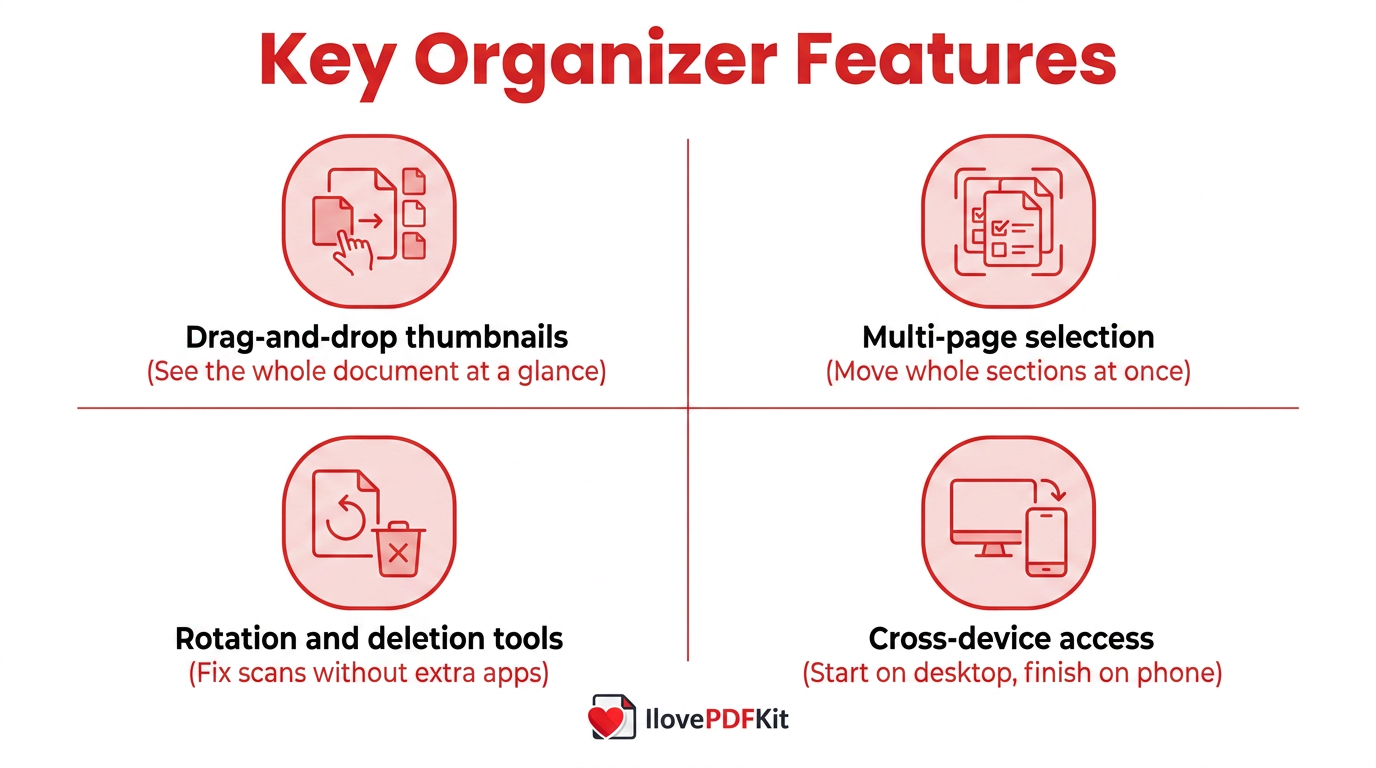
The best online PDF organizers share a handful of baseline features that make page management fast and reliable rather than fiddly. A drag-and-drop thumbnail grid, the ability to select and move several pages at once, and one-click rotation are the minimum you should expect from any tool worth using, since these three features cover almost every common fix, from reordering a scanned contract to correcting a sideways page from a shared office scanner.
- Drag-and-drop thumbnails let you see the whole document as a visual grid instead of guessing at page numbers, a workflow covered in detail in guides on how to organize PDF pages, which cuts down on reordering mistakes.
- Multi-page selection speeds up work on long files by letting you move a whole section at once instead of one page at a time.
- Rotation and deletion tools handle sideways scans and blank or duplicate pages without needing a separate app.
- Cross-device access means you can start a task on a desktop and finish it on a phone, since browser-based tools work the same everywhere.
File Size Limits and Device Compatibility
Every platform sets some kind of ceiling on file size, and it’s worth checking before you start a large scan job. Some services cap uploads around 50MB, so a long scanned dissertation or an archive of contracts may need compressing first. Because these organizers run in a browser, they behave the same on Windows, Mac, and mobile, letting students and office professionals switch devices mid-task without losing progress.
Is It Safe to Organize My PDF Online?
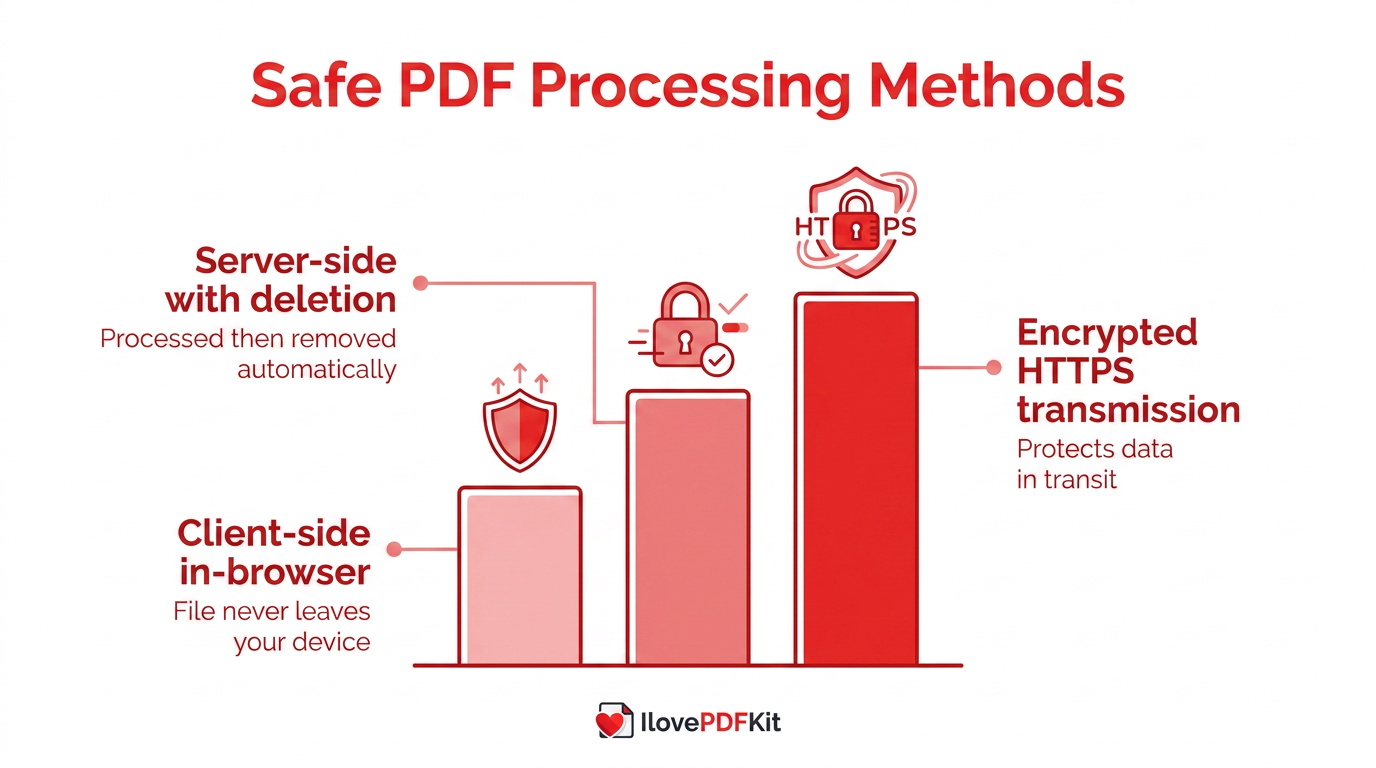
Yes, organizing a PDF online is generally safe as long as the tool uses encrypted connections and doesn’t hold onto your file longer than necessary. Reputable platforms transmit documents over secure HTTPS connections and either process files entirely in the browser or delete server-stored copies shortly after the job finishes, unless you choose to save them to an account.
iLovePDFKit processes files securely in real time without long-term storage, which matters if you’re uploading a client contract, a set of grades, or a financial statement. It also offers optional password protection for documents that need an extra layer of security before they get shared further.
| Processing Method | How It Works | Best For |
|---|---|---|
| Client-side (in-browser) | File never leaves your device | Highest privacy needs |
| Server-side with deletion | Uploaded, processed, then removed | Standard everyday documents |
| Encrypted transmission (HTTPS) | Protects data in transit | All uploads, regardless of method |
Tip: Whenever you’re handling contracts, transcripts, or financial records, confirm a tool deletes server copies automatically rather than assuming it does. A quick check of the privacy policy takes less time than dealing with a data mishap later.
Why Use iLovePDFKit to Organize and Manage Your PDFs?
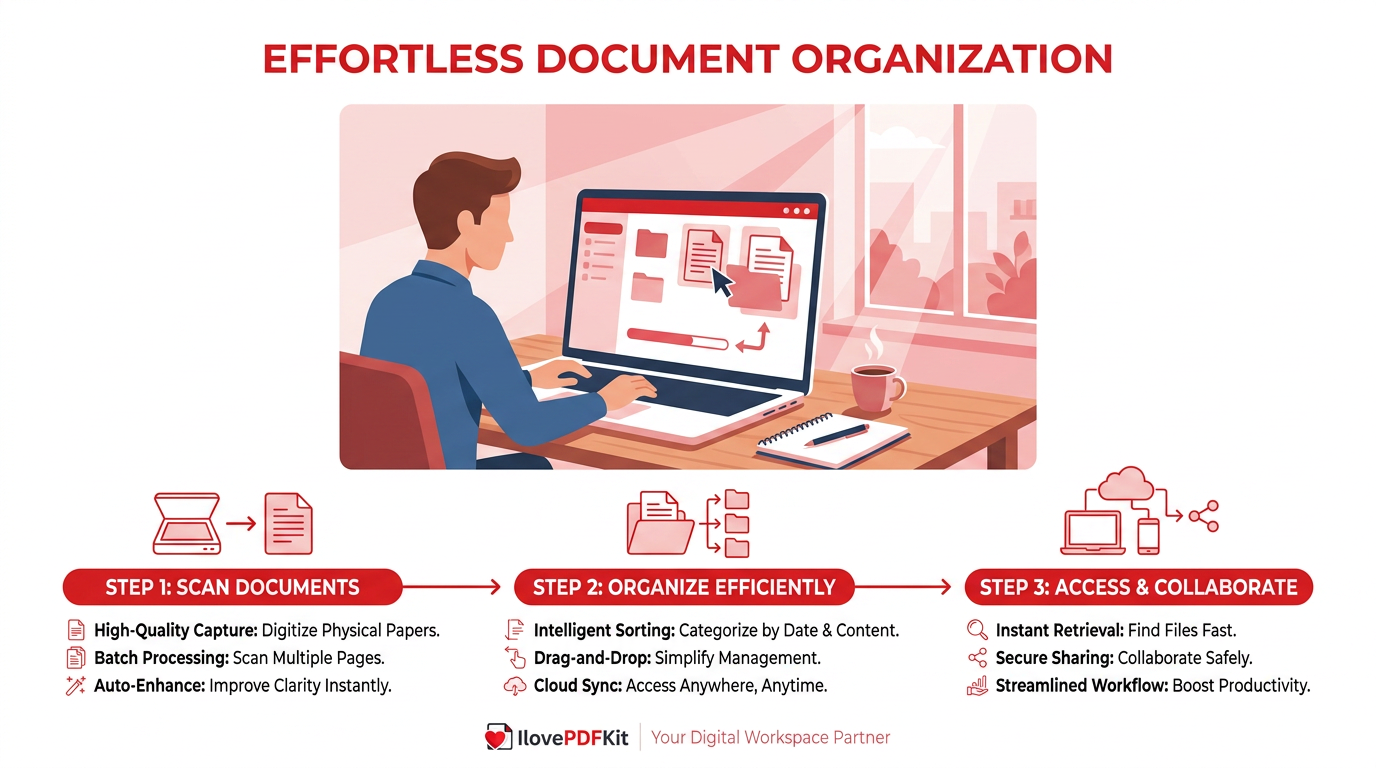
iLovePDFKit brings page organizing together with merging, splitting, compressing, and converting files, all inside one no-signup, no-install platform. That matters because document tasks rarely stop at reordering pages. A student might need to merge scanned notes before organizing them, or a freelancer might need to compress a bulky proposal before sending it to a client.
The platform’s conversion and processing engine is built for speed and pixel-perfect accuracy, meaning fonts, tables, and layouts stay exactly as they were, even after reordering, rotating, or converting a file. For students racing a submission deadline, office staff assembling a report from multiple contributors, or freelancers polishing a deliverable, having every tool in one place removes the hassle of bouncing between different websites just to finish one document.
The Takeaway
Organizing a PDF online comes down to a simple loop: upload the file, rearrange or fix the pages, then download the result, all without installing software or paying a cent. This makes it a natural fit for students juggling scanned readings, office staff assembling reports from scattered contributions, and freelancers who need polished deliverables without a software budget.
If you’re dealing with a document that’s out of order, missing a rotation fix, or padded with blank pages, give iLovePDFKit a try for organizing, merging, and converting your PDFs from one straightforward, browser-based workspace. It handles the structural cleanup so you can focus on the actual work inside the document.
Frequently Asked Questions
Can I Organize PDF Pages Without Creating an Account?
Yes, most online PDF organizers, including free browser-based tools, let you upload and rearrange pages without registering. You simply visit the site, upload your file, make your changes, and download the result, with no account or email required at any step.
Will Reordering Pages Affect the Quality of Images or Text Inside My PDF?
No, organizing a PDF only changes the sequence and orientation of pages, not what’s printed on them. Fonts, image resolution, and formatting inside each page stay exactly as they were before you started rearranging anything.
Can I Combine Pages From Two Different PDFs While Organizing?
Yes, many organizing tools let you insert pages from a separate file directly into your current session. If your tool doesn’t support that mid-session, merging the files first and then organizing the combined document works just as well.
What Should I Do if My PDF Is Too Large to Upload?
Run it through a compression tool first to shrink the file size, then upload the smaller version for organizing. This is common for scanned dissertations or lengthy reports that exceed a platform’s upload limit.
How Long Are My Files Stored After I Organize Them Online?
Most platforms automatically delete uploaded files shortly after processing finishes, unless you actively choose to save them to a connected account. This limits how long your document sits on any server after you’re done with it.
Can I Extract Just a Few Pages Instead of Reorganizing the Whole Document?
Yes, most organizing tools include an extract function that pulls specific pages into a new standalone PDF. This is useful when you only need one chapter, section, or form rather than the entire original file.
