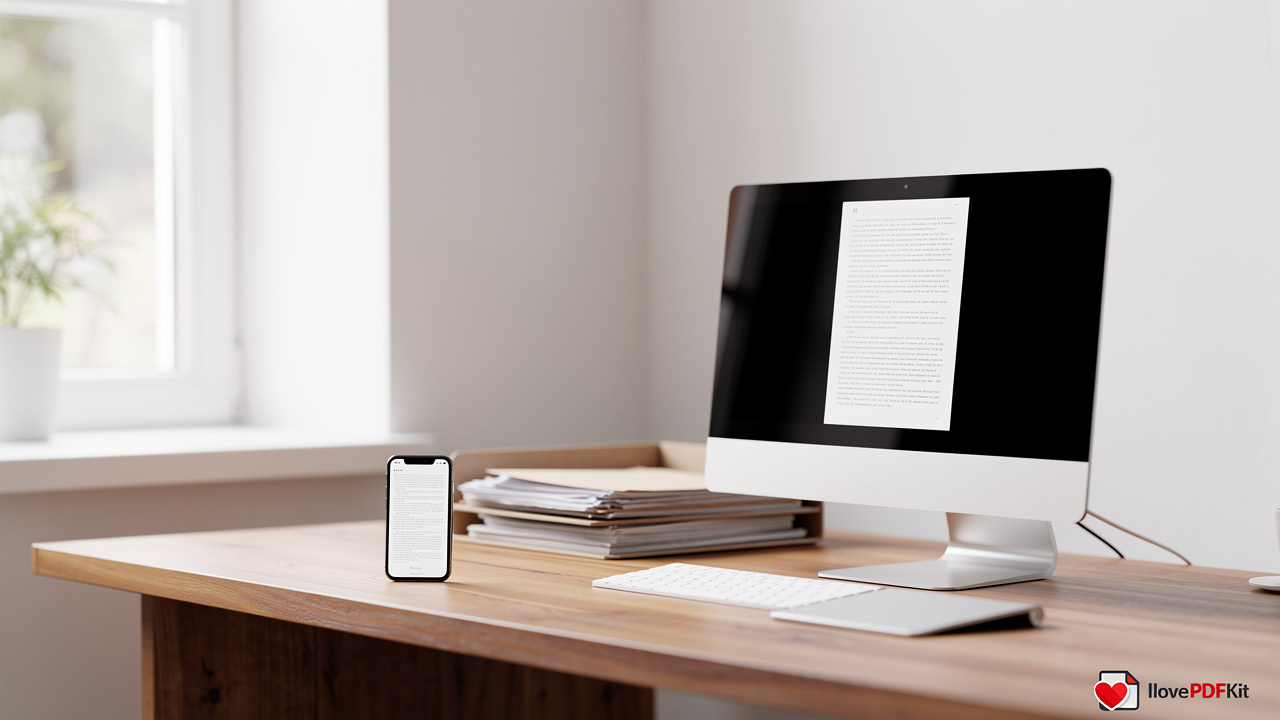
Stacks of paper on your desk can turn a simple task, like finding last year’s tax receipt, into a fifteen-minute search. A paperless home office fixes this by moving documents out of folders and drawers and into a digital system you can search in seconds. Students juggling assignment PDFs, office staff handling Word and Excel files, and freelancers chasing client contracts all face the same clutter problem.
Paper accumulates faster than most people can sort it, especially when bills, forms, and printed reports arrive from a dozen different sources each week. Without a system, important files get buried, duplicated, or lost entirely, and every retrieval becomes a small crisis. The problem only grows worse the longer physical piles sit untouched.
A paperless home office means converting, organizing, and storing your documents digitally instead of on paper, so you can pull up any file from a phone, laptop, or tablet. This guide covers a practical system: converting paper and digital files into clean PDFs, organizing them for fast retrieval, keeping sensitive files secure, and clearing out old paper safely. Free browser-based tools like iLovePDFKit make each step possible without installing software or paying for a subscription. Keep reading for the exact steps to build your own paperless setup.
Key Takeaways
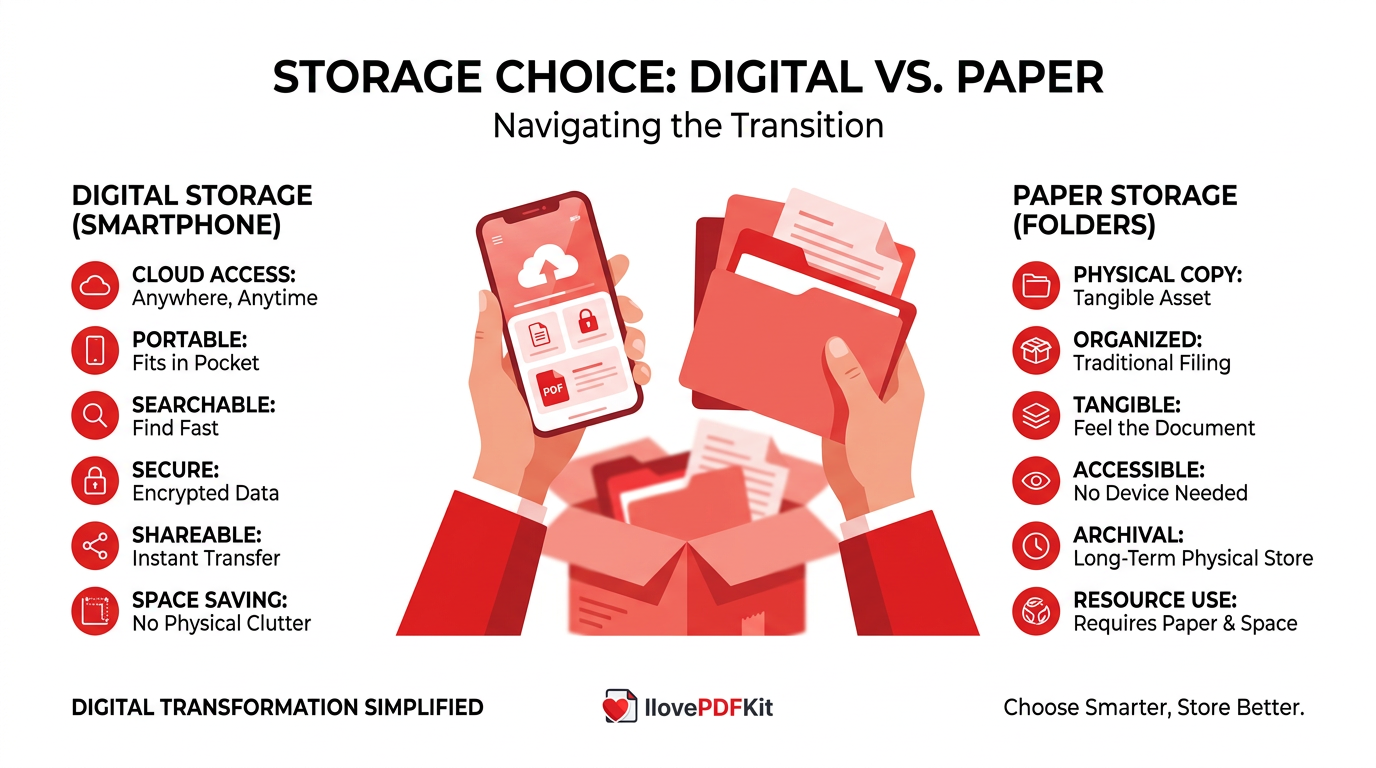
- Scan or photograph documents right away and convert them into PDFs instead of letting paper pile up on your desk.
- Use free, browser-based conversion tools to merge, compress, and convert files without installing software or paying for subscriptions.
- Build a consistent naming and tagging system, plus a weekly review habit, so digital files stay easy to find.
- Protect sensitive documents with encryption during conversion and password locks before sharing contracts, grades, or financial records.
- Sort old paper into three piles: discard, scan then shred, or keep the true original, once your digital system is running.
Table of Contents
- What Is a Paperless Home Office?
- How Do I Start Converting Paper Documents Into Digital Files?
- How Do I Organize and Manage Digital Documents Efficiently?
- How Do I Keep My Paperless Documents Secure?
- What Should I Do With Old Paper Documents?
- The Takeaway
- Frequently Asked Questions
What Is a Paperless Home Office?
A paperless home office is a way of managing paperwork where you store, convert, and organize documents digitally instead of relying on filing cabinets and folders, an approach that research on new intelligent technologies in the workplace links to measurable productivity gains. Every document, from tax forms to client invoices, becomes a searchable file you can open on a computer, tablet, or phone. This shift removes the need for physical storage space and cuts down on lost or misplaced paperwork.
The real payoff shows up in daily convenience. Office professionals can pull up a signed contract during a call instead of digging through a drawer, while freelancers can send an invoice in seconds instead of searching a filing box. Documents also become easier to share, since a digital file reaches a colleague or classmate with one click instead of a photocopy.
How Do I Start Converting Paper Documents Into Digital Files?
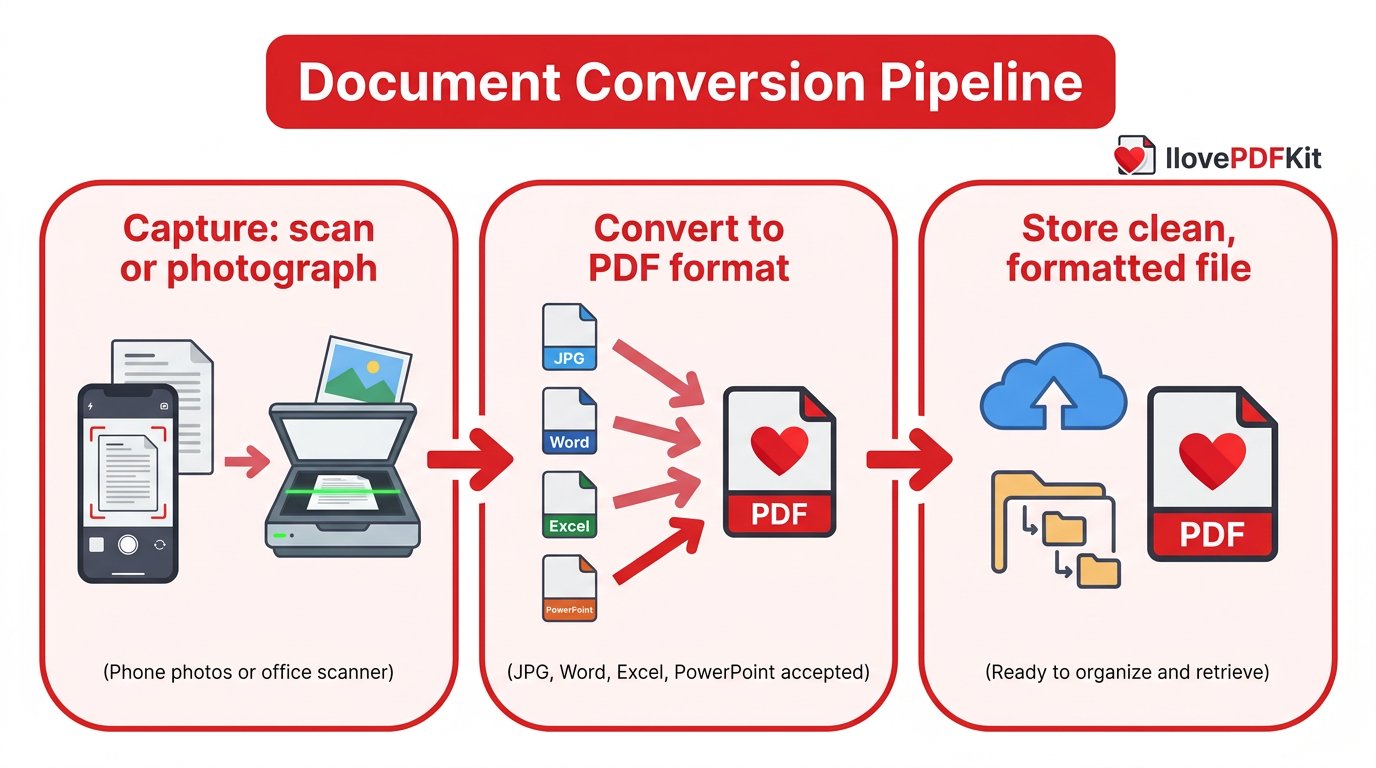
Building a paperless home office starts with capturing documents the moment they arrive, whether that’s a photo from your phone or a scan from an office machine. The goal is a clean, properly formatted PDF that opens the same way on any device, without shifted fonts or blurry pages. This applies to physical paperwork like receipts and forms, and to existing digital files such as Word reports, Excel sheets, and PowerPoint decks that need a stable, shareable format. The two sections below cover both sides of that process.
Turning Scans and Photos Into Clean PDFs
Turning phone photos or scanned pages into a usable PDF is the fastest way to digitize paperwork you receive on paper. A JPG to PDF tool combines multiple scanned images, like several pages of lab notes or a stack of receipts, into one properly ordered PDF file. Free converters do this directly in the browser, so you upload your images, arrange the pages, and download a single clean document in seconds.
This browser-based approach matters most on devices where you can’t install new software. School computers and office machines often block downloads, but a web-based converter still works through any modern browser. Students can combine photographed pages between classes without waiting for IT approval.
Converting Office Files Without Losing Formatting
Converting office files without losing formatting means keeping fonts, images, and layout exactly as they appeared in the original Word, Excel, or PowerPoint file. iLovePDFKit’s Word to PDF and PowerPoint to PDF tools preserve that formatting fully, turning a report or slide deck into a pixel-perfect PDF ready to send to a client or professor. This matters most when a document includes charts, custom fonts, or precise page breaks that could shift during conversion.
Going the other direction works well for scanned or older documents too. PDF to Word and PDF to Excel include optical character recognition (OCR), which reads text inside a scanned image and turns it into editable, searchable content. This makes it possible to reconstruct a scanned bank statement into working spreadsheet rows.
How Do I Organize and Manage Digital Documents Efficiently?
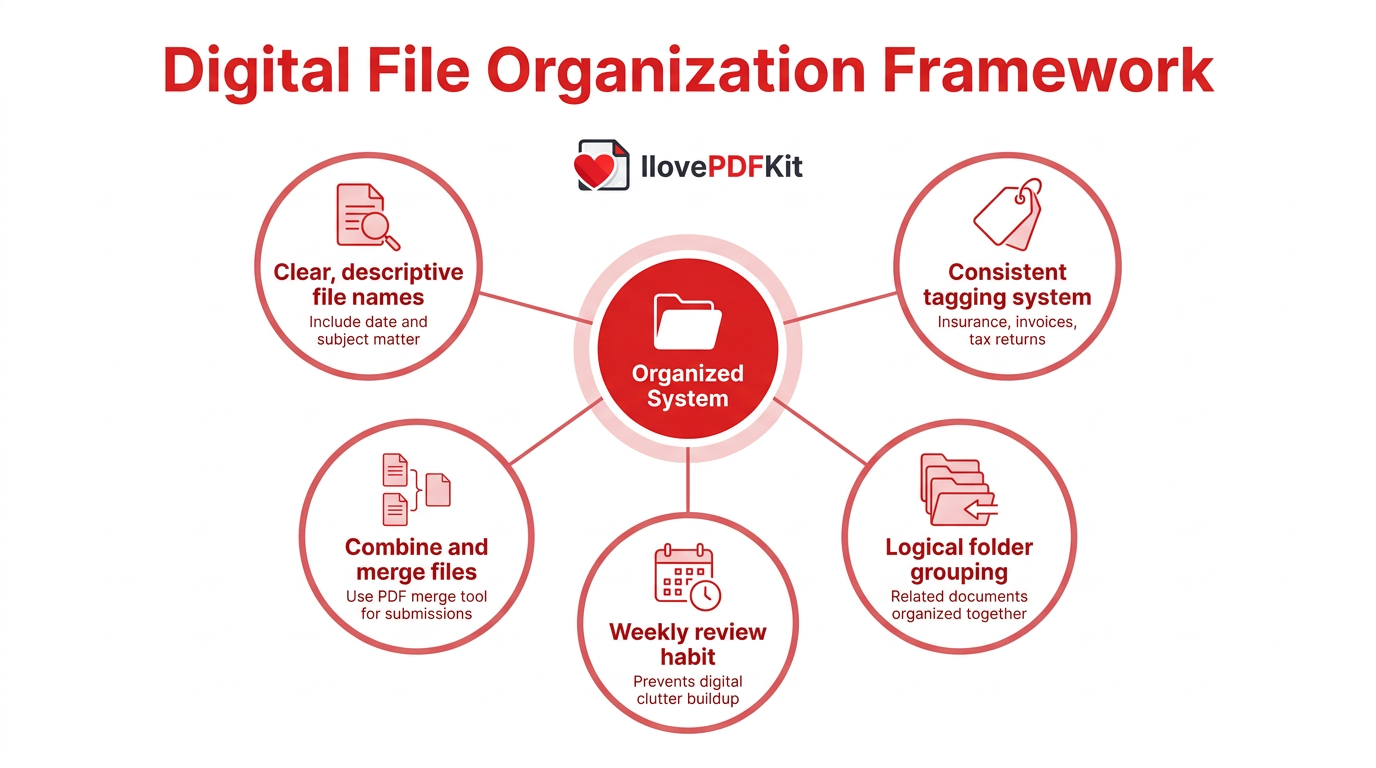
Organizing digital documents efficiently in a paperless home office comes down to consistent naming, smart tagging, and keeping file sizes manageable. Once your paperwork exists as clean PDFs, the challenge shifts from finding paper to finding the right file among hundreds of digital ones. A simple system of clear names, folders, and periodic cleanup keeps that from happening. The next two sections cover naming your files and combining or trimming them for easier storage.
Naming, Tagging, and Storing Files
Give each file a clear, descriptive name that includes the date and subject, like “2026-tax-return” instead of “scan001.” Group related documents into folders or apply consistent tags, such as “insurance” or “invoices,” so a single search pulls up every matching file. Set aside a few minutes each week to review your inbox folder and file anything new, which stops digital clutter from building up the same way paper once did.
Combining and Simplifying Files for Easy Access
Combining related pages into one file saves time when submitting an assignment or sending a client report that spans several documents. The PDF Merge tool tool joins multiple PDFs into a single file without adding watermarks or capping the number of pages, which matters for longer research papers or multi-part contracts. A student can merge a cover page, essay, and bibliography into one submission-ready PDF in a few clicks.
Sometimes the opposite is needed. A split or extract-pages tool pulls out just the pages a reader needs instead of sending an entire file, and a compression tool shrinks large PDFs, especially scanned ones, to fit email or upload limits.
How Do I Keep My Paperless Documents Secure?
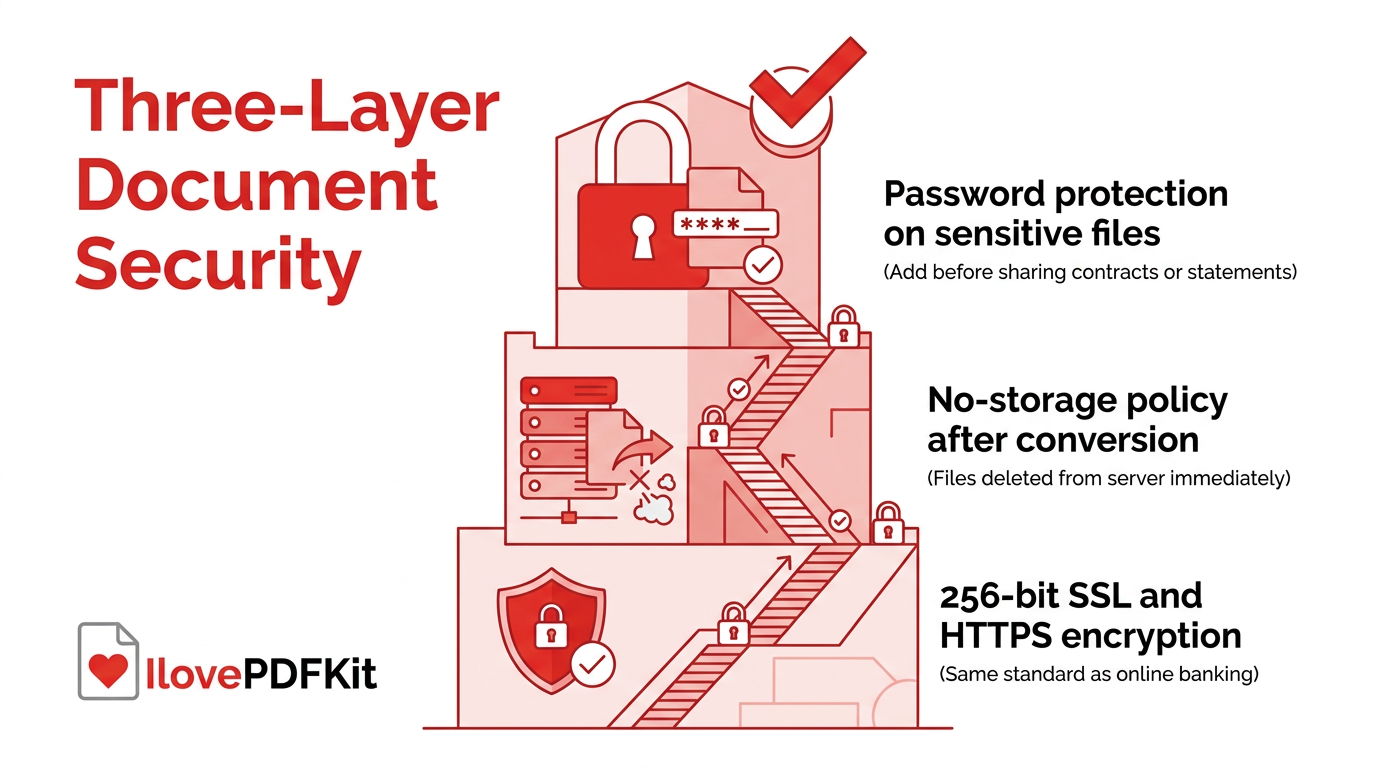
Keeping documents secure in a paperless home office means protecting files both while they’re being converted or shared and after they’re stored long-term. Encryption during upload and download prevents anyone from intercepting a file in transit, while a no-storage policy on the tool you use means your documents aren’t sitting on a server after the job finishes. Password protection adds another layer for particularly sensitive files, like signed contracts or financial statements, before you send them to someone else. The next two sections cover both of these safeguards in more detail.
Protecting Sensitive Files During Conversion
The platform protects files during conversion with 256-bit SSL and HTTPS encryption, the same standard used by online banking, so documents stay unreadable to anyone intercepting the connection. Files are processed in real time and deleted from the server shortly after the conversion finishes, rather than kept in long-term storage. There’s also no registration required, which means no personal account, payment details, or activity history tied to the documents you upload.
Adding or Removing Passwords on Important Files
A password tool lets you lock a PDF before sending it, so only the intended recipient can open it, or remove a password from a file you already own when it’s no longer needed. This works well for financial records, signed contracts, or student transcripts shared with a third party like a lender or admissions office. Adding a password takes only a few seconds and keeps sensitive information private in transit.
What Should I Do With Old Paper Documents?
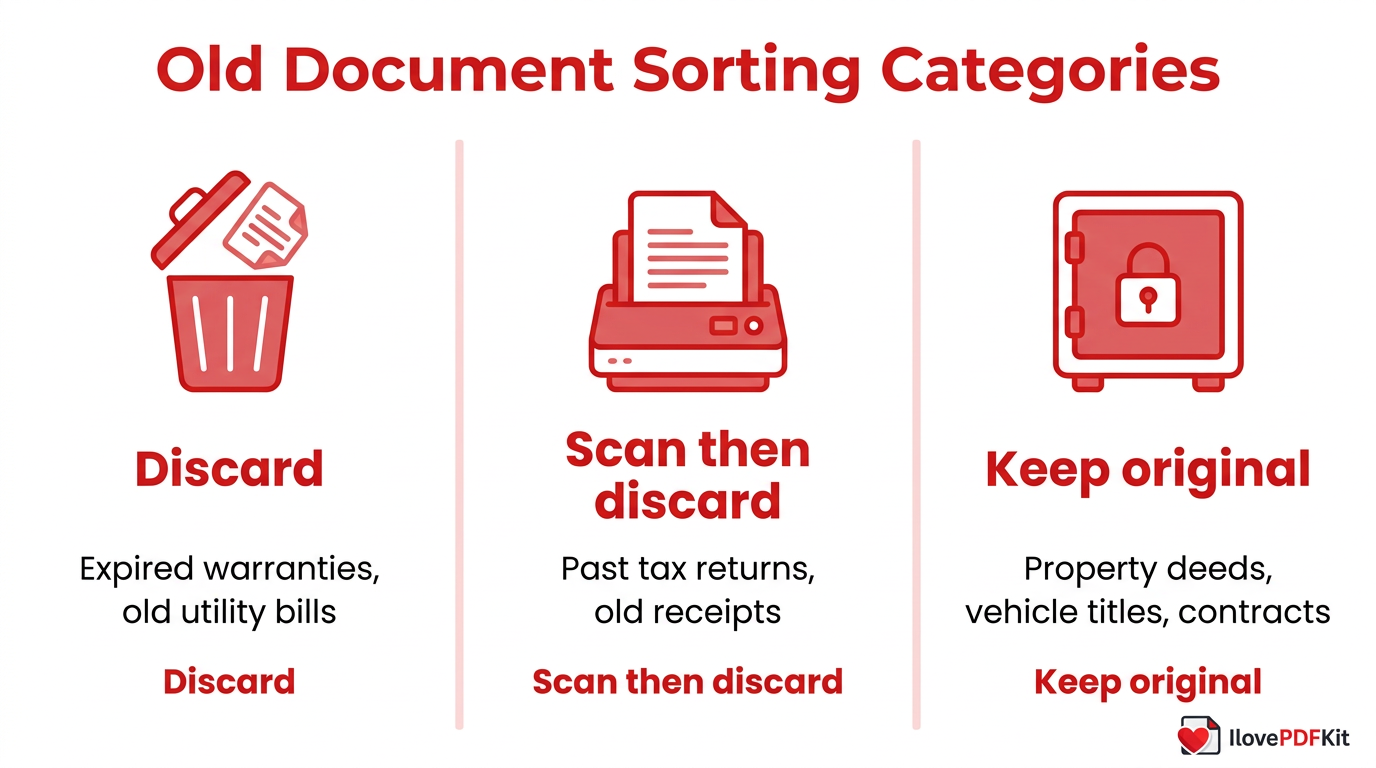
Old paper documents fall into three categories: throw away, scan and discard, or keep the physical original, a sorting challenge that mirrors findings from an empirical study on personal information management practices around scattered files and records. Once your new digital system for incoming paperwork runs smoothly, work through filing cabinets and boxes using this framework instead of trying to digitize everything at once.
Most old paperwork, like expired warranties or years-old utility bills, belongs in the discard pile with no scanning needed. Documents worth referencing later, such as old tax returns, should be scanned into PDFs and then shredded.
| Category | Examples | Action |
|---|---|---|
| Discard | Expired warranties, old utility bills | Recycle or shred immediately |
| Scan then discard | Past tax returns, old receipts | Convert to PDF, then shred original |
| Keep original | Property deeds, vehicle titles, signed contracts | Store physically in a fireproof safe |
Tip: Tackle one drawer or box at a time using the discard, scan, or keep framework above — trying to sort an entire filing cabinet in one sitting is the fastest way to abandon the project halfway through.
The Takeaway
Building a paperless home office comes down to four repeatable steps: convert incoming paperwork into clean PDFs, organize files with consistent names and tags, secure sensitive documents with encryption and passwords, and purge old paper once your new system is running. None of these steps require expensive software or technical skill, just a little consistency each week.
You don’t need to buy scanning equipment or pay for a subscription to get started. Free browser-based tools like iLovePDFKit handle the conversion, merging, and compression work directly in the browser, with no installation and no account required. Pick one drawer or one folder of loose documents today, convert the first few files, and let the momentum carry you toward a genuinely paperless office.
Frequently Asked Questions
Do I Need To Install Software To Convert Documents For A Paperless Office?
No installation is needed. This kind of browser-based converter works entirely inside Chrome, Firefox, Safari, or Edge, so you upload a file, convert it, and download the result without downloading anything. That also makes it usable on locked-down school or office computers that block new installs.
Is It Safe To Convert Sensitive Documents Like Tax Forms Or Contracts Online?
Yes, as long as the tool uses SSL or HTTPS encryption and doesn’t store your files after processing. Reputable converters delete uploaded documents from their servers shortly after the job finishes. For extra protection on highly sensitive files, add a password before sharing the converted document with anyone else.
What’s The Best File Format For Storing Important Documents Long-Term?
PDF is the standard for long-term storage because it keeps formatting stable across devices and operating systems. With OCR applied, a PDF also becomes searchable, so you can find specific text inside a scanned document years later.
How Much Does It Cost To Go Paperless With Digital Tools?
It can cost nothing at all. iLovePDFKit is completely free, with no subscriptions, watermarks, or daily task limits, unlike some competing tools that cap file sizes or the number of conversions allowed per day.
Can I Convert Scanned Handwritten Or Printed Notes Into Editable Text?
Yes, if the tool includes optical character recognition, or OCR. A PDF to Word or PDF to Excel conversion conversion with OCR reads the text inside a scanned image and turns it into editable, searchable content, which works well for printed notes and typed statements.
How Do I Reduce A PDF’s File Size For Emailing?
A PDF compression tool shrinks the file size of a document, especially one packed with scanned images, while keeping the pages readable. This helps when an email attachment limit or an upload portal rejects a file for being too large.
