Switching a Word essay into a clean PDF for submission, or pulling a table out of a scanned report, can turn into a frustrating chore. Free tools often cap how many files you convert, stamp a watermark across the page, or demand an account before you even start work. That friction costs real time when a deadline sits an hour away and the file still looks wrong.
A PDF format converter is a tool that changes a document from one file type into another, moving content between PDF and formats like Microsoft Word, Excel, PowerPoint, JPG, or PNG. This guide walks through how these converters work, which file formats they support, and how accurate the output tends to be. It covers what security practices matter before you upload a contract or transcript, plus the real differences between free and paid plans. You’ll see who relies on these tools most, from students and office staff to freelancers running a small business, and how to pick one that fits your workflow. Along the way, you’ll see where iLovePDFKit’s free, registration-free tools fit into that picture.
Start by looking at what a converter actually does behind the scenes before you upload your next file.
Key Takeaways
- A PDF format converter changes files between PDF and editable formats like Word, Excel, PowerPoint, and JPG, working in both directions depending on the task at hand.
- Browser-based converters need no software install and run on Windows, Mac, Linux, Android, and iOS devices alike.
- Output quality depends heavily on the source file and how well the tool reads the PDF’s internal structure, not just its visual layout.
- Look for encryption in transit, automatic file deletion, and no-sign-up access before uploading sensitive documents.
- iLovePDFKit offers free, registration-free conversion with no watermarks and no daily task caps for normal use.
Table of Contents
- What Does a PDF Format Converter Do?
- Which File Formats Can You Convert To and From?
- How Does the Conversion Process Work?
- How Accurate Is PDF Conversion?
- Is It Safe to Upload Documents to a PDF Converter?
- Free vs Paid PDF Converters, What’s the Difference?
- Who Uses PDF Converters and Why?
- How Do You Choose the Right PDF Converter?
- Final Thoughts
- Frequently Asked Questions
What Does a PDF Format Converter Do?
A PDF format converter is a tool that transforms a document from one file format into another, most often moving content between PDF and editable formats such as Word, Excel, PowerPoint, or an image file. These tools work in two directions, so the same converter that turns a Word file into a PDF can also turn a PDF back into a Word file. That flexibility makes a converter useful for nearly any document task, from submitting assignments to archiving signed contracts.
Converting a file into PDF locks the layout in place, so the document looks identical no matter which device or operating system opens it. Converting a PDF back into an editable format does the opposite, opening up the text, images, and tables so you can revise or reuse them. Students, office teams, and freelancers often need both directions in the same week, sometimes for the same document.
Which File Formats Can You Convert To and From?
A PDF format converter typically handles a wide range of conversion paths covering documents, spreadsheets, presentations, and images, in both directions. Common targets include:
- Microsoft Word (.doc and .docx)
- Excel (.xlsx)
- PowerPoint (.pptx)
- HTML, RTF, and plain text
- Image formats such as JPG, PNG, TIFF, and HEIC
Some platforms, including Adobe Acrobat, also accept design files like PSD, AI, or INDD, though that’s less common outside specialized software. Scanned PDFs add a special case, since the page is really just an image rather than selectable text, and optical character recognition, known as OCR, reads that image and turns it into searchable, editable text, a process detailed in technical documentation like the FineReader user’s guide for OCR-based conversion. The sections below break down each conversion direction in more detail.
Documents, Spreadsheets, and Presentations to PDF
Converting Word, Excel, and PowerPoint files into PDF is one of the most common tasks people run into. Word to PDF works well for contracts, reports, and essays that need a fixed, shareable format for grading or review. Excel to PDF keeps spreadsheet formatting intact for printing or distribution to a client. PowerPoint to PDF locks in slide layouts before a deck goes out to reviewers.
PDFs to Editable Formats
Converting a PDF back into Word, Excel, or PowerPoint frees its content for editing and reuse. PDF to Word keeps images, fonts, and layout intact while making the text revisable for a new draft. PDF to Excel rebuilds tables into live, editable cells, including scanned pages when paired with OCR. PDF to PowerPoint turns each page into an editable slide, with real text boxes and shapes instead of a flat picture.
Images and PDFs
JPG to PDF combines several photos or scanned pages into a single, organized file, which is handy for turning a stack of receipts or lecture notes into one document. PDF to JPG works the other way, pulling pages out as high-quality images for a presentation, a website, or a social post. PNG to PDF and TIFF files move through the same basic path on most converters.
How Does the Conversion Process Work?
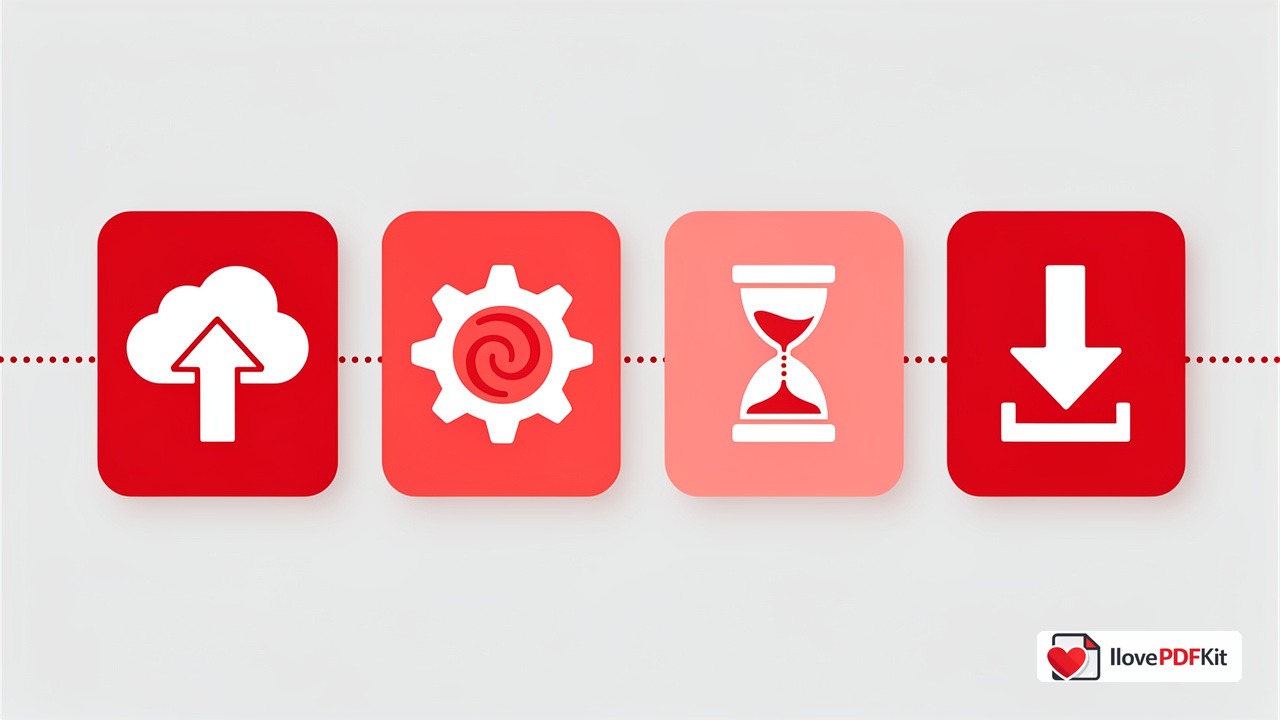
Most online converters follow the same simple workflow no matter which format you’re converting between, a process similar to the one described in Adobe’s PDF Generator documentation for converting native file formats to PDF and back. You upload a file, pick the output format, let the tool process it, and download the result, usually within seconds for a standard document.
- Upload your file using the file selector or by dragging it into the drop zone.
- Choose the output format, such as PDF, Word, Excel, PowerPoint, or JPG.
- Process the file, which typically takes only a few seconds.
- Download the result, or save it directly to Google Drive, Dropbox, or OneDrive.
Because the process runs in the browser, it works the same way on a Windows laptop, a Mac, a Chromebook, or a phone. That consistency matters for students moving between a library computer and a personal laptop, and for freelancers working from different job sites.
How Accurate Is PDF Conversion?
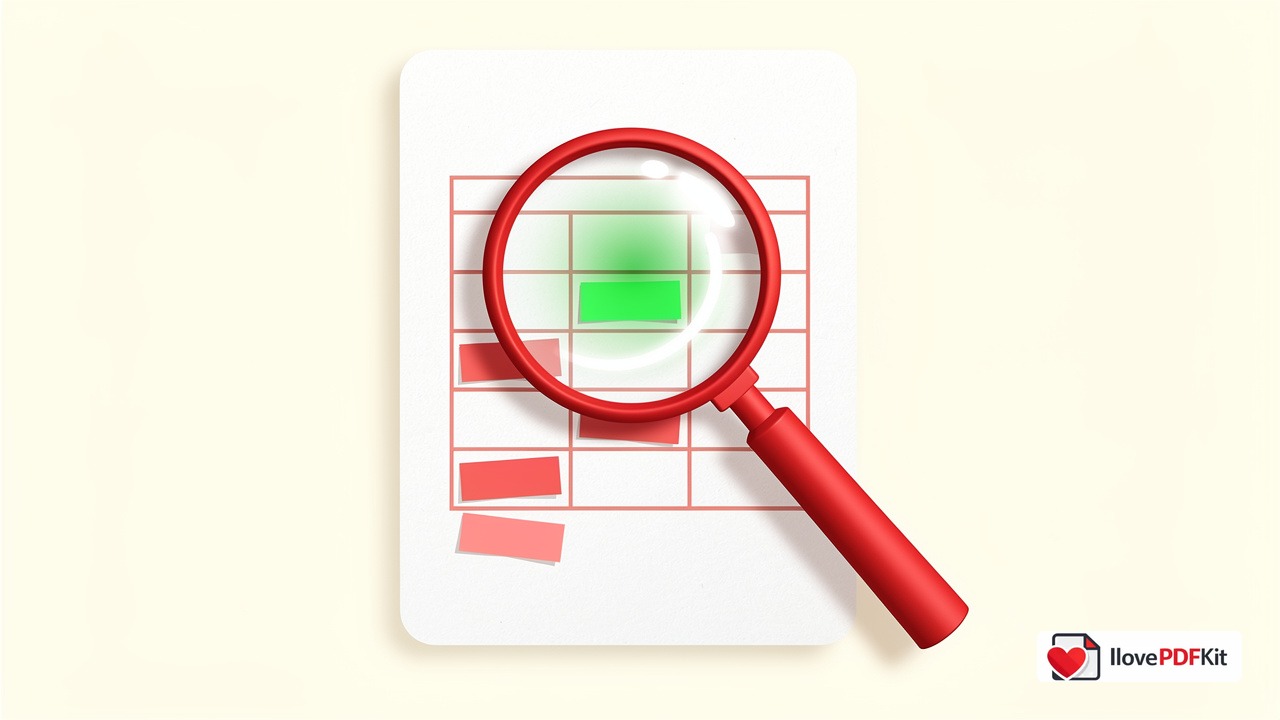
A PDF format converter’s accuracy depends mostly on how the original file was built and how well the tool reads its internal structure. A clean financial table, a standard report, or a single-column document usually converts with strong accuracy, since column alignment and spacing stay consistent throughout. Complex layouts, merged cells, or hand-drawn borders often need a bit of manual cleanup afterward, and research on PDF extraction pipelines shows that tools reading a PDF’s structure directly tend to beat ones that only copy the visual layout, since general-purpose converters often miss layout failure modes like two-column reading order.
Scanned pages add another variable, since a scan is really just an image of text rather than selectable characters. OCR solves that by recognizing characters and turning them into editable, searchable text, though poor scan quality or a skewed page can still reduce accuracy. It’s worth checking the converted file before you submit it, especially for financial, legal, or academic documents where a misplaced number matters.
Is It Safe to Upload Documents to a PDF Converter?
Uploading a document to a PDF format converter is generally safe when the provider encrypts files in transit and deletes them from its servers soon after processing. Look for:
- TLS or SSL encryption during transfer
- A clear file retention window
- A privacy policy that states files aren’t shared with third parties
These basics matter most for contracts, financial statements, and student records, where a leak would cause real damage to someone’s trust.
Adobe Acrobat alternative transfers files over SSL and HTTPS with 256-bit encryption, processes documents in real time, and removes them from its servers shortly after conversion under a no-file-storage policy. No account or sign-up is required, so there’s no profile or payment data sitting on a server either. Security technologist Bruce Schneier has made a point worth remembering here.
“Security is a process, not a product.” — Bruce Schneier, security technologist
Free vs Paid PDF Converters, What’s the Difference?
Free and paid converters differ mainly in limits, not in whether conversion works at all. Many free tools cap how many files you convert per day, add a file size ceiling, stamp a watermark on the output, or lock features like OCR and batch processing behind a paid plan. Paid tiers typically add unlimited conversions, larger file sizes, and the ability to process many documents at once.
iLovePDFKit takes a different approach by keeping its core tools free and registration-free, with no watermark on your converted file and no daily task cap for normal use. That contrast matters next to tools like Adobe Acrobat, whose free online merge tool limits jobs to 100 files and 1,500 pages, and Smallpdf alternative, which reserves unlimited conversions and OCR for its paid subscription.
| Feature | Typical Free Tier | Typical Paid Tier |
|---|---|---|
| Daily conversions | Limited | Unlimited |
| File size | Capped | Larger limits |
| Watermark | Sometimes added | Removed |
| OCR and batch tools | Often restricted | Fully available |
Who Uses PDF Converters and Why?
tools for students use converters to turn lab reports, theses, and scanned notes into submission-ready files, or to pull scanned journal pages into an editable document for citations. A chemistry student might convert a photographed lab notebook page into a single PDF study guide, then convert parts of it back to Word for a write-up.
PDF tools for business convert contracts, invoices, and reports into shareable PDFs before distribution, then convert them back into editable formats when revisions come in. Research from McKinsey has found that employees spend around 1.8 hours of a workday searching for scattered information, and well-organized, correctly converted files help cut that waste. tools for freelancers and small business owners rely on the same tools to turn proposals and pricing sheets into branded PDFs or editable decks without buying new software.
How Do You Choose the Right PDF Converter?
Choosing a PDF format converter comes down to matching the tool to how you actually work day to day. Test it on a real document first, ideally one with a table, multiple columns, or a scanned page, since that reveals far more than a simple one-page file ever could.
- Output fidelity check that fonts, images, and tables survive the round trip without shifting or breaking apart.
- Supported formats confirm the tool handles the specific inputs and outputs you need, including less common types like HEIC or TIFF.
- Security practices review encryption standards and how long files stay on the provider’s servers before deletion.
- Device compatibility make sure it works on the operating system and device you actually use, phone included.
Weigh whether bundled tools like merge, split, and compress could replace a few other apps on your device entirely. A single platform that handles conversion alongside basic editing saves real time compared to juggling separate programs for each small task.
Final Thoughts
A reliable PDF format converter saves time, keeps your formatting intact, and protects the privacy of whatever you upload, whether that’s a thesis draft, a client invoice, or a signed contract. The right tool turns a multi-step formatting headache into something that takes less than a minute, freeing up time for the actual work in front of you.
If you’re ready to put that into practice, iLovePDFKit’s best free PDF tools cover the everyday conversions most students, office teams, and freelancers need, from Word and Excel to JPG and back again. There’s no watermark, no account, and no software to install, just a fast way to get your document into the format you actually need.
Frequently Asked Questions
Here are quick answers to the questions people ask most before converting a document online. Each one covers a specific concern, from account requirements to file limits to security, so you get a straight answer without hunting through a longer guide. If your question isn’t covered here, the sections above go into more depth on accuracy, safety, and pricing for any PDF format converter you’re considering.
Do I Need to Create an Account to Convert a PDF Online?
No. Most browser-based converters, including iLovePDFKit’s core tools, let you upload a file, convert it, and download the result without creating an account or installing software. That means no profile data or payment details sit on a server anywhere.
Will Converting a PDF to Word Mess Up My Formatting?
Usually not, though results depend on the source file. Standard documents with common fonts convert cleanly, while rare fonts or heavily designed layouts can shift slightly. It’s a good habit to check important pages after conversion before you submit or send the file.
Can I Convert a Scanned Document Into Editable Text?
Yes, through optical character recognition, or OCR. The technology reads the image of text on a scanned page and turns it into searchable, editable text, which is useful for quoting scanned textbooks or digitizing old paper records.
Is There a Limit to How Many Files I Can Convert for Free?
It depends on the no watermark PDF tools. Some tools cap free jobs tightly, for example Adobe’s online merge tool limits free use to 100 files and 1,500 pages per task, while other platforms avoid daily task caps for normal use.
What Happens to My Files After I Upload Them?
Reputable converters process files in real time and remove them from their servers shortly afterward. A no-file-storage policy means documents are deleted once conversion finishes, so nothing lingers on a server after you’ve downloaded your result.
Can I Convert Multiple Files at Once?
Yes, many converters support batch processing, which lets you convert several files in one run instead of repeating the process for each document. This saves time for administrative staff or researchers handling large document archives or year-end reports.
Does a PDF Converter Work on My Phone or Tablet?
Yes. Browser-based converters run on Windows, macOS, Linux, Android, iOS, and Chromebooks, so you can convert a file from a phone or tablet the same way you would on a desktop, without installing an app.
