A PDF size reducer lets you make a PDF smaller without spoiling how it looks on screen. Use a Low or Medium setting so the tool trims image size and hidden data while fonts, layout, and text stay crisp. Oversized PDFs can block email sends, fail upload limits on school portals, and slow down cloud storage. That feels even worse when you rush near a deadline and every minute matters for an assignment or client file.
This guide explains what affects PDF file size, how online compression works, and how to compress PDF without losing quality with iLovePDFKit. Keep reading to see simple steps that reduce PDF file size in under a minute.
Key Takeaways
A PDF size reducer shrinks documents by trimming images and hidden data while keeping fonts, layout, and page order the same. Your file feels lighter but still looks professional on screen.
Different compression levels match different needs. Lower settings protect image quality for print‑friendly reports and thesis files. Higher settings cut size sharply for email, online portals, and quick sharing.
You can compress PDF online in under a minute with iLovePDFKit. The tool stays free, needs no account, and adds no watermark. Simple habits like keeping a backup and checking key pages help preserve quality.
Table of Contents
- Why Does PDF File Size Matter?
- How Does A PDF Size Reducer Actually Work?
- How To Compress A PDF File Online – Step By Step
- iLovePDFKit – A Free PDF Size Reducer With No Limits
- Tips For Getting The Best Results From A PDF Compressor
- The Bottom Line
- Frequently Asked Questions
Why Does PDF File Size Matter?
PDF file size matters because large documents hit limits on email, school portals, and cloud storage. A ten megabyte thesis or sales deck might upload fine, while a fifty megabyte version fails with an error. According to Google Workspace, Gmail attachments stop at 25 MB, and many portals use even tighter limits.
Students meet these limits when they submit research through Canvas or Blackboard systems. Office staff feel the pain when long contracts from Microsoft Word turn into heavy PDFs that refuse to email through Outlook. Freelancers and small business owners also see slow uploads when they share visual proposals through Google Drive or Dropbox links.
“The biggest issues with heavy PDFs usually appear at the exact moment you try to send or upload them,” notes the iLovePDFKit team. “A quick compression step can save you from that last‑minute stress.”
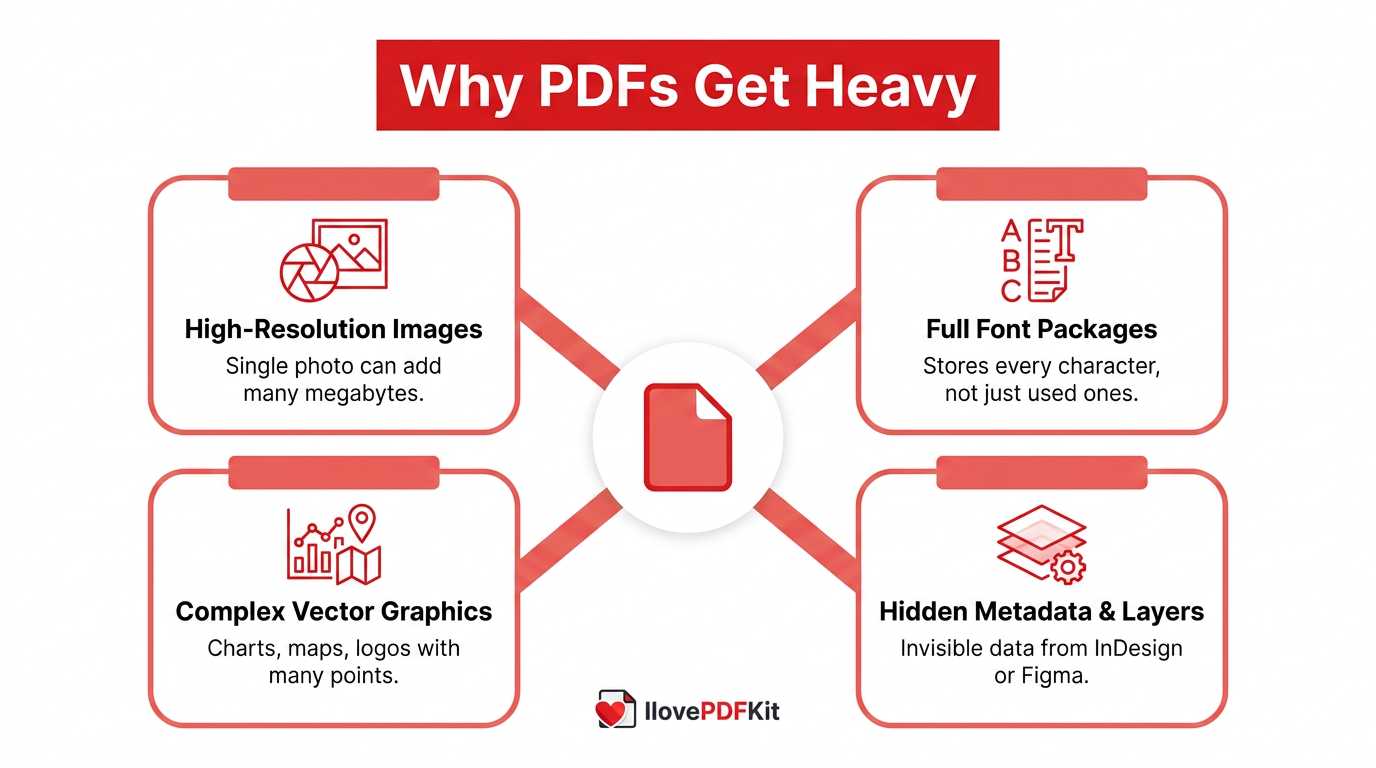
Four common ingredients inside a PDF push file size up and make those errors more likely:
High‑resolution images from cameras or design tools add the most weight. A single full‑page photo at print quality can add many megabytes. According to a PDF & Image Compression benchmark study, downsampling high-resolution images often cuts total size by well over half — with average PDF compression reaching 78% across tested file types.
Full font packages raise size when a document uses several typefaces. Instead of just storing the letters you see, the file may hold every character. That means a simple syllabus can weigh much more than its text alone suggests.
Extra metadata, comments, and hidden layers often stay inside after export from apps like Adobe InDesign or Figma. Readers never see this material, yet every bit takes space. A quick pass through a PDF size reducer strips this clutter and leaves the visible pages intact.
Complex vector graphics such as maps, charts, and logos also add weight when they include many points and layers. These elements look sharp at any zoom level, yet they demand processing power and storage. Compression tools can simplify those shapes so the document opens faster on phones and low‑powered laptops.
How Does A PDF Size Reducer Actually Work?
A PDF size reducer works by finding the parts of a PDF that weigh the most, then compressing them while layout stays the same. The compressor targets images, fonts, and internal data so the new file opens faster but still looks right on screen. Nothing in the visible page order or text content changes.
First the tool scans every object in the document and measures how much space each one uses. Next it rewrites images with more efficient formats and lower resolution that still fit laptop or phone displays. As explored in studies on Megapixels vs sharpness: Does resolution actually buy sharper photos, most screen content looks fine near 72 to 96 pixels per inch, so extra detail above that rarely helps on standard monitors. The compressor also removes redundant metadata, subsets fonts so only used characters remain, and applies stream compression algorithms such as Flate or zlib.
Different compression levels control how far that process goes:
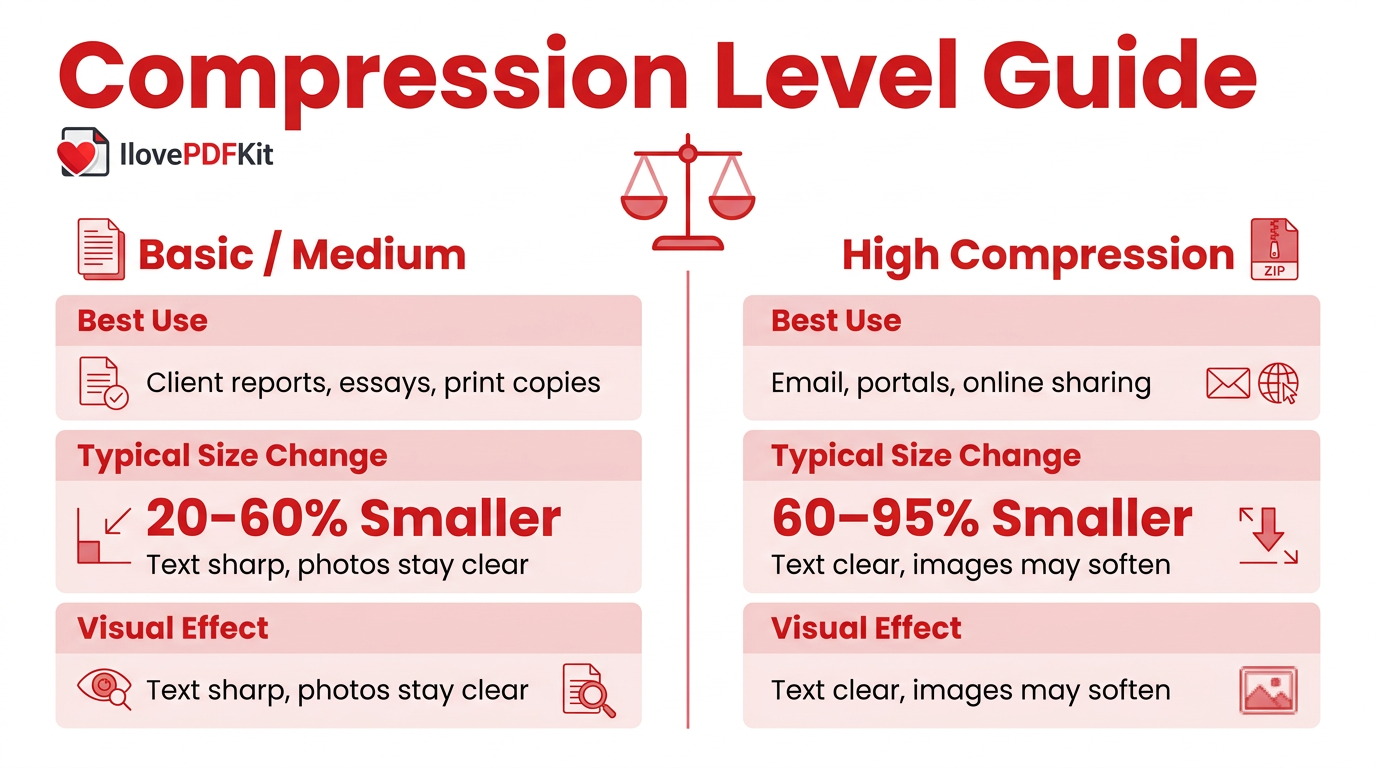
Basic or Medium compression keeps images close to their original quality and focuses on cleaning extra data.
High compression goes further so file size drops sharply, which works well for email or web upload targets that sit under a specific megabyte cap.
Tests with iLovePDFKit, along with guides from Smallpdf and Adobe, show that text‑heavy PDFs often drop 20 to 60 percent, while image‑heavy files can shrink 80 percent or more.
This comparison helps you pick a level that fits each document.
| Setting | Best Use | Typical Size Change | Visual Effect |
|---|---|---|---|
| Basic or Medium | Client reports, essays, print copies | Roughly 20–60 percent smaller | Text stays sharp, photos stay clear unless you zoom very far in |
| High | Email attachments, portals, online use | Roughly 60–95 percent smaller | Text stays clear, images may look softer or slightly blocky in corners |
When you want to reduce PDF file size without visible quality loss, Basic or Medium compression in a reliable PDF tool usually gives the safest balance.
How To Compress A PDF File Online – Step By Step
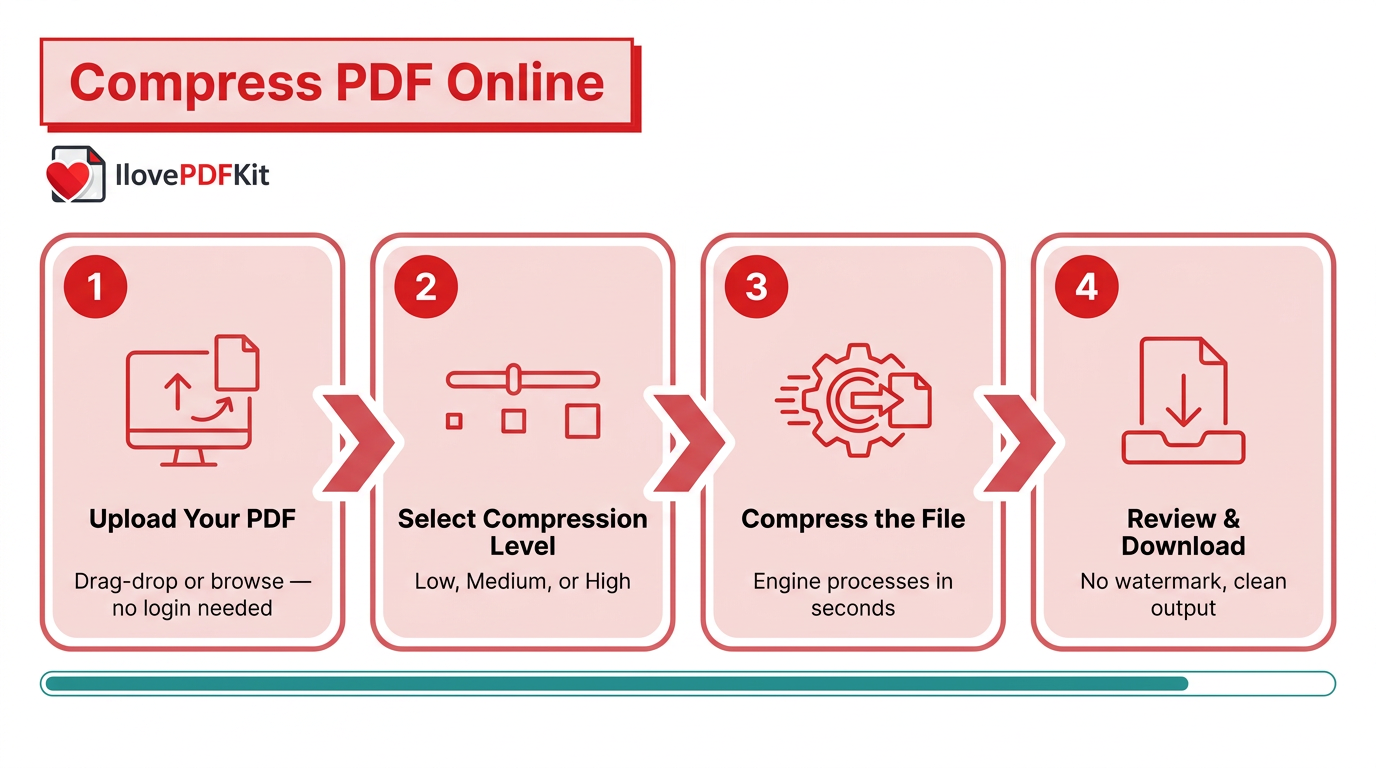
To compress a PDF online without visible quality loss, you open a trusted tool and choose a moderate compression level. iLovePDFKit keeps this whole process simple in Chrome, Safari, Edge, Firefox, and other modern browsers.
Upload Your PDF
Start on the iLovePDFKit PDF size reducer page in your browser. Drag and drop the file, or click the button to browse your computer, phone, Google Drive, or Dropbox. There is no sign‑up, login, or email address needed before the upload starts.Select Your Compression Level
Pick Low, Medium, or High compression based on the document goal. Low and Medium fit best when you plan to print or when charts must stay very clear. High compression works well when your main goal is to make a PDF smaller for email, online forms, or chat apps.Compress The File
Click the button to start the compression. iLovePDFKit sends the file through its optimized PDF compressor engine, which handles long image‑heavy PDFs in just a few seconds. You see progress right in the browser, with no software installer and no admin rights on the device.Review And Download
After processing, the tool shows the new file size next to the original size. You download the compressed PDF clean, with no watermark or extra logo on your pages. You can now attach it to email, upload it to a portal, or store it in cloud services such as OneDrive or Box.
Real files behave in fairly predictable ways after you compress PDF online:
Text‑heavy PDFs such as contracts or academic papers compress very well because text data is compact by nature. Tests with tools like iLovePDFKit and Smallpdf show that these files often shrink 60 to 80 percent without any visible change in letters. You keep crisp text while the megabyte count falls sharply.
Image‑heavy PDFs such as design portfolios or marketing brochures see even larger gains. High compression can shrink PDF size 70 to 95 percent, though photos may look a bit softer when you zoom deep — a trade-off also noted when compressing Compress AI Images: GPT-generated and high-resolution design outputs. For screen review and quick sharing, that trade often works fine.
Scanned PDFs behave like stacks of images inside a wrapper. Strong settings can reduce PDF MB numbers by huge margins while the pages still read well on tablets and laptops. For long‑term storage or email, that lighter file feels far more manageable.
Mixed documents that blend charts, screenshots, and long text sections usually fall in the middle. A typical report that starts near 15 MB often lands around 2 to 3 MB after Medium compression, consistent with experimental findings in Beating the Page Limit: research on minimizing document sizes without sacrificing readability. That smaller size glides through most email systems and upload forms.
iLovePDFKit – A Free PDF Size Reducer With No Limits
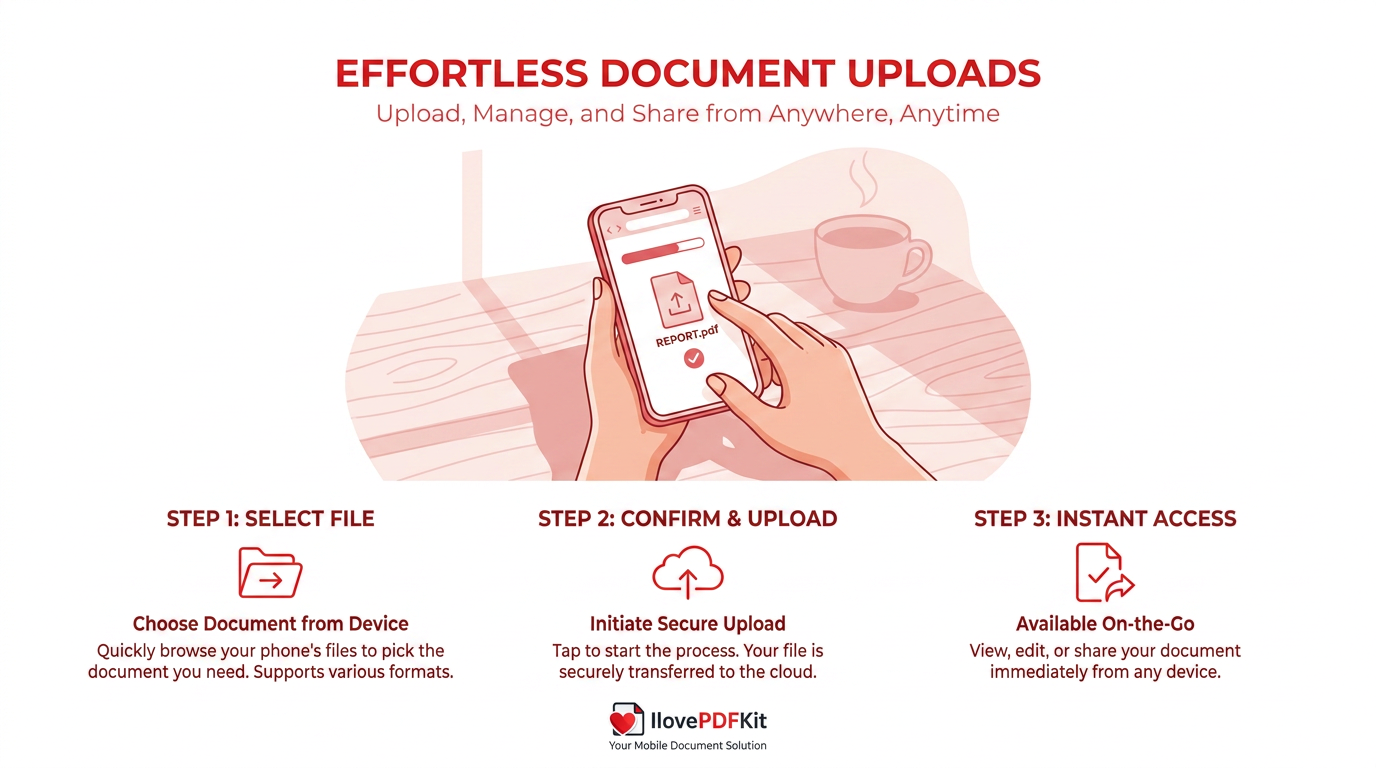
iLovePDFKit stands out as a PDF size reducer that stays free, open, and simple for every user. You can compress PDF free, with no daily task caps, no locked High setting, and no surprise paywall just before download. Unlike many tools that push upgrades, iLovePDFKit keeps the full compression feature set available from the first visit.
Plenty of popular names such as Smallpdf, Adobe Acrobat Online, and iLovePDF now place file size limits or task limits on free users. That model often hurts students, assistants, or freelancers who meet several deadlines in one day. iLovePDFKit removes that friction, so you compress as many files as needed, at any size the browser can upload, without a credit card screen in sight.
Security also stays central. Every upload goes through 256‑bit SSL encryption, and the platform deletes files from its servers soon after each task finishes — an important consideration as screen resolutions and display contexts vary widely, as detailed in Mac Pixels Explained: MacBook screen resolution and Retina PPI data. Because there is no account system, iLovePDFKit keeps no activity log or personal profile tied to your documents. According to PCWorld, more and more people now rely on browser tools instead of desktop software for PDF work, so clear privacy rules matter.
The tool also fits into wider document flows. Alongside the PDF size compressor, iLovePDFKit offers merge, split, and extract‑page tools, plus conversion to and from Microsoft Word, Excel, and PowerPoint. You can turn JPG images into PDF, remove passwords from files you own, and clean long reports with the Page Removal Tool before compression. Research from McKinsey shows that knowledge workers spend about 1.8 hours per day just searching for information, so a single browser toolbox that handles many PDF tasks helps cut that wasted time.
Tips For Getting The Best Results From A PDF Compressor
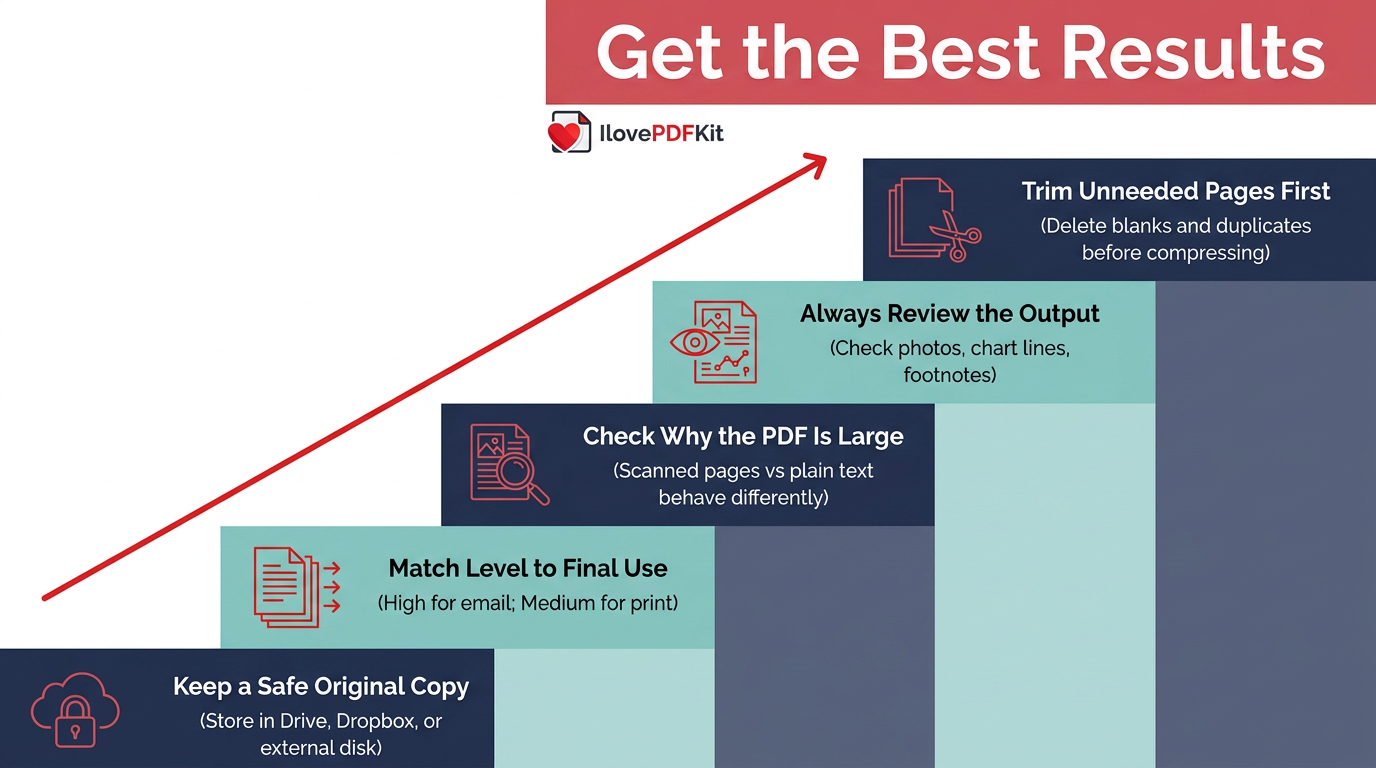
The best results from any PDF compressor come when you match settings to the job and keep a clean workflow. A few simple habits help you reduce PDF MB while your document still feels clear and professional:
Keep a safe original copy before you run any compression. Store the high‑quality version in Google Drive, Dropbox, or an external drive. If a client later needs print‑ready pages, you still have the untouched source.
Match the compression level to the final use of the file. High compression fits email attachments, online forms, and learning portals that only show pages on screen. Basic or Medium makes more sense for pitch decks, research with complex charts, or anything that may reach a printer.
Check why the PDF feels large before you compress it. If most pages are plain text, size drops will look modest and that is normal. If you scan every page at very high resolution or add huge photos, expect dramatic gains when you decrease PDF size — particularly given that newer codecs like those discussed in Apple PICO Image Codec: research show how much headroom modern compression algorithms still have.
Always review the output file before you send or upload it. Look closely at photos, thin lines in charts, and tiny footnotes. If anything looks blurry, step back to a lighter compression level and try again.
Trim what you do not need with the iLovePDFKit Page Removal Tool. Delete blank pages, duplicate sections, or private annexes before you run the PDF file compressor online. With fewer pages to process, the final file shrinks even more and stays easier for readers to follow.
Tip from the iLovePDFKit team: “Think of compression as the last step in your editing process—clean the document first, then compress it once, instead of squeezing the same messy file over and over.”
According to help pages from services like Turnitin, many academic portals cap single uploads around 10 MB or less, so these habits can prevent last‑minute submission stress.
The Bottom Line
Oversized PDFs no longer need to block email sends, portal uploads, or quick shares. A good PDF size reducer trims images, fonts, and hidden data so the file loads faster while the pages still look familiar.
iLovePDFKit gives you that power in any browser with no account, no watermark, and no limits on daily use. Open the site, drop in a file, choose your compression level, and download a lighter PDF in under a minute. Try your next assignment, report, or proposal with iLovePDFKit and see how much smoother document sharing becomes.
Frequently Asked Questions
Question 1: Will compressing a PDF affect the text or font formatting?
No, compression does not change text or font formatting. A PDF compression tool mainly reduces image size and extra data while layout and styles stay the same.
Question 2: How much can I realistically reduce a PDF’s file size?
You can often cut text‑heavy PDFs by 20 to 40 percent, and image-heavy or scanned files can shrink far more — figures supported by the PDF & Image Compression benchmark study, which recorded an average 78% file size reduction across tested document types. Image‑heavy or scanned files usually shrink 70 to 95 percent, and a 165 MB design deck can drop under 1 MB with strong settings.
Question 3: Is it safe to upload confidential documents to an online PDF compressor?
Yes, when you pick a secure service. iLovePDFKit uses SSL encryption, removes files soon after processing, and has no login system, so it holds no long‑term activity history.
Question 4: Can I compress a PDF on my phone without installing an app?
Yes, iLovePDFKit runs entirely in mobile browsers like Safari on iPhone and Chrome on Android. You visit the site, upload the file, compress it, and download the smaller copy.
Question 5: Does compressing a PDF make it lose quality permanently?
Yes, the compressed copy keeps its new quality level, which you cannot reverse. That is why you keep an original file and use Low or Medium compression when quality matters most.
