Trying to make a PDF editable, only to hit a password prompt or a greyed‑out Edit button, is frustrating. You just want to fix a typo, sign a form, or paste a quote, yet the file shuts you out right when the deadline is close.
The quick path is straightforward. Open a trusted browser tool such as iLovePDFKit, upload the file, type the password you already know, and let the site remove the lock. Seconds later you download a fresh copy that opens freely, so you can edit, sign, or print it like any normal document.
This guide explains what those locks mean, when you must enter a password, and how the iLovePDFKit process works step by step. It answers the common question of how to make a locked PDF editable without installing heavy software. You also see how to pick a safe PDF password remover and what the law allows. Keep reading to turn stubborn protected PDFs into files you can adjust in a few minutes.
Key Takeaways
Short on time? These key points cover the main ideas. You can scan them now and come back later; the sections below give the fuller story with examples.
Two types of PDF locks appear most often. One uses an open password that blocks viewing until you type it. The other uses permissions that let you read but block editing, copying, or printing. Knowing which type you face guides every next step.
You only need the password when the entire file is locked for opening. When only editing rights are restricted, some tools can remove PDF restrictions after you prove you are allowed to use the document. iLovePDFKit keeps things safe by asking for the password you already know, balancing security with convenience.
With iLovePDFKit you can make a password‑protected PDF editable in just a few clicks. You upload the file from your device or cloud drive, type the password once, start the task, and moments later receive a clean, editable copy without watermarks.
iLovePDFKit stays free to use, without account creation or hidden limits. The site works on Windows, macOS, Linux, Android, and iOS inside any modern browser. Layout, fonts, and images stay accurate in the processed file, which matters for résumés, reports, and contracts that must look professional.
You still need to respect legal and ethical rules. Only remove PDF password protection from files you own or are clearly allowed to modify. Copyright and privacy rules continue to apply even after the lock is gone. Responsible use keeps you out of trouble.
Table of Contents
- Key Takeaways
- What Does It Mean to Open a Locked PDF for Editing?
- Why Are PDFs Locked in the First Place?
- How to Remove a PDF Password for Editing With iLovePDFKit
- What to Look for in a PDF Password Removal Tool
- Important Limitations and Legal Considerations
- Locking Up the Conversation on Editing Locked PDFs
- Frequently Asked Questions
What Does It Mean to Open a Locked PDF for Editing?
Understanding what it means to open a secured PDF for editing helps you pick the right method for your file. At a high level, PDF security settings fall into two groups. One group makes the file unreadable until someone enters a password. The other lets you open the file yet blocks editing, copying, adding notes, or printing.
When you know which lock you face, it becomes easier to answer any question about how to edit a locked PDF — resources like the Unlock PDF: The Ultimate guide offer additional context on removing passwords and restrictions. If the whole file is encrypted by an open password, you must enter that password before any PDF security tool can help. If only permissions restrict changes inside the file, the tool may be able to relax those limits after you show you are an authorized user.
Open Password vs Permissions Restriction: What Is the Difference
An open password protects the entire PDF, while a permissions restriction focuses on actions inside the document after it opens. Many people mix these ideas together and feel lost when a secured file appears. This quick comparison table separates them so you can see the gap at a glance.
| Lock Type | What You See | What It Blocks | Password Needed To Remove Lock |
|---|---|---|---|
| Open password | Viewer asks for a password before any content appears | Reading, copying, printing, and editing until the correct password is entered | Yes, the correct password is always required |
| Permissions restriction | File opens without a prompt, but edit tools are grayed out | Editing, copying, high quality printing, or adding comments | Sometimes, depending on encryption strength and the tool you use |
According to ISO, the PDF standard known as ISO 32000 defines separate settings for open passwords and permissions flags. That design explains why some tools can change editing rights without touching the open password. In daily life, students, office staff, and freelancers usually run into permissions restrictions more often than full encryption.
Why Are PDFs Locked in the First Place?
Knowing why PDFs get locked in the first place makes the whole topic less confusing. In most cases, the person who created the file wants to protect content, control changes, or guard private data. They are not trying to create more busywork for you.
Here are some of the most common reasons you might see a protected or secured PDF:
Legal and contract documents often need fixed text after both sides agree. A locked PDF stops anyone from quietly changing a clause later. Law firms and compliance teams rely on this behavior every day because it keeps the signed copy consistent for everyone.
Teachers and professors share exams, rubrics, and reading packs as read‑only PDFs. Locking those files helps prevent edits that could shift meaning or grading rules. Students still need to highlight or quote from them, which is when questions about how to edit a protected PDF begin to appear. A separate editable copy used for study keeps the original instructions untouched.
Businesses send invoices, pay slips, and internal reports as locked PDFs to reduce tampering. Human resources teams may also add open passwords to files that contain salaries or personal records. That way only the right person can open the document. Extra protection matters a lot when personal data is involved.
Publishers and content creators limit printing or copying on e‑books, training manuals, and design proofs. They hope to slow casual piracy and protect revenue. While those limits make sense for mass distribution, they can slow an authorized editor who needs to tidy layouts or correct dates. In those cases, creating a controlled editable version of the PDF becomes helpful.
Wanting to remove a lock is usually a sign of real work, not bad intent. A student marking notes on research, an administrator updating an outdated form, or a freelancer reformatting a client brief simply needs faster access.
Research from McKinsey suggests that knowledge workers spend about 1.8 hours each workday just searching for information, and a locked file only adds to that delay.
How to Remove a PDF Password for Editing With iLovePDFKit
Learning how to remove a password so you can edit a PDF with iLovePDFKit turns a blocked file into a normal document in a few clicks. You upload the locked PDF and confirm the password you already know. Then you receive a copy that opens and edits without any extra prompts.
Because iLovePDFKit runs inside the browser, you do not install anything on your device. That is helpful for shared school computers, managed office desktops, or lightweight laptops. You can pull files from local storage, Google Drive, or Dropbox, so the tool fits into a wide range of workflows.
The service is designed for people who keep control of their passwords. If you ever typed how to edit a locked PDF or how to edit a secured PDF into a search box, you likely just wanted an easier way to handle your own documents. iLovePDFKit answers that need by saving an open, editable copy after you type the correct password once.
Security practices stay strong while that happens. Upload and download paths use SSL encryption, which protects files in transit according to guidelines from groups such as NIST. iLovePDFKit stores your file only while the task runs and does not keep your password afterward.
As security expert Bruce Schneier often notes, “Security is a process, not a product.” Using a trusted PDF password remover is just one part of that process.
Once you have the open file, you can move straight into other tasks inside iLovePDFKit. Many users convert a secured PDF to an editable PDF in Word, compress it for email, merge it with another file, or add a digital signature. Having all of these features side by side saves time and keeps your work inside one trusted place.
Step by Step Removing a PDF Password With iLovePDFKit
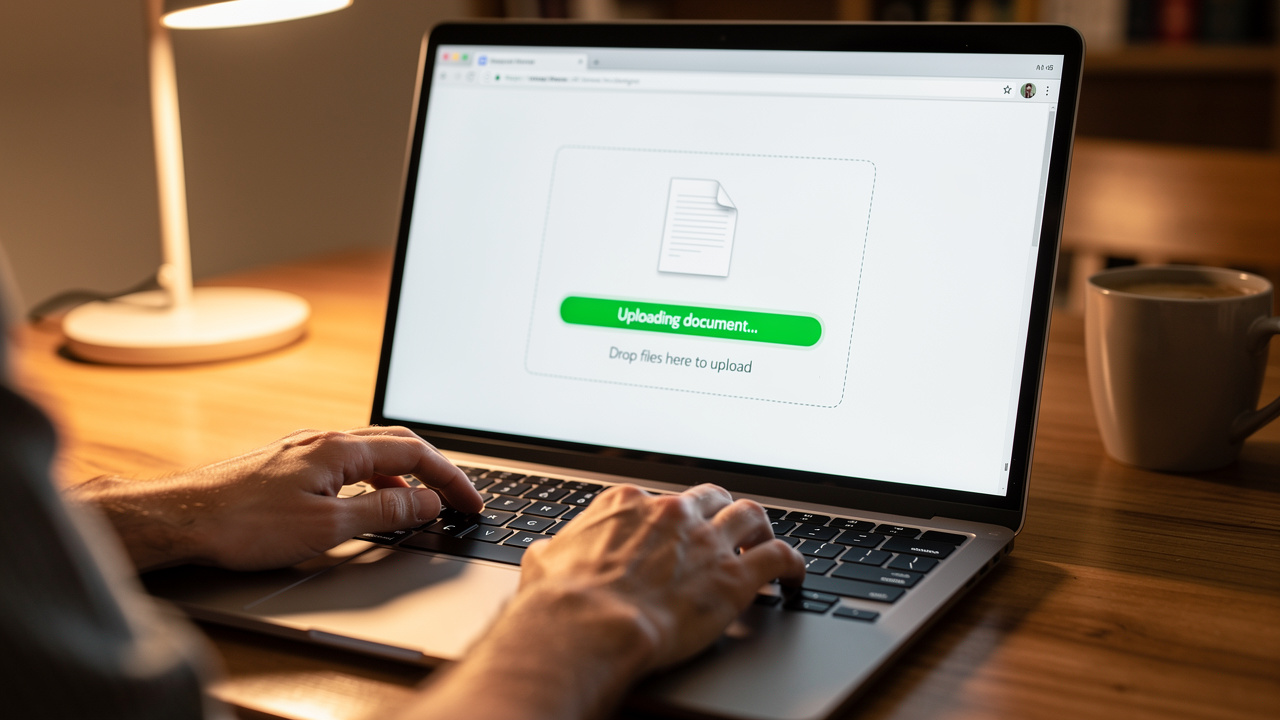
Here is the exact process you follow in iLovePDFKit when you want to edit a protected PDF without constant password prompts. These steps keep things simple even for someone who rarely works with PDFs. Read them once, and you will remember them the next time a locked file appears.
Open the iLovePDFKit – Remove Password from PDF page in any modern browser. You can use Chrome, Firefox, Safari, Edge, or another up‑to‑date option. No account screen appears, so you see the upload area right away.
Upload your locked PDF from your computer or mobile device. Drag and drop the file if it is visible on your desktop, or click the button to choose it from a folder. If the document lives in Google Drive or Dropbox, pick the matching icon and select it from there.
When the file uses an open password, the page asks you to type that password once. Enter the exact password you already use to open the file. iLovePDFKit checks it, then moves to the next step only if it matches.
Click the button to start the task after the password is accepted. iLovePDFKit removes the open password, which means the resulting file no longer requests it at launch. Processing happens in real time, so even larger PDFs usually finish in a short moment.
Download the new PDF back to your device or to Google Drive or Dropbox. Open it in your preferred editor, whether that is Adobe Acrobat, a browser viewer, or a word processor. You can now edit, comment, and print without entering a password again.
What to Look for in a PDF Password Removal Tool
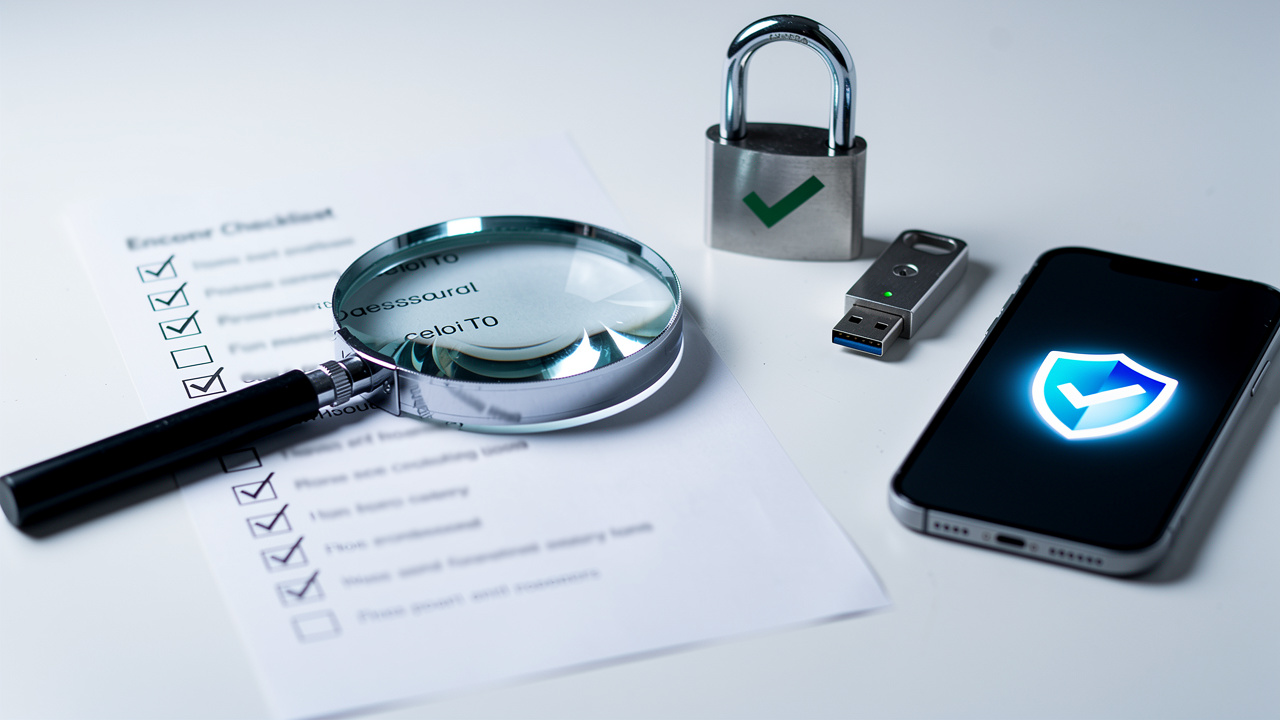
Picking the right PDF password removal tool protects both your documents and your privacy. Free sites are everywhere, but they do not all treat your data the same way. A short checklist can help you compare options such as iLovePDFKit, Smallpdf, or Adobe Acrobat Online.
Security should come first for grade reports, contracts, or health records. Make sure the address bar shows HTTPS with modern TLS encryption, so your file is not exposed while it moves. Standards groups like ISO and NIST recommend strong ciphers such as AES‑256, and serious services align their systems with those practices.
Next, look at cost, limits, and watermarks. Some sites let you edit a secured PDF online free only a small number of times each day before asking for payment. Others stamp their logo across each page, which makes the file unusable for real clients or teachers.
iLovePDFKit keeps the experience clean. The Remove Password from PDF feature is free with no daily caps, no hidden size limits, and no watermark. You also do not need to register, so you can make a locked PDF editable while sharing almost no personal data.
Finally, think about what happens after the lock is gone. Many people still need to convert the file to Word, combine several PDFs, or add a signature. Because iLovePDFKit bundles converting, merging, compressing, and signing tools alongside its PDF password remover, one visit can handle your entire task list.
Important Limitations and Legal Considerations

Any service that offers to remove PDF passwords for editing has real limits, and knowing them keeps expectations clear. iLovePDFKit is transparent that its Remove Password from PDF feature works only when you already know the password. That simple rule helps keep the tool focused on legitimate use.
If you forgot the password on a strongly encrypted PDF, no honest online tool can save that file for you. Strong ciphers are designed so guessing would take far longer than the age of the universe. In this case, the only safe move is to ask the original creator for a new copy or a reset.
Some document types also should not pass through an online PDF password remover at all. Digitally signed or certified PDFs can lose their trusted status once the security settings change. Paid e‑books and DRM‑covered manuals are controlled by license terms, and tampering with them may violate store policies or national law.
Legal permission always matters. You can remove PDF password protection from files you made yourself, from documents tied to your job role, or from items where the owner clearly allowed edits. You should not use any tool on exams, private records, or commercial works that you are not meant to modify.
Tip: If you are unsure whether you may edit a PDF, ask the sender for written confirmation before changing any content.
For very sensitive material, organizations often insist on offline tools run by internal IT teams so the file never leaves a controlled network. If you work with medical records, government data, or trade secrets, follow your local security policy instead of uploading those PDFs anywhere.
Locking Up the Conversation on Editing Locked PDFs
Removing a lock from a PDF so you can edit it is far less mysterious once you know the basics. You identify whether the file uses an open password or a permissions block, then apply the right method with a safe online tool.
For many people, iLovePDFKit offers the simplest path. The browser‑based Remove Password from PDF feature is free, quick, and clean, with no software installation or account sign‑up. After you create an editable copy, you can convert, compress, merge, or sign it on the same site.
If a locked PDF is slowing down your next assignment or client project, open iLovePDFKit in your browser and head to the Remove Password from PDF page. A few guided clicks can turn that stubborn file into one you can adjust and share with confidence. The next time you need to make a protected PDF editable, you can reach for iLovePDFKit instead of wrestling with locked menus.
Frequently Asked Questions
These quick answers cover common questions that appear when people try to edit a secured or protected PDF. Each response stands on its own, so you can focus only on the parts that match your case. For deeper detail, the main sections above go into more step‑by‑step guidance.
Question 1: Can I edit a secured PDF without knowing the password?
Answer: Usually you cannot edit a secured PDF without its open password. Encryption is designed to block both viewing and editing in that situation. iLovePDFKit only helps when you already know the password and want to stop typing it every single time.
Question 2: Is it legal to remove password protection from a PDF?
Answer: Yes, it is generally legal if you own the document or have clear permission to edit it. Removing the lock does not grant new copyright rights. You still must respect licenses, privacy laws, and any usage limits on the content.
Question 3: Is it safe to upload sensitive PDFs to an online password removal tool?
Answer: With iLovePDFKit, files travel over SSL‑protected connections, process in real time, and are deleted from servers right after the task finishes. For very sensitive material, such as medical or government records, many organizations still prefer local offline tools controlled by their IT teams.
Question 4: Why can’t I edit a PDF even after removing the password?
Answer: Many PDFs are just scanned images, so text is not editable until you run OCR on them. Other files simply work better when you convert them to Word or another editor first, then save back to PDF after making changes. A quick conversion often fixes stubborn edit problems — tools like PDF to Word – UnlockAnyPDF can turn a static PDF into a fully editable Word document in seconds.
Question 5: What happens if I forget my PDF password?
Answer: If you forget a strong PDF password, no respected service can recover it or bypass it. Your best option is to contact the creator for an updated file and start using a password manager to avoid this problem in the future.
