You need to write on a PDF today, maybe to fill out a form, add a note, or sign a contract, but you don’t own a printer or expensive software. That headache hits students finishing assignments, office staff completing paperwork, and freelancers sending contracts to clients. Printing wastes paper and time, and desktop software often costs money or needs an install you can’t do on a locked-down work laptop.
Writing on a PDF simply means adding text, notes, or a signature straight into the file using your browser, no software required. This guide walks through the exact steps to write on a PDF online, from uploading a file to saving your finished copy. You’ll also learn how to handle scanned pages, keep your files private, and use extra tools like merging or converting for related tasks. iLovePDFKit is one free option built for exactly these jobs, without accounts or watermarks getting in the way.
Keep reading to see how each writing tool works and which one fits your document.
Key Takeaways
- Writing on a PDF happens right in your browser, so no downloads or installs get in the way.
- Core tools include text boxes, highlights, sticky notes, signatures, and fillable form fields.
- Scanned PDFs need OCR (optical character recognition) before you can type over them.
- Encryption and a no-storage policy keep sensitive files like contracts or grades private.
- Free tools like iLovePDFKit offer this without watermarks or sign-ups getting in the way.
Table of Contents
- What Does It Mean to Write on a PDF?
- How Do I Write on a PDF Step by Step?
- What If My PDF Is a Scanned Document?
- Is It Safe to Write on a PDF Online?
- What Other PDF Tools Help With Document Writing Tasks?
- Wrapping Up
- Frequently Asked Questions
What Does It Mean to Write on a PDF?
Writing on a PDF means adding, changing, or marking up text, notes, and signatures directly inside the file itself. Instead of printing a document to fill it out by hand, you type, click, or draw right on the page using an online editor or app. This covers everyday tasks like completing a job application, leaving feedback on a report, or signing a lease without touching a printer.
Not every PDF behaves the same way once you open it, though. A born-digital PDF, created straight from Word to PDF, Excel, or PowerPoint, contains real, selectable text that you can edit right away. A scanned PDF is really just a convert PDF to image, so the letters are pixels rather than text until optical character recognition converts them into something you can click on and type over.
How Do I Write on a PDF Step by Step?
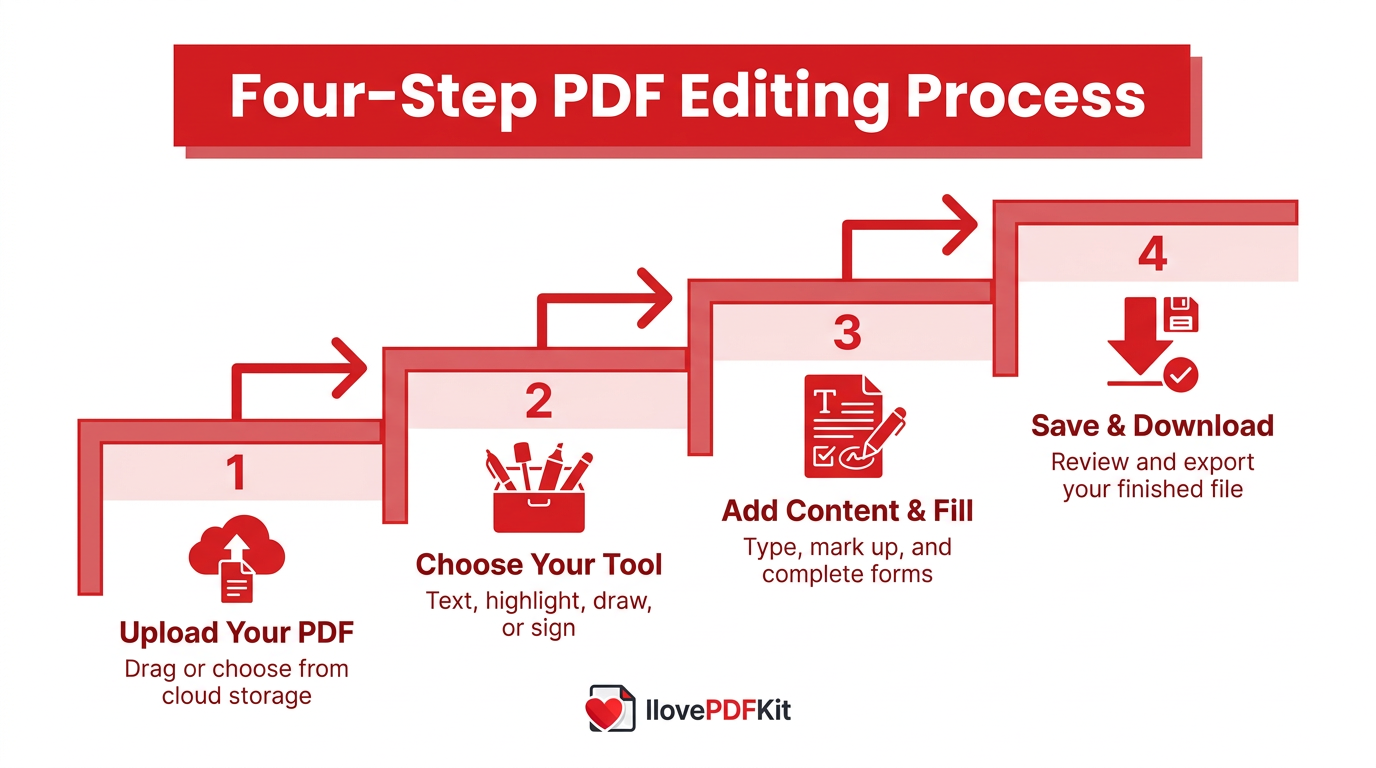
Writing on a PDF step by step starts the moment you upload a file to an online editor and ends when you download your finished copy. The whole process usually runs through four short stages, no matter which platform you choose. Each stage uses a specific tool, so knowing what each one does saves you from hunting through menus.
Step 1: Upload Your PDF
Getting a file ready starts with moving it into the editor. Drag and drop your PDF into the browser window, or pick one from your computer, Google Drive, Dropbox, or OneDrive. No account or install is needed, so you go from opening a tab to an editable file in seconds.
Step 2: Choose Your Writing Tool
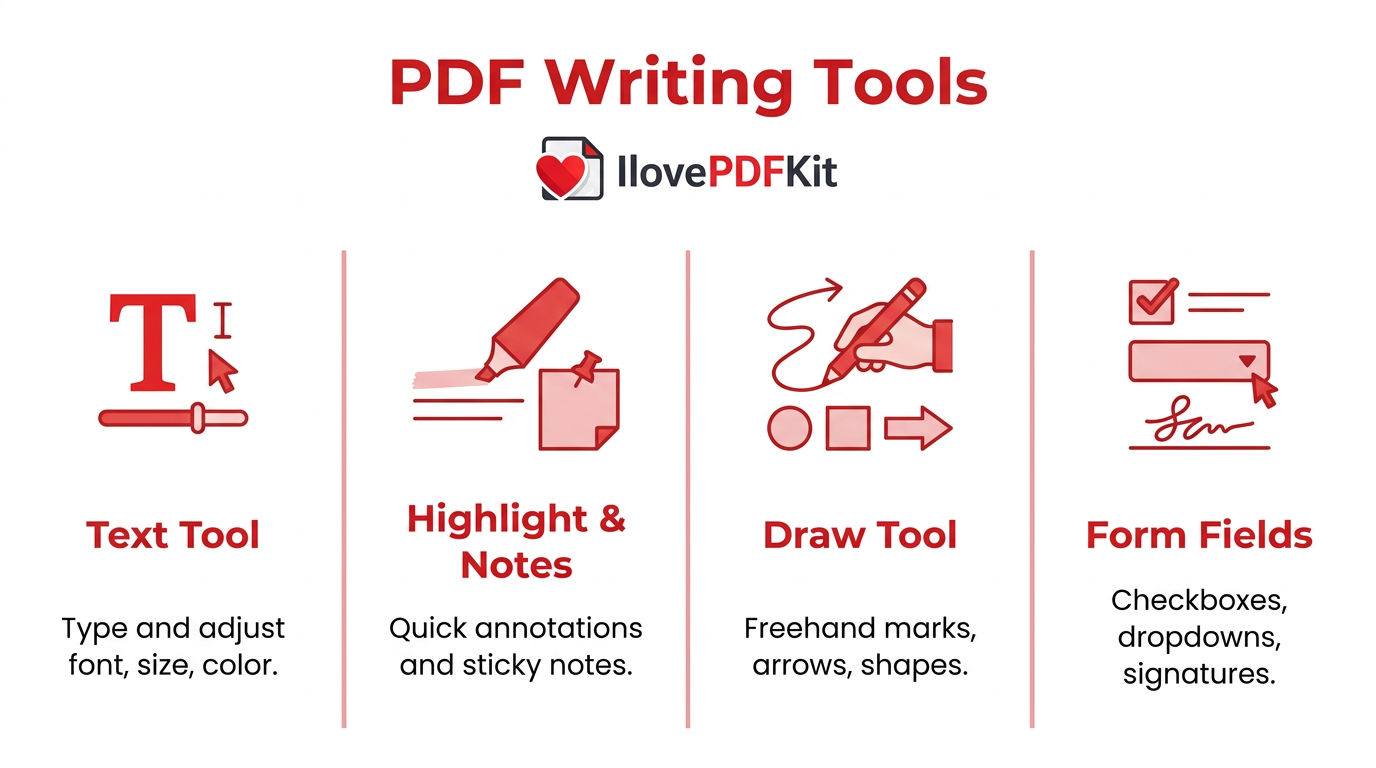
Once your file opens, pick the tool that matches your task:
- Text tool – click anywhere and type, with options to adjust font, size, and color to match the rest of the page.
- Highlight, underline, and sticky-note tools – handle quick annotations.
- Draw tool – adds freehand marks, arrows, or shapes when words alone won’t explain a point.
Step 3: Add Text, Fill Forms, or Sign
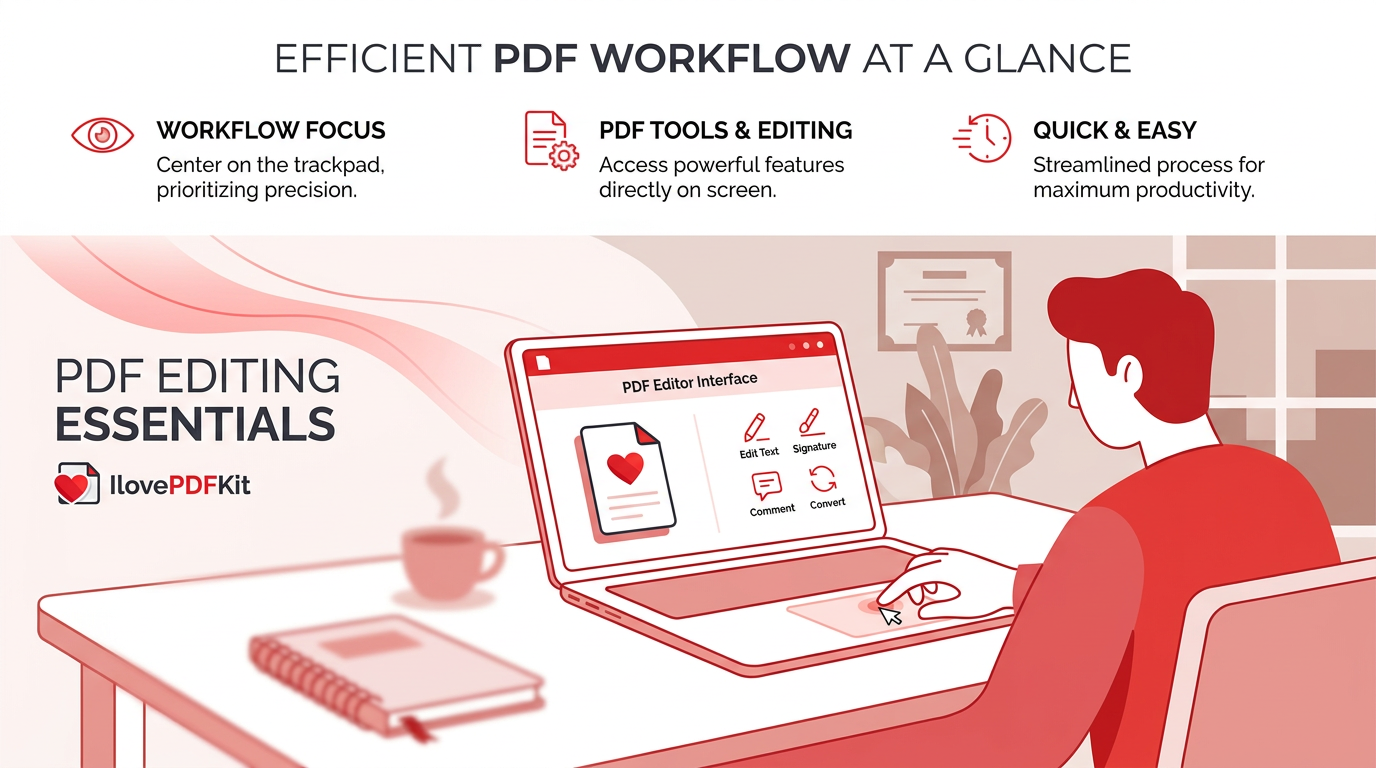
Adding new content is as simple as clicking where you want it to appear and typing. A text cursor drops right onto the page, letting you insert a sentence, correct a typo, or leave a note for a colleague without disturbing the rest of the layout.
Forms work the same way. Click into a checkbox, pick an option from a dropdown, or fill a blank field the way you would on paper, only faster. This makes quick work of registrations, applications, and intake forms that once meant printing and mailing paperwork. When a document needs authorization, add a signature by typing your name in a signature font, drawing it with a mouse or finger, or uploading a photo of your handwritten signature.
Step 4: Save and Download Your File
Before you finish, scroll through your changes to confirm the text sits where you meant it and every field is complete. Once everything looks right, download the file to your device, or export it to Word, export to Excel, or PowerPoint for heavier editing later. iLovePDFKit lets you download the finished PDF free, with no account or watermark attached.
What If My PDF Is a Scanned Document?
A scanned PDF resists typing because it’s really an image of a page rather than actual text your editor can recognize. When you photograph a document or run it through a scanner, every letter becomes a group of pixels, the same way a photo of a street sign isn’t clickable text. That’s why clicking a text tool on a scanned page often does nothing at all.
Optical character recognition, or convert scanned document to PDF, solves this by scanning those pixels and turning them into selectable, editable text. The platform includes built-in OCR, so a photographed lab report or a convert scanned PDF to Word turns into a searchable file you can type on and highlight just like any other PDF.
Is It Safe to Write on a PDF Online?
Writing on a PDF online is safe when the platform encrypts your file during upload and download and doesn’t hang onto a copy afterward. Reputable tools use 256-bit SSL encryption, a standard commonly recommended for protecting data while it travels over the internet. That level of protection matters when the file in question is a signed contract, a report card, or a bank statement.
Many trustworthy PDF platforms process files in real time and delete both the original and converted versions shortly after you download, so no one on their team ever opens or reviews your documents. Security researcher Bruce Schneier has long argued that protecting data works best as an ongoing habit rather than a single feature.
“Security is a process, not a product.” — Bruce Schneier, Security Technologist
What Other PDF Tools Help With Document Writing Tasks?
Writing text into a PDF is often just one task inside a bigger workflow that includes organizing and sharing files too. Handling everything in one place saves you from bouncing between different sites for each small job.
- Merge, split, and compress bring order to bulky documents. merging multiple pages or photos into one PDF helps students submit assignments as a single file, while splitting a long report lets you send just the pages a colleague needs. compressing shrinks a file so it clears email attachment limits without losing readability.
- Convert to Word, Excel, or PowerPoint when you need heavier editing than a text box allows, like reformatting whole paragraphs or recalculating a table of numbers. A single browser-based toolkit that bundles these conversions, plus image-to-PDF conversion for combining scans, means writing, organizing, and converting all happen without switching sites.
Wrapping Up
Writing on a PDF no longer means printing a page, filling it out by hand, and scanning it back in. A browser-based editor lets you add text, fill forms, sign documents, and fix scanned pages with OCR, all without installing software or paying for a license.
Whether you’re finishing a class assignment, processing a client contract, or organizing office paperwork, the right free tool saves real time and keeps your files private along the way. iLovePDFKit brings writing, converting, and organizing tools together in one place, with no sign-up and no watermark standing between you and a finished document. Give it a try the next time a PDF needs your signature or a quick note.
Frequently Asked Questions
Writing on a PDF raises a few common questions, especially around cost, mobile access, and what happens when a file resists editing. Here are straightforward answers to the ones readers ask most before they start typing on their own documents.
Can I write on a PDF for free without signing up?
Yes, several browser-based tools let you write on a PDF without creating an account or entering an email address. Options like these offer free text, annotation, and form tools with no watermark added to your finished file, so you download exactly what you made.
Why can’t I type on my PDF file?
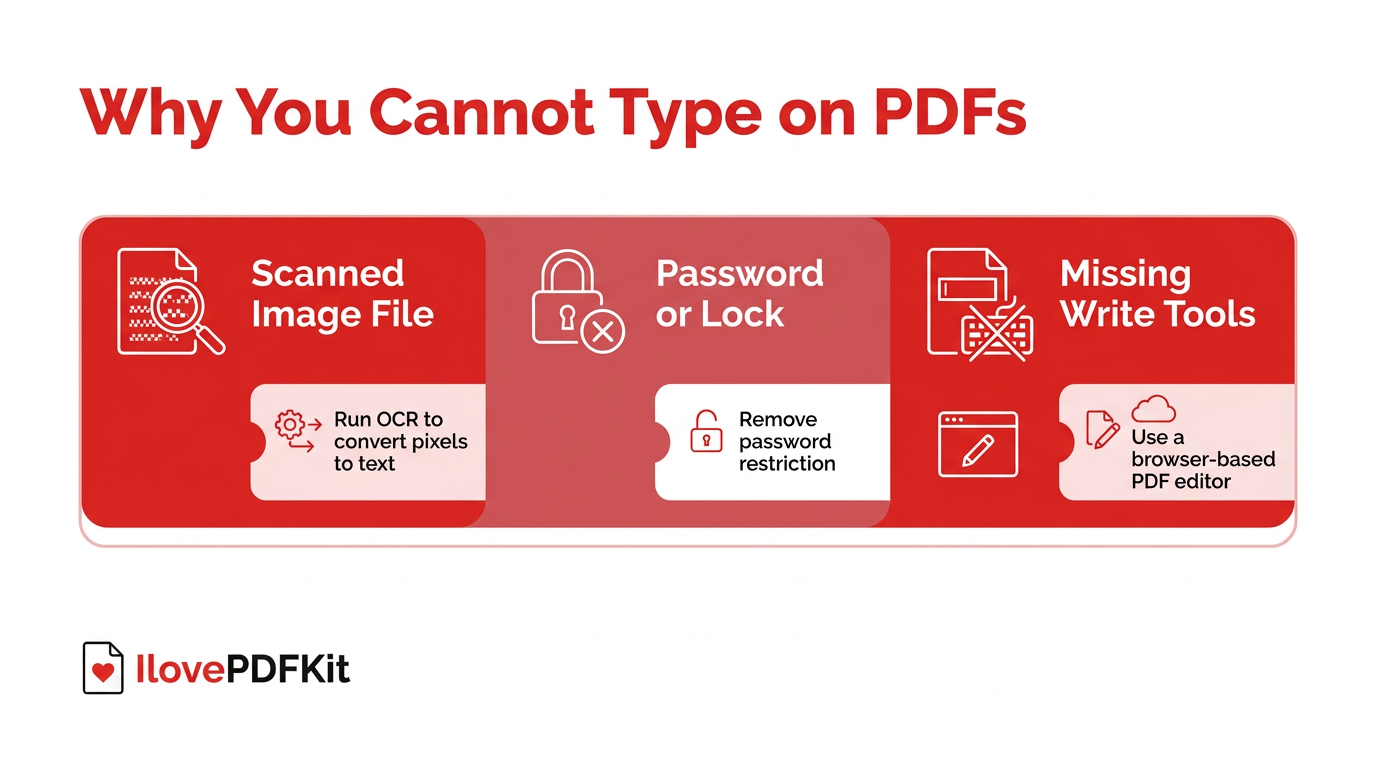
Usually one of three things blocks you:
- The file might be a scanned image instead of real text.
- It could carry a password or editing restriction.
- Your viewer might lack writing tools altogether.
Running OCR or removing the password with a password removal tool usually solves it.
Can I write on a PDF using my phone?
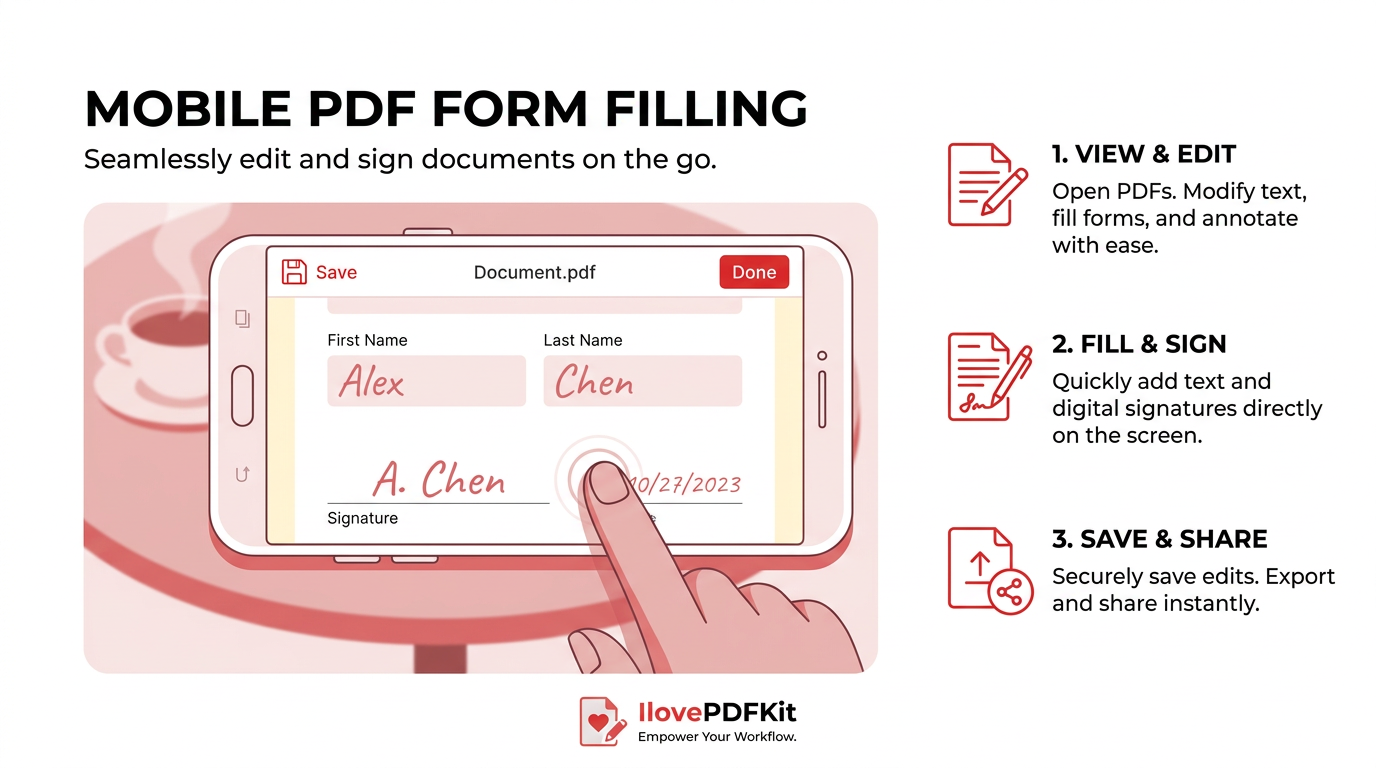
Yes, most browser-based PDF editors work fine on a phone without installing an app. You open the tool in your mobile browser, upload a file, and use touch-friendly buttons for text, highlights, and signatures. Detailed formatting is easier on a larger screen, but basic writing works well on mobile.
How do I remove or edit text I already added to a PDF?
Click on the text box or annotation you want to change before saving your file. Most editors let you select the added content directly, then edit the wording or delete it entirely with a single click, the same way you’d fix a typo in any text field.
Will writing on a PDF change its original formatting?
No, adding text boxes, highlights, or signatures sits on top of the page without altering the underlying layout. The rare exception happens with unusual or embedded fonts, which may shift slightly if the file gets converted to another format like Word during editing.
What file size can I upload to write on a PDF online?
Most free browser-based tools accept files up to around 100MB, which covers the vast majority of reports, forms, and assignments. If your file is larger, usually because it’s packed with images, compressing it first brings the size down without hurting readability.
