Introduction
Paying for Adobe Acrobat when you mostly convert files often feels wasteful. Many people search for an Adobe Acrobat online alternative instead, especially when school or small‑business budgets are tight.
The frustration grows when a simple Word to PDF task needs a login, a download, and a monthly fee. Extra menus, confusing buttons, and slow updates get in the way. Quick document jobs start to feel like heavy projects.
An Adobe Acrobat online alternative is any web tool that lets you convert, edit, or manage PDFs without expensive software. This guide walks through the best free and low-cost options in 2026, compares their strengths, and explains where iLovePDFKit fits as a top pick. It focuses on real tasks for students, office staff, office staff, freelancers, and small teams.
Ready to see which tools match your daily work and save real money? Keep reading for clear options.
Key Takeaways
Key points from this guide help you pick a smarter PDF tool. These notes highlight cost, features, and access style. Use them as a quick reference.
Adobe Acrobat subscriptions add steady monthly costs. Even light users feel that strain over time. Many pay for features they rarely touch, while free or cheaper PDF services often cover everyday needs.
A strong free option covers file conversion, merge, split, and compression. It keeps output clean and professional and avoids hidden limits that stop you mid-task.
iLovePDFKit stands out as a zero-cost online toolkit. It works without sign-up or watermarks and supports common formats for school, office, and client work.
Browser-based tools run on almost any device. They avoid installs and updates, which matters on locked school PCs, shared office machines, and phones.
Matching the tool to your workflow saves time. Students, office teams, and freelancers each benefit from slightly different feature sets.
Why Adobe Acrobat Falls Short for Everyday Users

Adobe Acrobat often feels heavy for everyday users because its price, setup, and interface do not match simple tasks. Many people then look for an Adobe Acrobat online alternative that feels lighter. The gap between what they pay for and what they use stays wide.
According to Adobe, Acrobat Standard starts at $12.99 per month and Acrobat Pro runs from $19.99 to $23.99 per month for each user. Those numbers add up quickly for students printing research papers or freelancers sending a few contracts. Office assistants who mostly convert or combine documents rarely touch the advanced tools they are paying for.
Cost is not the only friction. Acrobat often asks for sign-ups, linked Adobe IDs, and downloads before you can finish a simple conversion. The desktop-first design brings regular updates and features that differ from the web version, which confuses casual users. Menus feel dense, and learning the interface takes time that busy staff and students simply do not have.
“Perfection is achieved, not when there is nothing more to add, but when there is nothing left to take away.”
— Antoine de Saint‑Exupéry
For many people, Acrobat feels like the opposite of that quote: too many panels and options for simple day-to-day work. That mix of high subscription fees, forced accounts, and extra complexity pushes people toward simpler, browser-based options that solve the same problems faster.
The Best Adobe Acrobat Online Alternatives in 2026
The best Adobe Acrobat online alternative choices in 2026 focus on speed, price, and access from any browser. These tools trade heavy desktop installs for clean web interfaces that handle the most common PDF jobs.
This section highlights five strong options and who they fit best. It starts with iLovePDFKit for free, no-login workflows, then covers pdfFiller, WPS Office, Soda PDF, and ABBYY FineReader. Each option is judged on how you access it, which features you get, and how much you actually pay. Recent data from Pew Research Center shows that more than 85 percent of US adults own a smartphone, so browser tools that work across phones, tablets, and laptops now matter more than ever.
Together, these picks cover quick conversions, full editing, strong security, and high-end OCR, so you can match a tool to your real tasks instead of forcing your work into one product.
Quick Comparison Table
| Tool | Best For | Access Type | Pricing Snapshot* |
|---|---|---|---|
| iLovePDFKit | Free, no-login browser tasks | Web (desktop & mobile) | Free online tools |
| pdfFiller | Forms, templates, and eSignature workflows | Web (desktop & mobile) | From $8/month per user (Basic plan) |
| WPS Office | Offline editing with office suite | Desktop & mobile apps | Free tier; paid upgrades available |
| Soda PDF | Security-focused editing and permissions | Web & desktop | Paid plans; free 7-day trial |
| ABBYY FineReader PDF | High-accuracy OCR and document scanning | Desktop | Paid license; free 7-day trial |
*Pricing based on vendor information at the time of writing and may change.
iLovePDFKit — Best Free All-in-One PDF Toolkit
iLovePDFKit is one of the strongest free Adobe Acrobat online alternatives for anyone who wants fast PDF tasks in the browser with zero friction. You open the site, drop in a file, choose an action, and download the result. No account, no card, and no trial clock.
The platform runs entirely online in Chrome, Firefox, Safari, and Edge on desktop and mobile. It covers the most common PDF conversions, including:
Convert Word, Excel, PowerPoint, JPG, and PNG to PDF
Convert PDF back to editable Office formats
Keep fonts, tables, and images aligned so documents retain their layout
That layout accuracy means term papers, budgets, and slide decks look the same after conversion, so you do not spend extra time fixing spacing or broken tables.
iLovePDFKit also covers daily document management tasks, such as:
Merge several PDFs into one
Split long reports into smaller sections
Compress large files for email or online submissions
Add page numbers for reports and assignments
Lock or unlock password-protected PDFs
There are no hidden file-size caps, no watermarks on output, and no sudden upgrade prompts after a few tasks. Internal data shared by iLovePDFKit shows that thousands of users run these tools every day across school, office, and freelance workflows.
Security is designed around privacy. All transfers use SSL encryption, files are processed in real time, and both original and converted documents are deleted from servers right after download. Nothing stays stored on the platform. That policy makes iLovePDFKit especially appealing for contracts, grades, invoices, and research drafts that should not live on third-party servers.
pdfFiller — Best Full-Featured Cloud Alternative

pdfFiller is a strong choice for people who want a cloud service that rivals Acrobat’s range of tools while staying more affordable. It is fully web based, with the same interface on Windows, macOS, and mobile browsers, so teams do not have to learn different layouts.
According to pdfFiller, more than 64 million users rely on the platform, and research from G2 shows a 4.6 out of 5 rating compared with Adobe Acrobat’s 4.5. The Basic plan starts at $8 per month, while the Premium plan at $15 per month adds powerful eSignature workflows, team controls, and custom branding. Many companies switching from Acrobat report savings above 35 percent on licensing.
pdfFiller suits HR, legal, and compliance teams that need reusable templates, signing sequences, and clear audit trails. It connects with Google Drive, Dropbox, OneDrive, and Box, so existing storage stays in place and staff can send documents for signing with just a few clicks.
WPS Office — Best Free Option for Full Editing Control
WPS Office works well for users who want a free desktop suite with strong PDF editing. Its free tier supports annotations, highlights, comments, and conversions between PDF and Word, Excel, or PowerPoint. Direct saving back to PDF often uses a quick format-convert step, but that extra click costs only a few seconds.
A 7-day premium trial without a credit card unlocks direct editing, OCR, merge, split, and compression. That short window can cover intense bursts of work, such as thesis formatting or a contract-heavy project. The tabbed interface combines word processing, spreadsheets, and presentations in one place, so you can switch documents without juggling separate apps.
WPS Office fits students and freelancers who prefer offline tools and are comfortable managing installations on their own devices. It is especially handy on laptops that may spend long stretches without a reliable internet connection.
Soda PDF — Best for Security-Conscious Users
Soda PDF focuses on secure handling of sensitive files while still covering everyday editing and conversion needs. It offers strong encryption and password controls, along with detailed permission settings so different teammates see only what they should. For example, some people can edit, some can comment, and others only view.
Its OCR handles small embedded text well and can even read words inside logos or low-resolution scans. Soda PDF also lets you create PDFs from websites by entering a URL, then merge Word, PowerPoint, JPEG, and other formats into a single file. A free 7-day trial runs with no card required, making it easy to test security features on real documents.
Security-aware roles in law, finance, and healthcare like that Soda PDF supports 256-bit AES encryption, a standard described by NIST as suitable for very sensitive information.
Tip: If you work with regulated data, ask your IT or compliance team to review any new PDF tool before putting it into everyday use. A quick review now can prevent policy problems later.
ABBYY FineReader PDF — Best for Digitizing Paper Documents
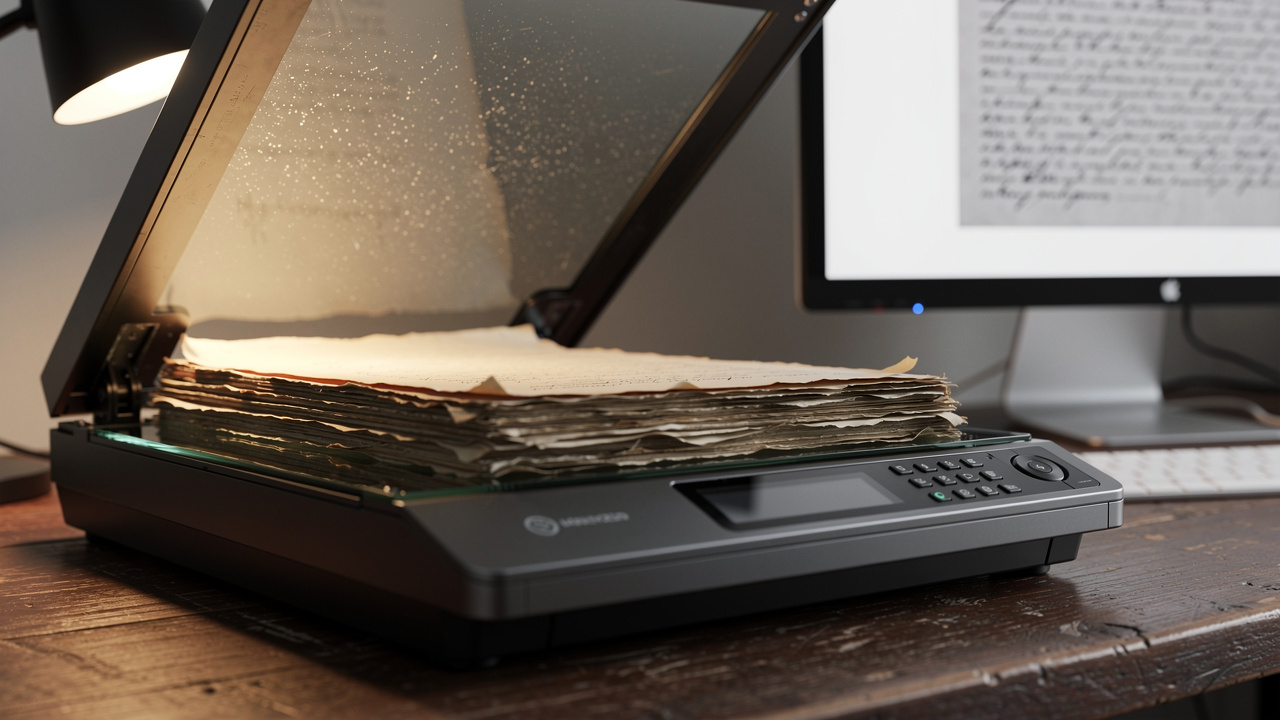
ABBYY FineReader PDF stands out for high-accuracy OCR and document digitization. If your main task is turning stacks of paper or image-based PDFs into searchable, editable text, this is the specialist you consider.
The software connects directly to scanners, then shows the original page beside the editable version so you can spot and fix recognition errors. It handles complex layouts, such as multi-column research articles or low-quality photocopies, far better than many general tools. According to ABBYY, its OCR engine is trained on hundreds of languages and varied document types.
FineReader also includes basic PDF editing, digital signatures, fillable forms, and image cleanup tools like straightening and color balance. A 7-day free trial with no payment details lets you test large scanning projects before buying and see how much time automated OCR can save.
What to Look for in Any Adobe Acrobat Alternative
Choosing an Adobe Acrobat online alternative works best when you judge tools against everyday tasks, not long feature lists. The right pick should handle your real document flow with as few steps as possible. Students, office staff, and freelancers share many needs, but a few details differ.
At a base level, you want smooth conversion between PDF and Word, Excel, PowerPoint, JPG, and PNG, plus reliable merge, split, and compression. Those functions cover most assignment submissions, report packages, and client packets. Services like iLovePDFKit add helpful extras such as page numbers and password control in the same place.
Trust signals matter too. A strong privacy model means no forced registration, no watermarks, and no long-term file storage. Browser tools that delete files after processing give peace of mind when you upload contracts, grades, or financial records. iLovePDFKit builds this idea into its core design rather than hiding it in a small-print setting.
When comparing tools, keep these checks in mind:
Look at how well the converter keeps layout intact. Tables, charts, headings, and fonts should stay stable. Poor results create extra editing work later, which defeats the point of automation.
Check whether OCR is available if you handle scans or images. Good OCR turns printed pages into searchable text. This feature supports researchers, legal teams, and anyone cleaning up paper archives.
For contract-heavy work, review eSignature features and access controls. You may need signer order, reminders, and clear audit trails. Lighter tools such as iLovePDFKit can prepare documents before signing, while platforms like pdfFiller handle the signing workflow itself.
Confirm security basics. Look for SSL encryption, 256-bit AES, and clear deletion policies. When in doubt, read each vendor’s privacy policy and security page carefully.
Tip: Make a short list of the three PDF tasks you do most often and test each tool only on those jobs. That keeps comparisons focused and makes it easier to see which service actually helps you day to day.
Cloud-first tools that run in a browser avoid installs, version conflicts, and device limits, making them easier to roll out across classrooms, offices, and side-hustle setups.
The Bottom Line: Choosing the Right PDF Tool for Your Needs

Picking the right Adobe Acrobat online alternative comes down to matching your tasks and budget with the right mix of features. No single product fits every case, but this group covers nearly all common workflows.
iLovePDFKit is the natural starting point for most people. It handles daily work such as converting, merging, splitting, compressing, and securing PDFs at zero cost, with no sign-up and no stored files. Students racing to submit assignments, assistants preparing reports, and freelancers sending proposals all benefit from that speed.
pdfFiller fits teams that live inside forms and signatures. WPS Office suits users who want offline editing. Soda PDF shines when document security is central, and ABBYY FineReader helps anyone serious about scanning and archiving paper. Try iLovePDFKit in your browser for your next document task, then layer paid tools only if your workflow clearly needs more.
Frequently Asked Questions
Question 1: Is there a completely free Adobe Acrobat alternative with no watermarks?
Yes, iLovePDFKit is completely free and does not add watermarks. All tools are available without registration, task limits, or hidden fees. Many “free” converters reduce quality or stamp branding on pages until you pay, but iLovePDFKit keeps every output clean and ready to share.
Question 2: Can I convert a Word document to PDF online without creating an account?
Yes, iLovePDFKit lets you convert Word to PDF directly from the browser with no account. You open the site, upload the .docx file, choose the convert option, wait a few seconds, then download the finished PDF. The whole process usually finishes in under a minute.
Question 3: Are online PDF tools safe for sensitive documents?
Many online PDF tools are safe when they use SSL encryption, strict deletion policies, and strong server security. iLovePDFKit processes files in real time, then deletes originals and outputs right after download, so nothing remains stored. For legal, medical, or finance files, always read each tool’s privacy and security pages first.
Question 4: What is the best free alternative to Adobe Acrobat for students?
For most students, iLovePDFKit is the best free choice because it needs no installation, works on shared campus computers, and never asks for registration. It converts, merges, and compresses documents for class quickly. WPS Office is a helpful extra when offline editing on a personal laptop matters.
Question 5: Do free PDF tools work on mobile devices?
Yes, browser-based tools such as iLovePDFKit work on phones and tablets through any modern browser. You do not need to install an app, which helps on devices with limited storage. Just open the site, upload the file, run the tool you need, and download the result.
