Picking the right software for a scattered team can feel like shopping without a list. You open ten browser tabs, compare feature pages, and still aren’t sure which app actually fits your workflow. This happens because cloud based productivity and collaboration tools now cover dozens of categories, from chat apps to design boards to document editors, and most of them promise to do everything.
The problem gets worse when teams pile on tool after tool, hoping the next app will fix a workflow issue that a simpler fix could solve. Subscriptions stack up, logins multiply, and nobody remembers which platform holds the latest file version.
This guide breaks down what cloud based productivity and collaboration tools actually are and why they matter for remote, hybrid, and in-office teams alike. You’ll find a rundown of the most useful platforms for communication, project tracking, and design work, plus the core features worth checking before you commit to any subscription. We’ll also cover where everyday document tools, like iLovePDFKit, fit into a bigger collaboration stack.
Let’s look at what these tools actually do before comparing specific options.
Key Takeaways
- Cloud collaboration tools let teams edit, share, and discuss work in real time from any location, without physical servers or dedicated office space.
- Look for real-time editing, file sharing, strong security, and integrations before picking a platform for your team.
- Microsoft 365, Google Workspace, Slack, Asana, Figma, and Miro each serve different core functions, so match the tool to the task at hand.
- Choose tools based on team size, budget, and actual workflow needs rather than chasing every trending app on the market.
- Everyday document conversion, through tools like iLovePDFKit, is an often-overlooked piece of a smooth collaboration workflow.
Table of Contents
- What Are Cloud-Based Productivity and Collaboration Tools?
- What Key Features Should You Look For?
- Which Cloud Collaboration Tools Are Worth Using?
- How Do You Choose the Right Tool for Your Team?
- What Benefits Can You Expect From Cloud Collaboration Tools?
- The Takeaway
- Frequently Asked Questions
What Are Cloud-Based Productivity and Collaboration Tools?
Cloud based productivity and collaboration tools are software platforms hosted on the internet that let people work together on shared projects in real time, no matter where they sit. Instead of installing programs on one machine, team members log into a browser and reach the same files, chats, and tasks instantly. This setup removes the need for a physical server room or a shared office just to get work done together.
This shift matters because remote and hybrid work are now standard practice, not exceptions. Distributed teams need a way to edit a document, hold a meeting, or track a project without passing files back and forth by email. Cloud collaboration spans many categories, including file storage, design, messaging, and project tracking, each solving a different piece of the daily workflow puzzle.
What Key Features Should You Look For?
Before comparing specific apps, it helps to know which features actually drive day-to-day productivity. Cloud based productivity and collaboration tools should offer real-time editing, so multiple people can work on one file without sending versions back and forth by email. Task management features keep track of who owns which piece of work and when it’s due. Strong security, smooth integrations with other apps, and solid mobile access round out the list of features worth checking before you sign up for any platform.
Real-Time Collaboration and File Sharing
Real-time collaboration means multiple users can open the same document and watch each other’s cursors move as edits happen live. This cuts out the back-and-forth of emailing updated drafts and waiting for replies. Centralized file storage keeps every version in one place, with access controls that decide who can view, comment, or edit specific files, whether they’re internal staff or outside collaborators.
Security and Integration Capabilities
Security features like encryption and compliance with standards such as GDPR and HIPAA protect sensitive files from unauthorized access, which matters for contracts, medical records, or student data. Integrations between core apps, like the setup described in Microsoft’s guide to collaborating with Teams, SharePoint, and OneDrive, also cut down on manual data entry, so information moves between systems without someone copying and pasting it by hand.
Which Cloud Collaboration Tools Are Worth Using?
Different cloud based productivity and collaboration tools serve different core jobs, and no single app does everything well. Office suites handle documents and spreadsheets, communication apps manage chat and calls, design tools support visual work, and project trackers keep tasks organized. Picking a thoughtful combination, rather than signing up for every popular app, avoids redundant subscriptions and keeps your team from juggling five logins to finish one task.
Microsoft 365 and Google Workspace for All-in-One Productivity
Microsoft 365 bundles Word, Excel, PowerPoint, Teams, and OneDrive into one subscription, with Copilot adding AI assistance for drafting and summarizing content. Google Workspace centers on Docs, Sheets, and Slides, with Gmail-based sharing and Gemini AI built in. Its Starter plan costs $7 per user monthly with 30GB of pooled storage, scaling up to the Standard plan at $14 per user monthly for 2TB.
Slack and Asana for Communication and Task Management
Slack organizes team chat into channels, with huddles for quick voice calls and Workflow Builder for automating approvals. Slack has reported that automations on its platform can save teams roughly a third of the time they’d otherwise spend on repetitive tasks, and its Pro plan runs $8.75 per user monthly, dropping to $7.25 when billed annually. Asana tracks tasks and deadlines through boards, lists, and Gantt-style timelines, and its Personal plan stays free for up to two users.
Figma and Miro for Visual Collaboration
Figma lets design teams edit interfaces together in real time, with FigJam for whiteboarding and Dev Mode for handing specs to developers. Its free Starter plan includes limited AI credits, while a full Professional seat costs $16 a month, and the platform holds a 4.7 out of 5 customer rating for its collaborative design features. Miro offers an infinite canvas with over 2,500 templates, plus Talktrack for recording async video walkthroughs that keep distributed teammates aligned across time zones.
iLovePDFKit for Everyday Document Conversion and Management
Big suites handle meetings and chat well, but daily work still produces Word files, scanned PDFs, and spreadsheets that need quick conversion. iLovePDFKit covers that gap by converting PDFs, Word, Excel, and PowerPoint files, along with images, entirely in the browser with no installation or sign-up required. It preserves formatting with pixel-perfect accuracy, skips watermarks, and runs on 256-bit SSL encryption with a zero-storage policy, which matters when handling contracts or student assignments. It also merges, splits, compresses, and OCR-converts scanned files, slotting into any team’s existing workflow.
How Do You Choose the Right Tool for Your Team?
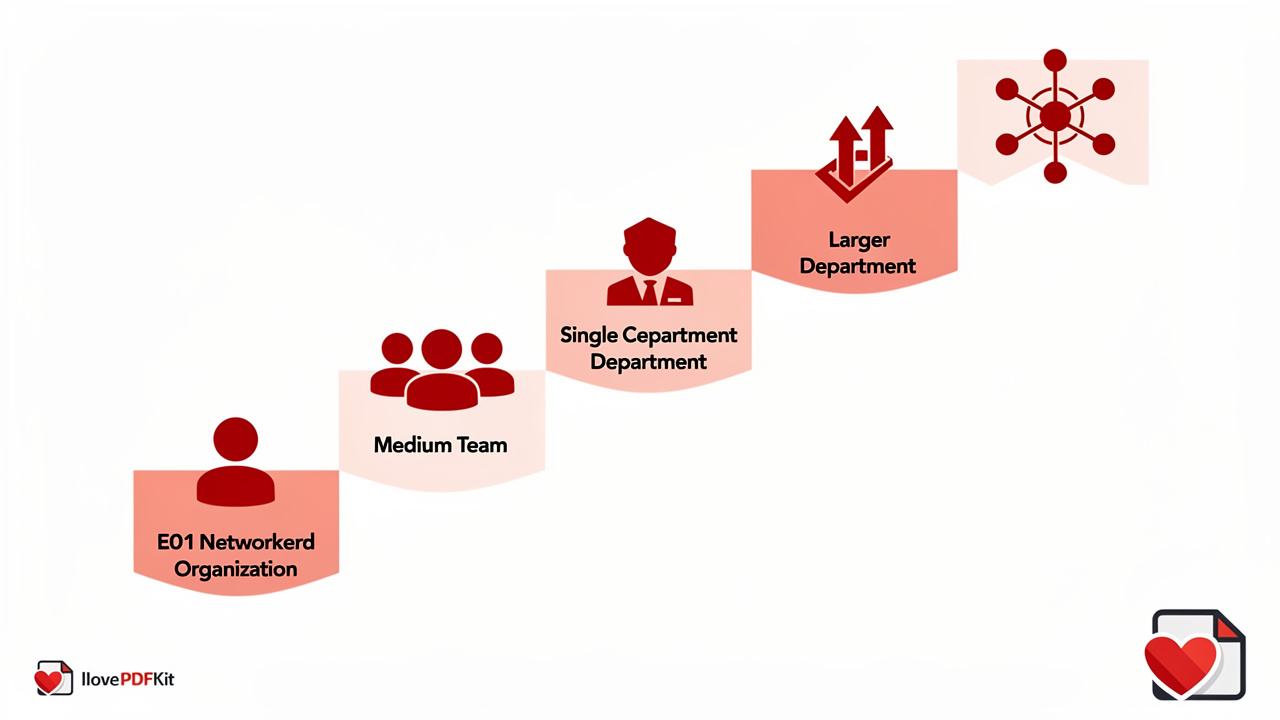
Choosing the right cloud based productivity and collaboration tools starts with matching the tool to an actual team function, not chasing whatever app is trending. A five-person freelance studio rarely needs the same project management depth as a 200-person company, so start by listing the specific tasks that slow your team down today. If messaging is already clunky, fix that first instead of adding a design tool nobody asked for.
Budget and growth matter just as much as features. Compare free tiers against paid plans, check whether pricing scales fairly as you add people, and test how quickly new team members can learn the interface. A tool that looks impressive in a demo but takes weeks to adopt often costs more in lost time than its subscription fee.
| Team Size | Primary Need | Suggested Starting Tools |
|---|---|---|
| Solo or freelance | Document conversion and light file sharing | iLovePDFKit, Google Workspace free tier |
| Small team (2-10) | Chat and task tracking | Slack free plan, Asana Personal |
| Growing business (10-50) | Design and project coordination | Figma, Miro, Asana Starter |
| Established company (50+) | Full suite with admin controls | Microsoft 365, Google Workspace Standard |
Tip: Before adding a new tool to your stack, ask whether an existing app already solves the problem. Most workflow friction comes from too many overlapping tools, not too few.
What Benefits Can You Expect From Cloud Collaboration Tools?
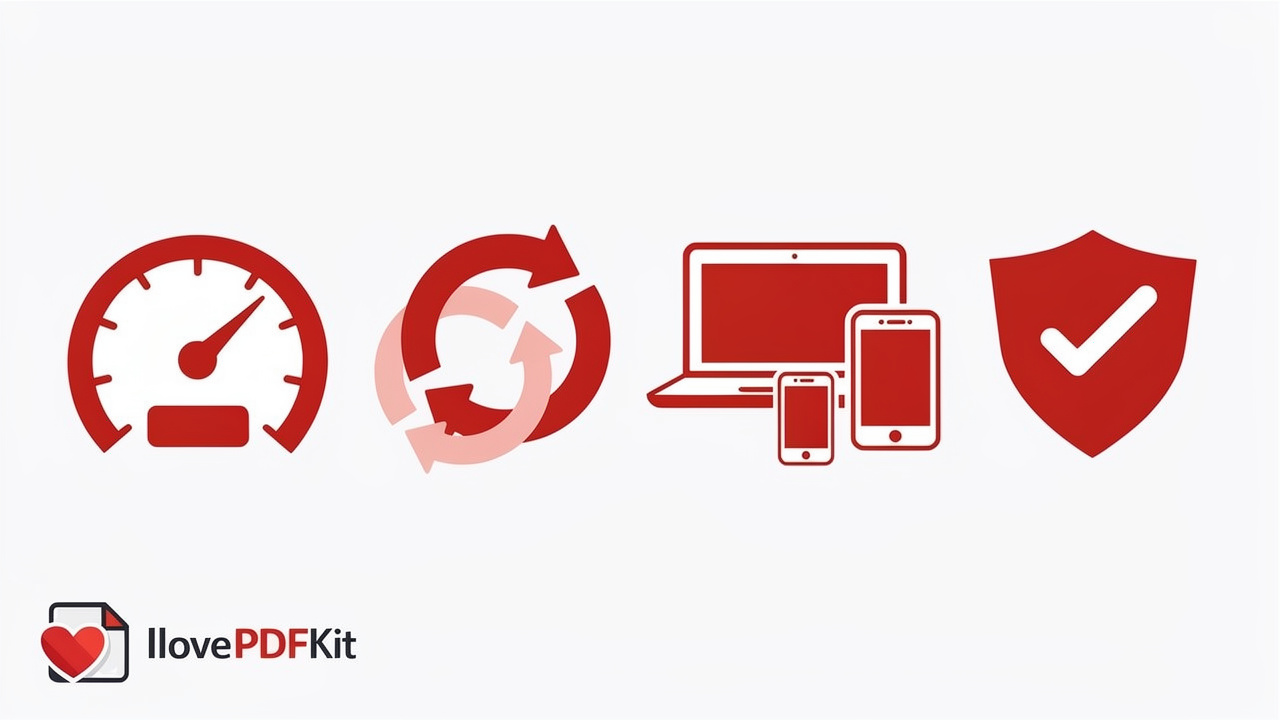
Teams that adopt cloud collaboration tools typically see faster turnaround on everyday work, since real-time editing and shared task boards cut out the delays of emailing files back and forth. Centralized storage also lowers costs, because organizations skip the physical servers and dedicated IT staff that in-house systems once required.
Remote and hybrid teams gain flexibility too, accessing the same files and conversations from a laptop, tablet, or phone. protect PDF with password, including encryption and compliance certifications like SOC 2, also replaces older, riskier habits like emailing sensitive files as plain attachments.
Key benefits at a glance:
- Faster turnaround through real-time editing and shared task boards
- Lower overhead by skipping physical servers and extra IT staff
- Flexible access across laptops, tablets, and phones
- Stronger security through encryption and compliance certifications
The Takeaway
The right mix of cloud based productivity and collaboration tools depends less on which app has the longest feature list and more on how your team actually works. A five-person freelance group needs a different stack than an office running weekly cross-department reviews, so start small, test a few platforms, and add tools only when a real gap shows up.
Big collaboration suites handle meetings, chat, and project tracking well, but everyday document tasks still need a fast, dependable option. Pairing a platform like Microsoft 365 or Slack with a lightweight, free tool such as iLovePDFKit for converting and managing PDFs rounds out a workflow that covers both the big picture and the small daily tasks.
Frequently Asked Questions
Cloud collaboration tools raise plenty of practical questions, especially around security, pricing, and everyday use. The answers below cover the basics that students, freelancers, and office teams ask most often before picking a platform, from encryption standards to whether you need to install anything at all. Use these quick answers as a starting point before testing any specific tool.
Are Cloud Collaboration Tools Safe for Sensitive Documents?
Yes, most reputable platforms use strong encryption, such as 256-bit SSL, to protect files during upload and processing. Many also hold compliance certifications like SOC 2, GDPR, or HIPAA for regulated industries. Tools with a pdf tools no watermark add another layer of protection by removing files from servers shortly after processing completes.
Can I Use Cloud Collaboration Tools for Free?
Yes, most major platforms offer a usable free tier. Google Workspace, Slack, Asana, and Miro all let small teams collaborate without paying anything upfront. The tool goes further, offering completely free PDF to Word converter with no paid tiers, hidden fees, or registration required at any point.
What’s the Difference Between Cloud Storage and Cloud Collaboration Tools?
Cloud storage, like a shared drive, mainly saves and shares files between people. Cloud collaboration tools go further, adding real-time editing, chat, task tracking, and document management for business on top of that storage. Storage alone keeps files accessible; collaboration tools let multiple people actively work on those files together at once.
Do I Need to Install Software to Use These Tools?
No, most modern cloud based productivity and collaboration tools run entirely inside a web browser. The platform works the same way, letting users convert, split PDF online free and Office files on Chrome, Firefox, Safari, or Edge without downloading any program first.
How Many Cloud Tools Should a Small Team Actually Use?
Most small teams do well starting with two to four core tools, covering communication, project tracking, and file handling. Adding more apps than that often creates confusion instead of solving it, with team members forgetting which platform holds which file. Start lean and add tools only when a clear gap appears.
Can Cloud Collaboration Tools Work on Mobile Devices?
Yes, most leading platforms offer dedicated iOS and Android apps, or at least a mobile-friendly browser version. Microsoft 365, Google Workspace, Slack, and Asana all support phones and tablets. Browser-based document tools work the same way, letting you compress PDF on mobile on a phone in a few simple steps.
