Converting one Word document to PDF takes a few clicks. Converting fifty of them, one at a time, can eat up an entire afternoon. Students racing toward a submission deadline, office staff prepping a stack of reports, and freelancers closing out a project all hit this same wall sooner or later.
Bulk conversion solves this by letting you convert multiple Word files to PDF in a single batch instead of repeating the same steps over and over. iLovePDFKit is a free, browser-based tool built for exactly this job, turning dozens of DOC or DOCX files into PDFs without installs or sign-ups. This guide walks through how the process works, why formatting stays intact, what alternatives exist, and how to keep your files secure along the way.
Here’s a look at why bulk conversion matters so much once your file count starts climbing.
Key Takeaways
- Bulk conversion beats converting files one by one once you pass a handful of documents, saving real time for students and professionals alike.
- iLovePDFKit lets you convert multiple Word files to PDF for free, directly in your browser, with no installation or account sign-up required.
- Quality conversion tools preserve fonts, images, tables, and layout so your PDFs look identical to the original Word files.
- Encrypted transfers and automatic file deletion keep sensitive documents safe during online conversion.
- The right method depends on your needs: browser tools for speed, desktop software for offline work, and scripts for large IT jobs.
Table of Contents
- Why Convert Multiple Word Files to PDF at Once
- How to Convert Multiple Word Files to PDF Online for Free
- Will My Formatting Stay Intact After Conversion
- Other Ways to Batch Convert Word Files
- Is It Safe to Convert Word Files to PDF Online
- The Takeaway
- Frequently Asked Questions
Why Convert Multiple Word Files to PDF at Once
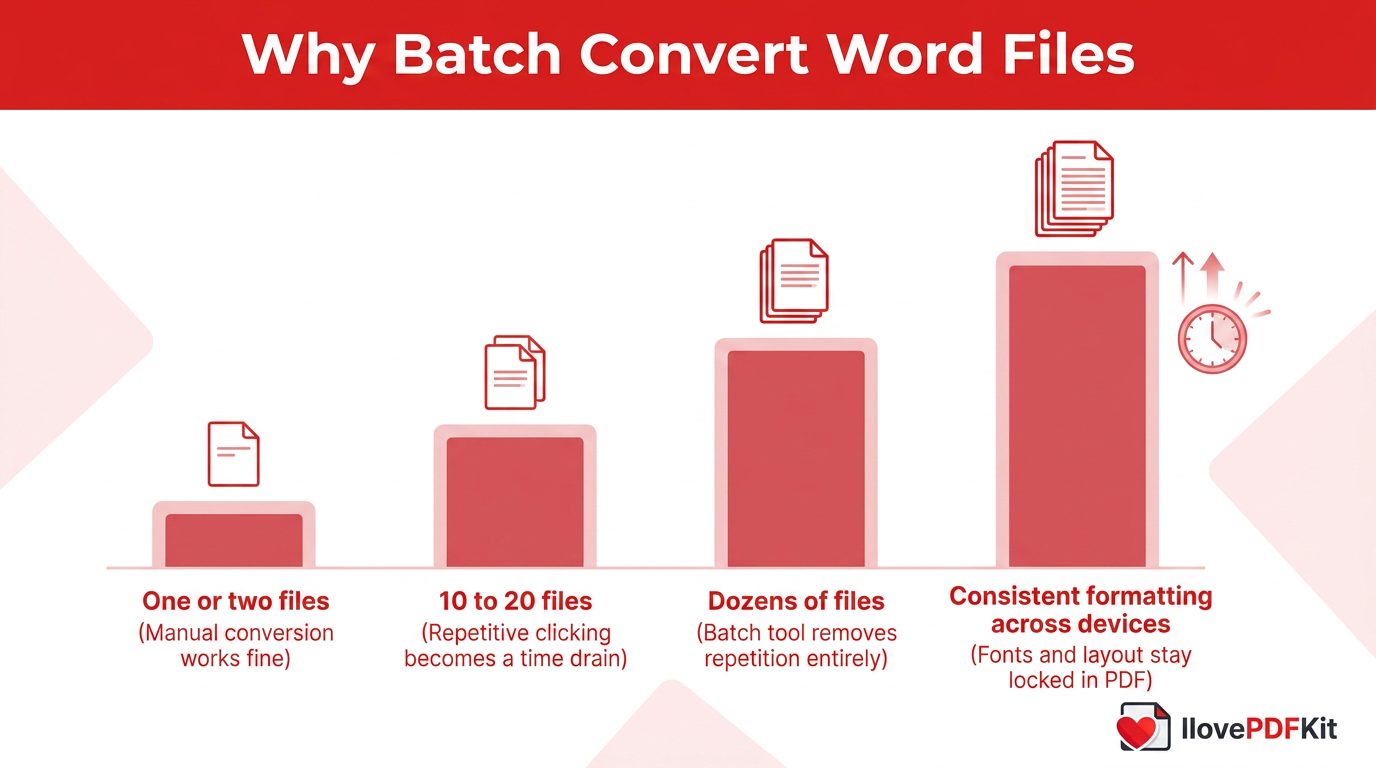
Converting multiple Word files to PDF at once means processing a whole batch of documents in a single action instead of repeating the same export steps file after file. PDF format locks in fonts, images, and layout so a document looks identical whether it opens on a Windows laptop, a Mac, or a phone. This consistency matters most when documents move between people, since Word files can shift formatting depending on the software version or operating system used to open them. For research papers, business reports, and client deliverables, that kind of predictability keeps the final version looking exactly as intended.
Converting one file at a time works fine when you only have a document or two. Once you pass 10 or 20 files, though, the repetitive clicking through Word’s Save As menu turns into a genuine time drain. Students finishing a semester of assignments, administrative staff processing stacks of reports, and freelancers wrapping up a project all run into this same bottleneck. A batch tool removes the repetition entirely, letting you upload a whole folder and walk away while the conversion runs.
How to Convert Multiple Word Files to PDF Online for Free
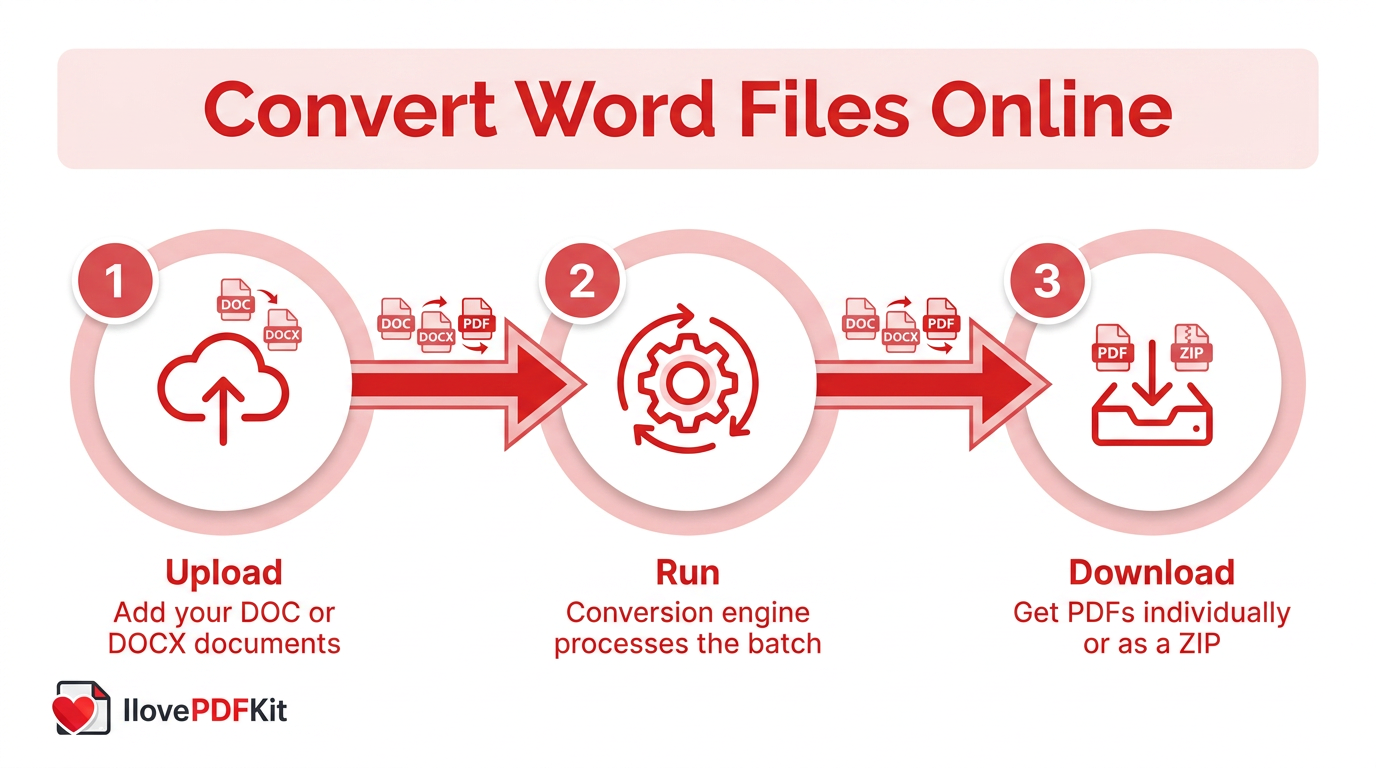
Converting multiple Word files to PDF online for free comes down to three actions:
- Upload your documents
- Run the conversion
- Download the results
Browser-based tools handle the entire process on their own servers, so nothing installs on your device and no system resources get used up. iLovePDFKit is one option built specifically for this kind of batch work, converting DOC, DOCX, RTF, and TXT files without charging a fee or requiring an account. The sections below break down the exact steps and explain what makes a bulk conversion tool worth trusting with your documents.
Step by Step Using iLovePDFKit to Batch Convert Word Files
Open the Word to PDF tool in your browser through iLovePDFKit, no download or account needed to get started. Drag your Word documents directly into the upload box, or click to browse and select several DOC or DOCX files at once from your device. The tool queues every file you add, so you can build a batch of five or fifty documents in the same session. This selection step is where most of the time savings happen compared to opening files one by one in Word.
Once your files are queued, click convert and the engine processes each document in the background. Depending on file size and count, the batch usually finishes within seconds to a couple of minutes. When it’s done, download your PDFs one by one or grab them all together in a single ZIP file. Spend a moment opening a couple of the results to confirm everything came through as expected before you submit or share them.
Why It Stands Out for Bulk Conversion
The tool skips the restrictions that trip people up on other free options. There’s no registration wall, no watermark stamped across your finished PDF, and no daily cap limiting how many files or pages you can process. The conversion engine rebuilds each document natively, preserving fonts, embedded images, tables, and page layout so the output looks identical to your original Word file. That pixel-perfect accuracy matters most for academic papers and business reports, where formatting mistakes reflect poorly on the person submitting them.
Every file transfer runs over an SSL-encrypted connection, and uploaded documents get deleted from the server shortly after conversion finishes. There’s no long-term storage of your content unless you choose to save results to a connected cloud account. Because the entire process runs in a browser, it works the same way on Windows, Mac, Linux, Android, and iOS without any platform-specific software to install. That flexibility suits anyone who switches between a work laptop and a personal phone during the day.
Will My Formatting Stay Intact After Conversion
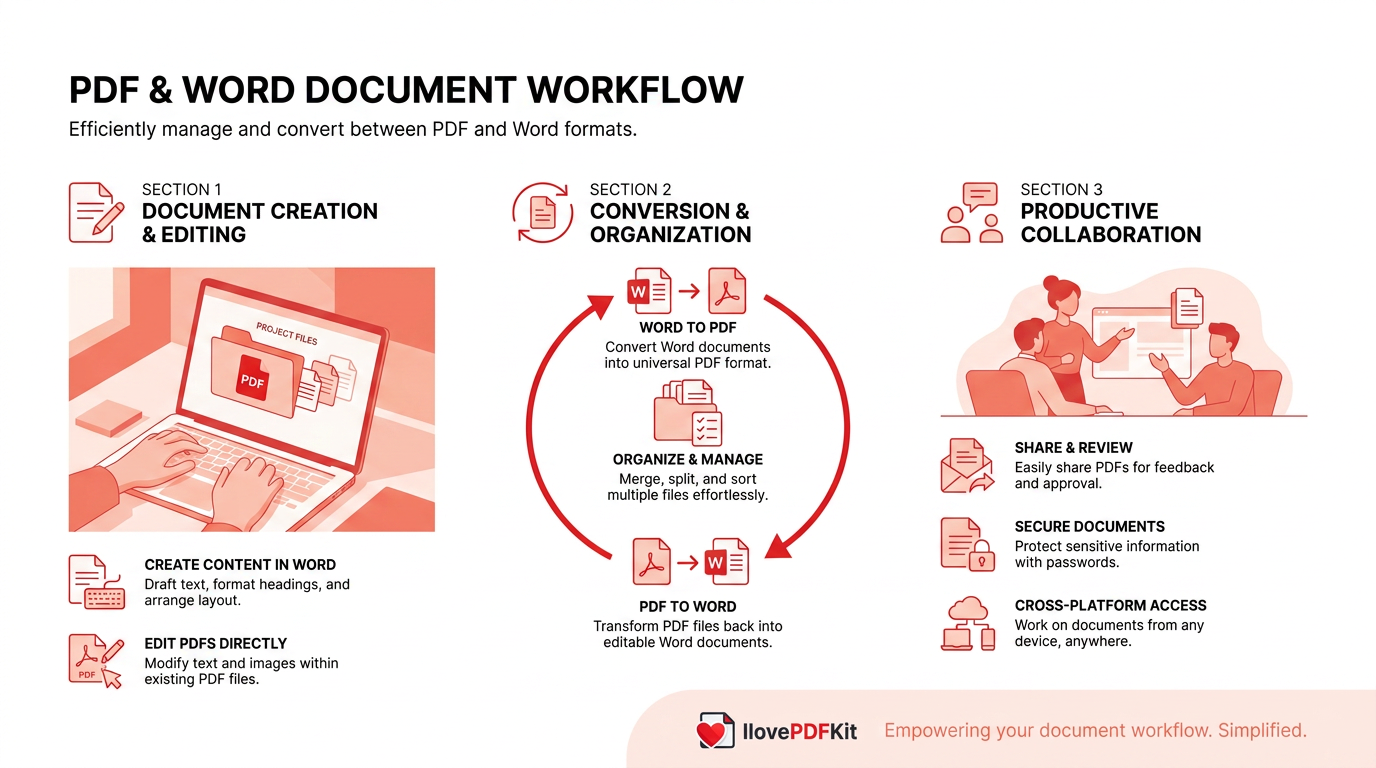
Formatting usually survives conversion just fine, provided the tool you use rebuilds documents natively rather than flattening them into images. Fonts, embedded pictures, tables, bullet lists, and page margins should all carry over exactly as they appeared in the original Word file. This matters because PDF was built specifically to guarantee documents look the same no matter which device or software opens them. A well-executed conversion produces a file that’s visually indistinguishable from the DOCX or DOC it came from, which is exactly what academic submissions and business reports require.
Even so, it’s worth spot-checking your results, especially with documents that contain unusual fonts, embedded objects, or complex tables. Open a handful of the converted PDFs and scroll through a few pages before you submit or send them anywhere. Catching a formatting slip on two or three files takes seconds and saves you from resubmitting an entire batch later. This small habit matters most when you’re converting dozens of documents at once and can’t review every single page.
Tip: Always spot-check documents with heavy formatting — embedded charts, footnotes, and multi-column layouts are the most likely spots for a conversion hiccup.
Other Ways to Batch Convert Word Files
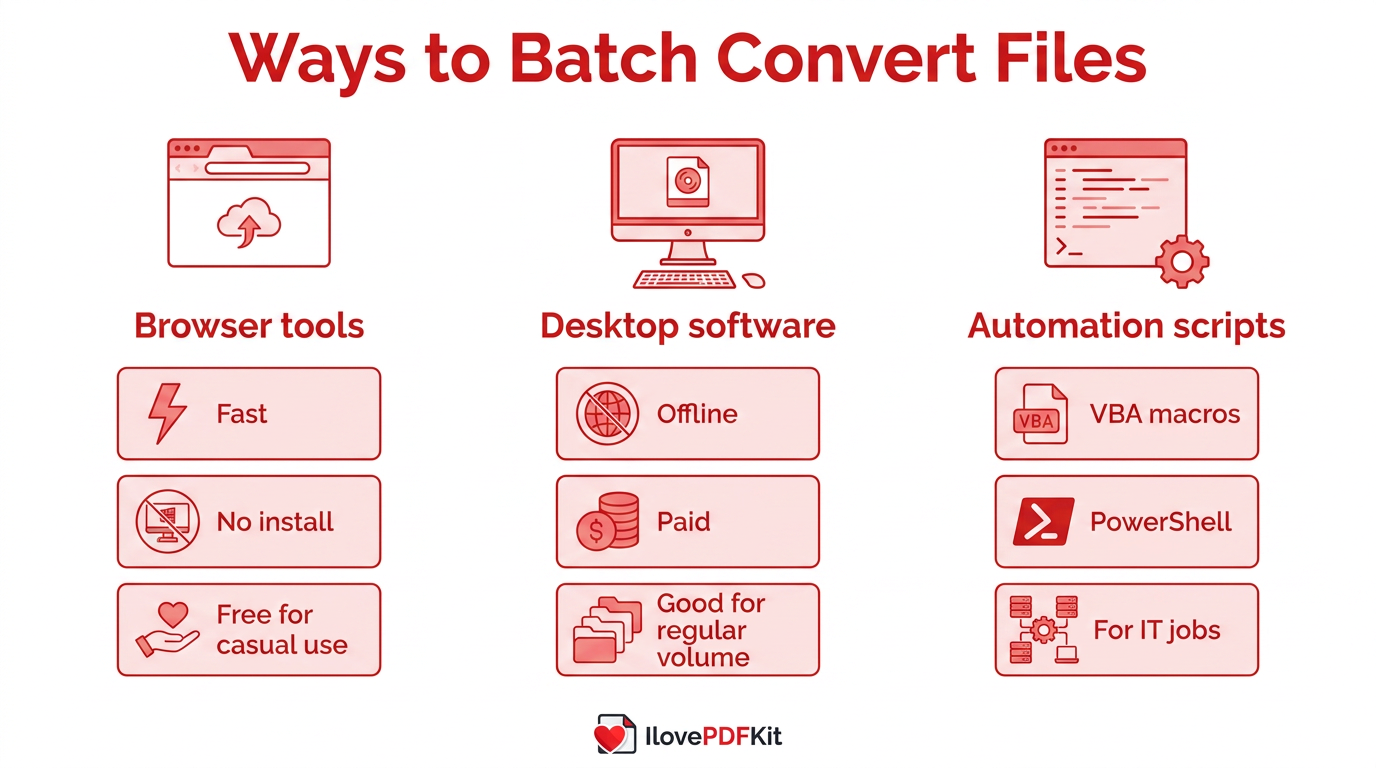
Online converters aren’t the only route to batch-convert Word files, though they tend to be the fastest for most people. Some readers prefer software that runs entirely offline, or need to automate a repeating task across hundreds of documents. Desktop applications and scripting tools both handle this, trading the convenience of a browser tool for extra setup time, cost, or technical know-how. Choosing between these options usually comes down to how often you convert files, how sensitive the documents are, and whether you’re comfortable with a bit of technical configuration.
Desktop Software and Automation Scripts
Adobe Acrobat Pro includes a batch conversion feature alongside advanced tools like OCR, page editing, and file compression, though it requires a paid subscription after its free trial period. Desktop applications such as PDF24 Creator install directly on your computer, and other desktop batch conversion software can process folders of DOCX, XLSX, and other formats without needing an internet connection for each file. Both options suit users converting large volumes regularly or working under strict rules against uploading documents to outside servers.
More technical users sometimes automate the job entirely instead of using any interface at all:
- VBA macros Word supports macros that loop through a folder of DOCX files and save each one as a PDF automatically.
- PowerShell scripts Windows users can achieve something similar by calling Word’s automation interface directly.
These approaches take more setup than a browser tool, but they pay off for IT administrators converting hundreds of files as a recurring task.
Is It Safe to Convert Word Files to PDF Online
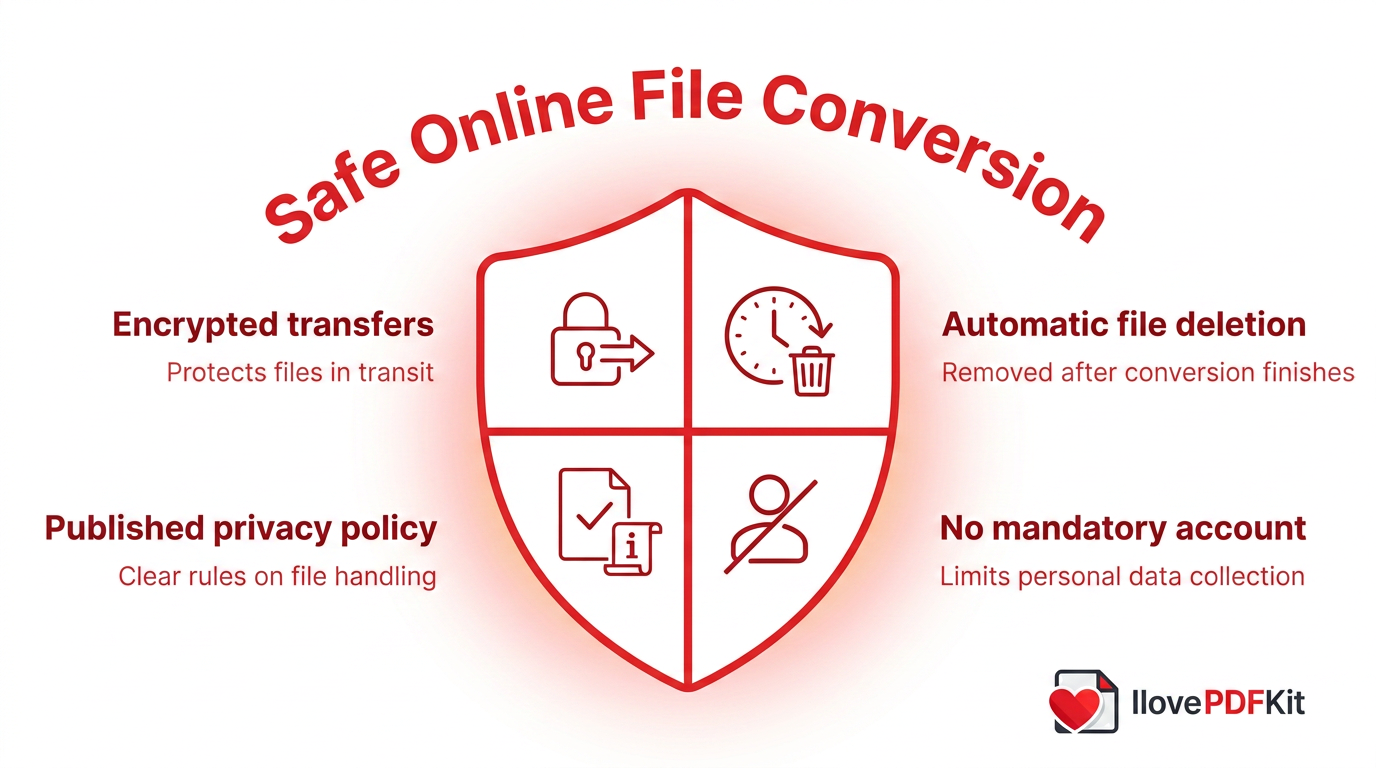
Converting Word files to PDF online is safe as long as the service you choose follows basic security practices. Look for:
- Encrypted transfers, which protect your files while they move between your device and the provider’s servers
- Automatic file deletion once the conversion finishes
- A published privacy policy explaining exactly how long files stay on their servers and what happens to them afterward
- No mandatory account creation, which limits how much personal information a service collects from you
iLovePDFKit follows these same practices, encrypting file transfers and removing uploaded documents from its servers shortly after processing completes. There’s no requirement to create an account or sign in to convert and download your files, which keeps the process quick and limits data collection. For anyone converting research data, client contracts, or financial records in bulk, checking these details before uploading a large batch is worth the extra minute.
The Takeaway
Converting multiple Word files to PDF one at a time might work when you only have a document or two, but it stops making sense the moment your file count climbs into the dozens. Batch conversion tools solve this by letting you upload, convert, and download an entire set of documents in one continuous action, cutting a task that could take hours down to a few minutes.
iLovePDFKit brings this to students, office professionals, and freelancers as a free, browser-based option that skips installs, sign-ups, and watermarks while keeping formatting and security intact. The next time you’re staring down a folder of Word files that need converting to PDF, give a batch tool a try instead of exporting them one by one.
Frequently Asked Questions
Here are quick answers to common questions about converting multiple Word files to PDF in bulk.
How Many Word Files Can I Convert To PDF At Once?
Most online tools handle dozens of files in a single session without trouble. iLovePDFKit and similar converters typically support batches of this size for free. If you’re working with 100 or more documents, splitting them into two or three smaller batches keeps processing smooth.
Can I Convert DOC And DOCX Files Together In One Batch?
Yes, modern converters accept both DOC and DOCX formats in the same upload. You don’t need to convert older DOC files into DOCX first, since the tool recognizes and processes each format automatically within the same batch.
Do I Need To Install Any Software To Convert Word Files To PDF?
No installation is required with browser-based tools like iLovePDFKit. You open the converter in any modern browser, upload your files, and download PDFs directly, with nothing to download onto your device.
Will Converting Word To PDF Remove My Images Or Tables?
No, quality conversion tools preserve images, tables, and layout exactly as they appear in the source file. It’s still smart to open a few converted pages afterward and confirm everything transferred the way you expected.
Is There A File Size Limit For Word To PDF Conversion?
Many free tools cap individual file uploads around 100MB per document. That covers nearly every standard Word file, even ones packed with images or embedded charts, so most users never come close to the limit.
What Happens To My Files After I Convert Them Online?
Reputable services delete both the original upload and the converted PDF from their servers shortly after processing finishes. There’s no long-term storage involved unless you specifically choose to save results to a connected cloud account.
Can I Download All My Converted PDFs Together?
Yes, many converters offer a download all option that bundles your finished PDFs into a single ZIP file. This saves time compared to downloading dozens of files individually after a large batch conversion.
