Introduction
The same file can look perfect on one screen and messy on another. Margins shift, fonts change, and a neat table suddenly breaks across pages. Many people learn the hard way that a shared Word file does not always stay the way they designed it.
That is where knowing how to convert Word to PDF makes life easier. A PDF freezes the layout, fonts, images, and spacing so the document looks the same on any computer or phone. Teachers, clients, and teammates can open it in a browser without installing Word, and it feels more like a finished document than a draft.
This guide walks through several simple ways to handle how to convert Word to PDF in seconds. It covers iLovePDFKit for fast, free, browser-based conversion, plus the built-in tools in Microsoft Word on Windows and Mac. By the end, anyone can turn a Word file into a clean, shareable PDF without tech stress or extra software.
Key Takeaways
Converting Word to PDF preserves layout. Fonts, images, and spacing stay locked in place, so there are no surprise line breaks when someone opens the file on another device. The document looks like a snapshot of the original.
iLovePDFKit shows how to convert Word to PDF online for free. It runs in any modern browser without downloads or signups. Files convert in seconds with no watermarks.
Microsoft Word can also convert Word to PDF on its own. Save As, Export, and Print to PDF all create clean PDFs offline. These options help when working with sensitive files.
Good tools protect both quality and privacy. Look for HTTPS in the address bar and a clear no-file-storage policy. With the right method, the whole process usually takes under half a minute.
Why Convert Word To PDF?
Before focusing on how to convert Word to PDF, it helps to know why it matters. A Word document is great while writing and editing, but it is not always stable when shared. Different versions of Word, missing fonts, or changes in page size can shift everything.
A PDF acts more like a printed page on a screen. It keeps margins, headings, lists, and images exactly where they belong. This matters a lot for resumes, academic papers, invoices, and contracts, where small changes can cause confusion or look unprofessional.
As many office trainers like to say, “If the layout matters, send a PDF, not a Word file.”
PDFs also open almost anywhere. Modern browsers and phones can display a PDF with a simple tap. The person on the other end does not need Microsoft Office, which removes one more small hassle during busy days.
Here are five quick reasons many people choose PDF over Word when sharing a final file:
Formatting stays frozen. A PDF works like a visual snapshot of the document. Everyone sees the same layout from first page to last page.
PDFs feel more professional. Sending a PDF tells people the file is ready to read, not a rough draft. That can make a better impression on teachers, managers, or clients.
Accidental edits are less likely. Most people read PDFs rather than edit them. That protects prices, grades, dates, and signatures from being changed by mistake.
Security options are stronger. PDFs can use passwords and limit printing or copying. These controls help when sharing contracts, exam papers, or private reports.
Compatibility problems almost disappear. A PDF does not care which font pack or operating system the reader has. If they can open a browser, they can open the file.
How To Convert Word To PDF Using iLovePDFKit
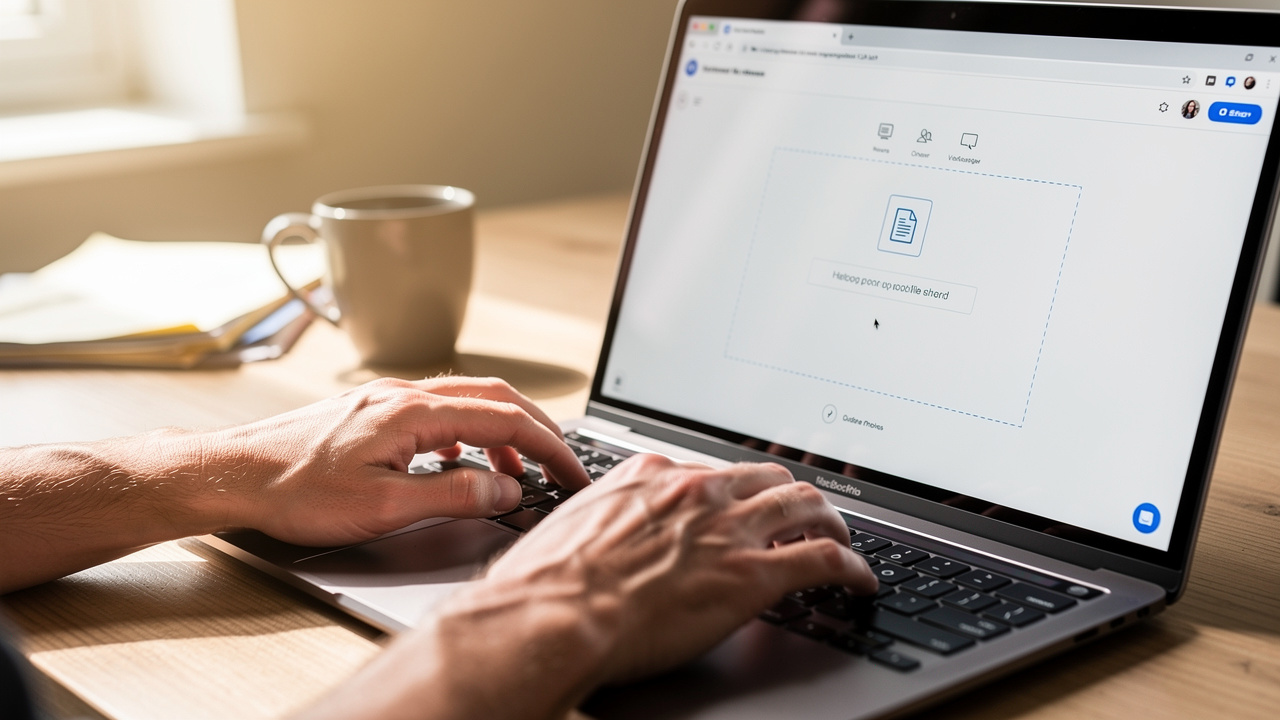
When someone just wants a fast way to handle how to convert Word to PDF, iLovePDFKit is often the easiest choice. There is nothing to install, nothing to register, and no trial that ends later. Open the site in any modern browser on a laptop, tablet, or phone and start right away.
The interface keeps things simple. A clear upload area sits in the middle of the screen, with support for drag and drop or manual file selection — similar to other popular DOCX to PDF–Convert Word tools available online today. The Word to PDF converter accepts DOC and DOCX files, along with other common formats, and turns them into clean PDFs without extra steps.
Here is the basic process from start to finish:
Open iLovePDFKit in a browser. Go to iLovePDFKit and choose the Word to PDF tool. The page loads in a few seconds. This works in Chrome, Edge, Firefox, Safari, and other modern browsers on both desktop and mobile.
Add the Word file. Click the upload button and pick the document from the device, or drag the file from a folder into the upload area. This works on Windows PCs, Macs, tablets, and phones.
Let the automatic conversion run. As soon as the file finishes uploading, the engine starts to convert it to PDF. There is no need to change settings first, which saves time for people who only want a standard PDF.
Download the finished PDF. When the process ends, a download button appears. One click saves the new PDF to the device, ready to email, upload, or print.
A few things make iLovePDFKit stand out for people who care about speed and accuracy:
The service focuses on pixel-perfect output, which means fonts, tables, images, and page breaks match the original Word file.
Longer reports or image-heavy documents keep their layout, so there is no need to fix anything later.
Conversion is fast even with larger files because the engine is tuned for quick processing.
Every feature needed to learn how to convert Word to PDF is free to use, and the site does not add watermarks or ask for payment after a few files.
There is no account step, which means no extra passwords to remember.
Security is a core part of the design. All uploads use HTTPS, the same type of encrypted connection that banks use for their sites. Files are processed in real time and removed from the server right after conversion, so documents do not sit in storage.
iLovePDFKit also helps beyond Word to PDF. It can convert PDFs back to Word, Excel, PowerPoint, or image formats, and turn many file types into PDFs. That makes it handy for anyone who often switches between document types.
Here are a few quick examples of how different people use it:
| User Type | Typical File | How iLovePDFKit Helps |
|---|---|---|
| Student or academic | Essays, lab reports, theses | Turns drafts into stable PDFs for online submission without layout changes |
| Freelancer or small business owner | Invoices, quotes, brochures | Creates polished PDFs that look good for clients and stay consistent with branding |
| Office professional | Contracts, meeting reports, manuals | Converts working files to shareable PDFs in seconds before mailing or archiving |
Anyone who prefers to work offline can still do that. The next section shows how to convert Word to PDF inside Microsoft Word itself, with no web browser at all.
How To Convert Word To PDF Directly In Microsoft Word
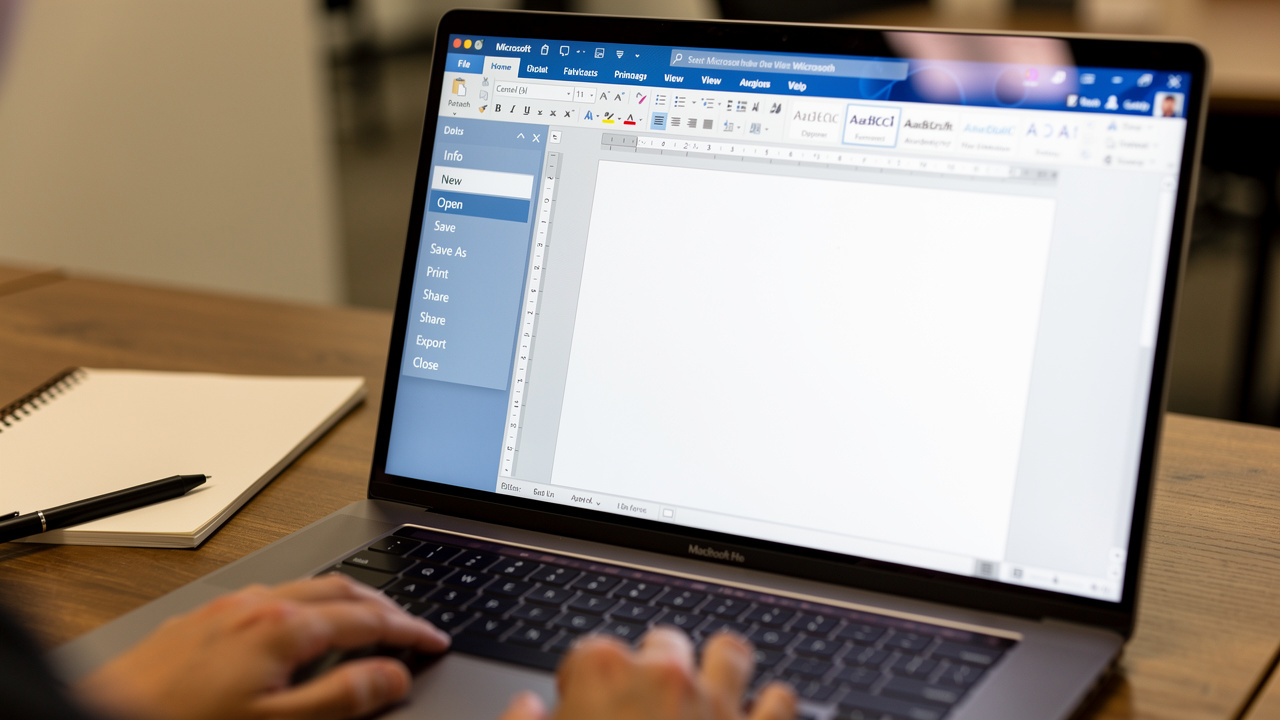
Some people feel more comfortable keeping files on their own computer. If Word is already installed, there is no need to visit a site to figure out how to convert Word to PDF — though resources like 4 Ways to Convert a Word document to PDF outline the full range of available approaches for those who want to compare options. The program includes several built-in options that create a PDF in just a few clicks.
Method 1: Save As
This is the most common method for many users. Open the document in Word, then click the File tab and choose Save As. Pick the folder, open the file type menu, and choose PDF. Give the file a name and click the button to save. Word creates a PDF copy while leaving the original Word file unchanged.
Method 2: Export
Newer versions of Word include a clear Export choice in the menu. With the document open, click File, then pick Export, and select the option to create a PDF or XPS file. A window appears with PDF already chosen as the file type. Select the folder, change the file name if needed, and click the publish button. This method is helpful when someone wants to treat the PDF as the final published version.
Method 3: Print To PDF On Windows
Windows includes a virtual printer named Microsoft Print to PDF. To use it, open the Word document and click File, then Print. In the printer list, choose Microsoft Print to PDF. Adjust options such as page range or orientation if needed, then click the print button. Instead of sending paper to a real printer, Windows asks where to save the PDF file. This method also works from other apps that support printing.
Method 4: Save As PDF On Mac
Mac users have a similar system feature. Open the Word file on a Mac, click File, then Print, or press Command plus P. In the print window, look for the PDF menu at the bottom and choose Save as PDF. Type a file name, pick a folder, and, if desired, fill in the title and author fields. Mac users can even set a password at this stage. After clicking save, macOS creates a PDF that looks just like the print preview.
For best results, switch Word to Print Layout view and scan through each page before using any of these methods. That small check helps catch odd page breaks or images that sit in the wrong place.
How To Ensure Quality And Security During Conversion
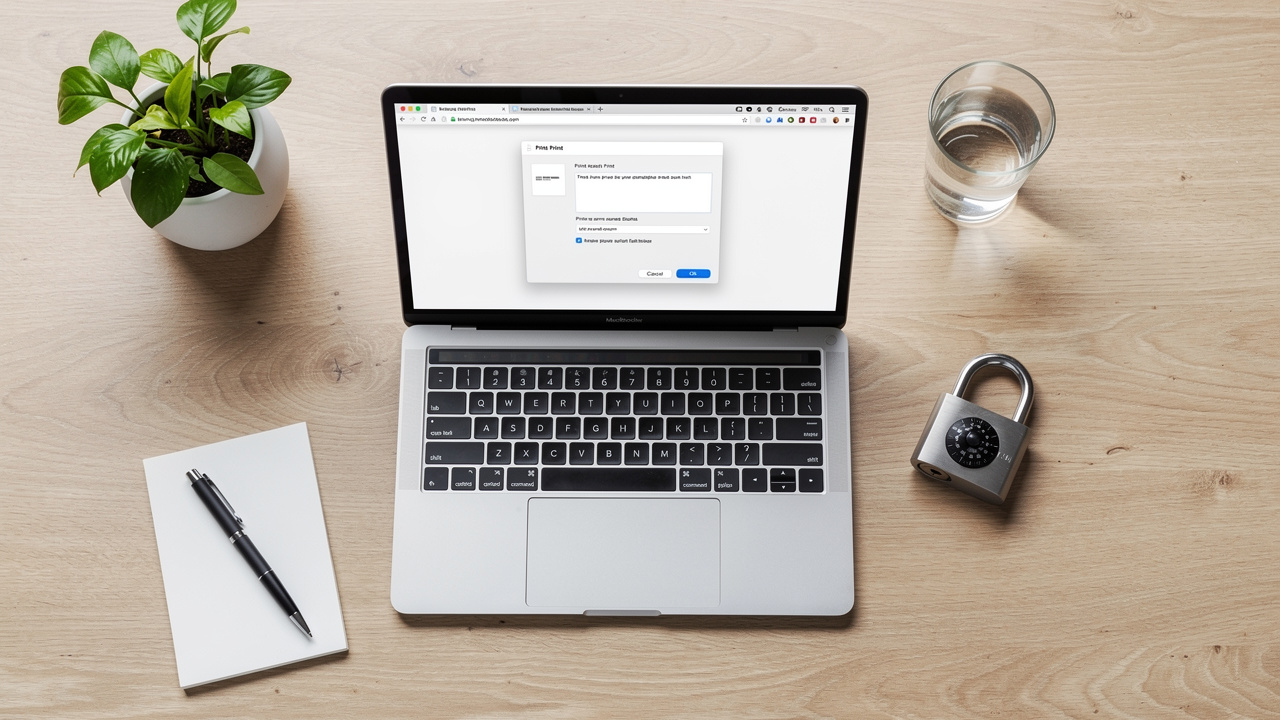
Good tools make it simple to handle how to convert Word to PDF, but people still care about two things — and using a Free Online Document Converter that clearly communicates its quality and privacy standards goes a long way toward addressing both concerns. They want the PDF to look perfect, and they want their files to stay safe. A few quick habits and the right tools cover both points.
For quality, start by checking the document in Print Layout view in Word. This view shows pages the way a PDF will show them. To keep the final file clean:
Fix any text that spills over onto a new line.
Move images that sit in strange spots.
Use clear, readable fonts and make sure they are installed properly on the system.
If the document uses rare or custom fonts, consider embedding them before conversion. In Word on Windows, this setting sits in the Save options menu. Embedded fonts travel with the file, which helps match the PDF to the original. Also, give images enough resolution so they do not look blurry when printed or zoomed in. A clean Word file leads to a clean PDF.
For security, online tools should respect privacy. iLovePDFKit uses HTTPS for all traffic and removes files right after conversion, so documents do not stay on the server.
A common guideline in IT security is, “The safest data is the data you do not keep longer than you need.”
That idea fits document conversion perfectly. For very sensitive contracts or reports, using the offline methods inside Word can add extra peace of mind.
Here is a simple checklist for anyone who wants to use an online converter with confidence:
Check for HTTPS. The address bar shows a small lock next to the web address. That lock means the site uses HTTPS, which protects files and data during upload and download. Never send private documents through a site that does not show this lock.
Look for automatic file deletion. Good services state that documents are removed automatically once the process finishes. This habit reduces the chance of someone reaching old uploads later.
Prefer tools that work without an account. A tool that works without creating a login collects less personal data. That makes the whole process lighter and safer for quick one-time tasks.
Read the privacy policy. The privacy policy should be easy to find and read. Clear language about data handling shows that the service takes user trust seriously. If the policy is missing or confusing, it is better to use a different method.
Conclusion
Learning how to convert Word to PDF does not need to be complicated. There are simple online methods and built-in tools that cover almost every situation, from last-minute homework to formal contracts.
iLovePDFKit offers one of the fastest ways to handle this task. It runs in the browser, costs nothing, uses strong encryption, and removes files right after conversion. The output matches the original document with pixel-perfect accuracy and no watermark.
For people who like to stay offline, Microsoft Word on Windows and Mac can also create PDFs in just a few clicks. Whether someone prefers iLovePDFKit or Word itself, the key idea is the same: a clean PDF is only seconds away, and it makes sharing documents smoother for everyone. Try iLovePDFKit on the next Word file and see how easy a polished PDF can be.
FAQs
Is It Free To Convert Word To PDF Online With iLovePDFKit?
Yes, iLovePDFKit is completely free for Word to PDF conversion. There are no hidden fees or trial periods to worry about. The tool does not add watermarks to the output files. Anyone can open the site, upload a file, and download the PDF right away.
Will My Formatting Be Preserved When I Convert Word To PDF?
With a high quality converter such as iLovePDFKit, formatting stays extremely close to the original file. Fonts, images, tables, and page breaks all carry over to the PDF. Problems mainly appear when the Word file uses very low resolution images or rare fonts that are not embedded.
Is It Safe To Upload My Documents To An Online Converter?
Uploading to iLovePDFKit is designed to be safe for everyday use. The site uses HTTPS, which keeps data encrypted between the browser and the server. Files are processed as soon as they arrive, then removed from the server. It is still a good habit to check any tool you use for a clear privacy policy.
Can I Convert Word To PDF On My Phone?
Yes, the same steps work on a phone or tablet. Open a mobile browser, visit iLovePDFKit, and pick the Word to PDF tool. Upload the document from the device or cloud storage, then download the finished PDF. There is no need to install a separate app.
