Introduction
A file leaves the outbox, and then the thought hits: that contract, grade report, or client invoice might be wide open to anyone who gets the link or email forward. Many people only think about security after a document has already traveled farther than expected. Learning how to protect PDF with password turns that nervous moment into a quick, repeatable step.
When a PDF has password protection, the content does not just hide behind a popup. The file goes through encryption, so no app can read the text or images without the correct key. With the right settings, only people who know the password can open the file or change anything inside it.
The good news is that learning how to password-protect a PDF does not require technical skills or paid software. This guide walks through why protection matters, the two different PDF passwords, and a clear, step-by-step process. Everything uses iLovePDFKit, a free, browser-based tool that needs no account, no download, and secures files with AES-256 encryption. By the end, anyone can protect invoices, research papers, contracts, and more in under a minute.
Key Takeaways
There are two main PDF password types. One controls who can open the file, while the other controls what people can do after they open it. Knowing the difference helps match protection to each document.
A trusted online tool such as iLovePDFKit protects files with AES-256 encryption inside the browser. No software install or signup gets in the way, and files stay on the server only for a short time during processing.
Strong passwords matter as much as strong encryption. Aim for at least 12–16 characters, mix character types, and store each password in a secure password manager so that access stays safe but never lost.
Why You Should Password-Protect Your PDF Files

PDFs often carry the information people care about most. Common examples include:
Tax returns and pay stubs
Client proposals and signed agreements
Student transcripts and grade reports
Medical notes and insurance documents
These files move through email chains, shared folders, and chat links, often without a second thought about who might see them next.
Every extra hop creates a chance for the wrong person to gain access. A forwarded email, a mistyped address, or a shared laptop can put private data in front of someone who should never see it. Public Wi‑Fi and shared office computers add more risk, because files may stay in download folders or browser history.
When someone learns how to protect PDF with password and uses that step every time a document carries sensitive data, they add a strong barrier. Even if the file lands in the wrong inbox, the content stays locked until the viewer types the correct password. This keeps personal, client, or student information from turning into a screenshot or printout in the wrong hands.
Password protection also shows care and professionalism. Freelancers and small business owners who send secure PDFs signal respect for client privacy and match expectations under data rules such as GDPR or HIPAA. Encryption adds another layer, because it scrambles the data inside the file, not just the file name.
“The safest data never leaves the device, but the next best choice is data that is encrypted and password-protected.”
— Common security training advice
Understanding The Two Types Of PDF Passwords
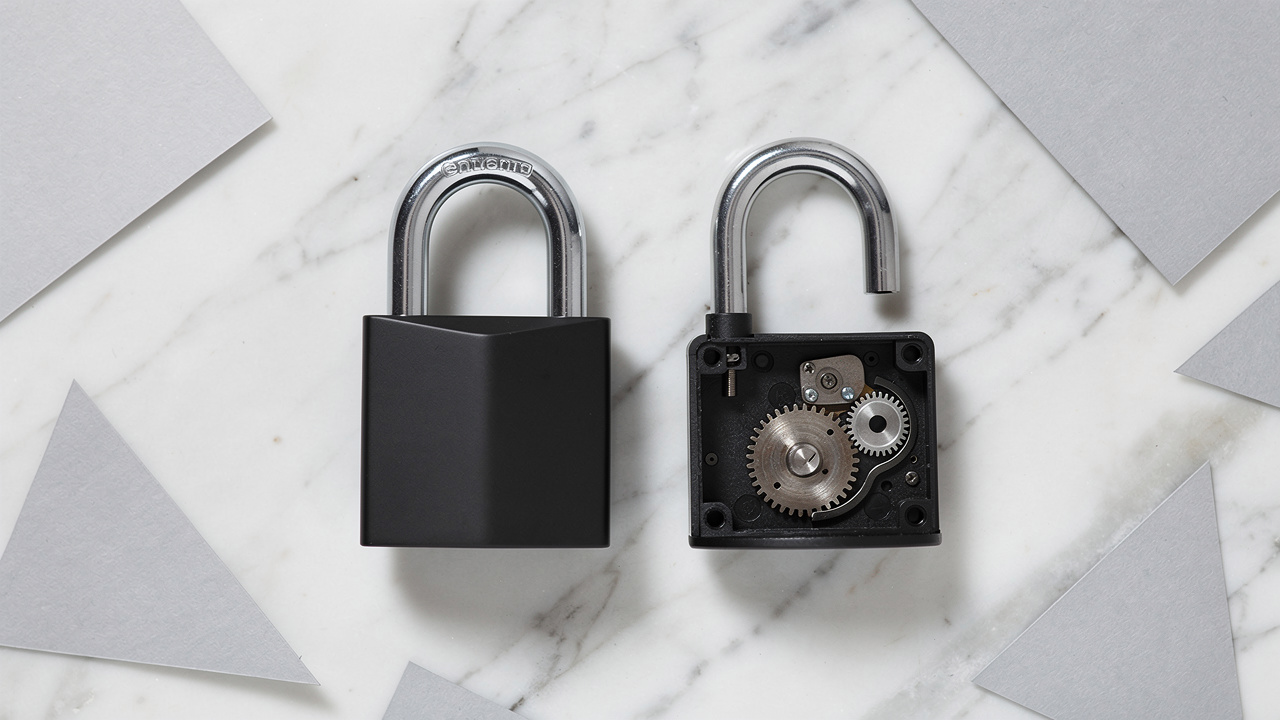
Before deciding how to protect PDF with password, it helps to know that there are two different password roles inside the PDF format. One controls access to the file itself, and the other limits what people can do after they open it. Keeping both in mind makes it easier to choose the right setup for each document.
Here is a simple overview:
| Password Type | Also Called | What It Controls | Typical Use Case |
|---|---|---|---|
| Document Open Password | User Password | Who can open the file | Pay stubs, grade reports, confidential briefs |
| Permissions Password | Owner Password | What people can do inside the file | Contracts, templates, read-only reports |
A Document Open Password works like the lock on a front door. No content shows at all until someone enters the correct password. This fits any case where the main goal is privacy, such as personal records or internal reports. It is an all-or-nothing gate: people who know the password can open the file; people who do not see only a prompt.
A Permissions Password controls actions rather than access. With this type, people may open the file, but they might not print, copy text, or edit pages without the owner password. This helps when a contract, template, or policy needs wide viewing but should not be changed or copied.
You can also combine both password types. For example, a client might need a Document Open Password to read a report and then face extra limits from a Permissions Password that blocks printing or copying. For most daily needs such as invoices, research papers, and standard business PDFs, a simple Document Open Password is enough.
How To Protect A PDF With A Password Using iLovePDFKit

Once the basics are clear, the next step is the actual process. Many people search for how to protect PDF with password and expect a long setup, but with iLovePDFKit the whole task takes just a few clicks inside any modern browser.
iLovePDFKit focuses on speed and privacy. The service is free to use, does not ask for signup, and runs directly in the browser. Files travel through SSL connections, and the tool applies AES-256 encryption to protect the content. Documents stay on the server only for the short time needed for processing, then auto-delete.
Follow these steps to protect your first file:
Open the iLovePDFKit password protection page.
Start a browser tab and visit the iLovePDFKit PDF password protection page. The tool loads right away, with no account wall or trial form.Upload the PDF.
Add the PDF that needs protection. Use the button to select a file from your device, or drag and drop the PDF into the upload area. If the file is in Google Drive or Dropbox, choose the cloud option and select it there.Create a password.
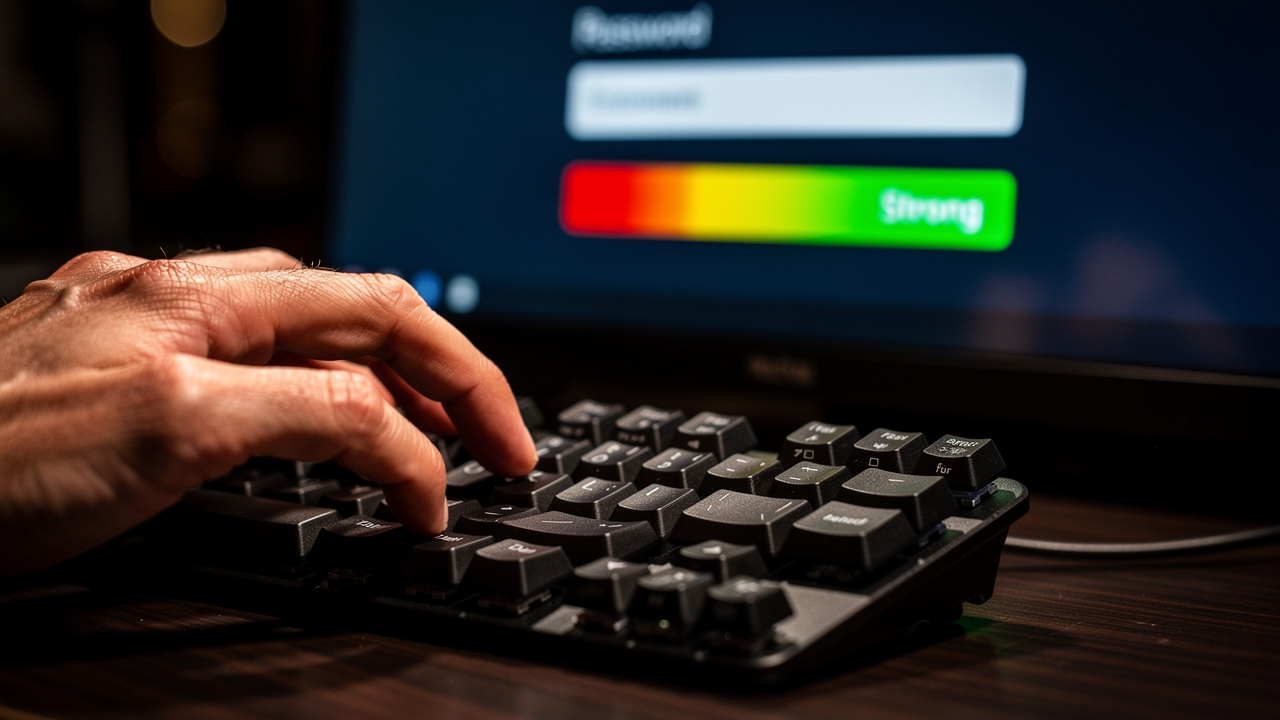
Type the password that will guard the file. The field accepts any mix of letters, numbers, and symbols. A small strength meter appears and gives feedback on how hard the password is to guess.Confirm the password.
Enter the same password in the second field. This step reduces the risk of a typo that could lock out the owner and anyone else who should open the document.Start protection.
Click the button that starts protection of the PDF. iLovePDFKit encrypts the file with AES-256 and ties the password to the encrypted content so that only people who know it can read the data inside.Download the protected PDF.
When processing finishes, download the new protected PDF to your device or back into your preferred cloud folder. The file name usually stays the same, so it helps to add a short note such as “_secured” when saving.
iLovePDFKit does not store your password and deletes files right after processing finishes, so sensitive contracts, reports, and records stay under the owner’s control.
When protection is no longer needed, iLovePDFKit also offers a PDF password removal tool. It requires the current password, because the service does not break or guess encryption. This fits cases where an owner wants to share a public version of a file that was private in the past.
“Security is a process, not a product.” — Bruce Schneier
Using a simple, repeatable process like this for every sensitive PDF is one of the easiest ways to keep data safer.
Best Practices For Creating A Strong PDF Password
Strong encryption only helps when the password itself is hard to guess. A simple code such as “1234” or “password” makes any guide on how to protect PDF with password much less effective, because automated tools can guess those in seconds.
Use this short checklist to build better passwords for protected PDFs:
Length matters more than most people think. Aim for at least 12–16 characters so that guessing tools need far more attempts to hit the right combination.
Character mix adds another layer of difficulty. Combine uppercase and lowercase letters with numbers and symbols, so that the pattern does not follow common words on a keyboard.
Personal details often appear in social feeds or public records. Avoid first names, birthdays, pet names, street names, or simple swaps such as adding a number at the end of a familiar word.
Common words and simple sequences belong on a block list. Examples include “document”, “secure”, “qwerty”, “abc123”, and similar strings that attackers test early in any guessing attempt.
Passphrases can be easier to recall and much harder to guess. A line such as “Blue!Mango-Cloud9Desk” mixes several words with symbols and numbers, which gives both length and variety.
Password reuse turns one weak point into many. Give each protected PDF its own password, or at least avoid using the same phrase that guards email, banking, or cloud accounts.
Tools such as iLovePDFKit show a live strength indicator while the password is typed. Aim for the strongest rating before clicking the protect button. If a Document Open Password is lost, the encrypted content stays locked, so store these passwords in a trusted password manager instead of on sticky notes or plain text files.
Conclusion
Putting a lock on a PDF is no longer a task just for IT teams. With a clear sense of the two password types and a simple browser tool, anyone can learn how to protect PDF with password in minutes. That small habit keeps grade reports, invoices, contracts, and research papers from drifting into the wrong inbox or download folder.
Choosing the right mix of Document Open and Permissions passwords gives control over both access and actions. Pair that with a hard-to-guess passphrase and strong encryption, and even a shared link carries far less risk.
iLovePDFKit brings this level of protection to any device with a modern browser. The service stays free, skips account creation, uses AES-256 plus SSL, and removes files right after each task. Head to iLovePDFKit’s PDF password protection page and secure the next important document before sending it, a process that often takes less than a minute from upload to download.
FAQs
Can I Password-Protect A PDF For Free?
Yes. You can password-protect a PDF for free without installing software. iLovePDFKit offers an online tool that shows exactly how to protect PDF with password directly in the browser. The service uses AES-256 encryption with secure SSL connections and removes files right after processing finishes.
What Happens If I Forget My PDF Password?
If the Document Open Password is forgotten or typed incorrectly, the file stays locked and the content does not appear. iLovePDFKit does not store passwords and does not bypass encryption, which keeps private data safe. The best habit is to store every PDF password in a trusted password manager from the moment it is created.
Is It Safe To Upload Sensitive Documents To An Online PDF Tool?
With a trusted service such as iLovePDFKit, uploads and downloads move through SSL connections that protect data during transfer. Files go through real-time processing on secure servers and then auto-delete right after the task finishes, so nothing stays stored. For highly sensitive records, avoid unknown tools that do not clearly explain how they handle files.
Can I Remove A Password From A PDF I Own?
Yes, as long as the current password is known. iLovePDFKit has a PDF password removal feature that takes the original protected file plus its correct password and then saves a new copy without that lock. The tool does not guess or break unknown passwords, which keeps protection strong for files that stay private.
