Introduction
Everyone has that moment: a deadline is close, the report is ready, and the file is stuck behind a password prompt. The document is yours, yet opening or sharing it suddenly feels harder than writing it. At that point, removing password from PDF stops feeling optional and becomes urgent.
We see this often with students, office teams, and small business owners. A thesis draft cannot be printed, a contract cannot be edited, or a client cannot review a proposal because the PDF is locked.
This guide walks through clear, safe ways to remove a password from a PDF that you own and are allowed to edit. We focus only on legitimate use where the current password is known. You will see how to do it with iLovePDFKit in the browser, when desktop software is a better fit, and where the hard limits are.
Before we dive into the details, here is a short overview.
Key Takeaways
If you are in a hurry, these points cover what matters most when you need help with removing password from PDF.
PDF files use two main password types. A Document Open password stops anyone from opening the file without the code. A Permissions password lets people read the file but can block printing, copying, or editing.
Every safe method for removing a PDF password starts the same way: we must already know the current password, and the tool only removes it after we enter that code. No trusted service will guess or break a password for us.
iLovePDFKit gives fast, free, browser‑based PDF work with strong privacy. Desktop apps help when files must stay offline. Both approaches process files securely and remove them soon after the work is done.
Understanding PDF Password Types Before You Remove Them

Before we talk about removing password from PDF, it helps to know what type of lock you are dealing with. PDF security is not all the same. Some passwords block access to the file, while others allow reading but restrict actions like printing or editing.
A Document Open password is the strict option. When this is set, opening the PDF always shows a prompt asking for the code. Without the right text, no one can view, print, or copy from the document. This is common for files that carry grades, salaries, contracts, or other sensitive data — and researchers have shown that even password-protected PDFs can carry risks, as outlined in this piece where Researchers Find New Hack to read content of password-protected PDF files.
A Permissions password works differently. The file opens without a prompt, so anyone who has the PDF can read it. However, the creator can block actions such as editing, copying text, adding comments, or printing pages. To turn these limits off, you need the Permissions password inside a PDF editor or trusted tool.
Here is a quick comparison that sums up both types:
| Feature | Document Open Password | Permissions Password |
|---|---|---|
| Blocks file access | ✅ Yes | ❌ No |
| Restricts editing or printing | N/A | ✅ Yes |
| Password needed just to view | ✅ Yes | ❌ No |
| Password needed to remove protection | ✅ Yes | ✅ Yes |
Once you know which type is in use, removing a PDF password becomes clearer, and it also makes sense why every method still asks for the password at least once.
How To Remove A PDF Password Using A Free Online Tool
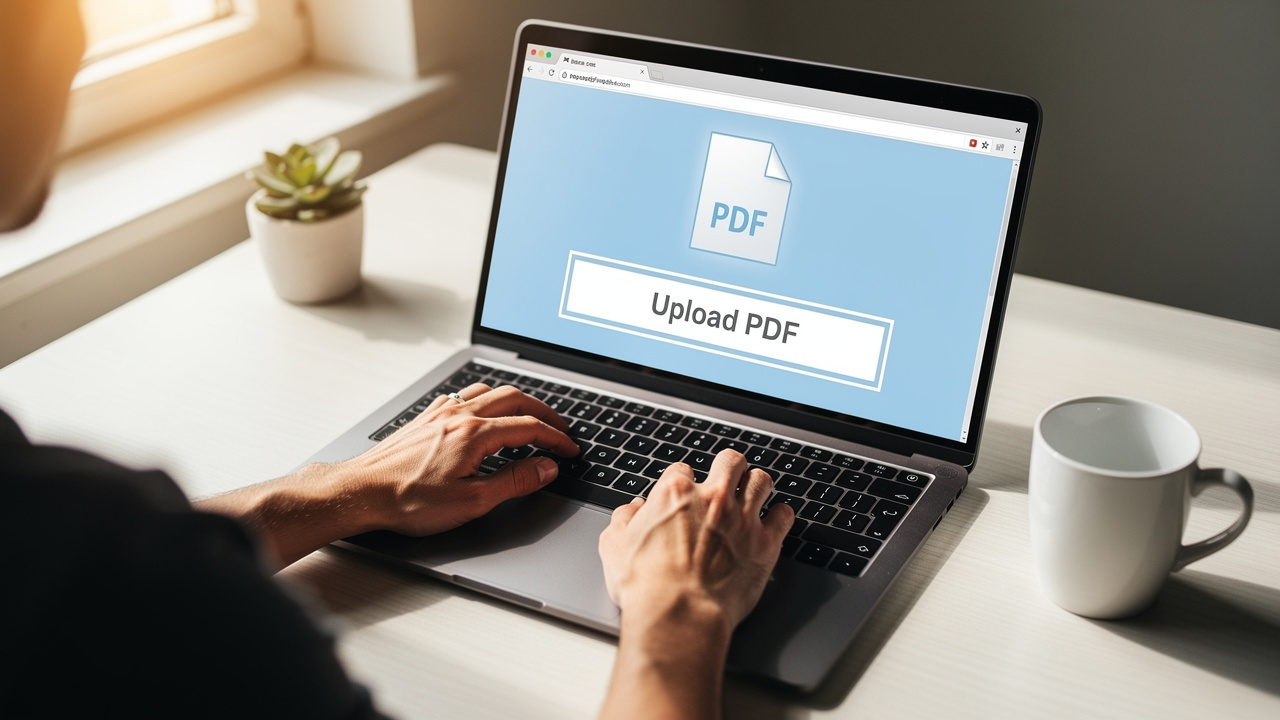
For most people, the quickest way of removing password from PDF is an online tool that works directly in the browser. This avoids installing software, asking for admin rights at work, or dealing with updates. That is exactly where iLovePDFKit helps.
iLovePDFKit is built for quick tasks that pop up during class, meetings, or freelance work. The service is free to use, does not ask for signup, and runs in any modern browser on Windows, macOS, Linux, phones, or tablets. When you remove a password from a PDF with our tool, processing happens in real time on our servers.
Security sits at the center of this process. Files travel with SSL encryption, are stored only while the task runs, and are erased automatically right after. For tools that add protection, we use AES‑256 encryption and never store the password itself. The same care applies when we help with removing password from PDF, so documents stay private.
Here is how the online method works, step by step:
Open iLovePDFKit In Your Browser
Visit our website from any device with internet access. There is no need to download a program or create an account. The remove password from PDF tool sits alongside our other PDF tools and is ready whenever you need it.Add Your PDF File
Click to choose a file from your computer, or drag and drop it into the upload area. If you prefer cloud storage, you can import from services such as Google Drive or Dropbox. In every case, the file reaches us through an encrypted connection.Confirm That You Know The Password
After upload, the tool checks the file and notices that it is protected. A prompt asks for the current password so we can continue. Enter the same password you use to open the PDF on your own device, which confirms that you are allowed to edit it.Start The Password Removal Process
With the correct code entered, start the task with a single click on the button that removes the password. The iLovePDFKit engine reads the file, takes away the requested protection, and creates a new copy. This usually takes only a few seconds.Download The New PDF Without A Password
When the task finishes, a clear link appears to save the fresh copy. You can store it on the local device or send it back to the same cloud drive used earlier. The new document opens without a prompt, so printing and sharing are much faster.
iLovePDFKit processes files in seconds and deletes them right after the task finishes, so documents and passwords never stay on our servers.
This method fits our main audiences very well:
Students can remove passwords from lecture notes or old assignments on shared campus computers without asking to install anything.
Office workers can handle protected invoices or reports directly in the browser they already have open.
Freelancers and small business owners get a free, fast way of removing password from PDF files from any laptop or phone.
For most everyday files where you know the password and just want quick access, iLovePDFKit is the easiest tool to keep in mind. In the next section, we cover when desktop software makes more sense.
How To Remove A PDF Password With Desktop Software
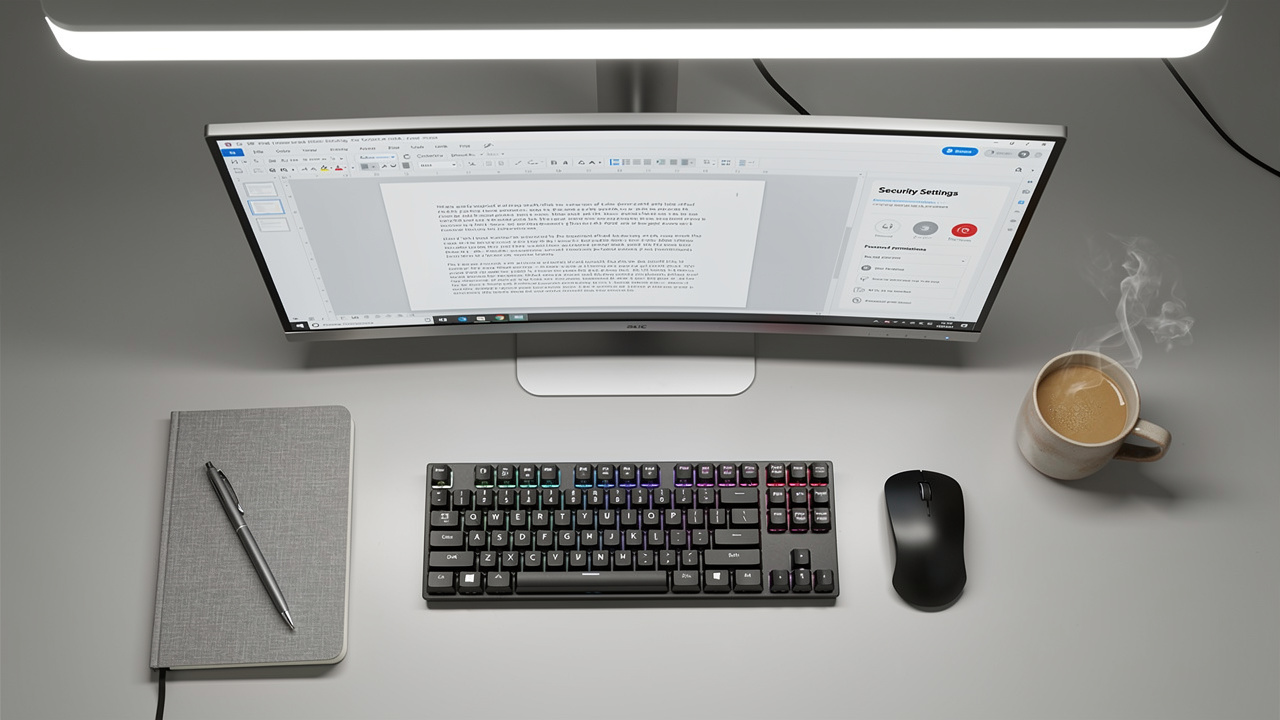
Sometimes removing password from PDF needs to happen fully offline. This can be the case for internal company reports, medical records, or any file that workplace rules say must never be uploaded anywhere. In these cases, desktop software that runs on your own machine is the better fit.
Popular PDF editors on desktop, such as Adobe Acrobat Pro and similar tools, can remove both types of passwords as long as you know the current code — Adobe itself offers guidance on Protecting privacy: Securely removing PDF passwords for data safety. The free Adobe Acrobat Reader can open a protected file when the password is entered, but it cannot save a new copy without that protection. For removing password from PDF, a full editor or another paid tool is usually required.
For a PDF with a Permissions password, the steps in a desktop editor usually look like this:
Open The PDF In The Desktop Editor
Start the program and open the protected file. Because a Permissions password only limits actions, the content normally appears right away, even if editing and printing are blocked.Go To The Protection Settings
In the toolbar, look for a section that handles security features. In Adobe Acrobat Pro this sits under Tools → Protect → Encrypt. Other editors use similar paths.Remove The Security And Confirm The Password
Inside the security settings, choose the option that turns off protection for the current file. When the program asks for the Permissions password, type the code you already know. Once confirmed, the restrictions on editing and printing are removed.Save A Fresh Copy Of The File
Save the PDF using Save or Save As. The new copy opens without extra prompts and allows edits, copying, and printing according to the changes you made.
For a PDF with a Document Open password, the flow is almost the same, with one extra step at the start:
Open The PDF And Enter The Password
When you open the file, the program asks for the Document Open password before showing anything. Type the code to access the content.Go To The Same Protection Menu
Once the file is open, use the same path to reach the security settings, such as Tools → Protect → Encrypt, and choose the option that turns off security.Confirm Removal And Save
The editor may ask if you really want to remove the password. After you agree, save a new copy. From then on, that PDF opens without a password request.
Desktop software keeps the entire process on your computer, which can be important when company policy is strict. It often includes extra tools like redaction, form editing, and batch work. The trade‑off is cost and the need to use the same device where the software is installed.
When You Cannot Remove A PDF Password — Key Limitations

With all this talk about removing password from PDF, it is important to be clear about what cannot be done. Trusted tools, online or offline, must respect the limits set by file owners, laws, and security standards. That is why the same simple rule appears again and again: we must know the current password, and some special types of protection cannot be removed at all.
“Security is a process, not a product.” — Bruce Schneier
Here are the main limits that matter in practice:
🔒 Forgotten Passwords
When a password is forgotten, regular tools cannot help. They always ask for the code first, even if you only want to take the lock away. This protects sensitive information from being opened by guesswork. In business settings, an IT team may hold backup copies of important passwords.🏢 Server‑Based Security
Some PDFs use server‑based security that comes from a central system. Large companies and public offices often protect documents in this way. Only an administrator or the person who set up the policy can change or remove it. Web tools like iLovePDFKit and home software cannot override these rules.✍️ Digitally Signed Or Certified PDFs
Many official PDFs carry digital signatures or certificate‑based locks. These features prove that the file has not been changed since the signer approved it. Taking away the password would damage that proof, so trusted tools simply refuse to do it. The only safe path is to ask the signer for a new version.📚 DRM‑Protected E‑Books And Paid Content
E‑books and other paid content often rely on digital rights management (DRM). This extra layer is meant to stop copying or sharing beyond the license. Standard PDF editors and online tools are not able to remove DRM, and trying to bypass it may break store rules or local law.
If none of these limits apply and you know the password, removing password from PDF is safe and simple with tools such as iLovePDFKit or desktop apps. Knowing where the line sits helps set fair expectations and keeps your work on the right side of policy.
Conclusion

Password protection has a clear role, but it should not block your own work once access is allowed. When you understand the difference between Document Open and Permissions passwords, removing password from PDF feels less like a puzzle and more like a short routine.
For everyday study, work, and freelance projects, iLovePDFKit offers the quickest path: open the site, add the file, type the known password once, and save a fresh copy in seconds. There is no software to install, no account to remember, and files are erased right after processing.
Desktop software still has a place when documents must stay offline or when you work with very strict company rules. In many other cases, though, the browser is enough. The next time a report, thesis, or invoice appears with a lock icon, you can head to iLovePDFKit, upload the PDF, and remove the password without stress.
FAQs
We hear the same questions again and again when people talk about removing password from PDF. Here are short answers that clear up the most common doubts.
Can I Remove A PDF Password If I Have Forgotten It?
No, not with regular, trusted tools. Every method we describe, including iLovePDFKit and desktop editors, asks for the current password before changing security. These tools are made to remove a password that you already know, not to guess or break one. In some offices, an IT team or document owner may be able to reset access through their own systems.
Is It Safe To Upload A Sensitive PDF To An Online Tool Like iLovePDFKit?
Yes, as long as the service treats privacy with care. iLovePDFKit uses SSL encryption for every upload and download, so files cannot be read in transit. Documents are stored only while the task runs and are deleted from our servers right after. We do not keep the password entered during removing password from PDF. For highly secret files that must never leave a closed network, offline desktop software remains the safer choice.
Do I Need To Pay Or Create An Account To Use iLovePDFKit?
No, iLovePDFKit is free to use and does not ask for registration. You simply visit the site, choose the tool for removing password from PDF, add the file, and start the task. This makes it easy to handle one‑time jobs on borrowed devices, school computers, or a quick work session without new logins or fees.
