Opening a PDF in Adobe Reader and trying to fix a typo often ends in frustration. You click on a sentence, nothing happens, and the cursor won’t even blink. This happens because editing a PDF with Adobe Reader works nothing like editing a Word document, and most people don’t learn the real limits of the free software until they hit a wall mid-task. Adobe Acrobat Reader is a free, widely used PDF viewer built mainly for reading, reviewing, and signing files, not rewriting their contents.
This guide breaks down exactly what free Adobe Reader can do, including annotating, highlighting, filling forms, and signing documents, and where you need Acrobat Pro for true text and image edits. It also covers iLovePDFKit, a free browser-based tool that turns a PDF into an editable Word file without installing anything or creating an account. By the time you finish reading, you’ll know which option fits your document, your deadline, and your budget.
Key Takeaways
Adobe Reader covers the basics well, but full text editing sits behind a paywall. Here’s what matters most before you open your file and start working.
- Adobe Reader is built for viewing, annotating, and signing PDFs, not rewriting body text, so don’t expect to fix a typo directly in a paragraph.
- Full text and image editing requires Acrobat Pro or its 7-day free trial, since the free Reader can’t reach into existing content.
- Scanned PDFs need optical character recognition, or OCR, applied first, because the page content is actually a picture rather than live text.
- A browser-based converter like iLovePDFKit can turn a PDF into an editable Word file in seconds, with no software or account required.
Table of Contents
- What Can Adobe Reader Actually Edit In A PDF?
- How Do I Annotate, Highlight, And Comment On A PDF?
- How Do I Fill Out And Sign A PDF Form?
- How Do I Edit Text And Images With Acrobat Pro?
- A Free Browser-Based Way To Edit PDF Content
- The Takeaway
- Frequently Asked Questions
What Can Adobe Reader Actually Edit In A PDF?
Adobe Reader lets you view, annotate, comment, fill out forms, and add a signature, but it stops short of rewriting the words already on the page, which is exactly why editing a PDF with Adobe Reader feels so different from editing a Word file. Sticky notes, highlights, strikethroughs, and suggested edits are free, and so is completing a form someone else built. What the app can’t do is open an existing paragraph and fix a typo, swap a photo, or reflow text after a deletion, since that level of control counts as full content editing. Adobe reserves that kind of editing for Acrobat Pro alternative, the paid subscription, though a 7-day free trial lets you test it before paying anything. Students checking footnotes or office staff reviewing a contract usually find the free tools enough; anyone rewriting a paragraph or replacing a logo will need Acrobat Pro instead.
Why PDFs Resist Editing In The First Place
PDF stands for Portable Document Format, a file type Adobe invented in 1993 to lock in layout, fonts, and graphics across every device and operating system. That fixed design is exactly why a PDF behaves more like a printed page than an editable file, since every letter and image sits at a set position rather than flowing freely like in Word. Documents built straight from Word, Excel, or PowerPoint usually contain live, selectable text underneath that rigid shell, which is part of why some PDFs edit more easily than others. Once you understand that a PDF is designed to stay fixed, the editing limits built into free Adobe Reader make a lot more sense.
How Do I Annotate, Highlight, And Comment On A PDF?
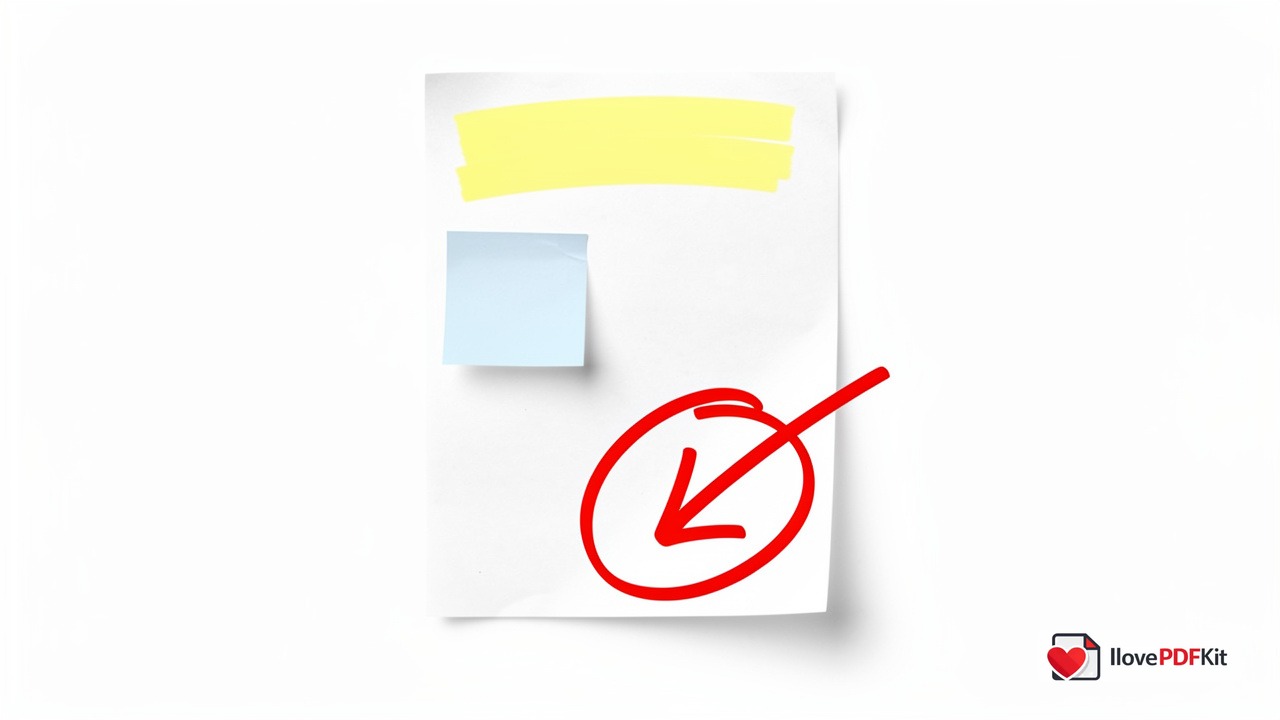
Annotating a PDF means marking it up with notes and highlights without touching the original text underneath, and Adobe Reader handles this well for free. You can:
- Drop sticky notes at specific spots on the page
- Draw text boxes anywhere to add commentary
- Highlight key passages in several colors
- Add strikethrough or underline marks to flag changes
- Use freehand drawing tools to circle a figure or sketch an arrow toward a problem area
All of this stays separate from the document’s actual wording.
Suggested edits work a bit differently, letting you propose a replacement for a word or phrase without altering the file directly, which keeps the original intact until the author approves it. These markup tools suit legal contracts, design briefs, and research drafts that need a second pair of eyes before anything gets finalized. None of this requires upgrading past the free version of the software.
How Do I Fill Out And Sign A PDF Form?
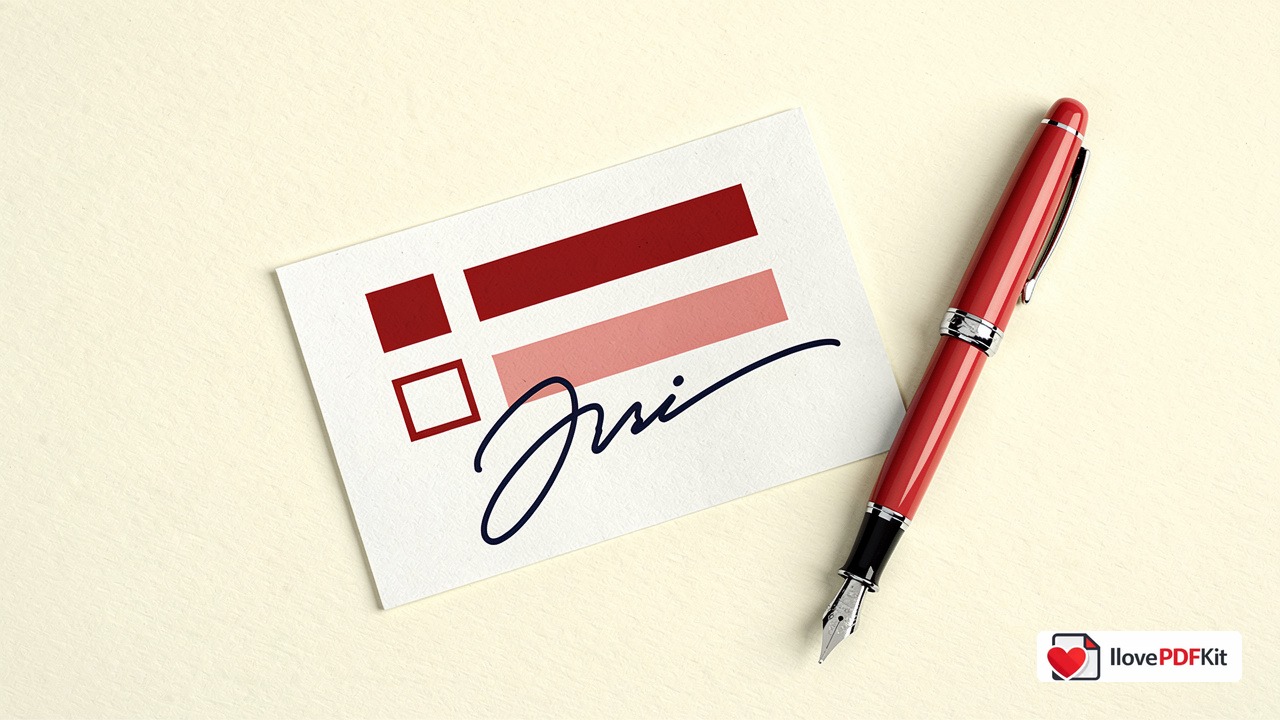
Filling out and signing a PDF form is one of the most common tasks people reach for Adobe Reader to handle, and it works entirely within the free tier. The Fill & Sign tool lets you click into existing fields to type answers, check boxes, and then either sign PDF online free with a mouse or trackpad or type your name in a signature-style font. Once placed, the signature can be moved or resized before you download or share the finished document.
Building a brand-new fillable form with its own fields, however, is a job for Acrobat Pro rather than the free Reader. For multiple signers, Acrobat’s e-signature request feature can collect signatures from everyone in one shared workflow instead of emailing the file back and forth repeatedly. This combination covers most everyday paperwork, from tax forms to supplier agreements to signed offer letters.
How Do I Edit Text And Images With Acrobat Pro?
best free PDF editor in a PDF with Adobe Reader alone isn’t possible, which is where Acrobat Pro’s dedicated Edit PDF tool takes over, switching the whole interface into an editing mode as soon as you open it. After opening the file, you click Edit PDF in the right-hand pane, then click directly into any text block to fix a typo, insert a new sentence, or add an entirely new paragraph. The Objects list handles images, letting you add, replace, move, resize, or crop a photo without leaving the page. Built-in spellcheck flags errors while you work, and Find and Replace can correct every instance of a misspelled name or wrong date across the whole document in one pass, which saves a lot of manual scrolling on long files.
What About Scanned Or Password-Protected PDFs?
Scanned PDFs store each page as a picture, so Acrobat Pro can’t select or change any of the text until you run OCR, a process that reads the image and converts it into live, searchable words. Without OCR, a convert scanned PDF to Word or textbook page can only be annotated, never reworded, no matter which tool you open it in. remove password from PDF raise a separate issue, since a file locked by its owner can’t legitimately be edited without that person’s permission or the password itself, regardless of which Adobe product you’re using. Both situations are worth checking before you assume a PDF is simply broken or your software is at fault.
A Free Browser-Based Way To Edit PDF Content
When you don’t have Acrobat Pro but still need to change real text, converting the PDF to Word, editing it there, and converting back to PDF is the simplest fix. This works best for text-heavy files with simple layouts, like essays and reports, since complex designs can shift slightly during conversion. It only takes two conversions and a normal word processor, so there’s nothing new to learn.
iLovePDFKit offers this exact path for free, with a PDF to Word tool that keeps images, fonts, and layout intact, plus a Word to PDF tool to convert the finished file back. Nothing needs installing and no account is required, and uploads travel over SSL encryption before being removed from the servers shortly after conversion.
“Security is a process, not a product.” — Bruce Schneier
That’s a reminder worth applying to any tool that handles your files.
The Takeaway
Choosing the right PDF tool comes down to matching the task to the software instead of reaching for the most expensive option by default. Free Adobe Reader handles annotation, comments, form filling, and signatures without costing a cent, which covers most review and approval work for students, office staff, and freelancers alike. Acrobat Pro steps in once you need to rewrite body text, replace images, or run OCR on a scanned document, and its 7-day free trial is worth testing before committing to the subscription.
| Tool | Best For | Typical Cost |
|---|---|---|
| Adobe Acrobat Reader | Annotating, commenting, filling forms, signing | Free |
| Adobe Acrobat Pro | Rewriting text, editing images, OCR, building forms | Paid subscription, 7-day free trial |
| iLovePDFKit (PDF to Word / Word to PDF) | Converting a PDF to Word for text edits, then converting back | Free, no account needed |
For the common case of needing a quick text fix without paying for software, converting the file through best free PDF tools like the platform and editing it in Word remains the fastest no-cost route. Pick the method that matches your document, your deadline, and what you’re willing to spend, and you’ll skip the frustration of hitting a wall halfway through a simple edit.
Frequently Asked Questions
Is Adobe Acrobat Reader Free To Use For Editing PDFs?
Adobe Acrobat Reader is free, but it’s limited to viewing, annotating, commenting, filling forms, and signing documents. It won’t let you change existing body text, swap fonts, or rewrite paragraphs. Those tasks require Acrobat Pro or its free trial, since true content editing sits outside the free Reader’s toolset.
Can I Edit A PDF Without Adobe Acrobat Pro?
Yes. Adobe’s free online editor handles annotations, highlights, and signatures without Acrobat Pro. For actual text changes, convert PDF to editable Word using a free tool like the platform, edit it there, and convert it back to PDF, all without installing software or paying for a subscription.
Why Does My Converted PDF Look Different After Editing In Word?
Rare fonts, tables, or complex page layouts can shift slightly when PDF to Word without losing formatting and back again, since the software sometimes substitutes a similar font or reflows a crowded section. It’s a good habit to skim the converted file before finalizing it, checking headings, spacing, and image placement.
How Do I Edit A PDF On My Phone?
The free Adobe Acrobat mobile app for iOS and Android supports annotating, e-signing, and filling out forms, with mobile PDF editing features built for smaller screens. Files saved to your Adobe account sync across devices, so you can start a review on your phone and finish it later on a desktop.
Is It Safe To Upload Sensitive PDFs To An Online Editor?
A secure online PDF converter uses SSL encryption during upload and doesn’t require creating an account to process your file. Before uploading anything sensitive, check that the provider processes files in real time and removes them from its servers shortly afterward rather than storing them long-term.
What’s The Difference Between Acrobat Reader And Acrobat Pro?
Acrobat Reader is free and built for viewing, commenting, and signing PDFs. free Acrobat alternative that adds full text and image editing, OCR for scanned documents, and the ability to build fillable forms from scratch, which Reader cannot do on its own.
