Table of Contents
- Introduction
- Why Convert Excel to PDF? Benefits You Can’t Ignore
- How to Convert Excel to PDF Online With iLovePDFKit
- How to Keep Your Excel Formatting Intact When Converting to PDF
- Is It Safe to Upload Excel Files to an Online Converter?
- Beyond Excel to PDF: What Else Can iLovePDFKit Do?
- Locking In Your Workflow: Make Every Spreadsheet Share-Ready
- Frequently Asked Questions
- Does iLovePDFKit Support Both XLS and XLSX Files?
- Will My Excel Charts and Merged Cells Appear Correctly in the PDF?
- Can I Convert an Excel Workbook With Multiple Sheets?
- How Long Does the Excel to PDF Conversion Take?
- Can I Convert Excel to PDF on My Phone or Tablet?
- Do I Need to Create an Account to Use iLovePDFKit?
Introduction
Sharing raw Excel files often leads to broken layouts, version conflicts, and accidental edits. A free online excel to pdf converter is the simplest way around those problems. For that need, iLovePDFKit offers a browser tool that converts XLS and XLSX files to clean PDFs in seconds without any software install or sign‑up — similar to how tools like the Excel to PDF Converter work to preserve table layouts online.
Different devices, missing fonts, and visible formulas can turn a simple report into a grading or client headache. On top of that, not everyone has Microsoft Excel or Office installed, especially on mobile devices or shared computers.
An excel to pdf converter turns your spreadsheet into a stable, read‑only PDF that looks the same on every screen. In this guide, you will:
See why PDF is better than raw spreadsheets for sharing
Learn how to use iLovePDFKit step by step
Keep your Excel formatting intact during conversion
Understand the safety and privacy side of online converters
Convert back from PDF to Excel when you need to edit
“When in doubt, send a PDF. It’s the closest thing we have to paper on a screen.” — Common IT support advice
Now on to the key points so you can switch to smooth, share‑ready spreadsheets.
Key Takeaways
Before going into the details, it helps to see the big picture. The points below highlight what makes iLovePDFKit practical for students, office staff, freelancers, and small business owners.
PDF is the standard format when you need your Excel spreadsheet to stay fixed, readable, and tamper‑resistant. Professors, managers, and clients can open a PDF on Windows, macOS, Linux, iOS, or Android without any special software. Research from Adobe notes that billions of PDFs open in Acrobat every month, which shows how normal this format is for finished work.
iLovePDFKit converts XLS and XLSX files in three steps: upload, wait a moment, download. The excel to pdf converter runs inside Chrome, Firefox, Safari, and Edge with no installation or registration. Every output file is clean, with no watermarks or locked pages.
Good preparation inside Excel gives better PDFs. Page orientation, margins, Print Area, and Scale to Fit all carry over to the PDF when you convert. iLovePDFKit respects those settings so your tables, charts, and totals line up as you expect.
Security matters when spreadsheets hold private data. iLovePDFKit uses encrypted connections and real‑time processing, then removes both source and converted files from its servers. No team member opens or reads your documents during conversion.
You can go back from PDF to Excel. iLovePDFKit includes a PDF to Excel converter that reconstructs tables into real cells, so you can edit data again. That works even for tricky cases such as PDF bank statements that you want back in Excel.
Why Convert Excel to PDF? Benefits You Can’t Ignore

Converting Excel to PDF keeps your layout stable so columns, fonts, and charts do not shift when someone opens the file. A PDF version of your spreadsheet also hides formulas and makes accidental edits much less likely. For many teachers, managers, and clients, a PDF report feels finished while an XLSX file feels like a draft.
When you share an Excel spreadsheet directly, the recipient might not have Microsoft Excel or might use an older version. That is when row heights change, wrapped text spills off the page, or conditional colors look wrong. By exporting or converting to PDF, you freeze what you see on your screen into a single, consistent view.
PDF also helps with compatibility across devices. A budget prepared on Windows opens just as cleanly in Apple Preview on macOS or in any browser on a Chromebook. According to Microsoft, hundreds of millions of people use Office apps, yet many only have a browser on shared or mobile devices when they read your files.
From a professionalism side, invoices, project estimates, schedules, and research tables look more credible as PDFs. You avoid live formulas, hidden sheets, and floating comments. With an online excel to pdf converter such as iLovePDFKit — and there are Excel to PDF: 5 common methods to choose from — you get that professional result with almost no effort.
A quick comparison makes the difference clearer:
| Format | Best For | Common Risks When Sharing |
|---|---|---|
| Excel (XLS/XLSX) | Editing, calculations, internal drafts | Broken layouts, changed formulas, version issues |
| Final reports, invoices, submissions | Edits are harder, but layout stays consistent |
If you want people to review or sign off on numbers rather than change them, converting Excel to PDF is usually the safer choice.
How to Convert Excel to PDF Online With iLovePDFKit

Converting Excel to PDF online with iLovePDFKit follows a short, repeatable pattern: upload your file, let the excel to pdf converter process it, then download the finished PDF. The tool runs in your browser, so you do not install software, create an account, or accept a watermark. For most spreadsheets, the whole process finishes in seconds.
Here is how it works in practice.
Open the Excel to PDF tool and upload your file
Go to the iLovePDFKit Excel to PDF page and look for the central upload area. You can:
Click to select a file, or
Drag a workbook straight from your desktop
Both legacy XLS files and modern XLSX files work, and iLovePDFKit accepts multi‑sheet workbooks so you do not repeat the process sheet by sheet — you can also try a dedicated Excel to PDF – tool if you need instant conversion for single spreadsheets. If your data lives in Google Drive or Dropbox, you can pull it from there instead of downloading first.
Let iLovePDFKit convert your spreadsheet
As soon as the upload completes, iLovePDFKit begins automatic conversion. The service reads your tables, cell styles, merged cells, charts, and page setup, then renders them into a PDF that matches your Excel preview.
According to Statista, spreadsheet tools remain among the most used office applications worldwide, so accurate rendering across devices matters more than ever.
Download and share your PDF
After a short moment, a download button appears with your finished PDF. You can:
Save it locally
Send it by email or messaging apps
Upload it to your learning portal or client workspace
There are no limits hidden behind paywalls for regular‑size documents, no daily cap for typical files, and no extra branding added to your document. For busy admins, students on deadlines, or freelancers preparing a quote, this quick flow is far easier than waiting for heavy desktop programs to open.
How to Convert Excel to PDF Directly in Microsoft Excel
You can also convert or export Excel to PDF inside Microsoft Excel itself. This suits people who already have Excel on their computer and want offline control over page ranges and quality; for developers needing programmatic control, C++ EXCEL to PDF via Aspose.Cells is another robust option.
Follow these steps in Microsoft Excel on Windows or macOS:
Open your spreadsheet.
Choose File → Export.
Pick Create PDF/XPS from the list.
In the dialog, click Options to:
Include the entire workbook or only specific sheets
Set the page range
Choose print quality
Pick a folder and file name.
Click Publish.
Excel creates the PDF on your device, ready to open in Adobe Acrobat Reader, Apple Preview, or any browser. This path gives fine‑grained control, yet it only works where Excel is installed, so it is less practical for Chromebooks, shared lab machines, or quick edits on a phone.
How to Keep Your Excel Formatting Intact When Converting to PDF
Keeping your Excel formatting intact during conversion means your PDF looks like a real report instead of a messy data dump. A good excel to pdf converter follows the page setup from your workbook and avoids chopped columns or missing charts. iLovePDFKit reads your Print Area, margins, orientation, and Scale to Fit so the PDF reflects your own choices.
Formatting problems usually start inside Excel rather than inside the converter. If the sheet stretches far beyond the printable area or uses default margins, the PDF may cut off labels or crunch columns on to too many pages. When you tidy the sheet first, you get a result that looks as if a designer prepared it.
Alignment matters for readability as well as appearance. Studies from Nielsen Norman Group show that poorly formatted tables slow readers and increase errors when they scan numbers.
“Users don’t read, they scan.” — Jakob Nielsen, Nielsen Norman Group
Clean grid lines, clear headings, and stable rows help professors or managers understand your data faster.
iLovePDFKit does its part by honoring the layout you define. To get an excel to pdf without losing formatting, you only need a short pass through page setup. The next section gives a simple checklist that you can reuse before every conversion.
Five Excel Settings to Configure Before You Convert
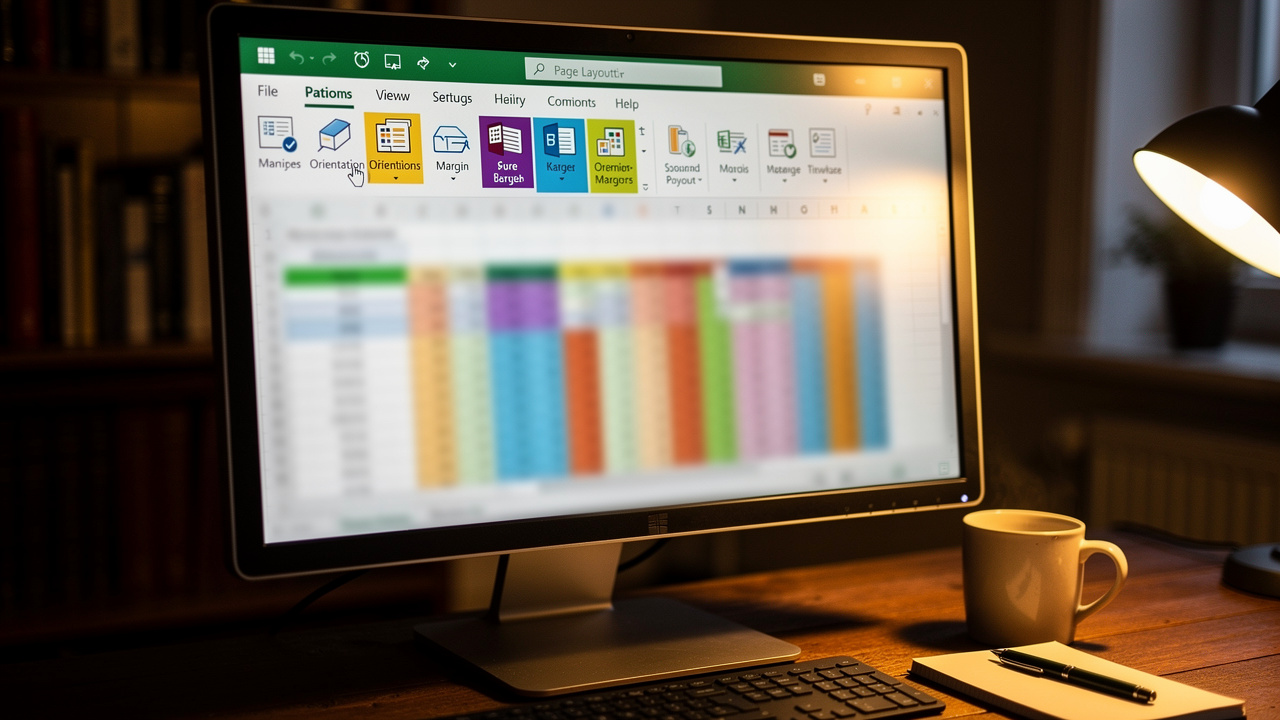
Before you open iLovePDFKit or any other online converter, adjust a few settings in Excel. These quick steps prevent most layout problems and give your PDF a polished feel.
Set a clear Print Area so Excel knows which cells belong in your report. Highlight the exact range, then choose Page Layout → Print Area → Set Print Area. This narrows the exported content to the table or section that matters, instead of every scratch calculation in the workbook.
Switch wide spreadsheets to Landscape orientation whenever they hold many columns. You find this choice under Page Layout → Orientation → Landscape. That wider canvas keeps headings, dates, and totals on the same page instead of hiding the last few columns.
Reduce page margins to reclaim space for your data. Under Page Layout → Margins, pick a narrow preset or customize top, bottom, left, and right values. Smaller margins help you avoid text clipping and reduce the number of pages in the final PDF.
Use Scale to Fit so the content fits into a reasonable page count. Still under Page Layout, you can set width and height to one page each or use a percentage that keeps text readable. This tells Excel to shrink or expand the sheet without wrecking the relative sizes of rows and columns.
Check Page Break Preview so you see exactly where one page ends and the next begins. On the View tab, choose Page Break Preview and adjust the blue lines with your mouse. That view makes it easy to stop a totals row from landing alone on a new page.
For recurring reports like monthly budgets or grade books, saving a clean template with these options set once will save time every time you convert.
Is It Safe to Upload Excel Files to an Online Converter?
Uploading Excel files to an online converter is safe when the service uses encryption, short‑term processing, and no file storage. iLovePDFKit follows that pattern so you can convert grade books, payroll, or client budgets without sharing them with a human reviewer. The excel to pdf converter completes the job on secure servers, then removes both input and output files.
During upload and download, iLovePDFKit uses TLS encryption, the same protection that banks and major cloud tools use for data in transit. That helps block eavesdropping on public Wi‑Fi or shared networks. Only the conversion engine touches the content, and it does so automatically.
Once your PDF is ready and you have downloaded it, iLovePDFKit purges your files from its systems. There is no archive of your spreadsheets, no manual review queue, and no analytics view into your cell values. For extra privacy, the site does not ask for an email address or a user account, so your conversions stay tied only to your browser session.
When you evaluate any online converter, look for:
HTTPS in the address bar and a valid lock icon
A clear privacy or security statement describing deletion of files
No requirement to email files to a random address
The option to use the tool without creating an account
Clear organization of finished PDFs also supports security and productivity. Research from McKinsey shows that knowledge workers spend about 1.8 hours every workday just searching for information. When you convert key spreadsheets to well‑named PDFs and store them in shared, structured folders, teams waste less time hunting for the right version.
Beyond Excel to PDF: What Else Can iLovePDFKit Do?
iLovePDFKit is more than a one‑way excel to pdf converter. The same site includes a PDF to Excel converter that rebuilds tables from a PDF into live cells. That helps when a colleague only sends a PDF report, or when you want to convert bank statement PDFs back into sortable Excel files — a workflow also supported by open-source projects like fulvian/exc-to-pdf for those comfortable with CLI tools.
The PDF to Excel tool supports regular reports as well as scanned pages through OCR, so you can turn image‑based statements into usable numbers. This is especially handy for freelancers and small businesses that download monthly statements and then want to sort them in Excel or Google Sheets.
Around these two core tools, iLovePDFKit also offers:
Conversions between PDF and Word, PowerPoint, JPG, and PNG
Online spreadsheet‑to‑PDF options for other formats
All of it stays browser‑based and free to access, which keeps your document workflow simple even when formats vary.
Locking In Your Workflow: Make Every Spreadsheet Share-Ready
Locking in your spreadsheet workflow means every important Excel file ends life as a clear, stable PDF. With iLovePDFKit, that conversion takes seconds, runs in any modern browser, and respects the layout work you already did in Excel. Students, office staff, and freelancers all gain the same outcome: reports that look right for every viewer.
A simple habit to follow:
Finish editing the spreadsheet in Excel.
Run it through iLovePDFKit’s excel to pdf converter.
Share or archive the PDF and keep the original Excel only for future edits.
Conclusion: Your next step is simple. Open iLovePDFKit, upload one of your XLS or XLSX files, and watch it convert to a polished PDF with no watermark or signup wall. Then, when someone sends you a PDF instead of a spreadsheet, use the PDF to Excel tool to regain editable tables and keep your projects moving.
Frequently Asked Questions
Does iLovePDFKit Support Both XLS and XLSX Files?
Question: Does iLovePDFKit support both XLS and XLSX files?
Answer: Yes, iLovePDFKit works with both legacy XLS files and modern XLSX workbooks without any extra steps. You upload whichever version you have, and the excel to pdf converter processes it in one go. There is no need to resave the file in a newer format before you convert.
Will My Excel Charts and Merged Cells Appear Correctly in the PDF?
Question: Will my Excel charts and merged cells appear correctly in the PDF?
Answer: In most cases, yes, your charts, merged cells, fonts, and colors appear in the PDF exactly as in Excel. iLovePDFKit respects your Print Area, margins, and Scale to Fit choices, which protects alignment. Setting those options before upload gives the best chance of picture‑perfect output, especially for dashboards and summary reports.
Can I Convert an Excel Workbook With Multiple Sheets?
Question: Can I convert an Excel workbook with multiple sheets?
Answer: Yes, iLovePDFKit accepts multi‑sheet workbooks and converts them in a single session. Each sheet becomes part of the same PDF, so long reports stay together. You do not pay extra or upload every tab separately, which saves time on large projects.
How Long Does the Excel to PDF Conversion Take?
Question: How long does the Excel to PDF conversion take?
Answer: Conversion with iLovePDFKit usually finishes within a few seconds after upload. Very large or complex workbooks may take slightly longer, but they still process without extra fees or limits for normal use. You can keep working in another tab while the conversion runs.
Can I Convert Excel to PDF on My Phone or Tablet?
Question: Can I convert Excel to PDF on my phone or tablet?
Answer: Yes, you can use iLovePDFKit in Chrome, Firefox, Safari, or Edge on iOS and Android. The excel to pdf converter runs in the browser, so no app install is needed. You upload from local storage or a cloud drive and download the finished PDF straight back to your device.
Do I Need to Create an Account to Use iLovePDFKit?
Question: Do I need to create an account to use iLovePDFKit?
Answer: No, iLovePDFKit works without any registration, email address, or password. You visit the site, upload your Excel file, and download the PDF when it is ready. This low‑friction flow suits quick one‑off tasks and frequent daily use alike.
