Introduction
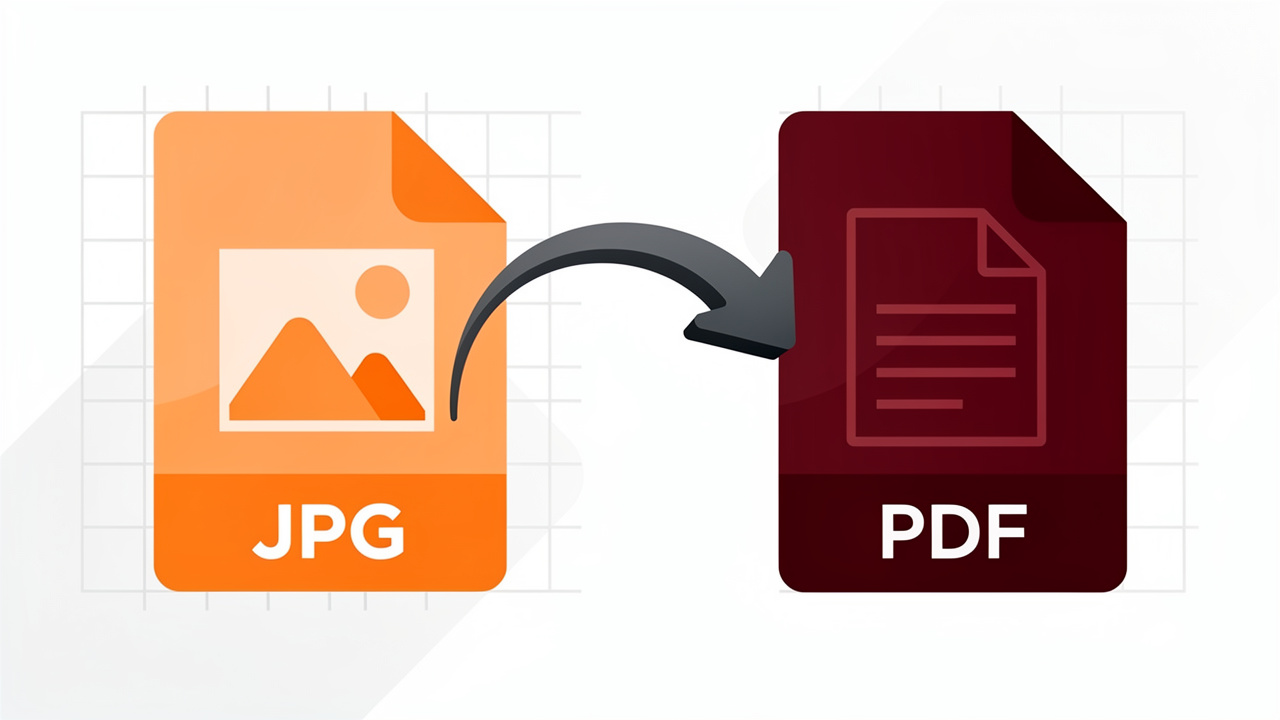
Anyone who has searched how to convert JPG to PDF knows the situation. A teacher wants a scanned assignment as a PDF, a client needs a receipt in one file, or a manager asks for a proper document instead of a blurry photo — and understanding how to extract data from images into shareable formats is a growing everyday need. The image is ready, but the format is wrong and the clock is ticking.
PDF is a favorite format because it works almost everywhere, keeps page layout consistent, and looks professional on screen and on paper. The issue is that many tools that claim to convert JPG to PDF make the job harder than it should be. They ask for sign-ups, limit free use, add watermarks, or push paid plans when all you need is a quick, clean file.
iLovePDFKit removes that friction. It is a free, browser-based JPG to PDF converter with no registration, no watermarks, and fast, secure processing. Open the site, drop in the image, and download your ready-to-share PDF in seconds.
This guide shows exactly how to convert JPG to PDF with iLovePDFKit, step by step. You will also see how to combine multiple JPG files into one PDF, what happens to your files behind the scenes, and clear answers to common questions.
Key Takeaways
Before diving deeper, here are the main points from this guide:
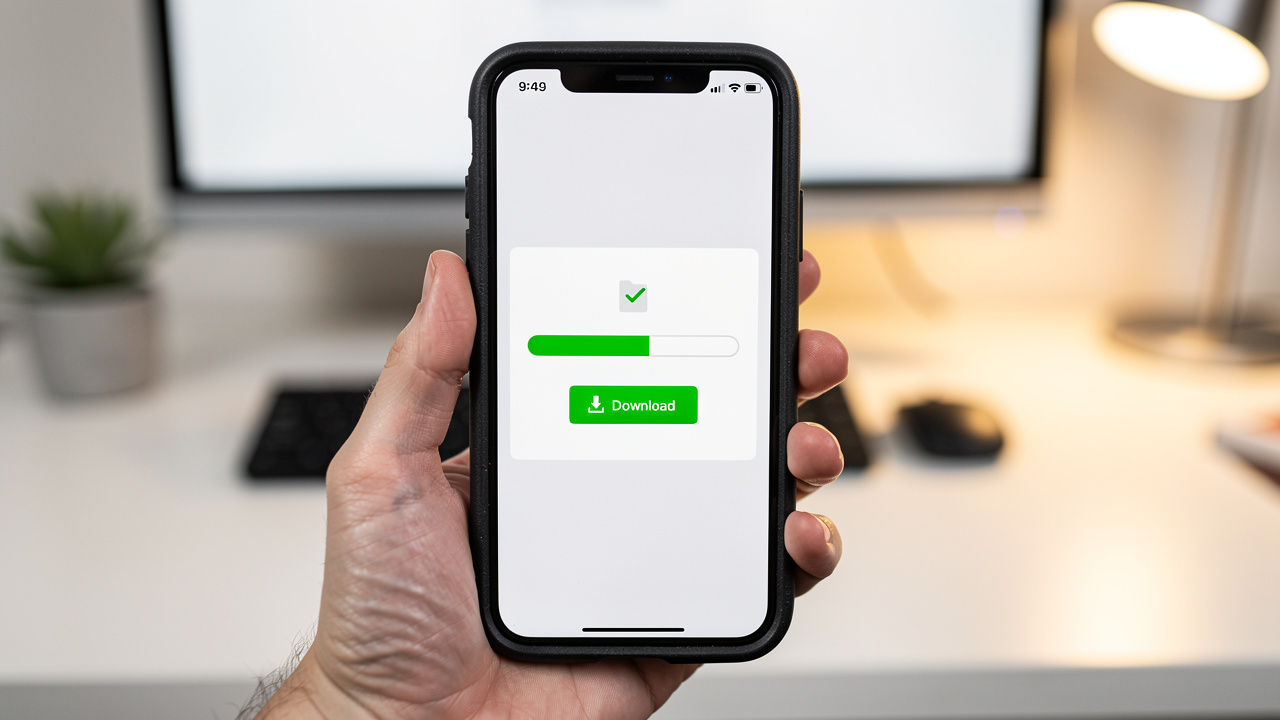
Converting a JPG to PDF with iLovePDFKit usually takes under a minute, with no software to install, no sign-up, no payment, and no watermark.
The same simple process works on laptops, desktops, tablets, and phones. You only need a modern browser, and the steps stay the same on every device.
iLovePDFKit keeps near pixel-perfect image quality in the final PDF. Colors stay accurate, text stays sharp, and the PDF closely matches the original JPG.
Files are processed over secure, encrypted connections and removed shortly after download, so your documents are not kept on the server.
How To Convert JPG To PDF Using iLovePDFKit (Step-By-Step)
Knowing how to convert JPG to PDF shouldn’t require tech skills. With iLovePDFKit, the whole process feels as simple as attaching a file to an email—no installs, no accounts, and no confusing menus.
Here’s how to convert JPG to PDF with iLovePDFKit in four quick steps.
Open The Tool
Open a modern browser such as Chrome, Safari, Firefox, or Edge and go to iLovePDFKit. On the homepage, choose the JPG to PDF converter. Because everything runs in the browser, it works on Windows, macOS, Linux, Chromebooks, and mobile devices without extra apps.Upload Your JPG
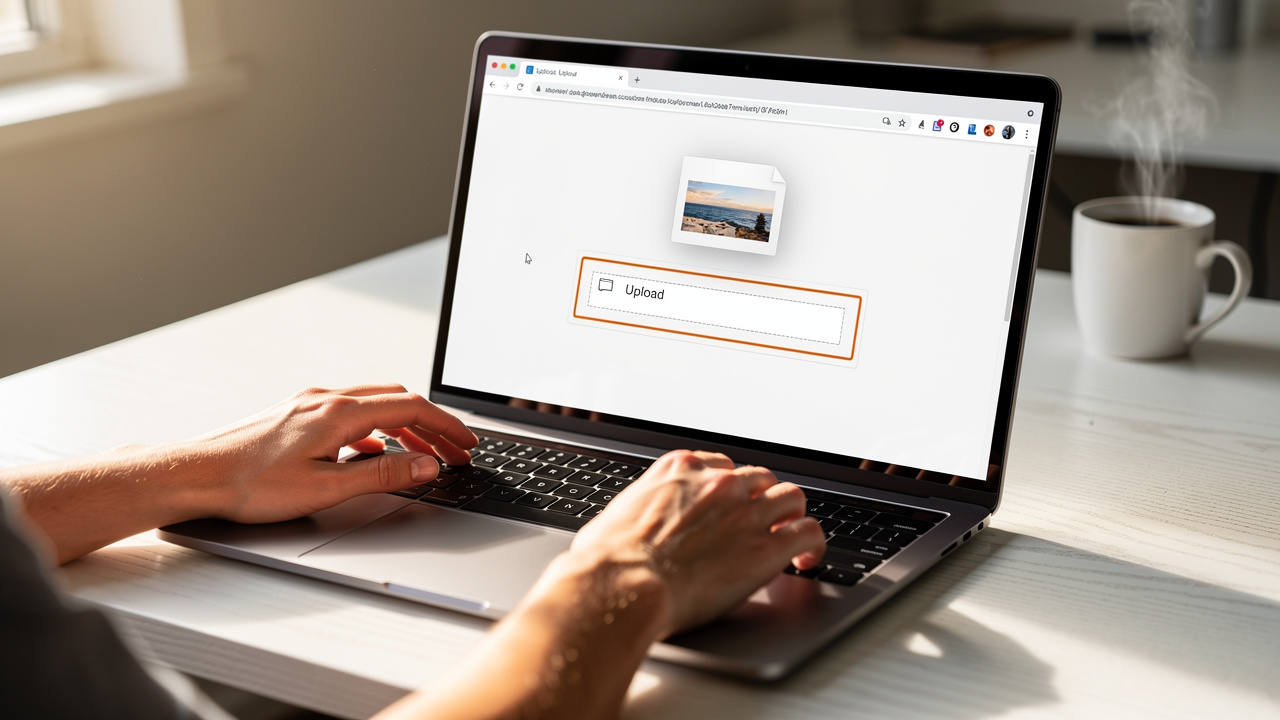
On the JPG to PDF page, the upload area is front and center. You can:Drag your JPG file from a folder and drop it into the upload zone, or
Click the button to browse your computer, phone, or tablet.
iLovePDFKit also accepts other image formats, but starting with JPG keeps the process fast and straightforward.
Let Conversion Run Automatically
As soon as the image finishes uploading, iLovePDFKit starts converting it. There are no settings you must change unless you want fine control. The tool reads the image and builds a clean PDF page that matches the original resolution, colors, and layout. Even large photos usually convert in just a few seconds.Download Your PDF
When conversion is done, a download button appears. Click it and save the new PDF file wherever you prefer—Downloads, Desktop, cloud storage, or a project folder. The file opens in any standard PDF reader and is ready to send to a teacher, upload to a portal, or attach to an email.
Pro tip – If you need to know how to convert JPG to PDF for a whole stack of images, iLovePDFKit can process them all at once. Upload several JPG files together and it creates one organized, multi-page PDF in a single pass.
These same steps work on iPhone and Android devices. Open the browser, visit iLovePDFKit, choose the JPG from your photo gallery, convert, and download. There’s no app to install, which is a real help when storage space is limited.
Why iLovePDFKit Is The Best Free JPG To PDF Converter

There are many tools that claim to show how to convert JPG to PDF, but they often add friction. Some hide limits behind “free trial” buttons, others stamp watermarks on every page, and many push account creation before you can even upload a file. iLovePDFKit keeps things simple and fair.
“Simplicity is the key to brilliance.”
— Bruce Lee
Here’s what sets iLovePDFKit apart:
Truly Free To Use
iLovePDFKit is free for everyone—students, teachers, freelancers, and small teams. There are no surprise paywalls, no credits to manage, and no “premium” options suddenly appearing after a few conversions. Every file goes through the same clean process with no watermark on the final PDF.High-Quality Output
When you send an image through iLovePDFKit, the converter works to keep every detail sharp. Text stays readable, small elements in photos remain clear, and colors don’t wash out. If the input JPG looks good, the exported PDF will look just as good, whether it’s a research scan, a receipt, or a design preview.No Sign-Up Or Installation
You can arrive at the site, learn how to convert JPG to PDF in seconds, and finish the task without creating an account or installing software. This makes it ideal for shared computers, school devices, or quick one-off tasks where you don’t want to leave personal data behind.Privacy And Security First
Files travel over encrypted connections during upload and download, which helps protect sensitive information. iLovePDFKit follows a clear no-file-storage approach: documents are removed from servers soon after processing. The team sums this up with a simple idea: the safest data is the data we don’t keep.Works Across All Your Devices
Because everything runs in the browser, the same tool works on phones, tablets, and computers. A student can convert notes on a phone, an office worker can create PDFs from scans on a desktop, and a freelancer can finalize a project on a laptop at home.
Here is how iLovePDFKit compares with typical converters:
| Feature | iLovePDFKit | Typical Converters |
|---|---|---|
| Free To Use | ✅ Always | ⚠️ Limited or paid |
| No Watermarks | ✅ Yes | ❌ Often added |
| No Registration | ✅ Yes | ❌ Often required |
| Files Deleted After Use | ✅ Shortly after processing | ⚠️ May be stored |
| Mobile Friendly | ✅ Fully | ⚠️ Varies |
For anyone wondering how to convert JPG to PDF without stress, these points make iLovePDFKit a reliable first choice.
How To Combine Multiple JPGs Into One PDF
Very often, the question isn’t only how to convert JPG to PDF, but how to create one clean file from many images. Think of:
A multi-page assignment photographed page by page
A stack of receipt photos for an expense report
A project portfolio saved as several pictures
iLovePDFKit makes it easy to bring all those images together in a single multi-page PDF.
Method 1 — Upload Multiple Files At Once
On the JPG to PDF page, you can select more than one image during upload:
On a computer, hold Control (Windows/Linux) or Command (macOS) while clicking files.
On a phone, pick several photos from your gallery.
Drag them into the upload area or choose them through the file picker. iLovePDFKit shows the images in order and prepares one combined PDF. Before converting, you can reorder pages simply by dragging the thumbnails, which makes it easy to fix anything that ended up out of order. After that, click to convert and download one complete document instead of many single-page files.
This is the fastest option when you already know how to convert JPG to PDF and just want to bundle a group of images into one document.
Method 2 — Convert Then Merge With Other Files
Sometimes you need more control, especially when mixing images with other documents. In that case:
Convert each JPG to its own PDF using the JPG to PDF tool.
Open the Merge PDF tool on iLovePDFKit.
Add your newly created PDFs, plus any Word, Excel, PowerPoint, or existing PDF files.
Arrange pages in the order you want and merge them into one final report.
This method works well for combining scanned signatures, photo pages, and office documents into a single, professional-looking PDF.
iLovePDFKit is more than a simple JPG to PDF converter. The same site lets you merge, split, compress, and convert between formats including Word, Excel, PowerPoint, PNG, and PDF. That makes it a handy online workspace whenever you’re dealing with files in different formats.
Time-saving tip – When scanning or photographing pages, store them in the right order in one folder or album before upload. That way, combining them into a neat multi-page PDF in iLovePDFKit takes only a few quick clicks.
“Details are not details. They make the design.”
— Charles Eames
Keeping pages straight and readable may seem small, but it makes a big difference to the person who opens your final PDF.
Conclusion
Changing an image into a clean, shareable document doesn’t need to be hard. Once you learn how to convert JPG to PDF with iLovePDFKit, it becomes a quick task you can handle from almost any device in under a minute.
iLovePDFKit stays free, fast, and simple to use. There are no sign-ups, no credit card forms, and no watermarks on your files. The converter keeps high visual quality, so assignments, receipts, and project pages look sharp and professional. Security stays strong as well, thanks to encrypted connections and a no-file-storage policy that removes documents soon after processing.
There’s no reason to struggle with clunky software or limited free trials. Ready to convert a JPG to PDF right now? Open iLovePDFKit in a browser, drop in the image, and see how quick and easy the process can be.
FAQs
Is It Really Free To Convert JPG To PDF With iLovePDFKit?
Yes. iLovePDFKit is free to use and doesn’t ask for hidden fees, subscriptions, or credit card details. You can learn how to convert JPG to PDF, run the conversion, and download clean files without watermarks every single time.
Will My Image Lose Quality When Converted To PDF?
No. iLovePDFKit is designed to keep strong visual quality during conversion. The PDF preserves the original resolution, sharpness, and colors from the JPG. If the source image is clear, the converted PDF will look just as clear on screen and on paper.
Can I Convert JPG To PDF On My Phone?
Yes. Open a mobile browser such as Safari on iPhone or Chrome on Android, go to iLovePDFKit, and choose the JPG from your photo gallery. The steps for how to convert JPG to PDF on a phone match the desktop process: upload, wait a few seconds, then download the ready PDF.
Is It Safe To Upload My Files To iLovePDFKit?
Yes. Safety is a main focus. Files are sent over secure, encrypted connections, which protects them during upload and download. iLovePDFKit follows a strict no-file-storage policy, so documents are removed from servers shortly after processing. No account is required and no unnecessary personal data is stored, which makes the tool suitable for contracts, receipts, academic work, and other private documents.
