
Table of Contents
- Introduction
- Why Converting PDF to Excel Is a Workflow Essential
- How to Convert PDF to Excel Using a Free Online Tool
- How to Import a PDF Into Excel Using Microsoft 365’s Built-In Feature
- XLS vs. XLSX: Which Format Should You Download?
- Tips for Getting the Best PDF-to-Excel Conversion Results
- Locking In Your Workflow: Next Steps After Converting
- Frequently Asked Questions
Introduction
Copying a table from a PDF into Excel often turns tidy data into a scrambled mess. Cells merge, numbers jump to the wrong columns, and formulas no longer work. That wastes time for students, office staff, and freelancers who just need clean rows and columns.
Learning how to convert PDF to Excel fixes that fast. Instead of copy‑and‑paste, a converter reads the tables in your PDF and rebuilds them as real Excel cells. In this guide, you will see the fastest methods, from free browser tools like iLovePDFKit to Microsoft 365’s built‑in import feature, plus smart file format tips.
By the end, you will know which method to pick, how to get accurate results, and how to keep your data safe while you work. If you want smoother reports, cleaner assignments, and faster invoicing in 2026 and beyond, keep reading to upgrade your everyday document workflow.
Key Takeaways
Before jumping into methods, it helps to see the big picture. These points sum up what you gain when you convert instead of retyping or copying.
PDF vs. Excel: PDF files freeze layout so text and tables stay fixed, while Excel files turn that same content into live cells you can sort, filter, and calculate. This change turns a static report into something you can actively work with. That difference is the heart of every PDF to Excel method in this guide.
Fast, free conversions: The quickest no‑cost option is a browser converter such as iLovePDFKit that works without software, account, or payment. You upload, wait a few seconds, then download a clean XLSX file. This flow suits quick tasks on shared computers or mobile devices.
Staying inside Excel: If you already pay for Microsoft 365, Excel’s Get Data From PDF feature lets you pull tables straight into a workbook. You stay inside Excel, which many finance and admin teams prefer, and you can target a single table inside a long report.
Best output format: When you pick an output format, XLSX is almost always the best choice because it supports more rows, smaller files, and current Excel features. XLS only makes sense when someone still uses very old Excel versions. Most modern tools, including iLovePDFKit, default to XLSX.
Data privacy: When you convert online, protect sensitive data by choosing tools that use HTTPS and delete files after processing. Reputable services such as Adobe Acrobat Online and iLovePDFKit follow these practices. Checking each site’s privacy policy adds another layer of peace of mind.
Why Converting PDF to Excel Is a Workflow Essential

Converting PDF to Excel is a workflow essential because it turns locked pages into live spreadsheets you can actually work with. Instead of fighting copied text, you start with structured rows and columns that behave like normal data in Microsoft Excel or Google Sheets.
PDFs are great for viewing final documents, but they freeze content in place. That rigid structure causes trouble the moment you need to sort grades, filter invoice lists, or total research numbers. A proper conversion tool reads the PDF tables and rebuilds them as real Excel cells rather than a flat block of text.
For students and academics, this means a table from a journal article or government report can flow straight into Excel for analysis. No more typing every value by hand. For office professionals, monthly statements or vendor reports can jump directly into dashboards, pivot tables, or budget templates.
The time savings can be large. Research from McKinsey estimates that employees spend about 1.8 hours each day searching for information. Clean, searchable spreadsheets reduce that drag because totals, filters, and formulas reveal what matters faster than any static PDF.
As statistician W. Edwards Deming famously said, “In God we trust; all others must bring data.”
Freelancers and small business owners feel the difference as well. Client invoices, cost breakdowns, and price lists often arrive as PDF attachments. With tools like iLovePDFKit, Adobe Acrobat, or Excel’s importer, those files become editable ledgers in minutes, which keeps cash flow and reporting on track.
How to Convert PDF to Excel Using a Free Online Tool
You can convert PDF to Excel in minutes with a free online converter that runs inside any modern browser. This option is perfect when you want speed, zero setup, and no extra software on your device.
Online converters such as iLovePDFKit, Adobe Acrobat Online, and Smallpdf work from Chrome, Edge, Safari, or Firefox. You open a web page, upload your PDF, and receive an XLSX file that opens directly in Microsoft Excel, LibreOffice, or Google Sheets. For most users, this is the simplest answer to how to convert PDF to Excel.
iLovePDFKit is built for exactly this workflow:
It processes tables across multiple PDF pages.
It keeps column structure as much as possible.
It delivers real cells instead of a screenshot of your data.
The tool is completely free, does not require sign‑up, and does not place watermarks on the spreadsheet you download.
Scale also shows how common this task has become, and tools continue to evolve rapidly — as detailed in Elite PDF to Excel converter benchmarks evaluating accuracy and table extraction quality in 2026. Adobe reports that its online PDF tools handled more than 11 million file uploads over less than two years, according to Adobe. That volume reflects the daily need students and workers have for fast document conversion.
Online tools offer a few clear strengths that matter in real life:
They work on any device that has a browser, including school Chromebooks, shared office desktops, and phones. That flexibility helps when you are away from your main laptop or can not install software on a locked work machine. All you need is an internet connection.
They remove cost barriers for individuals and small teams. iLovePDFKit, for example, gives full PDF to Excel conversion without paywalls, card forms, or trial limits. This makes it attractive for freelancers and students who handle many reports but have tight budgets.
They have very short learning curves. The upload area is easy to spot, icons are simple, and you rarely see complex settings. That means even someone who only uses Excel for basic tasks can still convert confidently.
Step-By-Step: Convert PDF to Excel With iLovePDFKit

Now comes the practical part. Here is the exact process to follow with iLovePDFKit so you can convert your next PDF in under a minute.
Open the iLovePDFKit PDF to Excel converter page in any browser on your computer or phone. Supported browsers include Google Chrome, Microsoft Edge, Mozilla Firefox, and Apple Safari. You do not need to install anything before starting.
Upload your PDF by clicking the main upload button or dropping the file onto the marked area. The interface shows the file name so you can confirm you picked the right document. Large PDFs such as long reports may take a moment to finish uploading.
Wait a few seconds while iLovePDFKit processes the file and detects tables, rows, and columns. The service reads the structure of each page and maps it into a spreadsheet layout. Behind the scenes it focuses on keeping numbers, headers, and merged cells aligned.
Click the download button to save your new XLSX file to your device once processing finishes. The file is watermark‑free and opens directly in Microsoft Excel or your preferred spreadsheet app. No account, registration, or credit card is requested at any step.
For most assignments, invoices, or reports, this flow takes less than a minute from upload to open spreadsheet. Because iLovePDFKit is browser based, the same steps work on desktops, laptops, tablets, and smartphones, which keeps your workflow consistent anywhere you work.
How to Import a PDF Into Excel Using Microsoft 365’s Built-In Feature
Microsoft 365 users can import a PDF into Excel using the built‑in Get Data From PDF command. This method keeps everything inside Excel, which feels natural to anyone who already spends the day in workbooks.
You start in Microsoft Excel on Windows and open the Data tab in the ribbon. From there, you select Get Data, pick From File, then choose From PDF. Excel asks you to browse for your PDF, and once you select it, a Navigator window appears with a list of detected tables.
Each table entry in the Navigator can be previewed by clicking its name. This preview step is handy when a single report contains several charts and tables, but you only need one of them. You select the desired table, then decide whether to load it directly into a sheet or first open Power Query for cleanup.
Power Query is Excel’s data shaping window. In that space you can remove extra columns, filter out header rows that repeat every page, change data types, and rename fields. When you click Load, Excel sends the cleaned table into a worksheet as a standard Excel table that supports sorting, filtering, and formulas.
Once you have set this up for a recurring report, you can refresh the query when a new version of the PDF arrives, instead of rebuilding the spreadsheet from scratch. That can save many hours over the course of a semester or financial year.
Interest in this feature is strong, and deeper analysis of high-performing educational videos — like the insights shared in What I Learned from a viral analytics deep dive — confirms that practical workflow tutorials consistently outperform other content categories. A tutorial on importing PDFs into Excel by Microsoft education expert Mike Tholfsen has gained more than 1.4 million views and thousands of likes on YouTube, according to YouTube. That audience shows how often students and professionals face PDF‑based data.
This method shines in offices that handle sensitive information where uploading to outside servers is not allowed. Because all processing happens on your computer within the Microsoft 365 environment, finance or HR teams can stay compliant while still freeing data from PDFs.
XLS vs. XLSX: Which Format Should You Download?
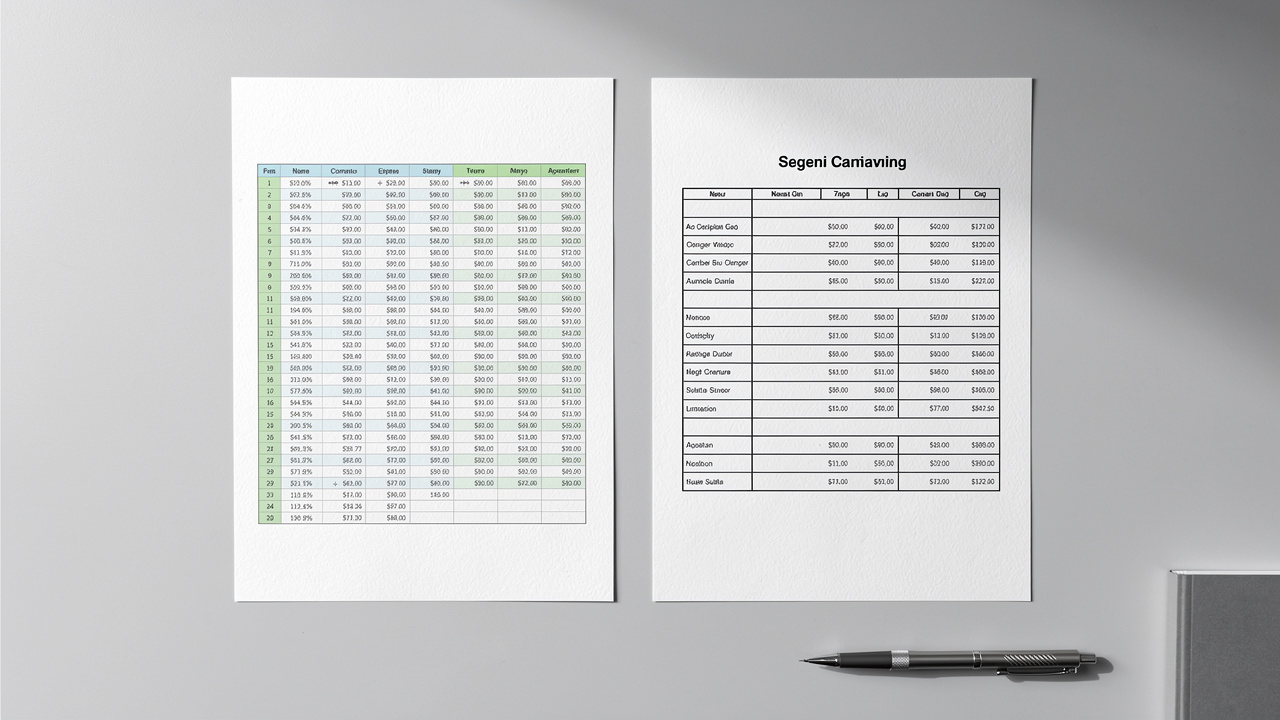
Choosing between XLS and XLSX affects compatibility and file size, so it helps to know the difference. In modern workflows, XLSX is almost always the safer and more future‑proof download choice.
XLS is the old binary file format used by Excel 2003 and earlier versions. It supports fewer rows and columns and tends to create larger files. XLSX is the newer XML‑based format that became standard with Excel 2007 and later releases.
Here is a quick comparison.
| Feature | XLS | XLSX |
|---|---|---|
| Typical Excel version | Excel 2003 and earlier | Excel 2007 and later |
| File structure | Binary workbook format | XML based, zip compressed |
| File size | Often larger | Usually smaller |
| Row limit | Lower limit | Higher limit |
According to Microsoft, current Excel worksheets support up to 1,048,576 rows per sheet, which only applies to modern formats such as XLSX. Older XLS files do not reach that capacity.
For almost everyone using current Excel, Google Sheets, or LibreOffice, XLSX is the better pick. iLovePDFKit outputs XLSX by default so the converted file opens cleanly in modern tools. Choose XLS only when you know the recipient still works on a very old Excel version or on older specialist software that demands it.
Tips for Getting the Best PDF-to-Excel Conversion Results

Good PDF to Excel results start with the source document and the tool you pick. When you follow a few simple habits, you reduce cleanup time and improve accuracy in the spreadsheet.
Data analyst Nate Silver has noted that “the key is to find the signal within the noise.” Clean conversions make that search much easier.
First, pay attention to how the PDF was created:
Files exported from Word, Excel, or an online form generator usually contain real text that converters can read easily — a distinction that matters significantly for accuracy, as explored in We Tracked 1 Million page views of analytics data, where structured data quality was identified as a key variable in meaningful analysis.
Scanned PDFs from a printer or camera store content as images, so you need an OCR‑capable tool such as Adobe Acrobat Pro for useful results.
Next, look at the table layout before converting:
Simple tables with clear borders, one header row, and no fancy merged cells convert far better than complex layouts.
If a report uses multiple header rows, split cells, or side comments squeezed into columns, plan to spend a little time tidying the Excel output.
After conversion, always validate the spreadsheet before serious use:
Scan a few rows in each section and compare them with the original PDF. This quick spot check catches missing digits, shifted decimal points, or skipped lines. It is especially important when dealing with grades, lab results, or financial totals.
Confirm that numbers in Excel are stored as values, not text. You can test this by summing a column with AutoSum or by checking alignment in cells. If a column behaves like text, Excel’s Text to Columns command or the
VALUEformula can convert it.Review column headers for alignment problems. Sometimes headers wrap to new lines or drift into the wrong column after conversion. Fixing those labels early avoids confusion when you later build filters, charts, or pivot tables from that data.
Finally, remember that tools differ. iLovePDFKit focuses on preserving table structure without watermarks, while Adobe Acrobat and Microsoft Excel integrate more deeply with their own ecosystems. Trying two methods on a tricky PDF can show which one handles that layout best for your specific use case.
Locking In Your Workflow: Next Steps After Converting
Once you can turn PDFs into Excel sheets in minutes, everyday work becomes smoother. Reports, statements, and research tables no longer feel trapped in frozen pages, since you know how to pull them into a live workbook whenever needed.
For quick, free conversions on any device, iLovePDFKit should be your first stop. Its browser‑based PDF to Excel tool gives clean XLSX files without accounts, paywalls, or watermarks, which suits students, freelancers, and busy office staff alike. For Microsoft 365 users dealing with sensitive data, Excel’s Get Data From PDF import keeps everything inside your existing subscription.
After that first success, you can connect other tasks to the same flow. iLovePDFKit also offers Merge PDF, Compress PDF, PDF to Word, and PDF to PowerPoint in the same interface, so you handle most document chores from a single browser tab.
Frequently Asked Questions
Question 1: Can I Convert a PDF to Excel for Free Without Creating an Account?
Yes, you can convert a PDF to Excel for free without any account. iLovePDFKit lets you upload a PDF, convert it to XLSX, and download the file right away. There are no sign‑up forms, credit card prompts, or hidden watermark limits in the process.
Question 2: Is It Safe to Upload Sensitive Financial Documents to an Online PDF Converter?
It can be safe when the converter uses strong security. iLovePDFKit processes files over encrypted HTTPS connections and removes documents from its servers after conversion. Look for the padlock icon in your browser and read the privacy policy before uploading payroll data or bank statements.
Question 3: Can I Convert a PDF to Excel on My Phone or Tablet?
Yes, you can convert PDFs to Excel on mobile devices. Browser‑based tools such as iLovePDFKit run inside Chrome, Safari, or other mobile browsers on iOS and Android. You upload the file from local storage or cloud apps, wait a moment, then download the XLSX.
Question 4: What If My Converted Excel File Shows Numbers as Text Instead of Values?
You can fix that directly in Excel. Select the problem column, then use the Text to Columns command or apply the VALUE formula in a helper column. High‑quality converters like iLovePDFKit usually keep numeric types correctly, so you see this mainly with messy original PDFs.
Question 5: Can I Convert a Scanned PDF to Excel?
Yes, but a scanned PDF needs OCR support to work well. Scanned files store pages as images, so a standard converter can not read the text or numbers. An OCR‑capable tool such as Adobe Acrobat Pro is better here, while iLovePDFKit suits digital PDFs created from office software.
