Introduction
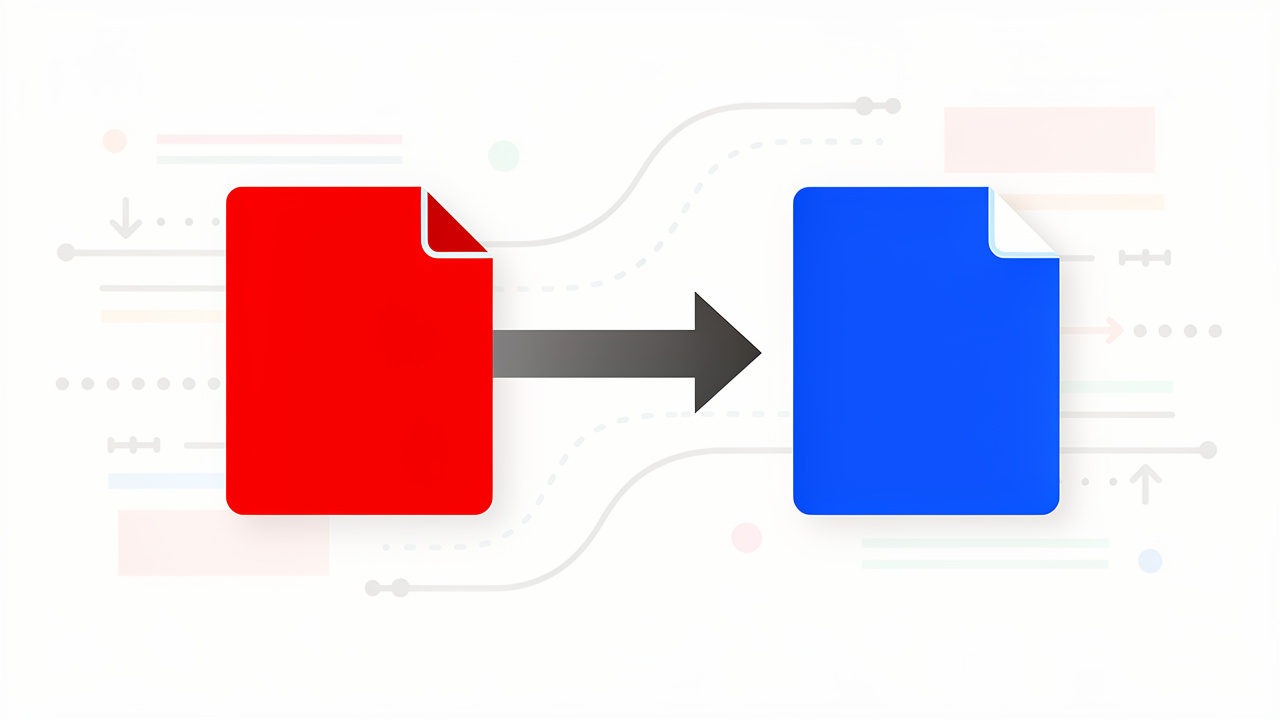
Picture this. A polished PDF report lands in the inbox. It looks perfect. Then there is a need to edit a few lines, so the next move is to look up how to convert PDF to Word. The file converts, opens in Word, and suddenly the tables break, fonts change, and images slide into strange places.
This happens because a PDF works like a snapshot of a page. Everything is locked into position. A Word document is more like a flexible canvas that moves as text is added or removed. When a tool tries to move from one style to the other, the layout has to be rebuilt, and that is where things often go wrong.
The good news is that lost formatting is not a rule. With the right tool, how to convert PDF to Word with clean fonts, neat tables, and lined-up images becomes very simple. At iLovePDFKit, we built a free, browser-based PDF to Word converter that focuses on page-accurate output, works on any modern browser, and does not ask for registration. In this guide, we walk through a fast three-step process, explain why formatting sometimes breaks, show how OCR helps with scanned files, share real-world use cases, and talk about staying safe when converting sensitive documents.
“Formatting should help the reader, not fight them.”
This simple rule guides every good document conversion.
Key Takeaways
This quick summary helps before diving deeper into how to convert PDF to Word without losing formatting.
Formatting often breaks when people learn how to convert PDF to Word with weak tools. A better converter carefully reads fonts, layouts, and tables. That level of care keeps the Word file very close to the original and cuts down the time spent fixing small errors by hand.
iLovePDFKit gives a free, browser-based way to handle how to convert PDF to Word. There is no sign-up step and no software to install. The tool aims for near pixel-perfect layout in seconds and works smoothly on laptops, phones, and tablets.
Scanned or photo-based PDFs need OCR for clean results when learning how to convert PDF to Word. OCR turns picture text into real text that Word can edit. iLovePDFKit includes OCR in the same simple interface, so one tool can handle both standard and scanned PDFs.
How To Convert PDF To Word In 3 Simple Steps

When people look up how to convert PDF to Word, they usually want the fastest path that still keeps the layout intact. With iLovePDFKit, the whole process stays inside the browser, works on any device, and never asks for an account. Everything takes just three clear steps.
Upload The PDF To iLovePDFKit
Start by heading to the iLovePDFKit PDF to Word page in a browser such as Chrome, Firefox, Safari, or Edge. Click the button that lets a file be selected, then choose the PDF from the device. Another option is to drag the file from a folder and drop it into the upload area. Either way, the upload is quick, even for longer reports or homework files.Start The Conversion And Let The Engine Work
Once the file is in place, iLovePDFKit begins to handle how to convert PDF to Word right away. The engine scans the PDF, finds headings, paragraphs, tables, images, and even multi-column layouts, then rebuilds them in DOCX format. For most files, this takes only a few seconds. There is no need to adjust any settings, so the process stays friendly for every skill level.Download The New Word Document
As soon as the conversion is ready, a clear download button appears. A click saves the DOCX file to the device with no email, account, or payment step in the way. The new Word document opens in Microsoft Word, Google Docs, or any compatible editor and is ready for direct editing, comments, and sharing.
From the first upload to the final download, iLovePDFKit handles how to convert PDF to Word while also caring about privacy. Files move over encrypted connections, and they are cleared from the servers after the work is finished.
Why Formatting Gets Lost — And How To Prevent It
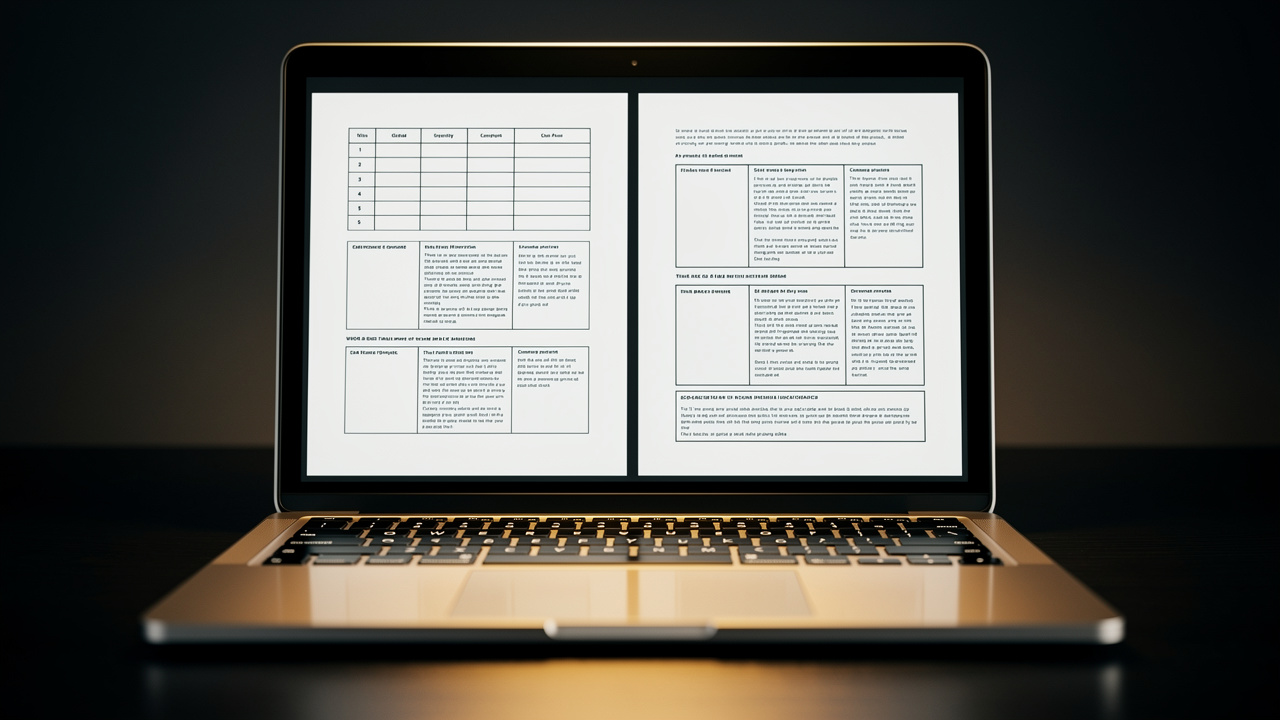
To understand how to convert PDF to Word without a messy result, it helps to know why things sometimes go wrong. A PDF is fixed in place. It stores where every letter, image, and line should appear on the page. A Word file, on the other hand, lets text wrap and move as lines are edited. During conversion, a tool must read the fixed layout and then rebuild it as flexible content.
If a converter uses simple rules, small errors stack up:
Headings may slide away from the paragraphs they belong to.
Tables can lose borders or merge cells that should stay apart.
Images drift away from their captions or move to the next page.
Multi-column pages may flatten into one long column.
Missing fonts may be swapped with plain system fonts.
These changes create that “broken” feeling when people first test how to convert PDF to Word.
We built iLovePDFKit to reduce these problems as much as possible. The engine pays close attention to font sizes and styles, table lines, image positions, margins, and even page count. The goal is a Word file that looks almost the same as the original PDF, so only light editing is needed.
To make this clearer, here is a quick comparison:
| Common Formatting Problem | What A Good Converter Tries To Do |
|---|---|
| Headings shift or change size | Detect heading styles and keep them aligned with paragraphs |
| Tables lose cell structure | Preserve rows, columns, and borders in an editable table |
| Images move to random positions | Keep image size and placement close to the original |
| Fonts look different | Match original fonts or use close substitutes consistently |
Scanned PDFs bring a different challenge, since they are just images of pages. Without extra help, a converter cannot see real text in those files. That is why OCR matters so much when learning how to convert PDF to Word. We include OCR in iLovePDFKit so scanned pages can turn into editable Word text. After any conversion, it is still smart to give the file a quick scan before sending it to a teacher, client, or manager.
“If you care about how a document reads, you also have to care about how it looks.”
Good conversion is part of that visual care.
What Is OCR And When Do You Need It?
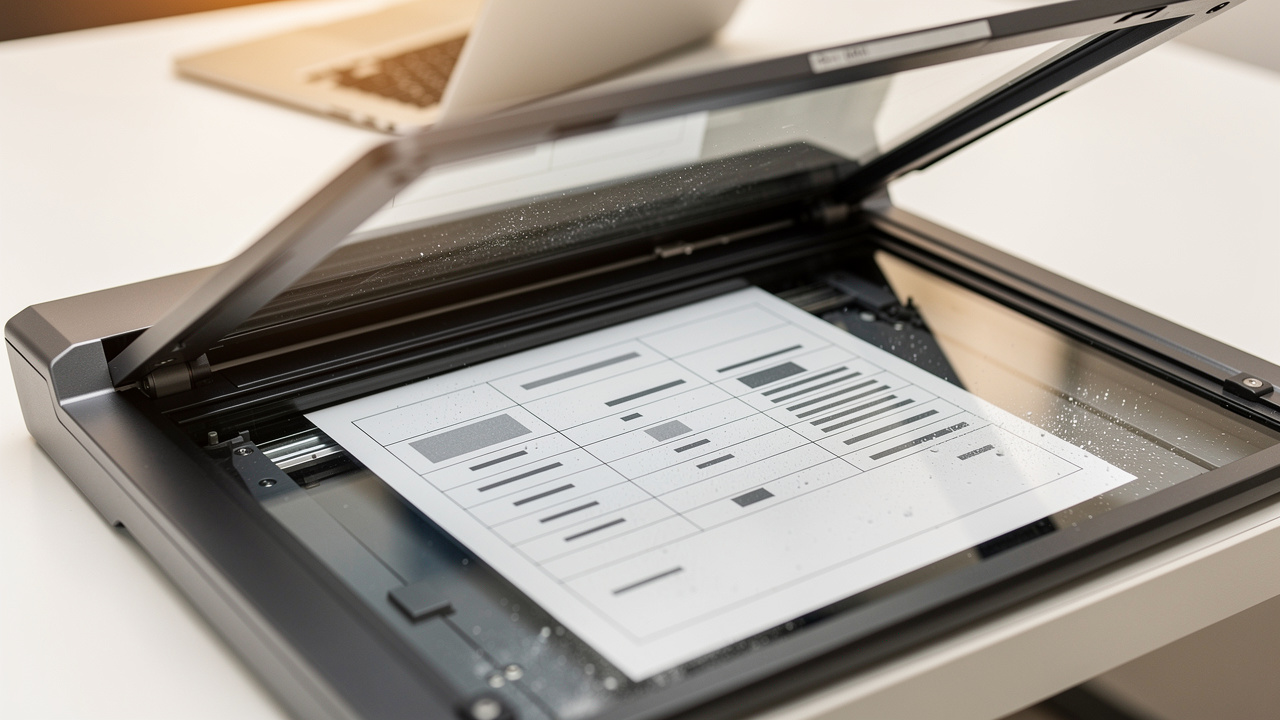
OCR stands for Optical Character Recognition, and it plays a big part in how to convert PDF to Word when the file is a scan. Instead of starting with real text, a scanned PDF is more like a photo of each page. A normal converter only sees pixels, not letters or words.
OCR acts like a reader that looks at each letter shape and matches it to real characters. It turns the picture of text into actual text that Word can edit, search, and copy. This matters any time a contract was printed and scanned, an old book was digitized, or homework was photographed and saved as a PDF.
You will usually need OCR when:
The PDF looks like a set of photos or scanner pages.
Text cannot be selected or copied in the PDF viewer.
The file comes from a camera, phone, or office scanner.
When someone tries to learn how to convert PDF to Word for a scanned syllabus, invoice, or academic paper, they need OCR for a clean result. iLovePDFKit includes OCR inside the same simple workflow, so there is no need to switch tools or learn new menus. A scanned invoice, for example, can turn into an editable Word file where amounts, dates, and names can be changed in seconds.
When And Why You’d Convert PDF To Word — Real-World Use Cases

Many people search for how to convert PDF to Word only when a deadline is close. Seeing everyday cases can help spot chances to save time earlier. Students, office staff, and small business owners all deal with PDFs that would be easier to handle in Word.
Students And Academics
Research papers, journal articles, and lecture notes often arrive as PDFs. Converting them to Word makes it easy to copy quotes, add comments, or mix sections into essays and reports. Some schools also share assignment templates in PDF form, and turning those into Word lets fields be filled and layouts adjusted. This keeps focus on content instead of retyping long passages.Office Professionals And Admin Staff
Contracts, HR policies, and internal forms are usually stored as PDF files. When details change, nobody wants to rebuild a document from scratch. Knowing how to convert PDF to Word with iLovePDFKit turns these fixed documents into editable files in seconds. Teams can update clauses, dates, or rules, then export back to PDF for sharing with staff or clients.Freelancers And Small Business Owners
Service quotes, invoices, brochures, and product sheets often start as PDFs. Converting them to Word allows prices, logos, and branding to be updated quickly for new clients. Old paper or scanned forms can also be rebuilt as modern digital templates. Alongside PDF to Word, iLovePDFKit offers tools such as PDF to Excel and PDF to PowerPoint, which helps when sales data or slide decks also need edits.
In all these cases, having a clear method for how to convert PDF to Word can cut hours of manual typing down to a few clicks.
Is It Safe To Convert PDF To Word Online?

Anyone who looks up how to convert PDF to Word with real work files will wonder about safety. Uploading contracts, grades, or billing records to a website can feel risky if the platform is unknown. That concern is healthy, and it helps to know what a safe tool looks like.
First, a trusted converter uses encrypted connections. When iLovePDFKit processes a file, the data moves over secure HTTPS links so outsiders cannot read it in transit. Second, files should not sit on servers for long periods. Our service clears both the original PDF and the converted Word file after the task is done, so they do not stay online.
Another good sign is how much personal data is requested. With iLovePDFKit, there is no account, email, or credit card needed just to handle how to convert PDF to Word. This means there is no profile to track and no payment details at risk. The tool is also free to use, with no surprise paywalls in the middle of a rush job.
For any online converter, people can check a few simple things — tools like the Free PDF to Word converter from Systweak are examples of services that publish clear policies around file handling and security.
| Security Feature | What To Look For When Converting PDFs Online |
|---|---|
| HTTPS Connection | A lock icon in the browser bar and an address starting with https |
| File Deletion Policy | A clear statement that files are removed after processing |
| Data Collection | Minimal personal data requested for basic conversions |
| Transparent Terms | A readable privacy policy and terms of service |
We designed iLovePDFKit with students, freelancers, and office teams in mind, so security is part of the core design rather than a hidden setting.
Tip: Treat any converter that asks for lots of personal data for a simple file task with extra caution.
Conclusion
Learning how to convert PDF to Word without wrecking the layout does not have to be hard. Once the difference between fixed PDFs and flexible Word files is clear, the rest comes down to picking a careful, modern tool. That is where iLovePDFKit comes in.
Our online converter focuses on accurate output, keeps the service free and registration-free, and protects each file with encrypted transfer and quick deletion. Built-in OCR makes it easy to turn scanned pages into real, editable text as well. The next time a report, contract, or homework file needs edits, head to iLovePDFKit, drop in the PDF, and let the tool handle how to convert PDF to Word while the focus stays on the actual work.
FAQs
Question 1. Can I Convert A PDF To Word Without Losing Formatting For Free?
Yes. With iLovePDFKit, people can handle how to convert PDF to Word at no cost. There is no need for an account, payment card, or software download. The converter is designed to keep fonts, images, and tables close to the original layout. Everything runs in the browser on almost any device.
Question 2. Why Does My PDF Look Different After Converting It To Word?
A PDF keeps every item fixed, while a Word file lets text move and wrap. When a weak tool handles how to convert PDF to Word, it may guess wrong about fonts, tables, or image positions. That is why headings may shift or tables may break. iLovePDFKit uses a smarter layout engine that works hard to keep the converted file aligned with the original.
Question 3. Can I Convert A Scanned PDF To An Editable Word Document?
Yes, as long as the tool supports OCR. Scanned PDFs and photo PDFs only contain images of text, not real characters. When a person tries how to convert PDF to Word without OCR, they only get pictures in the DOCX file. iLovePDFKit includes OCR, so scanned contracts, invoices, or handouts become searchable and editable Word documents.
Question 4. Is It Safe To Upload Sensitive Documents To An Online PDF Converter?
Safety depends on how the site handles data. Before using any service for how to convert PDF to Word, check that the page uses HTTPS and read the privacy policy. iLovePDFKit processes files over encrypted links and clears them after conversion. Since no account is needed, there is very little personal data in play, which keeps the process simple and private.
