A stray blank sheet in the middle of a scanned contract, or three empty pages tacked onto the end of a class paper, can turn a polished document into a mess. If you are wondering how to delete blank pages from a PDF, the short answer is that you don’t need special software or any technical training to do it. Blank pages usually creep in during scanning, format conversion, or when several files get merged into one document, and they are just as easy to spot as they are to remove once you know where to look.
These extra pages do more than look messy. They can throw off page numbering, confuse anyone printing the file, and make a professional report or academic submission feel unfinished before anyone even reads the first line. The good news is that fixing this takes less time than reading this paragraph.
This guide covers why blank pages show up in PDFs, then walks through the fastest way to remove them using a free online tool like iLovePDFKit, along with safety tips and habits that keep your final file clean. Read on for the step-by-step process below.
Key Takeaways
- Blank pages usually come from scanning errors, file conversion glitches, or merging several PDFs into one document.
- Online tools such as iLovePDFKit let you delete pages from your browser, with no software install and no account needed.
- Thumbnail previews let you confirm a page is truly empty before you remove it, so you don’t lose important content by mistake.
- Deleting pages builds a new file rather than editing the original, so your source document stays safe if you change your mind.
- Removing blank pages can shrink file size too, especially when the deleted pages contained scanned images or graphics.
Table of Contents
- Why Do PDFs End Up with Blank Pages?
- How Do I Delete Blank Pages from a PDF Online?
- Is It Safe to Remove Pages Using Online Tools?
- Will Deleting Blank Pages Change My File Size or Content?
- Best Practices for Cleaning Up Your PDF
- The Takeaway
- Frequently Asked Questions
Why Do PDFs End Up with Blank Pages?
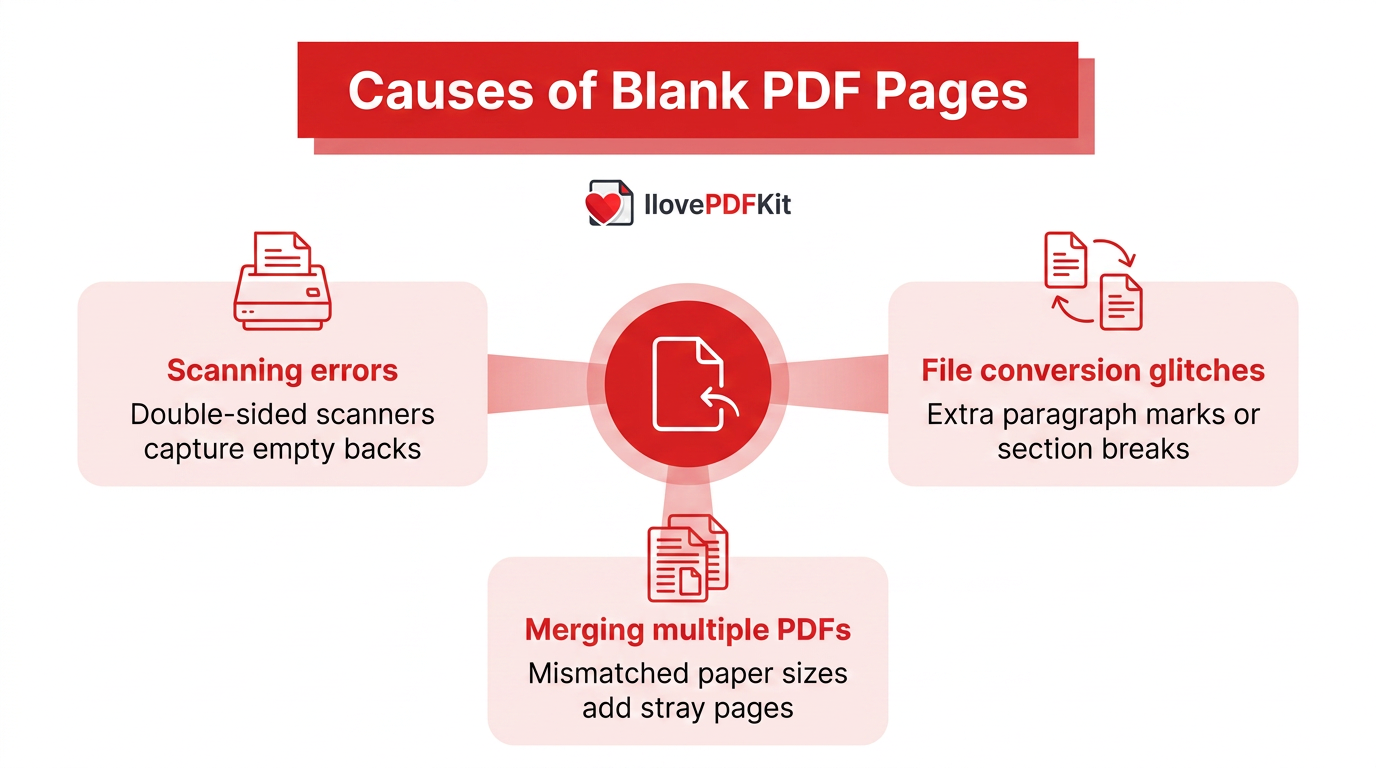
Blank pages show up in a PDF for a handful of predictable reasons, and knowing them helps you both fix the current file and avoid the problem next time. Scanning errors are a frequent culprit, since automatic feeders and double-sided scanners often capture the empty back of a page as its own sheet. Converting a Word, Excel, or PowerPoint file into a PDF can also add blank pages when a document has extra paragraph marks, odd margin settings, or section breaks that force a new page to start. Merging several PDFs into one, or printing to PDF with mismatched paper sizes, adds another layer of risk for stray empty pages slipping in.
No matter which of these caused the issue in your file, the fix works the same way. You identify the blank pages by looking at each one, select them, and delete them, which is exactly what the rest of this guide walks through.
How Do I Delete Blank Pages from a PDF Online?
Deleting blank pages from a PDF online means uploading your file to a browser-based tool, previewing each page as a thumbnail, and removing the empty ones with a click before downloading the cleaned-up version. This is the fastest route because there is nothing to install and no learning curve to work through first. Tools such as iLovePDFKit, iLovePDF, and Adobe Acrobat’s online page remover all follow a similar pattern, though they differ in cost, account requirements, and how many pages or files you can process for free. For a student racing a deadline, an office worker processing a stack of scanned forms, or a freelancer protecting a client’s confidential paperwork, this approach beats opening a desktop program or wrestling with print settings just to drop a few empty pages. The next two sections break the process down step by step, then cover what separates a genuinely useful page remover from one that slows you down with paywalls or missing features.
Step-by-Step Guide to Removing Blank Pages with iLovePDFKit
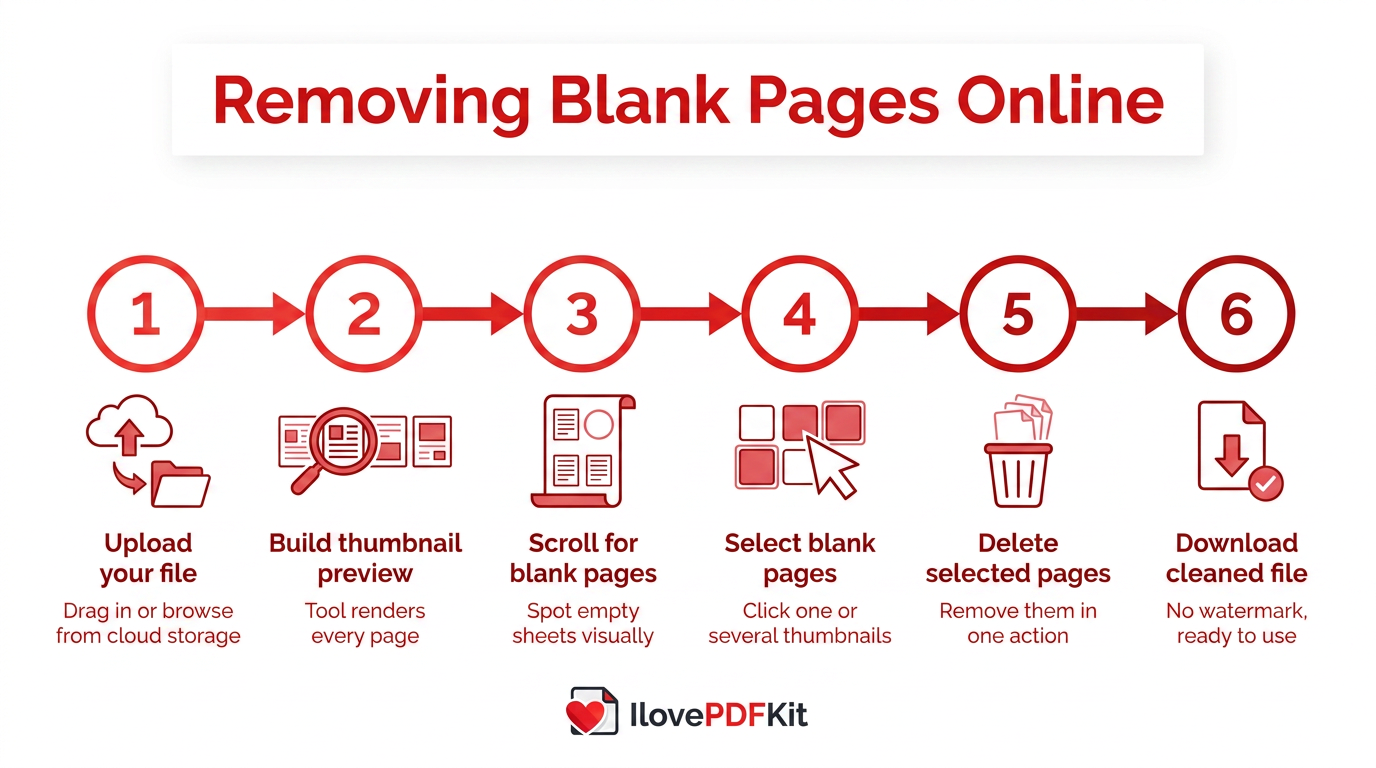
Removing blank pages with this tool follows a short, predictable sequence that works the same way whether you’re on a personal laptop or a shared school computer.
- Upload your file by dragging it into the tool or browsing your device, Google Drive, or Dropbox.
- Let the tool process your document and build a thumbnail preview of every single page.
- Scroll through the previews carefully to spot the pages that look empty.
- Click each blank page thumbnail to select it, choosing several at once if you need to.
- Hit the delete icon to remove every selected page in a single action.
- Download your cleaned file, ready to submit or send, with no watermark stamped on it.
The whole task usually wraps up in under a minute for a standard document, and you won’t need to sign up for an account or hand over payment details just to grab your finished PDF.
What to Look for in a Blank Page Remover
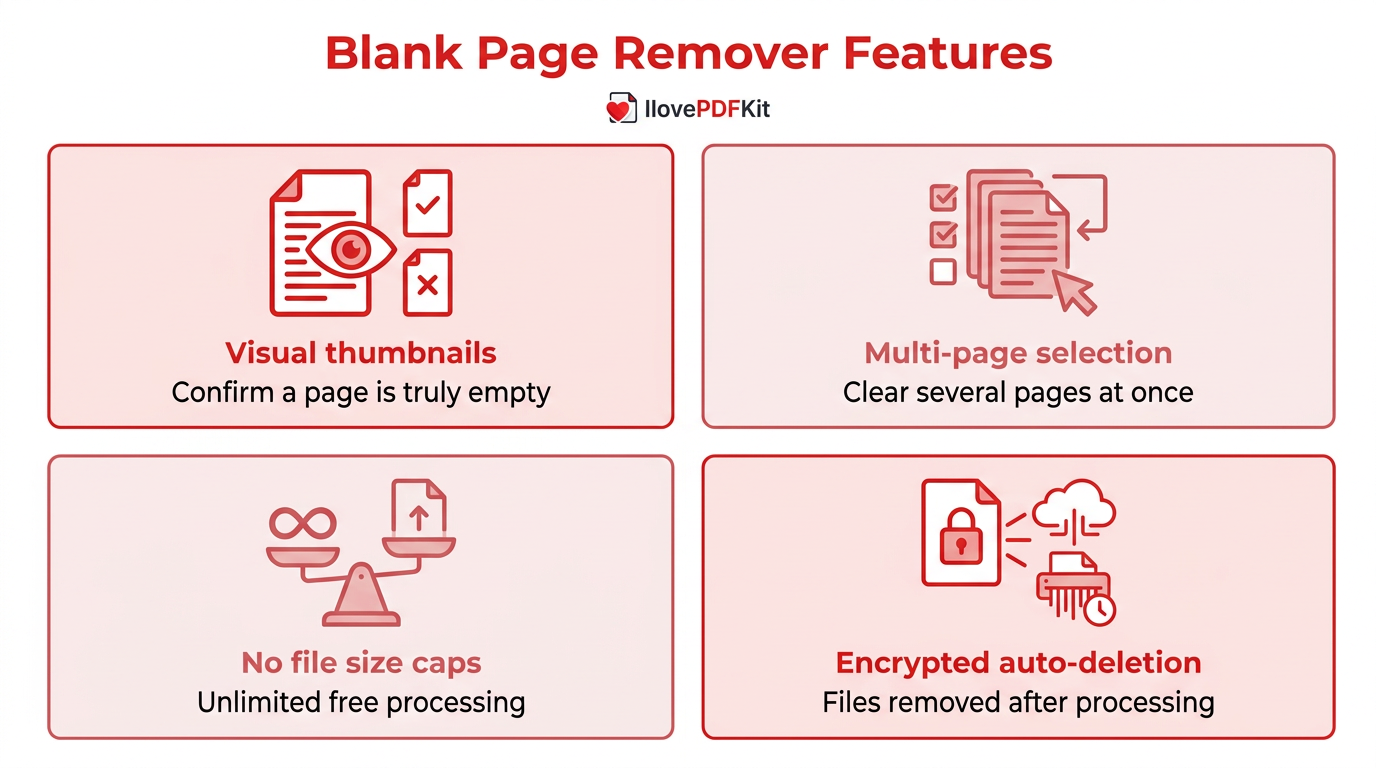
Not every blank page remover treats your document, or your time, the same way; some, like dedicated PDF processing software, let you target pages for removal by text content, character count, or page ranges, so it helps to know which features actually matter before you settle on a tool. A good one shows visual thumbnails so you can confirm a page is genuinely empty rather than guessing from a page number, supports selecting multiple pages at once, and runs entirely in the browser across Windows, Mac, and mobile devices without asking you to install anything.
- Visual thumbnails that let you double-check a page before it’s gone for good, avoiding accidental deletion of pages with faint text or watermarks.
- Multi-page selection so you can clear out several blank pages in one action instead of repeating the process page by page.
- No file size caps or daily limits, unlike some competitors that cap free jobs at a set number of files or pages per day.
- Encrypted uploads with automatic deletion of your file from the server once processing finishes, so nothing lingers online.
The platform builds in each of these without asking for an account, a payment method, or a subscription, which matters most for anyone who just needs the job done once and moved on.
Is It Safe to Remove Pages Using Online Tools?
Using a reputable online tool to remove pages from a PDF is generally safe, and the underlying process mirrors how developer libraries handle it too, since methods for programmatically deleting blank pages from a PDF document typically operate on a copy of the file rather than the original. Uploads travel over secure HTTPS connections, similar to the encryption standards recommended for protecting data in transit, and a well-built tool restricts visibility of your document to you alone unless you actively generate a share link.
The bigger reassurance is that many free tools, iLovePDFKit included, don’t require an account or a saved password to complete the job. That means less personal information sitting on a server somewhere, and files are typically deleted automatically after processing rather than stored indefinitely. For genuinely sensitive paperwork like contracts or financial records, it’s still worth a quick glance at a tool’s privacy policy before you upload.
Will Deleting Blank Pages Change My File Size or Content?
Deleting blank pages from a PDF often reduces the file size, but how much depends entirely on what those pages contained before you removed them. A blank page that came from a scanned image or embedded graphic can carry real weight, so removing it noticeably shrinks the document, while a truly empty page with no content adds only a marginal amount to begin with. If shrinking the file is your main goal rather than tidying it up, pairing page removal with a dedicated compression step gets better results.
As for your content, reputable tools generate a brand-new file when you delete pages instead of editing the original in place. That means your source PDF stays untouched on your device, so if you accidentally remove the wrong page, you can simply re-upload the original and start again without losing anything.
Best Practices for Cleaning Up Your PDF
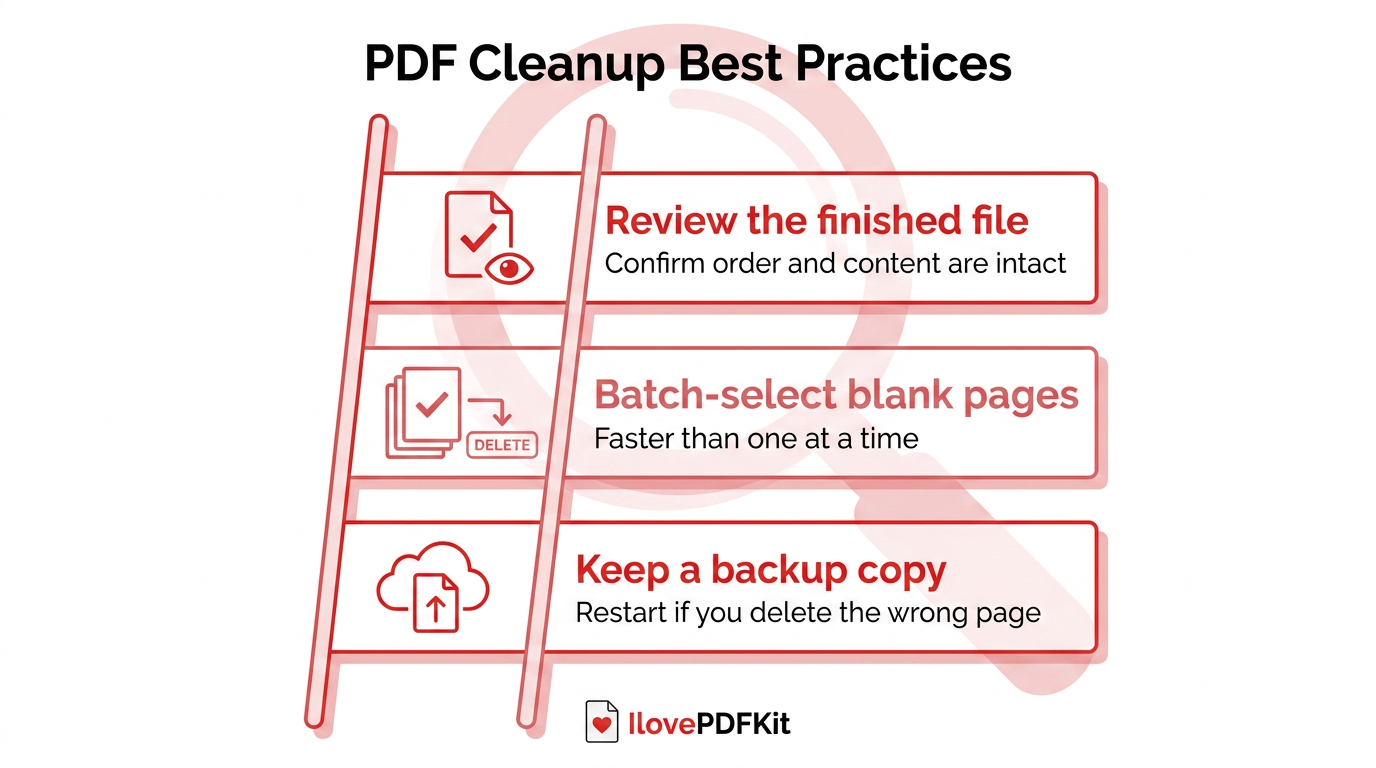
Getting a clean, professional PDF takes more than just clicking delete on a few pages, so a couple of habits go a long way toward avoiding mistakes. Always preview thumbnails at a slightly larger zoom before removing anything, since a page that looks empty at a glance might carry a faint watermark, header, or page number worth keeping.
- Keep a backup copy of the original file so you can start over if you delete the wrong page.
- Batch-select every blank page at once rather than deleting them one at a time on longer documents.
- Scroll through the finished PDF afterward to confirm nothing important went missing and the page order still makes sense.
Tip: A quick zoom-in on every “blank” page before deletion takes only a few extra seconds, but it’s the single best way to avoid losing a faint watermark, footer, or page number by mistake.
The Takeaway
Removing blank pages from a PDF is a quick, free fix that doesn’t call for design skills or new software on your machine. Once you know the usual causes, whether it’s a scanning quirk, a rough Word-to-PDF conversion, or a merge that left separator pages behind, the solution is always the same few clicks, thumbnail by thumbnail.
If you’re staring at a document full of unwanted empty sheets right now, try iLovePDFKit’s page remover for a fast, secure way to clean things up before you submit, print, or send the file. It takes under a minute, skips the account sign-up, and leaves your original file untouched in case you need it again.
Frequently Asked Questions
These quick answers cover the smaller questions that tend to come up once you’ve already handled the main task of deleting blank pages from your PDF.
Do I Need to Sign in or Create an Account to Delete Pages from a PDF Online?
It depends on the platform you choose. Some services require a free account before they’ll let you download the finished file, but the tool lets you upload, edit, and download your cleaned PDF without creating an account or entering any personal details first.
What’s the Difference Between Deleting a Page and Hiding a Page in a PDF?
Deleting a page permanently removes it from the document, lowering the total page count and usually the file size too. Hiding a page, a feature found in some advanced editors, keeps the page inside the file but stops it from displaying or printing, which suits draft notes rather than blank page cleanup.
Can I Delete Blank Pages from a Scanned PDF the Same Way as a Digitally Created One?
Yes, the process is identical once a scanned document becomes a PDF. You select the thumbnail and click delete regardless of whether the page started as a scan or a digital file. The one difference is that scanned “blank” pages sometimes hide faint smudges or marks, so zoom in first to confirm before removing.
Will Removing Blank Pages Affect Page Numbering or Bookmarks in My Document?
It can, especially if your PDF has a table of contents or internal links pointing to specific pages. Deleting pages shifts the numbering of everything that follows, so it’s worth checking your bookmarks and any typed page references afterward to make sure they still point to the right spot.
How Do I Know Which Pages in My PDF Are Actually Blank?
Most tools generate a thumbnail preview of every page as soon as you upload the file, letting you scroll through and spot the empty ones visually. Zoom in on any page that looks mostly blank before deleting it, since faint watermarks, footers, or page numbers can be easy to miss at a quick glance.
Can Removing Blank Pages Help When Preparing a Document for Printing or Sharing?
Absolutely, a document free of stray blank pages looks more polished and avoids confusion when someone else prints or reviews it. It also prevents mismatched page counts between your file and any printed copy, which matters most for academic submissions, signed contracts, and client-facing reports.
