Introduction
A report is ready, the deadline is close, and then a last look at the PDF shows a random blank page in the middle. Or a contract is about to be shared, and one section still holds sensitive notes that should not leave the team. In moments like this, knowing how to delete PDF pages can save a grade, a client, or even a job.
PDFs are great for keeping formatting intact, but they are not easy to edit with standard tools. Built‑in viewers on laptops and phones rarely let anyone remove pages. Many desktop editors ask for paid subscriptions before they allow even a simple delete action. That makes a basic task feel far more painful than it should be.
Common reasons people need to remove pages include:
Getting rid of accidental blank pages after printing or scanning
Deleting internal notes or draft sections before sending a file
Shortening long PDFs for email or upload limits
Removing duplicated chapters or outdated annexes
We built iLovePDFKit to make this simple. With our Delete PDF Pages tool, anyone can remove pages in seconds, right in the browser, without installing software or creating an account. In this guide, we walk through exactly how to delete PDF pages with iLovePDFKit, why this tool is a better fit than heavy desktop programs, and how we keep every file safe and private. By the end, the goal is for every reader to feel calm when a PDF needs a quick clean‑up, not stressed.
“If a page does not help the reader, it gets in the way.”
— Common principle in technical writing
Key Takeaways
It is easy to learn how to delete PDF pages online using iLovePDFKit, and the tool works in any modern browser for free. No sign‑up, plug‑ins, or software downloads stand in the way of a quick edit. This keeps the whole process fast and simple.
iLovePDFKit shows every page as a clear thumbnail so each one is easy to recognize at a glance. Pages can be selected one by one or in groups, which makes batch deletion very smooth. A larger preview helps prevent mistakes before anything is removed.
Every file passes through SSL‑protected connections, and our servers erase documents shortly after processing finishes. Because no user account is needed, there is no long‑term data trail tied to personal details. This lets people delete pages with strong privacy and peace of mind.
How To Delete PDF Pages Online Step-By-Step
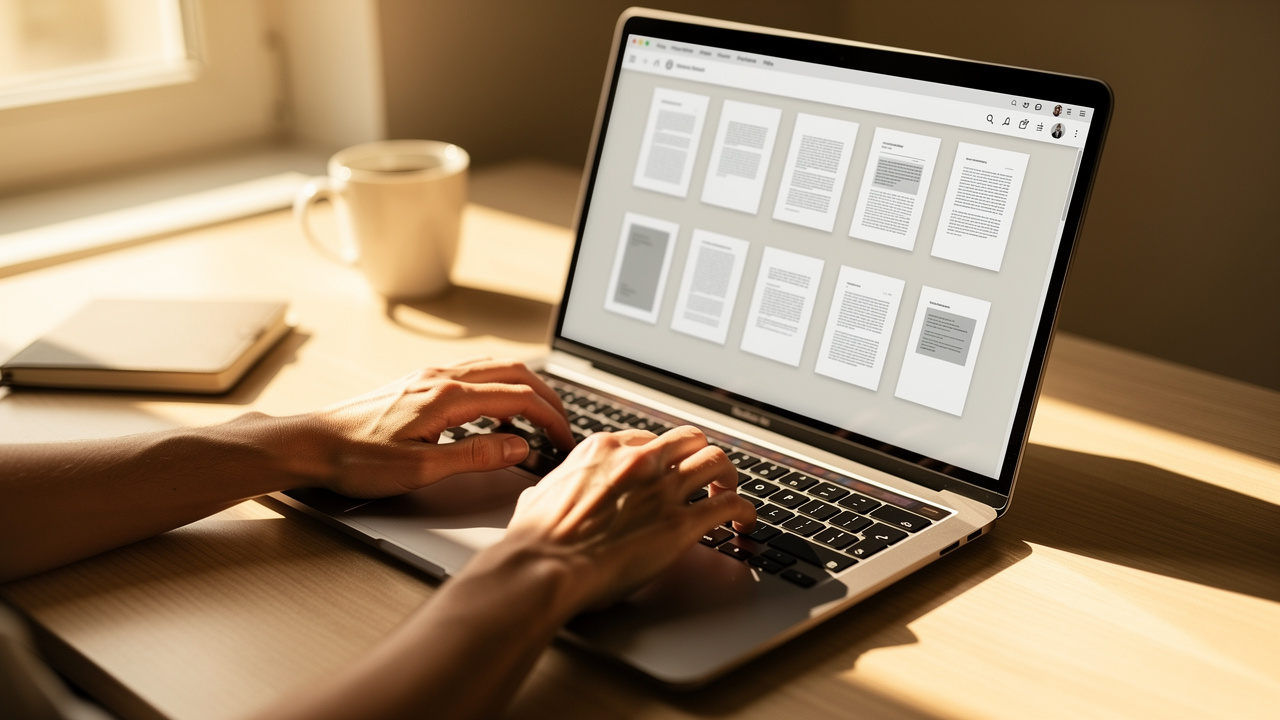
When someone searches for how to delete PDF pages, what they really want is a short, clear path from messy file to clean final version. That is why our Delete PDF Pages tool focuses on four simple steps. The whole flow usually takes less than a minute, even for large documents.
Upload The PDF File That Needs Editing
First, open the Delete PDF Pages tool on iLovePDFKit in any browser. On the page, either drag and drop the PDF into the main area or click the upload button and choose the file from the computer, phone, or tablet.The tool works smoothly with files that come from cloud folders once they are downloaded locally.
Thanks to real‑time processing, the document is ready to edit within a few seconds, even when it has many pages.
Select The PDF Pages To Remove
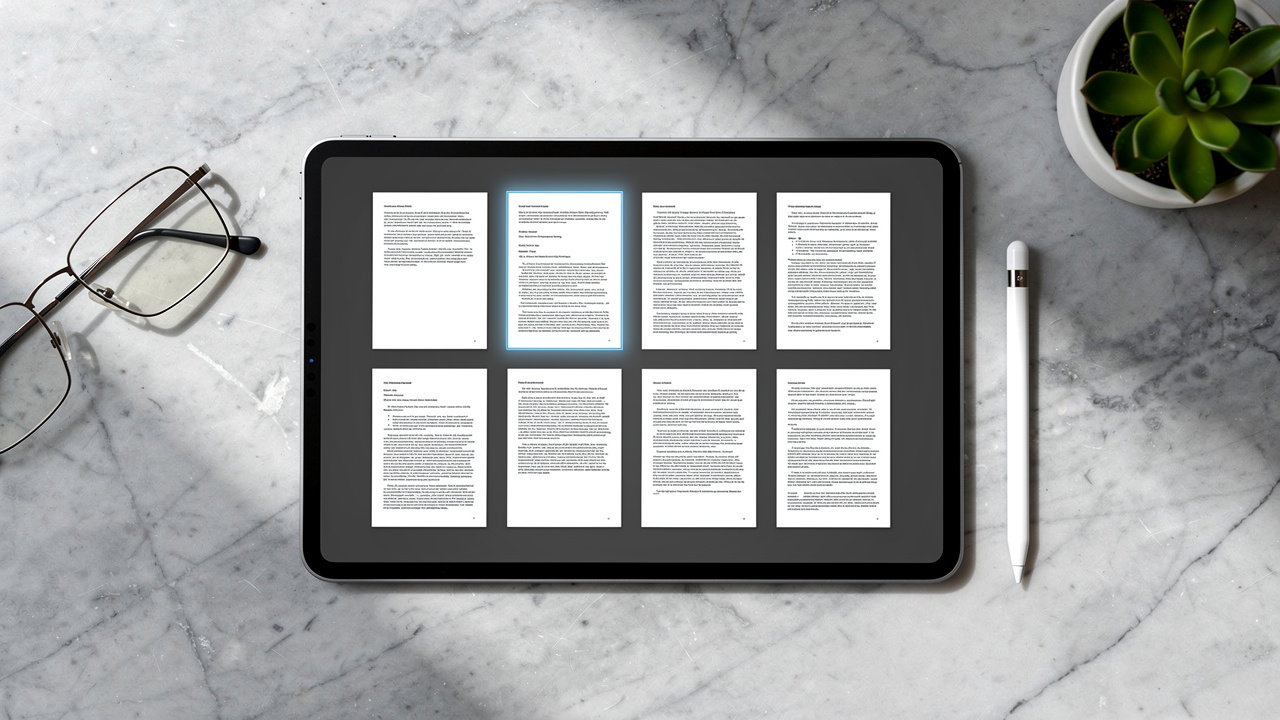
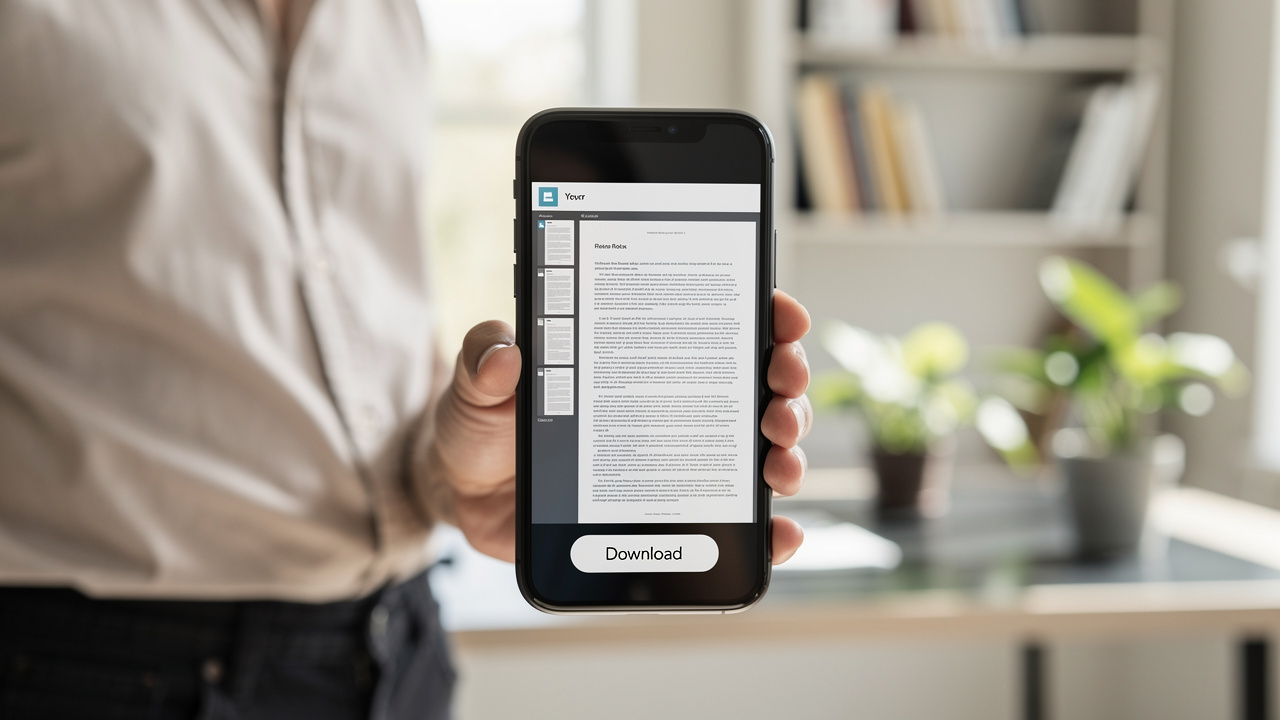
After the upload, iLovePDFKit shows a visual grid made of high‑quality page thumbnails. This view makes how to delete PDF pages feel closer to sorting slides than dealing with code or complex settings.Click any page to select it.
Keep clicking to mark several pages at once for batch deletion.
When a page is hard to recognize from the small thumbnail, tap the eye icon to open a larger preview, so you know exactly what you are about to remove before going further.
Delete The Selected PDF Pages
Once every unwanted page is selected, click the delete button in the interface. Our engine removes those pages almost instantly, even when many are selected at once. This is the moment when blank pages, duplicate sections, long appendices, or sensitive content disappear from the working copy.
The grid updates right away, so you can scroll and confirm that the remaining pages look clean and that the order still makes sense.Download The New, Cleaned PDF
When the page list looks right, click to process and download the edited file. iLovePDFKit creates a fresh PDF that contains only the pages you decided to keep. The original PDF on the device stays exactly as it was, which means there is always a backup if you ever want it.
Now the new file is ready to share by email, upload to a learning platform, or send to a client without extra clutter.
Pro tip: Always use the larger page preview before confirming deletion. This small habit makes how to delete PDF pages much safer, since it cuts the risk of removing an important page by mistake.
Why Use iLovePDFKit To Delete PDF Pages
There are many ways to learn how to delete PDF pages, but not every method is friendly, fast, or free. Some tools hide page deletion behind paywalls, while others ask users to install heavy programs that slow down older laptops. We designed iLovePDFKit to remove that friction.
With our Delete PDF Pages tool, we focus on a clean visual experience. That matters when someone is rushing to trim a report, clean a slide deck, or cut extra pages from a research article. Instead of digging through menus, you see every page in a tidy grid and act within a few clicks.
“Good tools get out of the way and let you focus on the work.”
— Common saying among software designers
Here is what sets iLovePDFKit apart:
Free To Use For Deleting Pages
iLovePDFKit is completely free to use for deleting PDF pages, with no trial timers or surprise upgrade screens. Students can polish assignments, and small business owners can tidy proposals without worrying about budgets. This keeps basic PDF tasks open to everyone, not only to teams that pay for large software packages.No Registration Or Login Needed
The tool works with no registration at all, which saves time and protects privacy. There is no need to hand over an email address or create a profile just to delete one or two pages from a file. When someone only wants to learn how to delete PDF pages, they should not have to manage yet another account.Visual, Accurate Page Selection
Our visual interface makes page selection accurate, even in long documents. High‑quality thumbnails show text blocks, tables, and images clearly, so it is easy to spot blank pages or repeated sections. The eye icon offers a bigger preview, which gives extra confidence before pressing delete, especially when the PDF holds research data or contracts.Fast Processing On Common Devices
We built the processing engine to be fast on common devices and networks. That means page removal feels quick, not like waiting through long loading bars. Office teams on tight schedules and freelancers sending last‑minute proposals can clean their PDFs and move on with real work instead of wrestling with their tools.
Because iLovePDFKit runs fully in the browser, it works the same way on Windows, macOS, Linux, and mobile systems. If a person knows how to delete PDF pages on one device with iLovePDFKit, they already know how to do it on all of them.
How iLovePDFKit Keeps Your Documents Safe
Whenever someone uploads a contract, a transcript, or a medical form, safety is the first concern. Learning how to delete PDF pages is not enough if the file is left exposed on a random server. We keep security at the center of how iLovePDFKit works, so people do not have to trade privacy for convenience.
SSL Encryption For Every File
Every file moves through SSL‑protected connections from the moment it leaves the device until the edited file is downloaded. This level of protection is the same style that banks and trusted online stores rely on for sensitive data. It helps keep other parties from reading or copying documents while they are on the way to our servers or back to the user.Automatic File Removal After Processing
After the tool finishes removing pages and the new PDF is ready, our systems erase the uploaded files and the processed versions within a short time. We do not keep long‑term archives of personal documents on our side. This means a cleaned report or contract does not sit around on our servers after the task is done.No Central User Profile Or History
Because iLovePDFKit does not require an account, there is no central profile that collects every file a person has ever edited. No sign‑up also means we do not store passwords or contact details that could be tied to document history. Each visit to the Delete PDF Pages tool is treated as a fresh, simple session.
To add an extra layer of safety on the user side, it is good practice to:
Avoid using shared public computers for very sensitive files
Check that the browser shows the padlock icon before uploading
Delete downloaded copies from shared devices once they are no longer needed
Whether someone is trimming pages from legal paperwork, internal budgets, or classroom reports, the same protections apply to every user and every file, every time. We design the tool so that strong security and simple use work side by side, which lets users focus on how to delete PDF pages while we handle the hard work behind the scenes.
Conclusion
For many years, people thought learning how to delete PDF pages meant buying complex software or calling the one tech‑savvy person in the group. That is no longer the case. With iLovePDFKit, page deletion becomes a quick stop in the browser that fits into any workday.
Our Delete PDF Pages tool stays free, clear to use, and focused on visual precision. Strong built‑in security, SSL protection, and automatic file removal help keep private documents safe from prying eyes. The original file on the device never changes, and the edited version comes out clean and ready to share.
We invite anyone who needs a leaner, more professional PDF to try iLovePDFKit right now. Open the Delete PDF Pages tool, upload a file, click away what is not needed, and download the final version. A cleaner document is only one upload away.
FAQs
Will Deleting Pages From A PDF Reduce Its File Size?
Yes, deleting pages almost always reduces the size of a PDF file. The change is strongest when the removed pages contain large images, graphs, or rich design elements. When we delete blank or text‑only pages, the file still becomes smaller, just by a smaller margin. This helps when email services or upload forms have strict size limits.
Can I Delete Multiple Pages At Once?
Yes, iLovePDFKit supports batch deletion, which makes how to delete PDF pages in long documents much faster. Simply click every thumbnail that needs to go, then use the delete option once. There is no need to repeat the process page by page, which saves a lot of time in reports, books, or slide decks.
Is It Safe To Upload Sensitive PDFs To This Online Tool?
With iLovePDFKit, safety is built into the normal workflow. SSL encryption protects every file while it moves between the device and our servers. After processing, both source and edited files are removed from our systems within a short window, so they are not stored long term. Because we do not require an account, there is no personal profile that gathers document history. This makes how to delete PDF pages online safer for contracts, invoices, or other private records.
Will My Document Formatting Change After Deleting Pages?
No, deleting pages with iLovePDFKit does not change the layout or style of the remaining pages. Fonts, images, margins, and spacing all stay as they were before. The tool simply removes the selected pages and builds a new PDF from the pages that remain. As a result, the document keeps the same professional look while losing only the parts that are no longer needed.
Do I Need To Create An Account Or Install Software To Use iLovePDFKit?
No, there is no need to register or install anything to learn how to delete PDF pages with iLovePDFKit. The tool runs fully in the browser on laptops, desktops, tablets, and phones. Just open the page, upload the PDF, delete the unwanted pages, and download the new file. This keeps the process quick for students, office teams, and freelancers who work across many devices.
