Big, cluttered PDFs slow everything down. If you are searching for how to split a PDF into separate files without paying for software, the easiest answer is to use free tools in your browser or the Preview app on a Mac. With iLovePDFKit, you open the PDF, pick the pages you want, click one button, and download clean, separate PDFs in seconds.
Oversized files hit email limits, hide the part you actually need, and are painful to scroll. That wastes time and focus.
“Time is the scarcest resource, and unless it is managed nothing else can be managed.” — Peter Drucker
This guide explains what splitting a PDF means, the fastest free way using iLovePDFKit, how to do it in Adobe Acrobat, how Mac users can use Preview, and what happens to quality and privacy. You will see simple steps for each method so you can pick what fits your device and task.
Keep reading to learn simple, safe ways to break one PDF into exactly the files you need.
Key Takeaways
Splitting a PDF means turning one long document into several smaller files. Each new file holds only the pages you choose. That keeps sharing, printing, and reviewing much easier.
The quickest free method uses iLovePDFKit in your browser. You upload the file, pick page ranges in a visual view, then download clean PDFs. No sign up, watermarks, or installs get in your way.
Adobe Acrobat gives more advanced options for office workflows. You can split by page count, file size, or bookmarks when you already have Acrobat. For simple, no-cost tasks though, iLovePDFKit usually feels faster.
Mac users can use the built-in Preview app to drag selected pages into a new file. For one-off extractions this works well. For big textbooks, long reports, or batch work, iLovePDFKit is smoother.
Quality should stay the same when you split a PDF. Good tools, including iLovePDFKit, keep fonts, images, and layout intact while SSL encryption and quick file deletion protect privacy.
Table of Contents
- Why You Might Need to Split a PDF Document
- How to Split a PDF for Free Using iLovePDFKit
- How to Split a PDF in Adobe Acrobat (Desktop and Online)
- How to Split a PDF on a Mac Without Any Tools
- Will Splitting a PDF Affect the Quality or Formatting?
- Putting It All Together
- Frequently Asked Questions
Why You Might Need to Split a PDF Document

Understanding why you might need to split a PDF document starts with the real files you handle every day. Splitting turns one long, mixed PDF into several focused files that match what different people actually need to see — and following Best Practices for Splitting multi-section documents can make the process even smoother.
Common examples include:
Students who pull one chapter, a bibliography, or an appendix from a huge textbook or thesis.
Office staff who break monthly reports into department sections so each manager receives only relevant pages.
Freelancers and small business owners who take invoices or signed contracts out of a big client packet for easier tracking and follow up.
All of this helps reduce friction. Smaller PDFs are easier to email, upload to portals, or drop into tools like Google Drive and Microsoft Teams. Research from McKinsey found that employees spend about 1.8 hours each day just searching for information, so clear, focused files matter.
There is also a privacy angle. Splitting lets you send only the pages that include approved details, while keeping salary data, signatures, or internal notes in a separate file. When you know how to split a PDF document quickly, you avoid resaving, reprinting, or manually redacting pages.
Tip: Before sharing, quickly scan the new split file to confirm it includes only the pages and details you expect.
How to Split a PDF for Free Using iLovePDFKit
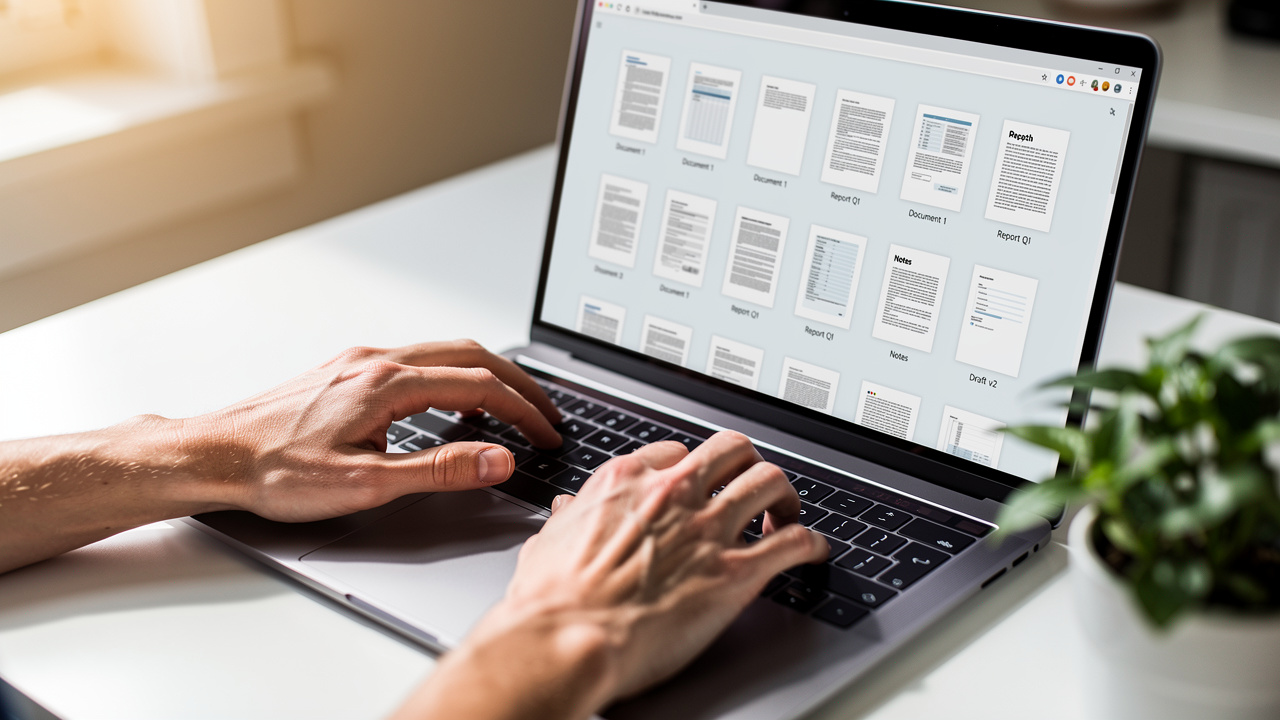
Learning how to split a PDF for free using iLovePDFKit gives you a fast answer to the question of how to break a PDF into separate files without paying. iLovePDFKit runs in any modern browser, so you do not install anything or create an account.
The main workflow stays the same whether you use Chrome, Firefox, Safari, or Microsoft Edge. You upload the document, pick which pages should stay together, and iLovePDFKit returns new PDFs that match those choices. It works well for textbooks, invoices, slide decks, and long research papers.
Here is a simple step-by-step path you can follow with the PDF Split Tool in iLovePDFKit, and if you want a no-upload alternative, you can also Split PDF — free, with no signup required:
Open iLovePDFKit and choose the PDF Split Tool.
Drag your PDF into the page or use the file picker button. You can upload from your computer, a shared office drive, or a school laptop without changing any settings.Wait for the page thumbnails to load.
You now see every page as a small preview, which lowers the chance of choosing the wrong page range. For big files, this visual grid feels much easier than guessing page numbers.Select how you want to split the document.
You can enter page ranges like1–5or6–12, or choose the mode that turns every page into its own file. With each choice, iLovePDFKit shows you what will be in the new PDFs before you confirm.Process the split and download your files.
Click the button to process the split. iLovePDFKit delivers clean output with no watermarks or stamps on any page. Files come back in your browser tab, ready to save, email, or move into tools like Dropbox or Google Drive.
iLovePDFKit stands out from many free tools because it keeps everything open and simple. There are no daily task caps, no paid tier needed for large files, and no surprise upsell wall just when you have a deadline. According to PCWorld, many users now complete daily PDF tasks with free browser tools, and iLovePDFKit sits in that group while avoiding limits that others add.
On the security side, iLovePDFKit protects uploads with SSL, which uses strong 256 bit encryption that agencies like NIST recommend for secure transfer — and for academic users, tools that can split-pdf | Academic AI agents use are also worth knowing about for research workflows. Files are processed in real time and removed shortly after the task finishes, and because you never sign in, there is no stored activity history.
Tip: If you are working on a shared or public computer, remember to clear your downloads folder after saving your split PDFs. — Editorial Team
What Can You Do Beyond Splitting With iLovePDFKit?
Once you know how to split a PDF document in iLovePDFKit, you can stay in the same tab to handle other tasks. The platform works as a small control center for everyday PDF work.
Merge split files back together in a new order.
This helps when you want custom course packs, client packets, or clean project archives. The Merge tool follows the same drag-and-drop style, so it feels familiar.Compress PDFs when file size still feels too large.
This helps with email limits or upload portals. iLovePDFKit keeps text and images readable while trimming unused data, so you can share documents faster.Convert between PDF and Word, Excel, PowerPoint, JPG, or PNG.
This matters when someone asks for an editable version of a split section. The converter aims for pixel level accuracy so pages look the same in their new format.Add passwords and page numbers to one or many PDFs at once.
That supports formal reports and contracts. Batch processing means you set options once and apply them to multiple files without extra clicks.
All of these tools stay free, run in the browser, and never place watermarks on your documents.
How to Split a PDF in Adobe Acrobat (Desktop and Online)
Knowing how to split a PDF in Adobe Acrobat helps if your school or office already uses Adobe tools. Adobe Acrobat offers both a desktop app and an online splitter, each with its own strengths.
On the desktop side, Adobe Acrobat Pro gives you fine control. You open the file, choose the Organize Pages tool, and pick how the split should work. You can split by number of pages so every new file has the same length, by maximum file size for easier email, or by top level bookmarks in structured reports and manuals.
The basic steps look like this inside Acrobat Pro:
Step 1. Open the PDF in Adobe Acrobat Pro on your computer. Go to Tools, then choose Organize Pages, then Split.
Step 2. Pick a split rule such as pages, file size, or bookmarks. For example, you might choose every 10 pages for a long training manual. You can also tell Acrobat to break at each chapter bookmark when the file has them.
Step 3. Open Output Options to select a folder and naming pattern. This helps keep results tidy, such as adding part numbers or dates. Then click Split and Acrobat creates your new PDFs with the same fonts and layouts as the original.
Adobe also runs a Split PDF page in the browser. According to Adobe, the online splitter accepts files up to 1 GB and 1,500 pages and lets you place up to 19 divider lines, which means 20 output files in one run. The catch is that you must sign in with an Adobe account before you can save or download the split PDFs.
For developers and technical users looking to automate document splitting at scale, the aws-samples/sample-document-splitting-with-amazon-bedrock-data-automation repository offers a powerful programmatic approach — but for many people who just want a quick, free split, that login step feels heavy. iLovePDFKit gives a friendlier option when you need to split a PDF without an account, usage limits, or extra software, while Adobe Acrobat stays useful for complex office workflows that rely on bookmarks and tight folder control.
How to Split a PDF on a Mac Without Any Tools
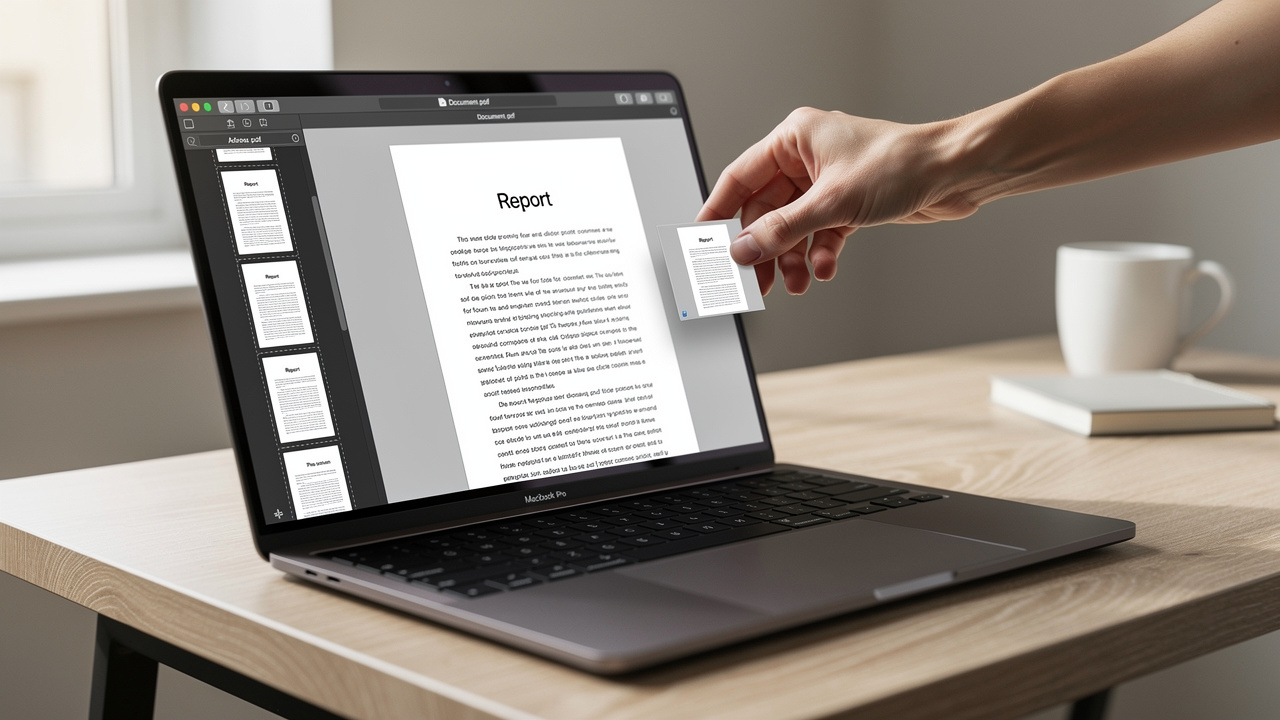
Learning how to split a PDF on a Mac without any tools means using Preview, the viewer that ships with macOS. Preview handles basic page extraction tasks without internet access or extra apps.
The idea is simple. You open the PDF, show the thumbnails on the side, pick the pages you want, and drag them into a new file. This gives you a quick way to split out a chapter, a signed page, or a few slides when you work offline.
Here is how the process looks in Preview:
Open the PDF in Preview.
Open the file from Finder or the Dock. If it opens in another app by default, right click and pick Open With, then choose Preview. Once open, go to the View menu and turn on Thumbnails so you see small images of each page.Select the pages you want.
HoldCommandwhile you click to select separate pages or holdShiftto select a range. When you have the right pages highlighted in the sidebar, drag them to your desktop or a folder. macOS creates a new PDF that holds exactly those pages.Repeat for any other groups you need.
You can also useCommand + Ato select all pages, then remove the ones you do not need from the new file. For short documents this stays fast and simple.
Preview works best for simple, one-off splits where you only need one or two new files. When you deal with very large PDFs, want to split the whole file into many parts, or need batch work across different documents, iLovePDFKit feels smoother and keeps the same process on Windows, Linux, and mobile devices too.
Will Splitting a PDF Affect the Quality or Formatting?
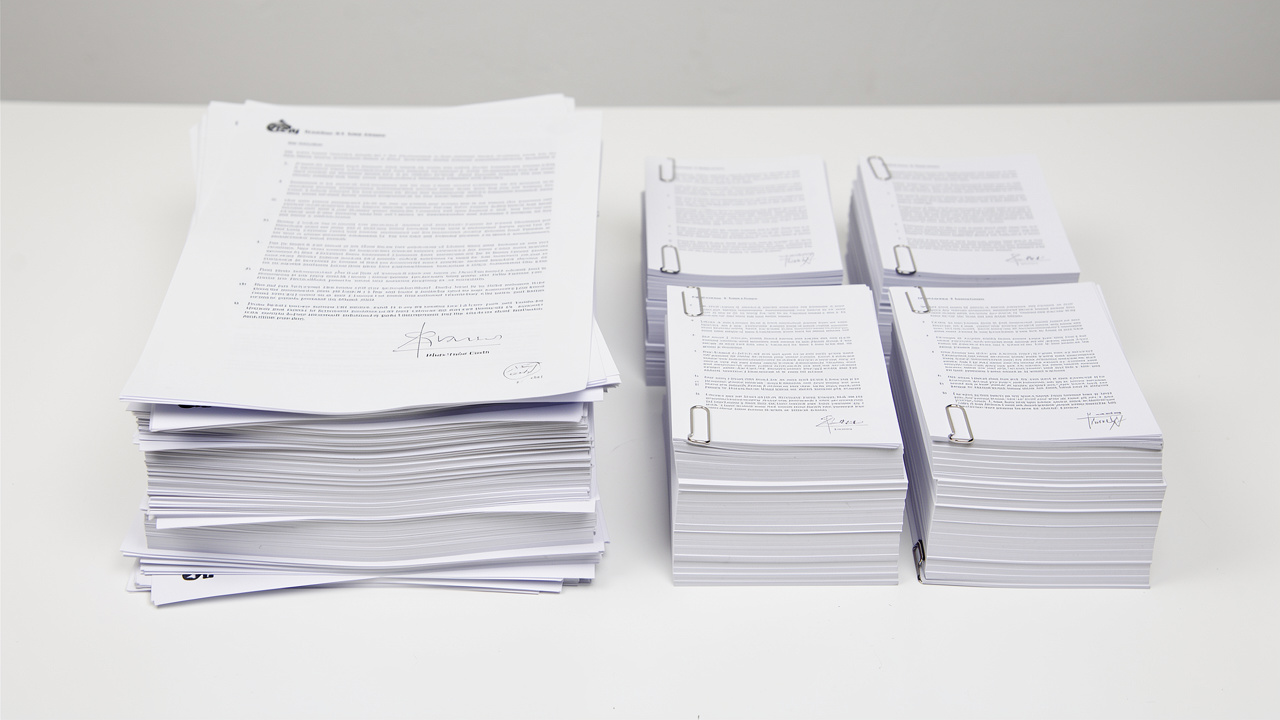
Wondering whether splitting a PDF affects quality or formatting is natural, especially with important reports or design heavy files. In normal cases, splitting with a good tool does not change how your pages look at all.
PDF splitting works at the page level. The tool takes the pages you select and moves them into a new file without touching fonts, image resolution, or layout. Whether you use iLovePDFKit, Adobe Acrobat, Smallpdf, or macOS Preview, the split files should match the original page for page.
If you ever see fuzzy charts or shifted text after splitting, the source file or extra compression is usually to blame. For example, a PDF that was exported from PowerPoint with low resolution images will still look soft after any split. A tool that tries to compress aggressively during splitting can also cause problems.
To keep your files looking sharp:
Start with a high quality source PDF.
Split first, then compress separately if you need smaller files.
Avoid repeated compress steps on the same document.
iLovePDFKit avoids quality loss by focusing on pixel perfect output. The service preserves embedded fonts, spacing, and colors so split pages match your original textbooks, financial statements, or pitch decks. When you need smaller file sizes after that, you can run a separate, gentle compress step instead of losing quality during the split itself.
“If a PDF looks bad before you split it, it will still look bad after. Splitting is about pages, not design.” — Editorial Team
Putting It All Together

Putting it all together, learning how to split a PDF document for free comes down to matching your method to your situation. iLovePDFKit covers the widest ground, because it runs in any browser, skips sign ups, and keeps your split files clean and watermark free. Adobe Acrobat shines when you already have a license and need bookmark based splits or tight folder control.
On a Mac, Preview gives you a handy offline backup for quick extractions when you are away from the internet. Across all of these options, the main goal stays the same. You want smaller, focused PDFs that are faster to share, easier to understand, and safer to send.
A quick comparison:
| Tool | Best For | Install Needed? | Account Needed? |
|---|---|---|---|
| iLovePDFKit | Free browser-based splitting and everyday PDF tasks | No | No |
| Adobe Acrobat | Structured office workflows with bookmarks and presets | Yes (desktop) | Often |
| Preview (Mac) | Offline, simple splits of short documents | Built into macOS | No |
The next time a giant PDF hits your inbox, you now have a clear plan. Open iLovePDFKit, Adobe Acrobat, or Preview, and create just the files you need instead of wrestling the whole document.
Frequently Asked Questions
Is It Safe to Upload Sensitive Documents to a Free PDF Splitter?
Yes, it can be safe when the splitter treats security seriously. iLovePDFKit protects transfers with SSL using strong 256 bit encryption and processes files in real time. Your PDFs are removed from the servers shortly after the task ends, and there is no account based history, which helps keep contracts and records private.
Tip: For highly confidential material, consider working on a secured device and keep your original files stored in encrypted folders as well.
Can I Split a PDF Without Adobe Acrobat?
Yes, you can split a PDF without Adobe Acrobat by using iLovePDFKit in your browser. It works on Chrome, Firefox, Safari, and Edge with no install or login. You just upload, choose pages, and download your split files, which makes it practical for school or office computers that block new software.
How Do I Extract Just One Page From a PDF?
To extract one page, use the Extract Pages tool in iLovePDFKit and select that single page number before processing. The site creates a new PDF that holds only that page while leaving the original file unchanged. On a Mac, you can also drag one page from Preview’s thumbnail bar to your desktop.
Does Splitting a PDF Change the File Size?
Yes, the size of each new PDF becomes smaller because it holds fewer pages than the original. When you add up all the split files together, the total is usually close to the starting size. No extra compression happens during a normal split unless you run a separate compress tool afterward.
Can I Split Multiple PDF Files at Once?
Yes, iLovePDFKit supports batch processing, so you can split several PDFs in a single session. This saves a lot of time for admins and freelancers who handle many reports or client packets. You stay in one browser window and repeat the same simple steps without any paywall or task limit.
