Introduction
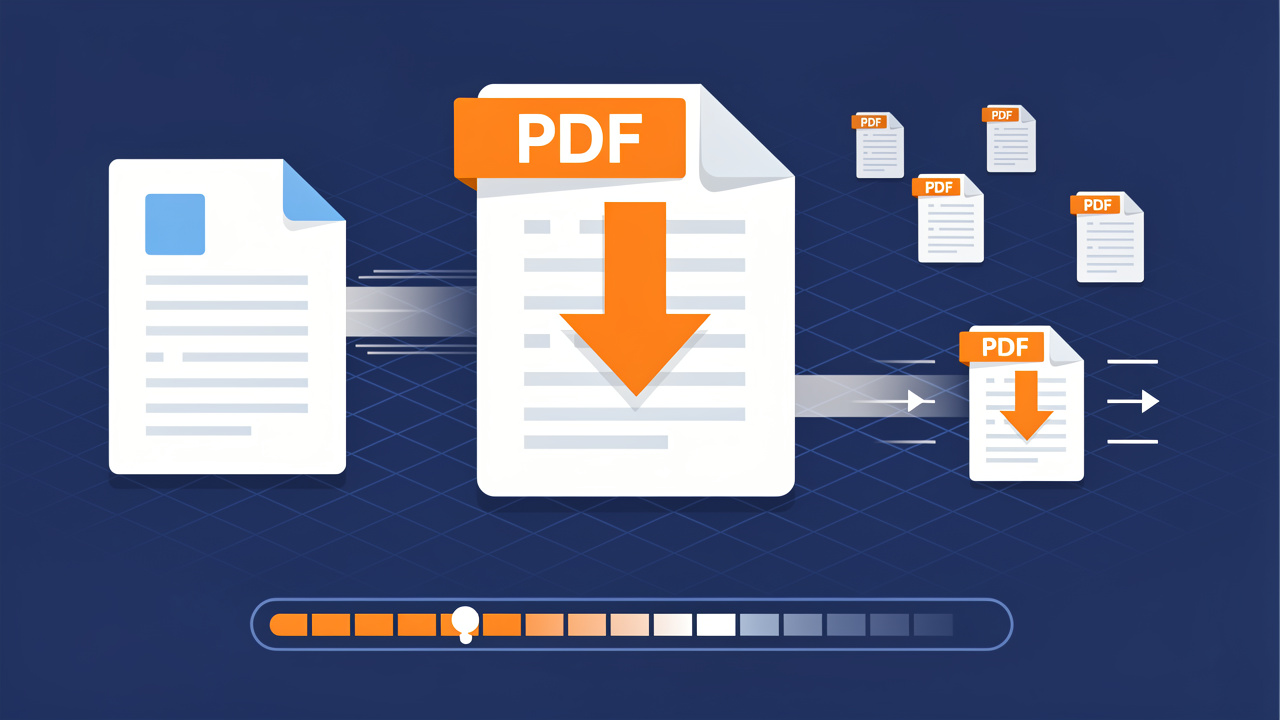
A deadline is close, the report looks perfect, and the last step is to upload the PDF. Then the form shouts that the file is too large, or the email bounces back with an attachment error. At that moment, how to reduce PDF file size stops being a nice‑to‑have skill and feels pretty urgent.
Large PDFs slow everything down. They fail to send through email, fill up Google Drive, and load painfully slowly on phones. Many people worry that the only fix is a blurry, unreadable document, so they avoid compression or keep trying to send the heavy file anyway.
The good news is that it does not have to work that way. With the right tools and a few smart choices, it is easy to cut file size while the pages still look clean and sharp. This guide walks through simple methods for how to reduce PDF file size on any device, from fast online tools like iLovePDFKit to built‑in Mac and PC apps.
By the end, it will be clear which method fits each situation, how to pick the right compression level, and how to keep professors, clients, and teammates happy with clear, fast PDFs.
Key Takeaways
Before diving into the details, it helps to see the big picture of what this guide covers.
Big PDFs can shrink a lot without hurting readability. With the right compression level and method, file size may drop sharply while text and key images still look clear. The result is easier sharing with no stress about blurry pages.
Online tools such as iLovePDFKit are the fastest option for most people. They skip installs and sign‑ups, so a browser is all that is needed. This works well for students, office staff, and freelancers on shared or locked‑down devices.
Built‑in or desktop apps suit offline or high‑security work. Preview on Mac and Acrobat Pro on Windows give more control and work without internet access. They fit offices with strict policies or people who often work on the go.
Checking file size before and after compression avoids guesswork. A quick look at the size in MB or KB confirms that a method worked. This simple habit also helps pick the right level next time.
Why PDF File Size Matters (And When To Compress)
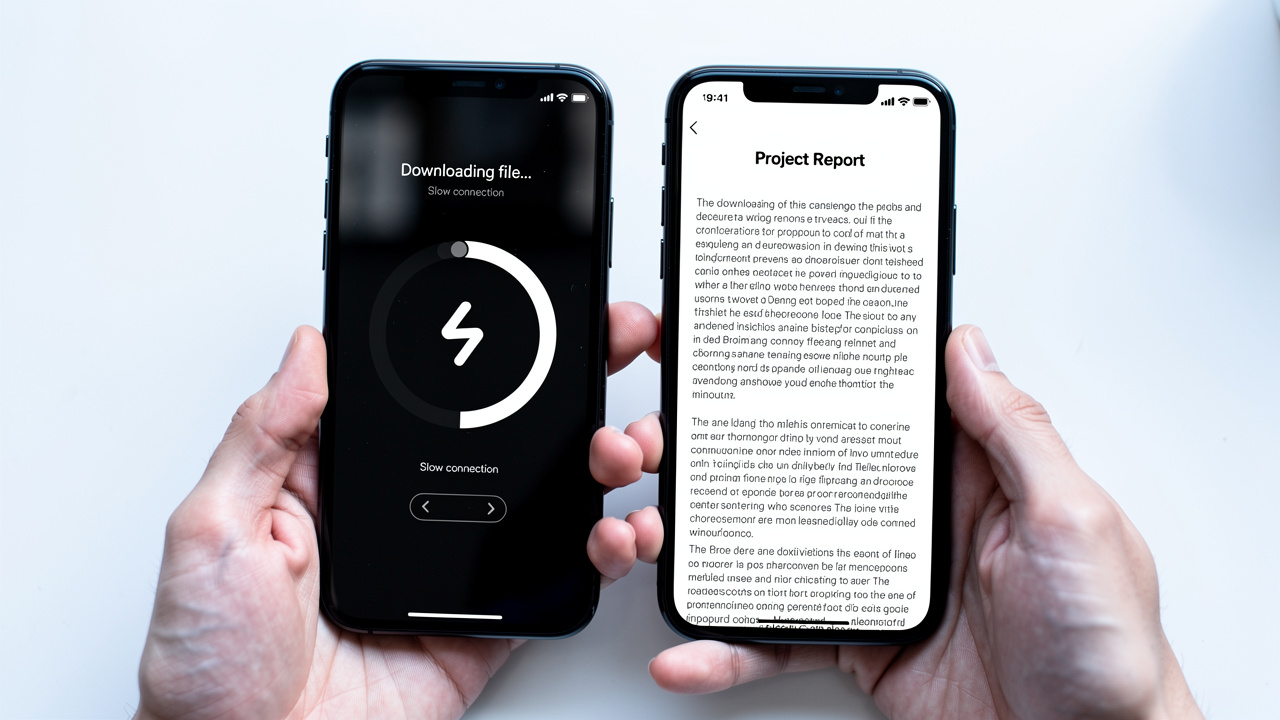
File size feels like a small detail until it blocks an important task. A 40 MB project report might look fine on one laptop, yet fail hard when a professor’s portal only allows 10 MB uploads. The same happens with client proposals, scanned contracts, or slide decks that include many images.
Email services often stop attachments around 20–25 MB. Many online submission portals accept even less. Cloud tools such as Google Drive, OneDrive, and Dropbox give a fixed space limit, and big PDFs fill that space much faster than plain text files. Over time, this pushes people to buy more storage, delete older work, or juggle external drives.
Large PDFs also slow work down. They open slowly, scroll with lag, and make phones heat up. On weak Wi‑Fi, a huge file can take minutes to download, which annoys teachers, managers, and clients who just need to read the content.
For most people, three main reasons explain why and when to compress:
Shareability. Files that stay under common email and upload limits attach without errors and pass through submission systems without complaints. This helps students meet deadlines and helps teams share reports smoothly.
Storage. When each file takes less space, free cloud tiers and office drives last longer. Smaller PDFs help avoid sudden “storage full” warnings that appear at the worst time.
Speed. Lighter files download faster, open almost at once, and scroll without delay. This feels better on phones and slower computers, where every extra megabyte matters.
Once those pain points show up, learning how to compress a PDF is often the simplest fix.
“Perfection is achieved, not when there is nothing more to add, but when there is nothing left to take away.” — Antoine de Saint‑Exupéry
For PDFs, that often means trimming extra weight while the content stays exactly the same.
How PDF Compression Works (Without Ruining Quality)
To choose a smart method, it helps to know what is inside a heavy PDF. Size usually comes from three main parts: images, fonts, and extra data that people never see.
High‑resolution photos inside a PDF can be huge. A single full‑page image that was meant for print may carry far more pixels than a screen needs. Compression tools lower the pixel count, which shrinks the data. This process, called downsampling, can cause blur if pushed too far, but mild use still looks good on screens.
Fonts also add weight. When a PDF file includes full font sets, it packs every possible character, even ones that never appear in the text. Font subsetting keeps only the letters that the document actually uses. Viewers still see the same style, but the file no longer hauls around extra characters.
Next comes hidden data. That includes:
Author and edit history
Old comments and mark‑ups
Form fields that are no longer needed
Layers, thumbnails, and other previews
None of this shows during normal reading. PDF compression tools strip that extra data and keep only what matters on each page.
Most tools present this as simple compression levels, which work roughly like this:
| Compression Level | File Size Change | Visual Quality | Best Use Case |
|---|---|---|---|
| Low | Small drop | Very high | Legal or formal documents |
| Medium | Clear drop | Still sharp | Everyday reports, homework, and proposals |
| High | Large drop | Noticeable loss | When strict size limits matter more than looks |
Lossy steps, especially on images, cannot be reversed. For that reason, it is always safer to compress a copy of the PDF and keep the original somewhere safe.
The real goal is not the smallest number of megabytes. The real goal is the smallest file that still looks great for its job.
With that idea in mind, it becomes much easier to pick the right tool and level when planning how to reduce PDF file size.
How To Reduce PDF File Size Using Online Tools
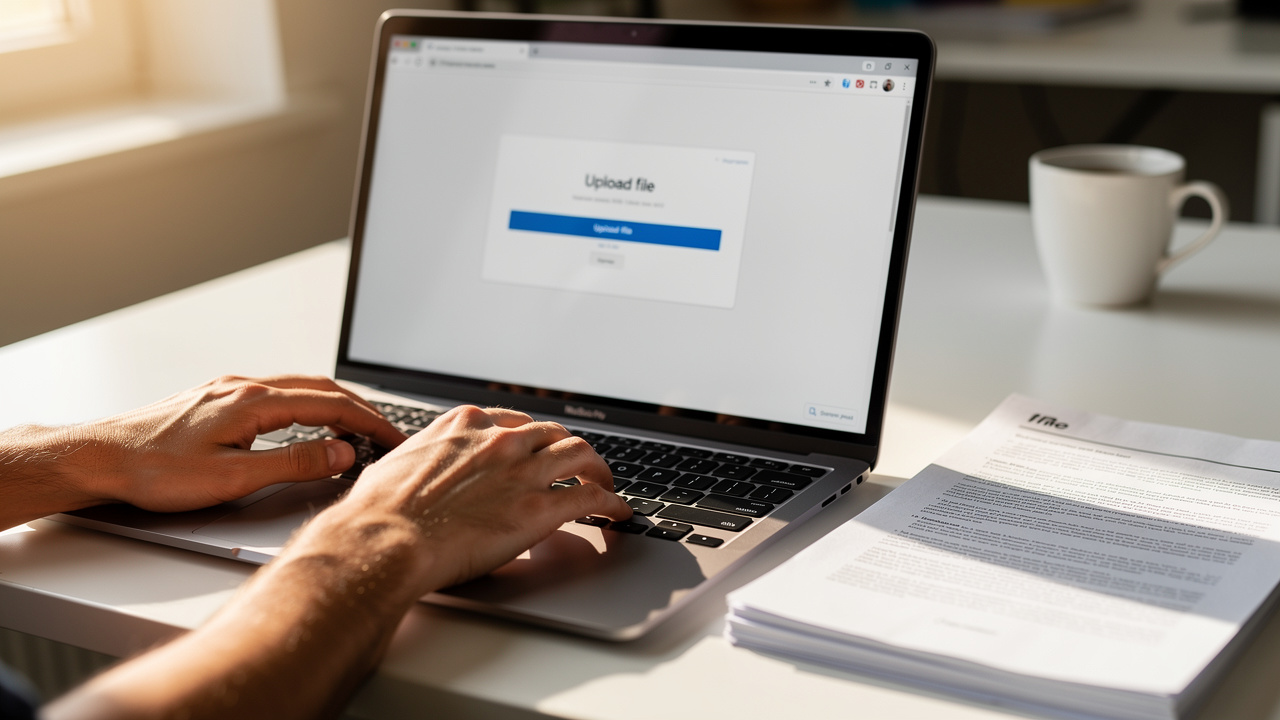
Online tools are the fastest answer for most people who ask how to reduce PDF file size. Nothing needs to install, and the same steps work on Windows, Mac, Linux, and even phones or tablets with a browser.
Open a site, drop in the file, wait a few seconds, and download the lighter version — there are how to compress a PDF guides that walk through exactly this process step by step. For many students, busy office staff, and small business owners, that is all they ever need from an online PDF compressor.
iLovePDFKit — The Fast, Free, No-Install Option
iLovePDFKit acts as a complete PDF and document toolbox that runs inside any modern browser. There is no software to download, no account to create, and no registration wall. This makes it ideal on shared computers, school machines, or locked‑down office laptops.
When the goal is how to reduce PDF file size, iLovePDFKit helps in a few direct ways:
Its Page Deletion Tool removes blank or unneeded pages from long reports, contracts, or multi‑chapter documents. Less content means a smaller file, and this method keeps every remaining page at full quality.
The conversion tools use pixel‑perfect accuracy, so when a file moves between PDF, Word, PowerPoint, or image formats, fonts, layout, and spacing stay tight without adding extra weight.
The workflow stays simple:
Visit the iLovePDFKit website.
Choose the tool that fits the task, such as page deletion or file conversion.
Upload the PDF from your device or cloud storage.
Let the browser process it.
Download the finished, lighter file.
All transfers use SSL encryption, and the service has a strict no‑file‑storage policy, so documents process in real time and leave the server right away. There are no watermarks and no hidden fees, which suits students and professionals who need clean results on a tight budget.
Best of all, everything works the same way on desktops, laptops, tablets, and phones, as long as a browser can open the site.
A common rule of thumb among file‑sharing pros: “If sending the file feels stressful, make it smaller first.”
Other Reputable Online Compressors
Alongside iLovePDFKit, many other online services also claim to help with how to reduce PDF file size, and resources like 4 easy ways to make a PDF smaller offer useful comparisons of popular options. Well‑known options include Adobe Acrobat online tools, Smallpdf, and iLovePDF. They compress files in a similar way and often give a simple slider or preset list of compression levels.
However, many of those sites add small hurdles:
Some ask for account creation before download or block higher compression levels behind a paid plan.
Others place strict limits on the number of files per day or the maximum size per upload.
For people on a deadline, those limits can slow work or force a search for yet another tool.
Privacy rules can also differ a lot between services. Some tools keep files on their servers for longer periods or use them for internal data models. For anyone who works with grades, legal papers, internal reports, or client work, this matters.
A safe habit is to read the privacy or data section before uploading anything sensitive. Then compare that to iLovePDFKit, which uses SSL across all transfers and deletes files right after processing, without user accounts or stored histories.
Offline Methods — How To Reduce PDF Size On Mac And PC
Some people prefer not to upload any files at all. Others work in offices where security rules limit web tools. For them, offline options on Mac and Windows still offer solid ways to handle how to reduce PDF file size.
Desktop tools do not depend on internet access and sometimes give more fine‑grained control; for a comprehensive overview of approaches, 4 effective methods to reduce PDF file size cover both online and offline strategies worth exploring. The trade‑off is that they often cost money or hide inside menus that feel less direct than a simple web page.
On A Mac: Using The Preview App
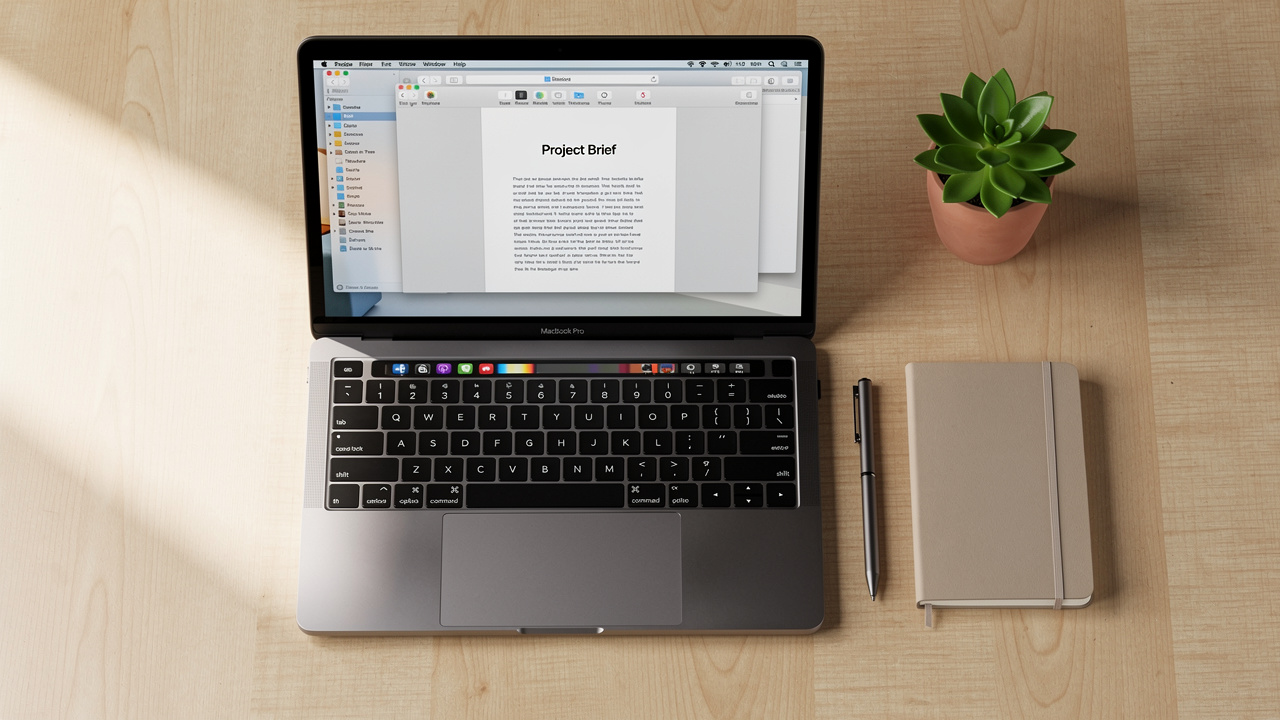
Mac computers ship with Preview, a built‑in app that opens PDFs and images. It also gives a quick method to reduce file size with just a few clicks:
Open the PDF in Preview.
In the menu bar, choose File → Export.
In the window that appears, open the Quartz Filter menu.
Pick Reduce File Size.
Choose a name and location for the new file.
Press Save.
The saved copy should be smaller than the original.
This method works well when a fast reduction matters more than perfect image quality. The Quartz filter can compress images quite hard, so photos and graphics may look softer. For better control, some users:
Keep a high‑quality version for print.
Save a lighter version for email, learning portals, or quick reading.
On A PC: Using Adobe Acrobat Pro
On Windows, Adobe Acrobat Pro provides one of the most powerful routes for how to reduce PDF file size. It runs fully offline and gives deep control over images, fonts, and extra data.
To shrink a file in Acrobat Pro:
Open the PDF in Adobe Acrobat Pro.
Go to Tools → Optimize PDF.
Choose Reduce File Size.
In the small window, pick a version for compatibility; a recent version often gives better compression.
Save the result under a new file name so the original stays safe.
Users who need more control can open Advanced Optimization instead of the quick button. That panel lets them:
Pick image resolution (PPI).
Adjust compression methods for color and black‑and‑white images.
Remove metadata, unused objects, and other hidden content.
This kind of tuning works well for professionals, though it does take some practice. Keep in mind that Acrobat Pro uses a paid subscription, so for a free, no‑install option, iLovePDFKit remains an easy starting point in the browser.
Conclusion
Oversized PDFs do not have to block grades, deals, or approvals. With a bit of knowledge about images, fonts, and hidden data, it becomes simple to choose how to reduce PDF file size in a smart way. Light compression protects quality, heavier compression focuses on hard limits, and page cleanup cuts waste without any blur at all.
Students, office teams, and business owners can pick between quick browser tools and offline desktop apps, depending on access and rules. Among these choices, iLovePDFKit stands out as a fast, safe, and free place to start, with no accounts, no watermarks, and real‑time secure processing.
The next time a PDF feels too heavy to send, open iLovePDFKit in a browser and try its free tools. No sign‑up is needed, and a lighter, clean‑looking file is only a few clicks away.
FAQs
Does Compressing A PDF Reduce Its Quality?
Compression can reduce quality, but the effect depends on the level chosen. Low and medium settings focus on gentle changes, so text stays sharp and images still look clear on screens. High settings press file size harder and may cause blur, especially on photos. It is always wise to compress a copy so there is an easy way to compare.
Is It Safe To Upload Sensitive PDFs To Online Compression Tools?
Any upload carries some level of risk, so data care matters. A safer service uses SSL encryption so files travel over a protected connection and also removes every file soon after processing. iLovePDFKit follows that pattern with encrypted transfers and a strict no‑file‑storage rule. People should avoid tools with vague or missing privacy policies, especially for grades, legal work, or client data.
What Is The Best Free Tool To Reduce PDF File Size?
For most everyday tasks, iLovePDFKit is a strong first choice. It runs in the browser, adds no watermarks, costs nothing, and does not ask for registration or software installs. Mac users may also use Preview, but its filters give less control over quality. Adobe Acrobat adds more options, though many advanced features sit behind a paid plan.
Why Is My PDF Still Large After Compression?
Some PDFs do not shrink much because they already use simple text and low‑resolution images. In that case, there is less extra data to remove. It can help to try a higher compression level or a tool that allows control over image resolution and fonts.
Another smart trick is to remove extra pages with a page deletion feature, as iLovePDFKit offers. Scanned PDFs that hold pages as images often act very differently from native digital files, so they may need OCR or deeper tuning before compression makes a big difference.
