A PDF that takes forever to open can cost you a grade deadline, a client’s trust, or a coworker’s patience with your report. Large, bulky files slow down uploads, stall on mobile data, and frustrate anyone trying to view them on the go. This usually happens because most PDFs are built with print in mind, carrying high-resolution images, heavy fonts, and hidden data nobody needs on a screen. Add a spotty school or office Wi-Fi connection, and a ten-megabyte file turns into a real headache.
Optimizing a PDF for web means reshaping a document so it loads fast, looks sharp, and still works properly inside any browser or on any phone. This guide covers the file-size reduction techniques that matter most, from image compression to font subsetting, along with accessibility basics and web-specific settings like Fast Web View. You’ll also see how a free browser-based tool, iLovePDFKit, handles much of this work in seconds without any software install or account. Keep reading to find out exactly what to fix before your next upload.
Key Takeaways
- Compressing images and subsetting fonts is the fastest way to shrink a PDF’s file size without losing visible quality on screen.
- Fast Web View, also called linearization, lets browsers display the first page before the whole file finishes downloading.
- Keeping text searchable and properly tagged preserves both accessibility for screen readers and discoverability in search results.
- Removing hidden metadata and unused objects trims extra weight that print-ready PDFs carry by default.
- Free, browser-based tools like iLovePDFKit optimize PDFs instantly, with no installs, no watermarks, and no account required.
Table of Contents
- What Does Optimizing a PDF for Web Mean?
- How Can I Reduce PDF File Size for Faster Loading?
- Why Does Accessibility Matter When Optimizing PDFs?
- What Other Steps Improve Web Performance?
- Which Free Tool Makes PDF Optimization Simple?
- The Takeaway
- Frequently Asked Questions
What Does Optimizing a PDF for Web Mean?
Optimizing a PDF for web means adjusting a document’s internal structure so it loads quickly, displays clearly, and stays usable across browsers and devices. This process balances three factors, file size, load speed, and visual quality, so the document feels light without looking blurry or broken on a screen. Web optimization strips out data that only matters for print, like full-resolution images and leftover design layers, keeping only what readers actually need to see.
Print-ready PDFs are built for ink and paper, so they hold onto 300 DPI images and heavy font files meant for a printing press. A web-optimized PDF trims that down to screen-appropriate resolution, usually 72 to 96 DPI, and compresses fonts so the file opens almost instantly in a browser tab. The table below shows how the two versions compare side by side.
| Feature | Print-Ready PDF | Web-Optimized PDF |
|---|---|---|
| Image Resolution | 300 DPI | 72-96 DPI |
| Typical File Size | 10MB or more | Under 5MB |
| Load Behavior | Full file must download first | First page shows via Fast Web View |
| Font Handling | Full font files embedded | Subsetted fonts, fewer typefaces |
How Can I Reduce PDF File Size for Faster Loading?
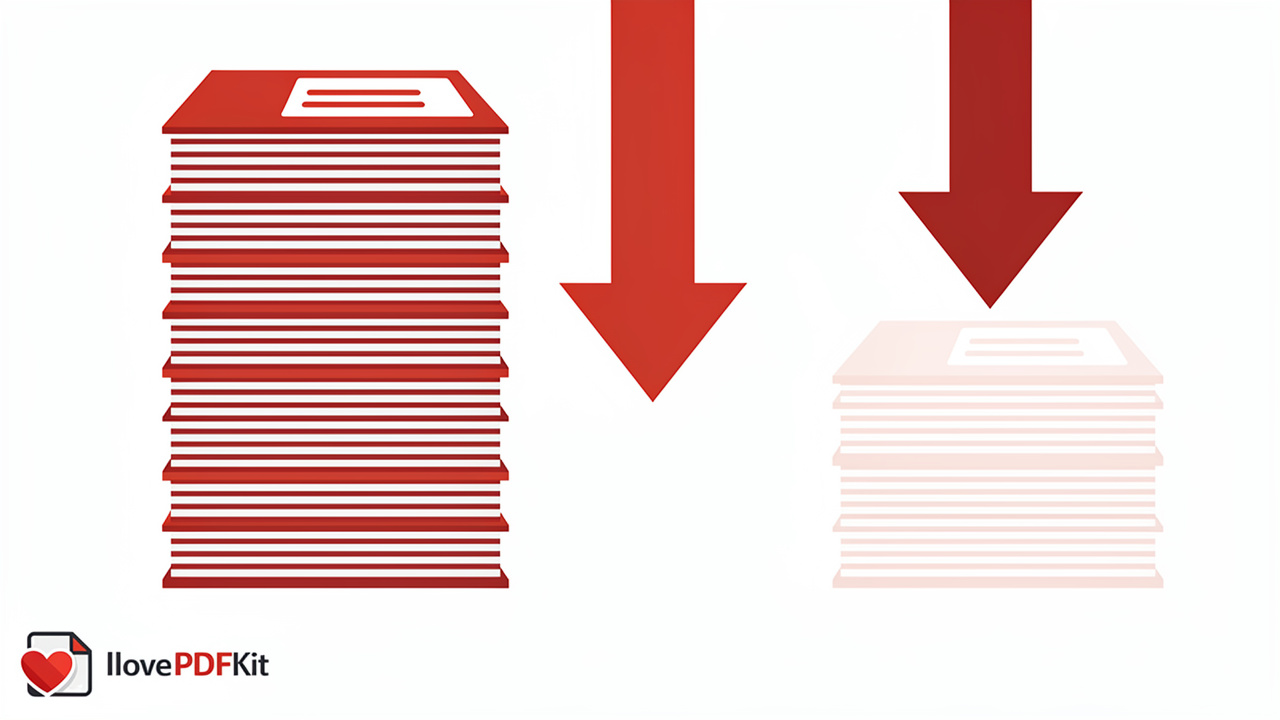
reduce PDF file size for faster loading comes down to three main levers: the images inside it, the fonts it embeds, and the leftover structural data from the software that created it. Images typically account for the largest share of a PDF’s weight, so compressing and resizing them delivers the biggest wins. Fonts and hidden metadata add up too, especially in files exported from design or office software that leave behind editing history nobody needs. Tackling these areas in order, images first, then fonts, then structural cleanup, gives you a lean file without losing the content readers care about.
Compress and Resize Images
Image compression is the single biggest lever for shrinking a PDF, since photos and graphics usually eat up more space than every other element combined. Lowering resolution from print-quality 300 DPI down to screen-friendly 72-96 DPI cuts file size dramatically while still looking sharp on a monitor or phone screen. Choosing the right format matters too:
- JPEG suits photographs and complex color images.
- PNG works better for graphics, text, and anything needing transparency.
Lossy compression removes some image data permanently, shrinking the file significantly with a small, often invisible, quality trade-off, since most of a PDF’s size comes from images and how PDF compression works determines how much can be trimmed before quality loss becomes noticeable. Lossless compression keeps every pixel intact and still reduces size, just not as dramatically as lossy methods. For most web-bound documents, like a resume, a report, or a class assignment, lossy compression at a moderate setting gives the best balance between a small file and a clean page.
Subset or Limit Fonts
Font subsetting keeps only the characters a document actually uses instead of embedding an entire typeface, which can shrink font data by a wide margin. Sticking to two or three fonts throughout a document, and leaning on common system fonts where possible, keeps embedding requirements low from the start. Fewer fonts also means a cleaner, more professional look, since mismatched typefaces can make documents feel disorganized.
Remove Unnecessary Metadata and Bloat
Many PDFs carry hidden weight from the software that created them, including deleted layers, old editing history, and embedded thumbnails nobody will ever see. Stripping this structural bloat trims file size without touching anything visible on the page. Useful metadata, like a clear title and author name, is worth keeping since it helps with search and organization, but excess technical data from export software rarely serves any purpose.
Use a Free Online Compressor
Manually adjusting resolution, fonts, and metadata takes time most students and tools for freelancers don’t have before a deadline. iLovePDFKit’s Compress PDF tool handles all of this automatically, shrinking large files in seconds with no watermark, no account, and no hidden file-size cap. It also keeps formatting pixel-perfect, so tables, images, and layout stay exactly where they belong after compression.
Why Does Accessibility Matter When Optimizing PDFs?
Accessibility matters when optimizing PDFs because aggressive compression can accidentally strip out the structural tags that let screen readers interpret a document correctly, a concern confirmed by recent research on PDF remediation for visual impairments showing how tag accuracy directly affects whether assistive technology can parse a document. Tagged PDFs carry hidden markup identifying headings, lists, and tables under standards like WCAG and Section 508, and that markup needs to survive the optimization process intact. Alternative text on images matters just as much, since it gives visually impaired readers a way to understand pictures and charts without seeing them directly.
Scanned documents create a separate problem, because a scanned page is really just an image of text, not actual searchable text a browser can process, a challenge reflected in newer research on schema-constrained AI for evidence extraction, which shows how unstructured, image-based PDF content complicates automated reading and indexing. Running optical character recognition, commonly called OCR, converts those scanned images into real, selectable text that search engines and assistive tools can both read. The tool includes built-in OCR for exactly this situation, turning scanned class notes, contracts, or old reports into searchable, editable documents in one pass.
What Other Steps Improve Web Performance?
Beyond compression, enabling Fast Web View, also called linearization, reorganizes a PDF’s internal structure so a browser can display the first page before the rest of the file finishes downloading, a technique detailed in guidance on optimizing PDFs for fast viewing that explains how viewers render previews before full downloads complete. This matters most for long documents like research papers or annual reports, where a reader only needs the opening pages right away. Instead of waiting for a 40-page file to load fully, linearized PDFs show content within a second or two, which keeps people from abandoning the page.
Interactive elements deserve equal attention, since hyperlinks and form fields need to keep working correctly across every browser a reader might use, from Chrome to Firefox to Safari. A broken link inside a compressed PDF undermines the whole point of making the file faster, because the reader still hits a dead end. Testing a document on a phone and a couple of browsers before sending it out catches these problems early.
Which Free Tool Makes PDF Optimization Simple?
iLovePDFKit brings compression, conversion, merging, splitting, and security into a single browser-based toolkit, so optimizing a PDF for web doesn’t require switching between five different apps. Consider the range of everyday tasks it covers:
- tools for students can shrink an assignment before an upload deadline.
- Office staff can convert into Word for editing.
- Freelancers can merge client files document.
All of this happens from the same browser tab, with support for cloud services like Google Drive and Dropbox.
Every file transfer runs over SSL/HTTPS encryption, and uploaded documents are automatically deleted from the servers shortly after processing, so nothing lingers for anyone else to see. There’s no registration, no watermark stamped across your pages, and no forced upgrade to a paid tier just to handle a slightly larger file, unlike restrictive alternatives such as Adobe Acrobat alternative. It works the same way on a Chromebook, an office desktop, or a phone, since everything runs inside the browser itself.
The Takeaway
Optimizing a PDF for web isn’t a one-time fix, it’s a habit worth building into every document you plan to share online. Compressing images, subsetting fonts, cleaning up hidden metadata, and enabling Fast Web View all work together to cut load times and keep documents accessible to everyone who opens them, including people using screen readers.
The payoff shows up immediately: fewer upload errors, faster load times, and a more professional impression on whoever receives the file next.
Next time a document feels too heavy to send, try running it through iLovePDFKit’s free compression and conversion tools before you hit upload, no install, no account, and no cost.
Frequently Asked Questions
Does Compressing a PDF Reduce Its Quality?
Lossy compression can slightly reduce image sharpness since it discards some image data to shrink the file further, though the change is often hard to notice. Lossless compression keeps image quality fully intact but shrinks the file less dramatically. Either way, text and layout stay crisp regardless of how much the images are compressed.
What Is the Best File Size for a PDF Uploaded Online?
Aim for under 5-10MB for most web uploads, compress PDF for email, or school submission portals with strict limits. Smaller files load faster for mobile users and anyone on a slow or unstable internet connection, so trimming closer to the lower end is always safer.
Can I Optimize a PDF Without Losing the Original Formatting?
Yes, proper optimization preserves fonts, layout, and image placement rather than flattening the page into a single image. Tools built around pixel-perfect conversion rebuild native text, image, and table objects during compression, so the document still looks exactly like the original once it’s resized.
Is It Safe to Upload Sensitive Documents to an Online PDF Tool?
It can be, provided the service uses SSL or HTTPS protect PDF with password and deletes files automatically after processing. No team member should ever review or open uploaded files, and nothing should remain stored on the servers once the task finishes, which keeps contracts and personal records private.
How Do I Make a Scanned PDF Searchable for the Web?
Running OCR, short for optical character recognition, converts a convert scanned document to PDF into real, selectable text. This makes the document readable by search engines and screen readers alike. The platform includes a built-in OCR feature that handles this conversion automatically, without extra software.
Do I Need Special Software to Optimize a PDF?
No, best free PDF tools require no downloads or installs, since everything runs directly inside the browser tab. This makes optimization accessible on Windows, Mac, Linux, Android, and iOS devices alike, including shared school computers or workplace machines where installing new software isn’t allowed.
