Table of Contents
- Introduction
- What Is PDF To PowerPoint Conversion And Why Do You Need It?
- How To Convert PDF To PowerPoint Online Using iLovePDFKit
- What Makes A PDF To PowerPoint Converter Worth Using?
- Tips For Getting The Best Results When You Convert PDF To PowerPoint
- Stop Rebuilding Slides From Scratch – Convert PDF To PowerPoint In Seconds
- Frequently Asked Questions
Introduction
Static PDFs feel painful when you need to edit, reorder, or present them. Rebuilding slides by hand wastes time and energy, especially when a deadline is close and the file will not cooperate.
The simplest free way to turn a PDF into an editable PowerPoint presentation is to use an online pdf to powerpoint converter such as iLovePDFKit. You open the tool in your browser, upload the PDF, and download a PPTX file that keeps your layout and lets you edit every element. No signup, no payment, and no software install are needed.
This guide explains what PDF to PowerPoint conversion does, who benefits most, how to use iLovePDFKit in three quick steps, and how to get clean, ready‑to‑present slides every time. Keep reading to turn any stubborn PDF into a polished deck without starting over.
Key Takeaways
PDF to PowerPoint conversion turns fixed PDF pages into editable PowerPoint slides and saves time compared with rebuilding a deck manually.
Students, office staff, freelancers, and small teams get faster presentations from PDFs and avoid copying and pasting text or screenshots.
iLovePDFKit converts a PDF to PPT in three fast steps: open the tool, upload the file, then download the PPTX.
A good free converter keeps layout, has no watermarks, protects your files, and works without accounts. iLovePDFKit matches these points.
After conversion, you can edit text, move images, change themes, and reuse content. That makes each converted PPTX ready for class, meetings, or client calls.
What Is PDF To PowerPoint Conversion And Why Do You Need It?

PDF to PowerPoint conversion means turning each page of a PDF into an editable slide in a PPTX file. The goal is simple but powerful for everyday work and study: you keep the look of the PDF while gaining full editing rights in Microsoft PowerPoint or similar apps.
PDFs lock layout so a document looks the same on every device. That is perfect for final sharing, but it gets in the way when you must change text, move elements, or adapt content into a slide deck. Converting a PDF to PowerPoint solves that by rebuilding text boxes, images, and shapes as real slide objects instead of flat pictures.
According to Adobe, millions of files have passed through its online PDF to PPT tools, which shows how common this need is. Students receive lecture notes and research papers as PDFs and want to add comments, shrink content, or mix sections into a class presentation. Academic staff take journal articles and convert them into teaching slides without rewriting.
Office professionals often receive quarterly reports, proposals, or policy documents only in PDF form. With a quick pdf to powerpoint conversion, they can pull tables into charts, add talking points, and rearrange sections for a meeting. Freelancers and small business owners take client PDFs and turn them into branded decks for pitches and workshops.
In every case, the benefit is the same. A good converter avoids manual retyping, keeps formatting close to the source, and gives you a flexible PPTX ready for editing in Microsoft PowerPoint, Google Slides, or LibreOffice Impress.
How To Convert PDF To PowerPoint Online Using iLovePDFKit
Converting a PDF to PowerPoint online with iLovePDFKit means turning a static document into an editable PPTX in just a few clicks. The service focuses on speed and simplicity so anyone can go from upload to finished slides in seconds.
iLovePDFKit runs fully in your web browser on Windows, macOS, Linux, iOS, and Android. You do not install anything or register an account. You simply open the pdf to powerpoint tool, drop in your file, and the conversion starts right away. That helps when you work on a shared computer or a locked‑down office laptop where installing apps is not an option.
Behind the scenes, iLovePDFKit reads each PDF page and rebuilds it as real PowerPoint content. Text remains selectable, images stay separate, and shapes keep their positions. The PPTX file that comes out is not a stack of flat screenshots. It is a proper, editable presentation that you can adjust like any slide deck you made from scratch.
McKinsey & Company reports that workers spend about 1.8 hours each day searching for and preparing information. A fast converter helps cut that wasted time because you start from a finished layout instead of a blank slide.
Other online services, such as Smallpdf and Adobe Acrobat online, follow a similar pattern. However, iLovePDFKit stands out by keeping the experience completely free with no daily conversion caps, no watermarks, and no login wall. That is a big help for students or freelancers who might convert several files in one study session or client project.
Once your PPTX downloads, you can open it in Microsoft PowerPoint, PowerPoint for the web, or Google Slides. From there, adjusting fonts, adding new slides, inserting speaker notes, or removing pages you do not need are all straightforward.
Step-By-Step: Converting Your PDF In Seconds
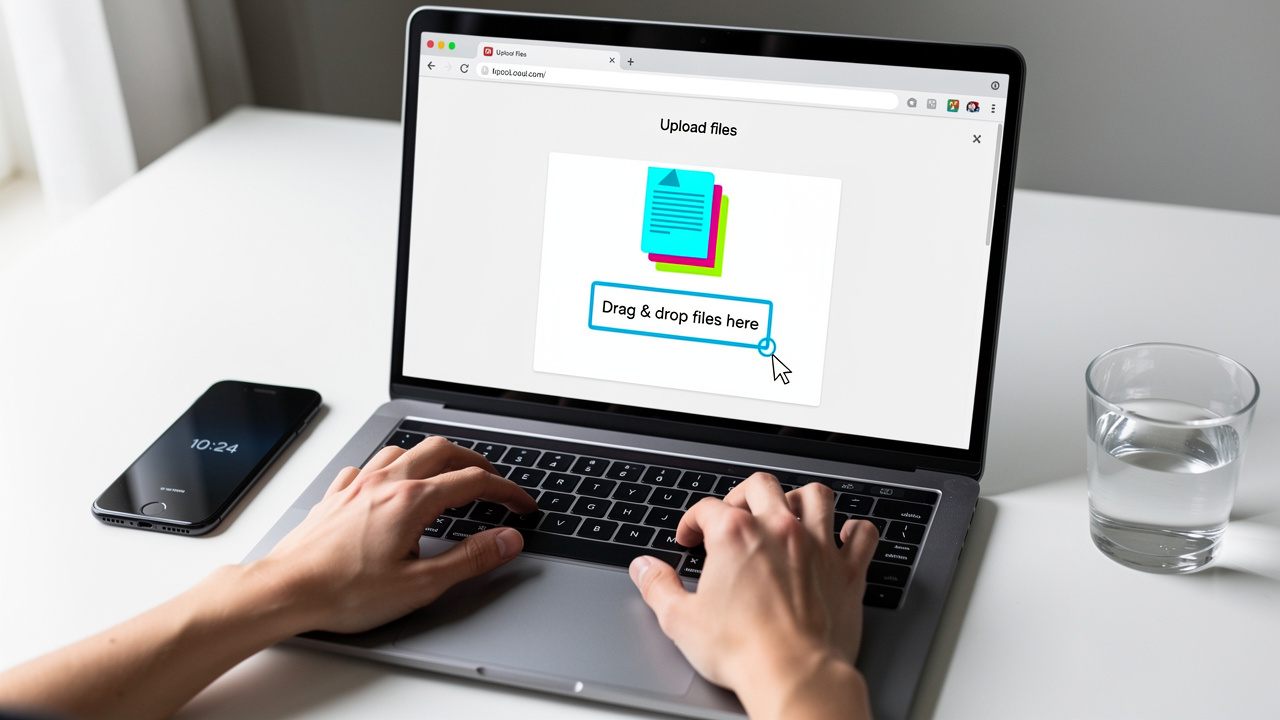
Step 1 – Open The Tool
Open your browser on any device and go to iLovePDFKit’s PDF to PowerPoint converter page. The interface loads quickly and works the same in Chrome, Firefox, Safari, and Edge. You do not need to sign in or install an extension before starting, so you can run a conversion even on a public or borrowed computer.Step 2 – Upload Your PDF
Click the upload button or drag and drop your PDF into the marked area — if you need a free online alternative at any point, you can also use iLovePDF to convert PDF to PowerPoint without registration. iLovePDFKit accepts regular PDFs from scanners, exported reports, downloaded articles, and class handouts. You can also bring in files stored in cloud services such as Google Drive or Dropbox. The file transfers over an encrypted connection to keep content private during processing.Step 3 – Download Your PPTX
As soon as the upload finishes, iLovePDFKit starts the pdf to powerpoint conversion automatically. The progress bar moves quickly for most standard documents and finishes in a few seconds, similar to other leading tools such as Adobe Acrobat online. When processing ends, you click the download button and save the PPTX to your device or cloud folder.Post-Conversion Editing Tip
Open the downloaded PPTX in Microsoft PowerPoint, PowerPoint for the web, or Google Slides. Check a few slides to confirm that text, images, and charts look correct. Then you can change fonts, apply a different theme, add new slides, or insert speaker notes without fixing broken layouts. This quick review keeps your next class, meeting, or pitch on track.
What Makes A PDF To PowerPoint Converter Worth Using?
A good PDF to PowerPoint converter turns a locked document into a clean, editable slide deck without wasting your time. The best tools keep layout faithful to the original, treat your files safely, and avoid tricks like hidden fees or forced signups.
Format and layout preservation matter most. If a converter scrambles text boxes, shifts charts, or loses images, you still spend time fixing slides. iLovePDFKit focuses on near pixel‑level accuracy by rebuilding each item from the PDF as a native PowerPoint object. Text stays text, shapes stay shapes, and pictures stay separate so you can move them freely.
Security is another key point, especially for contracts, grades, medical notes, or internal reports. iLovePDFKit uses SSL encryption on every upload and download. Files are handled in real time, then removed from servers once you have downloaded the result. No staff member opens or reads your documents, which keeps sensitive information under your control.
Money and friction matter too. Many free converters add watermarks or block extra conversions behind a paywall. iLovePDFKit takes a different path. The pdf to powerpoint converter is free, has no conversion caps, and never stamps a logo on your slides. You also skip account creation, which makes quick one‑off jobs far easier.
Here is how a solid converter compares:
| Feature | What To Look For | iLovePDFKit |
|---|---|---|
| Layout preservation | Real text and objects, not flat images | ✅ Pixel‑level fidelity |
| Watermarks | Clean pages, even on free plans | ✅ No watermarks |
| Account required | Open tool, convert, download | ✅ No signup |
| File security | Encrypted transfer and quick deletion | ✅ SSL plus removal after download |
| Device compatibility | Works in common browsers on all systems | ✅ Desktop, tablet, phone |
| Cost | Clear pricing with no surprise limits | ✅ Free with no caps |
Platforms such as iLovePDFKit and Smallpdf bundle many document tools in one place. iLovePDFKit follows an all‑in‑one idea, with extras like PDF to Word, PDF to Excel, Compress PDF, and Merge PDF in the same interface. That helps reduce the number of different services you need to manage your files.
According to McKinsey & Company, time lost on document handling and searching adds up across a workday. Choosing a converter that preserves layout and works quickly, like iLovePDFKit, helps cut that silent cost each time you update a report or class presentation.
Tips For Getting The Best Results When You Convert PDF To PowerPoint

Getting strong results from any pdf to powerpoint conversion starts with the source file and ends with a short review of the PPTX. A few simple habits will keep your slides clear, sharp, and ready to present.
Use text-based PDFs whenever possible. If you can highlight and copy text in the PDF, the converter can read it more precisely. That leads to cleaner text boxes in PowerPoint and fewer mistakes in spelling or spacing. When you only have a scan, try to track down the original digital file if you can — for academic documents specifically, open-source tools like the gejifeng/Paper2PPT GitHub project show how researchers are building automated pipelines for converting text-heavy PDFs into structured slides.
Watch image quality in the original PDF. High‑resolution charts, logos, and photos stay sharp when moved into PowerPoint slides. If the PDF looks blurry or pixelated at full zoom, the converted slides will show the same problem. When you control export settings, pick higher image quality before you run the conversion.
Review your converted PPTX from start to finish. Scroll through each slide and check headings, bullets, tables, and graphics. Pay extra attention to files with multi‑column layouts, footnotes, or complex diagrams, since these areas can shift slightly. A two minute scan saves stress in front of a class, team, or client.
Use iLovePDFKit tools around the conversion for cleaner input and output. You can run Compress PDF to shrink large handouts before sharing them, or Split PDF to pull only the pages you need into a new deck. Merge PDF helps you build one master file from several sources before you convert to PowerPoint. That keeps your workflow simple and tidy.
Remember that mobile works as well as desktop. iLovePDFKit’s browser‑based tools run smoothly on phones and tablets, so you can convert a PDF to PPT even while commuting. You open the same web page, upload the file from local storage or a cloud app, and download the PPTX when it is ready. No app store download or updates are needed.
“Plans are worthless, but planning is everything.” — Dwight D. Eisenhower
When you convert a PDF to PowerPoint, that planning is your quick slide‑by‑slide review and small cleanup pass before you walk into the room.
According to Adobe, its online converters finish most jobs within seconds for normal documents. When you combine that speed with careful source files and a short manual check, you get reliable slide decks with very little effort.
Stop Rebuilding Slides From Scratch – Convert PDF To PowerPoint In Seconds

Turning a PDF into a slide deck does not have to mean copying each heading and chart by hand. With iLovePDFKit, you run a quick pdf to powerpoint conversion, then open a PPTX file that already matches the original layout and is ready for edits.
Because the tool is free, has no watermarks, and skips registration, it fits short student tasks as well as frequent office work. You can prepare a client pitch, a weekly status update, or a conference talk starting from almost any PDF. Then you spend your time polishing the message instead of wrestling with formatting.
Next time someone emails you a PDF when you really need a deck, open iLovePDFKit’s converter, upload the file, and get editable slides within seconds. From there, explore the full toolkit for Word, Excel, image conversions, and PDF cleanup to keep every document workflow smooth.
Frequently Asked Questions
Question: Is iLovePDFKit’s PDF to PowerPoint converter really free?
Yes, iLovePDFKit’s PDF to PowerPoint converter is completely free to use. There is no subscription, no trial that expires, and no hidden fee that appears after a few files. The service never adds watermarks to your slides and does not limit how many conversions you run. You also do not need an account or email address.
Question: Will my PDF’s formatting be preserved after conversion?
In most cases, your formatting stays very close to the original PDF. iLovePDFKit rebuilds text, images, and shapes as native PowerPoint objects instead of flat screenshots. Fonts, colors, and spacing usually match what you saw in the source file. That means many converted decks are ready to present with only small edits, if any.
Question: Is it safe to upload sensitive documents to iLovePDFKit?
Yes, iLovePDFKit is designed with privacy in mind. All file transfers use SSL encryption so your data stays protected in transit. Files are processed automatically and then removed from servers once your download is complete. No team member opens or reviews your PDFs or PPTX files. This approach fits especially well for business, legal, or academic documents.
Question: Can I convert a PDF to PowerPoint on my phone or tablet?
Yes, you can run the converter in any modern mobile browser. The same three steps apply on iOS and Android devices, so you open the page, upload the PDF, and download the PPTX. There is no need to install a separate app or register an account on your phone.
Question: What can I do with the PowerPoint file after converting from PDF?
After conversion, you can edit the PPTX like any normal presentation. You may change text, resize or move images, apply new themes, add or delete slides, and insert speaker notes. The file opens in Microsoft PowerPoint on desktop or web and also in Google Slides. Because iLovePDFKit keeps layout accurate, major reformatting is rarely needed.
