Office workers waste real hours every week just wrestling with file formats, bouncing between apps, and waiting on slow conversions that should take seconds. That frustration builds fast when a PDF won’t open in the right program, a spreadsheet needs reformatting, or a team spends another meeting just trading status updates. The right productivity tools for office work fix these exact headaches by handling document conversion, team communication, and task tracking without added cost or complexity.
This guide covers the top productivity tools for office professionals, students, and freelancers who need practical results instead of bloated software. We start with document management, since converting and organizing files eats up more daily time than most people realize, then move into communication platforms and task-tracking apps. Keep reading to find the right mix for your workflow.
Key Takeaways
- Free, browser-based tools like iLovePDFKit cut document busywork without any cost or software installs.
- Document conversion and file management remain the biggest daily time-sink for office staff and students alike.
- Communication platforms like Slack and Microsoft Teams reduce meeting overload, a well-documented productivity drain.
- Task and project tools such as Trello and Asana give teams visibility without constant check-in meetings.
- The best office setup combines a handful of reliable tools rather than a dozen scattered apps.
Table of Contents
- What Are Productivity Tools and Why Do They Matter for Offices?
- Top Productivity Tools for Office Work
- How Do I Choose the Right Productivity Tools for My Office?
- Final Thoughts
- Frequently Asked Questions
What Are Productivity Tools and Why Do They Matter for Offices?
Productivity tools are software programs built to help people finish work faster and with less manual effort, covering everything from document editing to team messaging. They matter in offices because so much of the workday gets consumed by repetitive tasks, like reformatting a file, chasing down a document version, or converting a report into a different format for a client or professor.
Offices lean on these tools to shrink the time spent on busywork so employees can focus on tasks that actually require judgment and skill. A well-chosen set of productivity tools for office tasks also reduces errors, since manual file conversion and copy-pasting between formats tend to introduce mistakes that automated tools avoid. When a team picks tools that match its real workflow, output quality tends to rise alongside speed.
Top Productivity Tools for Office Work
Office teams generally need three kinds of support: tools for handling documents, tools for communication, and tools for tracking tasks. The list below walks through strong options in each category. Each entry explains who the tool suits best and what sets it apart, starting with the document side of things since that’s where most office hours quietly disappear.
iLovePDFKit for Document Conversion and Management
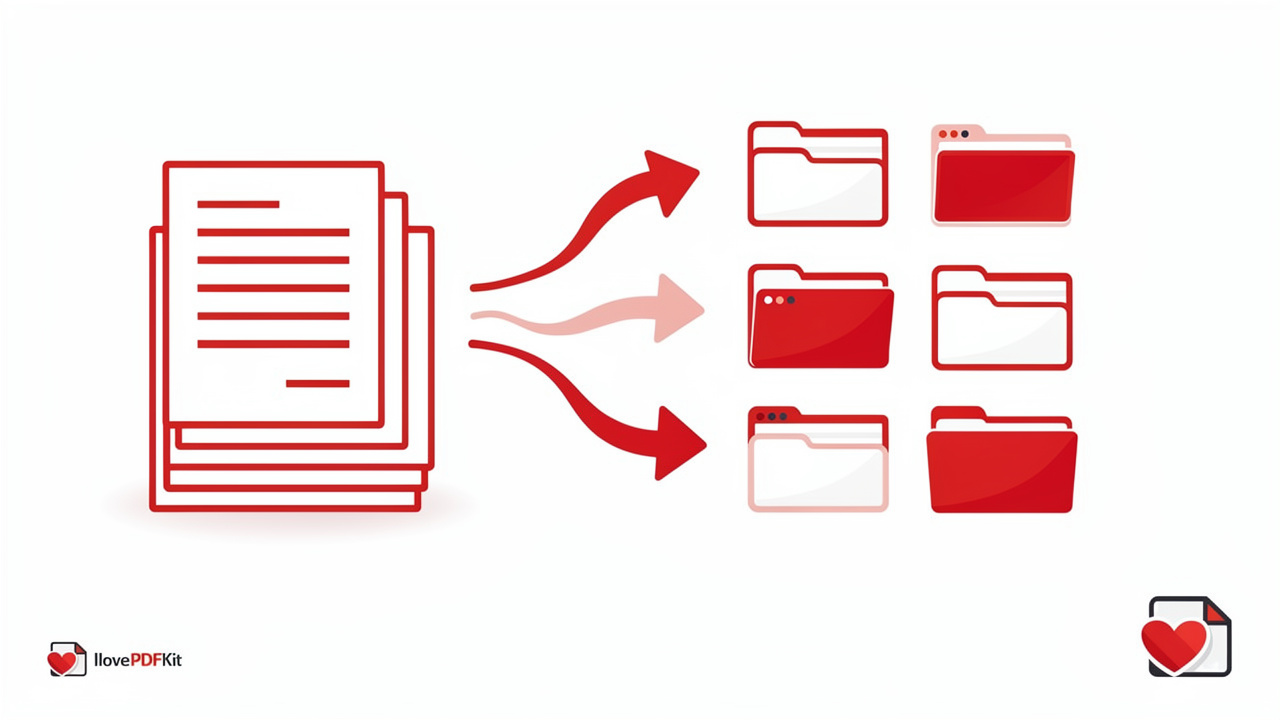
iLovePDFKit is a free, browser-based platform for converting and managing PDF files without needing an account, a download, or putting up with a watermark on the finished document. The core toolkit covers:
- PDF to Word, Excel, and PowerPoint conversions (and the reverse)
- Merging and splitting files files
- Compressing documents documents
- Extracting or deleting pages
- Password protection for files for files that need extra security
A built-in OCR feature, which stands for optical character recognition, turns scanned document to PDF and editable text. This comes in handy for contracts, reports, or old paper documents that got scanned into PDF form. The tool works on Windows, macOS, Linux, Android, and iOS through any modern browser, and it connects directly to Google Drive, Dropbox, and OneDrive. Files aren’t stored after processing, and there are no daily task caps, which makes it a solid fit for office staff converting decks, freelancers prepping client files, and students formatting assignments under a deadline.
Google Workspace for Collaboration
Google Workspace is a cloud-based suite built around Docs, Sheets, Slides, and Gmail that lets multiple people edit the same file at once and leave comments in real time. This setup cuts down on the email back-and-forth and version-control confusion that happens when five people email each other slightly different drafts of the same report.
| Tier | Price (per user/month) | Storage | Notable Features |
|---|---|---|---|
| Starter | $7 | 30 GB pooled | Custom business email |
| Standard | $14 | More pooled storage | Enhanced collaboration tools |
| Plus | $22 | Expanded storage | Advanced security features |
For offices standardized on Microsoft’s ecosystem instead, IT admins can configure deployments using the Office Customization Tool to control which applications and languages get installed across the organization.
Slack or Microsoft Teams for Communication

Slack and Microsoft Teams both replace a chunk of status-update meetings with channel-based messaging, so a quick question gets answered in a thread instead of requiring everyone to join a call. These platforms integrate with file-sharing tools and calendar apps, which keeps project updates centralized instead of split across email, texts, and whatever meeting happened last.
Slack’s free plan covers 90 days of message history and up to 10 app integrations, while the Pro tier runs $8.75 per user per month (billed monthly) and unlocks unlimited history and integrations. For offices trying to cut down on meeting time while keeping conversations organized and searchable, either platform does the job well, with the better pick usually coming down to what other software the office already uses.
Trello or Asana for Task Management
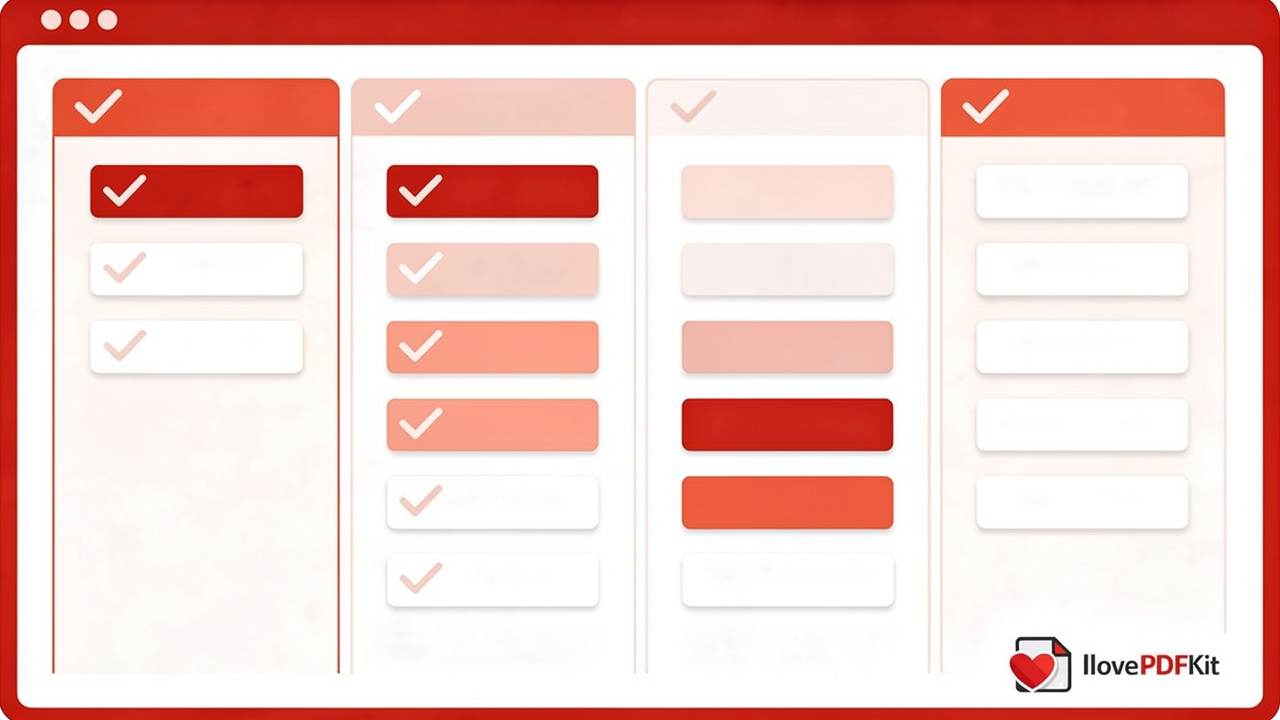
Trello and Asana both use boards, lists, and cards to track who owns which task, what the deadline is, and how close a project is to done. This visual layout means a manager can check progress at a glance instead of scheduling a coordination meeting just to ask where things stand.
- Trello: Free plan supports up to 10 boards and 10 collaborators per workspace; Standard tier priced at $6/month for unlimited boards and advanced checklists.
- Asana: Free Personal plan covers up to two users; Starter tier runs $13.49/month with no seat limits, timeline views, and reporting dashboards.
Both tools fit small teams and freelancers juggling multiple projects who need status visibility without constant check-ins.
Zoom for Virtual Meetings
Zoom rounds out the communication lineup with video conferencing that supports screen sharing, recording, and breakout rooms for sessions that genuinely need a live discussion. The free Basic plan covers meetings up to 40 minutes with 100 participants, which works fine for quick calls, but it’s worth using video meetings sparingly to avoid the “meeting madness” that research consistently flags as a productivity drain.
How Do I Choose the Right Productivity Tools for My Office?
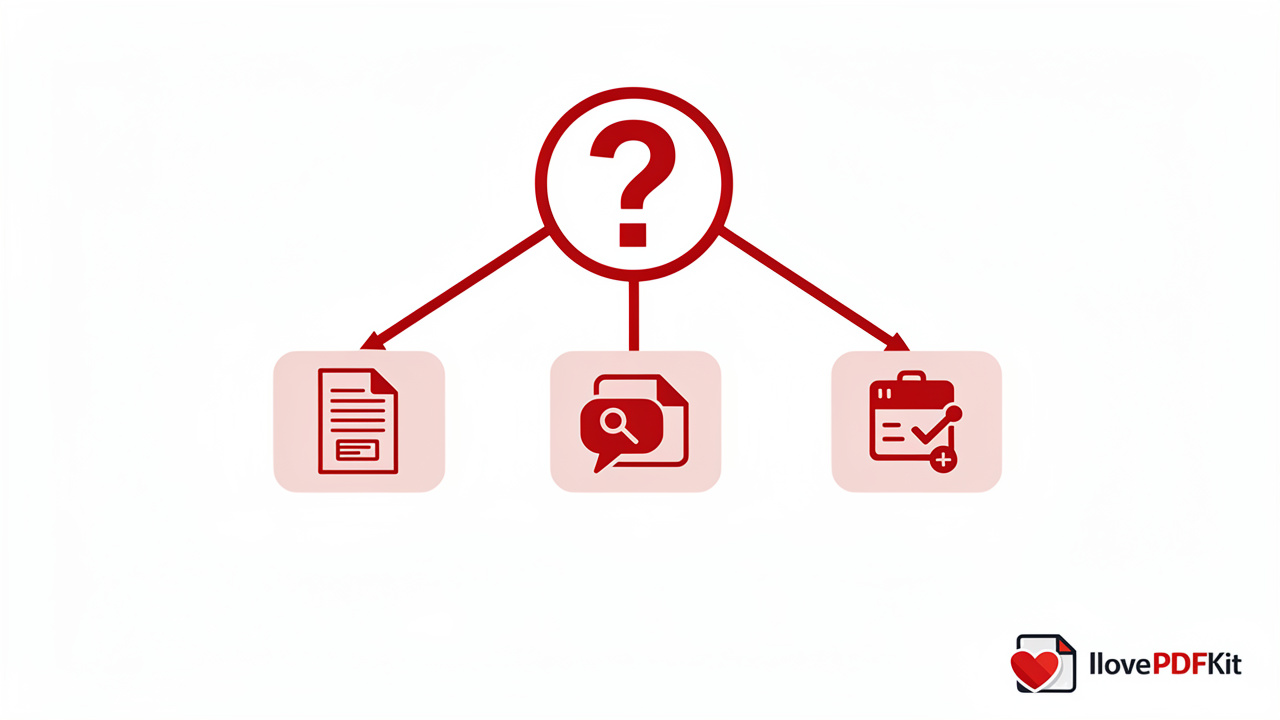
Choosing the right productivity tools for office use starts with identifying your actual pain point rather than picking whatever app is trending. If files and formatting eat your time, prioritize document tools first; if meetings dominate your calendar, a messaging platform will deliver faster relief than another task tracker.
Security technologist Bruce Schneier once put it plainly:
“Security is a process, not a product.” — Bruce Schneier, security technologist
That mindset applies directly to tool selection. Favor options that are free, require no installation, and work across devices, since that combination removes friction for small teams and solo freelancers who can’t justify a software budget or IT support for every app. Cross-platform, browser-based tools also mean nobody gets stuck because they’re on the wrong operating system or a locked-down office machine.
Final Thoughts
Real productivity gains come from combining a small number of reliable tools, not from stacking up a dozen apps that each solve a sliver of the problem. A simple setup, one document tool, one communication platform, and one task tracker, covers most of what an office genuinely needs, and it’s far easier to maintain than a sprawling tech stack nobody fully uses.
If document handling is your biggest drag right now, start there. Trying iLovePDFKit for a quick PDF conversion or merge costs nothing and takes a few minutes, which makes it a low-risk first step toward a more efficient workday. From there, layer in a communication and task tool that matches how your team already works, rather than forcing a new process onto everyone at once.
Frequently Asked Questions
What Is The Best Free Productivity Tool For Converting Documents At Work?
iLovePDFKit stands out as a free, browser-based option with no registration, no downloads, and no watermarks on finished on finished files. It supports Word, Excel, PowerPoint, and JPG conversions in both directions, plus merging and compressing, covering most document tasks an office or student needs in one place.
Are Free Productivity Tools Safe To Use With Sensitive Office Documents?
Safety largely comes down to encryption during upload and whether the tool stores your files afterward. Look for platforms that use encryption in transit and automatically delete files once processing finishes, and always check a tool’s privacy policy before uploading anything confidential, like contracts or financial records.
Can I Use Productivity Tools On My Phone Or Tablet?
Yes, most browser-based productivity tools, including the one mentioned above, work on any device with a modern browser, whether that’s a phone, tablet, laptop, or desktop. There’s typically no app to install since everything runs through the browser itself, making it easy to convert or edit files between devices.
How Many Productivity Tools Should An Office Team Actually Use?
A small core set works best, usually one document tool, one communication platform, and one task-tracking app. Adding more tools than that tends to create tool fatigue, where employees waste time switching between apps instead of saving it, which defeats the purpose of adopting the tools in the first place.
Do Productivity Tools Really Save Time, Or Do They Create More Work?
They save time only when paired with proper training and a workflow that actually fits the tool, a pattern researchers call the “productivity paradox.” Tools adopted without that alignment often just shift effort around instead of reducing it, so onboarding and workflow fit matter as much as the software itself.
What’s The Difference Between Cloud-Based And Downloadable Productivity Tools?
Cloud-based tools run in a browser, need no installation, and work across any device with internet access, which suits teams wanting quick, flexible access. Downloadable software may offer offline access and deeper feature sets, but it requires installation, storage space, and sometimes licensing costs that cloud tools avoid entirely.
