Table of Contents
- Introduction
- Why Convert a PDF to PowerPoint in the First Place?
- How to Convert a PDF to PPT Using iLovePDFKit
- Tips for Getting the Best PDF to PPT Conversion Results
- Is It Safe to Convert a PDF Online? Security and Privacy Explained
- How to Choose the Best PDF to PPT Converter for Your Needs
- Locking In Your Workflow: Convert Smarter, Not Harder
- Frequently Asked Questions
Introduction
Converting a fixed PDF into editable PowerPoint slides is simple when you use the right online tools. The best options in 2026 include browser tools like iLovePDFKit, Adobe Acrobat Online, and Microsoft PowerPoint’s built‑in import feature. Among these, iLovePDFKit stands out for anyone asking how to convert PDF to PPT fast, free, and without registration.
Many students, office workers, and freelancers waste time rebuilding slides by hand from static reports. That manual work often leads to errors, messy layouts, and presentations that are harder to follow than they need to be.
With a good PDF to PowerPoint converter, you upload a file, wait a few seconds, then download a clean PPTX that opens in Microsoft PowerPoint or Google Slides on almost any device. This guide explains when conversion helps, how to use iLovePDFKit step by step, how to get better results, what security features to look for, and how to pick the best tool for your own workflow.
Key Takeaways
Editable slides instead of static pages: Converting a PDF to PowerPoint turns a locked, read‑only file into an editable slide deck that is ready for class, client, or team presentations.
Free, no‑sign‑up converting with iLovePDFKit: iLovePDFKit lets you convert PDF to PowerPoint completely free, with no account, no software download, and no watermark added to your slides.
Simple three‑step process: The basic workflow is simple: upload your PDF, let the tool convert it in seconds, then download a PPTX where each page becomes a slide.
Quality depends on the original PDF: Clean results come from starting with text‑based PDFs, keeping file sizes reasonable, and spending a few minutes checking slides after conversion.
Look for strong security practices: A safe converter uses SSL encryption and deletes both the original PDF and the converted PPTX from its servers after the download finishes.
Why Convert a PDF to PowerPoint in the First Place?

Converting a PDF to PowerPoint matters whenever a finished document needs to turn into an editable slide deck. PDFs keep layouts stable, but that strength makes changes and reordering difficult. A PPTX file, on the other hand, gives you movable text boxes, images, and design tools for live presentations.
Here are a few situations where a PDF to PPT converter saves a lot of time:
Students and researchers: Many readings and lecture notes arrive as PDF files from Canvas, Google Classroom, or email. Turning those PDFs into slides lets you highlight key findings, shrink long paragraphs, and add speaker notes without rewriting everything — a workflow covered in detail in this How to Convert a research paper to presentation guide. Class presentations, thesis defenses, and poster‑session overviews all benefit from this kind of quick reuse.
Office professionals: Colleagues often receive final reports as PDF exports from Word, Excel, or Google Docs. When that same content has to appear at a board meeting or on a Zoom call, rebuilding charts and text by hand wastes hours. A PDF to PPT converter rebuilds each page as a slide, so Microsoft PowerPoint, Google Slides, and LibreOffice Impress can be used for fine‑tuning instead of basic copying.
Freelancers and small business owners: Portfolios, proposals, and case studies often live as polished PDFs sent through Gmail or shared from Dropbox. Once those are converted into editable decks, it becomes easy to customize pricing, swap case studies, or shorten a long document into a tight pitch — tools like Convert PDF to PowerPoint with AI can accomplish this in under a minute. According to Adobe, millions of PDFs are converted to PowerPoint through their tools alone, which shows how common this workflow has become.
“Clutter and confusion are failures of design, not attributes of information.” — Edward Tufte
Turning dense PDFs into clear slides helps your audience focus on the message, not fight the formatting.
How to Convert a PDF to PPT Using iLovePDFKit
Using iLovePDFKit to change a PDF into a PowerPoint presentation is one of the simplest options available. The tool runs in any modern browser, asks for no sign‑up, and keeps the whole process to three main steps. You just upload, wait a short moment, then download an editable PPTX file.
Every page of your PDF becomes a separate PowerPoint slide. Because iLovePDFKit rebuilds text boxes, images, and shapes as native PowerPoint elements, you can edit fonts, colors, and layout right away instead of staring at flat screenshots — the Convert PDF to Microsoft PowerPoint documentation explains how this element-level rebuilding works under the hood. That makes it a strong choice for anyone asking how to convert a PDF file to PPT without losing formatting.
Step-by-Step: Upload, Convert, and Download Your PPTX File
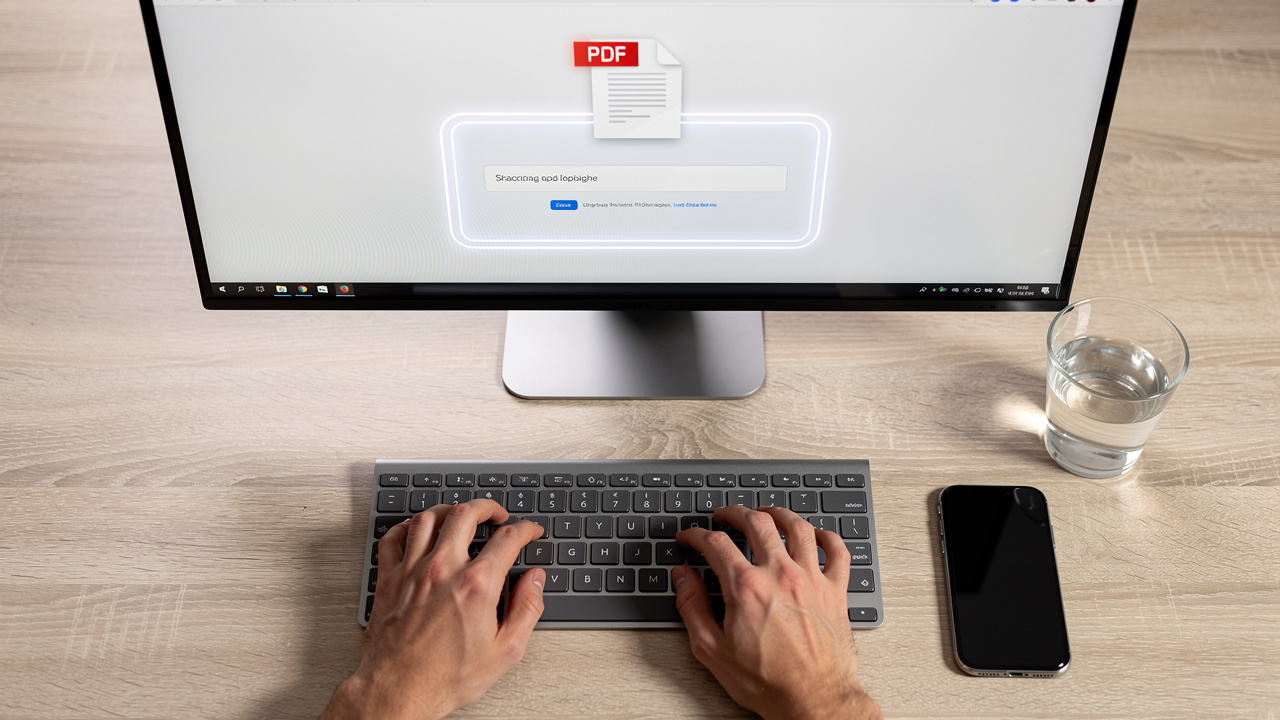
The step‑by‑step workflow in iLovePDFKit follows the same pattern on Windows, macOS, Linux, Android, and iOS. If a browser like Chrome, Safari, Firefox, or Edge runs on the device, the converter works there. You do not need to install an app or enter an email address at any point.
Open the iLovePDFKit PDF to PowerPoint tool
Visit the iLovePDFKit website and choose the PDF to PPT converter from the tool list. The page shows a large upload area right away so you never hunt through menus. Because everything runs online, even an older Chromebook or office PC can handle the task.Upload your PDF from local storage or the cloud
Drag the PDF onto the upload box or click the button to browse your computer, phone, or tablet. Many people keep files in Google Drive, Dropbox, or OneDrive, so iLovePDFKit also connects with those services. That way you can grab a file from the cloud and skip downloading it first.Start the conversion and let the engine work
Once the PDF appears on the page, choose to convert it to PPTX and start the process. The server reads each page, detects text, images, and shapes, then rebuilds them in a PowerPoint‑friendly layout — a process also detailed in the Convert presentations | GroupDocs documentation for those curious about the technical underpinnings. According to Adobe, high‑quality converters like this preserve fonts and layout far better than simple screenshot tools.Download the clean PPTX file
When the process finishes, a download button appears. Click it to save the PowerPoint file to your device or back to cloud storage. iLovePDFKit does not add watermarks or extra graphics, so the slides are ready for class, clients, or internal meetings.Open and edit in your favorite presentation app
Open the PPTX in Microsoft PowerPoint, Google Slides, or LibreOffice Impress. Each slide matches one PDF page, with text and images ready to edit. You can shorten paragraphs, change colors, add new slides, or insert animations just as you would in any normal PowerPoint deck.
Tip: Give the converted file a clear name (for example,
Client-Report-Q4-slides.pptx) so you and your team can find it quickly later.
Tips for Getting the Best PDF to PPT Conversion Results
Getting strong results when you convert PDF to PPT depends a lot on the starting file. The converter, even a reliable one like iLovePDFKit, works with the data it receives. A clean, native PDF usually gives much better slides than a blurry scan.
Text‑based PDFs are the best starting point. These are files where you can select text with your mouse in Adobe Acrobat Reader or your browser. When you convert that kind of document, the engine can read actual characters and paragraphs, then rebuild them in PowerPoint with good spacing. According to Nielsen Norman Group, users often struggle to scan long PDFs on screen, which makes turning them into slides even more helpful.
Scanned PDFs behave differently because every page is just an image. Converters need optical character recognition, often called OCR, to guess which shapes are letters — the open-source project muhammadfaisalshareef/pdf2ppt illustrates how smart parsing retains layout even for image-heavy files. That works, but it can mix up numbers, line breaks, and tables. If you only have a scan, expect to spend extra time cleaning up text after conversion, especially in math or data‑heavy content.
File size also matters. Very large PDFs packed with huge photos can hit upload limits or make conversion slower. Free online tools from iLovePDFKit, Adobe, and others often set limits in the tens of megabytes. When a file feels heavy, running it through a Compress PDF tool first can keep the process smooth.
What to Do After the Conversion Is Complete
Once your PDF has turned into a PPTX file, a few small edits can make the slides look polished. Work through this short checklist:
Review every slide: Flip through each slide in Microsoft PowerPoint or Google Slides and check that text does not overflow and that images sit where you expect. Small moves of a text box or chart take only seconds but improve clarity a lot.
Apply a theme and add details: Choose a theme or template that matches your class, brand, or client. You can keep the imported background or switch to a clean built‑in design with better contrast and font choices — the AI-powered giggitygi/ppt-master project shows how automated tools can generate beautifully designed, editable slides as a reference for what polished results look like. Add speaker notes, transitions, and simple animations if you plan to present live.
Restructure the story: Reorganize the deck so it tells a clear story. Delete pages that are not needed, split crowded pages into two slides, and reorder sections so the flow makes sense. When everything looks right, you can export the file back to PDF for sharing or printing.
Tip: Run through the slideshow once with a timer. If you struggle to explain a slide in under a minute, consider splitting or simplifying it.
Is It Safe to Convert a PDF Online? Security and Privacy Explained

Online PDF to PPT converters are safe to use when they handle files with strong security practices. Any time a document leaves your device, you want to know how it travels, how long it stays on a server, and who can see it. Good tools explain this in clear language rather than hiding it in vague terms.
iLovePDFKit uses SSL encryption for all uploads and downloads so files travel over HTTPS, the same secure protocol used by online banking and major cloud services. The platform follows a strict no‑file‑storage rule. That means the original PDF and the converted PowerPoint are removed from the server after processing and download, instead of being kept for future data mining. No one on the team opens your documents during conversion because the pipeline is automated.
This approach matters for people who handle grade reports, HR documents, contracts, or medical details — especially for researchers and academics who need to Convert Research Paper to PPT while keeping sensitive data protected. According to IBM, the average data breach costs several million dollars in direct and indirect impact, so careless file handling can become expensive very fast. Encrypting transfers and deleting files quickly greatly reduces the risk.
Here are basic security features to look for in any PDF to PPT converter:
HTTPS / SSL encryption: Protects files while they move between your browser and the server.
Automatic deletion: Removes both the uploaded PDF and the converted PPTX after a short time.
No human access to content: Processing is handled by software, not by staff reading your documents.
Clear privacy policy: Explains what happens to your files and data in plain language.
Tip: If you would not email a document without protection, think twice before uploading it to any online service.
For extremely sensitive material, some organizations still prefer a desktop tool that works fully offline. Adobe Acrobat Pro and similar programs convert PDFs to PowerPoint directly on your computer. That way documents never leave local storage, which can be helpful when you must follow strict internal policies or government rules. For everyday school, office, and freelance work, though, a secure browser tool like iLovePDFKit gives strong protection with far less setup.
How to Choose the Best PDF to PPT Converter for Your Needs
Choosing the best way to turn a PDF into PowerPoint depends on how often you convert files, how complex those files are, and whether you can install software. For many people, a free browser tool such as iLovePDFKit is the right starting point. It works on school laptops, office desktops, and phones without admin rights or license fees.
Online converters suit students, teachers, and small teams who convert documents a few times a week. iLovePDFKit stands out here because it is completely free, never asks for registration, and returns watermark‑free slides even for business use. According to Microsoft, more than a billion people use Office worldwide, so producing PPTX files that open smoothly in PowerPoint is important.
Desktop software such as Adobe Acrobat Pro fits people who convert many documents every day or need advanced OCR for scanned archives. Acrobat can batch‑process large folders, handle tricky layouts, and tie into Microsoft 365 on Windows and macOS. Adobe also gives a 7‑day free trial for new users, as explained on the main Acrobat site. The downside is the ongoing subscription cost.
Built‑in methods in Microsoft PowerPoint and Google Slides are handy when you cannot access web tools. PowerPoint can open some PDFs directly, while Google Slides can import content after you upload a file to Google Drive. These options are fine for simple reports, but they often struggle with complex designs, and layout fixes take longer than with focused tools like iLovePDFKit.
To narrow the choice, ask yourself:
How often do I need to convert PDFs to PPTX each week?
Are my PDFs mostly text‑based, or do I work with many scanned documents?
Do company rules require offline tools, or is a browser‑based converter acceptable?
Here is a quick summary.
| Option | Best For | Main Tradeoff |
|---|---|---|
| iLovePDFKit (online) | Free, fast, no account conversions | Needs internet connection |
| Adobe Acrobat Pro | Heavy use, scanned or complex PDFs | Paid subscription |
| PowerPoint or Slides | Quick access inside those apps | Weaker formatting accuracy |
Locking In Your Workflow: Convert Smarter, Not Harder
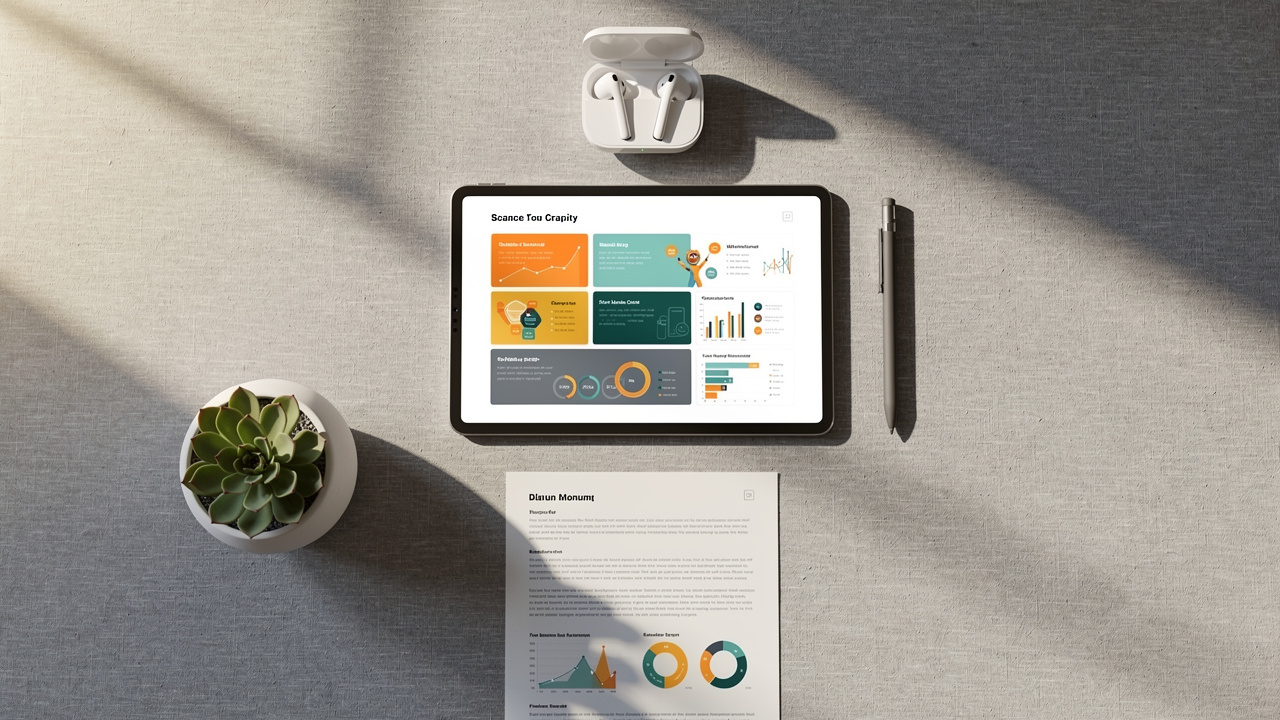
Locking in a simple PDF to PPT routine saves hours across a semester or project. iLovePDFKit can sit at the center of that routine, with Adobe Acrobat, PowerPoint, and Google Slides as helpful extras when needed. A typical flow is: save the PDF, convert it with iLovePDFKit, tweak the slides, then reuse that deck for future classes, meetings, or pitches.
Conclusion
Turning PDFs into PowerPoint slides no longer has to be slow or expensive. With iLovePDFKit, anyone can upload a file, convert it within seconds, and download a clean PPTX without watermarks or sign‑ups. The same site also offers tools for PDF to Word, PDF to Excel, compressing files, and merging pages, so one bookmark can cover most document tasks.
By pairing a reliable converter with a quick review in Microsoft PowerPoint or Google Slides, students, professionals, and freelancers can reuse content instead of rebuilding it. Try converting your next report or article with iLovePDFKit and see how much time you gain back.
Frequently Asked Questions
Question: Will each page of my PDF become a separate slide in PowerPoint?
Yes, each PDF page usually becomes its own separate slide in the converted PowerPoint file. A 10‑page PDF will produce a 10‑slide deck, with text boxes, images, and layout rebuilt as editable objects on each slide.
Question: Can I convert a PDF to PPT for free without creating an account?
Yes, iLovePDFKit lets you convert PDF to PowerPoint completely free, with no account or email required. You upload the file, wait a few seconds, then download a clean PPTX with no watermark and no hidden paywall.
Question: How do I convert a PDF to PowerPoint on a Mac or iPhone?
You can open Safari or another browser on macOS or iOS, visit the iLovePDFKit PDF to PowerPoint tool, and upload your file. The conversion runs online, then you download the PPTX and open it in Microsoft PowerPoint for Mac, Keynote, or Google Slides.
Question: What is the difference between PPT and PPTX formats?
PPT is the older binary PowerPoint format, while PPTX is the newer XML‑based format used by PowerPoint 2007 and later. iLovePDFKit exports PPTX files so they open smoothly in modern Microsoft PowerPoint, Google Slides, and LibreOffice Impress.
Question: Can I edit the converted file in Google Slides?
Yes, you can upload the PPTX file to Google Drive and open it in Google Slides. Most fonts, images, and layouts carry over well from iLovePDFKit conversions, though you may want a few quick tweaks to spacing or font sizes.
Question: What happens if my PDF has scanned pages or images?
If your PDF is a scan, each page is stored as an image and the converter needs OCR to guess the text. Results are still usable, but text accuracy and formatting may not be perfect. For the cleanest slides, start with a digitally created, text‑based PDF whenever possible.
Tip: Keep a copy of the original PDF alongside the converted PPTX so you can double‑check any numbers, charts, or citations.
