Sending a PDF with grades, payroll data, or client details without protection puts private information at real risk. One wrong email or shared folder can reveal far more than you planned. To encrypt a PDF with a password quickly, open a trusted online protection tool in your browser, upload the file, set a strong password twice, click Protect, then download the locked copy. If you have wondered how to encrypt a pdf document without installing software, that simple flow solves it in under a minute.
PDF encryption changes the content of your file into unreadable code that only someone with the correct password can read again. In this guide, you will see what password protection and encryption mean, how AES-256 encryption keeps data safe, and the exact steps for locking a PDF in your browser. A free tool like iLovePDFKit lets you do all of this in any modern browser, with no signup and automatic deletion right after processing. You will also learn how to create strong passwords, share them safely, and remove protection when a file no longer needs it, so your documents stay secure from start to finish.
Key Takeaways
If you only have a minute, these quick points cover the main ideas.
Password protection locks entry. Encryption scrambles content. Together they keep data private.
AES-256 is a strong standard. Attackers cannot realistically guess the key with current hardware.
Free browser tools exist. The right platform works in seconds, with no install or signup.
One password covers opening. Another controls editing and printing rights. Use both when needed.
Long, random passwords help. Share them via safe channels. Never send them in the same message as the file.
Table of Contents
- What Does It Mean To Encrypt A PDF Document?
- How To Encrypt A PDF Document Quickly Online
- How Do I Create A Strong Password For My PDF?
- How Do I Open Or Edit A Password-Protected PDF?
- The Bottom Line
- Frequently Asked Questions
What Does It Mean To Encrypt A PDF Document?
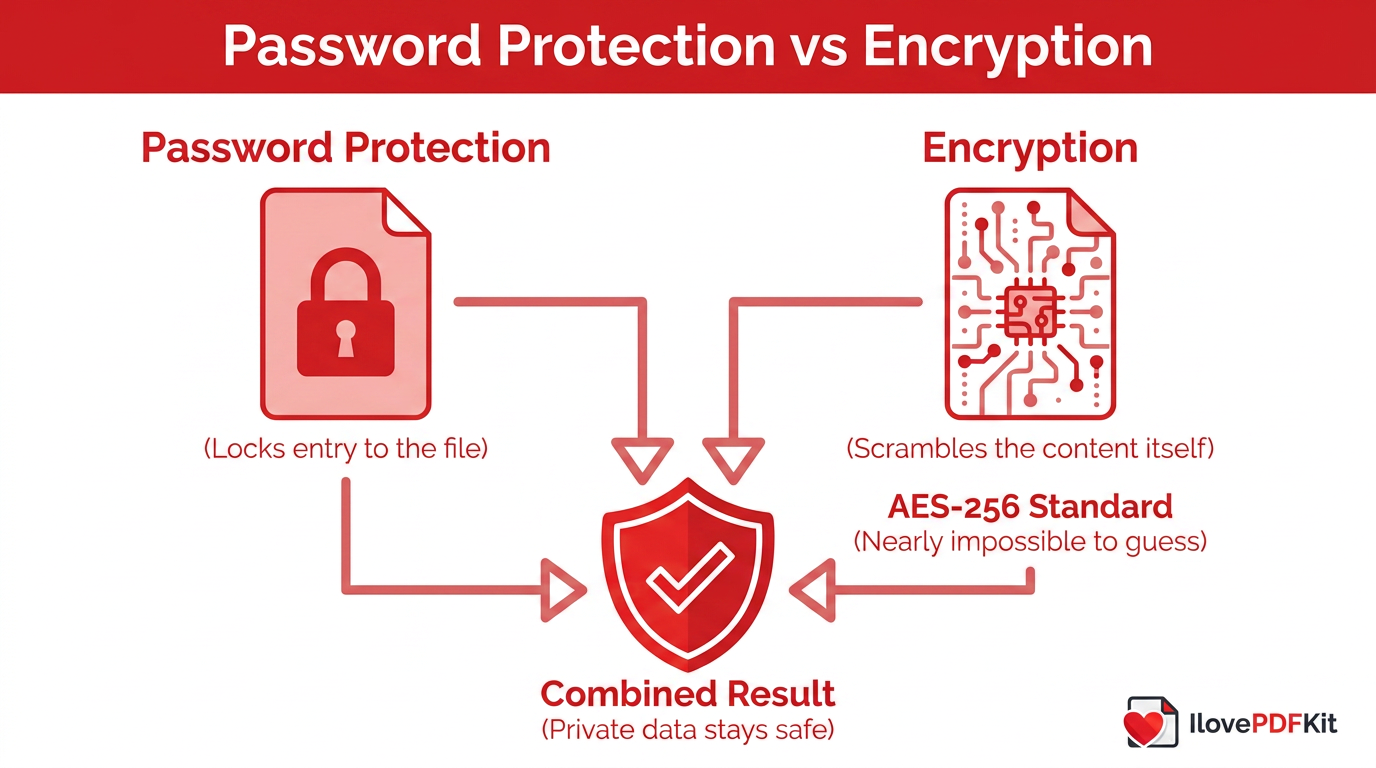
Encrypting a PDF document means turning its content into coded text that software cannot read without a key, and researchers have also examined steganographic techniques for hiding data in PDF files as an alternative way to conceal information within a document’s structure. Password protection alone just adds a lock at the front, while encryption changes the information stored behind that lock. When you combine both, the PDF viewer first asks for the password, then uses it to restore the scrambled data.
Most modern PDF tools, including Adobe Acrobat, use the Advanced Encryption Standard (AES). AES-256 uses a 256-bit key, which gives so many possible combinations that current computers cannot realistically guess it. Even if someone grabs your file from email, Google Drive, or Dropbox, all they see without the password is unreadable cipher text.
Why Encrypting Matters For Students, Professionals, And Freelancers
Different people rely on encrypted PDFs for different reasons:
HR staff: Protect payroll reports, tax forms, and health benefits records from curious coworkers or misdirected email.
Freelancers and agencies: Secure quotes, invoices, and client briefs so nobody can change prices or reuse creative work without consent.
Students and researchers: Keep draft papers, survey data, and exam files private, while still sharing them safely with professors or co-authors.
If any of your PDFs include addresses, financial records, grades, or health details, encryption is one of the simplest ways to reduce the risk of accidental exposure.
How To Encrypt A PDF Document Quickly Online
The quickest way to handle how to encrypt a pdf document with a password is to use a browser tool that does the heavy lifting on secure servers. You open the page, upload the file, set a password once, confirm it, then download an encrypted copy that is ready to send.
iLovePDFKit does exactly this free, with AES-256 encryption, SSL protection during transfer, and automatic file deletion right after processing. You do not install software, create an account, or worry that your research or client data will stay stored on someone else’s machine. If you need to know how to password protect a PDF from Windows, macOS, or a phone, the same web page covers them all.
Step-By-Step: Adding A Password To Your PDF
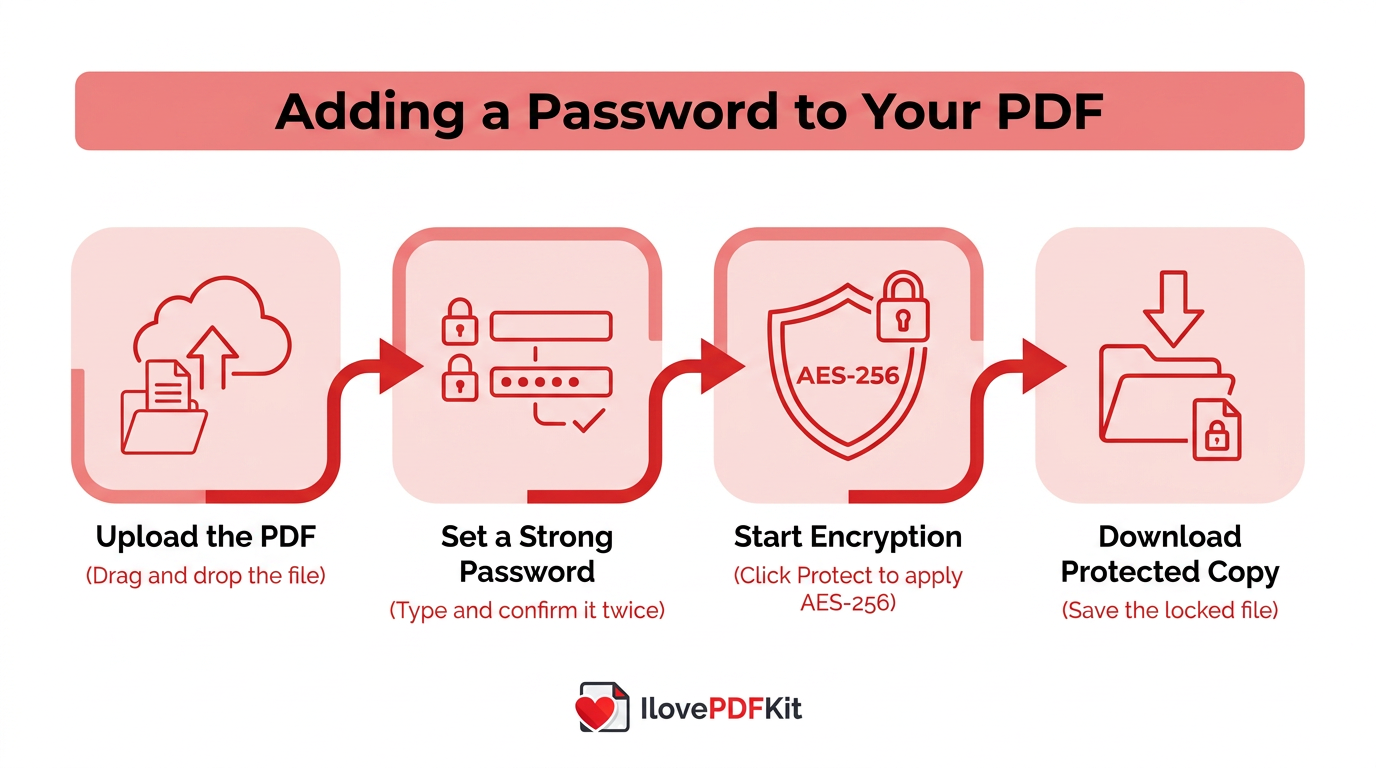
These quick steps work the same on Windows, macOS, Android, and iOS. Open your favorite browser first, then follow along. Keep your chosen password nearby so you do not forget it after you encrypt the file.
Open the Protect PDF page on the tool’s website. Click the upload button or drag your PDF into the window. Cloud icons let you choose files from Google Drive or Dropbox if they are already in the cloud.
Set a strong password. When the file finishes uploading, a password box appears. Type a long password, then repeat it in the confirmation field. Use letters, numbers, and symbols so the strength meter shows a strong rating.
Start encryption. Press the Protect button to begin. The tool ties your password to AES-256 encryption and scrambles all content inside the PDF. This step usually takes only a few seconds, even for long reports.
Download the protected copy. Once the tool finishes, download the new encrypted file. Save it on your device or back into Google Drive or Dropbox. Keep this version and delete the unprotected original if you no longer need it.
These same steps work any time you want to add password protection to a PDF file or create a password-protected document from a Word or Excel export.
Document Open Password Vs. Permissions Password
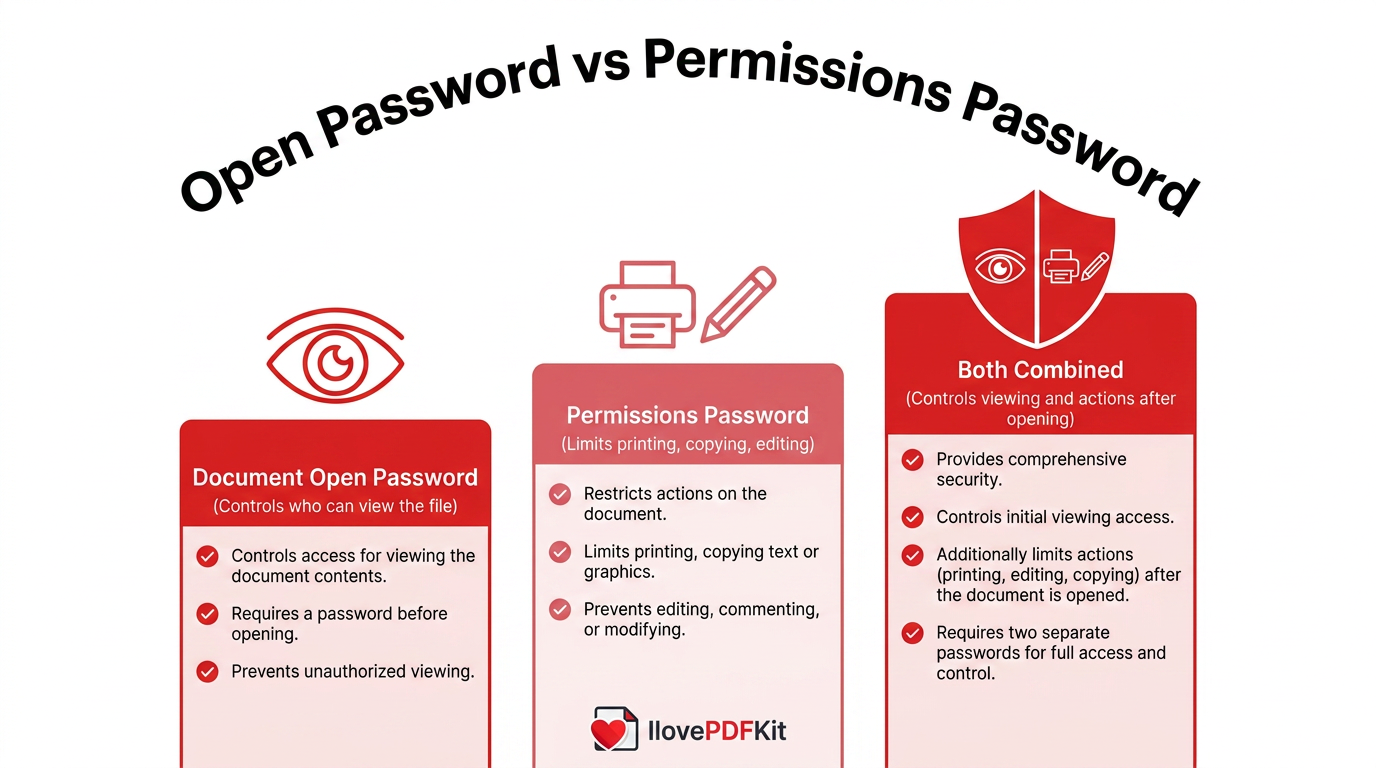
PDF security actually gives you two different password types for different needs. A document open password controls who can see the file at all, since the viewer asks for it before showing any page.
A permissions password keeps reading easy but limits printing, copying, or editing once the file is open. You can combine both passwords when a report is highly sensitive and must not be changed or shared freely. That way you protect access and also restrict what readers can do after they open the document.
A quick comparison helps clarify when to use each:
| Password Type | What It Controls | Good Use Cases |
|---|---|---|
| Document Open Password | Whether anyone can open and view the PDF | Pay slips, contracts, medical or school records |
| Permissions Password | Printing, copying text, or editing pages and content | Reports you can share widely but do not want modified |
| Both Combined | Viewing and what people can do after opening | Highly sensitive client, legal, or financial documents |
How Do I Create A Strong Password For My PDF?
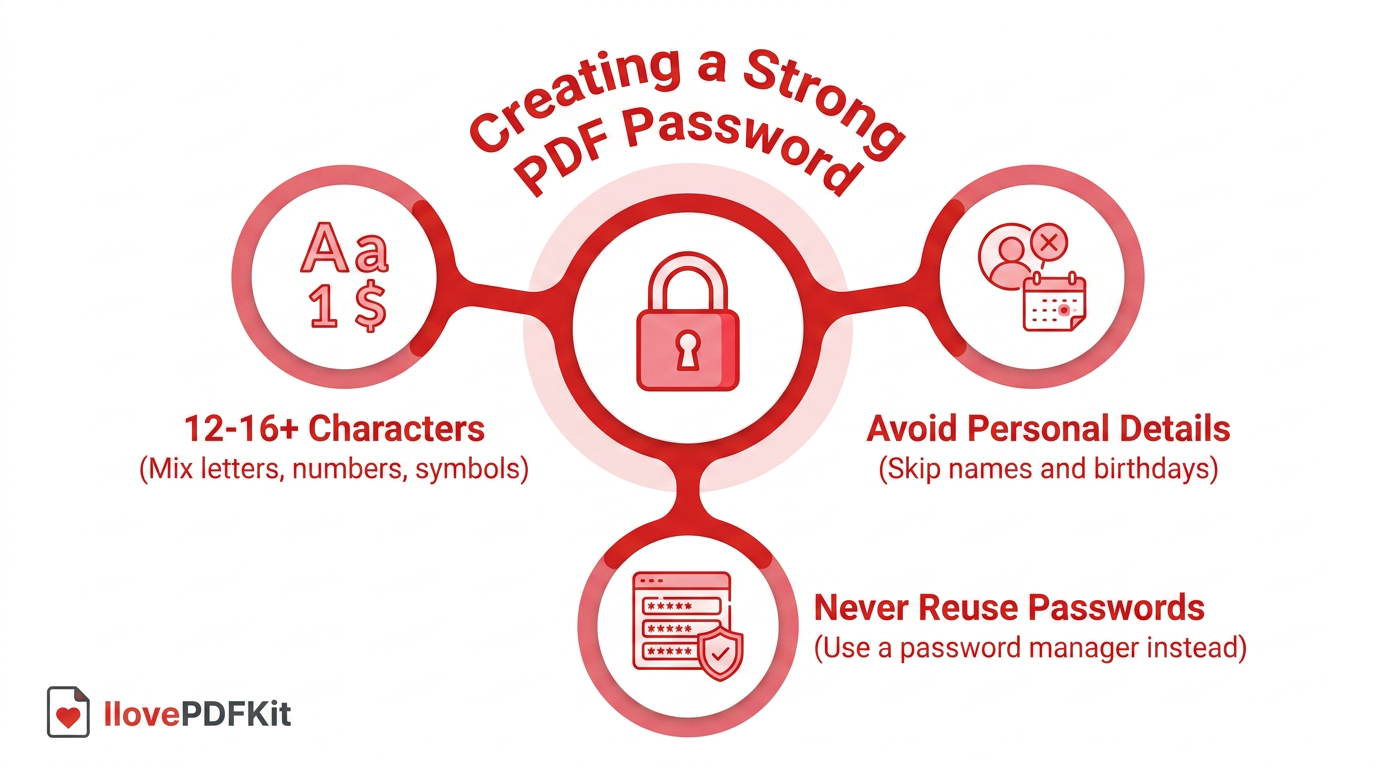
Strong PDF encryption only helps if the password itself resists guessing. A weak code like 123456 or your pet’s name makes even AES-256 much easier for automated tools to crack. The good news is that a few simple rules give you solid protection without needing to learn complicated math.
Follow these habits when you create a password for any protected PDF:
Make the password at least 12 to 16 characters long. Add upper and lower case letters plus numbers and symbols. Long mixed passwords take far longer for automated tools to guess, and many PDF tools show a strength meter that guides you.
Avoid personal details and simple patterns. Names, birthdays, addresses, or easy keyboard patterns are common guesses because they appear on social media and in leaked lists. Random words or phrases work far better.
Do not reuse passwords. Never reuse a password that you already use for email, banking, or social media. If one account gets hacked, every reused password falls with it. Use a password manager to store different codes safely.
Tip — Think in phrases instead of single words. A line like
Blue trains dance at 9pm!is much harder to crack thanTr@in123, and it is usually easier to remember.
These ideas apply whether you want to make a document password protected for one client or secure a whole folder of research PDFs.
Sharing Your Password Safely
Once you choose a password, sharing it the wrong way can cancel every other security step. Never place the password inside the same email, chat message, or shared folder as the protected PDF.
A safer approach is:
Send the file through one channel (for example, email or a shared drive).
Send the password through a different channel, such as text message, a quick phone call, or a secure messaging app like Signal or Microsoft Teams.
For ongoing work with the same people, agree on a shared passphrase in advance or use a team password manager.
Recommendation — Treat a PDF password like a house key: do not copy it everywhere, and avoid leaving it in plain sight where anyone can grab it.
How Do I Open Or Edit A Password-Protected PDF?
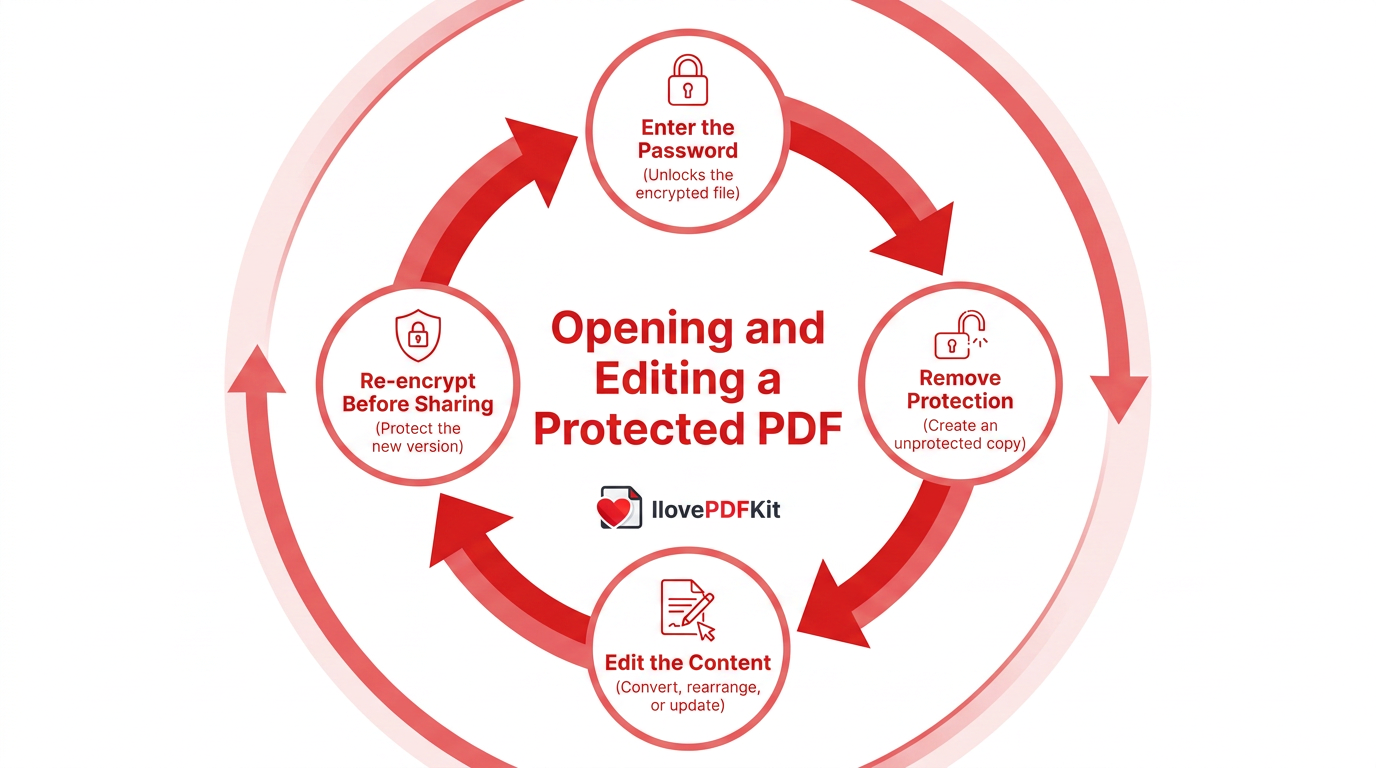
When a PDF is protected, any viewer such as Adobe Acrobat Reader, Google Chrome, or Microsoft Edge shows a password prompt instead of the pages. After you type the correct password, the app decrypts the content and you can read, search, or print according to its settings.
If you forget the password, there is no safe shortcut that opens the file, because the encryption relies on that secret. The only honest approach is to ask the file owner for the password or for a new protected copy. That is why storing your passwords in a manager such as 1Password or Bitwarden helps so much.
When you no longer need protection, you can remove it as long as you still know the password. Open the file, enter the code, then use an online password removal tool such as iLovePDFKit to create a clean, unprotected copy in your browser. Save that version for everyday use and keep the encrypted original only if you might need extra security later. If you have wondered how to un password protect a PDF that you created, this is the safe route.
How To Edit A Protected PDF
Editing a password-protected PDF always requires access to the unencrypted content. First open the file with the correct password, then remove protection using the same browser tool or a trusted desktop app. After that, you can:
Convert the PDF to Word, Excel, or PowerPoint to edit text and tables.
Use a PDF editor to rearrange pages, update images, or fix typos.
When you finish your changes, export a new PDF and encrypt it again before sharing so your updates stay protected.
The Bottom Line
Encrypting a PDF with a password does not need expensive software or a long setup process. With a modern browser and a trusted online tool, most people can secure a document in under a minute. The core steps are always the same, no matter your device.
Upload the file, choose a strong password, apply AES-256 encryption, and download the protected copy. Free services like iLovePDFKit keep this flow simple while keeping files on secure servers only for the few seconds needed to process them. Once you learn how to encrypt a pdf document this way, you can reuse the same steps for every contract, grade report, or research draft that carries private information.
Frequently Asked Questions
Question: How do I open a locked PDF file if I don’t have the password?
You cannot open a locked PDF without the correct password. The encryption is designed to block guessing or bypass tools. Your only safe option is to contact the person or team who created the file and request either the password or a new version you can access.
Question: How can I save a PDF as protected without losing formatting?
You can save a PDF as protected and keep formatting by using a high-quality encryption tool. Good services keep fonts, tables, and images exactly the same, since encryption only controls access. The content and layout stay untouched, so the protected PDF looks identical to the original file.
Question: Can I un-encrypt a PDF file permanently?
Yes, you can permanently remove encryption if you know the current password. Open the file, enter the password, and use a browser-based password removal tool to create an unprotected copy. This tool can clear protection in seconds so you can keep the new open version for future use.
Question: How do I view a protected PDF file on my phone or tablet?
You view a protected PDF on mobile the same way as on desktop. Open it in a reader app or browser, then enter the password when prompted. As long as the app supports standard PDF security, the encrypted file opens normally after the correct code is entered.
Question: Is it safe to encrypt a PDF using an online tool instead of desktop software?
Yes, it can be safe when you choose a reputable online tool. Strong services use SSL or TLS during upload and download so nobody can read files in transit. Platforms such as iLovePDFKit also follow a no-storage policy, processing documents in memory and deleting them automatically right after the task finishes. This keeps your sensitive files from sitting on remote servers.
