Large PDFs on iPhone refuse to send, clog storage, and slow every upload. Attachment limits and weak connections only make that pain sharper.
To reduce PDF size on iPhone without losing quality, open Safari, go to iLovePDFKit, upload your file, pick the Recommended or Low compression level, then download the new PDF. The fonts and text stay sharp while the images shrink in a smart way. This guide explains how to make a PDF smaller on iPhone with four clear methods, plus tips to avoid oversized files in the future.
Keep reading to see which method fits students, busy office staff, and freelancers who need fast, free compression on iPhone.
Key Takeaways
Key methods for shrinking PDFs on iPhone each balance speed, cost, and quality in different ways. Use this section as a cheat sheet while you try the steps.
iPhone native options work offline and help in a pinch. They are simple but not very strong for heavy compression.
Browser tools like iLovePDFKit feel fastest. They run on any iPhone, needing only Safari and an internet connection.
Low, Medium, and High compression levels fit different files. Match the level to whether the PDF is mostly text or mostly images. When unsure, Medium is a safe pick.
Privacy matters for school work and client files. iLovePDFKit uses SSL and deletes files after processing, which helps keep documents private.
Tip From The iLovePDFKit Team: “If you are in a hurry, start with Medium compression. For most school work and office PDFs, it cuts the size fast while keeping pages looking clean.”
Table of Contents
- Why Is Your PDF Too Large To Share On iPhone?
- How To Reduce PDF Size On iPhone With 4 Methods That Actually Work
- Which Compression Level Should You Choose?
- Pro Tips To Keep PDF Sizes Manageable On iPhone
- Wrapping Up With the Easiest Way To Compress A PDF On iPhone
- Frequently Asked Questions
Why Is Your PDF Too Large To Share On iPhone?
A PDF is often too large to share on iPhone because of heavy images, embedded fonts, and extra data inside the file. These elements grow quickly and push the document beyond the limits of email, chat apps, and phone storage. Knowing what inflates size makes it clear why compression helps so much.
Email services add more pressure. According to Google Support, Gmail caps attachments at 25 MB per email. WhatsApp Help Center notes that documents in chats can go up to 100 MB, but large uploads still fail often on weak mobile connections. A scanned thesis, a pitch deck, or a textbook chapter can cross these numbers with only a few photo pages.
Most of the bulk usually comes from three places:
High‑resolution images from your iPhone camera add many megabytes per page. Even a single 12‑megapixel photo from a recent iPhone can be several megabytes before it lands inside a PDF, and several of those together overload email limits very quickly.
Embedded fonts and graphics also grow file size. When a PDF carries full font files and detailed vector art, it travels with much more data than plain text, which slows uploads and downloads on cellular networks.
Hidden metadata and unused content play a role too. Editing history, thumbnails, and extra objects often sit inside exported PDFs, and this background load wastes storage on your iPhone with no visible benefit.
This is where a good compression tool matters. iLovePDFKit is designed to remove invisible clutter and resize images so the document stays readable while shrinking enough to share from the Mail app, Messages, Slack, or school portals.
How To Reduce PDF Size On iPhone With 4 Methods That Actually Work
You can reduce PDF size on iPhone with four reliable methods that protect quality. These methods cover iLovePDFKit in Safari, Apple’s built‑in tools, the Files app ZIP trick, and Adobe Acrobat Reader. Each method fits a different mix of cost, control, and speed.
If your main goal is to compress PDF on iPhone free without installing an app, iLovePDFKit is the best starting point. Apple’s own tools help when you are offline on newer iOS versions. The Files app ZIP feature helps send a one‑time file when the recipient accepts ZIP archives. Adobe Acrobat Reader suits heavy PDF users who already pay for an Adobe plan.
Method 1: Using iLovePDFKit Online PDF Compressor (No App Needed)
iLovePDFKit gives the simplest answer to how to compress a PDF on iPhone without noticeable quality loss. It runs in any browser, needs no account, and keeps pages looking crisp. This method works on every iPhone that can open Safari or Chrome.
According to Adobe, smart compression often cuts PDF size by 50 percent or more while keeping documents usable. iLovePDFKit follows the same idea but stays free for standard use, with no watermarks on the result. Here is how to make a PDF smaller on iPhone using it:
Open Safari or another browser on your iPhone. Type the iLovePDFKit address, then tap the Compress PDF tool on the homepage so you reach the compressor in one step.
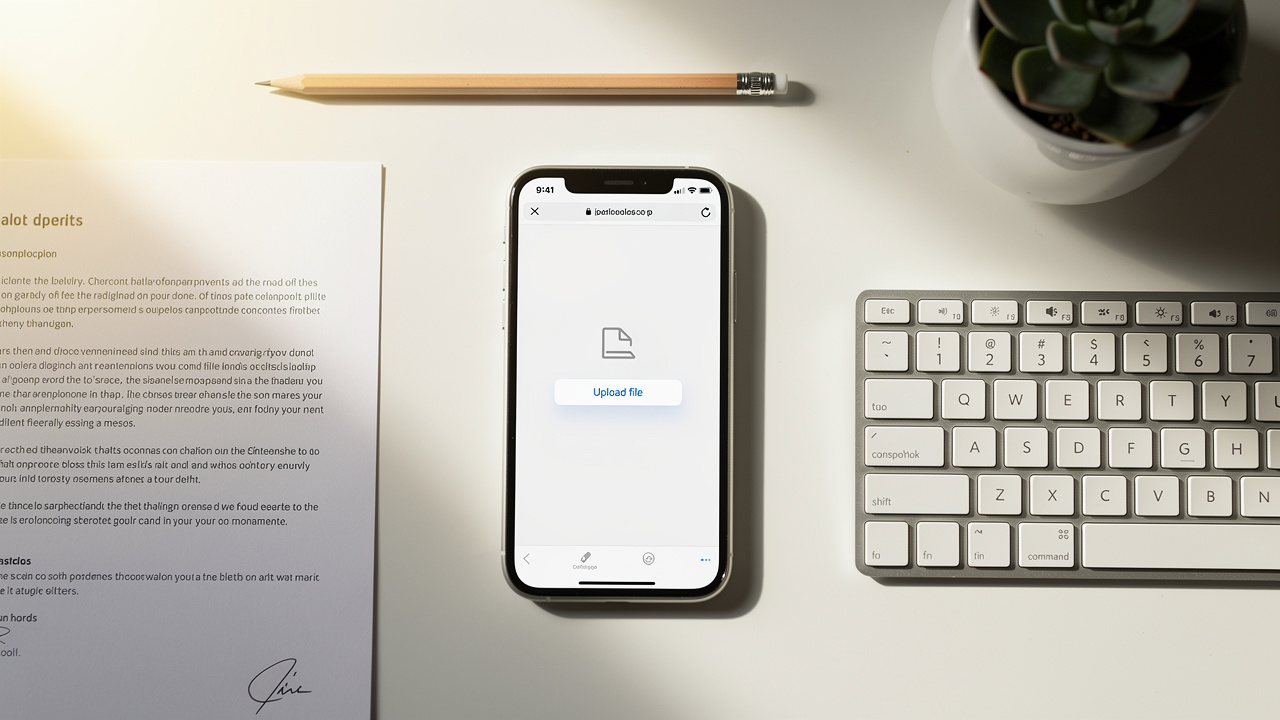
Tap the Select A File button. Pick your PDF from the Files app, iCloud Drive, Google Drive, or another connected service so you do not need to move the file first.
Choose a compression level on the screen. Low keeps images very sharp, Medium is the Recommended setting for most homework and reports, and High suits text‑heavy files such as contracts and essays.
Tap to start compression and wait a moment. The iLovePDFKit engine removes hidden metadata, subsets fonts, and resizes images carefully so text and vector graphics remain perfectly sharp.
Download the compressed file back to your iPhone. From the browser share sheet, send it by Mail, Messages, AirDrop, or save it back into the Files app with a clear new name.
iLovePDFKit does not add watermarks, does not require you to keep documents stored on its servers, and uses SSL encryption for the entire process. There are typically no strict daily limits or very low size ceilings for regular use, so even large research PDFs or client decks often pass through without payment prompts.
Method 2: Using Apple’s Built‑In PDF Tools (iOS 17 And Later)
Apple’s built‑in PDF tools offer another way to reduce the size of a PDF on iPhone if you run iOS 17 or later. This method works fully offline and uses only Apple software. It suits quick edits when you do not want to open a browser.
Here is a simple approach that re‑renders the PDF, which often trims some weight off the file:
Open the Files app on your iPhone and locate the PDF. You can also save an attachment from Mail and open it in Files.
Tap the file to open it, then tap the Share icon and choose Print. This shows a print preview of your PDF.
On the print preview, use a two‑finger pinch‑out gesture on one of the page thumbnails. The PDF opens in full‑screen preview as a new document.
Tap the Share icon again and choose Save To Files or another destination. This saved copy is often smaller because iOS flattens and compresses some of the content during the print process.
The Apple method for compressing a PDF on iPhone is free, private, and needs no internet. Its compression is basic though, so very large image‑heavy PDFs may still stay above strict upload limits.
Method 3: Compress Via iPhone Files App (ZIP Method)
The Files app does not truly compress PDF content, yet it helps reduce transfer size by wrapping the file inside a ZIP archive. This helps when you only need to get through a limit for a single send.
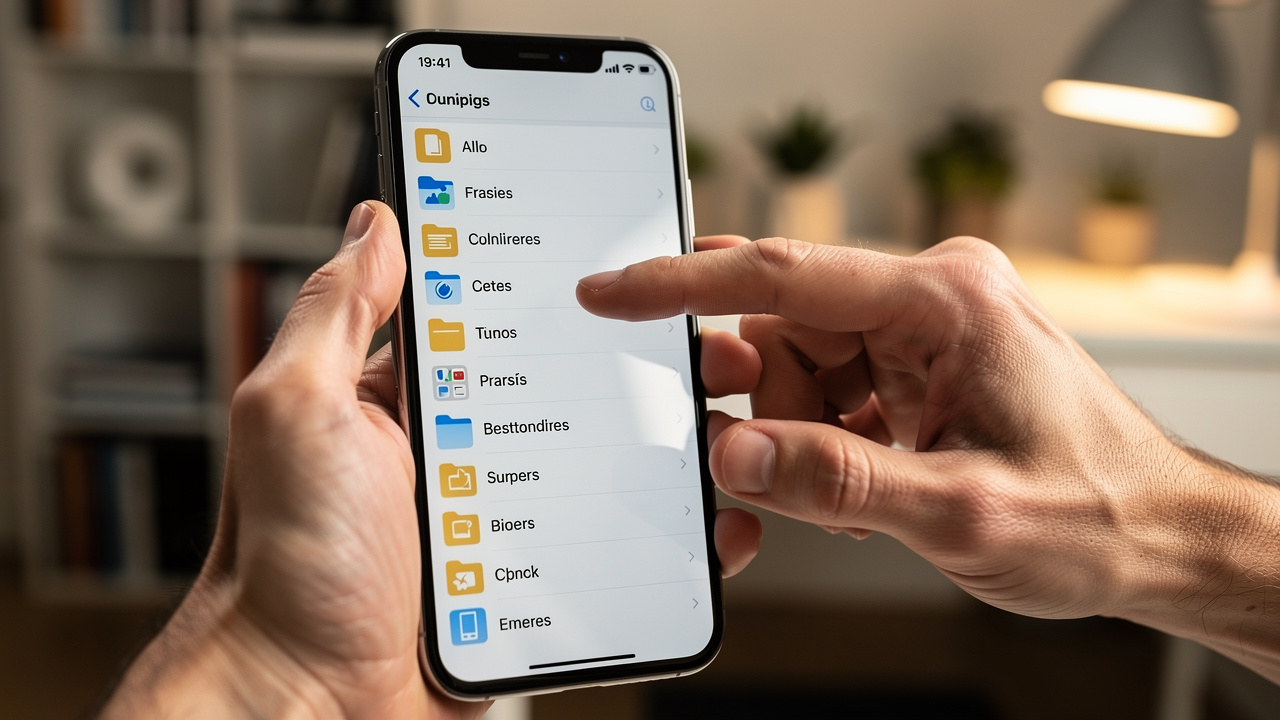
Open the Files app and go to the folder that holds your PDF. Long‑press the file icon until the context menu appears on screen.
Tap Compress in the menu and wait for a new ZIP file to appear. The ZIP often shaves a noticeable portion off the transfer size, especially for text‑heavy documents.
Share the ZIP file by Mail, Messages, or another app. Remind the recipient that they must extract the archive to view the PDF inside on their device.
When the other person expands the ZIP, the PDF returns to its original size. That means this ZIP trick does not reduce file size for storage or repeated sharing, so it does not answer how to reduce PDF file size on iPhone in a lasting way.
Method 4: Use Adobe Acrobat Reader For iOS (Subscription Required)
Adobe Acrobat Reader gives fine control for users who already pay for an Adobe subscription. It includes compression levels, page tools, and annotations, so it fits offices that spend a lot of time working with Acrobat.
Install Adobe Acrobat Reader from the App Store and sign in with your Adobe ID. Open the app and locate your PDF from local storage, iCloud Drive, Dropbox, or OneDrive.
Open the document, tap the three‑dot menu, and choose Compress PDF. Pick Low, Medium, or High compression based on whether your file is image‑heavy or mostly text.
Save the new version inside Acrobat, then share it using the built‑in Share menu. You can send it by email, export it to cloud storage, or keep it as your new default copy.
Compression inside Adobe Acrobat Reader on iOS needs a paid plan, and free users see prompts when they try this feature. For anyone who prefers to compress PDF on iOS for free with no subscription, iLovePDFKit in the browser is a better everyday choice.
Which Compression Level Should You Choose?
Choosing the right compression level on iPhone depends on how much text, photography, and graphics your PDF contains. The goal is a smaller file that still looks clean on screen and when printed. Matching each level to a common document type keeps quality where it matters.
According to Adobe, many PDFs can shrink by 40 to 60 percent with careful settings and still look almost identical. That is why tools such as iLovePDFKit offer a simple Low, Medium, High choice instead of forcing you to adjust technical numbers.
Here is a quick guide:
| Compression Level | Best For | Quality Impact |
|---|---|---|
| Low | Design portfolios, scanned IDs, photo‑rich slides | Detail stays sharp, only slight changes in large images |
| Medium | Business reports, homework, mixed text and graphics | Small softening in images, text remains perfectly clear |
| High | Contracts, resumes, essays, forms with simple logos | Images lose some detail, text readability stays strong |
When you use iLovePDFKit, the Recommended option maps to Medium and suits most school submissions and office reports. If a portal still rejects the file, run one more pass at High to shrink it further while keeping text readable.
Pro Tips To Keep PDF Sizes Manageable On iPhone

Keeping PDF sizes manageable on iPhone starts long before compression. Smart habits while scanning, exporting, and building documents prevent bloat and make every upload easier. These tips help students, administrators, and freelancers keep their storage under control.
Image resolution is a big lever, and Characterizing Photorealism and Artifacts in processed images confirms that resolution reduction, when done carefully, preserves perceived visual quality far better than most users expect. Studies referenced by Adobe show that 150 to 300 DPI is enough for on‑screen reading and normal office printing. Anything above that often just enlarges the file. So when you scan with the Notes app or another scanner, pick a standard quality setting rather than maximum.
Tip From The iLovePDFKit Support Team: “If you only remember one setting, make it resolution. Dropping from 600 DPI to 300 DPI can shrink scans dramatically with almost no visible change on a phone screen.”
Other simple habits help too:
Remove blank or unneeded pages before compression. iLovePDFKit offers a Page Removal Tool that lets you drop title pages, extra covers, or unused appendices, which cuts size without touching quality at all.
Export from apps with web‑friendly presets. In Apple Pages, Microsoft Word, or Keynote, choose options labeled for online sharing. These presets keep fonts readable while trimming excess data that only matters for high‑end print jobs.
Pick the right image format — research on AI-generated images of familiar faces and visual fidelity further illustrates how format and compression choices fundamentally shape how faithfully image detail is preserved in documents. Prefer JPEG instead of PNG for photos in your document. JPEG compresses photographic content very well, while PNG is better for flat graphics with transparency, so mixing them correctly keeps the PDF tight.
Use links when compression is not enough. When the file is still too large even after compression, upload it to iCloud Drive, Google Drive, or Dropbox and share a link. According to Dropbox Help Center, even a free Dropbox Basic plan includes 2 GB of space, which is plenty for many compressed PDFs.
Avoid scanning in color when grayscale is fine. Contracts, essays, and worksheets often look the same in black and white, but grayscale scans are usually much smaller.
These habits, combined with quick passes through iLovePDFKit, keep you away from last‑minute email errors and storage warnings.
Wrapping Up With the Easiest Way To Compress A PDF On iPhone
The easiest way to compress a PDF on iPhone without hurting quality is to use a smart browser tool on top of good creation habits. For most people, that means opening iLovePDFKit in Safari, choosing Medium compression, and sharing the new file right away. Native Apple tools and Adobe help in special cases but bring more limits or cost.
Conclusion
You now know how to reduce PDF size on iPhone using four clear methods that cover common situations. iLovePDFKit gives fast, free, no‑account compression in any browser, while Apple’s tools and the Files app help when you stay offline. Adobe Acrobat Reader fits offices already invested in its subscription. Combine these tools with better image settings and page cleanup, and your PDFs stay light, sharp, and ready to send from your iPhone.
Frequently Asked Questions
Question: Can I compress a PDF on iPhone without downloading an app?
Yes, you can compress a PDF on iPhone in Safari using iLovePDFKit. Open the site, upload your file, choose a compression level, and download the result. This method works on any iPhone model and any recent iOS version, with no installation or account needed.
Question: Does compressing a PDF reduce its quality?
Compressing a PDF does not always reduce visible quality. Tools such as iLovePDFKit first remove metadata and subset fonts, then resize images carefully. With Low or Medium compression, text stays razor sharp and images usually look the same for everyday reading and printing.
Question: Is it safe to upload confidential documents to an online PDF compressor?
Yes, if the tool treats security seriously. iLovePDFKit uses SSL encryption for every upload and deletes files from its servers after processing. You do not create an account or share personal details, which keeps the process limited to the document itself.
Question: Why is my PDF still large after compression?
A PDF can stay large after compression when it is mostly made from high‑resolution scans. In that case, try a higher compression level or use the Page Removal Tool in iLovePDFKit to delete extra pages. Then compress again to get closer to your target size.
Question: Does iLovePDFKit have a file size limit for compression?
For typical personal use, iLovePDFKit does not impose very tight limits on file size or daily tasks. You can reduce the size of a PDF on iPhone even when it has many pages or large images. Competing tools often lock big files behind paid plans, but iLovePDFKit keeps compression accessible for free.
