Introduction
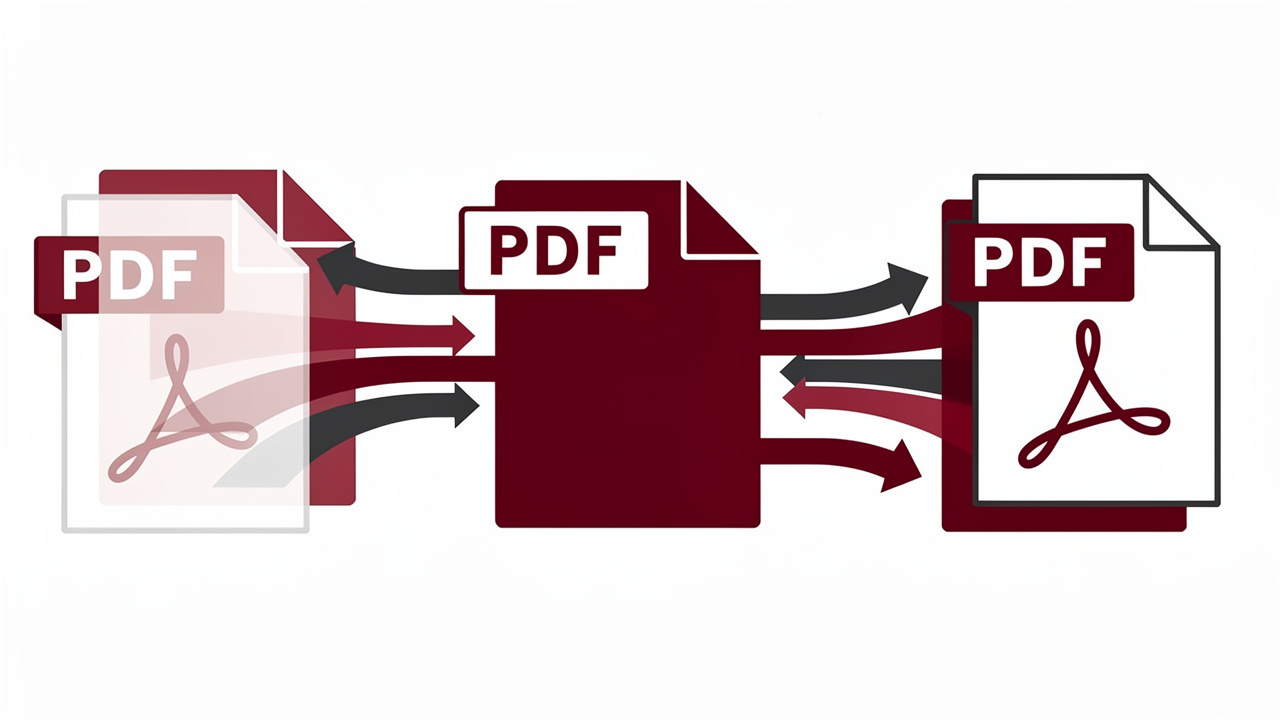
A folder full of disconnected PDFs can feel like a desk covered in loose papers. One file holds the cover page, another has the main report, a third has charts, and a few more hide in email threads. Anyone who has ever wondered how to merge PDF files into one clean document knows how frustrating this can be.
Students deal with separate assignment parts from group members. Office staff send five attachments when a manager really wants one polished file. Freelancers pull together contracts, briefs, and invoices for a client and then spend extra time checking that nothing is missing. In all of these cases, learning how to merge PDF files into a single document makes life much easier.
The good news is that this does not require paid software or a long sign-up form. With iLovePDFKit, everything runs in the browser, completely free, with no account and no watermark on the final file. This guide walks through how to merge PDF files step by step, shows smart ways to organize them, explains how to combine other formats like Word and JPG, and answers the most common security questions so every file feels safe.
“Simplicity is the ultimate sophistication.” — Leonardo da Vinci
Bringing scattered pages together into one clear PDF is a small example of that idea in action.
Key Takeaways
Before diving into the details, here is a quick snapshot of what matters most.
Fast, Free PDF Merging: Merging PDF files can be done for free in under a minute with a simple browser tool. iLovePDFKit keeps the process short and direct from upload to download. No extra software or setup is needed to get a clean combined file.
No Accounts Or Watermarks: iLovePDFKit works without registration, email, or credit card, and it never adds watermarks on top of pages. The merged document looks just like the originals joined together, which makes the tool ready for graded work, client reports, and formal documents.
Secure, Flexible Workflow: Files move over an encrypted connection and are processed in real time, then removed from servers once the merge finishes. You control the order with an easy drag-and-drop view and can convert Word, Excel, PowerPoint, JPG, and PNG to PDF first, then merge everything in one go.
How To Merge PDF Files For Free Using iLovePDFKit
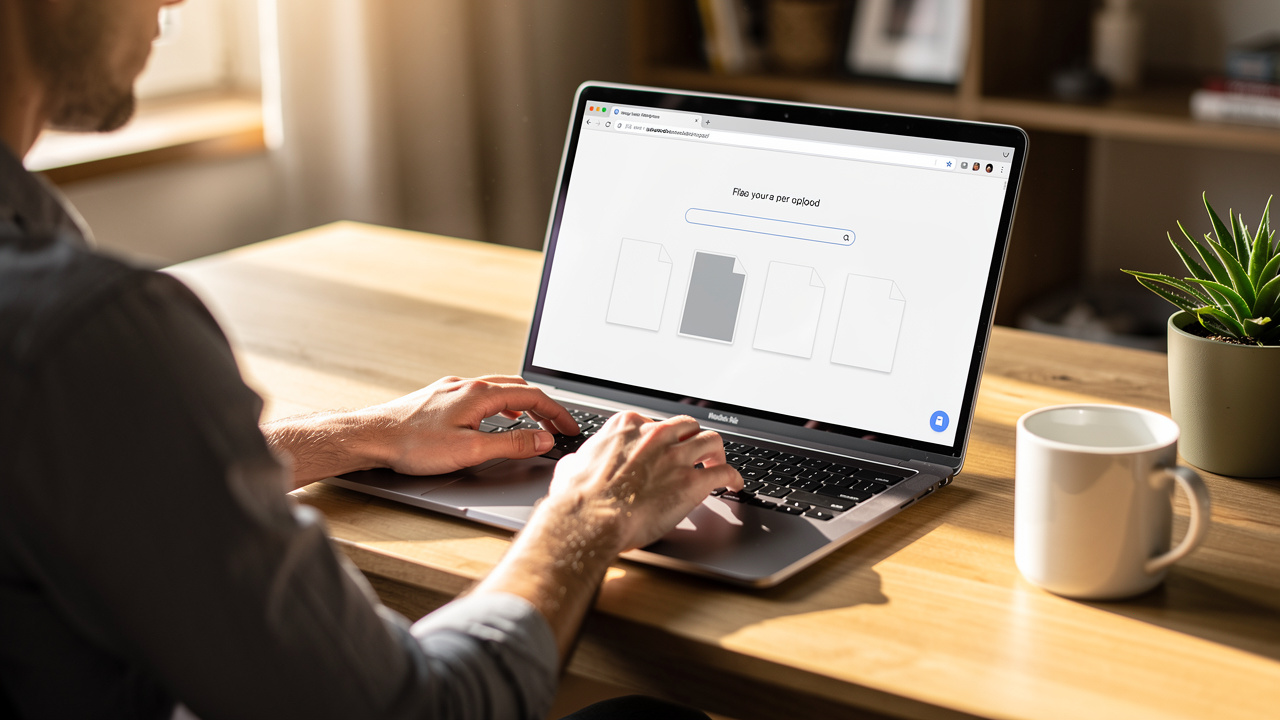
When someone searches for how to merge PDF files, they usually want one thing: clear steps that actually work. iLovePDFKit is built for that kind of task. It runs fully in the browser, so there is nothing to download, and every merge is free with no watermark and no sign-up.
The tool works smoothly on Chrome, Firefox, Safari, and Edge, whether you use Windows, macOS, Linux, or a phone. Even an older laptop or budget smartphone can handle large PDFs because iLovePDFKit does the heavy lifting on its servers. While it works, the original formatting stays intact, so text, tables, and images look the same after the merge.
Here is how to merge PDF files with iLovePDFKit step by step:
Open The Merge Tool
Open a modern browser and go to the iLovePDFKit PDF Merge page. The main section of the page shows a clear upload area that invites you to add files. You do not need to log in or create an account before starting the merge.Upload Your PDFs
Click the button that lets you select files from your device, or drag and drop your PDFs onto the upload area. You can pick several documents at once, which is helpful when working with long reports or bundles of scanned pages. This is the key starting point for anyone learning how to merge PDF files quickly.Arrange The Page Order
After upload, iLovePDFKit shows each file as a thumbnail so you can see the order. Drag a file to a new spot to move it earlier or later in the combined document. The first thumbnail becomes the opening pages of the final PDF, so this step shapes the structure of your merged file.Start The Merge
Once the order looks right, start the merge with a single click on the main action button. The service processes your PDFs within seconds, even if they contain many pages or images. During this phase, iLovePDFKit keeps the original fonts, margins, and layouts with pixel-level accuracy.Download Your Combined PDF
When the merge is complete, download the new combined PDF directly to your device. There are no watermarks and no limits from trial versions, so the file is ready to submit, print, or share with a client.
Before clicking merge, take a moment to double-check the order of your thumbnails. That small habit keeps cover pages, tables of contents, and chapters in the right place and makes learning how to merge PDF files feel smooth from the very first try.
Why Merge PDF Files? Key Benefits And Real-World Use Cases
Knowing how to merge PDF files is helpful, but understanding why it matters turns it into a regular habit. One neatly combined PDF file is easier to handle than a handful of separate attachments or a random set of downloads hiding in different folders.
First, merged files simplify storage and review — tools like Claude Cowork can turn 20 separate PDF files into a single research report, illustrating just how transformative this consolidation can be. Instead of hunting through four or five different documents to follow one project, everything lives in a single PDF. That master file is easier to rename, archive, and search, which helps both students tracking sources and teams managing project history.
Second, a single merged PDF looks more professional when shared. Instead of sending a messy email with many attachments, one clean file arrives in the right order. The reader can scroll from start to finish without jumping between windows or wondering if a page is missing.
Third, merged PDFs reduce confusion during collaboration. When everyone works from one document, comments and notes refer to the same page numbers. That is much smoother than juggling different versions of the same material.
“The ability to simplify means to eliminate the unnecessary so that the necessary may speak.” — Hans Hofmann
Merging related documents into one PDF follows that same idea: less clutter, clearer information.
Here are common situations where how to merge PDF files pays off:
| Who Uses It | How Merged PDFs Help |
|---|---|
| Students and academics | Combine cover sheet, main paper, figures, and references into one polished submission. |
| Office professionals | Gather weekly updates, charts, and summaries into a single briefing file for managers. |
| Freelancers and small businesses | Attach proposals, contracts, and invoices in one organized client packet. |
| People handling taxes | Group forms, receipts, and statements into one document for filing or sharing. |
| Anyone scanning paper | Turn separate scanned pages into a clear multi-page archive for records. |
No matter the role, once someone learns how to merge PDF files with a quick tool like iLovePDFKit, chores like reporting, submitting work, and storing records feel faster and far less stressful.
How To Merge Different File Types Into One PDF

In real life, not every document already sits in PDF form — and as research tools like A Software Feature for mixed methods analysis demonstrate, combining documents from multiple sources into one unified file is a recognized productivity need across academic and professional contexts. A research project might mix Word essays, Excel tables, PowerPoint slides, and a few JPG screenshots. When that happens, knowing how to merge PDF files is only half of the process. The other half is turning everything into PDFs first.
iLovePDFKit solves this with a simple two-step approach that stays completely free:
Convert Each File To PDF
Use the right converter for each format:Word to PDF for text documents
Excel to PDF for spreadsheets
PowerPoint to PDF for slide decks
JPG to PDF or PNG to PDF for images
Each converter runs in the browser and keeps fonts, colors, and layouts accurate.
Merge The New PDFs
Once every source file is saved as a PDF, open the PDF Merge page on iLovePDFKit, upload all the converted PDFs, and arrange them in the order you want. Place the report first, the charts next, and any scanned signatures at the end, then merge everything into one final document.
This two-step workflow works well for students building research packs — where Processing 50+ PDFs Simultaneously is a real scenario — professionals preparing client reports, and small business owners sending offer decks with supporting data. It keeps control over layout while showing clearly how to merge PDF files from many starting formats into a single, consistent PDF that is easy to share and archive.
Security And Privacy When Merging PDFs Online
Any time someone learns how to merge PDF files with an online tool, the next thought is often about safety. Many documents contain grades, contracts, payment details, or personal data, so trust matters as much as speed.
iLovePDFKit is designed with privacy in mind. Files move between the browser and the service over an encrypted connection, which protects content while it travels across the network. During processing, the system works on each merge in real time instead of storing large archives of user documents.
“Privacy is not an option, and it shouldn’t be the price we accept for just getting on the Internet.” — Gary Kovacs
As soon as the merged PDF is ready and downloaded, iLovePDFKit clears the originals and the combined file from its servers. There is no hidden storage that keeps old uploads around for long periods. Because the merge tool does not require an account, there is also no profile full of personal details tied to every action.
Some free tools keep files for hours or ask people to log in just to remove them. iLovePDFKit avoids that pattern and keeps the merge flow anonymous for regular use. This design makes it a strong fit for learners, office staff, and freelancers who want to know how to merge PDF files online without creating new logins everywhere.
One more smart habit is to avoid uploading very sensitive information over public or shared Wi‑Fi connections. Even with a secure service, saving those tasks for trusted networks adds another layer of protection on top of what iLovePDFKit already provides.
Conclusion
Once someone learns how to merge PDF files, many small tasks become faster. Instead of chasing scattered attachments or juggling versions, one clean document carries everything needed for a class, meeting, or client handoff.
iLovePDFKit makes this process easy. The merge tool runs in any modern browser, needs no account, stays free, and never stamps watermarks on top of hard work. Formatting stays accurate, files are processed quickly, and they are removed from servers after the job is done.
Beyond merging, iLovePDFKit also handles splitting long PDFs, compressing large files, converting between formats, adding passwords, and more, all with the same simple approach. Ready to combine your files now? Open iLovePDFKit’s free PDF Merge tool and put everything into one polished PDF in just a few seconds.
FAQs
Question 1: Is It Really Free To Merge PDF Files With iLovePDFKit?
Yes, merging PDF files with iLovePDFKit is completely free. There are no hidden fees, limits from short trials, or surprise charges after a few uses. You do not need to create an account, share an email address, or enter a card number. The finished merged PDF contains no watermark, so it is ready for school, work, or client use.
Question 2: Will Merging PDFs Change The Formatting Or Layout Of My Documents?
No, merging with iLovePDFKit does not change how your pages look. The service keeps fonts, images, spacing, and layout exactly as they appear in the original PDFs. When you learn how to merge PDF files with this tool, you are simply placing full documents one after another. The content is not edited or rebuilt during the merge.
Question 3: Can I Merge Password-Protected PDF Files?
Yes, password-protected PDFs can be included when you merge files with iLovePDFKit. When you upload a protected document, the tool asks for its password so it can open the content. If the correct password is entered, that file becomes part of the combined PDF. If the password is unknown or typed incorrectly, that file is skipped for safety.
Question 4: How Many PDF Files Can I Merge At Once?
iLovePDFKit supports merging several PDFs in a single session so larger projects stay manageable. Exact limits can change as the tool grows, so it is best to check the current details on the merge page. If a project has an especially high number of files, you can always merge them in two rounds and then combine those results into one final PDF.
